Introduction
Everything you need to get started with the Wiro AI platform.
What is Wiro?
Wiro is an AI model marketplace and API platform that lets you run AI models through a single, unified API. Instead of managing infrastructure for each model provider, you make one API call to Wiro and we handle the rest.
- Unified API — one interface for all models (image generation, LLMs, audio, video, and more)
- Pay-per-use pricing — only pay for what you consume, no upfront commitments
- Real-time WebSocket updates — stream task progress and outputs live
- 9 SDK languages — curl, Python, Node.js, PHP, C#, Swift, Dart, Kotlin, Go
Base URL
All API requests are made to:
https://api.wiro.ai/v1WebSocket connections use:
wss://socket.wiro.ai/v1Quick Start
- Sign up Create an account at wiro.ai
- Create a project Go to the Dashboard to get your API key
- Pick a model Browse the marketplace and choose a model
- Make your first API call See Code Examples for full end-to-end samples
Response Format
Every API response returns JSON with a consistent structure:
{
  "result": true,
  "errors": [],
  "data": { ... }
}
When result is false, the errors
array contains human-readable messages describing what went wrong.
Rate Limits & Error Handling
API requests are rate-limited per project. If you exceed the limit, the API returns a 429 Too Many Requests status. Implement exponential backoff in your retry logic.
Common HTTP status codes:
200— Success400— Bad request (check parameters)401— Unauthorized (invalid or missing API key)403— Forbidden (signature mismatch or insufficient permissions)429— Rate limit exceeded500— Internal server error
Authentication
Secure your API requests with signature-based or simple key authentication.
Overview
Wiro supports two authentication methods. You choose the method when creating a project and can switch it later in the project's settings on the Projects page. Your API key and secret stay the same, and the change applies right away, so your requests must then use the new method.
Signature-Based Authentication
Uses HMAC-SHA256 to sign every request. The API secret never leaves your environment, making this method ideal for client-side applications where the key might be exposed.
How it works
- Generate a nonce Use a unix timestamp or random integer
-
Concatenate Combine:
API_SECRET + NONCE -
Create HMAC-SHA256 hash Use your
API_KEYas the secret key - Send as headers Include the signature, nonce, and API key in request headers
SIGNATURE = HMAC-SHA256(key=API_KEY, message=API_SECRET + NONCE)Required Headers
| Parameter | Type | Required | Description |
|---|---|---|---|
x-api-key |
string | Yes | Your project API key |
x-signature |
string | Yes | HMAC-SHA256(API_SECRET + NONCE, API_KEY) |
x-nonce |
string | Yes | Unix timestamp or random integer |
API Key Only Authentication
For server-side applications where you control the environment, you can use the simpler API-key-only method. Just include the x-api-key header — no signature required.
Required Headers
| Parameter | Type | Required | Description |
|---|---|---|---|
x-api-key |
string | Yes | Your project API key |
Comparison
| Feature | Signature-Based | API Key Only |
|---|---|---|
| Security | High — secret never sent over the wire | Moderate — key sent in every request |
| Complexity | Requires HMAC computation | Single header |
| Best for | Client-side apps, mobile, public repos | Server-side, internal tools |
| Replay protection | Yes (via nonce) | No |
How to Choose
- Building a client-side or mobile app? Use Signature-Based.
- Running a server-side backend with controlled access? API Key Only is simpler.
- Unsure? Default to Signature-Based — it's always the safer option.
Projects
Organize your API access, billing, and usage with projects.
What is a Project?
A project is a container that holds your API keys, billing settings, and usage tracking. Each project gets its own API key and secret, letting you separate environments (development, staging, production) or different applications.
- Each project has its own API key and (optionally) API secret
- Usage and billing are tracked per project
- You can create multiple projects under one account
Creating a Project
- Go to the Dashboard Navigate to wiro.ai/panel
- Open Projects Go to Projects and click New Project
- Name your project Enter a descriptive project name
- Select authentication method Signature-Based — generates API key + secret | API Key Only — generates only an API key
- Create Click Create and copy your credentials immediately
API Credentials
After creating a project, your API key (and secret, if signature-based) are displayed once. Copy and store them securely — you won't be able to view the secret again.
Important: Treat your API secret like a password. Never commit it to version control or expose it in client-side code without signature-based authentication.
Managing Projects
From the Projects page in your Dashboard, you can:
- Update name — rename your project at any time
- Change authentication method — switch between Signature-Based and API Key Only; your API key and secret stay the same
- View usage — see API calls, costs, and task history
- Delete project — permanently removes the project and revokes all keys
Regenerating keys immediately invalidates the old ones. Update your application with the new credentials before the old ones stop working.
Models
Browse and discover AI models available on the Wiro platform.
POST /Tool/List
Returns a paginated list of available models. Filter by categories, search by name, and sort results.
Request Parameters
| Parameter | Type | Required | Description |
|---|---|---|---|
start |
string | No | Offset for pagination (default: "0") |
limit |
string | No | Number of results to return (default: "20") |
search |
string | No | Search query to filter models by name |
sort |
string | No | Sort field: id, relevance |
order |
string | No | Sort direction: ASC or DESC |
categories |
string[] | No | Filter by categories (e.g. image-generation, llm, audio, video) |
tags |
string[] | No | Filter by tags |
slugowner |
string | No | Filter by model owner slug |
hideworkflows |
boolean | No | Hide workflow models from results (recommended: true) |
summary |
boolean | No | Return summarized model data (recommended for listings) |
Response
{
  "result": true,
  "errors": [],
  "total": 2,
  "tool": [
    {
      "id": "1611",
      "title": "Virtual Try-on",
      "slugowner": "wiro",
      "slugproject": "Virtual Try-On",
      "cleanslugowner": "wiro",
      "cleanslugproject": "virtual-try-on",
      "description": "Integrate the Wiro Virtual Try-On API...",
      "image": "https://cdn.wiro.ai/uploads/models/...",
      "computingtime": "10 seconds",
      "categories": ["tool", "image-to-image", "image-editing"],
      "tags": [],
      "marketplace": 1,
      "onlymembers": "1",
      "averagepoint": "5.00",
      "commentcount": "1",
      "dynamicprice": "[{\"inputs\":{},\"price\":0.09,\"priceMethod\":\"cpr\"}]",
      "taskstat": {
        "runcount": 672,
        "successcount": "254",
        "errorcount": "198",
        "lastruntime": "1774007585"
      }
    }
  ]
}
POST /Tool/Detail
Returns full details for a specific model, including its input parameters, pricing, categories, and configuration.
Request Parameters
| Parameter | Type | Required | Description |
|---|---|---|---|
slugowner |
string | Yes | Model owner slug (e.g. google) |
slugproject |
string | Yes | Model project slug (e.g. nano-banana) |
summary |
boolean | No | Return summarized data |
Response
{
  "result": true,
  "errors": [],
  "tool": [{
    "id": "1562",
    "title": "Nano Banana API: Create Mobile & Web Apps with Nano Banana",
    "slugowner": "google",
    "slugproject": "nano-banana",
    "cleanslugowner": "google",
    "cleanslugproject": "nano-banana",
    "description": "Google's Gemini 2.5 Flash Image Preview, also known as Nano Banana, model for text-to-image and image-to-image generation.",
    "image": "https://cdn.wiro.ai/uploads/models/google-nano-banana-cover.webp",
    "computingtime": "10 seconds",
    "readme": "Google's Gemini 2.5 Flash Image Preview model for text-to-image and image-to-image generation.",
    "categories": ["tool", "partner", "google", "image-to-image", "compare-landscape", "use-agent", "quick-showcase", "text-to-image", "price-list", "fast-inference", "image-editing", "nogpu-pipeline"],
    "parameters": [
      {
        "title": "",
        "subtitle": "",
        "items": [
          { "id": "inputImage", "type": "combinefileinput", "required": false, "advanced": false },
          { "id": "prompt", "type": "textarea", "required": true, "advanced": false },
          { "id": "temperature", "type": "float", "required": false, "advanced": true },
          { "id": "aspectRatio", "type": "select", "required": false, "advanced": true },
          { "id": "safetySetting", "type": "select", "required": false, "advanced": true }
        ]
      }
    ],
    "inspire": [
      { "prompt": "Create a Spider Man image flying over Warsaw", "inputImage": "" }
    ],
    "samples": ["https://cdn.wiro.ai/uploads/models/google-nano-banana-sample-15.webp"],
    "tags": ["google"],
    "marketplace": 1,
    "onlymembers": "1",
    "dynamicprice": [{ "inputs": {}, "price": 0.039, "priceMethod": "cpo" }],
    "averagepoint": "4.38",
    "commentcount": "10",
    "ratedusercount": "8",
    "taskstat": {
      "runcount": "531554",
      "successcount": "510396",
      "errorcount": "21240",
      "lastruntime": "1789217220"
    },
    "seotitle": "Nano Banana API: Create Mobile & Web Apps with Nano Banana",
    "seodescription": null
  }]
}
Model Browser
Browse available models interactively. Click on a model to see its details on the model page.
Run a Model
Execute any AI model with a single API call and get real-time updates.
POST /Run/{owner-slug}/{model-slug}
Starts an AI model run. The endpoint accepts model-specific parameters and returns a task ID you can use to track progress via polling, WebSocket, or webhook by providing a callbackUrl parameter — Wiro will POST the result to your URL when the task completes.
If you want one HTTP request to wait for the finished task, use POST /Run/{owner}/{model}/sync on this same API host. For OpenAI or Anthropic LLM protocols, see the Direct LLM Gateway.
Content Types
JSON (application/json)
Use JSON for text-based inputs — prompts, configuration, numeric parameters. This is the default and most common format.
Multipart (multipart/form-data)
Use multipart when the model requires file inputs (images, audio, documents). Include files as form fields and other parameters as text fields.
Request Parameters
Parameters vary by model. Use the /Tool/Detail endpoint to discover which parameters a model accepts. The following optional parameters apply to all runs:
Common Parameters
| Parameter | Type | Required | Description |
|---|---|---|---|
callbackUrl |
string | No | URL to receive a POST webhook when the task completes |
projectid |
string | No | Override the default project for billing (if you have multiple projects) |
Response
A successful run returns a task ID and a WebSocket access token:
{
  "result": true,
  "errors": [],
  "taskid": "2221",
  "socketaccesstoken": "eDcCm5yyUfIvMFspTwww49OUfgXkQt"
}
Direct LLM turns and tool calls
Models whose Tool Detail response includes the llm-tool-call category accept seven optional ordinary model parameters on both asynchronous Run and /sync: messages, tools, tool_choice, parallel_tool_calls, response_format, previousTaskToken, and toolOutputs. response_format is present only on models that declare it, and it uses the flat shape {"type":"json_object"} or {"type":"json_schema","name":"person","schema":{...}} — not Chat's nested json_schema wrapper. A mode the model does not declare is rejected at $.response_format.type before the task is created. Tool Detail marks them advanced: true only to place them in the Advanced section of catalog-driven UIs; they use the same parameters object and Run transport as every other model parameter. Send JSON values directly, and use exactly one of prompt or non-empty messages on a first turn.
{
  "messages": [{
    "role": "user",
    "content": "What is the weather in Paris?"
  }],
  "tools": [{
    "type": "function",
    "function": {
      "name": "get_weather",
      "description": "Return current weather for a city",
      "parameters": {
        "type": "object",
        "properties": { "city": { "type": "string" } },
        "required": ["city"],
        "additionalProperties": false
      },
      "strict": true
    }
  }],
  "tool_choice": "auto",
  "parallel_tool_calls": true,
  "session_id": "weather-session-1"
}
// Node.js
const response = await fetch(
"https://api.wiro.ai/v1/Run/claude/fable-5/sync",
{
method: "POST",
headers: {
"Content-Type": "application/json",
"x-api-key": process.env.WIRO_API_KEY
},
body: JSON.stringify({
messages: [{
role: "user",
content: "What is the weather in Paris?"
}],
tools: [{
type: "function",
function: {
name: "get_weather",
parameters: {
type: "object",
properties: { city: { type: "string" } },
required: ["city"]
}
}
}],
tool_choice: "auto",
parallel_tool_calls: true,
session_id: "weather-session-1",
})
}
);Wiro never executes caller-defined tools. A tool request is returned in outputs[].content.segments as its own ordered timeline item. Function calls use arguments, custom grammar/free-form calls use input, and both include stable id, call_id, name, and status fields. Execute a call only when its status is completed and the turn's finishreason is tool_calls; incomplete calls may contain truncated input and must never be executed.
The same structured LLM fields appear in three response locations:
- WebSocket
task_output:message.segmentsis the live cumulative snapshot; final-only metadata may be absent while generation is still running. - WebSocket
task_postprocess_end:message[].contentcontains the persisted final output. - Task Detail and non-streaming
/sync:tasklist[0].outputs[].contentcontains the persisted final output.
Inside that content:
segmentsis the authoritative ordered text/tool-call timeline.finishreasonexplains why generation stopped:stop,tool_calls,length,content_filter, orerror. Handlelength,content_filter, anderroras non-normal model completion.usagecontains normalized token and server-tool counters.input_tokensincludes cache reads and cache writes;output_tokensincludes reasoning; andtotal_tokensis exactlyinput_tokens + output_tokens. Therefore, do not add detail counters to the total. Optionalinput_tokens_detailscan includecached_tokens,cache_write_tokens, five-minute and one-hour cache-write subsets, and text/audio/image/video counters. Optionaloutput_tokens_detailscan include reasoning, text/audio/image/video, and accepted/rejected prediction counters. Optionalserver_tool_usecontains request counts rather than tokens. Providers omit unsupported counters. There is no cached-output counter because prompt caching applies to input context, not previously generated output.usageis informational and is used by protocol-compatible LLM responses; use the task-leveltotalcostfor the actual billed amount.
For a final llm-tool-call result, rely on pexit: "0" and require finishreason. Structured-output validation failures set a non-zero pexit.
{
  "segments": [{
    "type": "function_call",
    "id": "fc_01",
    "call_id": "call_01",
    "name": "get_weather",
    "arguments": "{\"city\":\"Paris\"}",
    "status": "completed"
  }],
  "finishreason": "tool_calls",
  "usage": {
    "input_tokens": 84,
    "input_tokens_details": {
      "cached_tokens": 24,
      "cache_write_tokens": 8,
      "cache_write_5m_tokens": 8,
      "text_tokens": 84
    },
    "output_tokens": 21,
    "output_tokens_details": {
      "reasoning_tokens": 9,
      "text_tokens": 21
    },
    "total_tokens": 105,
    "server_tool_use": {
      "web_search_requests": 1
    }
  }
}
For tool-output continuation, execute the tool in your application and send another Run request with the first request's returned socketaccesstoken as previousTaskToken, the same session_id, and one matching entry in toolOutputs for every executed call. Do not send prompt, messages, tools, tool_choice, parallel_tool_calls, or response_format on this continuation. prompt, messages, tools, tool_choice and response_format are rejected outright; parallel_tool_calls is ignored. The tools, tool choice, and response format stored with the first turn are reapplied automatically, so a JSON contract set on the first turn still holds after the tool round-trip.
{
  "previousTaskToken": "task-token",
  "toolOutputs": [{
    "call_id": "call_01",
    "output": {
      "temperature_c": 12,
      "condition": "rain"
    }
  }],
  "session_id": "weather-session-1"
}
Stateful turn continuation
For a stateful follow-up that is not submitting tool outputs, pass the prior completed Run output's socketaccesstoken as previousTaskToken, keep the same session_id, and provide exactly one new input: a non-blank prompt or a non-empty messages array. The tools, tool_choice, parallel_tool_calls, and response_format of the earlier turn carry over automatically; you may resend an identical copy, but a different value is rejected as a continuation mismatch. Do not send toolOutputs.
Use the socketaccesstoken returned by a completed task from the same project, model, and session.
{
  "previousTaskToken": "task-token",
  "prompt": "Give me one concrete example.",
  "session_id": "weather-session-1"
}
For OpenAI-compatible clients, previous_response_id remains the preferred public field on /v1/responses; do not send previousTaskToken to that endpoint. Direct asynchronous Run and /sync clients use previousTaskToken.
For cumulative SSE or WebSocket snapshots, replace the previous segments array. Do not append the complete array again. A call can move from in_progress to completed while keeping the same IDs. The final pexit: "0" remains the success indicator.
POST /Run/{owner-slug}/{model-slug}/sync
Wait for any finite model on https://api.wiro.ai/v1. This starts the same billed task as asynchronous Run, then returns final Task Detail JSON or streams generic task events. It is not an OpenAI or Anthropic protocol. Training and realtime models are rejected.
curl -X POST \
  "https://api.wiro.ai/v1/Run/claude/fable-5/sync" \
  -H "Content-Type: application/json" \
  -H "x-api-key: YOUR_API_KEY" \
  -d '{
    "prompt": "Reply with one concise sentence about Türkiye.",
    "session_id": "fable-sync-example",
    "effort": "medium",
    "webSearch": "false",
    "maxOutputTokens": 128
  }'
Without streaming, the request stays open and returns Task Detail-compatible JSON. Check tasklist[0].pexit; "0" means the model task succeeded. For LLM tasks, outputs contains the structured result and debugoutput contains merged plain text.
{
  "result": true,
  "total": "1",
  "tasklist": [{
    "id": "2221",
    "status": "task_postprocess_end",
    "pexit": "0",
    "outputs": []
  }],
  "errors": []
}
Add ?stream=true or send Accept: text/event-stream for named generic events: start, cumulative task snapshots as task_output, a final done, and periodic : keep-alive comments. Generic SSE does not use [DONE]. LLM task_output events contain one ordered segments array. Text items use thinking or answer; tool items use function_call or custom_tool_call.
event: task_output
data: {
  "id": "2221",
  "status": "task_output",
  "pexit": null,
  "segments": [
    { "type": "thinking", "text": "Checking the constraints..." },
    { "type": "answer", "text": "Here is the result." }
  ]
}
Each LLM segments value is the full accumulated ordered snapshot, not only the latest delta. Replace your previously stored segment list with each event instead of appending the whole array again. While generation is active, the final item's text, arguments, or input grows in place as chunks arrive; render each snapshot immediately instead of waiting for done. A new item is added when the output phase changes. Render thinking items as optional reasoning progress, answer items as the model response, and tool items as application-executed calls. The final done event contains Task Detail-compatible JSON; inspect tasklist[0].pexit to determine success.
curl -N -X POST \
  "https://api.wiro.ai/v1/Run/claude/fable-5/sync?stream=true" \
  -H "Content-Type: application/json" \
  -H "x-api-key: YOUR_API_KEY" \
  -H "Accept: text/event-stream" \
  -d '{
    "prompt": "Reply with one concise sentence about Türkiye.",
    "session_id": "fable-stream-example",
    "effort": "medium",
    "webSearch": "false",
    "maxOutputTokens": 128
  }'
Disconnecting or reaching the 40-minute wait timeout ends only the synchronous wait; the task keeps running. A non-streaming timeout returns HTTP 504 with taskid and socketaccesstoken so you can resume tracking it through Task Detail or WebSocket. Only task_postprocess_end and task_cancel close the wait. task_error does not close a task. Errors use Wiro's result/errors envelope. Sync is an additional execution method; asynchronous Run remains unchanged.
/v1/Run/{owner-slug}/{model-slug}/sync?stream=trueOpenAI Chat/Responses, Anthropic Messages, and Cursor clients belong on https://llm.wiro.ai. See the Direct LLM Gateway.
Full Flow
The typical workflow after calling the Run endpoint:
- Run — call
POST /Run/{owner-slug}/{model-slug}and receive a task ID - Track — connect via WebSocket or poll
POST /Task/Detail - Receive — get outputs as the model produces them (streaming or final)
- Complete — task reaches
task_postprocess_end; verifypexit: "0"and read its outputs
For real-time streaming, use the WebSocket connection with the
socketaccesstoken returned in the run response. For simpler integrations, poll the Task Detail endpoint every few seconds.
Direct LLM Gateway
Use Wiro LLMs through OpenAI Chat Completions, OpenAI Responses, and Anthropic Messages.
https://llm.wiro.ai/v1. Clients that append /v1 themselves, including Anthropic SDKs and Claude Code, use origin https://llm.wiro.ai. Asynchronous Run, Task, and the original Wiro File API remain on https://api.wiro.ai/v1; WebSocket remains on wss://socket.wiro.ai/v1. The Direct LLM Gateway also provides compatible /v1/files routes backed by the same authenticated project storage.
The gateway uses the same Wiro task, project-access, team-policy, and billing system as the Run API. Discover a model before calling it: supported endpoints, parameters, modalities, tools, reasoning, and limits are model-specific.
Direct LLM responses never expose Wiro Run/Sync segments. Each route returns only its selected protocol's native JSON and streaming events: OpenAI Chat chunks, OpenAI Responses events, or Anthropic Messages events. OpenClaw and Hermes receive the native transport they configure.
In this release, stream: true provides protocol-compatible SSE ordering after the provider request completes and the authenticated structured turn is persisted. Do not interpret first-event timing as live provider token latency.
Model IDs use lowercase owner/model form. Do not send a provider-only model name: discover the exact ID and protocol capabilities first.
Choose an endpoint
POST /v1/Run/{owner}/{project}remains the asynchronous task-creation endpoint onapi.wiro.ai.POST /v1/Run/{owner}/{project}/syncis the generic finite-model wait onapi.wiro.ai; see Run a Model. It is not a Direct LLM protocol.GET /v1/modelslists verifiedllm-tool-callmodels. The list is not filtered by a team's Model Access settings; those apply when a model runs.GET /v1/chat/modelsis equivalent.GET /v1/models/{owner}/{model}returns one model's contract.POST,GET, andDELETE /v1/filescompatibility routes use the authenticated project's existing Wiro file storage.POST /v1/chat/completionsuses OpenAI Chat JSON/SSE.POST /v1/responsesuses OpenAI Responses JSON and named SSE.POST /v1/messagesuses Anthropic Messages JSON/SSE.POST /v1/messages/count_tokensestimates Anthropic input tokens before a run.GET /v1/generation?id=...returns authorized generation metadata.
/sync is a newly added generic wait method on api.wiro.ai; it does not replace asynchronous Run. Direct LLM routes remain separate on llm.wiro.ai.
The asynchronous Run route returns taskid and socketaccesstoken immediately; retrieve its result through Task Detail, WebSocket, or a callback. The generic /sync wait is an additional method on api.wiro.ai; it does not replace asynchronous Run. Direct LLM routes remain separate on llm.wiro.ai.
Training and realtime models are not accepted by /sync or the Direct LLM Gateway. Use their existing training or realtime APIs.
Authentication
Project credentials
Model discovery/detail, the protocol routes, and /generation all use the authenticated project's credentials. Compatible clients should use project Bearer authentication:
- API Key Only:
Authorization: Bearer YOUR_API_KEY - Signature:
Authorization: Bearer YOUR_API_KEY:YOUR_API_SECRET, or the base64 encoding of that pair
The same endpoints also accept x-api-key containing either YOUR_API_KEY or YOUR_API_KEY:YOUR_API_SECRET. Direct LLM routes do not accept the Run API's x-nonce/x-signature HMAC trio. If Bearer and x-api-key are sent together, they must contain the same complete project credential. Mismatched keys or secrets and malformed credentials return 401 without cross-project fallback.
Never expose a project key or secret in browser or mobile application code.
Anthropic Messages takes the credential in x-api-key, where Anthropic SDKs send it, or in an Authorization: Bearer header. Send YOUR_API_KEY for an API Key Only project or YOUR_API_KEY:YOUR_API_SECRET for a Signature project. Generic /sync waits stay on api.wiro.ai and use normal Run headers.
Session identifier
session_id is the only public session field. It is optional on Chat Completions and Anthropic Messages, and must contain 1–128 letters, digits, ., _, :, or -. Reuse the same value for related turns. Wiro maps it to a project-scoped internal session; it does not replace the protocol's normal client-history requirements. Responses uses previous_response_id instead, and /v1/messages/count_tokens does not accept session_id.
Connect an agent
Point a compatible client at llm.wiro.ai. Use a project Bearer credential: API Key Only projects send YOUR_API_KEY; Signature projects send YOUR_API_KEY:YOUR_API_SECRET. Generic finite-model waits stay on Run a Model /sync.
Every client below needs the exact lowercase owner/model ID. Two places give it to you:
- The catalog, filtered to gateway models — browse them, open one, and copy the ID from its page.
GET /v1/models— the same set as JSON.GET /v1/models/{owner}/{model}then reports that model's routes, modalities, tool support and token limits.
Cursor
Cursor reaches the gateway through its OpenAI base URL override, which it appends /chat/completions to. Point it at the normal /v1 base.
-
Open the model settings Command Palette (
Cmd+Shift+P,Ctrl+Shift+Pon Windows) →Cursor Settings: Models. -
View All Models The settings pane lists only the models Cursor ships with.
View All Models, at the bottom, opens the full list where custom ones live. -
+ Add Custom Model Type the exact lowercase
owner/modelID — the same IDs VS Code takes, listed below. Repeat for each model you want. Cursor shows whatever you type in its picker, so a parenthesised label is read and discarded at either end:(Wiro) claude/sonnet-5andclaude/sonnet-5 (Wiro)both resolve toclaude/sonnet-5. Leading keeps every Wiro model together in the picker.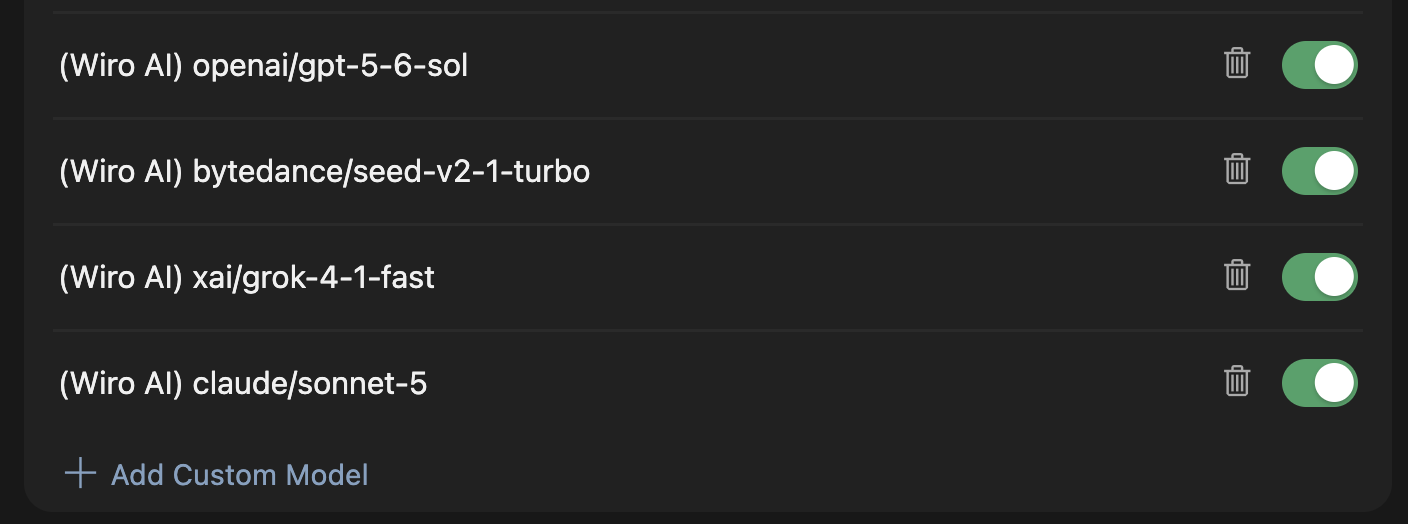
-
OpenAI API Key Put the project credential in the
OpenAI API Keyfield — that is the field Cursor uses for the overridden endpoint.YOUR_API_KEY:YOUR_API_SECRETfor a Signature project,YOUR_API_KEYalone for API Key Only. -
Turn the key on Flip the switch beside the field. It reads
Secret savedonce Cursor has stored the credential. - Override OpenAI Base URL Turn that switch on too. It sits directly under the key.
-
Enter the base URL
https://llm.wiro.ai/v1. Cursor appends/chat/completionsitself, so do not add it. - Disable the built-in models While the override is on, Cursor sends its own model names to your endpoint too, and those do not exist in the Wiro catalog. Leave only the models you added enabled, or every request fails with an unknown model.
-
Verify Press
Verify. A failure here is normally the base URL carrying/chat/completions, or a built-in model still switched on.
Every model the gateway serves today, labelled and ready to paste one at a time; drop the (Wiro) part, or move it to the end, as you prefer. The same set is in the catalog and behind GET /v1/models.
(Wiro) bytedance/seed-v2-1-turbo
(Wiro) bytedance/seed-v2-lite
(Wiro) bytedance/seed-v2-mini
(Wiro) bytedance/seed-v2-pro
(Wiro) claude/fable-5
(Wiro) claude/opus-5
(Wiro) claude/sonnet-5
(Wiro) deepseek/v4-flash
(Wiro) deepseek/v4-pro
(Wiro) glm/5-2
(Wiro) google/gemini-2-5-flash
(Wiro) google/gemini-3-5-flash
(Wiro) google/gemini-3-5-flash-lite
(Wiro) google/gemini-3-6-flash
(Wiro) google/gemini-3-7-flash
(Wiro) google/gemini-3-8-flash
(Wiro) google/gemini-3-flash
(Wiro) google/gemini-3-pro
(Wiro) meta-llama/llama-3-2-3b-instruct
(Wiro) mistralai/mistral-7b-instruct-v0-3
(Wiro) mistralai/mistral-nemo-instruct-2407
(Wiro) openai/gpt-5-2
(Wiro) openai/gpt-5-4
(Wiro) openai/gpt-5-4-mini
(Wiro) openai/gpt-5-4-nano
(Wiro) openai/gpt-5-5
(Wiro) openai/gpt-5-6-luna
(Wiro) openai/gpt-5-6-sol
(Wiro) openai/gpt-5-6-terra
(Wiro) openai/gpt-5-mini
(Wiro) openai/gpt-5-nano
(Wiro) qwen/qwen2-5-0-5b-instruct
(Wiro) qwen/qwen2-5-1-5b-instruct
(Wiro) qwen/qwen2-5-14b-instruct
(Wiro) qwen/qwen2-5-32b-instruct
(Wiro) qwen/qwen2-5-3b-instruct
(Wiro) qwen/qwen2-5-7b-instruct
(Wiro) qwen/qwen2-5-coder-32b-instruct
(Wiro) qwen/qwen2-5-coder-7b-instruct
(Wiro) qwen/qwen3-30b-a3b
(Wiro) qwen/qwen3-30b-a3b-thinking-2507
(Wiro) qwen/qwen3-32b
(Wiro) qwen/qwen3-5-27b
(Wiro) qwen/qwen3-5-27b-heretic
(Wiro) qwen/qwen3-5-4b
(Wiro) qwen/qwen3-5-4b-heretic
(Wiro) qwen/qwen3-5-9b
(Wiro) qwen/qwen3-5-9b-heretic
(Wiro) qwen/qwen3-6-27b
(Wiro) qwen/qwen3-8-27b
(Wiro) qwen/qwen3-8-27b-obliterated
(Wiro) qwen/qwen3-8-27b-uncensored
(Wiro) xai/grok-4-1-fast
(Wiro) xai/grok-4-20
(Wiro) xai/grok-4-5
The override covers the chat and agent panel. Tab autocomplete and inline edit keep using Cursor's own backend whatever you configure here, so they are unaffected either way.
Claude Code
Claude Code reads the gateway through the Anthropic Messages protocol. This is the terminal Claude Code: the desktop app manages its own provider and cannot be pointed at a gateway, so its model picker keeps listing Anthropic’s models whatever you configure.
-
Install the CLI In a terminal:
npm i -g @anthropic-ai/claude-code -
Write the settings file Two places take it, and the file is the same in both. Pick by how widely you want the gateway used.
Every folder on this machine —
~/.claude/settings.json:{ "env": { "ANTHROPIC_BASE_URL": "https://llm.wiro.ai", "ANTHROPIC_API_KEY": "YOUR_API_KEY:YOUR_API_SECRET", "ANTHROPIC_MODEL": "(Wiro) openai/gpt-5-6-sol", "CLAUDE_CODE_ENABLE_GATEWAY_MODEL_DISCOVERY": "1", "CLAUDE_CODE_MAX_CONTEXT_TOKENS": "1050000" } }One project only —
<project>/.claude/settings.json, in the folder you will open Claude Code in. Your other projects keep whatever they were using. If that folder is a git repository, put it in.claude/settings.local.jsoninstead, which is not committed — the credential should not reach the shared file:{ "env": { "ANTHROPIC_BASE_URL": "https://llm.wiro.ai", "ANTHROPIC_API_KEY": "YOUR_API_KEY:YOUR_API_SECRET", "ANTHROPIC_MODEL": "(Wiro) openai/gpt-5-6-sol", "CLAUDE_CODE_ENABLE_GATEWAY_MODEL_DISCOVERY": "1", "CLAUDE_CODE_MAX_CONTEXT_TOKENS": "1050000" } }ANTHROPIC_BASE_URLcarries no/v1here — Anthropic clients append the path themselves.ANTHROPIC_API_KEYtakesYOUR_API_KEY:YOUR_API_SECRETfor a Signature project, orYOUR_API_KEYalone for API Key Only.ANTHROPIC_MODELis the model the session opens with, and is any ID from the list below, not only theclaude/ones; the(Wiro)prefix is optional and the gateway strips it, but Claude Code prints whatever you write in its session header.CLAUDE_CODE_ENABLE_GATEWAY_MODEL_DISCOVERYadds gateway models to the/modelpicker, but Claude Code keeps only IDs containingclaudeoranthropic, so the picker gains theclaude/models alone; open any other model withANTHROPIC_MODELor--model.CLAUDE_CODE_MAX_CONTEXT_TOKENSmust match the context window of the model you set — Claude Code does not recognise these names, so it otherwise assumes 200k and discards history long before it needs to. -
Open Claude Code in that folder
cd /path/to/your/project && claude -
Answer the first-run prompts A new install asks three things in a row: a colour theme, its security notes (
Press Enter to continue), and whether to applyClaude Code’s terminal setup. Answer them once. -
Allow the project’s MCP servers, if it has any A folder that declares MCP servers gets
New MCP server found in this projectbefore the session opens. Nothing here concerns the gateway — choose whatever you would normally choose. -
Answer the key prompt
Do you want to use this API key?→No. It asks about a key exported in your shell, not the one you just put in the settings file. -
Check the header, then start It names the model you configured:
(Wiro) openai/gpt-5-6-sol · API Usage Billing. Your Claude subscription is not used while a gateway credential is set. -
Switching models Open on another model for one session:
Or changecd /path/to/your/project && claude --model "(Wiro) xai/grok-4-1-fast" cd /path/to/your/project && claude --model "(Wiro) bytedance/seed-v2-pro" cd /path/to/your/project && claude --model "(Wiro) openai/gpt-5-nano"ANTHROPIC_MODELin the settings file, which every session in that scope then opens on. MoveCLAUDE_CODE_MAX_CONTEXT_TOKENSwith it — Grok 4.1 Fast holds 2M where GPT 5.6 Sol holds 1.05M:{ "env": { "ANTHROPIC_BASE_URL": "https://llm.wiro.ai", "ANTHROPIC_API_KEY": "YOUR_API_KEY:YOUR_API_SECRET", "ANTHROPIC_MODEL": "(Wiro) xai/grok-4-1-fast", "CLAUDE_CODE_ENABLE_GATEWAY_MODEL_DISCOVERY": "1", "CLAUDE_CODE_MAX_CONTEXT_TOKENS": "2000000" } }
Every model the gateway serves today, with the context window for CLAUDE_CODE_MAX_CONTEXT_TOKENS. The same values come from GET /v1/models as context_length. For a Wiro-hosted model that number is the window of the checkpoint we actually run, which can be smaller than the one its model card advertises.
Model ID                                     Context
----------------------------------------------------
(Wiro) bytedance/seed-v2-1-turbo              256000
(Wiro) bytedance/seed-v2-lite                 256000
(Wiro) bytedance/seed-v2-mini                 256000
(Wiro) bytedance/seed-v2-pro                  256000
(Wiro) claude/fable-5                        1000000
(Wiro) claude/opus-5                         1000000
(Wiro) claude/sonnet-5                       1000000
(Wiro) deepseek/v4-flash                     1048576
(Wiro) deepseek/v4-pro                       1048576
(Wiro) glm/5-2                               1048576
(Wiro) google/gemini-2-5-flash               1048576
(Wiro) google/gemini-3-5-flash               1048576
(Wiro) google/gemini-3-5-flash-lite          1048576
(Wiro) google/gemini-3-6-flash               1048576
(Wiro) google/gemini-3-7-flash               1048576
(Wiro) google/gemini-3-8-flash               1048576
(Wiro) google/gemini-3-flash                 1048576
(Wiro) google/gemini-3-pro                   1048576
(Wiro) meta-llama/llama-3-2-3b-instruct       131072
(Wiro) mistralai/mistral-7b-instruct-v0-3      32768
(Wiro) mistralai/mistral-nemo-instruct-2407   131072
(Wiro) openai/gpt-5-2                         400000
(Wiro) openai/gpt-5-4                        1050000
(Wiro) openai/gpt-5-4-mini                    400000
(Wiro) openai/gpt-5-4-nano                    400000
(Wiro) openai/gpt-5-5                        1050000
(Wiro) openai/gpt-5-6-luna                   1050000
(Wiro) openai/gpt-5-6-sol                    1050000
(Wiro) openai/gpt-5-6-terra                  1050000
(Wiro) openai/gpt-5-mini                      400000
(Wiro) openai/gpt-5-nano                      400000
(Wiro) qwen/qwen2-5-0-5b-instruct              32768
(Wiro) qwen/qwen2-5-1-5b-instruct              32768
(Wiro) qwen/qwen2-5-14b-instruct               32768
(Wiro) qwen/qwen2-5-32b-instruct               32768
(Wiro) qwen/qwen2-5-3b-instruct                32768
(Wiro) qwen/qwen2-5-7b-instruct                32768
(Wiro) qwen/qwen2-5-coder-32b-instruct         32768
(Wiro) qwen/qwen2-5-coder-7b-instruct          32768
(Wiro) qwen/qwen3-30b-a3b                      40960
(Wiro) qwen/qwen3-30b-a3b-thinking-2507       262144
(Wiro) qwen/qwen3-32b                          40960
(Wiro) qwen/qwen3-5-27b                       262144
(Wiro) qwen/qwen3-5-27b-heretic               262144
(Wiro) qwen/qwen3-5-4b                        262144
(Wiro) qwen/qwen3-5-4b-heretic                262144
(Wiro) qwen/qwen3-5-9b                        262144
(Wiro) qwen/qwen3-5-9b-heretic                262144
(Wiro) qwen/qwen3-6-27b                       262144
(Wiro) qwen/qwen3-8-27b                       262144
(Wiro) qwen/qwen3-8-27b-obliterated           262144
(Wiro) qwen/qwen3-8-27b-uncensored            262144
(Wiro) xai/grok-4-1-fast                     2000000
(Wiro) xai/grok-4-20                         2000000
(Wiro) xai/grok-4-5                           500000
If Claude Code opens to the login screen instead of a session, the settings file was not read in time: a project .claude/settings.json applies only after the first-run prompts and the folder trust prompt above. Answer those once and reopen, or put the same env block in ~/.claude/settings.json, which is read before them and applies to every folder.
VS Code
VS Code Chat reaches the gateway through its own built-in custom endpoint — no extension required.
-
Open the model manager Command Palette (
Cmd+Shift+P,Ctrl+Shift+Pon Windows) →Chat: Manage Language Models. -
Add a provider
+ Add Modelsopens a provider list — Anthropic, Azure, Google, OpenAI, OpenRouter, xAI, Ollama. PickCustom Endpoint, last, below the separator. -
Group Name Arrives pre-filled with “Custom Endpoint”; replace it with
Wiro AI. It is a label — it titles the next two prompts and groups the models in the picker. -
API Key
YOUR_API_KEY:YOUR_API_SECRETfor a Signature project,YOUR_API_KEYalone for API Key Only. VS Code keeps it in its secret store; the file holds only a${input:…}reference. -
API Type Choose
Chat Completions. Responses and Messages change the request shape VS Code sends. -
Describe the models VS Code opens
chatLanguageModels.jsonwith one empty model. Leavename,vendor,apiKeyandapiTypeas generated and fill themodelsarray. Below is every model the gateway serves today, ready to paste; the same set is in the catalog and behindGET /v1/models.
[
  {
    "name": "Wiro AI",
    "vendor": "customendpoint",
    "apiKey": "${input:chat.lm.secret.xxxxxxxx}",
    "apiType": "chat-completions",
    "models": [
      {
        "id": "bytedance/seed-v2-1-turbo",
        "name": "(Wiro) Seed V2.1 Turbo",
        "url": "https://llm.wiro.ai/v1/chat/completions",
        "toolCalling": true,
        "vision": true,
        "maxInputTokens": 256000,
        "maxOutputTokens": 65536
      },
      {
        "id": "bytedance/seed-v2-lite",
        "name": "(Wiro) Seed V2 Lite",
        "url": "https://llm.wiro.ai/v1/chat/completions",
        "toolCalling": true,
        "vision": true,
        "maxInputTokens": 256000,
        "maxOutputTokens": 65536
      },
      {
        "id": "bytedance/seed-v2-mini",
        "name": "(Wiro) Seed V2 Mini",
        "url": "https://llm.wiro.ai/v1/chat/completions",
        "toolCalling": true,
        "vision": true,
        "maxInputTokens": 256000,
        "maxOutputTokens": 65536
      },
      {
        "id": "bytedance/seed-v2-pro",
        "name": "(Wiro) Seed V2 Pro",
        "url": "https://llm.wiro.ai/v1/chat/completions",
        "toolCalling": true,
        "vision": true,
        "maxInputTokens": 256000,
        "maxOutputTokens": 65536
      },
      {
        "id": "claude/fable-5",
        "name": "(Wiro) Fable 5",
        "url": "https://llm.wiro.ai/v1/chat/completions",
        "toolCalling": true,
        "vision": true,
        "maxInputTokens": 1000000,
        "maxOutputTokens": 128000
      },
      {
        "id": "claude/opus-5",
        "name": "(Wiro) Opus 5",
        "url": "https://llm.wiro.ai/v1/chat/completions",
        "toolCalling": true,
        "vision": true,
        "maxInputTokens": 1000000,
        "maxOutputTokens": 128000
      },
      {
        "id": "claude/sonnet-5",
        "name": "(Wiro) Sonnet 5",
        "url": "https://llm.wiro.ai/v1/chat/completions",
        "toolCalling": true,
        "vision": true,
        "maxInputTokens": 1000000,
        "maxOutputTokens": 128000
      },
      {
        "id": "deepseek/v4-flash",
        "name": "(Wiro) DeepSeek V4 Flash",
        "url": "https://llm.wiro.ai/v1/chat/completions",
        "toolCalling": true,
        "vision": false,
        "maxInputTokens": 1048576,
        "maxOutputTokens": 384000
      },
      {
        "id": "deepseek/v4-pro",
        "name": "(Wiro) DeepSeek V4 Pro",
        "url": "https://llm.wiro.ai/v1/chat/completions",
        "toolCalling": true,
        "vision": false,
        "maxInputTokens": 1048576,
        "maxOutputTokens": 384000
      },
      {
        "id": "glm/5-2",
        "name": "(Wiro) GLM 5.2",
        "url": "https://llm.wiro.ai/v1/chat/completions",
        "toolCalling": true,
        "vision": false,
        "maxInputTokens": 1048576,
        "maxOutputTokens": 128000
      },
      {
        "id": "google/gemini-2-5-flash",
        "name": "(Wiro) Gemini 2.5 Flash",
        "url": "https://llm.wiro.ai/v1/chat/completions",
        "toolCalling": true,
        "vision": true,
        "maxInputTokens": 1048576,
        "maxOutputTokens": 65536
      },
      {
        "id": "google/gemini-3-5-flash",
        "name": "(Wiro) Gemini 3.5 Flash",
        "url": "https://llm.wiro.ai/v1/chat/completions",
        "toolCalling": true,
        "vision": true,
        "maxInputTokens": 1048576,
        "maxOutputTokens": 65536
      },
      {
        "id": "google/gemini-3-5-flash-lite",
        "name": "(Wiro) Gemini 3.5 Flash-Lite",
        "url": "https://llm.wiro.ai/v1/chat/completions",
        "toolCalling": true,
        "vision": true,
        "maxInputTokens": 1048576,
        "maxOutputTokens": 65536
      },
      {
        "id": "google/gemini-3-6-flash",
        "name": "(Wiro) Gemini 3.6 Flash",
        "url": "https://llm.wiro.ai/v1/chat/completions",
        "toolCalling": true,
        "vision": true,
        "maxInputTokens": 1048576,
        "maxOutputTokens": 65536
      },
      {
        "id": "google/gemini-3-7-flash",
        "name": "(Wiro) Gemini 3.7 Flash",
        "url": "https://llm.wiro.ai/v1/chat/completions",
        "toolCalling": true,
        "vision": true,
        "maxInputTokens": 1048576,
        "maxOutputTokens": 65536
      },
      {
        "id": "google/gemini-3-8-flash",
        "name": "(Wiro) Gemini 3.8 Flash",
        "url": "https://llm.wiro.ai/v1/chat/completions",
        "toolCalling": true,
        "vision": true,
        "maxInputTokens": 1048576,
        "maxOutputTokens": 65536
      },
      {
        "id": "google/gemini-3-flash",
        "name": "(Wiro) Gemini 3 Flash",
        "url": "https://llm.wiro.ai/v1/chat/completions",
        "toolCalling": true,
        "vision": true,
        "maxInputTokens": 1048576,
        "maxOutputTokens": 65536
      },
      {
        "id": "google/gemini-3-pro",
        "name": "(Wiro) Gemini 3 Pro",
        "url": "https://llm.wiro.ai/v1/chat/completions",
        "toolCalling": true,
        "vision": true,
        "maxInputTokens": 1048576,
        "maxOutputTokens": 65536
      },
      {
        "id": "meta-llama/llama-3-2-3b-instruct",
        "name": "(Wiro) Llama 3.2 3B Instruct",
        "url": "https://llm.wiro.ai/v1/chat/completions",
        "toolCalling": true,
        "vision": false,
        "maxInputTokens": 131072,
        "maxOutputTokens": 2048
      },
      {
        "id": "mistralai/mistral-7b-instruct-v0-3",
        "name": "(Wiro) Mistral 7B Instruct v0.3",
        "url": "https://llm.wiro.ai/v1/chat/completions",
        "toolCalling": true,
        "vision": false,
        "maxInputTokens": 32768,
        "maxOutputTokens": 2048
      },
      {
        "id": "mistralai/mistral-nemo-instruct-2407",
        "name": "(Wiro) Mistral Nemo Instruct",
        "url": "https://llm.wiro.ai/v1/chat/completions",
        "toolCalling": true,
        "vision": false,
        "maxInputTokens": 131072,
        "maxOutputTokens": 2048
      },
      {
        "id": "openai/gpt-5-2",
        "name": "(Wiro) GPT-5.2",
        "url": "https://llm.wiro.ai/v1/chat/completions",
        "toolCalling": true,
        "vision": true,
        "maxInputTokens": 400000,
        "maxOutputTokens": 65536
      },
      {
        "id": "openai/gpt-5-4",
        "name": "(Wiro) GPT-5.4",
        "url": "https://llm.wiro.ai/v1/chat/completions",
        "toolCalling": true,
        "vision": true,
        "maxInputTokens": 1050000,
        "maxOutputTokens": 65536
      },
      {
        "id": "openai/gpt-5-4-mini",
        "name": "(Wiro) GPT-5.4 Mini",
        "url": "https://llm.wiro.ai/v1/chat/completions",
        "toolCalling": true,
        "vision": true,
        "maxInputTokens": 400000,
        "maxOutputTokens": 65536
      },
      {
        "id": "openai/gpt-5-4-nano",
        "name": "(Wiro) GPT-5.4 Nano",
        "url": "https://llm.wiro.ai/v1/chat/completions",
        "toolCalling": true,
        "vision": true,
        "maxInputTokens": 400000,
        "maxOutputTokens": 65536
      },
      {
        "id": "openai/gpt-5-5",
        "name": "(Wiro) GPT-5.5",
        "url": "https://llm.wiro.ai/v1/chat/completions",
        "toolCalling": true,
        "vision": true,
        "maxInputTokens": 1050000,
        "maxOutputTokens": 65536
      },
      {
        "id": "openai/gpt-5-6-luna",
        "name": "(Wiro) GPT-5.6 Luna",
        "url": "https://llm.wiro.ai/v1/chat/completions",
        "toolCalling": true,
        "vision": true,
        "maxInputTokens": 1050000,
        "maxOutputTokens": 65536
      },
      {
        "id": "openai/gpt-5-6-sol",
        "name": "(Wiro) GPT-5.6 Sol",
        "url": "https://llm.wiro.ai/v1/chat/completions",
        "toolCalling": true,
        "vision": true,
        "maxInputTokens": 1050000,
        "maxOutputTokens": 65536
      },
      {
        "id": "openai/gpt-5-6-terra",
        "name": "(Wiro) GPT-5.6 Terra",
        "url": "https://llm.wiro.ai/v1/chat/completions",
        "toolCalling": true,
        "vision": true,
        "maxInputTokens": 1050000,
        "maxOutputTokens": 65536
      },
      {
        "id": "openai/gpt-5-mini",
        "name": "(Wiro) GPT-5 Mini",
        "url": "https://llm.wiro.ai/v1/chat/completions",
        "toolCalling": true,
        "vision": true,
        "maxInputTokens": 400000,
        "maxOutputTokens": 65536
      },
      {
        "id": "openai/gpt-5-nano",
        "name": "(Wiro) GPT-5 Nano",
        "url": "https://llm.wiro.ai/v1/chat/completions",
        "toolCalling": true,
        "vision": true,
        "maxInputTokens": 400000,
        "maxOutputTokens": 65536
      },
      {
        "id": "qwen/qwen2-5-0-5b-instruct",
        "name": "(Wiro) Qwen2.5 0.5B Instruct",
        "url": "https://llm.wiro.ai/v1/chat/completions",
        "toolCalling": true,
        "vision": false,
        "maxInputTokens": 32768,
        "maxOutputTokens": 2048
      },
      {
        "id": "qwen/qwen2-5-1-5b-instruct",
        "name": "(Wiro) Qwen2.5 1.5B Instruct",
        "url": "https://llm.wiro.ai/v1/chat/completions",
        "toolCalling": true,
        "vision": false,
        "maxInputTokens": 32768,
        "maxOutputTokens": 2048
      },
      {
        "id": "qwen/qwen2-5-14b-instruct",
        "name": "(Wiro) Qwen2.5 14B Instruct",
        "url": "https://llm.wiro.ai/v1/chat/completions",
        "toolCalling": true,
        "vision": false,
        "maxInputTokens": 32768,
        "maxOutputTokens": 2048
      },
      {
        "id": "qwen/qwen2-5-32b-instruct",
        "name": "(Wiro) Qwen2.5 32B Instruct",
        "url": "https://llm.wiro.ai/v1/chat/completions",
        "toolCalling": true,
        "vision": false,
        "maxInputTokens": 32768,
        "maxOutputTokens": 2048
      },
      {
        "id": "qwen/qwen2-5-3b-instruct",
        "name": "(Wiro) Qwen2.5 3B Instruct",
        "url": "https://llm.wiro.ai/v1/chat/completions",
        "toolCalling": true,
        "vision": false,
        "maxInputTokens": 32768,
        "maxOutputTokens": 2048
      },
      {
        "id": "qwen/qwen2-5-7b-instruct",
        "name": "(Wiro) Qwen2.5 7B Instruct",
        "url": "https://llm.wiro.ai/v1/chat/completions",
        "toolCalling": true,
        "vision": false,
        "maxInputTokens": 32768,
        "maxOutputTokens": 2048
      },
      {
        "id": "qwen/qwen2-5-coder-32b-instruct",
        "name": "(Wiro) Qwen2.5 Coder 32B Instruct",
        "url": "https://llm.wiro.ai/v1/chat/completions",
        "toolCalling": true,
        "vision": false,
        "maxInputTokens": 32768,
        "maxOutputTokens": 2048
      },
      {
        "id": "qwen/qwen2-5-coder-7b-instruct",
        "name": "(Wiro) Qwen2.5 Coder 7B Instruct",
        "url": "https://llm.wiro.ai/v1/chat/completions",
        "toolCalling": true,
        "vision": false,
        "maxInputTokens": 32768,
        "maxOutputTokens": 2048
      },
      {
        "id": "qwen/qwen3-30b-a3b",
        "name": "(Wiro) Qwen3 30B A3B",
        "url": "https://llm.wiro.ai/v1/chat/completions",
        "toolCalling": true,
        "vision": false,
        "maxInputTokens": 40960,
        "maxOutputTokens": 4096
      },
      {
        "id": "qwen/qwen3-30b-a3b-thinking-2507",
        "name": "(Wiro) Qwen3 30B A3B Thinking",
        "url": "https://llm.wiro.ai/v1/chat/completions",
        "toolCalling": true,
        "vision": false,
        "maxInputTokens": 262144,
        "maxOutputTokens": 4096
      },
      {
        "id": "qwen/qwen3-32b",
        "name": "(Wiro) Qwen3 32B",
        "url": "https://llm.wiro.ai/v1/chat/completions",
        "toolCalling": true,
        "vision": false,
        "maxInputTokens": 40960,
        "maxOutputTokens": 4096
      },
      {
        "id": "qwen/qwen3-5-27b",
        "name": "(Wiro) Qwen3.5 27B",
        "url": "https://llm.wiro.ai/v1/chat/completions",
        "toolCalling": true,
        "vision": false,
        "maxInputTokens": 262144,
        "maxOutputTokens": 16384
      },
      {
        "id": "qwen/qwen3-5-27b-heretic",
        "name": "(Wiro) Qwen3.5 27B Heretic",
        "url": "https://llm.wiro.ai/v1/chat/completions",
        "toolCalling": true,
        "vision": false,
        "maxInputTokens": 262144,
        "maxOutputTokens": 16384
      },
      {
        "id": "qwen/qwen3-5-4b",
        "name": "(Wiro) Qwen3.5 4B",
        "url": "https://llm.wiro.ai/v1/chat/completions",
        "toolCalling": true,
        "vision": false,
        "maxInputTokens": 262144,
        "maxOutputTokens": 16384
      },
      {
        "id": "qwen/qwen3-5-4b-heretic",
        "name": "(Wiro) Qwen3.5 4B Heretic",
        "url": "https://llm.wiro.ai/v1/chat/completions",
        "toolCalling": true,
        "vision": false,
        "maxInputTokens": 262144,
        "maxOutputTokens": 16384
      },
      {
        "id": "qwen/qwen3-5-9b",
        "name": "(Wiro) Qwen3.5 9B",
        "url": "https://llm.wiro.ai/v1/chat/completions",
        "toolCalling": true,
        "vision": false,
        "maxInputTokens": 262144,
        "maxOutputTokens": 16384
      },
      {
        "id": "qwen/qwen3-5-9b-heretic",
        "name": "(Wiro) Qwen3.5 9B Heretic",
        "url": "https://llm.wiro.ai/v1/chat/completions",
        "toolCalling": true,
        "vision": false,
        "maxInputTokens": 262144,
        "maxOutputTokens": 16384
      },
      {
        "id": "qwen/qwen3-6-27b",
        "name": "(Wiro) Qwen3.6 27B",
        "url": "https://llm.wiro.ai/v1/chat/completions",
        "toolCalling": true,
        "vision": false,
        "maxInputTokens": 262144,
        "maxOutputTokens": 16384
      },
      {
        "id": "qwen/qwen3-8-27b",
        "name": "(Wiro) Qwen3.8 27B",
        "url": "https://llm.wiro.ai/v1/chat/completions",
        "toolCalling": true,
        "vision": false,
        "maxInputTokens": 262144,
        "maxOutputTokens": 16384
      },
      {
        "id": "qwen/qwen3-8-27b-obliterated",
        "name": "(Wiro) Qwen3.8 27B Obliterated",
        "url": "https://llm.wiro.ai/v1/chat/completions",
        "toolCalling": true,
        "vision": false,
        "maxInputTokens": 262144,
        "maxOutputTokens": 16384
      },
      {
        "id": "qwen/qwen3-8-27b-uncensored",
        "name": "(Wiro) Qwen3.8 27B Uncensored",
        "url": "https://llm.wiro.ai/v1/chat/completions",
        "toolCalling": true,
        "vision": false,
        "maxInputTokens": 262144,
        "maxOutputTokens": 16384
      },
      {
        "id": "xai/grok-4-1-fast",
        "name": "(Wiro) Grok 4.1 Fast",
        "url": "https://llm.wiro.ai/v1/chat/completions",
        "toolCalling": true,
        "vision": true,
        "maxInputTokens": 2000000,
        "maxOutputTokens": 65536
      },
      {
        "id": "xai/grok-4-20",
        "name": "(Wiro) Grok 4.20",
        "url": "https://llm.wiro.ai/v1/chat/completions",
        "toolCalling": true,
        "vision": true,
        "maxInputTokens": 2000000,
        "maxOutputTokens": 65536
      },
      {
        "id": "xai/grok-4-5",
        "name": "(Wiro) Grok 4.5",
        "url": "https://llm.wiro.ai/v1/chat/completions",
        "toolCalling": true,
        "vision": true,
        "maxInputTokens": 500000,
        "maxOutputTokens": 65536
      }
    ]
  }
]id— the lowercaseowner/modelfromGET /v1/models.name— a free label, shown in the picker.url— the full endpoint, not the base URL. Every model repeats it.toolCalling,vision,maxInputTokens,maxOutputTokens— read them fromGET /v1/models/{owner}/{model}:capabilities.function_tools,capabilities.input_modalities,max_input_tokens,max_tokens. Do not guess.maxInputTokensis not optional. VS Code sizes every conversation against it and answers “Could not compact conversation” on each turn when a model omits it, before any request reaches the gateway. Take the number frommax_input_tokens; every catalog model reports one. For a Wiro-hosted model it is the window of the checkpoint we run rather than the model family’s advertised maximum — Qwen2.5 7B reports 32,768 here although its card says 131,072, because that is what the shipped configuration sets.
Save the file and reopen the model picker; the models appear under Wiro AI. Any other VS Code extension that takes a custom OpenAI base URL — Cline, Roo Code, Continue — works the same way: point it at https://llm.wiro.ai/v1 with the same credential and a model ID from the catalog.
Windsurf
Windsurf now ships as Devin Desktop; the application is Devin.app and its docs redirect to docs.devin.ai. Cascade, its own agent, has no setting for an external provider — there is no base URL to override and no custom model to register, so it cannot be pointed at this gateway. What does work is running a different agent inside the same editor. The steps below use Cline, which is free and Apache-2.0; Roo Code and Continue configure the same way.
-
Open the extension marketplace Command Palette (
Cmd+Shift+P,Ctrl+Shift+Pon Windows) →Extensions: Install Extensions. The menu bar gets you to the same place:Devin → Preferences → Extensions. -
Install Cline Search
clineand install the one published bysaoudrizwan. Devin resolves extensions through the Open VSX mirror, so this is the same build VS Code carries. -
Open the panel Command Palette (
Cmd+Shift+P,Ctrl+Shift+Pon Windows) →Cline: Focus on View. -
Bring my own API key Cline asks how you will use it. Pick the fourth option,
Bring my own API key, thenContinue. The other three are Cline's own billing;Login to Clineis not needed. -
API Provider Choose
OpenAI Compatible, notOpenAI— that one goes to the official OpenAI API. -
Base URL
https://llm.wiro.ai/v1. Cline appends the route itself. -
OpenAI Compatible API Key
YOUR_API_KEY:YOUR_API_SECRETfor a Signature project,YOUR_API_KEYalone for API Key Only. Cline keeps it locally. -
Model ID One ID from the list below — Cline holds a single model per configuration rather than a list. The
(Wiro)prefix is optional and the gateway strips it; it earns its place here by showing up in the status bar, asopenai-compat: (Wiro) openai/gpt-5-6-sol. -
Open
MODEL CONFIGURATIONand set the context window This one matters. Cline does not know a custom model, so it assumes128Kand starts dropping history long before it needs to. Put the real number from the list below intoContext Window size, and tickComputer Useso tool calling is enabled — without it the agent cannot run tools.Max Output Tokensand the price fields are in the same section. -
Continue, and send a message The status bar names the model you configured.
PlanandActcan each hold a different model, and saved API configuration profiles let you keep one per model and switch between them.
Every model the gateway serves today, with the context window Cline needs. The same numbers come from GET /v1/models as context_length and max_tokens.
Model ID                                     Context  Max Output
----------------------------------------------------------------
(Wiro) bytedance/seed-v2-1-turbo              256000       65536
(Wiro) bytedance/seed-v2-lite                 256000       65536
(Wiro) bytedance/seed-v2-mini                 256000       65536
(Wiro) bytedance/seed-v2-pro                  256000       65536
(Wiro) claude/fable-5                        1000000      128000
(Wiro) claude/opus-5                         1000000      128000
(Wiro) claude/sonnet-5                       1000000      128000
(Wiro) deepseek/v4-flash                     1048576      384000
(Wiro) deepseek/v4-pro                       1048576      384000
(Wiro) glm/5-2                               1048576      128000
(Wiro) google/gemini-2-5-flash               1048576       65536
(Wiro) google/gemini-3-5-flash               1048576       65536
(Wiro) google/gemini-3-5-flash-lite          1048576       65536
(Wiro) google/gemini-3-6-flash               1048576       65536
(Wiro) google/gemini-3-7-flash               1048576       65536
(Wiro) google/gemini-3-8-flash               1048576       65536
(Wiro) google/gemini-3-flash                 1048576       65536
(Wiro) google/gemini-3-pro                   1048576       65536
(Wiro) meta-llama/llama-3-2-3b-instruct       131072        2048
(Wiro) mistralai/mistral-7b-instruct-v0-3      32768        2048
(Wiro) mistralai/mistral-nemo-instruct-2407   131072        2048
(Wiro) openai/gpt-5-2                         400000       65536
(Wiro) openai/gpt-5-4                        1050000       65536
(Wiro) openai/gpt-5-4-mini                    400000       65536
(Wiro) openai/gpt-5-4-nano                    400000       65536
(Wiro) openai/gpt-5-5                        1050000       65536
(Wiro) openai/gpt-5-6-luna                   1050000       65536
(Wiro) openai/gpt-5-6-sol                    1050000       65536
(Wiro) openai/gpt-5-6-terra                  1050000       65536
(Wiro) openai/gpt-5-mini                      400000       65536
(Wiro) openai/gpt-5-nano                      400000       65536
(Wiro) qwen/qwen2-5-0-5b-instruct              32768        2048
(Wiro) qwen/qwen2-5-1-5b-instruct              32768        2048
(Wiro) qwen/qwen2-5-14b-instruct               32768        2048
(Wiro) qwen/qwen2-5-32b-instruct               32768        2048
(Wiro) qwen/qwen2-5-3b-instruct                32768        2048
(Wiro) qwen/qwen2-5-7b-instruct                32768        2048
(Wiro) qwen/qwen2-5-coder-32b-instruct         32768        2048
(Wiro) qwen/qwen2-5-coder-7b-instruct          32768        2048
(Wiro) qwen/qwen3-30b-a3b                      40960        4096
(Wiro) qwen/qwen3-30b-a3b-thinking-2507       262144        4096
(Wiro) qwen/qwen3-32b                          40960        4096
(Wiro) qwen/qwen3-5-27b                       262144       16384
(Wiro) qwen/qwen3-5-27b-heretic               262144       16384
(Wiro) qwen/qwen3-5-4b                        262144       16384
(Wiro) qwen/qwen3-5-4b-heretic                262144       16384
(Wiro) qwen/qwen3-5-9b                        262144       16384
(Wiro) qwen/qwen3-5-9b-heretic                262144       16384
(Wiro) qwen/qwen3-6-27b                       262144       16384
(Wiro) qwen/qwen3-8-27b                       262144       16384
(Wiro) qwen/qwen3-8-27b-obliterated           262144       16384
(Wiro) qwen/qwen3-8-27b-uncensored            262144       16384
(Wiro) xai/grok-4-1-fast                     2000000       65536
(Wiro) xai/grok-4-20                         2000000       65536
(Wiro) xai/grok-4-5                           500000       65536
None of this touches Cascade, which keeps using Windsurf's own models. The editor is Devin, the agent is Cline, and the models are Wiro's.
OpenClaw
OpenClaw registers the gateway as a custom provider in its own config file. Everything below lives in one file:
~/.openclaw/openclaw.json                     macOS, Linux
%USERPROFILE%\.openclaw\openclaw.json         Windows
Set OPENCLAW_CONFIG_PATH to put it elsewhere, or run openclaw --profile <name> to keep a separate one under ~/.openclaw-<name>.
-
Install
npm i -g openclaw. -
Name the provider The key under
providers—wirobelow — becomes the prefix you select a model with, aswiro/<id>. Pick any name; the rest of this page assumeswiro. -
Match
apito the model transport Read it fromGET /v1/models/{owner}/{model}.openai-completionsandopenai-responsestake the/v1base;anthropic-messagestakes the origin,https://llm.wiro.ai, with no/v1. One provider block per transport if you mix them. -
Fill
apiKeyYOUR_API_KEY:YOUR_API_SECRETfor a Signature project,YOUR_API_KEYalone for API Key Only. -
List the models Each entry takes an
idand a displayname. Theidis what reaches the gateway, so the(Wiro)label is optional there and stripped on arrival; thenameis only ever shown to you. Both carry it below so the CLI and the picker read the same. -
Run a turn
openclaw agent --local --model "wiro/(Wiro) xai/grok-4-1-fast" -m "your prompt".--localruns the embedded agent against these credentials; without it the turn goes through an OpenClaw gateway instead.
Every model the gateway serves today, ready to paste as the whole models array. The same set is in the catalog and behind GET /v1/models.
{
  "models": {
    "providers": {
      "wiro": {
        "baseUrl": "https://llm.wiro.ai/v1",
        "apiKey": "YOUR_API_KEY:YOUR_API_SECRET",
        "api": "openai-completions",
        "models": [
          { "id": "(Wiro) bytedance/seed-v2-1-turbo", "name": "(Wiro) Seed V2.1 Turbo" },
          { "id": "(Wiro) bytedance/seed-v2-lite", "name": "(Wiro) Seed V2 Lite" },
          { "id": "(Wiro) bytedance/seed-v2-mini", "name": "(Wiro) Seed V2 Mini" },
          { "id": "(Wiro) bytedance/seed-v2-pro", "name": "(Wiro) Seed V2 Pro" },
          { "id": "(Wiro) claude/fable-5", "name": "(Wiro) Fable 5" },
          { "id": "(Wiro) claude/opus-5", "name": "(Wiro) Opus 5" },
          { "id": "(Wiro) claude/sonnet-5", "name": "(Wiro) Sonnet 5" },
          { "id": "(Wiro) deepseek/v4-flash", "name": "(Wiro) DeepSeek V4 Flash" },
          { "id": "(Wiro) deepseek/v4-pro", "name": "(Wiro) DeepSeek V4 Pro" },
          { "id": "(Wiro) glm/5-2", "name": "(Wiro) GLM 5.2" },
          { "id": "(Wiro) google/gemini-2-5-flash", "name": "(Wiro) Gemini 2.5 Flash" },
          { "id": "(Wiro) google/gemini-3-5-flash", "name": "(Wiro) Gemini 3.5 Flash" },
          { "id": "(Wiro) google/gemini-3-5-flash-lite", "name": "(Wiro) Gemini 3.5 Flash-Lite" },
          { "id": "(Wiro) google/gemini-3-6-flash", "name": "(Wiro) Gemini 3.6 Flash" },
          { "id": "(Wiro) google/gemini-3-7-flash", "name": "(Wiro) Gemini 3.7 Flash" },
          { "id": "(Wiro) google/gemini-3-8-flash", "name": "(Wiro) Gemini 3.8 Flash" },
          { "id": "(Wiro) google/gemini-3-flash", "name": "(Wiro) Gemini 3 Flash" },
          { "id": "(Wiro) google/gemini-3-pro", "name": "(Wiro) Gemini 3 Pro" },
          { "id": "(Wiro) meta-llama/llama-3-2-3b-instruct", "name": "(Wiro) Llama 3.2 3B Instruct" },
          { "id": "(Wiro) mistralai/mistral-7b-instruct-v0-3", "name": "(Wiro) Mistral 7B Instruct v0.3" },
          { "id": "(Wiro) mistralai/mistral-nemo-instruct-2407", "name": "(Wiro) Mistral Nemo Instruct" },
          { "id": "(Wiro) openai/gpt-5-2", "name": "(Wiro) GPT-5.2" },
          { "id": "(Wiro) openai/gpt-5-4", "name": "(Wiro) GPT-5.4" },
          { "id": "(Wiro) openai/gpt-5-4-mini", "name": "(Wiro) GPT-5.4 Mini" },
          { "id": "(Wiro) openai/gpt-5-4-nano", "name": "(Wiro) GPT-5.4 Nano" },
          { "id": "(Wiro) openai/gpt-5-5", "name": "(Wiro) GPT-5.5" },
          { "id": "(Wiro) openai/gpt-5-6-luna", "name": "(Wiro) GPT-5.6 Luna" },
          { "id": "(Wiro) openai/gpt-5-6-sol", "name": "(Wiro) GPT-5.6 Sol" },
          { "id": "(Wiro) openai/gpt-5-6-terra", "name": "(Wiro) GPT-5.6 Terra" },
          { "id": "(Wiro) openai/gpt-5-mini", "name": "(Wiro) GPT-5 Mini" },
          { "id": "(Wiro) openai/gpt-5-nano", "name": "(Wiro) GPT-5 Nano" },
          { "id": "(Wiro) qwen/qwen2-5-0-5b-instruct", "name": "(Wiro) Qwen2.5 0.5B Instruct" },
          { "id": "(Wiro) qwen/qwen2-5-1-5b-instruct", "name": "(Wiro) Qwen2.5 1.5B Instruct" },
          { "id": "(Wiro) qwen/qwen2-5-14b-instruct", "name": "(Wiro) Qwen2.5 14B Instruct" },
          { "id": "(Wiro) qwen/qwen2-5-32b-instruct", "name": "(Wiro) Qwen2.5 32B Instruct" },
          { "id": "(Wiro) qwen/qwen2-5-3b-instruct", "name": "(Wiro) Qwen2.5 3B Instruct" },
          { "id": "(Wiro) qwen/qwen2-5-7b-instruct", "name": "(Wiro) Qwen2.5 7B Instruct" },
          { "id": "(Wiro) qwen/qwen2-5-coder-32b-instruct", "name": "(Wiro) Qwen2.5 Coder 32B Instruct" },
          { "id": "(Wiro) qwen/qwen2-5-coder-7b-instruct", "name": "(Wiro) Qwen2.5 Coder 7B Instruct" },
          { "id": "(Wiro) qwen/qwen3-30b-a3b", "name": "(Wiro) Qwen3 30B A3B" },
          { "id": "(Wiro) qwen/qwen3-30b-a3b-thinking-2507", "name": "(Wiro) Qwen3 30B A3B Thinking" },
          { "id": "(Wiro) qwen/qwen3-32b", "name": "(Wiro) Qwen3 32B" },
          { "id": "(Wiro) qwen/qwen3-5-27b", "name": "(Wiro) Qwen3.5 27B" },
          { "id": "(Wiro) qwen/qwen3-5-27b-heretic", "name": "(Wiro) Qwen3.5 27B Heretic" },
          { "id": "(Wiro) qwen/qwen3-5-4b", "name": "(Wiro) Qwen3.5 4B" },
          { "id": "(Wiro) qwen/qwen3-5-4b-heretic", "name": "(Wiro) Qwen3.5 4B Heretic" },
          { "id": "(Wiro) qwen/qwen3-5-9b", "name": "(Wiro) Qwen3.5 9B" },
          { "id": "(Wiro) qwen/qwen3-5-9b-heretic", "name": "(Wiro) Qwen3.5 9B Heretic" },
          { "id": "(Wiro) qwen/qwen3-6-27b", "name": "(Wiro) Qwen3.6 27B" },
          { "id": "(Wiro) qwen/qwen3-8-27b", "name": "(Wiro) Qwen3.8 27B" },
          { "id": "(Wiro) qwen/qwen3-8-27b-obliterated", "name": "(Wiro) Qwen3.8 27B Obliterated" },
          { "id": "(Wiro) qwen/qwen3-8-27b-uncensored", "name": "(Wiro) Qwen3.8 27B Uncensored" },
          { "id": "(Wiro) xai/grok-4-1-fast", "name": "(Wiro) Grok 4.1 Fast" },
          { "id": "(Wiro) xai/grok-4-20", "name": "(Wiro) Grok 4.20" },
          { "id": "(Wiro) xai/grok-4-5", "name": "(Wiro) Grok 4.5" }
        ]
      }
    }
  }
}
Tool calling works through the gateway, so the agent can run its own tools across as many turns as the task needs.
Hermes
Hermes Agent, from Nous Research, reaches the gateway as a custom provider. Its whole configuration is one file:
~/.hermes/config.yamlSet HERMES_HOME to put it elsewhere; the project’s own Docker image already points it at /opt/data. The file the repository ships as cli-config.yaml.example is read under the name config.yaml.
-
Install
curl -fsSL https://hermes-agent.nousresearch.com/install.sh | bashon macOS, Linux and WSL2;iex (irm https://hermes-agent.nousresearch.com/install.ps1)in PowerShell. The repository also carries aDockerfileand adocker-compose.yml. -
Choose the custom provider
provider: "custom"is Hermes’ name for any OpenAI-compatible endpoint —ollama,vllmandllamacppare aliases of it. With it,base_urlis what decides where the request goes. -
Fill
api_keyYOUR_API_KEY:YOUR_API_SECRETfor a Signature project,YOUR_API_KEYalone for API Key Only. -
Name the model
model.defaulttakes one ID from the list below. Hermes holds a single default rather than a list, so the(Wiro)label is there for your own benefit; the gateway strips it either way. -
Run a turn
hermes -z "your prompt"for one shot,hermes chatfor a session. Add--yolowhen you want the agent to use its tools without stopping for approval. -
Switch models
hermes -m "(Wiro) xai/grok-4-1-fast" -z "your prompt"overrides the default for one run;hermes modelchanges it for good.
model:
  default: "(Wiro) openai/gpt-5-6-sol"
  provider: "custom"
  base_url: "https://llm.wiro.ai/v1"
  api_key: "YOUR_API_KEY:YOUR_API_SECRET"
Every model the gateway serves today. The same set is in the catalog and behind GET /v1/models.
(Wiro) bytedance/seed-v2-1-turbo
(Wiro) bytedance/seed-v2-lite
(Wiro) bytedance/seed-v2-mini
(Wiro) bytedance/seed-v2-pro
(Wiro) claude/fable-5
(Wiro) claude/opus-5
(Wiro) claude/sonnet-5
(Wiro) deepseek/v4-flash
(Wiro) deepseek/v4-pro
(Wiro) glm/5-2
(Wiro) google/gemini-2-5-flash
(Wiro) google/gemini-3-5-flash
(Wiro) google/gemini-3-5-flash-lite
(Wiro) google/gemini-3-6-flash
(Wiro) google/gemini-3-7-flash
(Wiro) google/gemini-3-8-flash
(Wiro) google/gemini-3-flash
(Wiro) google/gemini-3-pro
(Wiro) meta-llama/llama-3-2-3b-instruct
(Wiro) mistralai/mistral-7b-instruct-v0-3
(Wiro) mistralai/mistral-nemo-instruct-2407
(Wiro) openai/gpt-5-2
(Wiro) openai/gpt-5-4
(Wiro) openai/gpt-5-4-mini
(Wiro) openai/gpt-5-4-nano
(Wiro) openai/gpt-5-5
(Wiro) openai/gpt-5-6-luna
(Wiro) openai/gpt-5-6-sol
(Wiro) openai/gpt-5-6-terra
(Wiro) openai/gpt-5-mini
(Wiro) openai/gpt-5-nano
(Wiro) qwen/qwen2-5-0-5b-instruct
(Wiro) qwen/qwen2-5-1-5b-instruct
(Wiro) qwen/qwen2-5-14b-instruct
(Wiro) qwen/qwen2-5-32b-instruct
(Wiro) qwen/qwen2-5-3b-instruct
(Wiro) qwen/qwen2-5-7b-instruct
(Wiro) qwen/qwen2-5-coder-32b-instruct
(Wiro) qwen/qwen2-5-coder-7b-instruct
(Wiro) qwen/qwen3-30b-a3b
(Wiro) qwen/qwen3-30b-a3b-thinking-2507
(Wiro) qwen/qwen3-32b
(Wiro) qwen/qwen3-5-27b
(Wiro) qwen/qwen3-5-27b-heretic
(Wiro) qwen/qwen3-5-4b
(Wiro) qwen/qwen3-5-4b-heretic
(Wiro) qwen/qwen3-5-9b
(Wiro) qwen/qwen3-5-9b-heretic
(Wiro) qwen/qwen3-6-27b
(Wiro) qwen/qwen3-8-27b
(Wiro) qwen/qwen3-8-27b-obliterated
(Wiro) qwen/qwen3-8-27b-uncensored
(Wiro) xai/grok-4-1-fast
(Wiro) xai/grok-4-20
(Wiro) xai/grok-4-5
Tool calling works through the gateway, so the agent can run its own tools across as many turns as the task needs.
OpenAI SDK
The official openai package talks to the gateway unchanged — only baseURL moves. Everything below was run against every model the gateway serves.
-
Install
npm i openai. The Python package works the same way withbase_url. -
Point the client at the gateway
baseURLishttps://llm.wiro.ai/v1.apiKeytakesYOUR_API_KEY:YOUR_API_SECRETfor a Signature project,YOUR_API_KEYalone for API Key Only. -
Name a model Any ID from the list below. The
(Wiro)label is optional and stripped on arrival, soopenai/gpt-5-6-solworks just as well. -
Give reasoning models room
max_completion_tokenscovers reasoning as well as the answer. Too small a budget returnsfinish_reason: "length"with empty content — not an error, just a spent budget. 512 is a safe floor, more for long answers.
import OpenAI from "openai";

const client = new OpenAI({
  apiKey: "YOUR_API_KEY:YOUR_API_SECRET",
  baseURL: "https://llm.wiro.ai/v1",
});

const completion = await client.chat.completions.create({
  model: "(Wiro) openai/gpt-5-6-sol",
  max_completion_tokens: 512,
  messages: [{ role: "user", content: "Hello" }],
});

console.log(completion.choices[0].message.content);
client.models.list() returns the same catalog, and client.responses.create() reaches the Responses route. Streaming works on both.
Tool calling runs the whole loop — the call, the result, and further turns after it:
const tools = [{
  type: "function",
  function: {
    name: "get_weather",
    description: "Get weather",
    parameters: {
      type: "object",
      properties: { city: { type: "string" } },
      required: ["city"],
    },
  },
}];

const messages = [{ role: "user", content: "Weather in Istanbul?" }];
const first = await client.chat.completions.create({
  model: "(Wiro) openai/gpt-5-6-sol", max_completion_tokens: 512, tools, messages,
});

const call = first.choices[0].message.tool_calls[0];
messages.push(first.choices[0].message, {
  role: "tool",
  tool_call_id: call.id,
  content: JSON.stringify({ temperature_c: 21 }),
});

const second = await client.chat.completions.create({
  model: "(Wiro) openai/gpt-5-6-sol", max_completion_tokens: 512, tools, messages,
});
Every model the gateway serves today. The same set is in the catalog and behind GET /v1/models.
(Wiro) bytedance/seed-v2-1-turbo
(Wiro) bytedance/seed-v2-lite
(Wiro) bytedance/seed-v2-mini
(Wiro) bytedance/seed-v2-pro
(Wiro) claude/fable-5
(Wiro) claude/opus-5
(Wiro) claude/sonnet-5
(Wiro) deepseek/v4-flash
(Wiro) deepseek/v4-pro
(Wiro) glm/5-2
(Wiro) google/gemini-2-5-flash
(Wiro) google/gemini-3-5-flash
(Wiro) google/gemini-3-5-flash-lite
(Wiro) google/gemini-3-6-flash
(Wiro) google/gemini-3-7-flash
(Wiro) google/gemini-3-8-flash
(Wiro) google/gemini-3-flash
(Wiro) google/gemini-3-pro
(Wiro) meta-llama/llama-3-2-3b-instruct
(Wiro) mistralai/mistral-7b-instruct-v0-3
(Wiro) mistralai/mistral-nemo-instruct-2407
(Wiro) openai/gpt-5-2
(Wiro) openai/gpt-5-4
(Wiro) openai/gpt-5-4-mini
(Wiro) openai/gpt-5-4-nano
(Wiro) openai/gpt-5-5
(Wiro) openai/gpt-5-6-luna
(Wiro) openai/gpt-5-6-sol
(Wiro) openai/gpt-5-6-terra
(Wiro) openai/gpt-5-mini
(Wiro) openai/gpt-5-nano
(Wiro) qwen/qwen2-5-0-5b-instruct
(Wiro) qwen/qwen2-5-1-5b-instruct
(Wiro) qwen/qwen2-5-14b-instruct
(Wiro) qwen/qwen2-5-32b-instruct
(Wiro) qwen/qwen2-5-3b-instruct
(Wiro) qwen/qwen2-5-7b-instruct
(Wiro) qwen/qwen2-5-coder-32b-instruct
(Wiro) qwen/qwen2-5-coder-7b-instruct
(Wiro) qwen/qwen3-30b-a3b
(Wiro) qwen/qwen3-30b-a3b-thinking-2507
(Wiro) qwen/qwen3-32b
(Wiro) qwen/qwen3-5-27b
(Wiro) qwen/qwen3-5-27b-heretic
(Wiro) qwen/qwen3-5-4b
(Wiro) qwen/qwen3-5-4b-heretic
(Wiro) qwen/qwen3-5-9b
(Wiro) qwen/qwen3-5-9b-heretic
(Wiro) qwen/qwen3-6-27b
(Wiro) qwen/qwen3-8-27b
(Wiro) qwen/qwen3-8-27b-obliterated
(Wiro) qwen/qwen3-8-27b-uncensored
(Wiro) xai/grok-4-1-fast
(Wiro) xai/grok-4-20
(Wiro) xai/grok-4-5
Discover models and capabilities
GET /v1/models
curl "https://llm.wiro.ai/v1/models?search=openai%2Fgpt-5-6-sol&limit=1" \
  -H "Authorization: Bearer YOUR_API_KEY"
GET /v1/chat/models returns the same authenticated list. The gateway catalog is separate from the full catalog at POST /v1/Tool/List.
{
  "object": "list",
  "data": [
    {
      "id": "openai/gpt-5-6-sol",
      "canonical_slug": "openai/gpt-5-6-sol",
      "name": "(Wiro) GPT 5.6 Sol by OpenAI (Vision)",
      "description": "OpenAI’s GPT 5.6 Sol is a flagship reasoning model that can analyze images and produce detailed text answers for coding, research, and visual Q&A.",
      "context_length": 1050000,
      "architecture": {
        "modality": "text+image+file->text",
        "input_modalities": ["text", "image", "file"],
        "output_modalities": ["text"]
      },
      "pricing": {
        "prompt": "0.000005",
        "completion": "0.00003"
      },
      "top_provider": {
        "context_length": 1050000,
        "max_completion_tokens": 65536
      },
      "supported_parameters": [
        "max_completion_tokens",
        "max_tokens",
        "parallel_tool_calls",
        "reasoning_effort",
        "response_format",
        "structured_outputs",
        "tool_choice",
        "tools"
      ],
      "default_parameters": {},
      "object": "model",
      "type": "model",
      "created": 1783670833,
      "created_at": "2026-07-10T08:07:13.000Z",
      "owned_by": "openai",
      "display_name": "(Wiro) GPT 5.6 Sol by OpenAI (Vision)",
      "max_input_tokens": 1050000,
      "max_tokens": 65536,
      "capabilities": {
        "endpoints": ["anthropic", "chat", "responses"],
        "input_modalities": ["text", "image", "document"],
        "output": ["text", "function_calls", "custom_tool_calls"],
        "function_tools": true,
        "custom_tools": true,
        "structured_outputs": true,
        "structured_output_modes": ["json_object", "json_schema"],
        "strict_json_schema": true,
        "generation_controls": ["max_output_tokens", "reasoning_effort", "verbosity"]
      },
      "x_wiro": {
        "pricing_source": {
          "name": "wiro-pricing-catalog",
          "schema_version": 1,
          "revision": "3a2430b5188fcaf69b5d7af1cb40d0a59062cc37",
          "sha256": "f74c5d378dfd8b28360b2464dc2590711550df501a7c6c7f9b673db105f7798f",
          "source_model": "openai/gpt-5.6-sol",
          "basis": "local-rate"
        },
        "pricing_tiers": null
      }
    }
  ],
  "total_count": 1,
  "links": {
    "next": null
  },
  "has_more": false,
  "first_id": "openai/gpt-5-6-sol",
  "last_id": "openai/gpt-5-6-sol"
}
The example is intentionally explicit about nullable values that have a Wiro source. Context, modalities, and pricing come from the audited local gateway catalog; live Run parameters and capability flags come from the selected model's current Tool/Detail contract. Fields without a Wiro source are omitted instead of being copied from OpenRouter with null placeholders. pricing.prompt and pricing.completion are USD-per-token strings. Models with tiered rates expose those exact bands in x_wiro.pricing_tiers. Pricing and context fields can be null for catalog entries without audited local metadata.
The list accepts:
search(at most 256 bytes),order=asc|desc, andlimit=1..1000after/after_idorbefore/before_idcursors
The default order is ascending and the default limit is 1000. total_count counts the filtered catalog. links.next is a relative next-page URL or null.
The discovery list contains the models verified with the llm-tool-call category. It is not filtered by team Model Access: a model your team blocks is still listed, but calling it fails. Other LLMs are not advertised by this endpoint; when you already know an exact owner/model ID, you can still submit it to a compatible Direct LLM route or use the normal Run API.
Before each request:
- Confirm
anthropic,chat, orresponsesincapabilities.endpoints. - Use
supported_parametersto gate optional public request controls. Required protocol fields such asmodel,input,messages, or Anthropicmax_tokensare not repeated there. - Check
capabilities.input_modalitiesfor canonicaltext,image, ordocument. OpenRouter-stylearchitecture.input_modalitiesrepresents documents asfile. - Check
capabilities.output,function_tools,custom_tools,structured_outputs,structured_output_modes,strict_json_schema, andgeneration_controls. - Treat
context_length,max_input_tokens,max_tokens, pricing, and usage as model-specific. A nullable field is not permission to infer a value from another model.
Every discoverable model currently publishes the same endpoint labels. Capability differences are expressed through modalities, supported parameters, tool flags, structured-output flags, reasoning controls, and limits.
Structured-output support is per model, not per family: read structured_output_modes and strict_json_schema on the model you are about to call. Some models declare both json_object and json_schema, some declare only one of them, and some declare no structured output at all. A model whose runtime cannot constrain decoding can promise a valid JSON document but nothing about the schema, so it declares json_object alone. strict_json_schema is separate again: a model can accept json_schema and still refuse "strict": true.
GET /v1/models/{owner}/{model}
curl "https://llm.wiro.ai/v1/models/openai/gpt-5-6-sol" \
  -H "Authorization: Bearer YOUR_API_KEY"
The detail route returns the same complete model object as the matching list entry. Query parameters are rejected on detail routes. An unavailable or non-gateway model returns model_not_found without exposing private catalog state. Team Model Access is checked when the model runs, not on this route.
Generic finite task completion
POST /v1/Run/{owner}/{project}/sync lives on https://api.wiro.ai/v1, not this gateway. See Run a Model for JSON wait, SSE, and timeout recovery. Direct LLM clients should use Chat, Responses, or Messages below.
Usage contract
When the upstream model reports usage, Wiro returns normalized counters in the selected protocol's native shape:
- Chat uses
prompt_tokens, optionalprompt_tokens_details,completion_tokens, optionalcompletion_tokens_details, andtotal_tokens. - Responses uses
input_tokens,input_tokens_details,output_tokens,output_tokens_details, andtotal_tokens. - Anthropic Messages uses cache-exclusive
input_tokens,output_tokens, optionalcache_read_input_tokens, optionalcache_creation_input_tokens, and optional five-minute/one-hourcache_creationdetail.
For Chat and Responses, input/prompt totals are cache-inclusive. Their input detail objects (optional on Chat, always present on Responses) can identify cached_tokens, cache_write_tokens, cache_write_5m_tokens, cache_write_1h_tokens, and reported text/audio/image/video tokens. Output/completion totals are reasoning-inclusive; the corresponding output detail can identify reasoning_tokens, reported text/audio/image/video tokens, and accepted/rejected prediction tokens. Cache TTL values are subsets of cache_write_tokens, and all detail counters are already included in their parent total. Never add them to total_tokens.
There is intentionally no cached_output_tokens field. Provider prompt caches reuse input context; they do not report previously generated output as cached output usage.
Optional server_tool_use values count requests, not tokens. Providers omit unsupported counters, so clients must not require every detail key. Chat and Responses expose Wiro's billed amount as usage.cost; Anthropic exposes it as usage.cost_usd. The asynchronous Run/Task contract keeps the billed amount at task-level totalcost.
Files compatibility
The gateway's Files routes are a compatibility view over the authenticated Wiro project's existing upload folder. Uploads, lists, retrieval, and deletion use the same storage as File/Upload, File/List, and File/Delete on api.wiro.ai; the gateway does not create a second file database.
The supported routes are:
| Method | Route | Behavior |
|---|---|---|
| POST | /v1/files |
Uploads one multipart field named file |
| GET | /v1/files |
Lists files in the authenticated project's upload folder |
| GET | /v1/files/{file_id} |
Returns file metadata |
| GET | /v1/files/{file_id}/content |
Checks ownership, then redirects with 307 to the validated public CDN URL |
| DELETE | /v1/files/{file_id} |
Deletes the project file |
File IDs use file-... form and are valid only inside the project whose credentials created or listed them. A missing, deleted, or foreign ID returns file_not_found; the gateway never falls back to another project.
OpenAI Files
OpenAI clients use Bearer authentication. The only supported OpenAI purpose is assistants:
import fs from 'node:fs';
import OpenAI from 'openai';

const client = new OpenAI({
  apiKey: process.env.WIRO_BEARER_CREDENTIAL,
  baseURL: 'https://llm.wiro.ai/v1',
});

const file = await client.files.create({
  file: fs.createReadStream('input.png'),
  purpose: 'assistants',
});

const page = await client.files.list({ limit: 20, order: 'desc' });
const metadata = await client.files.retrieve(file.id);
const content = await client.files.content(file.id);
await client.files.delete(file.id);
OpenAI list queries accept after/after_id, before/before_id, limit=1..1000, order=asc|desc, and purpose=assistants. The default limit is 20 and the default order is descending. File metadata uses OpenAI's object: "file", bytes, Unix created_at, filename, purpose, status, and status_details fields.
Anthropic Files
Anthropic SDKs use origin https://llm.wiro.ai and send the required anthropic-version: 2023-06-01 header; that header selects the Anthropic file metadata shape:
import fs from 'node:fs';
import Anthropic from '@anthropic-ai/sdk';

const client = new Anthropic({
  baseURL: 'https://llm.wiro.ai',
  apiKey: process.env.WIRO_API_KEY,
});

const file = await client.files.upload({
  file: fs.createReadStream('context.pdf'),
});

const page = await client.files.list({ limit: 20 });
const metadata = await client.files.retrieveMetadata(file.id);
const content = await client.files.download(file.id);
await client.files.delete(file.id);
Anthropic list queries accept page, legacy after_id/before_id, and limit=1..1000. The response includes next_page, has_more, first_id, and last_id. Metadata uses ISO created_at, filename, mime_type, size_bytes, type: "file", downloadable, and expires_at. Wiro-backed files do not expire, so expires_at is null.
Limits and model input
Gateway uploads are limited to 50 MiB per file. Empty files, multiple file parts, unknown multipart fields, and filenames over 1024 bytes are rejected. ZIP uploads are rejected because Wiro's standard File API extracts archives, which cannot represent the one-upload/one-file contract expected by these SDKs. The compatibility catalog reads at most 10,000 project files; that safety bound is not a storage quota. The original Wiro File API has its own documented limits.
Use the returned ID only where the selected protocol accepts file references. For example, OpenAI Responses image input can use { "type": "input_image", "file_id": "file-..." }, while Anthropic document input uses { "type": "file", "file_id": "file-..." } inside its source object. Before Run, the gateway verifies project ownership and MIME type, then replaces the Wiro file ID with its existing public URL. Image references accept GIF, JPEG, PNG, or WebP; document references accept PDF or plain text. Invalid MIME combinations return invalid_media_type before model execution.
Public HTTPS URLs and validated data/base64 content remain available when the model advertises the corresponding modality. A Wiro file-... ID is not a provider file ID and is never forwarded to OpenAI, Anthropic, xAI, or another provider.
OpenAI Chat Completions
POST /v1/chat/completions
Use a model that includes chat in capabilities.endpoints.
curl -X POST "https://llm.wiro.ai/v1/chat/completions" \
  -H "Authorization: Bearer YOUR_API_KEY" \
  -H "Content-Type: application/json" \
  -d '{
    "model": "openai/gpt-5-6-sol",
    "messages": [
      { "role": "system", "content": "You are a concise assistant." },
      { "role": "user", "content": "What is SSE?" }
    ],
    "stream": false
  }'
The endpoint accepts system, developer, user, and assistant messages, plus tool results for preceding assistant tool calls. Each request is client-history: send the required conversation history in messages. Calls do not create a saved Wiro Chat session.
Text is always available. OpenAI-style image and document content parts are accepted only when the selected model advertises those input modalities. Gateway output is text; this route is not an image, audio, or video generation API. Remote media must use a public HTTPS URL or a validated data/base64 source; supported Wiro gateway file IDs may also be used. Private-network and non-HTTP fetch targets are rejected. Provider-native file IDs are not accepted as Wiro file IDs.
Generation fields such as temperature, top_p, max_tokens, max_completion_tokens, penalties, seed, stop, reasoning, and response_format are capability-gated. n must be 1, logprobs must be false, and stop accepts at most four non-empty values without semicolons. Use capabilities.structured_outputs before requesting a non-text response_format, then match the exact mode: json_object and json_schema are declared independently in capabilities.structured_output_modes, and "strict": true inside a json_schema request additionally requires capabilities.strict_json_schema. A mode the model does not declare is refused with HTTP 400, code unsupported_capability and param: "response_format", before any task is created or billed.
Structured output uses OpenAI's two response_format shapes. json_object asks only for a valid JSON document:
{ "response_format": { "type": "json_object" } }json_schema is nested: the definition sits under a json_schema key rather than beside type.
{
  "response_format": {
    "type": "json_schema",
    "json_schema": {
      "name": "person",
      "schema": {
        "type": "object",
        "properties": { "full_name": { "type": "string" } },
        "required": ["full_name"],
        "additionalProperties": false
      },
      "strict": true
    }
  }
}
The definition accepts name, schema, description, and strict, and rejects any other key. name is required and must match ^[A-Za-z0-9_-]{1,64}$; a missing or invalid name returns invalid_schema. schema must have an object root, may reference only local # fragments, and may nest at most 24 levels. json_object guarantees parseable JSON but guarantees nothing about which keys appear, so use json_schema when the key names matter.
Standard function tools use tools, tool_choice, and parallel_tool_calls. Returned function calls use { "id": "...", "type": "function", "function": { "name": "...", "arguments": "..." } } entries in message.tool_calls. Execute calls only when finish_reason is tool_calls; length and content_filter turns can contain partial tool data that must not be executed. Preserve the returned assistant message unchanged, then append matching role: "tool" results with tool_call_id. Wiro does not execute tools on the caller's behalf.
When the model advertises custom_tools, Chat also accepts the nested custom tool shape:
{
  "type": "custom",
  "custom": {
    "name": "airport_code",
    "format": {
      "type": "grammar",
      "syntax": "regex",
      "definition": "[A-Z]{3}"
    }
  }
}
Use a matching nested custom tool_choice. Returned custom calls use { "id": "...", "type": "custom", "custom": { "name": "...", "input": "..." } } entries in message.tool_calls. Execute them client-side and append role: "tool" results with the same tool_call_id, just as for function calls.
Reasoning is model-specific. Public model reasoning can appear in message.reasoning and message.reasoning_details; use the advertised reasoning controls and supported efforts. Tool/reasoning combinations are also model-specific, so do not infer support from another model.
Final responses use chat.completion. Native usage is conditional: a successful completion is still returned when usage counters remain unavailable.
For streaming, set body-level "stream": true. Text arrives in choices[0].delta.content, reasoning in delta.reasoning and reasoning_details, and function calls in delta.tool_calls. Concatenate tool argument fragments by call index. The stream terminates with data: [DONE]. With stream_options.include_usage: true, Wiro emits a final empty-choices usage chunk before [DONE] only when native counters are available.
If a failure happens after Chat SSE has started, Wiro emits an OpenAI error object in a data: frame, then data: [DONE], and closes the connection.
The official openai package reaches this route with nothing changed but baseURL; the full setup, with tool calling and the model list, is under OpenAI SDK above.
OpenAI Responses
POST /v1/responses
Use a model that includes responses in capabilities.endpoints. input can be a string or Responses items; instructions, tools, text.format structured output, multimodal input, reasoning, and generation controls are capability-gated. Remote media follows the same public-HTTPS/data/base64/Wiro-file-ID restrictions as Chat.
curl -X POST "https://llm.wiro.ai/v1/responses" \
  -H "Authorization: Bearer YOUR_API_KEY" \
  -H "Content-Type: application/json" \
  -d '{
    "model": "openai/gpt-5-6-sol",
    "instructions": "Answer in one paragraph.",
    "input": "Explain server-sent events.",
    "store": true,
    "stream": false
  }'
Structured output on this route is text.format, and it uses the flat shape rather than Chat's nested one: name, schema, and strict sit beside type.
{
  "text": {
    "format": {
      "type": "json_schema",
      "name": "person",
      "schema": {
        "type": "object",
        "properties": { "full_name": { "type": "string" } },
        "required": ["full_name"],
        "additionalProperties": false
      },
      "strict": true
    }
  }
}
{ "text": { "format": { "type": "json_object" } } } is also accepted. The same capabilities.structured_output_modes and capabilities.strict_json_schema gates apply; the responses endpoint label does not by itself mean structured output is available. A top-level response_format is accepted as an alternative to text.format, but sending both returns HTTP 400 with param: "text".
Final responses use the official response object with an opaque ID such as resp_... and an output item array. Items can include messages, public reasoning, function calls, and custom tool calls. Execute only tool items with status: "completed" from a completed response; never execute tool items from an incomplete response. Native usage can be absent.
Stored response continuation
store defaults to true for OpenAI compatibility. Set store: false for a one-off response that will not be used as previous_response_id.
Use the ID of a stored completed or incomplete response as previous_response_id. Never execute partial tool calls from an incomplete parent:
{
  "model": "openai/gpt-5-6-sol",
  "previous_response_id": "resp_2221",
  "input": [{
    "type": "message",
    "role": "user",
    "content": [{
      "type": "input_text",
      "text": "Give me one concrete example."
    }]
  }],
  "store": true
}
previous_response_id is the public continuation field for this gateway route. Do not send previousTaskToken to /v1/responses. Direct Run clients use previousTaskToken as described in Run a Model. session_id is not accepted by Responses; use stored previous_response_id continuation instead.
A stored response can be continued for up to 30 days by the same authenticated user, project, team, and model. Expired, unstored, unavailable, or mismatched responses return response_not_found; failed and cancelled responses are not continuable. Chains are limited to 32 responses, and the conversation plus requested output must fit the selected model's context window.
store is not accepted on /v1/chat/completions; these persistence rules apply specifically to /v1/responses.
Stored response retrieval and deletion
Retrieve a stored response with GET /v1/responses/{response_id}. Delete it with DELETE /v1/responses/{response_id}; a successful deletion returns HTTP 204 with an empty body. POST /v1/responses/{response_id}/cancel is not supported and returns response_cancel_not_supported.
Function and custom grammar tools
Responses function tools use the standard top-level name, description, parameters, and optional strict shape. When a function call is returned, submit its result in the next request as a function_call_output input item with the same call_id.
Models with capabilities.custom_tools: true also accept free-form or grammar-constrained tools:
{
  "type": "custom",
  "name": "sql_query",
  "description": "Produce one read-only SQL query.",
  "format": {
    "type": "grammar",
    "syntax": "regex",
    "definition": "^SELECT .+;$"
  }
}
Grammar syntax is regex or lark. Use format: { "type": "text" } for a free-form custom tool. When a custom_tool_call is returned, submit its result in the next request as a custom_tool_call_output input item with the matching call_id. function_call_output and custom_tool_call_output are next-request input types, distinct from the returned function_call and custom_tool_call output items. Tool execution always remains in your application.
Responses SSE
Set "stream": true for official named Responses events, including response.created, response.in_progress, output-item/content-part events, text and reasoning deltas, response.function_call_arguments.delta/.done, and response.custom_tool_call_input.delta/.done. Every response.* payload carries a monotonically increasing sequence_number, starting at 0. Ignore : keep-alive comments.
The terminal event is response.completed or response.incomplete. A midstream failure emits response.failed. Wiro then emits data: [DONE] and closes the Responses stream; the official SDK consumes that sentinel.
Anthropic Messages
POST /v1/messages
Use a model that includes anthropic in capabilities.endpoints.
Anthropic SDKs normally send:
x-api-key: YOUR_API_KEYfor an API Key Only project, orx-api-key: YOUR_API_KEY:YOUR_API_SECRETfor a Signature projectanthropic-version: 2023-06-01- Optional
anthropic-betalabels, comma-separated or repeated
anthropic-version is required. The credential can arrive in x-api-key or in an Authorization: Bearer header; when both are sent, they must resolve to the same complete credential. Beta headers identify requested compatibility features; they do not override model capabilities. ?beta=true is also accepted as a beta-route marker.
curl -X POST "https://llm.wiro.ai/v1/messages" \
  -H "x-api-key: YOUR_API_KEY" \
  -H "anthropic-version: 2023-06-01" \
  -H "Content-Type: application/json" \
  -d '{
    "model": "claude/sonnet-5",
    "max_tokens": 1024,
    "system": "Be concise.",
    "messages": [{
      "role": "user",
      "content": "What is SSE?"
    }],
    "stream": false
  }'
max_tokens is required and positive. Messages use Anthropic user and assistant roles; system instructions belong in the top-level system field. Content can include text, model-advertised image or document input, tool_use, tool_result, and supported thinking blocks. Remote media uses validated public HTTPS, data/base64, or Wiro gateway file references.
Messages is client-history: resend the prior user/assistant content and tool blocks required for each turn. It does not use Responses storage or previous_response_id.
Anthropic function tools use name, description, and input_schema. tool_choice supports Anthropic auto, any, tool, and none choices. Anthropic's optional type: "custom" still denotes an ordinary client function tool with input_schema; it is not OpenAI's free-form custom grammar shape. Tool calls are returned as tool_use; your application executes them and sends tool_result. Provider-hosted tools, hosted containers, and remote MCP servers are rejected by this release. Execute tool_use blocks only when stop_reason is tool_use; do not execute tool data from max_tokens or refusal turns.
Structured output uses output_config, not response_format. This route accepts json_schema only, and always requests it strictly:
curl -X POST "https://llm.wiro.ai/v1/messages" \
  -H "x-api-key: YOUR_API_KEY" \
  -H "anthropic-version: 2023-06-01" \
  -H "Content-Type: application/json" \
  -d '{
    "model": "claude/sonnet-5",
    "max_tokens": 1024,
    "messages": [{
      "role": "user",
      "content": "Who wrote Dune, and in what year?"
    }],
    "output_config": {
      "format": {
        "type": "json_schema",
        "schema": {
          "type": "object",
          "properties": {
            "author": { "type": "string" },
            "year": { "type": "integer" }
          },
          "required": ["author", "year"],
          "additionalProperties": false
        }
      }
    }
  }'
output_config.format takes exactly type and schema. Both are required, and any other key is rejected, including OpenAI's name and strict. The gateway applies strict JSON Schema output on this route unconditionally, so the model must declare capabilities.strict_json_schema as well as json_schema in capabilities.structured_output_modes. {"type": "json_object"} is refused here for every model. output_config.effort is the separate reasoning control and can be sent alongside format. A top-level response_format is not a Messages field and is rejected as an unsupported parameter. Anthropic error bodies carry only type and message, so a capability refusal arrives here without the code and param fields the OpenAI routes return.
Thinking controls use:
{ "thinking": { "type": "enabled", "budget_tokens": 2048 } }type can be enabled, adaptive, or disabled. Check supported_parameters for public reasoning controls and capabilities.output for reasoning output. Do not fabricate or alter signature or redacted-thinking blocks returned by the model.
Final responses use the Anthropic message object with opaque msg_... request IDs; they are not Wiro task IDs. Public output content contains text and tool_use blocks. Internal model reasoning is not projected as Anthropic thinking or redacted_thinking output. Usage is included only when native counters are available.
For streaming, set "stream": true. The SSE sequence uses Anthropic events such as message_start, content_block_start, content_block_delta, content_block_stop, message_delta, and message_stop, with ping keepalives. A midstream failure emits Anthropic's native error event and closes the connection. A successful stream ends with message_stop and connection close; it does not emit [DONE]. Text blocks use text_delta, and tool_use blocks use input_json_delta. The gateway does not emit thinking_delta.
Anthropic SDKs and Claude Code
The official Node and Python SDKs must use origin https://llm.wiro.ai, not the OpenAI /v1 base:
import Anthropic from '@anthropic-ai/sdk';

const client = new Anthropic({
  baseURL: 'https://llm.wiro.ai',
  apiKey: process.env.WIRO_API_KEY,
});
const message = await client.messages.create({
  model: 'claude/sonnet-5',
  max_tokens: 1024,
  messages: [{ role: 'user', content: 'Hello' }],
});
WIRO_API_KEY is YOUR_API_KEY for an API Key Only project or YOUR_API_KEY:YOUR_API_SECRET for a Signature project. Python uses the equivalent base_url and api_key options.
For Claude Code with a Signature project:
ANTHROPIC_BASE_URL="https://llm.wiro.ai" \
ANTHROPIC_API_KEY="YOUR_API_KEY:YOUR_API_SECRET" \
ANTHROPIC_MODEL="claude/sonnet-5" \
CLAUDE_CODE_ENABLE_GATEWAY_MODEL_DISCOVERY=1 \
claude
For an API Key Only project, set ANTHROPIC_API_KEY to YOUR_API_KEY. Model discovery uses Wiro's authenticated /v1/models route with limit=1000. Claude Code adds only discovered IDs containing claude or anthropic to its picker; set ANTHROPIC_MODEL explicitly for any other compatible ID. Native Messages, client tools, streaming, beta headers, thinking continuation, and token-counting calls remain subject to the selected model's advertised capabilities. Provider-hosted tools remain outside this release even when a client beta can describe them.
POST /v1/messages/count_tokens
curl -X POST "https://llm.wiro.ai/v1/messages/count_tokens" \
  -H "x-api-key: YOUR_API_KEY" \
  -H "anthropic-version: 2023-06-01" \
  -H "Content-Type: application/json" \
  -d '{
    "model": "claude/sonnet-5",
    "system": "Be concise.",
    "messages": [{ "role": "user", "content": "Hello" }]
  }'
{ "input_tokens": 28 }This is a local preflight estimate over the submitted Anthropic payload, not authoritative billing or provider-native usage. The estimate endpoint is part of the Anthropic compatibility route; the model catalog does not label it as native token counting.
Generation metadata
GET /v1/generation?id=
Look up terminal metadata using the exact public ID emitted by the protocol route: the response id for Chat or Responses, and the request-id response header for Messages. The equivalent path form is GET /v1/generation/{public-id}.
curl "https://llm.wiro.ai/v1/generation?id=resp_01HZX7Y8Q9" \
  -H "Authorization: Bearer YOUR_API_KEY"
{
"data": {
"id": "resp_01HZX7Y8Q9",
"model": "openai/gpt-5-6-sol",
"protocol": "responses",
"status": "completed",
"created_at": "2026-08-21T12:00:00.000Z",
"completed_at": "2026-08-21T12:00:03.000Z",
"usage": {
"input_tokens": 20,
"input_tokens_details": {
"cached_tokens": 0,
"cache_write_tokens": 0
},
"output_tokens": 12,
"output_tokens_details": {
"reasoning_tokens": 4
},
"total_tokens": 32
},
"upstream_metered_cost": 0.0021,
"upstream_elapsed_seconds": 3
}
}protocol is chat, messages, or responses. status is completed, failed, or incomplete. created_at and completed_at are ISO 8601 strings.
When token counters are available, usage follows the selected protocol:
responses:input_tokens,input_tokens_detailswithcached_tokensandcache_write_tokens,output_tokens,output_tokens_details.reasoning_tokens, andtotal_tokens.chat:prompt_tokens, optionalprompt_tokens_details,completion_tokens, optionalcompletion_tokens_details, andtotal_tokens.messages:input_tokens,output_tokens, and nullablecache_creation_input_tokensandcache_read_input_tokens. This shape does not addtotal_tokens.
usage is null when no valid counters were recorded. upstream_metered_cost and upstream_elapsed_seconds are finite upstream task counters when available, otherwise null; cost is not duplicated inside metadata usage.
Only the owning authenticated project can read a generation. Missing, expired, and foreign IDs all return generation_not_found. This endpoint is terminal observability metadata, not task output: it does not return a Wiro task ID, generated content, or continuation state. Read generated content from the original protocol JSON or SSE response.
Deliberate boundaries
The Direct LLM Gateway does not currently provide:
- Provider-hosted web search, file search, code interpreter, computer-use, or remote MCP tool execution; Wiro returns tool calls for your client to run
- A native Gemini
generateContentprotocol - Embeddings or reranking
- Automatic model routing or fallback routing
- Bring-your-own-provider-key (BYOK) execution
- Dedicated image, audio, or video generation through the Chat, Responses, or Messages routes
- The legacy
/v1/completionsendpoint
Use Wiro's normal Run or /sync APIs for supported finite media-generation models. Image and document input to an LLM is distinct from media generation and remains available when the selected model advertises it.
Remote media fetches must use public HTTPS; validated data/base64 sources and Wiro gateway file IDs are accepted only where the selected protocol/model supports them. Provider-native file IDs are not interchangeable.
Errors
Error responses preserve the selected public protocol:
- Chat, Responses, model, and generation errors use the OpenAI-style
{ "error": { "message", "type", "param", "code" } }shape. - Anthropic routes use
{ "type": "error", "error": { "type", "message" } }.
Generic /sync waits on api.wiro.ai use the normal Wiro result/errors envelope.
After a stream starts, inspect SSE events rather than the HTTP status: Chat emits an error data: frame followed by [DONE], Responses emits response.failed, and Anthropic emits error.
A model blocked by your team's Model Access settings is refused before it runs with HTTP 403 and the message This model is not available for your team. Chat and Responses return type permission_error, code permission_denied and param model; Anthropic routes return type permission_error. A streamed Responses request is different: its stream is already open, so it answers 200 and ends with response.failed carrying code permission_denied and the same message, like other errors that happen when the run is submitted.
Common codes include invalid_model, model_not_found, unsupported_model_type, unsupported_parameter, response_not_found, response_chain_too_deep, invalid_generation_id, generation_not_found, completion_timeout, model_execution_failed, task_cancelled, and unsupported_capability. Files routes can also return file_not_found, file_too_large, invalid_multipart, missing_file, invalid_filename, invalid_media_type, invalid_pagination, invalid_query, file_catalog_too_large, file_content_unavailable, file_api_unavailable, and invalid_file_response.
unsupported_capability means the model does not declare something the request asked for. A structured-output mode missing from capabilities.structured_output_modes carries param: "response_format" and the message Model '<id>' does not support json_object structured output; "strict": true on a model without capabilities.strict_json_schema uses the same code with does not support strict JSON Schema output; tool controls on a model that declares neither function_tools nor custom_tools carry param: "tool_choice". The request is refused during validation, so no task is created and nothing is billed. Anthropic routes report the same refusal in the Anthropic error shape, which carries only type and message.
Gateway-origin and upstream execution failures use HTTP 500 with their specific error code; the public protocol does not return HTTP 502. Responses under /v1 include ratelimit-limit, ratelimit-remaining, ratelimit-reset, request-id, and x-request-id. A rate-limit response also includes retry-after.
Protocol execution POST bodies must be JSON and are limited to 16 MiB. Files uploads are multipart and use the separate 50 MiB file limit. Unsupported fields that could change execution fail instead of being silently accepted. A model task can also fail after HTTP validation; preserve the protocol error and status rather than treating every 2xx task creation as a successful model answer.
Model Parameters
Understand parameter types, content types, and how to send inputs to any model.
Discovering Parameters
Every model has its own set of input parameters. Use the /Tool/Detail endpoint to retrieve a model's parameter definitions. The response includes a parameters array where each item describes a parameter group with its items:
{
  "parameters": [
    {
      "title": "Input",
      "items": [
        {
          "id": "prompt",
          "type": "textarea",
          "label": "Prompt",
          "required": true,
          "placeholder": "Describe what you want...",
          "note": "Text description of the desired output"
        },
        {
          "id": "inputImage",
          "type": "fileinput",
          "label": "Input Image",
          "required": true,
          "note": "Upload an image or provide a URL"
        }
      ]
    }
  ]
}
Parameter Types
| Type | Description | Example Parameters |
|---|---|---|
text |
Single-line text input | URLs, names, short strings |
textarea |
Multi-line text input | prompt, negative_prompt, descriptions |
select |
Dropdown with predefined options | outputType, language, style |
range |
Numeric value (slider) | width, height, scale, strength |
fileinput |
Single file upload (1 file or 1 URL) | inputImage, inputAudio |
multifileinput |
Multiple files (up to N files/URLs) | inputDocumentMultiple |
combinefileinput |
Up to N entries (files, URLs, or mixed) | inputImageClothes |
JSON vs Multipart
The content type of your request depends on whether the model requires file inputs:
| Condition | Content-Type | When to Use |
|---|---|---|
| No file parameters | application/json |
Text-only models (LLMs, image generation from prompt) |
| Has file parameters | multipart/form-data |
Models that accept image, audio, video, or document uploads |
Tip: For fileinput and multifileinput parameters, use the {id}Url suffix to send URLs (e.g., inputImageUrl). For combinefileinput, pass URLs directly in the original parameter — no suffix needed. You can also pass a URL directly to any file parameter (e.g., inputImage) if the {id}Url field doesn't exist.
File Upload Patterns
Single File (fileinput)
For parameters like inputImage, send either a file or a URL. When using multipart, always include both the {id} and {id}Url fields — leave one empty:
# Option 1: Upload file — send file in {id}, empty {id}Url
curl -X POST "https://api.wiro.ai/v1/Run/{owner-slug}/{model-slug}" \
  -H "x-api-key: YOUR_API_KEY" \
  -F "inputImage=@/path/to/photo.jpg" \
  -F "inputImageUrl="

# Option 2: Send URL via {id}Url — send empty {id}, URL in {id}Url
curl -X POST "https://api.wiro.ai/v1/Run/{owner-slug}/{model-slug}" \
  -H "x-api-key: YOUR_API_KEY" \
  -F "inputImage=" \
  -F "inputImageUrl=https://example.com/photo.jpg"

# Option 3: Pass URL directly in {id} (no {id}Url needed)
curl -X POST "https://api.wiro.ai/v1/Run/{owner-slug}/{model-slug}" \
  -H "x-api-key: YOUR_API_KEY" \
  -F "inputImage=https://example.com/photo.jpg"
Note: Option 3 is the simplest when you only have a URL. If the {id}Url field doesn't exist for a parameter, always use this approach.
Multiple Files (multifileinput)
For parameters like inputDocumentMultiple, upload up to N files, send comma-separated URLs, or mix both:
# Option 1: Upload multiple files — add empty {id}Url
curl -X POST "https://api.wiro.ai/v1/Run/{owner-slug}/{model-slug}" \
  -H "x-api-key: YOUR_API_KEY" \
  -F "[email protected]" \
  -F "[email protected]" \
  -F "inputDocumentMultipleUrl="

# Option 2: Send URLs (comma-separated in {id}Url) — add empty {id}
curl -X POST "https://api.wiro.ai/v1/Run/{owner-slug}/{model-slug}" \
  -H "x-api-key: YOUR_API_KEY" \
  -F "inputDocumentMultiple=" \
  -F "inputDocumentMultipleUrl=https://example.com/doc1.pdf,https://example.com/doc2.pdf"

# Option 3: Mixed — files in {id}, URLs in {id}Url
curl -X POST "https://api.wiro.ai/v1/Run/{owner-slug}/{model-slug}" \
  -H "x-api-key: YOUR_API_KEY" \
  -F "[email protected]" \
  -F "inputDocumentMultipleUrl=https://example.com/doc2.pdf,https://example.com/doc3.pdf"
Combined (combinefileinput)
For parameters like inputImageClothes, files and URLs go directly in the same {id} field — no {id}Url suffix:
# Option 1: Upload files — each as a separate {id} entry
curl -X POST "https://api.wiro.ai/v1/Run/{owner-slug}/{model-slug}" \
  -H "x-api-key: YOUR_API_KEY" \
  -F "[email protected]" \
  -F "[email protected]"

# Option 2: Send URLs — each directly in {id}
curl -X POST "https://api.wiro.ai/v1/Run/{owner-slug}/{model-slug}" \
  -H "x-api-key: YOUR_API_KEY" \
  -F "inputImageClothes=https://example.com/shirt.jpg" \
  -F "inputImageClothes=https://example.com/pants.jpg"

# Option 3: Mixed — files and URLs in the same {id} field
curl -X POST "https://api.wiro.ai/v1/Run/{owner-slug}/{model-slug}" \
  -H "x-api-key: YOUR_API_KEY" \
  -F "[email protected]" \
  -F "inputImageClothes=https://example.com/pants.jpg"
Common Model Patterns
Image Generation (text-to-image)
Models like Stable Diffusion, Flux — JSON body, no file uploads:
{
  "prompt": "A futuristic city at sunset",
  "negative_prompt": "blurry, low quality",
  "width": 1024,
  "height": 1024
}
Image-to-Image (upscaler, style transfer)
Models that take an input image — multipart with file upload:
curl -X POST "https://api.wiro.ai/v1/Run/{owner-slug}/{model-slug}" \
  -H "x-api-key: YOUR_API_KEY" \
  -F "[email protected]" \
  -F "scale=4"
Virtual Try-On
Multiple image inputs — multipart with multiple files:
curl -X POST "https://api.wiro.ai/v1/Run/{owner-slug}/{model-slug}" \
  -H "x-api-key: YOUR_API_KEY" \
  -F "[email protected]" \
  -F "[email protected]"
LLM / Document Processing
Text prompt with optional document uploads:
curl -X POST "https://api.wiro.ai/v1/Run/{owner-slug}/{model-slug}" \
  -H "x-api-key: YOUR_API_KEY" \
  -F "[email protected]" \
  -F "prompt=Extract the candidate name and skills" \
  -F "outputType=json" \
  -F "language=en"
Note: LLM responses are delivered as structured content in the outputs array (with contenttype: "raw") and as merged plain text in debugoutput. See Tasks for details.
Realtime Voice Conversation
Realtime voice models accept configuration parameters (voice, system instructions, audio format, etc.) as JSON. Parameters vary per model — use /Tool/Detail to discover them. The actual audio interaction happens over Realtime Voice WebSocket after the task starts:
// Example: OpenAI GPT Realtime
{
  "voice": "marin",
  "system_instructions": "You are a helpful voice assistant.",
  "input_audio_format": "audio/pcm",
  "output_audio_format": "audio/pcm",
  "input_audio_rate": "24000",
  "output_audio_rate": "24000"
}
Webhook Callback
All models support an optional callbackUrl parameter. When provided, Wiro will POST the task result to your URL when the task completes — no polling required:
{
  "prompt": "A sunset over mountains",
  "callbackUrl": "https://your-server.com/webhook/wiro"
}Tasks
Track, monitor, and control your AI model runs.
Task Lifecycle
Every model run creates a task that progresses through a defined set of stages:
Task Statuses
| Status | Description |
|---|---|
task_queue |
The task is queued and waiting to be picked up by an available worker. Emitted once when the task enters the queue. |
task_accept |
A worker has accepted the task. The task is no longer in the general queue and is being prepared for execution. |
task_preprocess_start |
Optional preprocessing has started. This includes operations like downloading input files from URLs, converting file types, and validating/formatting parameters before the model runs. Not all models require preprocessing. |
task_preprocess_end |
Preprocessing completed. All inputs are ready for GPU assignment. |
task_assign |
The task has been assigned to a specific GPU. The model is being loaded into memory. This may take a few seconds depending on the model size. |
task_start |
The model command has started executing. Inference is now running on the GPU. |
task_output |
The model is producing output. This event is emitted multiple times — each time the model writes to stdout, a new task_output message is sent via WebSocket. For LLM models, each token/chunk arrives as a separate task_output event, enabling real-time streaming. |
task_error |
As a live WebSocket event, this means the model wrote to stderr and is an interim log, not necessarily a failure. As the persisted status returned by Task/Detail, it marks a pre-execution failure awaiting recovery or requeue; it does not close the task. |
task_output_full |
Signals that process stdout collection ended. Raw accumulated stdout is not exposed on the public socket. |
task_error_full |
Signals that process stderr collection ended. Raw accumulated stderr is not exposed on the public socket. |
task_end |
The model process has exited. Emitted once. This fires before post-processing — do not use this event to determine success. Wait for task_postprocess_end instead. |
task_postprocess_start |
Post-processing has started. The system is preparing the output files — encoding, uploading to CDN, and generating access URLs. |
task_postprocess_end |
Post-processing completed. On the public WebSocket, check success and exitCode (0 = success); the message array contains sanitized outputs. Task/Detail continues to use pexit as its primary success indicator. This is the event you should listen for to get final results. |
task_cancel |
The task was cancelled (if queued) or killed (if running) by the user. |
Realtime Conversation Only
The following statuses are exclusive to realtime conversation models (e.g. voice AI). They are not emitted for standard model runs.
| Status | Description |
|---|---|
task_stream_ready |
Realtime model is ready to receive audio/text input — you can start sending data |
task_stream_end |
Realtime session has ended — the model finished speaking or the session was closed |
task_cost |
Real-time cost update emitted during execution — shows the running cost of the task |
Determining Success or Failure
Normal model executions, both successful and failed, reach task_postprocess_end. Check pexit or outputs (or both) to determine the result. A setup failure may temporarily set persisted status: "task_error" with a debugerror, but clients must keep waiting until task_postprocess_end or task_cancel.
pexit— the process exit code."0"means success, any other value means the model encountered an error. This is the most reliable indicator.outputs— the output array. For non-LLM models, this contains CDN file URLs. For LLM models, this contains a structured entry withcontenttype: "raw"and orderedcontent.segments. If it's empty or missing, the task likely failed.
Note: For LLM models, outputs contains a structured entry with contenttype: "raw" and ordered content.segments. The merged plain text is also available in debugoutput. Always use pexit as the primary success check.
// Success (image/audio model): pexit "0", file outputs with CDN URLs
{
  "pexit": "0",
  "outputs": [{
    "name": "0.png",
    "contenttype": "image/png",
    "size": "202472",
    "url": "https://cdn1.wiro.ai/.../0.png"
  }]
}

// Success (LLM model): pexit "0", structured raw content in outputs
{
  "pexit": "0",
  "debugoutput": "Hello! How can I help you today?",
  "outputs": [{
    "contenttype": "raw",
    "content": {
      "prompt": "Say hello",
      "raw": "Hello! How can I help you today?",
      "segments": [
        {
          "type": "answer",
          "text": "Hello! How can I help you today?"
        }
      ],
      "finishreason": "stop",
      "usage": {
        "input_tokens": 12,
        "input_tokens_details": {
          "cached_tokens": 4,
          "cache_write_tokens": 2
        },
        "output_tokens": 9,
        "output_tokens_details": {
          "reasoning_tokens": 2
        },
        "total_tokens": 21
      }
    }
  }]
}

// Failure: pexit non-zero
{
  "pexit": "1",
  "outputs": []
}
Important: Do not confuse the live task_error WebSocket log event with persisted status: "task_error" in Task/Detail. Both are non-terminal; only task_postprocess_end and task_cancel close the task.
Billing & Cost
The totalcost field in the Task Detail response shows the actual cost charged for the run. Only successful tasks are billed — if pexit is non-zero (failure), the task is not charged and totalcost will be "0".
Successful run — billed:
{
  "status": "task_postprocess_end",
  "pexit": "0",
  "totalcost": "0.003510000000",
  "elapsedseconds": "6.0000"
}
Failed run — not billed:
{
  "status": "task_postprocess_end",
  "pexit": "1",
  "totalcost": "0",
  "elapsedseconds": "4.0000"
}
Use the totalcost field to track spending per task. For more details on how costs are calculated, see Pricing.
LLM Models
For LLM requests, outputs contains a structured entry with contenttype: "raw" and ordered content.segments; debugoutput contains the merged plain text. Use the representation that matches your UI.
For real-time streaming, use WebSocket. Each LLM task_output event contains the latest cumulative message.segments snapshot; replace your previous snapshot instead of appending it.
Structured LLM content fields
Task Detail returns these fields under tasklist[0].outputs[].content. The final WebSocket task_postprocess_end event returns the same content under message[].content.
| Field | When you need it | Description |
|---|---|---|
raw |
Optional | Merged public model text. debugoutput provides the same compatibility view at task level. |
thinking / answer |
Optional | Convenience arrays split from text output. Use segments when exact ordering or tools matter. |
segments |
All structured/tool integrations | Authoritative cumulative ordered timeline. Text entries are thinking or answer; tool entries are function_call or custom_tool_call. |
finishreason |
Completion and tool handling | stop, tool_calls, length, content_filter, or error. Execute completed tool entries only when this is tool_calls. |
usage |
Token reporting | Normalized token and server-tool counters. It may be omitted when the provider does not report usage. It is not the billed amount. |
Within usage, input_tokens already includes cache-read and cache-write tokens, output_tokens already includes reasoning tokens, and total_tokens equals input_tokens + output_tokens. Never add detail counters to the total. Known optional counters are:
input_tokens_details:cached_tokens,cache_write_tokens,cache_write_5m_tokens,cache_write_1h_tokens,text_tokens,audio_tokens,image_tokens, andvideo_tokens.output_tokens_details:reasoning_tokens,text_tokens,audio_tokens,image_tokens,video_tokens,accepted_prediction_tokens, andrejected_prediction_tokens.server_tool_use:web_search_requests,web_fetch_requests,file_search_requests,image_generation_requests,code_execution_requests,bash_code_execution_requests,text_editor_code_execution_requests, andcomputer_use_requests.
The five-minute and one-hour cache-write counters are subsets of cache_write_tokens. Server-tool values count requests, not tokens. Providers omit counters they do not support. There is no cached-output counter because prompt caching applies to input context. Use task-level totalcost for the amount charged.
Plain-text integrations can use debugoutput. Tool integrations must inspect segments, finishreason, and pexit. A final structured validation failure produces a non-zero pexit.
POST /Task/Detail
Retrieves the current status and output of a task. You can query by either tasktoken or taskid.
| Parameter | Type | Required | Description |
|---|---|---|---|
tasktoken |
string | No | The task token returned from the Run endpoint |
taskid |
string | No | The task ID (alternative to tasktoken) |
Response
{
  "result": true,
  "errors": [],
  "total": "1",
  "tasklist": [{
    "id": "534574",
    "socketaccesstoken": "eDcCm5yyUfIvMFspTwww49OUfgXkQt",
    "parameters": { "prompt": "Hello, world!" },
    "status": "task_postprocess_end",
    "pexit": "0",
    "debugoutput": "",
    "starttime": "1734513809",
    "endtime": "1734513813",
    "elapsedseconds": "6.0000",
    "totalcost": "0.003510000000",
    "modeldescription": "FLUX.2 [dev] is a 32 billion parameter rectified flow transformer...",
    "modelslugowner": "wiro",
    "modelslugproject": "flux-2-dev",
    "outputs": [{
      "name": "0.png",
      "contenttype": "image/png",
      "size": "202472",
      "url": "https://cdn1.wiro.ai/.../0.png"
    }]
  }]
}| Field | Type | Description |
|---|---|---|
id |
string |
Task ID. |
socketaccesstoken |
string |
Token to connect via WebSocket. |
parameters |
object |
The input parameters sent in the run request. |
status |
string |
Current task status (see Task Lifecycle). |
pexit |
string |
Process exit code. "0" = success. |
debugoutput |
string |
Accumulated text output. For LLM models, contains the merged response text. |
debugerror |
string |
Accumulated error text or a fatal pre-execution error message. |
starttime |
string |
Unix timestamp when execution started. |
endtime |
string |
Unix timestamp when execution ended. |
elapsedseconds |
string |
Total execution time in seconds. |
totalcost |
string |
Actual cost charged for the run in USD. |
modeldescription |
string |
Description of the model that was executed. |
modelslugowner |
string |
Model owner slug (e.g. "google", "wiro"). |
modelslugproject |
string |
Model project slug (e.g. "nano-banana-pro"). |
outputs |
array |
Output files (CDN URLs) or structured LLM content (contenttype: "raw"). |
POST /Task/Cancel
Cancels a task that is still in the queue stage. Use Kill for a running task.
| Parameter | Type | Required | Description |
|---|---|---|---|
taskid |
string | Yes | The numeric task ID returned by the Run endpoint |
POST /Task/Kill
Terminates a task that is currently running (any status after
assign). The worker will stop processing and the task will move to cancel status.
| Parameter | Type | Required | Description |
|---|---|---|---|
taskid |
string | No | The numeric task ID |
socketaccesstoken |
string | No | The task token returned by the Run endpoint (alternative to taskid) |
Provide either taskid or socketaccesstoken.
POST /Task/InputOutputDelete
Deletes all output files and input files associated with a completed task. Removes files from S3 storage, local filesystem, and the database. Also invalidates CloudFront CDN cache so deleted files stop being served immediately.
The task must be in a terminal state (task_postprocess_end or task_cancel). Only the task owner can delete files. Shared sample input files (/sampleinputs/) are automatically excluded from deletion.
| Parameter | Type | Required | Description |
|---|---|---|---|
tasktoken |
string | Yes | The task token (socketaccesstoken) |
Response
{
  "result": true,
  "errors": []
}
After deletion:
- Output files are removed from S3 and CDN cache
- Input files uploaded by the user are removed from S3 and local storage
- The task's
outputfolderidis set to"0"(Task Detail will return empty outputs) - Task record and parameters are preserved — only the files are deleted
- Calling the endpoint again on the same task returns
result: trueimmediately (idempotent)
Errors
| Error | When |
|---|---|
task-not-exist |
Invalid tasktoken or unauthorized |
Task must be completed or cancelled before deleting files |
Task is still running |
LLM & Chat Streaming
Stream LLM responses in real time with ordered output segments, session history, and multi-turn conversations.
Overview
LLM (Large Language Model) requests on Wiro work differently from standard model runs:
- Responses are available as structured content in the
outputsarray (contenttype: "raw") and as merged text indebugoutput - Streaming
task_outputmessages contain ordered text/tool-callsegments— not plain strings - Multi-turn conversations are supported via
session_idanduser_idparameters pexitis the primary success indicator- The Direct LLM Gateway offers OpenAI Chat/Responses and Anthropic Messages on
llm.wiro.ai. Generic/syncwaits stay on Run a Model.
Available LLM models include:
- openai/gpt-5-2 — GPT-5-2
- openai/gpt-oss-20b — GPT OSS 20B
- qwen/qwen3-5-27b — Qwen 3.5 27B
Session & Chat History
Wiro maintains conversation history per session. By sending a session_id, the model remembers previous messages and can build on the context of the conversation. Combined with user_id, this enables fully stateful chat experiences:
| Parameter | Type | Required | Description |
|---|---|---|---|
session_id |
string | No* | Non-empty conversation identifier (up to 256 UTF-8 bytes). Reuse the same ID for follow-up messages. |
user_id |
string | No | UUID identifying the user. Allows the model to distinguish between different users sharing the same session or to personalize responses. |
prompt |
string | Yes | The user's message or question. |
// First message — start a new session
{
  "prompt": "What is quantum computing?",
  "session_id": "550e8400-e29b-41d4-a716-446655440000",
  "user_id": "7c9e6679-7425-40de-944b-e07fc1f90ae7"
}

// Follow-up — reuse the same session_id
{
  "prompt": "Can you explain qubits in more detail?",
  "session_id": "550e8400-e29b-41d4-a716-446655440000",
  "user_id": "7c9e6679-7425-40de-944b-e07fc1f90ae7"
}
session_id is optional on a first turn but required when continuing with previousTaskToken. Reuse the same session_id value on continuation. The value may contain up to 256 UTF-8 bytes; a UUID is allowed but not required.
Ordered Output Segments
LLM output is an ordered timeline with up to four segment types:
- Thinking — reasoning text exposed by the selected model
- Answer — the final response to the user
- Function call — JSON arguments for an application-defined function
- Custom tool call — grammar-constrained or free-form tool input
When streaming via WebSocket, task_output messages for LLM models contain a structured object (not a plain string):
// LLM task_output message format
{
  "type": "task_output",
  "id": "534574",
  "message": {
    "type": "progressGenerate",
    "task": "Generate",
    "speed": "12.4",
    "speedType": "words/s",
    "segments": [
      { "type": "thinking", "text": "Let me analyze this step by step..." },
      { "type": "answer", "text": "Quantum computing uses qubits that can exist in superposition..." }
    ],
    "finishreason": "stop",
    "usage": {
      "input_tokens": 18,
      "input_tokens_details": { "cached_tokens": 6 },
      "output_tokens": 11,
      "output_tokens_details": { "reasoning_tokens": 4 },
      "total_tokens": 29
    },
    "isThinking": false,
    "elapsedTime": "3s"
  }
}
A model may alternate between thinking and answering multiple times during one response. The segments array preserves the exact order, including consecutive items of the same type:
// Ordered output segments
{
  "segments": [
    { "type": "thinking", "text": "Let me break this into parts..." },
    { "type": "thinking", "text": "Now let me verify my reasoning..." },
    { "type": "answer", "text": "Quantum computing uses qubits..." },
    { "type": "thinking", "text": "I should clarify one detail..." },
    { "type": "answer", "text": "To summarize: qubits can be 0, 1, or..." }
  ]
}
Each task_output event contains the full accumulated segment snapshot, not only the latest delta. Replace your stored segment list with the newest array; do not append the complete array again. The active final item's text grows in place as chunks arrive, so render every snapshot before the response completes. A new item is appended only when the output phase changes. Render items in array order and use isThinking to show an active reasoning indicator.
| Field | Type | Description |
|---|---|---|
message.segments |
array |
Full ordered text/tool-call snapshot. Replace the prior array rather than appending it. |
message.finishreason |
string |
Final reason: stop, tool_calls, length, content_filter, or error. Usually absent until the turn finishes. |
message.usage |
object |
Final normalized token/server-tool counters. Detail counters are already included in input/output totals. |
message.isThinking |
boolean |
Whether the model is currently in a thinking phase. |
message.speed |
string |
Generation speed (e.g. "12.4"). |
message.speedType |
string |
Speed unit (e.g. "words/s"). |
message.elapsedTime |
string |
Elapsed time since generation started (e.g. "3s", "1m 5s"). |
Note: Standard models may send message as a progress object or plain string. For LLM rendering, first verify that message.segments is an array.
Tool entries carry stable id, call_id, name, and status. function_call uses a JSON arguments string; custom_tool_call uses input. Execute only a completed call from a final turn whose finishreason is tool_calls. Earlier snapshots may contain in_progress or incomplete calls and must not trigger execution.
Streaming Flow
The complete flow for streaming an LLM response:
- Run the model with
prompt,session_id, anduser_id - Connect to WebSocket and send
task_info - Receive
task_outputmessages containing cumulative orderedsegments - Replace your stored snapshot and render
answeritems; optionally showthinkingitems and collect tool calls - Complete — on
task_postprocess_end, checkexitCodeon WebSocket orpexitin Task Detail, then inspectfinishreason
Polling Alternative
If you don't need real-time streaming, you can poll POST /Task/Detail instead. The response includes both debugoutput (merged plain text) and ordered segments in the structured outputs entry:
{
  "result": true,
  "tasklist": [{
    "status": "task_postprocess_end",
    "pexit": "0",
    "debugoutput": "Quantum computing uses qubits that can exist in superposition...",
    "outputs": [{
      "contenttype": "raw",
      "content": {
        "prompt": "What is quantum computing?",
        "raw": "Quantum computing uses qubits that can exist in superposition...",
        "segments": [
          {
            "type": "answer",
            "text": "Quantum computing uses qubits that can exist in superposition..."
          }
        ],
        "finishreason": "stop",
        "usage": {
          "input_tokens": 18,
          "output_tokens": 11,
          "total_tokens": 29
        }
      }
    }]
  }]
}
Note: Read outputs[].content.segments for structured output. debugoutput contains merged plain text. For real-time delivery, use WebSocket instead.
Completions Alternative
For a single HTTP connection instead of manual Run plus WebSocket setup:
- Use
POST /v1/Run/{owner}/{project}/sync?stream=trueonhttps://api.wiro.ai/v1for generic task-event SSE. See Run a Model. - Use the Direct LLM Gateway on
https://llm.wiro.aifor OpenAI Chat chunks ending in[DONE], Responses named events, or Anthropic events ending inmessage_stop.
WebSocket
Receive real-time task updates via a persistent WebSocket connection.
Connection URL
wss://socket.wiro.ai/v1
Connect to this URL after calling the Run endpoint. Use the
socketaccesstoken from the run response to register your session.
Connection Flow
- Connect — open a WebSocket connection to
wss://socket.wiro.ai/v1 - Register — send a
task_infomessage with yourtasktoken - Receive — listen for messages as the task progresses through its lifecycle
- Close — disconnect after the
task_postprocess_endevent (this is the final event with results)
Registration message format:
{
  "type": "task_info",
  "tasktoken": "your-socket-access-token"
}
Message Types
| Message Type | Description |
|---|---|
task_queue |
The task is queued and waiting to start. |
task_accept |
The task was accepted and is preparing for execution. |
task_preprocess_start |
Optional input preparation has started. |
task_preprocess_end |
Input preparation completed. |
task_assign |
Execution capacity was assigned and the model is preparing to start. |
task_start |
Model execution started. |
task_output |
The model is producing output. Emitted multiple times; LLM events carry the latest cumulative ordered message.segments snapshot. |
task_error |
An interim diagnostic event. It is not terminal; continue listening for completion. |
task_output_full |
Signals that output collection ended. Treat it as a lifecycle event. |
task_error_full |
Signals that error-output collection ended. Treat it as a lifecycle event. |
task_end |
Model execution ended. This is not the final success signal; wait for task_postprocess_end. |
task_postprocess_start |
Final output preparation started. |
task_postprocess_end |
Post-processing completed. Check success and exitCode (0 = success). The message array contains final outputs. This is the event to listen for. |
task_cancel |
The task was cancelled (if queued) or killed (if running) by the user. |
Message Format
Every WebSocket message is a JSON object with this base structure:
{
  "type": "task_accept",
  "id": "534574",
  "message": null,
  "result": true,
  "success": null,
  "terminal": false,
  "exitCode": null
}
The type field indicates the status. The message field varies by type — it's null for lifecycle events, a string or object for output events, and an array for the final result.
Use the top-level id to correlate server events with the submitted task.
Lifecycle Events
These events signal task state changes. The message field is null:
// task_accept, task_preprocess_start, task_preprocess_end,
// task_assign, task_start, task_end, task_postprocess_start
{
  "type": "task_assign",
  "id": "534574",
  "message": null,
  "result": true
}
Output Events
Standard models — message is a progress object or plain string:
// Progress output (image generation, video, etc.)
{
  "type": "task_output",
  "id": "534574",
  "message": {
    "type": "progressGenerate",
    "task": "Generate",
    "percentage": "60",
    "stepCurrent": "6",
    "stepTotal": "10",
    "speed": "1.2",
    "speedType": "it/s",
    "elapsedTime": "5s",
    "remainingTime": "3s"
  },
  "result": true
}

// Simple string output (when no progress format is detected)
{
  "type": "task_output",
  "id": "534574",
  "message": "Processing complete.",
  "result": true
}
LLM models — message.segments is the cumulative ordered output snapshot. Replace it on every event. The final active item's text grows as chunks arrive, so render it before completion; a new item appears when the output phase changes. See LLM & Chat Streaming for full details:
{
  "type": "task_output",
  "id": "534574",
  "message": {
    "type": "progressGenerate",
    "task": "Generate",
    "speed": "12.4",
    "speedType": "words/s",
    "segments": [
      { "type": "thinking", "text": "Let me analyze this..." },
      { "type": "answer", "text": "Quantum computing uses qubits..." }
    ],
    "finishreason": "stop",
    "usage": {
      "input_tokens": 18,
      "input_tokens_details": { "cached_tokens": 6 },
      "output_tokens": 11,
      "output_tokens_details": { "reasoning_tokens": 4 },
      "total_tokens": 29
    },
    "isThinking": false,
    "elapsedTime": "3s"
  },
  "result": true
}
message.segments is always the full accumulated snapshot. Text entries use thinking or answer. Tool-capable models can also emit function_call entries with arguments, or custom_tool_call entries with input; both include id, call_id, name, and status.
message.finishreason and message.usage are final-turn metadata and can be absent from earlier task_output snapshots:
finishreasonisstop,tool_calls,length,content_filter, orerror. Execute a tool only when its segment status iscompletedand the finish reason istool_calls.usagecontains normalized token and server-tool counters. Input totals already include cache reads/writes; output totals already include reasoning. Do not add details tototal_tokens, and use Task Detailtotalcostfor the billed amount.
Inspect finishreason after completion so truncation and content filtering are not mistaken for a normal stop.
Error Events
task_error is an interim diagnostic event, not a failure. It arrives while the task keeps running, usually because the model wrote to stderr. The stderr text is never exposed: message is an empty string, success stays null, and there is no error field. task_error_full has the same shape. Only task_postprocess_end reports the outcome:
{
  "type": "task_error",
  "id": "534574",
  "message": "",
  "result": true,
  "success": null,
  "terminal": false,
  "exitCode": null
}
Full Output Events
task_output_full and task_error_full are lifecycle signals. Continue listening for task_postprocess_end, or use authenticated POST /Task/Detail to retrieve the persisted task.
{
  "type": "task_output_full",
  "id": "534574",
  "message": "",
  "result": true
}
Final Result
task_postprocess_end is the event you should listen for. The message contains the outputs array:
// Standard model — file outputs with CDN URLs
{
  "type": "task_postprocess_end",
  "id": "534574",
  "message": [{
    "name": "0.png",
    "contenttype": "image/png",
    "size": "202472",
    "url": "https://cdn1.wiro.ai/.../0.png"
  }],
  "result": true,
  "success": true,
  "terminal": true,
  "exitCode": 0
}

// LLM model — structured raw content
{
  "type": "task_postprocess_end",
  "id": "534574",
  "message": [{
    "contenttype": "raw",
    "content": {
      "prompt": "Explain quantum computing",
      "segments": [
        { "type": "answer", "text": "Quantum computing uses qubits..." }
      ],
      "finishreason": "stop",
      "usage": {
        "input_tokens": 18,
        "output_tokens": 11,
        "total_tokens": 29
      }
    }
  }],
  "result": true,
  "success": true,
  "terminal": true,
  "exitCode": 0
}
Realtime Events
These events are exclusive to realtime voice models:
// Session is ready — start sending audio
{
  "type": "task_stream_ready",
  "id": "534574",
  "result": true
}

// AI finished speaking for this turn
{
  "type": "task_stream_end",
  "id": "534574",
  "result": true
}

// Cost update per turn
{
  "type": "task_cost",
  "id": "534574",
  "turnCost": 0.002,
  "cumulativeCost": 0.012,
  "usage": { "input_tokens": 150, "output_tokens": 89 },
  "result": true
}
task_cost.usage is the provider-specific realtime usage payload for that turn. It is separate from the normalized structured finite-LLM message.usage contract described above and can omit total_tokens or detail objects.
Binary Frames
For realtime voice models, the WebSocket may send binary frames containing raw audio data. Check if the received message is a Blob (browser) or Buffer (Node.js) before parsing as JSON.
Ending a Session
For realtime/streaming models that maintain a persistent session, send a task_session_end message to gracefully terminate:
{
  "type": "task_session_end",
  "tasktoken": "your-socket-access-token"
}
After sending this, wait for the task_postprocess_end event before closing the connection. This is the final event that contains the complete results.
Realtime Voice
Build interactive voice conversation apps with realtime AI models.
Overview
Realtime voice models enable two-way audio conversations with AI. Unlike standard model runs that process a single input and return a result, realtime sessions maintain a persistent WebSocket connection where you stream microphone audio and receive AI speech in real time.
The flow is:
- Run the realtime model via POST /Run to get a
socketaccesstoken - Connect to the WebSocket and send
task_infowith your token - Wait for
task_stream_ready— the model is ready to receive audio - Stream microphone audio as binary frames
- Receive AI audio as binary frames and play them
- End the session with
task_session_end
Run Parameters
Each realtime model has its own set of parameters. Use POST /Tool/Detail to discover the exact parameters for a specific model. See Model Parameters for details on parameter types.
Available realtime conversation models include:
- openai/gpt-realtime-mini — GPT Mini Realtime Voice Assistant
- openai/gpt-realtime — GPT Realtime Voice Assistant
- elevenlabs/realtime-conversational-ai — ElevenLabs Conversational AI
Common parameters across realtime models typically include voice selection, system instructions, and audio format settings. Example run for an OpenAI realtime model:
curl -X POST "https://api.wiro.ai/v1/Run/openai/gpt-realtime-mini" \
  -H "Content-Type: application/json" \
  -H "x-api-key: YOUR_API_KEY" \
  -d '{
    "voice": "marin",
    "system_instructions": "You are a friendly assistant.",
    "input_audio_format": "audio/pcm",
    "output_audio_format": "audio/pcm",
    "input_audio_rate": "24000",
    "output_audio_rate": "24000"
  }'
Important: Parameters vary per model. Always check the model's detail page or use /Tool/Detail to get the exact parameter list before integrating.
Connection & Registration
After running the task, connect to the WebSocket and register with task_info:
var ws = new WebSocket("wss://socket.wiro.ai/v1");

ws.onopen = function() {
  ws.send(JSON.stringify({
    type: "task_info",
    tasktoken: "YOUR_SOCKET_ACCESS_TOKEN"
  }));
};
Note: Both standard and realtime models use type: "task_info" with tasktoken to register on the WebSocket.
Realtime Events
During a realtime session, you'll receive these WebSocket events:
| Event | Direction | Description |
|---|---|---|
task_stream_ready |
server → client | Session is ready — start sending microphone audio |
task_stream_end |
server → client | AI finished speaking for this turn — you can speak again |
task_cost |
server → client | Cost update per turn — includes turnCost, cumulativeCost, and usage (raw cost breakdown from the model provider) |
task_output |
server → client | Transcript messages prefixed with TRANSCRIPT_USER: or TRANSCRIPT_AI: |
task_end |
server → client | The model process has exited. Post-processing follows — wait for task_postprocess_end to close the connection. |
task_postprocess_end |
server → client | Post-processing complete — safe to close the WebSocket connection |
task_session_end |
client → server | Gracefully end the session |
task_session_interrupt |
client → server | Interrupt AI speech — stops playback and lets the user speak |
Audio Format
Both directions (microphone → server, server → client) use the same format:
| Property | Value |
|---|---|
| Format | PCM (raw, uncompressed) |
| Bit depth | 16-bit signed integer (Int16) |
| Sample rate | 24,000 Hz (24 kHz) |
| Channels | Mono (1 channel) |
| Byte order | Little-endian |
| Chunk size | 4,800 samples (200 ms) = 9,600 bytes |
Binary Frame Format
Every binary WebSocket frame (in both directions) is structured as:
[tasktoken]|[PCM audio data]The pipe character | (0x7C) separates the token from the raw audio bytes.
Sending Microphone Audio
Capture microphone at 24 kHz using the Web Audio API with an AudioWorklet. Convert Float32 samples to Int16, prepend your task token, and send as a binary frame.
Key steps:
- Request microphone with
getUserMedia(enable echo cancellation and noise suppression) - Create an
AudioContextat 24,000 Hz sample rate - Use an AudioWorklet to buffer and convert samples to Int16
- Send each chunk as
tasktoken|pcm_databinary frame
Receiving AI Audio
AI responses arrive as binary WebSocket frames in the same PCM Int16 24 kHz format. To play them:
- Check if the message is a
Blob(binary) before parsing as JSON - Find the pipe
|separator and extract audio data after it - Convert Int16 → Float32 and create an
AudioBuffer - Schedule gapless playback using
AudioBufferSourceNode
Transcripts
Both user and AI speech are transcribed automatically. Transcripts arrive as task_output messages with a string prefix:
TRANSCRIPT_USER:— what the user saidTRANSCRIPT_AI:— what the AI said
// Example task_output message
{
  "type": "task_output",
  "message": "TRANSCRIPT_USER:What's the weather like today?"
}

{
  "type": "task_output",
  "message": "TRANSCRIPT_AI:I'd be happy to help, but I don't have access to real-time weather data."
}
Interrupting AI Speech
While the AI is speaking, you can interrupt it to take over the conversation. Send task_session_interrupt:
{
  "type": "task_session_interrupt",
  "tasktoken": "YOUR_SOCKET_ACCESS_TOKEN"
}
When the server receives this:
- The AI immediately stops generating audio
- A final
task_stream_endis sent for the interrupted turn - The session continues — the user can speak and the AI will respond to the next input
On the client side, stop audio playback immediately when the user triggers an interrupt. This gives instant feedback (AI voice cuts off) while the server processes the signal.
Tip: Some models support natural interruption — if the user starts speaking while the AI is talking, the model may stop on its own. Models whose provider does its own barge-in (the OpenAI realtime family and ElevenLabs) may handle interruption natively, while the explicit task_session_interrupt signal stops the current reply on Wiro-hosted realtime models.
Ending a Session
To gracefully end a realtime session, send task_session_end:
{
  "type": "task_session_end",
  "tasktoken": "YOUR_SOCKET_ACCESS_TOKEN"
}
After sending this, the server will process any remaining audio, send final cost/transcript events, and then emit task_postprocess_end. Wait for task_postprocess_end before closing the WebSocket.
Safety: If the client disconnects without sending task_session_end, the server automatically terminates the session to prevent the pipeline from running indefinitely (and the provider from continuing to charge). Always send task_session_end explicitly for a clean shutdown.
Insufficient balance: The session is charged turn by turn as it runs. When a charged turn uses up your available balance (the team wallet's balance when you use a team project's API key), the server stops the session right after that turn. That turn is charged in full, and so is any final usage reported while the session closes, so your balance can end slightly below zero. You still receive the final task_cost and task_end events.
Realtime Text to Speech
Build streaming text-to-speech apps with realtime AI models.
Overview
Realtime TTS models convert text into streaming audio. Unlike standard TTS that processes a full prompt and returns an audio file, realtime TTS streams AI-generated speech as a continuous PCM audio stream over a WebSocket connection — in real time. The text prompt is submitted via POST /Run, not over the WebSocket. The WebSocket carries only task events (task_info, task_stream_ready, etc.), binary
audio frames, and control messages (task_session_end).
No microphone is required. The flow is one-directional: text goes in, audio comes out.
The flow is:
- Run the realtime TTS model via POST /Run with your text prompt in the parameters
- Connect to the WebSocket and send
task_infowith yoursocketaccesstoken - Wait for
task_stream_ready— the model has loaded and is generating audio - Receive AI audio as binary frames and play them
- End the session with
task_session_endor wait for the stream to finish naturally
How It Differs from Realtime Voice Conversation
| Realtime Voice Conversation | Realtime Text to Speech | |
|---|---|---|
| Input | Microphone audio (streamed) | Text (sent with the run request) |
| Output | AI audio + transcripts | AI audio only |
| Direction | Bidirectional (client ↔ server) | Server → client only |
| Microphone | Required | Not required |
| Transcripts | TRANSCRIPT_USER: / TRANSCRIPT_AI: via task_output |
None |
| Use case | Interactive voice chat | Narration, voiceover, assistants |
Run Parameters
Each realtime TTS model has its own set of parameters. Use POST /Tool/Detail to discover the exact parameters for a specific model. See Model Parameters for parameter types.
Browse available realtime TTS models on the models page (filter by Realtime TTS category). Common parameters typically include the input text, voice selection, and output audio format. Example run:
curl -X POST "https://api.wiro.ai/v1/Run/{owner-slug}/{model-slug}" \
  -H "Content-Type: application/json" \
  -H "x-api-key: YOUR_API_KEY" \
  -d '{
    "text": "Hello, this is a realtime text-to-speech demo.",
    "voice": "alloy",
    "output_audio_format": "audio/pcm",
    "output_audio_rate": "24000"
  }'
Important: Parameters vary per model. Always check the model's detail page or use /Tool/Detail to get the exact parameter list before integrating. The run response returns a socketaccesstoken used to subscribe to the WebSocket.
Connection & Registration
After running the task, connect to the WebSocket and register with task_info:
var ws = new WebSocket("wss://socket.wiro.ai/v1");

ws.onopen = function() {
  ws.send(JSON.stringify({
    type: "task_info",
    tasktoken: "YOUR_SOCKET_ACCESS_TOKEN"
  }));
};
Note: Both standard and realtime models use type: "task_info" with tasktoken to register on the WebSocket. The registration flow is identical to Realtime Voice Conversation.
Realtime Events
During a realtime TTS session, you'll receive these WebSocket events:
| Event | Description |
|---|---|
task_stream_ready |
Session is ready — the model is generating audio and will begin sending chunks |
task_stream_end |
The model finished generating audio for the current segment |
task_cost |
Cost update — includes turnCost, cumulativeCost, and usage (raw cost breakdown from the model provider) |
task_end |
The model process has exited. Post-processing follows — wait for task_postprocess_end to close the connection. |
task_postprocess_end |
Post-processing is complete. Safe to close the WebSocket connection. |
No task_output events. Unlike voice conversation, TTS sessions do not produce transcript events. The input text is already known (you provided it), and the AI output is audio, not text.
Event Sequence
A typical TTS session produces events in this order:
task_stream_ready     ← model is ready, audio chunks start arriving
[binary frames]       ← PCM audio data (many frames)
task_stream_end       ← audio generation complete for this segment
task_cost             ← cost for this segment
task_end              ← model process exiting
task_postprocess_end  ← safe to close WebSocket
Audio Format
Audio flows in one direction only: server → client. The client does not send any audio.
| Property | Value |
|---|---|
| Format | PCM (raw, uncompressed) |
| Bit depth | 16-bit signed integer (Int16) |
| Sample rate | 24,000 Hz (24 kHz) |
| Channels | Mono (1 channel) |
| Byte order | Little-endian |
| Chunk size | Variable (typically 200 ms = 4,800 samples = 9,600 bytes) |
Binary Frame Format
Every binary WebSocket frame from the server is structured as:
[tasktoken]|[PCM audio data]The pipe character | (0x7C) separates the token from the raw audio bytes. To extract the audio:
- Find the first
|byte in the binary frame - Everything after it is raw PCM Int16 audio data
- Convert Int16 samples to your playback format (e.g., Float32 for Web Audio API)
Client → server: In TTS mode, you do not send binary audio frames. The only messages you send are task_info (to register) and task_session_end (to end the session).
Receiving AI Audio
AI speech arrives as binary WebSocket frames in PCM Int16 24 kHz format. To play them:
- Check if the incoming message is binary (a
Blobin JavaScript,bytesin Python) before attempting JSON parse - Find the pipe
|separator and extract audio data after it - Convert Int16 → Float32 and create an
AudioBuffer - Schedule gapless playback using
AudioBufferSourceNodeto avoid clicks between chunks
Gapless Playback
Audio arrives in many small chunks. To play them seamlessly:
- Track a
nextPlayTimevariable initialized to0 - For each chunk, schedule it at
max(audioContext.currentTime, nextPlayTime) - Advance
nextPlayTimeby the chunk's duration - This ensures chunks play back-to-back with no gaps or overlaps
Ending a Session
To gracefully end a realtime TTS session, send task_session_end:
{
  "type": "task_session_end",
  "tasktoken": "YOUR_SOCKET_ACCESS_TOKEN"
}
After sending this, the server will finish any in-progress generation, send final cost events, and then emit task_postprocess_end. Wait for task_postprocess_end before closing the WebSocket.
For TTS sessions, the stream often ends naturally when the model finishes generating audio for the provided text. In this case, you'll receive task_stream_end followed by task_end without needing to send task_session_end. However, it's good practice to send it explicitly for a clean shutdown, especially if you want to stop playback early.
Safety: If the client disconnects without sending task_session_end, the server automatically terminates the session to prevent the pipeline from running indefinitely (and the provider from continuing to charge). Always send task_session_end explicitly for a clean shutdown.
Insufficient balance: The session is charged turn by turn as it runs. When a charged turn uses up your available balance (the team wallet's balance when you use a team project's API key), the server stops the session right after that turn. That turn is charged in full, and so is any final usage reported while the session closes, so your balance can end slightly below zero. You still receive the final task_cost and task_end events.
Realtime Speech to Text
Transcribe live microphone audio into text in real time using streaming ASR models.
Overview
Realtime speech-to-text models convert streaming audio into text transcripts as the user speaks. Unlike Realtime Voice Conversation which produces two-way audio, this mode is audio in → text out only. There is no AI audio playback — the server returns transcript strings over the WebSocket.
The flow is:
- Run the realtime STT model via POST /Run to get a
socketaccesstoken - Connect to the WebSocket and send
task_infowith your token - Wait for
task_stream_ready— the model is ready to receive audio - Stream microphone audio as binary frames (client → server)
- Receive transcript text as
task_outputmessages withTRANSCRIPT_USER:prefix - End the session with
task_session_end
Key difference from Voice Conversation: No binary audio is sent back from the server. All server → client messages are JSON text events.
How It Differs from Realtime Voice Conversation
| Realtime Voice Conversation | Realtime Speech to Text | |
|---|---|---|
| Input | Microphone audio (streamed) | Microphone audio (streamed) |
| Output | AI audio + transcripts | Transcript text only |
| Direction | Bidirectional (client ↔ server) | Client → server audio, server → client text |
| Binary frames from server | Yes (AI audio) | No (all server messages are JSON) |
| Transcripts | TRANSCRIPT_USER: and TRANSCRIPT_AI: |
TRANSCRIPT_USER: only |
| Use case | Interactive voice chat | Live dictation, captioning, meeting transcription |
Run Parameters
Each realtime STT model has its own set of parameters. Use POST /Tool/Detail to discover the exact parameters for a specific model. See Model Parameters for parameter types.
Browse available realtime STT models on the models page (filter by Realtime STT category). Common parameters typically include language hints and audio format settings. Example run:
curl -X POST "https://api.wiro.ai/v1/Run/{owner-slug}/{model-slug}" \
  -H "Content-Type: application/json" \
  -H "x-api-key: YOUR_API_KEY" \
  -d '{
    "language": "en",
    "input_audio_format": "audio/pcm",
    "input_audio_rate": "24000"
  }'
Important: Parameters vary per model. Always check the model's detail page or use /Tool/Detail to get the exact parameter list before integrating. The run response returns a socketaccesstoken used to subscribe to the WebSocket.
Connection & Registration
After running the task, connect to the WebSocket and register with task_info:
var ws = new WebSocket("wss://socket.wiro.ai/v1");

ws.onopen = function() {
  ws.send(JSON.stringify({
    type: "task_info",
    tasktoken: "YOUR_SOCKET_ACCESS_TOKEN"
  }));
};
Note: Both standard and realtime models use type: "task_info" with tasktoken to register on the WebSocket.
Realtime Events
During a realtime speech-to-text session, you'll receive these WebSocket events:
| Event | Direction | Description |
|---|---|---|
task_stream_ready |
server → client | Session is ready — start sending microphone audio |
task_output |
server → client | Transcript text prefixed with TRANSCRIPT_USER: |
task_stream_end |
server → client | Transcription stream has ended — no more transcripts will arrive |
task_cost |
server → client | Cost update — includes turnCost, cumulativeCost, and usage breakdown |
task_end |
server → client | The model process has exited. Post-processing follows — wait for task_postprocess_end before closing. |
task_postprocess_end |
server → client | Post-processing complete — safe to close the WebSocket now. |
Unlike voice conversation, there are no binary audio frames from the server. Every server message is a JSON text event.
Audio Format
Audio flows in one direction only: client → server.
| Property | Value |
|---|---|
| Format | PCM (raw, uncompressed) |
| Bit depth | 16-bit signed integer (Int16) |
| Sample rate | 24,000 Hz (24 kHz) |
| Channels | Mono (1 channel) |
| Byte order | Little-endian |
| Chunk size | 4,800 samples (200 ms) = 9,600 bytes |
The server internally resamples to the model's native rate (e.g. 16 kHz for Voxtral). Always send at 24 kHz — the server handles conversion.
Binary Frame Format
Every binary WebSocket frame sent from the client is structured as:
[tasktoken]|[PCM audio data]The pipe character | (0x7C) separates the token from the raw audio bytes. There are no binary frames from the server — all responses are JSON text.
Sending Microphone Audio
Capture microphone audio at 24 kHz using the Web Audio API with an AudioWorklet. Convert Float32 samples to Int16, prepend your task token, and send as a binary frame.
Key steps:
- Request microphone with
getUserMedia(enable echo cancellation and noise suppression) - Create an
AudioContextat 24,000 Hz sample rate - Use an AudioWorklet to buffer and convert samples to Int16
- Send each chunk as
tasktoken|pcm_databinary frame - Continue sending until you end the session
Tip: You can send audio continuously — the model handles silence detection and only returns transcripts when speech is detected.
Transcripts
Transcripts arrive as task_output messages with the TRANSCRIPT_USER: prefix. Each message contains a segment of transcribed speech:
{
  "type": "task_output",
  "message": "TRANSCRIPT_USER:What's the weather like today?"
}

{
  "type": "task_output",
  "message": "TRANSCRIPT_USER:I need to book a flight to New York."
}
Progressive Results
Transcripts arrive progressively as words and phrases are recognized — not just at segment boundaries. The model streams TRANSCRIPT_USER: messages word-by-word as speech is detected, so the client can display live, incremental results. To build a full transcript, concatenate all received messages:
var fullTranscript = [];

// Inside your message handler
if (msg.type === 'task_output' &&
    typeof msg.message === 'string' &&
    msg.message.startsWith('TRANSCRIPT_USER:')) {
  var segment = msg.message.substring(16);
  fullTranscript.push(segment);
  console.log('Segment:', segment);
  console.log('Full:', fullTranscript.join(' '));
}
Note: Unlike voice conversation, there is no TRANSCRIPT_AI: prefix. All transcripts are user speech.
Ending a Session
To gracefully end a realtime session, send task_session_end:
{
  "type": "task_session_end",
  "tasktoken": "YOUR_SOCKET_ACCESS_TOKEN"
}
After sending this, the server processes any remaining buffered audio, sends final transcript and cost events, and then emits task_postprocess_end. Wait for task_postprocess_end before closing the WebSocket.
Safety: If the client disconnects without sending task_session_end, the server automatically terminates the session to prevent the pipeline from running indefinitely (and the provider from continuing to charge). Always send task_session_end explicitly for a clean shutdown.
Insufficient balance: The session is charged turn by turn as it runs. When a charged turn uses up your available balance (the team wallet's balance when you use a team project's API key), the server stops the session right after that turn. That turn is charged in full, and so is any final usage reported while the session closes, so your balance can end slightly below zero. You still receive the final task_cost and task_end events.
Files
Manage folders and upload files for use with AI models.
Overview
The Files API lets you organize and upload data that can be referenced in model runs. Common use cases include:
- Training data — upload datasets for fine-tuning models
- File inputs — provide images, audio, or documents as model inputs
- Batch processing — store files for repeated use across multiple runs
Authentication and Public File URLs
All file-management endpoints, including FolderCreate, Upload, List, Edit, Delete, CheckDisk, and Unzip, require normal Wiro project or Bearer authentication.
- API Key Only projects: send
x-api-key. - Signature projects: send
x-api-key,x-nonce, andx-signature. See Authentication. - Dashboard requests: use the signed-in user's Bearer token.
The returned GET /File/:accessKey/:fileName URL intentionally remains public so browsers, AI model workers, and external clients can display the file without account credentials. Possession of the generated access key grants read access only; it does not grant file-management permission.
Code examples: The examples on this page show API Key Only authentication. Signature-authenticated projects must include the nonce and signature headers.
POST /File/FolderCreate
Creates a new folder to organize your uploaded files.
| Parameter | Type | Required | Description |
|---|---|---|---|
name |
string | Yes | Folder name |
parentid |
string | No | Parent folder ID for nested structure (omit for root) |
Note: Folder names only allow letters, numbers, hyphens, and underscores (A-Z a-z 0-9 _ -).
Response
{
  "result": true,
  "errors": [],
  "list": [{
    "id": "folder-abc123",
    "name": "training-data",
    "parentid": "root-folder-id",
    "size": "0",
    "contenttype": "",
    "addedtime": "1716276543"
  }]
}
POST /File/Upload
Uploads a file using multipart/form-data. You can optionally assign it to a folder.
| Parameter | Type | Required | Description |
|---|---|---|---|
file |
file | Yes | The file to upload (multipart form field) |
folderid |
string | No | Target folder ID (uploads to user's default folder if omitted) |
File size limit: 100 MB per file.
Supported file types: Images (jpg, png, gif, jpeg, webp, heic), video (mp4, webm, mov), audio (mp3, wav, m4a), documents (pdf, csv, docx, xlsx, pptx, txt, md, epub), and ZIP archives (automatically extracted).
Response
{
  "result": true,
  "errors": [],
  "list": [{
    "id": "file-id",
    "name": "dataset.csv",
    "contenttype": "text/csv",
    "size": "1048576",
    "parentid": "folder-id",
    "url": "https://cdn1.wiro.ai/...",
    "addedtime": "1716276727",
    "accesskey": "..."
  }]
}
Using Files in Runs
Once uploaded, reference a file by its URL or ID in your model run parameters. For example, an image upscaler model might accept a
imageUrl parameter — pass the URL returned from the upload response.
{
  "imageUrl": "https://files.wiro.ai/...",
  "scale": 4
}Pricing
Understand how billing works for AI model runs on Wiro.
Overview
When you run an AI model through Wiro, you are billed based on the type of work performed. Each model has its own pricing, visible on the model's page in the marketplace and on the pricing page. You pay only for successful runs — server errors are never billed.
Wiro uses a prepaid credit model. You add credits to your account and they are drawn down as you use models. Credits also determine your concurrency limit.
Billing Methods
Every model on Wiro uses one of the following billing methods. The method is set per model and determines how the cost is calculated.
Fixed-Rate Methods
| Billing Method | Code | How it works |
|---|---|---|
| Per Request | cpr |
Fixed cost per run, regardless of output. Most common for image generation, image editing, and simple models. |
| Per Second | cps |
Cost per second of processing time. When no dynamic pricing is set, this is the default — cost = elapsed seconds × cps rate. |
| Per Output | cpo |
Cost per output item generated. Multiple files = pay per file. No output = base price charged once. |
| Per Token | cpt |
Cost per token used. Total tokens (input + output) extracted from model's usage metadata. Used for LLM models. |
Usage-Based Methods
| Billing Method | Code | How it works |
|---|---|---|
| Per Pixel | cp-pixel |
Cost based on output resolution. Each 1,048,576 pixels (1024×1024) = one tier. Can include per-input-image costs (priceInput). |
| Per Audio Second | cp-audiosecondslength |
Cost per second of input audio duration. Duration measured via ffprobe. |
| Per Character | cp-promptlength |
Cost per character in the input prompt. Total = prompt length × price. |
| Per Video Second | cp-outputVideoLength |
Cost per second of generated output video. Duration measured via ffprobe. |
Special Methods
| Billing Method | Code | How it works |
|---|---|---|
| Per Realtime Turn | cp-realtimeturn |
For realtime voice models. Billing per conversation turn, deducted in real time during the session. |
| Model-Reported | cp-readoutput |
The model reports its own cost in stdout/stderr JSON output. |
Dynamic Pricing
Many models have dynamic pricing — the cost varies based on the input parameters you choose. For example, a video generation model might charge different rates depending on the resolution and duration you select.
The pricing is returned in the dynamicprice field of the Tool/List and Tool/Detail API responses as a JSON array:
[
  {
    "inputs": { "resolution": "720p", "duration": "5" },
    "price": 0.13,
    "priceMethod": "cpr"
  },
  {
    "inputs": { "resolution": "1080p", "duration": "5" },
    "price": 0.29,
    "priceMethod": "cpr"
  }
]
How Dynamic Pricing Works
Each entry in the dynamicprice array represents a pricing tier:
| Field | Type | Description |
|---|---|---|
inputs |
object | The input parameter combination this price applies to. Empty {} means the price applies to all configurations. |
price |
number | The cost in USD for this configuration. |
priceMethod |
string | The billing method code (see tables above). |
priceExtra |
number (optional) | Extra cost per additional tier. Used by cp-pixel — each additional 1MP tier costs this amount. |
priceInput |
number (optional) | Per-input cost. Used by cp-pixel — each input image incurs this cost per 1MP tier. |
When inputs contains specific parameter values (e.g. "resolution": "720p"), that price only applies when you run the model with those exact parameters. When inputs is empty ({}), it's a flat rate that applies regardless of input parameters.
Input matching also supports QUANTITY values (e.g. "QUANTITY:1", "QUANTITY:3") for models where the number of input files affects pricing.
Example: Video Generation Pricing
A video model might have pricing tiers based on resolution and duration:
| Resolution | Duration | Price |
|---|---|---|
| 480p | 5 seconds | $0.06 |
| 720p | 5 seconds | $0.13 |
| 1080p | 5 seconds | $0.29 |
| 480p | 10 seconds | $0.12 |
| 720p | 10 seconds | $0.26 |
| 1080p | 10 seconds | $0.58 |
Example: Simple Flat Pricing
An image generation model with a flat rate:
[{ "inputs": {}, "price": 0.03, "priceMethod": "cpr" }]This means every run costs $0.03, regardless of parameters.
Fallback Pricing (Per-Second)
When a model does not have dynamicprice set, billing falls back to per-second pricing:
totalcost = elapsed_seconds × cpsWhere cps (cost per second) is either the model's own rate or the queue group's default rate. The API also returns an approximatelycost field — an estimate based on the model's average run time:
approximatelycost = average_elapsed_seconds × cpsThis gives you a rough idea of the expected cost before running the model.
Checking Prices
Via the API
Pricing information is included in both the Tool/List and Tool/Detail responses in the dynamicprice field. Use POST /Tool/Detail with the model's slugowner and slugproject to get full pricing details.
Via MCP
When using the MCP server, both search_models and get_model_schema tools return pricing information in their responses. Your AI assistant can check the cost before running a model.
Pricing Page
Browse and compare model prices interactively on the pricing page. Select a budget to see how many runs each model can perform.
What You Pay For
You are billed for successfully completed model runs. A run is successful when the task reaches task_postprocess_end status with pexit of "0". The actual cost is recorded in the task's totalcost field, which you can retrieve via Task/Detail.
What You Are Not Charged For
- Server errors — if a run fails due to a server-side error, no charge is incurred.
- Queue time — time spent waiting in the queue before processing starts is free.
- Cancelled tasks — tasks cancelled before processing completes are not billed.
Monitoring Your Spending
- Check the
totalcostfield in Task/Detail responses to see the cost of individual runs. - View your overall balance, usage history, and billing details in the Dashboard.
- When using MCP, the
get_tasktool returns the cost of completed runs.
Concurrency Limits
Understand and manage how many requests you can run simultaneously on Wiro.
Overview
Concurrency limits control how many tasks your account can process at the same time. When you reach your limit, the API returns an error response with code 96. You should wait for a running task to complete before submitting a new one, or add funds to increase your limit.
How It Works
Your concurrency limit is determined by your current account balance:
- When your balance is $250 or below, you can run concurrent tasks equal to 10% of your current USD balance (minimum 1).
- When your balance is above $250, there is no concurrency limit.
For a team project's API key (or the team workspace in the dashboard), the limit uses the team wallet's balance, and every unfinished team task counts toward it, whichever member started it. Personal tasks count only against your personal balance. See Team Billing & Spending.
Examples
| Account Balance | Concurrent Task Limit |
|---|---|
| $10 | 1 concurrent task (minimum) |
| $50 | 5 concurrent tasks |
| $100 | 10 concurrent tasks |
| $150 | 15 concurrent tasks |
| $250 | 25 concurrent tasks |
| $251+ | Unlimited (no limit applied) |
The formula: max(1, floor(balance_usd * 0.10)). Once your balance exceeds $250, all limits are removed.
What Counts as Active
Only tasks that are actively being processed count toward your concurrency limit. A task is considered active from task_queue until it reaches a terminal status:
task_postprocess_end— task completed (success or failure)task_cancel— task was cancelled or killed
Once a task reaches either of these statuses, it no longer counts toward your limit.
API Response
When you hit the concurrency limit, the POST /Run endpoint returns an error with code 96:
{
  "result": false,
  "errors": [
    {
      "code": 96,
      "message": "You have reached your concurrent task limit. With your current balance of $50.00, you can run up to 5 tasks at the same time. Add funds to increase your limit."
    }
  ]
}
The error message includes your current balance and the calculated limit, so you know exactly how many concurrent tasks you can run.
Error Codes
| Code | Meaning | Action |
|---|---|---|
96 |
Concurrent task limit reached | Wait for a running task to finish, or add funds |
97 |
Insufficient balance | Add funds to your account |
Increasing Your Limit
To increase your concurrency limit, simply add credits to your account. Your limit is recalculated automatically based on your current balance at the time of each run request.
For enterprise needs or custom concurrency arrangements, contact support.
Best Practices
-
Check error code
96— if you get this error, wait for a running task to complete before submitting new ones. -
Use WebSocket for monitoring — instead of polling
/Task/Detailrepeatedly, connect via WebSocket to get real-time updates without extra API calls. -
Use bounded MCP waits —
run_modelwaits up to 45 seconds by default and returns a recoverable token when the task is still active. Continue withwait_for_task; do not callrun_modelagain for the same request. Usewait=falseonly when you need the token immediately. - Implement exponential backoff — if polling task status, start at 3 seconds and increase the interval for longer tasks.
Error Reference
Understand API error responses, error codes, and how to handle them.
Response Format
When an API request fails, the response includes result: false and an errors array:
{
  "result": false,
  "errors": [
    {
      "code": 97,
      "message": "Insufficient balance"
    }
  ]
}
All API responses return HTTP 200 — use the result field and error code to determine success or failure.
Error Codes
Error codes indicate the category of the problem. Use these for conditional logic in your application.
| Code | Category | Description |
|---|---|---|
0 |
General | Server-side errors, validation failures, missing parameters |
1 |
Not Found / Client | Resource not found or not accessible |
96 |
Concurrency Limit | Too many concurrent tasks for your balance. See Concurrency Limits |
97 |
Insufficient Balance | Not enough funds to run the model |
98 |
Authentication Required | Sign in required to access this model |
99 |
Token Invalid | Bearer token missing, invalid, or expired |
Authentication Errors
Returned when API key or bearer token authentication fails. All return HTTP 401.
| Error | Code | Message |
|---|---|---|
| API key not found | 0 |
Project authorization is not founded. |
| Signature required | 0 |
Project requires signature authentication. x-signature and x-nonce headers are required. |
| Invalid signature | 0 |
Project authorization is not valid. |
| IP not allowed | 0 |
Requested ip {ip} is not allowed. |
| Bearer token missing | 99 |
Authorization bearer token is not founded in headers. |
| Bearer token invalid | 99 |
Authorization bearer token is invalid. |
| Bearer token expired | 99 |
Authorization bearer token expired. |
| Endpoint not found | 0 |
Error parsing url. (HTTP 404) |
Run Errors
Returned by POST /Run/{owner}/{model}.
Balance & Limits
| Error | Code | Message | Action |
|---|---|---|---|
| Insufficient balance | 97 |
Insufficient balance | Add funds — minimum $0.50 required ($10 for training) |
| Concurrent task limit | 96 |
You have reached your concurrent task limit. With your current balance of ${balance}, you can run up to {maxConcurrent} tasks at the same time. | Wait for a task to finish, or add funds. See Concurrency Limits |
| Sign in required | 98 |
sign in to run this model | Model requires a registered account |
Validation Errors
| Error | Code | Message |
|---|---|---|
| Missing parameter | 0 |
Request parameter [{name}] required |
| Invalid number | 0 |
Request parameter [{name}] must be integer or float |
| Out of range | 0 |
Request parameter [{name}] must be between {min} and {max} |
| File required | 0 |
Request files [{name}] required |
| Invalid request body | 0 |
Request parameters are invalid. |
Model Access Errors
| Error | Code | Message |
|---|---|---|
| Model not accessible | 1 |
tool-not-accessible |
| Model not found | 1 |
slug-owner-project-not-exist |
| Account suspended | 0 |
Your account has been suspended. Please contact support. |
| Permission denied | 0 |
You don't have any permission for this action. |
| Model blocked by your team | 0 |
This model is not available for your team |
Task Errors
Returned by POST /Task/Detail, POST /Task/Cancel, POST /Task/Kill, and POST /Task/InputOutputDelete.
| Error | Code | Message | Endpoint |
|---|---|---|---|
| Task not found | 1 |
There is no task yet. | Detail, Cancel, Kill, InputOutputDelete |
| Missing identifier | 0 |
taskid or socketaccesstoken is required | Detail |
| Not cancellable | 1 |
Task is not in a cancellable state. | Cancel |
| Kill failed | 1 |
Task could not be killed: {reason} | Kill |
| Task not completed | 1 |
Task must be completed or cancelled before deleting files | InputOutputDelete |
| Permission denied | 0 |
You don't have any permission for this action. | All |
Error Handling
Always check result first, then inspect the code in the errors array:
const data = await response.json();

if (!data.result) {
  const error = data.errors[0];
  switch (error.code) {
    case 96:
      console.log('Concurrent limit — wait for a task to finish');
      break;
    case 97:
      console.log('Insufficient balance — add funds');
      break;
    case 98:
      console.log('Sign in required');
      break;
    default:
      console.log('Error:', error.message);
  }
}
Retry Strategy
| Code | Retryable | Strategy |
|---|---|---|
0 (validation) |
No | Fix the request parameters |
0 (server) |
Yes | Retry with exponential backoff |
1 |
No | Check model slug or task token |
96 |
Yes | Wait for a running task to complete |
97 |
No | Add funds, then retry |
98 |
No | Sign in or use authenticated credentials |
99 |
No | Check your API key or bearer token |
FAQ
Common questions about using the Wiro API. If you can't find the answer here, contact support.
Sign up at wiro.ai, then create a project at wiro.ai/panel/project. Your API key (and secret, if signature-based) are displayed once — copy and store them securely.
Signature-Based is recommended — it uses HMAC-SHA256 so your API secret never leaves your environment. API Key Only is simpler and fine for server-side applications where you control the environment. See Authentication for details.
Yes. Every account has a concurrency limit that controls how many tasks can run at the same time. The limit scales automatically based on your account balance. See Concurrency Limits for the full table.
No. If a task fails (non-zero pexit), you are not charged. Only successfully completed tasks are billed.
Use the POST /Tool/Detail endpoint — the response includes the model's pricing information. If you're using the MCP server, the search_models and get_model_schema tools also return pricing.
Output files are stored on Wiro's CDN and available for a limited time. Download and store any files you need to keep long-term. See Files for details on file management.
Yes. Output URLs returned by Wiro are publicly accessible. Anyone with the URL can access the file. If you need private storage, download the files to your own infrastructure.
Connect to the WebSocket at wss://socket.wiro.ai/v1 and register with the socketaccesstoken from your run response. You'll receive events as the task progresses. For simpler integrations, you can poll the Task Detail endpoint.
LLM models return their response in two places: as merged text in debugoutput, and as a structured entry in the outputs array with contenttype: "raw" containing separate thinking and answer arrays. For streaming, each token arrives as a separate task_output WebSocket event. See LLM & Chat Streaming for details.
Yes. For fileinput and multifileinput parameters, use the {id}Url suffix (e.g., inputImageUrl). For combinefileinput, pass URLs directly in the original parameter. You can also pass a URL directly to any file parameter if the {id}Url field doesn't exist. See Model Parameters.
pexit is the process exit code — "0" means success, any other value means failure. It's the most reliable way to determine if a task succeeded. Always check pexit in the task_postprocess_end event or Task Detail response. See Tasks.
No. The Wiro MCP server is free. You only pay for the model runs you trigger, at standard pricing.
Yes. Install the Wiro AI community node in your n8n instance to access all Wiro models as drag-and-drop nodes in your workflows.
Yes. All models support an optional callbackUrl parameter. When provided, Wiro will POST the task result to your URL when the task completes. See Webhook Callback in Model Parameters.
Code Examples
Complete end-to-end examples in all 9 supported languages.
Overview
Each example below demonstrates the full Wiro workflow: authenticate, run a model, poll for task completion, and retrieve the result. Choose your preferred language from the tabs.
- curl — Shell scripting with bash
- Python — Using the
requestslibrary - Node.js — Using
axios - PHP — Using cURL functions
- C# — Using
HttpClient(.NET 6+) - Swift — Using async/await
URLSession - Dart — Using the
httppackage - Kotlin — Using
java.net.http - Go — Using the standard library
net/http
Full Examples
Select a language tab to see the complete example. All examples perform the same steps:
- Set up authentication headers
- Run a model (
POST /Run/{owner-slug}/{model-slug}) - Poll the task status (
POST /Task/Detail) - Print the final output
Wiro MCP Server
Connect AI coding assistants to Wiro's AI models via the Model Context Protocol.
What is MCP?
Model Context Protocol (MCP) is an open standard that lets AI assistants use external tools directly. With the Wiro MCP server, your AI assistant can search models, run inference, track tasks, and upload files — all without leaving your editor.
The hosted MCP server is available at mcp.wiro.ai/v1 and works with clients that support Streamable HTTP plus custom request headers, including Cursor, Claude Code, Windsurf, OpenClaw, and Hermes. Claude Desktop uses Wiro's official local npx package because its remote Custom Connectors do not currently accept Wiro's static Authorization header. Every request uses your own API key — nothing is stored on the hosted server.
You need a Wiro API key to use the MCP server. If you don't have one yet, create a project here.
Links
- Model Context Protocol (MCP) — open standard specification
- GitHub: wiroai/Wiro-MCP — source code & self-hosting instructions
- npm: @wiro-ai/wiro-mcp — npm package
- Wiro Model Catalog — browse all available models
- Create API Key — get started in seconds
Setup
Connect your AI assistant to Wiro's MCP server. Pick your client:
Cursor
- Open MCP Settings — Use
Cmd+Shift+P(Ctrl+Shift+Pon Windows) and search for "Open MCP settings". -
Add the Wiro server — Add the following to your
mcp.jsonfile:Signature Auth (if your project uses signature-based authentication):
{
  "mcpServers": {
    "wiro": {
      "url": "https://mcp.wiro.ai/v1",
      "headers": {
        "Authorization": "Bearer YOUR_API_KEY:YOUR_API_SECRET"
      }
    }
  }
}
API Key Only Auth (if your project uses API Key Only authentication):
{ "mcpServers": { "wiro": { "url": "https://mcp.wiro.ai/v1", "headers": { "Authorization": "Bearer YOUR_API_KEY" } } } } - Restart Cursor — Save the file and restart Cursor to activate the connection.
Claude Code
Run this command in your terminal:
claude mcp add --transport http wiro \
  https://mcp.wiro.ai/v1 \
  --header "Authorization: Bearer YOUR_API_KEY:YOUR_API_SECRET"
For an API Key Only project, use Bearer YOUR_API_KEY without the colon or secret. Verify the connection with claude mcp get wiro, or run /mcp inside Claude Code.
Claude Desktop
Claude Desktop's remote Custom Connectors require OAuth 2.0 and cannot currently send Wiro's static API-key header. Use the official local package instead. It provides the same 13 Wiro tools through Claude Desktop's stdio MCP support.
Install Node.js 20 or later, then add the following to your claude_desktop_config.json:
{
  "mcpServers": {
    "wiro": {
      "type": "stdio",
      "command": "npx",
      "args": ["-y", "@wiro-ai/[email protected]"],
      "env": {
        "WIRO_API_KEY": "YOUR_API_KEY",
        "WIRO_API_SECRET": "YOUR_API_SECRET"
      }
    }
  }
}
For API Key Only authentication, keep WIRO_API_KEY and remove the WIRO_API_SECRET entry completely. Save the file, fully quit Claude Desktop, and reopen it.
Pin the current published version (@wiro-ai/[email protected]) in args. Unversioned npx can keep an older cached build after a package update.
This setup runs the open-source @wiro-ai/wiro-mcp bridge on your machine and calls Wiro with your project credentials. Do not paste https://mcp.wiro.ai/v1 into Claude's Settings → Connectors yet; URL-only Claude connections require OAuth, which the hosted Wiro endpoint does not currently provide. See Self-Hosted MCP for the complete local package guide.
Claude connection and timeout troubleshooting
- "Not valid MCP server configurations" — ensure the entry contains
"type": "stdio",command,args, andenvexactly as shown above. - The Wiro tools do not appear — confirm
node --versionreports 20 or later, then fully quit and reopen Claude Desktop. - Tools appear but every call fails immediately — pin
@wiro-ai/[email protected]as shown above sonpxdoes not reuse an older cached package, then fully quit and reopen Claude Desktop. - A generation reaches Claude's tool timeout — Wiro waits for at most 45 seconds per call. If the task is still running, Claude should execute the returned
nextAction.tool: "wait_for_task"until completion and must not callrun_modelagain. - Do not add a
timeoutfield toclaude_desktop_config.json; Claude Desktop versions with a fixed client-side tool timeout may ignore it. Wiro's bounded wait flow is designed to remain below that boundary.
Windsurf
Open Settings → MCP and add a new server:
{
  "mcpServers": {
    "wiro": {
      "serverUrl": "https://mcp.wiro.ai/v1",
      "headers": {
        "Authorization": "Bearer YOUR_API_KEY:YOUR_API_SECRET"
      }
    }
  }
}
OpenClaw
Set WIRO_MCP_AUTH in the environment that starts OpenClaw. Use YOUR_API_KEY:YOUR_API_SECRET for signature auth or only YOUR_API_KEY for API Key Only auth.
{
  "mcp": {
    "servers": {
      "wiro": {
        "url": "https://mcp.wiro.ai/v1",
        "transport": "streamable-http",
        "connectionTimeoutMs": 10000,
        "headers": {
          "Authorization": "Bearer ${WIRO_MCP_AUTH}"
        }
      }
    }
  }
}
Verify the saved definition, connection, and 13 advertised tools:
openclaw mcp doctor wiro --probeOn older OpenClaw releases without that command, use openclaw mcp show wiro, restart OpenClaw, and run /tools verbose.
Hermes
Add WIRO_MCP_AUTH=YOUR_API_KEY:YOUR_API_SECRET to ~/.hermes/.env, then add this to ~/.hermes/config.yaml:
mcp_servers:
  wiro:
    url: "https://mcp.wiro.ai/v1"
    headers:
      Authorization: "Bearer ${WIRO_MCP_AUTH}"
    timeout: 60
    connect_timeout: 10
Use only the API key in WIRO_MCP_AUTH for API Key Only auth. Run /reload-mcp and then /tools inside Hermes.
Other MCP Clients
The Wiro MCP server uses the Streamable HTTP transport at:
https://mcp.wiro.ai/v1Authentication is via the Authorization header:
Authorization: Bearer YOUR_API_KEY:YOUR_API_SECRETOr for API Key Only auth: Bearer YOUR_API_KEY
Credentials are sent as plain text — no base64 encoding needed. Clients must support both Streamable HTTP and a custom Authorization header. OAuth-only MCP clients are not currently supported.
Authentication
The MCP server supports both Wiro authentication types. Your project's auth type determines what credentials you provide.
Signature-Based (Recommended)
More secure. Requires both API key and API secret. Pass them as plain text separated by a colon:
Authorization: Bearer YOUR_API_KEY:YOUR_API_SECRETAPI Key Only
Simpler. Only requires the API key:
Authorization: Bearer YOUR_API_KEYNo base64 encoding needed. Credentials are sent per-request and are never stored. The server is fully stateless.
Available Tools
The MCP server exposes 13 tools organized in four categories. Your AI assistant picks the right tool automatically.
Model slugs: Use the clean/lowercase format owner/model (e.g. openai/sora-2, wiro/virtual-try-on). These correspond to the cleanslugowner/cleanslugproject values returned by search_models.
Discovery
| Tool | Description |
|---|---|
search_models |
Search Wiro's model catalog by keyword, category, or owner |
get_model_schema |
Get the full parameter schema and pricing for any model |
recommend_model |
Describe what you want to build and get model recommendations ranked by relevance |
explore |
Browse curated AI models organized by category — featured, recently added, popular |
Execution
| Tool | Description |
|---|---|
run_model |
Run any model. Waits up to 45 seconds by default, then returns a recoverable task token if still running |
Task Management
| Tool | Description |
|---|---|
wait_for_task |
Continue waiting for an existing task without creating or billing a duplicate run |
get_task |
Check task status immediately or wait up to 45 seconds with wait_seconds |
list_tasks |
Browse authenticated generation history across conversations, then continue with get_task |
get_task_price |
Get the cost of a completed task — shows whether it was billed and the total charge |
cancel_task |
Cancel a task still in the queue |
kill_task |
Kill a task that is currently running |
Utility
| Tool | Description |
|---|---|
upload_file |
Upload a file from a URL to Wiro. Most models accept direct URLs without uploading first — use this for reuse across runs. |
search_docs |
Search the Wiro documentation for guides, API references, and examples |
MCP Request and Response Contract
Every tool advertises typed MCP inputSchema and outputSchema values. Successful calls return structuredContent for reliable LLM tool chaining, concise text content for compatibility, and MCP resource links for generated media.
When a task completes with media, Wiro also returns an assistant-audience delivery instruction. MCP clients do not all preview resource_link blocks inside tool cards, so the assistant is explicitly told to render image URLs and preserve clickable video, audio, and file links in its user-facing response. The standard resource link and full-resolution URL remain available without embedding a large base64 payload.
For example, an LLM submits one generation:
{
  "name": "run_model",
  "arguments": {
    "model": "owner/model",
    "params": { "prompt": "A mountain lake at sunset" },
    "wait": true,
    "timeout_seconds": 45
  }
}
If the generation outlives the bounded wait, the same tool returns the existing task and an executable next action:
{
  "state": "running",
  "task": {
    "id": "123",
    "token": "task-token",
    "status": "task_start"
  },
  "outputs": [],
  "nextAction": {
    "tool": "wait_for_task",
    "arguments": { "tasktoken": "task-token" },
    "reason": "Continue this exact task. Do not call run_model again."
  }
}
Task states are submitted, running, completed, failed, or cancelled. A two- or three-minute video can use several bounded wait_for_task calls without creating another billable generation.
Examples
Generate an image
"Generate a photorealistic image of a mountain lake at golden hour"
The assistant will use search_models → get_model_schema → run_model and return the image URL.
Generate a video
"Create a 5-second cinematic video of a drone shot over mountains using Kling V3"
The assistant will use get_model_schema → run_model, then continue with wait_for_task using the returned token if the generation is still running.
Find models
"What models are available for text-to-video?"
The assistant will call search_models with categories filter.
Resume a previous production
"Show my latest productions and open the newest result"
The assistant will call list_tasks, select the matching task, and call get_task. History is scoped from the authenticated project; the LLM never sends a user UUID.
How It Works
The MCP server is stateless. Each request is fully isolated:
- Your AI assistant sends a request to
mcp.wiro.ai/v1with your credentials - The server calls the Wiro API on your behalf
- Results are returned to your assistant
All tools are dynamic — they fetch model data at runtime. New models are instantly available via MCP.
Tool Reference
search_models
Search Wiro's model catalog by keyword, category, owner, or any combination. Calls POST /Tool/List on the Wiro API.
| Parameter | Type | Description |
|---|---|---|
search |
string (optional) | Free-text search, e.g. "flux", "video generation" |
categories |
string[] (optional) | Filter by category: text-to-image, text-to-video, image-to-video, llm, text-to-speech, image-editing, etc. |
slugowner |
string (optional) | Filter by model owner slug, e.g. "openai", "google", "klingai" |
sort |
string (optional) | Sort by: relevance, time, ratedusercount, commentcount, averagepoint |
start |
number (optional) | Pagination offset (default 0) |
limit |
number (optional) | Max results (default 20, max 100) |
Returns a list of models with their cleanslugowner/cleanslugproject (the slug you pass to other tools), title, description, categories, and pricing.
get_model_schema
Get the full parameter schema for a specific model. Calls POST /Tool/Detail on the Wiro API.
| Parameter | Type | Description |
|---|---|---|
model |
string | Model slug using clean/lowercase format: "owner/model". Use cleanslugowner/cleanslugproject from search_models. Examples: "openai/sora-2", "black-forest-labs/flux-2-pro", "wiro/virtual-try-on" |
Returns the model's parameter groups, each containing items with id, type (text, textarea, select, range, fileinput, etc.), label, required, options, default, and note. Also includes pricing information. Use these to construct the params object for run_model.
recommend_model
Describe what you want to create and get model recommendations ranked by relevance. Calls POST /Tool/List on the Wiro API with relevance sorting.
| Parameter | Type | Description |
|---|---|---|
task |
string | What you want to do, e.g. "generate a photorealistic portrait", "upscale an image to 4K", "transcribe audio to text" |
Returns a list of recommended models with slugs, descriptions, categories, and pricing — sorted by relevance to your task.
explore
Browse curated AI models on Wiro, organized by category. Calls POST /Tool/Explore on the Wiro API. No parameters required.
Returns models grouped into curated sections like "Recently Added", "Image Generation", "Video", etc. Each model includes its slug, description, categories, and rating. Use this to discover what's available without searching.
run_model
Run any AI model on Wiro. Calls POST /Run/{owner}/{model} on the Wiro API.
| Parameter | Type | Description |
|---|---|---|
model |
string | Model slug in clean/lowercase format. Same as get_model_schema. Examples: "openai/sora-2", "klingai/kling-v3" |
params |
object | Model-specific parameters as key-value pairs. Use get_model_schema to discover accepted fields. Common: prompt, negativePrompt, width, height, aspectRatio |
wait |
boolean (optional) | If true (default), polls POST /Task/Detail until the task completes or the wait budget expires. If false, returns the task token immediately for wait_for_task or one-time get_task checks. |
timeout_seconds |
number (optional) | Max seconds to wait (default 45, max 600). Values above 45 should only be used when the MCP client timeout is configured accordingly. |
When wait=true, returns the final task result including pexit (exit code, "0" = success), clickable outputs, and debugoutput (LLM text responses).
If the wait budget expires, the tool returns a normal Task Still Running result with taskid, tasktoken, and the last status. The generation continues. Call wait_for_task; do not call run_model again, because that creates a second billable task.
When wait=false, returns taskid and tasktoken immediately — use wait_for_task to wait or get_task for a one-time status check.
wait_for_task
Wait for an existing task without submitting another model run. Calls POST /Task/Detail repeatedly for a bounded interval.
| Parameter | Type | Description |
|---|---|---|
tasktoken |
string (optional) | The task token returned from run_model |
taskid |
string (optional) | The task ID (alternative to tasktoken) |
timeout_seconds |
number (optional) | Max seconds for this wait window (default 45, max 600) |
If the task completes, this tool returns the final text and file outputs. If it is still active, call wait_for_task again with the same identifier. This does not create or bill another model run.
get_task
Check task status and get results. It performs one immediate check by default, or a short bounded wait when wait_seconds is set.
| Parameter | Type | Description |
|---|---|---|
tasktoken |
string (optional) | The task token returned from run_model |
taskid |
string (optional) | The task ID (alternative to tasktoken) |
wait_seconds |
number (optional) | Short bounded wait before returning (default 0, max 45). Use wait_for_task for resumable long generations. |
Returns the task's current status, pexit (process exit code), outputs (file URLs), debugoutput (LLM responses), elapsedseconds, and totalcost.
Determining success: Check pexit — "0" means success, any other value means failure. For LLM models, the response is available as structured content in outputs (with contenttype: "raw") and as merged text in debugoutput. See Tasks for the full task lifecycle.
A live WebSocket task_error event is an interim stderr log, while persisted status: "task_error" returned by Task/Detail marks a pre-execution recovery state. Neither closes the task; wait_for_task continues until task_postprocess_end or task_cancel.
list_tasks
List recent model-generation tasks owned by the authenticated project. Calls POST /Task/List without a uuid; Wiro derives the owner from the API credential.
| Parameter | Type | Description |
|---|---|---|
start |
number (optional) | Pagination offset (default 0) |
limit |
number (optional) | Maximum tasks to return (default 20, max 100) |
model |
string (optional) | Model slug or partial model-name filter |
Returns newest-first task summaries with stable state, model, task ID, timestamps, duration, cost, and limited output links. Call get_task with a returned taskid for the complete result.
get_task_price
Get the cost of a completed task. Calls POST /Task/Detail on the Wiro API and returns billing information.
| Parameter | Type | Description |
|---|---|---|
tasktoken |
string (optional) | The task token returned from run_model |
taskid |
string (optional) | The task ID (alternative to tasktoken) |
Returns the task's billing status, total cost, and duration. Only successful tasks (pexit: "0") are billed — failed tasks show $0 with a clear explanation that they were not charged.
cancel_task
Cancel a task that is still queued (before worker assignment). Calls POST /Task/Cancel on the Wiro API.
| Parameter | Type | Description |
|---|---|---|
tasktoken |
string (optional) | The task token returned from run_model |
taskid |
string (optional) | The task ID (alternative to tasktoken) |
Tasks that have already been assigned to a worker cannot be cancelled — use kill_task instead.
kill_task
Kill a task that is currently running (after worker assignment). Calls POST /Task/Kill on the Wiro API.
| Parameter | Type | Description |
|---|---|---|
tasktoken |
string (optional) | The task token returned from run_model |
taskid |
string (optional) | The task ID (alternative to tasktoken) |
The worker will stop processing and the task will move to task_cancel status.
upload_file
Upload a file from a URL to Wiro for use as model input. Downloads the file and uploads it via POST /File/Upload.
Tip: Most models accept direct URLs in file parameters (e.g. inputImage, inputImageUrl) — you don't need to upload first. Use upload_file when you need to reuse the same file across multiple runs or when the model specifically requires a Wiro-hosted file. See Model Parameters for details.
| Parameter | Type | Description |
|---|---|---|
url |
string | URL of the file to upload (image, audio, video, document) |
file_name |
string (optional) | Custom filename. If not provided, derived from the URL. |
Returns the uploaded file's Wiro URL, which can be passed to any model parameter that accepts a file.
search_docs
Search the Wiro documentation for guides, API references, and code examples.
| Parameter | Type | Description |
|---|---|---|
query |
string | What you're looking for, e.g. "how to upload a file", "websocket", "authentication", "LLM streaming" |
Returns relevant documentation sections matching your query.
FAQ
What models can I use?
All models in the Wiro catalog.
Is my API key stored?
No. The server is fully stateless. Credentials are sent per-request and never stored.
Does it cost extra?
No. The MCP server is free. You pay for model runs at standard pricing.
Can I self-host?
Yes. See Self-Hosted MCP for instructions.
Self-Hosted MCP
Run the Wiro MCP server locally on your own machine using npx.
Quick Start
Add to your AI assistant's MCP config:
{
  "mcpServers": {
    "wiro": {
      "type": "stdio",
      "command": "npx",
      "args": ["-y", "@wiro-ai/[email protected]"],
      "env": {
        "WIRO_API_KEY": "your-api-key",
        "WIRO_API_SECRET": "your-api-secret"
      }
    }
  }
}
That's it. Your assistant now has access to all Wiro AI models. The args entry pins the current published version (@wiro-ai/[email protected]) so npx does not reuse an older cached build.
Setup
Add the self-hosted MCP server to your AI assistant:
Cursor
Open MCP settings (Cmd+Shift+P → "Open MCP settings") and add:
{
  "mcpServers": {
    "wiro": {
      "command": "npx",
      "args": ["-y", "@wiro-ai/[email protected]"],
      "env": {
        "WIRO_API_KEY": "your-api-key",
        "WIRO_API_SECRET": "your-api-secret"
      }
    }
  }
}
Claude Code
claude mcp add wiro -- npx -y @wiro-ai/[email protected]Then set environment variables:
export WIRO_API_KEY="your-api-key"
export WIRO_API_SECRET="your-api-secret"
Claude Desktop
Add to claude_desktop_config.json:
{
  "mcpServers": {
    "wiro": {
      "type": "stdio",
      "command": "npx",
      "args": ["-y", "@wiro-ai/[email protected]"],
      "env": {
        "WIRO_API_KEY": "your-api-key",
        "WIRO_API_SECRET": "your-api-secret"
      }
    }
  }
}
Windsurf
Add to your MCP settings:
{
  "mcpServers": {
    "wiro": {
      "command": "npx",
      "args": ["-y", "@wiro-ai/[email protected]"],
      "env": {
        "WIRO_API_KEY": "your-api-key",
        "WIRO_API_SECRET": "your-api-secret"
      }
    }
  }
}
Other Clients
Any MCP client that supports the stdio transport can connect. The command is:
npx -y @wiro-ai/[email protected]Set WIRO_API_KEY and WIRO_API_SECRET as environment variables in your client's MCP configuration.
Authentication
Signature-Based (Recommended)
Provide both API key and secret:
WIRO_API_KEY=your-api-key
WIRO_API_SECRET=your-api-secret
API Key Only
Omit WIRO_API_SECRET:
WIRO_API_KEY=your-api-keyAvailable Tools
The self-hosted server provides the same 13 typed tools as the hosted MCP server. Successful calls include structuredContent for LLM chaining plus text content for compatibility. Completed media calls return standard MCP resource links and an assistant-audience delivery instruction so the assistant can present image previews and clickable media links in its user-facing response even when the client does not render media inside its tool card.
Model slugs: Use the clean/lowercase format owner/model (e.g. openai/sora-2, wiro/virtual-try-on). These correspond to cleanslugowner/cleanslugproject values returned by search_models.
Discovery
| Tool | API Endpoint | What it does |
|---|---|---|
search_models |
POST /Tool/List |
Search and browse AI models by keyword, category, or owner. Returns model slugs, titles, descriptions, categories, and pricing. |
get_model_schema |
POST /Tool/Detail |
Get full parameter schema and pricing for any model — parameter names, types, options, defaults, and required fields. |
recommend_model |
POST /Tool/List |
Describe what you want to build and get model recommendations ranked by relevance. |
explore |
POST /Tool/Explore |
Browse curated AI models organized by category. No parameters needed. |
Execution
| Tool | API Endpoint | What it does |
|---|---|---|
run_model |
POST /Run/{owner}/{model} |
Run any model with parameters. Waits up to 45 seconds by default; if still active, returns a recoverable token for wait_for_task. |
Task Management
| Tool | API Endpoint | What it does |
|---|---|---|
wait_for_task |
POST /Task/Detail |
Continue waiting for an existing task in bounded windows without creating a duplicate model run. |
get_task |
POST /Task/Detail |
Check task status immediately, or wait up to 45 seconds with wait_seconds. Returns pexit, outputs, logs, elapsed time, and cost. |
list_tasks |
POST /Task/List |
Browse authenticated generation history across conversations and continue with get_task. |
get_task_price |
POST /Task/Detail |
Get the cost of a completed task. Shows whether it was billed and the total charge. Only successful tasks (pexit: "0") are billed. |
cancel_task |
POST /Task/Cancel |
Cancel a task still in queue (before worker assignment). |
kill_task |
POST /Task/Kill |
Kill a running task (after worker assignment). Task moves to task_cancel status. |
Utility
| Tool | API Endpoint | What it does |
|---|---|---|
upload_file |
POST /File/Upload |
Upload a file from a URL to Wiro. Most models accept direct URLs without uploading first. |
search_docs |
Wiro Docs | Search the Wiro documentation for guides, API references, and examples. |
See the Wiro MCP Server page for detailed parameter tables and examples.
Environment Variables
| Variable | Required | Description |
|---|---|---|
WIRO_API_KEY |
Yes | Your Wiro project API key |
WIRO_API_SECRET |
No | API secret (for signature auth) |
WIRO_API_BASE_URL |
No | Override API URL (default: https://api.wiro.ai/v1) |
GitHub & npm
- GitHub: github.com/wiroai/Wiro-MCP
- npm: @wiro-ai/wiro-mcp
Using as a Library
import { WiroClient } from '@wiro-ai/wiro-mcp/client';
import { createMcpServer } from '@wiro-ai/wiro-mcp/server';

const client = new WiroClient('your-api-key', 'your-api-secret');
const server = createMcpServer(client);
Self-Hosting on Your Server
git clone https://github.com/wiroai/Wiro-MCP.git
cd Wiro-MCP
npm install
npm run build
export WIRO_API_KEY="your-api-key"
export WIRO_API_SECRET="your-api-secret"
node dist/index.js
Requires Node.js 20 or later. Create a project to get API keys.
Node.js Library
Use Wiro AI models directly in your Node.js or TypeScript projects with a simple API client.
Overview
The @wiro-ai/wiro-mcp package exports a WiroClient class that you can use as a standalone API client — no MCP setup required. It handles authentication (both signature-based and API key only), model discovery, execution, task polling, and file uploads.
Links
Installation
npm install @wiro-ai/wiro-mcpRequires Node.js 20 or later.
Quick Start
import { WiroClient } from '@wiro-ai/wiro-mcp/client';

const client = new WiroClient('YOUR_API_KEY', 'YOUR_API_SECRET');

// Run an image generation model
const run = await client.runModel('google/nano-banana-pro', {
  prompt: 'A futuristic city at sunset',
  aspectRatio: '16:9',
  resolution: '2K'
});

if (!run.result) {
  console.log('Run failed:', run.errors);
  process.exit(1);
}

// Wait for the result (polls Task/Detail until complete)
const result = await client.waitForTask(run.socketaccesstoken);
const task = result.tasklist[0];

if (task.pexit === '0') {
  console.log('Output:', task.outputs[0].url);
} else {
  console.log('Failed:', task.pexit);
}
Authentication
The client supports both Wiro authentication methods:
Signature-Based (Recommended)
Provide both API key and secret. HMAC-SHA256 signatures are generated automatically per request.
const client = new WiroClient('your-api-key', 'your-api-secret');API Key Only
Omit the secret for simpler server-side usage.
const client = new WiroClient('your-api-key');Custom Base URL
Override the API endpoint if needed (third parameter):
const client = new WiroClient('key', 'secret', 'https://custom-api.example.com/v1');Available Methods
| Method | Description |
|---|---|
searchModels(params?) |
Search and browse models by keyword, category, or owner. |
getModelSchema(model) |
Get full parameter schema and pricing for a model. |
explore() |
Browse curated models organized by category. |
runModel(model, params, signal?) |
Run a model. Returns task ID and socket access token. |
waitForTask(tasktokenOrReference, timeoutMs?, options?) |
Poll until completion. Default timeout: 120 seconds. Supports AbortSignal, stepped polling, progress callbacks, and transient retries. |
getTask({ tasktoken?, taskid? }, signal?) |
Get current task status and outputs. |
cancelTask(tasktokenOrReference, signal?) |
Cancel a queued task. Resolves a token to the task ID required by the API. |
killTask(tasktokenOrReference, signal?) |
Kill a running task using its socket access token or task ID. |
uploadFile(url, fileName?) |
Upload a file from a URL for use as model input. |
If waitForTask exceeds its timeout, it throws TaskWaitTimeoutError and preserves lastDetail. Call it again with the same token or task ID; do not call runModel again for the same generation.
Examples
Search Models
const models = await client.searchModels({
  search: 'image generation',
  categories: ['text-to-image'],
  limit: 5
});

for (const model of models.tool) {
  console.log(`${model.cleanslugowner}/${model.cleanslugproject} — ${model.title}`);
}
Get Model Parameters
const detail = await client.getModelSchema('google/nano-banana-pro');
const model = detail.tool[0];

if (model.parameters) {
  console.log('Parameters:');
  for (const group of model.parameters) {
    for (const param of group.items) {
      console.log(`  ${param.id} (${param.type}) ${param.required ? '— required' : ''}`);
    }
  }
}
Run an LLM
const run = await client.runModel('openai/gpt-5-2', {
  prompt: 'Explain quantum computing in 3 sentences'
});

const result = await client.waitForTask(run.socketaccesstoken);
const task = result.tasklist[0];

if (task.pexit === '0') {
  // Merged text
  console.log(task.debugoutput);

  // Structured thinking/answer
  const output = task.outputs[0];
  if (output.contenttype === 'raw') {
    console.log('Thinking:', output.content.thinking);
    console.log('Answer:', output.content.answer);
  }
}
Upload a File and Use It
Tip: Most models accept direct URLs in file parameters — you can pass inputImage: 'https://example.com/photo.jpg' directly without uploading. Use uploadFile() when you need to reuse files across multiple runs.
// Upload an image
const upload = await client.uploadFile('https://example.com/photo.jpg');
const fileUrl = upload.list[0].url;

// Use it in a model run
const run = await client.runModel('wiro/virtual-try-on', {
  inputImageHuman: fileUrl,
  inputImageClothes: 'https://example.com/shirt.jpg'
});

const result = await client.waitForTask(run.socketaccesstoken);
console.log('Output:', result.tasklist[0].outputs[0].url);
Poll Manually
const run = await client.runModel('klingai/kling-v3', {
  prompt: 'A drone shot over mountains',
  duration: '5',
  aspectRatio: '16:9'
});

// Poll manually instead of using waitForTask
const interval = setInterval(async () => {
  const detail = await client.getTask({ tasktoken: run.socketaccesstoken });
  const task = detail.tasklist[0];
  console.log('Status:', task.status);

  if (task.status === 'task_postprocess_end') {
    clearInterval(interval);
    if (task.pexit === '0') {
      console.log('Video:', task.outputs[0].url);
    }
  }
}, 5000);
TypeScript
All types are exported from the package:
import { WiroClient } from '@wiro-ai/wiro-mcp/client';
import type {
  RunModelResult,
  TaskDetailResponse,
  Task,
  TaskOutput,
  ToolListResponse,
  ToolDetailResponse,
  ToolListItem,
  SearchModelsParams,
  TaskReference,
  WaitForTaskOptions,
} from '@wiro-ai/wiro-mcp/client';
import {
TaskPollingError,
TaskWaitTimeoutError,
} from '@wiro-ai/wiro-mcp/client';| Type | Description |
|---|---|
RunModelResult |
Response from runModel() — taskid, socketaccesstoken. |
TaskDetailResponse |
Response from getTask() / waitForTask() — contains tasklist array. |
Task |
Individual task object — status, pexit, outputs, debugoutput, etc. |
TaskOutput |
Output entry — file (name, url) or LLM (contenttype: "raw", content). |
ToolListResponse |
Response from searchModels() — contains tool array. |
ToolDetailResponse |
Response from getModelSchema() — contains model with parameters. |
SearchModelsParams |
Search parameters — search, categories, slugowner, limit, etc. |
TaskReference |
Existing task identifier — tasktoken or taskid. |
WaitForTaskOptions |
Polling options — signal, onPoll, pollIntervalMs, and retry limit. |
TaskWaitTimeoutError |
Bounded wait expired; carries the last Task/Detail response. |
TaskPollingError |
Repeated or permanent status lookup failure; also carries the last response. |
n8n Wiro Integration
 ×
×

Use all Wiro AI models directly in your n8n workflows — video, image, audio, LLM, 3D, and more.
Overview
n8n is a powerful workflow automation platform. The Wiro AI community node gives you access to all Wiro AI models as individual nodes you can drag and drop into any workflow.
Each model is a separate node — so you get dedicated parameters, descriptions, and output handling for every model without any configuration hassle.
Links
- npm: @wiro-ai/n8n-nodes-wiroai
- GitHub: wiroai/n8n-nodes-wiroai
- n8n Community Nodes Installation Guide
- Wiro Model Catalog — browse all available models
Available Model Categories
| Category | Models | Examples |
|---|---|---|
| Video Generation | Text-to-video, image-to-video | Sora 2, Veo 3, Kling V3, Seedance, Hailuo, PixVerse, Runway |
| Image Generation | Text-to-image, style transfer | Imagen V4, Flux 2 Pro, Seedream, Nano Banana, SDXL |
| Image Editing | Try-on, face swap, background removal | Virtual Try-On, Face Swap, Inpainting, Style Transfer |
| Audio & Speech | TTS, STT, voice clone, music | ElevenLabs TTS, Gemini TTS, Whisper STT, Voice Clone |
| LLM Chat | Chat completion, RAG | GPT-5, Gemini 3, Qwen 3.5, RAG Chat |
| 3D Generation | Image/text to 3D | Trellis 2, Hunyuan3D 2.1 |
| Translation | Multi-language with image support | Gemma-based (4B, 12B, 27B) |
| E-Commerce | Product photos, ads, templates | Product Photoshoot, Shopify Templates, UGC Creator |
| HR Tools | CV analysis, job descriptions | CV Evaluator, Resume Parser, Culture Fit |
Installation
Install the community node package in your n8n instance:
Via n8n UI (Recommended)
- Open your n8n instance Navigate to your self-hosted or cloud n8n dashboard
- Go to Settings Open Settings → Community Nodes
-
Install the node Click Install a community node and enter:
@wiro-ai/n8n-nodes-wiroai - Confirm Click Install and wait for completion
Via Command Line
npm install @wiro-ai/n8n-nodes-wiroaiRestart n8n after installation.
Authentication
The node supports both Wiro authentication methods:
- Add credentials Go to Credentials → Add new → Wiro API in n8n
- Select auth method Signature-Based — enter API key + secret (recommended) | API Key Only — enter API key only
- Save Click Save to store your credentials
Get your credentials at wiro.ai/panel/project.
Usage
Each Wiro model appears as a separate node in the n8n node picker. Search for "Wiro" or the model name to find it.
Example: Generate a Video with Sora 2
- Add the Wiro - Sora 2 Pro node to your workflow
- Connect your Wiro credentials
-
Set the parameters:
- Prompt:
A cat astronaut floating in space - Seconds:
8 - Resolution:
1080p
- Prompt:
- Run the workflow
The node returns the task result with output URLs:
{
  "taskid": "abc123",
  "status": "completed",
  "url": "https://cdn1.wiro.ai/xyz/0.mp4"
}
Example: Transcribe Audio with Whisper
- Add the Wiro - Whisper Large 3 node
- Connect an audio file from a previous node or provide a URL
- Select language and output format
- Run — get the transcribed text
Example: LLM Chat with GPT-5
- Add the Wiro - GPT-5 node
- Set your prompt and system instructions
- Run — get the AI response
Compatibility
| Requirement | Version |
|---|---|
| n8n | v1.0+ |
| Node.js | v18+ |
| Package | @wiro-ai/n8n-nodes-wiroai@latest |
Agent Overview
Deploy and manage autonomous AI agents through a single API.
Wiro Agents on the Web
The endpoints below cover the full programmatic surface. If you also want to see the web product alongside what you're building — landing pages, marketing copy, the visual catalog, and the no-code Build Your Own Agent flow — these are the public Wiro pages dedicated to agents:
| Page | URL | What it covers |
|---|---|---|
| AI Agents Home | wiro.ai/agents | Top-level landing — what Wiro Agents are, how they compare to traditional setups, and a featured selection from the marketplace. |
| Learn About Agents | wiro.ai/agents/learn | Concept primer — pricing model, security model, deployment lifecycle, and the difference between marketplace templates and custom builds. |
| Anatomy of an Agent | wiro.ai/agents/anatomy | Fullscreen interactive walkthrough of the pieces that make a Wiro agent reason — system prompt, knowledge, skills, memory, guardrails, model, tools, scheduling, and observability. |
| Build Your Own Agent | wiro.ai/agents/build | The web wizard for the same custom-build flow exposed by POST /UserAgent/Deploy with custom: true. Useful for previewing the skill picker / pricing breakdown before scripting it. |
| Browse Agents | wiro.ai/agents/browse | Full marketplace catalog with categories, descriptions, screenshots, and per-agent tier prices — the visual mirror of POST /Agent/List. Each row links to a dedicated agent page at /agents/{slug}. |
| Use Case Showcases | wiro.ai/agents/usecase/... | Seven fullscreen, auto-looping product stories that show real businesses operated end-to-end by a Wiro agent. See Agent Use Cases for the full list. |
All pages are public — no Wiro account required to browse. Sign-in becomes mandatory only when you click "Deploy" on a specific agent (which then drops you into the Wiro dashboard at wiro.ai/panel/agents).
What are Wiro Agents?
Wiro Agents are autonomous AI assistants that run persistently in isolated containers. Unlike one-shot model runs, agents maintain conversation memory, connect to external services, and use tools to complete tasks on your behalf — all managed through the API.
The system has two layers:
- Agent templates (the catalog) — Pre-built agent definitions published by Wiro. Each template defines the agent's default skill set, required credentials, the per-tier credit multiplier, and a per-instance pricing recipe. Browse the catalog with
POST /Agent/List. - UserAgent instances (your deployments) — When you deploy an agent template (or build a custom one), Wiro creates a personal instance tied to your account. Each instance runs in its own container with its own credentials, configuration, conversation history, billing, and per-model token-rate profile.
Every instance is fully isolated. Your credentials, conversations, and data are never shared with other users.
Two deploy paths. You can deploy a marketplace template by passing
agentguid, or build a custom agent from scratch withcustom: true(no template — you pick the skill set yourself). Both flows are documented underPOST /UserAgent/Deploy. The custom builder is detailed in Agent Builder.
Base URL
https://api.wiro.ai/v1
Authentication
Agents use the same authentication as the rest of the Wiro API. Include your key in every request:
| Method | Header |
|---|---|
| API Key | x-api-key: YOUR_API_KEY |
| Bearer Token | Authorization: Bearer YOUR_API_KEY |
Public endpoints — Agent/List, Agent/Detail, Skills/List, Skills/Detail, Skills/Capabilities, Credentials/List, and Credentials/Detail are catalog endpoints and do not require authentication. You can browse available agents, the skill registry, and the credential schema without an API key.
Authenticated endpoints — All UserAgent/* endpoints require a valid API key.
For full details, see Authentication.
Pricing Model — Tiers, Skills & Token Billing
Agent pricing is fully derived from the agent's enabled skill set plus a per-template tiermultiplier. There is no fixed monthly base price per template and no per-agent rate override — both were dropped in favor of skill-driven pricing. The single source of truth is the skill registry, exposed via POST /Skills/List and POST /Skills/Detail.
Pricing has two layers: a monthly tier (price + credit pool, set by the enabled skills) and per-turn token billing (each message / cron / voice-prep turn deducts credits from that pool, metered by the tokens the agent's model consumes).
Tiers
Every agent ships with two tier presets: Starter and Pro. Each tier has its own price (USD/month) and credits (monthly credit allowance). The relationship between the two is fixed by the agent's tiermultiplier:
pro.price   = starter.price   × tiermultiplier
pro.credits = starter.credits × tiermultiplier
tiermultiplier defaults to 10 if the template omits it. Each agent template's tier numbers (and the tiermultiplier) appear on every catalog response under the tiers object:
"tiers": {
  "starter": { "priceUsd": 9, "credits": 225 },
  "pro":     { "priceUsd": 90, "credits": 2250 }
}
Starter tier minimum: $4/month. Every agent with at least one paid skill pays at least $4/month on Starter. When the raw sum of enabled-skill weights would land below $4, the resolver bumps the Starter price up to $4 and scales the credit pool up by the same ratio — so the user gets a proportional credit increase, not a free upgrade. Agents with zero paid skills (rule-only, or all-
ZERO-tier skills) stay at$0/0credits. Default Pro = Starter ×tiermultiplier(default10), so an agent that lands on the $4 floor pays $40/month on Pro with the same credit pool × 10.
Token Billing
The monthly tier buys a credit pool; each turn the agent runs (a chat reply, a scheduled cron tick, or a voice-prep turn) deducts credits from that pool, metered by the tokens its model consumes. There are no flat per-action costs — what a turn costs depends on the model and how many input / output / cached tokens it used.
Per-model rates live in the tokenRates object, present on Agent/Detail, UserAgent/Detail, MyAgents, PinnedAgents, and PricingPreview. The marketplace catalog (Agent/Detail) and PricingPreview return only the selectable models; a deployed instance's UserAgent/Detail / MyAgents / PinnedAgents return the full model map (so historical model-change markers and token-usage tooltips can still resolve a model that was later marked non-selectable). Internal metadata ($-prefixed keys) is stripped from every response:
"tokenRates": {
  "default_model": "openai/gpt-5.6-sol",
  "fallback_rate": { "input_per_1m": 625, "output_per_1m": 3750, "cached_input_per_1m": 62.5, "cache_write_per_1m": 781.25 },
  "models": {
    "openai/gpt-5.6-sol": { "input_per_1m": 625, "output_per_1m": 3750, "cached_input_per_1m": 62.5, "cache_write_per_1m": 781.25, "selectable": true, "label": "GPT-5.6 Sol", "tier": "premium" },
    "openai/gpt-5.6-terra": { "input_per_1m": 250, "output_per_1m": 1500, "cached_input_per_1m": 25, "cache_write_per_1m": 312.5, "selectable": true, "label": "GPT-5.6 Terra", "tier": "balanced" },
    "openai/gpt-5.6-luna": { "input_per_1m": 25, "output_per_1m": 150, "cached_input_per_1m": 2.5, "cache_write_per_1m": 31.25, "selectable": true, "label": "GPT-5.6 Luna", "tier": "cheap" }
  }
}
Rates are quoted in credits per 1,000,000 tokens, and 1 credit = $0.01 (100 credits = $1). Wiro prices every LLM call against the model that actually served that call, sums each token category across the turn, and rounds the four aggregate categories up independently:
tokencost = ceil(Σ call_input_cost)
          + ceil(Σ call_output_cost)
          + ceil(Σ call_cache_read_cost)
          + ceil(Σ call_cache_write_cost)
Cache-read and cache-write categories are charged only when the selected model rate defines them. inputtokens contains only uncached input; totaltokens is always the exact sum of input, output, cache-read, and cache-write tokens. For models with long_context_threshold_tokens, Wiro selects the long-context rate per LLM call using input + cacheRead + cacheWrite; it never infers a surcharge from a turn-level aggregate that lost call boundaries. You don't send anything — the agent runtime reports exact call-level usage after each turn, Wiro deducts the credits once, and records a ledger row with action: "tokens" (see POST /UserAgent/TransactionList). Per-turn token counts and cost also ride on each assistant message (inputtokens / outputtokens / cachereadtokens / cachewritetokens / totaltokens / tokencost / model — see Agent Messaging).
When the credit pool is exhausted, POST /UserAgent/Message/Send and POST /UserAgent/Start refuse with an Agent has no remaining credits… error plus an agentbalance snapshot; renew the subscription or buy an extra credit pack to continue.
Voice realtime audio is billed separately. Live voice-call audio (for
util-voice-receptionistagents) is not charged to the platform credit pool — it flows through the operator's own Wiro AI Models balance via theint-wiro-aimodelsskill (you bring your own Wiro API key). Only the post-call text turn is billed as a normal token deduct.
Live Pricing Preview
Before you commit a skill change or build a custom agent, fetch a live preview with POST /UserAgent/PricingPreview. The preview returns the post-toggle tiers, tokenRates, starterFloorUsd, and enabledSkills (with transitive depends_on resolved) without writing any state.
Agent Lifecycle
Deploying and running an agent follows this flow:
- Browse — call
POST /Agent/Listto discover available agents in the catalog - Deploy — call
POST /UserAgent/Deploywithuseprepaid: trueandtier("starter"or"pro"). The selected tier price is debited from your prepaid wallet immediately and a 30-day subscription row is created. - Configure — set integration and optional Telegram, Slack, or Discord credentials with
POST /UserAgent/CredentialUpsert, and preferences withPOST /UserAgent/CustomSkillUpsert. See Agent Credentials for details - Start — call
POST /UserAgent/Startto queue the agent for launch - Running — the agent's container starts and the agent becomes available for conversation
- Chat — send messages via
POST /UserAgent/Message/Send. See Agent Messaging for the full messaging API
UserAgent Statuses
Every deployed agent instance has a numeric status that reflects its current state:
| Status | Name | Description |
|---|---|---|
0 |
Stopped | Agent is not running. Call Start to launch it. |
1 |
Stopping | Agent is shutting down. Wait for it to reach Stopped before taking action. |
2 |
Queued | Agent is queued and waiting for a worker to pick it up. |
3 |
Starting | A worker has accepted the agent and is spinning up the container. |
4 |
Running | Agent is live and ready to receive messages. |
5 |
Error | Agent encountered an error during execution. Call Start to retry. |
6 |
Setup Required | Agent needs credentials or configuration before it can start. Provide them via CredentialUpsert / CustomSkillUpsert / SkillsApply. |
Automatic Restart
When you mutate an agent's configuration while it is starting (status 3) or running (status 4), the system automatically triggers a restart cycle: the agent is moved to Stopping (status 1) and flagged to restart. Once the container fully stops, the system automatically re-queues it, applying the new configuration on startup.
This means you can update credentials, toggle skills, or change a custom skill on a running agent without manually stopping and starting it.
Endpoints that auto-trigger a restart on success: CredentialUpsert, SkillsApply, CustomSkillUpsert (when functional fields change), CustomSkillRename, CustomSkillDelete, CustomSkillRevert, Update (scalar edits).
Endpoints
Browse the Catalog
POST /Agent/List
Lists available agents in the catalog. This is a public endpoint — no authentication required.
| Parameter | Type | Required | Description |
|---|---|---|---|
search |
string | No | Full-text search across agent titles and descriptions |
category |
string | No | Filter by category (e.g. "productivity", "social-media") |
sort |
string | No | Sort column: id, title, slug, status, createdat, updatedat, totalrun, activerun. Default: id |
order |
string | No | Sort direction: ASC or DESC. Default: DESC |
limit |
number | No | Results per page (max 1000). Default: 20 |
start |
number | No | Offset for pagination. Default: 0 |
Response
{
  "result": true,
  "errors": [],
  "total": 12,
  "agents": [
    {
      "guid": "a1b2c3d4-e5f6-7890-abcd-ef1234567890",
      "title": "Instagram Manager",
      "slug": "instagram-manager",
      "headline": "Automate your Instagram presence with AI",
      "description": "An autonomous agent that manages your Instagram account...",
      "cover": "https://cdn.wiro.ai/uploads/agents/instagram-manager-cover.webp",
      "categories": ["social-media", "marketing"],
      "samples": ["https://cdn.wiro.ai/uploads/agents/instagram-manager-sample-1.webp"],
      "tiermultiplier": 10,
      "tiers": {
        "starter": { "priceUsd": 9, "credits": 225 },
        "pro":     { "priceUsd": 90, "credits": 2250 }
      },
      "status": 1,
      "createdat": "1711929600",
      "updatedat": "1714521600"
    }
  ]
}
Agent/Listreturns only catalog-header columns plus inlinedtiers(so the catalog card can render the price without a per-rowAgent/Detailround-trip). Theid/totalrun/activeruncolumns are not returned. CallPOST /Agent/Detailwithtype: "full"when you need the full template (skills map, credential schema, custom skills, scheduled skills).
POST /Agent/Detail
Retrieves details for a single agent by guid or slug. This is a public endpoint — no authentication required.
| Parameter | Type | Required | Description |
|---|---|---|---|
guid |
string | No* | Agent guid. |
slug |
string | No* | Agent slug (e.g. "instagram-manager"). |
type |
string | No | Pass "full" to also include customskills and scheduledskills arrays in the response. Without type: "full", the response carries the catalog header + tiers + tokenRates + credentials + skills + skillsmeta only. |
Note: You must provide either
guidorslug. If both are provided,slugtakes priority. Passtype: "full"when you need to preview custom skill keys and scheduled skill cron expressions before deploying; omit it for a lightweight catalog detail call.
Response
{
  "result": true,
  "errors": [],
  "agents": [
    {
      "guid": "a1b2c3d4-e5f6-7890-abcd-ef1234567890",
      "title": "Instagram Manager",
      "slug": "instagram-manager",
      "headline": "Automate your Instagram presence with AI",
      "description": "An autonomous agent that manages your Instagram account...",
      "cover": "https://cdn.wiro.ai/uploads/agents/instagram-manager-cover.webp",
      "categories": ["social-media", "marketing"],
      "samples": ["https://cdn.wiro.ai/uploads/agents/instagram-manager-sample-1.webp"],
      "tiermultiplier": 10,
      "tiers": {
        "starter": { "priceUsd": 9, "credits": 225 },
        "pro":     { "priceUsd": 90, "credits": 2250 }
      },
      "tokenRates": {
        "default_model": "openai/gpt-5.6-sol",
        "fallback_rate": { "input_per_1m": 625, "output_per_1m": 3750, "cached_input_per_1m": 62.5, "cache_write_per_1m": 781.25 },
        "models": {
          "openai/gpt-5.6-sol": { "input_per_1m": 625, "output_per_1m": 3750, "cached_input_per_1m": 62.5, "cache_write_per_1m": 781.25, "selectable": true, "label": "GPT-5.6 Sol", "tier": "premium" },
          "openai/gpt-5.6-terra": { "input_per_1m": 250, "output_per_1m": 1500, "cached_input_per_1m": 25, "cache_write_per_1m": 312.5, "selectable": true, "label": "GPT-5.6 Terra", "tier": "balanced" },
          "openai/gpt-5.6-luna": { "input_per_1m": 25, "output_per_1m": 150, "cached_input_per_1m": 2.5, "cache_write_per_1m": 31.25, "selectable": true, "label": "GPT-5.6 Luna", "tier": "cheap" }
        }
      },
      "skills": ["int-instagram-post", "int-wiro-aimodels"],
      "skillsmeta": {
        "int-instagram-post": {
          "name": "int-instagram-post",
          "title": "Instagram Post",
          "icon": "https://wiro.ai/images/icons/skills/instagram.svg",
          "brand_color": "#e4405f",
          "brand_text_color": "#ffffff",
          "brand_logo_filter": "brightness(0) invert(1)",
          "category": "int",
          "docs_url": "integration-instagram-skills",
          "credential_key": "instagram",
          "additional_credential_keys": [],
          "requires_credentials": true,
          "user_invocable": true,
          "deprecated": false,
          "replacement": null,
          "description": "Post carousel feed and multi-story via Meta Graph API."
        },
        "int-wiro-aimodels": {
          "name": "int-wiro-aimodels",
          "title": "Wiro AI Models",
          "icon": "https://wiro.ai/images/icons/skills/wiro.svg",
          "brand_color": "#33F2BC",
          "brand_text_color": "#0F1A24",
          "brand_logo_filter": null,
          "category": "int",
          "docs_url": null,
          "credential_key": "wiro",
          "additional_credential_keys": [],
          "requires_credentials": true,
          "user_invocable": false,
          "deprecated": false,
          "replacement": null,
          "description": "Internal: lets the agent call Wiro's own image / video / LLM generation API. Other skills invoke it; users do not."
        }
      },
      "credentials": {
        "instagram": {
          "optional": false,
          "extra": false,
          "_editable": { "authmethod": true, "systemusertoken": true, "igusername": true },
          "_schema": {
            "title": "Instagram",
            "icon": "https://wiro.ai/images/icons/skills/instagram.svg",
            "brand_color": "#e4405f",
            "brand_text_color": "#ffffff",
            "brand_logo_filter": "none",
            "docs_url": "integration-instagram-skills",
            "credential_mode": "hybrid",
            "connection_modes": ["api_key", "own", "wiro"],
            "default_connection_mode": "api_key",
            "mode_badges": { "api_key": "Recommended", "own": "Advanced" },
            "wiro_connect_pending": true,
            "oauth_provider": {
              "auth_method_value": "wiro",
              "connect_endpoint": "/UserAgentOAuth/OAuthConnect",
              "disconnect_endpoint": "/UserAgentOAuth/OAuthDisconnect",
              "status_endpoint": "/UserAgentOAuth/OAuthStatus",
              "username_field": "igusername",
              "direct_probe": {
                "mode": "api_key",
                "token_field": "systemusertoken",
                "public_account_fields": ["id", "name"]
              },
              "account_picker": {
                "enabled": true,
                "multi_select": true,
                "set_endpoint": "/UserAgentOAuth/SetPickerAccounts",
                "item_value_field": "accountId",
                "item_label_field": "igusername"
              }
            },
            "fields": [
              { "key": "authmethod", "type": "select", "label": "Auth Method", "options": ["api_key", "own", "wiro"], "default": "api_key" },
              { "key": "systemusertoken", "type": "password", "label": "System User Token", "runtime_excluded": true, "only_in_modes": ["api_key"] },
              { "key": "accountId", "type": "text", "label": "Instagram Account ID", "auto_filled_by_oauth": true, "readonly_when_connected": true },
              { "key": "igusername", "type": "text", "label": "Connected Account", "auto_filled_by_oauth": true, "readonly_when_connected": true }
            ]
          },
          "authmethod": "",
          "igusername": "",
          "connectedat": ""
        }
      },
      "extracreditpacks": [],
      "status": 1,
      "createdat": "1711929600",
      "updatedat": "1714521600"
    }
  ]
}
Agent/Detaildescribes the template, so itscredentialsblock only carries theoptional/extrameta flags plus the registry-driven_schema(field labels / types) and_editablemap. The_connectedflag is per-instance and appears onUserAgent/Detail/UserAgent/MyAgents, not on the catalog endpoint.extracreditpacksis always[]here — packs are derived from the deployed instance's actual monthly allocation (see Extra Credit Packs) and only appear onUserAgent/Detail.
Credential response flags (on UserAgent/Detail / UserAgent/MyAgents) — every credential object in the top-level credentials tree on the per-instance endpoints carries:
| Flag | Type | Meaning |
|---|---|---|
_connected |
boolean | Connection readiness indicator. true when Wiro has a validated OAuth or hybrid direct connection and every required picker field is populated. Plain API-key and service-account providers that do not write connectedat can remain false; use setuprequired to determine overall setup readiness. |
optional |
boolean | true when the template marks this credential as not required for the agent to run. Agents can start even if optional: true credentials are empty. |
extra |
boolean | true when the template groups the credential under "extra integrations" in the UI (disabled by default until the user opts into the skill). |
_editable |
object | Map of fieldname → true for fields the caller may write. Computed from the registry schema. |
_schema |
object | Inlined registry descriptor — { title, icon, brand_color, brand_text_color, brand_logo_filter, docs_url, credential_mode, connection_modes[], default_connection_mode, mode_badges, wiro_connect_pending, oauth_provider, fields[] }. Lets a UI render the form without a separate Credentials/Detail round-trip. |
Field redaction in responses:
fieldstatus: "oauth_session"fields (accesstoken,refreshtoken,tokenexpiresat,pageAccessToken, etc.) — always stripped from every response.- Schema fields marked
runtime_excluded: true— including Metasystemusertoken— are write-only setup secrets. They never enter the agent runtime and are not reflected to customer-facing credential responses. fieldstatus: "platform"fields (everysys-openaifield, plus Reddit's three approval flagsdeveloperprofileverified,dataapiaccessapprovedandcommercialwrittenapproval) — stripped from every API response. Thesys-openaicredential entry itself is also dropped from the response. Only the daemon container ever sees the values.credentials.wiro.apikeyandcredentials.calendarific.apikeyare operator-supplied user-input fields and appear in the response withfieldstatus: "user"like any other API-key credential.fieldstatus: "oauth_app"fields (clientid/clientsecret,appid/appsecret) — stripped from Detail responses, even after an own-mode OAuth setup writes them. History writes redactclientsecretto[REDACTED].- Sentinel rows
_isoptional/_isextra— never appear as fields; they're folded into theoptionalandextraflags above.
API callers see the non-sensitive fields (display-only values like igusername, flags like authmethod, and the flags above).
Communication channel fields are returned separately from skill and integration credentials:
| Field | Type | Meaning |
|---|---|---|
communicationChannels | array | Full external-channel catalog for this instance. Each row includes id, title, credentialkey, required_fields, capabilities, schema, enabled, configured, and missingfields. Use schema.fields to render the setup form. |
enabledChannels | string[] | External channel IDs whose registry-declared activation credentials are complete: telegram, slack, and discord. Web chat is always available and is not included. |
teamsessionmode | string | The unified Chat Mode. "private" isolates team members' Wiro web-chat histories and agent memory plus approved external-channel DM operators; "collaborative" shares those histories and runtime contexts. Web and external-channel message lists remain separate transports. Room and thread conversations remain room-scoped. |
The catalog is registry-driven, so all templates and existing useragents can discover new channels without template-specific rows. Availability does not mean activation: an external channel turns on automatically only when all of its required_fields, including immutable operator IDs, are complete. Existing agents use the normal CredentialUpsert flow; there is no separate channel switch.
Deploy & Manage
All endpoints below require authentication.
POST /UserAgent/Deploy
Creates a new agent instance from a catalog template, or builds a brand-new custom agent (no template).
API agent deployment is prepaid-only. Pass
useprepaid: true+tier— the subscription cost is deducted from your prepaid wallet immediately and the instance is created server-side in one call. There is no API path that accepts a credit card directly; subscriptions from a card can only be created through the Wiro dashboard at wiro.ai/panel/agents. Top up your wallet on wiro.ai/panel/billing before calling Deploy.
Prepaid deploy (useprepaid: true + tier) charges your wallet for the chosen tier price immediately and inserts a 30-day subscription row (plan: "agent", provider: "prepaid"). Every fresh Deploy lands at status: 6 first — the row is then auto-queued to status: 2 (Queued) once the prepaid subscription is provisioned. No manual UserAgent/Start is needed for prepaid deploys; the daemon picks the row up from the queue.
If you pass credentials, skills, or customskills at the top level of the Deploy body they are applied server-side in the same call. Chat Mode is not a Builder/Deploy input: team deploys start collaborative and personal deploys start private, then owners can change the value with UpdateSettings. Complete channel credential groups activate automatically. Arrays such as allowedusers, Telegram groups, Slack channels, and Discord guilds are validated against the public registry schema. See Agent Credentials → Communication Channels.
| Parameter | Type | Required | Description |
|---|---|---|---|
agentguid |
string | Conditional | The guid of the agent template from the catalog. Required unless custom: true. |
custom |
boolean | Conditional | Pass true to deploy a custom-built agent (no marketplace template). Mutually exclusive with agentguid. See Agent Builder for the full builder flow. |
title |
string | Yes | Display name for your instance. |
description |
string | No | Optional description (custom builds: free-text describing what the agent does). |
cover |
string | No | Optional cover image URL. Custom builds only — template deploys clone the agent's cover automatically. |
useprepaid |
boolean | Yes | Must be true for API deploys. Pays the tier price from your wallet balance in a single server-side call. |
tier |
string | No | Tier selection: "starter" (default) or "pro". Determines the price + credits debited to your wallet at deploy time. The param name is tier — any other value (including typos) is silently coerced to "starter", so a misspelled key yields a Starter-tier instance instead of an error. |
credentials |
object | No | Inline credential groups. If a communication-channel group is included, its matching credentials[credential_key] object must contain all channel required_fields; completeness activates that channel automatically. |
skills |
object | No | Inline skill toggles { "skillname": true \| false }. For custom builds this seeds the initial skill set; for template deploys it overlays the template defaults. |
customskills |
array | No | Inline custom skill rows. Each entry: { key, value?, interval?, enabled?, description?, _user_created? }. |
Headers: Standard API authentication — x-api-key for key-based projects, or x-nonce + x-signature for signature-based projects (see Authentication). To deploy into a team, use the credentials of a project that belongs to that team: the agent is created in the project's team, and the project's owner must be an admin of that team (otherwise code 97). No extra header is needed.
Team agents — every call runs in the workspace of the project behind your credentials; workspace headers sent with the request are ignored.
Endpoint Team agents UserAgent/DeployA team project's credentials deploy into that team; the project's owner must be a team admin UserAgent/Message/Send,Message/History,Message/Sessions,Message/DeleteSession,Message/RenameSessionThe project's workspace must match the agent's workspace UserAgent/Message/DeleteFor team agents, the project's workspace must match the agent's workspace; it only hides messages sent by the project's owner UserAgent/CancelSubscription,UserAgent/CreateExtraCreditCheckout,UserAgent/UpgradeTier,UserAgent/RenewSubscription,UserAgent/CreateSubscriptionCheckout,UserAgent/PricingPreview,UserAgent/SkillsApply,UserAgent/SkillToggleThe project's workspace must match the agent's workspace UserAgent/Message/Detail,Message/CancelNo workspace match; they only return or cancel messages sent by the project's owner UserAgent/DetailNo workspace match; the project's owner must own the agent or be a member of its team UserAgent/Update,UserAgent/Start,UserAgent/StopNo workspace match; the project's owner must own the agent or be an admin of its team (plain members get code 97)UserAgent/Realtime/WebStartThe project's owner must have deployed the agent. For a team agent, use that team's project key, or a key whose owner is still a member of the team UserAgent/MyAgentsLists only the agents in the project's workspace A mismatch returns
"This agent belongs to a team. Switch to the team context to access it.","This agent is in your personal workspace. Switch to personal context to access it."or"This agent belongs to a different team."Use a team project's key for team agents and a personal project's key for personal agents.
Request body — template deploy (recommended API pattern)
{
  "agentguid": "a1b2c3d4-e5f6-7890-abcd-ef1234567890",
  "title": "My Instagram Bot",
  "useprepaid": true,
  "tier": "starter"
}
Request body — custom build (Build Your Own Agent)
{
  "custom": true,
  "title": "My Custom Sales Agent",
  "description": "Watches inbound emails and posts a summary to Slack each morning.",
  "useprepaid": true,
  "tier": "pro",
  "skills": {
    "int-gmail-check":    true,
    "int-wiro-aimodels": true
  },
  "credentials": {
    "gmail":    { "account": "[email protected]", "apppassword": "xxxx xxxx xxxx xxxx" },
    "telegram": { "bottoken": "123456:ABC-DEF...", "allowedusers": ["761381461"] }
  }
}
Custom builds are skill-driven. There is no marketplace template behind a custom agent — the price + credit allowance is computed live from the skills you toggle on. Use
POST /UserAgent/PricingPreview(withdraft: true) to estimate the tier price before calling Deploy. Full walkthrough: Agent Builder.
Template deploy vs custom build — what differs server-side
Both paths hit the same endpoint, but a few server-side behaviours diverge:
| Aspect | Template deploy (agentguid) |
Custom build (custom: true) |
|---|---|---|
| Linked marketplace template | Snapshotted from the resolved template | None — no template back-reference |
categories |
Cloned from the agent template | null (custom agents have no marketplace categories) |
cover |
Cloned from agent.cover automatically |
Optional — pass cover in the body if you want one |
tiermultiplier |
Snapshotted from agent.tiermultiplier so future template tweaks don't retroactively change pricing on already-deployed instances |
Fixed at the platform default (10) |
| Bundled cron skills | Cloned from the template's preset custom skills | Materialized from the standalone cron registry based on the enabled skill set |
| Onboarding placeholders | None — the template ships its own preset strategies | One invocation-only cs-my-custom-strategy and one scheduled cs-cron-my-scheduled-task are seeded so the panel always has something to render under "Custom Skills" / "Scheduled Skills" |
Platform-managed credentials (currently sys-openai only) |
Inherited from the template's preset credentials | Seeded directly onto the useragent so its runtime configuration is complete |
| Marketplace run counter | Bumped by 1 | Not touched (custom agents have no template to count against) |
tiers / extracreditpacks in the response |
Read from the template definition | Pre-subscribe state — tiers reflects the live registry pricing for the toggled skills, extracreditpacks: [] until the subscription provisions |
Response
{
  "result": true,
  "errors": [],
  "useragents": [
    {
      "guid": "f8e7d6c5-b4a3-2190-fedc-ba0987654321",
      "uuid": "your-user-uuid",
      "agentguid": "a1b2c3d4-e5f6-7890-abcd-ef1234567890",
      "teamguid": null,
      "title": "My Instagram Bot",
      "description": null,
      "tier": "starter",
      "tiermultiplier": 10,
      "credentials": {
        "instagram": {
          "_connected": false,
          "optional": false,
          "extra": false,
          "_editable": { "authmethod": true, "systemusertoken": true, "igusername": true },
          "_schema": { "title": "Instagram", "credential_mode": "hybrid", "connection_modes": ["api_key", "own", "wiro"], "default_connection_mode": "api_key", "fields": [ "..." ] },
          "authmethod": "",
          "igusername": "",
          "connectedat": ""
        }
      },
      "skills": ["int-instagram-post", "int-wiro-aimodels"],
      "customskills": [],
      "scheduledskills": [],
      "monthlycredits": 225,
      "monthlypriceusd": 9,
      "extracredits": 0,
      "usedcredits": 0,
      "remainingcredits": 225,
      "creditperiod": "2026-05",
      "creditsyncat": null,
      "tokenRates": {
        "default_model": "openai/gpt-5.6-sol",
        "fallback_rate": { "input_per_1m": 625, "output_per_1m": 3750, "cached_input_per_1m": 62.5, "cache_write_per_1m": 781.25 },
        "models": {
          "openai/gpt-5.6-sol": { "input_per_1m": 625, "output_per_1m": 3750, "cached_input_per_1m": 62.5, "cache_write_per_1m": 781.25, "selectable": true, "label": "GPT-5.6 Sol", "tier": "premium" },
          "openai/gpt-5.6-terra": { "input_per_1m": 250, "output_per_1m": 1500, "cached_input_per_1m": 25, "cache_write_per_1m": 312.5, "selectable": true, "label": "GPT-5.6 Terra", "tier": "balanced" },
          "openai/gpt-5.6-luna": { "input_per_1m": 25, "output_per_1m": 150, "cached_input_per_1m": 2.5, "cache_write_per_1m": 31.25, "selectable": true, "label": "GPT-5.6 Luna", "tier": "cheap" }
        }
      },
      "agentModel": {
        "chatModel": "openai/gpt-5.6-sol",
        "cronModel": "openai/gpt-5.4-mini",
        "voicePrepModel": "openai/gpt-5.4-mini",
        "voicePostcallModel": "openai/gpt-5.4"
      },
      "teamsessionmode": "private",
      "status": 6,
      "setuprequired": true,
      "pinned": false,
      "agent": {
        "guid": "a1b2c3d4-e5f6-7890-abcd-ef1234567890",
        "title": "Instagram Manager",
        "slug": "instagram-manager",
        "cover": "https://cdn.wiro.ai/uploads/agents/instagram-manager-cover.webp",
        "categories": ["social-media", "marketing"],
        "tiermultiplier": 10,
        "tiers": {
          "starter": { "priceUsd": 9, "credits": 225 },
          "pro":     { "priceUsd": 90, "credits": 2250 }
        },
        "extracreditpacks": [
          { "packkey": "small",  "credits": 1125, "priceusd": 45,  "enabled": true },
          { "packkey": "medium", "credits": 2250, "priceusd": 90,  "enabled": true },
          { "packkey": "large",  "credits": 4500, "priceusd": 180, "enabled": true }
        ]
      },
      "createdat": 1714608000,
      "updatedat": 1714608000
    }
  ]
}
Status and setuprequired on deploy
The Deploy response reflects the same composed shape you get from UserAgent/Detail. Every fresh Deploy starts at status: 6 (Setup Required). From there, the prepaid path auto-queues the row to status: 2 after subscription provisioning:
| Field | Meaning |
|---|---|
status: 6 |
Setup Required — initial state for every fresh Deploy. With useprepaid: true, auto-queues to status: 2 as soon as the subscription is provisioned, regardless of credential completeness. If credentials are still missing when the daemon picks the row up, the start fails with Agent setup is not complete and the row drops to status: 5 (Errored). Fill the missing credentials with POST /UserAgent/CredentialUpsert, then call POST /UserAgent/Update (any scalar body — even just { "guid": "<useragent-guid>" }) to flip the row back to status: 0 (Stopped) — Update is the endpoint that performs the setuprequired re-check and the 6 → 0 transition. Then call Start to launch. |
status: 2 |
Queued — useprepaid: true charged the wallet, the subscription was provisioned, and the daemon's pickup loop will start the container. No manual UserAgent/Start is required. |
setuprequired: true |
Any non-optional credential is missing. While true, Start rejects with Agent setup is not complete. |
setuprequired: false |
All non-optional credentials complete. The next POST /UserAgent/Update call flips the row 6 → 0 if it was sitting at Setup Required; Start then launches it normally. |
Subscription on deploy: the
subscriptionobject is not included in the Deploy response. A prepaid subscription (plan: "agent", providerprepaid,tiermatches what you passed) is created server-side during the Deploy call — callPOST /UserAgent/Detailwith the returnedguidto read the subscription object back.
Next steps for the API integration flow:
- Inspect
credentialsin the Deploy response (or callPOST /UserAgent/Detail) to see each provider's fields, theoptional/extraflags, the registry-driven_schema, and the_connectedOAuth status. - Call
POST /UserAgent/CredentialUpsertper provider (or in bulk via thefields[]array) to write API keys, bot tokens, WordPress credentials, etc. For OAuth providers (Meta, Google Ads, HubSpot, …) use the unified/UserAgentOAuth/OAuthConnectflow withcredentialkey— see Agent Credentials & OAuth. - Call
POST /UserAgent/CustomSkillUpsertper skill to customize strategy text or cron intervals, if the template exposes any. - Once all non-optional credentials are filled, the row's
setuprequiredflag flips tofalse. If the prepaid subscription was already provisioned during Deploy, the daemon picks the row up from the queue automatically and the status progresses2→3(Starting) →4(Running). - If you want to re-launch a stopped agent (status
0) or recover an errored one (status5), callPOST /UserAgent/Startexplicitly.
Idempotency — duplicate Deploy guard
Deploy rejects a second call from the same caller for the same template and team within a 10-second window. Custom builds (no template) are matched on caller, title and team instead. The rejection carries a top-level existingUserAgentGuid field so callers can adopt the agent that already won the race instead of retrying:
{
  "result": false,
  "errors": [
    {
      "code": 99,
      "message": "Duplicate deploy: an identical agent (\"My Instagram Bot\") was already deployed 4s ago. Open the existing one in your panel, or wait a few seconds and retry."
    }
  ],
  "existingUserAgentGuid": "f8e7d6c5-b4a3-2190-fedc-ba0987654321"
}
This guards against double-tap CTAs, client-side retries, and ALB/CDN retries on transient 5xx responses creating duplicate subscriptions and double-charging the wallet. existingUserAgentGuid is the only top-level field added on this error — the errors[] array always carries code: 99 for the dedup hit.
Tip — keep your dashboard clean. Deployed instances always land pinned in your account. To unpin programmatically (e.g. after bulk-provisioning one instance per customer) call
POST /UserAgent/Pinwith{ "useragentguid": "...", "pinned": false }immediately after the Deploy call resolves.
POST /UserAgent/MyAgents
Lists all agent instances deployed under your account.
| Parameter | Type | Required | Description |
|---|---|---|---|
sort |
string | No | Sort column: id, title, status, createdat, updatedat, startedat, runningat, stopdat. Default: id |
order |
string | No | Sort direction: ASC or DESC. Default: DESC |
limit |
number | No | Results per page (max 1000). Default: 20 |
start |
number | No | Offset for pagination. Default: 0 |
category |
string | No | Filter by category (comma-separated for multiple) |
Pagination: the response does not include a
totalcount. To know if there are more pages, call withlimit: 20and inspect the returned array length — if it equals yourlimit, paginate further by incrementingstart(e.g.start: 20, 40, 60, ...) until you get fewer rows than yourlimit.
Response
{
  "result": true,
  "errors": [],
  "useragents": [
    {
      "guid": "f8e7d6c5-b4a3-2190-fedc-ba0987654321",
      "uuid": "ada-uuid",
      "agentguid": "a1b2c3d4-e5f6-7890-abcd-ef1234567890",
      "teamguid": null,
      "title": "My Instagram Bot",
      "description": null,
      "cover": null,
      "categories": ["social-media", "marketing"],
      "tier": "pro",
      "tiermultiplier": 10,
      "monthlypriceusd": 90,
      "monthlycredits": 2250,
      "extracredits": 2000,
      "usedcredits": 1450,
      "creditperiod": "2026-05",
      "creditsyncat": 1714694410,
      "status": 4,
      "pinned": true,
      "teamsessionmode": "private",
      "setuprequired": false,
      "subscription": {
        "plan": "agent",
        "status": "active",
        "amount": 90,
        "currency": "usd",
        "currentperiodend": 1717200000,
        "renewaldate": "2026-06-01T00:00:00.000Z",
        "daysremaining": 62,
        "pendingdowngrade": null,
        "provider": "prepaid"
      },
      "agent": {
        "guid": "a1b2c3d4-e5f6-7890-abcd-ef1234567890",
        "title": "Instagram Manager",
        "slug": "instagram-manager",
        "description": "An autonomous agent that manages your Instagram Business account.",
        "cover": "https://cdn.wiro.ai/uploads/agents/instagram-manager-cover.webp",
        "categories": ["social-media", "marketing"],
        "tiermultiplier": 10,
        "tiers": {
          "starter": { "priceUsd": 9, "credits": 225 },
          "pro":     { "priceUsd": 90, "credits": 2250 }
        }
      },
      "enabledSkills": ["int-instagram-post", "int-twitterx-post", "int-wiro-aimodels"],
      "tokenRates": {
        "default_model": "openai/gpt-5.6-sol",
        "fallback_rate": { "input_per_1m": 625, "output_per_1m": 3750, "cached_input_per_1m": 62.5, "cache_write_per_1m": 781.25 },
        "models": {
          "openai/gpt-5.6-sol": { "input_per_1m": 625, "output_per_1m": 3750, "cached_input_per_1m": 62.5, "cache_write_per_1m": 781.25, "selectable": true, "label": "GPT-5.6 Sol", "tier": "premium" },
          "openai/gpt-5.6-terra": { "input_per_1m": 250, "output_per_1m": 1500, "cached_input_per_1m": 25, "cache_write_per_1m": 312.5, "selectable": true, "label": "GPT-5.6 Terra", "tier": "balanced" },
          "openai/gpt-5.6-luna": { "input_per_1m": 25, "output_per_1m": 150, "cached_input_per_1m": 2.5, "cache_write_per_1m": 31.25, "selectable": true, "label": "GPT-5.6 Luna", "tier": "cheap" }
        }
      },
      "agentModel": {
        "chatModel": "openai/gpt-5.6-sol",
        "cronModel": "openai/gpt-5.4-mini",
        "voicePrepModel": "openai/gpt-5.4-mini",
        "voicePostcallModel": "openai/gpt-5.4"
      },
      "extracreditsexpiry": 1730419200,
      "createdat": 1714608000,
      "updatedat": 1714694400,
      "queuedat": 1714694395,
      "startedat": 1714694400,
      "runningat": 1714694410,
      "stoppingat": null,
      "stopdat": null,
      "errordat": null
    }
  ]
}
MyAgentsreturns one row per useragent with its scalar fields, the trimmedagenttemplate summary (noextracreditpacks),subscription,setuprequired(status-based check only),extracredits/extracreditsexpiry, the resolvedenabledSkills(template defaults ∪ user overrides, including transitivedepends_onclosure),tokenRates(per-model token rates — same map asUserAgent/Detail.tokenRates),agentModel(the resolved chat / cron / voice-prep / voice-postcall model slugs), andenabledCommands(the slash-command allowlist,nullwhen uncustomized). Heavier composed children (credentials,customskills,scheduledskills,skills,skillsmeta,remainingcredits) are not included — callUserAgent/Detailon a single guid for the full composed shape.
enabledSkills,tokenRates, andagentModelride on each list row so the dock chat / pinned-agents UI can decide whether to show the realtime voice-call button (enabledSkillsincludesutil-web-channel) and render the model picker + live token-rate card without round-trippingUserAgent/Detailper row.
POST /UserAgent/Detail
Retrieves full details for a single deployed agent instance, including subscription info, the per-instance credit ledger summary, the resolved per-model token-rate table (tokenRates) plus model selection (agentModel), and the extracreditpacks catalog.
| Parameter | Type | Required | Description |
|---|---|---|---|
guid |
string | Yes | Your UserAgent instance guid |
Response — prepaid instance (the API deploy pattern)
{
  "result": true,
  "errors": [],
  "useragents": [
    {
      "guid": "f8e7d6c5-b4a3-2190-fedc-ba0987654321",
      "uuid": "your-user-uuid",
      "agentguid": "a1b2c3d4-e5f6-7890-abcd-ef1234567890",
      "teamguid": null,
      "title": "My Instagram Bot",
      "description": null,
      "categories": ["social-media", "marketing"],
      "cover": "https://cdn.wiro.ai/uploads/agents/instagram-manager-cover.webp",
      "tier": "pro",
      "tiermultiplier": 10,
      "status": 4,
      "pinned": true,
      "setuprequired": false,
      "teamsessionmode": "private",
      "credentials": {
        "instagram": {
          "_connected": true,
          "optional": false,
          "extra": false,
          "_editable": {
            "authmethod": true,
            "systemusertoken": true,
            "igusername": true
          },
          "_schema": {
            "title": "Instagram",
            "icon": "https://wiro.ai/images/icons/credentials/instagram.svg",
            "brand_color": "#E4405F",
            "brand_text_color": "#FFFFFF",
            "brand_logo_filter": null,
            "docs_url": "/docs/integration-instagram-skills",
            "credential_mode": "hybrid",
            "connection_modes": ["api_key", "own", "wiro"],
            "default_connection_mode": "api_key",
            "mode_badges": {
              "api_key": "Recommended",
              "own": "Advanced"
            },
            "wiro_connect_pending": true,
            "oauth_provider": {
              "auth_method_value": "wiro",
              "connect_endpoint": "/UserAgentOAuth/OAuthConnect",
              "disconnect_endpoint": "/UserAgentOAuth/OAuthDisconnect",
              "status_endpoint": "/UserAgentOAuth/OAuthStatus",
              "direct_probe": {
                "mode": "api_key",
                "token_field": "systemusertoken",
                "public_account_fields": ["id", "name"]
              },
              "account_picker": {
                "enabled": true,
                "multi_select": true,
                "set_endpoint": "/UserAgentOAuth/SetPickerAccounts",
                "item_value_field": "accountId",
                "item_label_field": "igusername"
              }
            },
            "fields": [
              {
                "key": "authmethod",
                "label": "Authentication Method",
                "type": "select",
                "required": true,
                "options": [
                  { "label": "System User Token", "value": "api_key" },
                  { "label": "Own OAuth app",     "value": "own" },
                  { "label": "Wiro-managed",      "value": "wiro" }
                ],
                "default": "api_key"
              },
              {
                "key": "systemusertoken",
                "label": "System User Token",
                "type": "password",
                "required": true,
                "runtime_excluded": true,
                "only_in_modes": ["api_key"]
              },
              {
                "key": "accountId",
                "label": "Instagram Account ID",
                "type": "text",
                "required": true,
                "auto_filled_by_oauth": true,
                "readonly_when_connected": true
              },
              {
                "key": "igusername",
                "label": "Connected Account",
                "type": "text",
                "required": false,
                "auto_filled_by_oauth": true,
                "readonly_when_connected": true
              }
            ]
          },
          "_required_missing": false,
          "authmethod": "api_key",
          "accountId": "17841400000000000",
          "igusername": "mybrand",
          "connectedat": "2026-05-01T12:00:00.000Z",
          "tokenexpiresat": ""
        },
        "telegram": {
          "_connected": false,
          "optional": true,
          "extra": false,
          "_editable": {
            "bottoken":     true,
            "allowedusers": true,
            "groups":       true
          },
          "_schema": {
            "title": "Telegram",
            "icon": "https://wiro.ai/images/icons/skills/telegram.svg",
            "brand_color": "#24a1de",
            "brand_text_color": "#FFFFFF",
            "brand_logo_filter": "brightness(0) invert(1)",
            "docs_url": "/docs/integration-telegram-skills",
            "credential_mode": "api_key",
            "connection_modes": [],
            "wiro_connect_pending": false,
            "oauth_provider": null,
            "fields": [
              {
                "key": "bottoken",
                "label": "Bot Token",
                "type": "password",
                "required": true,
                "placeholder": "123456789:ABC-DEF1234ghIkl-zyx57W2v1u123ew11",
                "help": "Issued by @BotFather when you create the bot."
              },
              {
                "key": "allowedusers",
                "label": "Allowed User IDs",
                "type": "string-array",
                "required": false,
                "pattern": "^\\d{5,}$"
              },
              {
                "key": "groups",
                "label": "Allowed Telegram Groups",
                "type": "object-array",
                "required": false,
                "item_schema": [
                  { "key": "chatid", "type": "text", "required": true, "pattern": "^-\\d{5,}$" },
                  { "key": "allowedusers", "type": "string-array", "required": true, "pattern": "^\\d{5,}$" }
                ]
              }
            ]
          },
          "_required_missing": false,
          "bottoken": "",
          "allowedusers": [],
          "groups": []
        },
        "wordpress": {
          "_connected": false,
          "optional": false,
          "extra": false,
          "_editable": {
            "siteurl":         true,
            "username":        true,
            "applicationpass": true
          },
          "_schema": {
            "title": "WordPress",
            "icon": "https://wiro.ai/images/icons/credentials/wordpress.svg",
            "brand_color": "#21759B",
            "brand_text_color": "#FFFFFF",
            "brand_logo_filter": null,
            "docs_url": "/docs/integration-wordpress-skills",
            "credential_mode": "api_key",
            "connection_modes": ["api_key"],
            "wiro_connect_pending": false,
            "oauth_provider": null,
            "fields": [
              {
                "key": "siteurl",
                "label": "Site URL",
                "type": "text",
                "required": true,
                "placeholder": "https://blog.example.com",
                "pattern": "^https?://.+"
              },
              {
                "key": "username",
                "label": "Username",
                "type": "text",
                "required": true,
                "placeholder": "wp-editor"
              },
              {
                "key": "applicationpass",
                "label": "Application Password",
                "type": "password",
                "required": true,
                "placeholder": "xxxx xxxx xxxx xxxx xxxx xxxx",
                "help": "Generate from WP Admin → Users → Profile → Application Passwords."
              }
            ]
          },
          "_required_missing": true,
          "siteurl": "",
          "username": "",
          "applicationpass": ""
        }
      },
      "customskills": [
        {
          "key": "cs-content-tone",
          "description": "Brand voice + posting rules read by every content-generation skill on this agent.",
          "value": "## Brand Voice\nTone: friendly, casual, never salesy.\nTarget Audience: indie devs and side-project builders.\n\n## Hashtag Strategy\nMax 3 per post. Always include #BuildInPublic and #Indie.\n\n## Platform Rules\n- Instagram: square images only, carousels for tutorials.\n- Twitter: thread format for posts longer than 200 chars.",
          "enabled": true,
          "interval": null,
          "_source": "preset-strategy",
          "_editable": true,
          "_edited": true
        },
        {
          "key": "cs-content-sources",
          "description": "RSS / sitemap URLs the agent should poll for new content ideas.",
          "value": "## Primary Sources\nhttps://blog.example.com/feed.xml\nhttps://news.ycombinator.com/rss\n\n## CTA URL Pattern\nhttps://example.com/posts/{slug}",
          "enabled": true,
          "interval": null,
          "_source": "preset-strategy",
          "_editable": true,
          "_edited": false
        }
      ],
      "scheduledskills": [
        {
          "key": "cs-cron-content-scanner",
          "description": "Polls the content sources every 4 hours and queues fresh ideas for the post generator.",
          "value": "Scan the configured RSS / sitemap sources, dedupe against last 14 days, and queue up to 3 fresh items into the post pipeline.",
          "enabled": true,
          "interval": "0 */4 * * *",
          "_source": "skill-bundle",
          "_editable": true,
          "_edited": false
        },
        {
          "key": "cs-cron-weekly-roundup",
          "description": "User-created weekly summary cron that posts a Monday recap to Telegram.",
          "value": "Every Monday at 09:00 UTC, summarize last week's published posts (titles + engagement) and post the recap to Telegram.",
          "enabled": true,
          "interval": "0 9 * * 1",
          "_source": "user-created",
          "_editable": true,
          "_edited": false,
          "_user_created": true
        }
      ],
      "skills": [
        { "name": "int-instagram-post", "enabled": true, "_edited": false, "_user_created": false },
        { "name": "int-twitterx-post",  "enabled": true, "_edited": true,  "_user_created": false },
        { "name": "int-wiro-aimodels", "enabled": true, "_edited": false, "_user_created": false }
      ],
      "skillsmeta": {
        "int-instagram-post": {
          "name": "int-instagram-post",
          "title": "Instagram Post",
          "icon": "https://wiro.ai/images/icons/skills/instagram.svg",
          "brand_color": "#e4405f",
          "brand_text_color": "#ffffff",
          "brand_logo_filter": "brightness(0) invert(1)",
          "category": "int",
          "docs_url": "integration-instagram-skills",
          "credential_key": "instagram",
          "additional_credential_keys": [],
          "requires_credentials": true,
          "user_invocable": true,
          "deprecated": false,
          "replacement": null,
          "description": "Post carousel feed and multi-story via Meta Graph API."
        },
        "int-twitterx-post": {
          "name": "int-twitterx-post",
          "title": "X (Twitter) Post",
          "icon": "https://wiro.ai/images/icons/skills/twitterx.svg",
          "brand_color": "#000000",
          "brand_text_color": "#ffffff",
          "brand_logo_filter": "brightness(0) invert(1)",
          "category": "int",
          "docs_url": "integration-twitter-skills",
          "credential_key": "twitterx",
          "additional_credential_keys": [],
          "requires_credentials": true,
          "user_invocable": true,
          "deprecated": false,
          "replacement": null,
          "description": "Compose tweets, threads, and replies on a connected X (Twitter) account."
        },
        "int-wiro-aimodels": {
          "name": "int-wiro-aimodels",
          "title": "Wiro AI Models",
          "icon": "https://wiro.ai/images/icons/skills/wiro.svg",
          "brand_color": "#33f2bc",
          "brand_text_color": "#0f1a24",
          "brand_logo_filter": null,
          "category": "int",
          "docs_url": null,
          "credential_key": "wiro",
          "additional_credential_keys": [],
          "requires_credentials": true,
          "user_invocable": false,
          "deprecated": false,
          "replacement": null,
          "description": "Internal: lets the agent call Wiro's own image / video / LLM generation API. Other skills invoke it; users do not."
        }
      },
      "monthlycredits": 2250,
      "monthlypriceusd": 90,
      "extracredits": 2000,
      "usedcredits": 1450,
      "remainingcredits": 2800,
      "creditperiod": "2026-05",
      "creditsyncat": 1714694410,
      "tokenRates": {
        "default_model": "openai/gpt-5.6-sol",
        "fallback_rate": { "input_per_1m": 625, "output_per_1m": 3750, "cached_input_per_1m": 62.5, "cache_write_per_1m": 781.25 },
        "models": {
          "openai/gpt-5.6-sol": { "input_per_1m": 625, "output_per_1m": 3750, "cached_input_per_1m": 62.5, "cache_write_per_1m": 781.25, "selectable": true, "label": "GPT-5.6 Sol", "tier": "premium" },
          "openai/gpt-5.6-terra": { "input_per_1m": 250, "output_per_1m": 1500, "cached_input_per_1m": 25, "cache_write_per_1m": 312.5, "selectable": true, "label": "GPT-5.6 Terra", "tier": "balanced" },
          "openai/gpt-5.6-luna": { "input_per_1m": 25, "output_per_1m": 150, "cached_input_per_1m": 2.5, "cache_write_per_1m": 31.25, "selectable": true, "label": "GPT-5.6 Luna", "tier": "cheap" }
        }
      },
      "agentModel": {
        "chatModel": "openai/gpt-5.6-sol",
        "cronModel": "openai/gpt-5.4-mini",
        "voicePrepModel": "openai/gpt-5.4-mini",
        "voicePostcallModel": "openai/gpt-5.4"
      },
      "subscription": {
        "plan": "agent",
        "status": "active",
        "amount": 90,
        "currency": "usd",
        "currentperiodend": 1717200000,
        "renewaldate": "2026-06-01T00:00:00.000Z",
        "daysremaining": 28,
        "pendingdowngrade": null,
        "provider": "prepaid"
      },
      "agent": {
        "guid": "a1b2c3d4-e5f6-7890-abcd-ef1234567890",
        "title": "Instagram Manager",
        "slug": "instagram-manager",
        "headline": "Automate your Instagram presence with AI",
        "description": "An autonomous agent that manages your Instagram Business account: drafts posts from your RSS feeds, schedules carousels, and replies to DMs.",
        "cover": "https://cdn.wiro.ai/uploads/agents/instagram-manager-cover.webp",
        "icon": "https://cdn.wiro.ai/uploads/agents/instagram-manager-icon.webp",
        "categories": ["social-media", "marketing"],
        "tiermultiplier": 10,
        "tiers": {
          "starter": { "priceUsd": 9,  "credits": 225 },
          "pro":     { "priceUsd": 90, "credits": 2250 }
        },
        "extracreditpacks": [
          { "packkey": "small",  "credits": 11250, "priceusd": 450, "enabled": true },
          { "packkey": "medium", "credits": 22500, "priceusd": 900, "enabled": true },
          { "packkey": "large",  "credits": 45000, "priceusd": 1800, "enabled": true }
        ]
      },
      "extracreditsexpiry": 1730419200,
      "createdat": 1714608000,
      "updatedat": 1714694400,
      "queuedat": 1714694395,
      "startedat": 1714694400,
      "runningat": 1714694410,
      "stoppingat": null,
      "stopdat": null,
      "errordat": null
    }
  ]
}
Field reference
Identity & profile
| Field | Type | Description |
|---|---|---|
guid |
string |
Unique identifier for this agent instance. |
uuid |
string |
Owner account UUID (the user who deployed). |
agentguid |
string\|null |
Catalog template GUID this instance was deployed from. null for custom builds (always check agent.custom === true to detect those). |
teamguid |
string\|null |
Team GUID when the agent is team-scoped. null for personal agents. |
title |
string |
Display name you gave this instance at deploy. |
description |
string\|null |
Long-form description shown on the agent card. |
cover |
string\|null |
Per-instance cover URL. Falls back to agent.cover for template deploys; null for custom builds without an uploaded cover. |
categories |
array<string> |
Inherited from the template at deploy; editable via Update. |
pinned |
boolean |
true when the user pinned this instance to the global header dropdown. Mutate via Pin. |
Tier & pricing
| Field | Type | Description |
|---|---|---|
tier |
string |
"starter" or "pro" — the active tier for this instance. |
tiermultiplier |
number |
Per-instance Pro multiplier — snapshotted at deploy from the template (default 10). Pro monthlypriceusd = Starter × tiermultiplier. The value is fixed for the life of the instance — it is captured at deploy time and is not refreshed when the platform default changes. |
monthlypriceusd |
number |
Monthly USD price snapshotted at deploy / renewal. Mirrors subscription.amount. |
monthlycredits |
number |
Monthly credit allocation snapshotted at deploy / renewal. |
extracredits |
number |
Active extra-credit balance (sum of non-expired packs from CreateExtraCreditCheckout). |
extracreditsexpiry |
number\|null |
Unix timestamp when the earliest extra credit pack expires. null when no extras are active. |
usedcredits |
number |
Credits consumed during the current billing period, reported by the agent runtime. |
remainingcredits |
number |
Computed: max(0, monthlycredits + extracredits - usedcredits). |
creditperiod |
string |
'YYYY-MM' tag of the current billing window. Rolls over on subscription renewal. |
creditsyncat |
number\|null |
Unix seconds of the last agent → API usage sync (null before the first report). |
tokenRates |
object\|null |
Per-model token-billing rates (credits per 1,000,000 tokens). Shape: { default_model, fallback_rate, models: { "<slug>": { input_per_1m, output_per_1m, cached_input_per_1m?, cache_write_per_1m?, selectable?, label?, tier? } } }. Each turn's cost is metered from these rates (1 credit = $0.01) — see Token Billing. null only on registry-read failure. |
agentModel |
object |
The resolved model slugs this instance runs: { chatModel, cronModel, voicePrepModel, voicePostcallModel } (camelCase). Each falls back to the platform default when the operator hasn't overridden it. Change them via POST /UserAgent/UpdateSettings using the lowercase keys chatmodel / cronmodel / voiceprepmodel / voicepostcallmodel. |
enabledCommands |
array<string>\|null |
The in-chat slash-command allowlist (camelCase read). null = the operator never customized it, so all slash commands are available. An array (including []) is an explicit allowlist of command keys (no leading slash); [] hides the slash-command menu. Write it via POST /UserAgent/UpdateSettings with the lowercase enabledcommands key. Also present on MyAgents / PinnedAgents rows. |
Lifecycle
| Field | Type | Description |
|---|---|---|
status |
number |
Current status code (see UserAgent Statuses). |
setuprequired |
boolean |
true if any required credential is missing or incomplete. Mirrors status: 6 plus a fresh check against the live credential rows. |
createdat / updatedat / queuedat / startedat / runningat / stoppingat / stopdat / errordat |
number\|null |
Unix seconds for each lifecycle transition. null until the corresponding state is reached. |
Composed children
| Field | Type | Description |
|---|---|---|
credentials |
object |
Per-provider credential map keyed by credential name (instagram, telegram, wordpress, …). Each provider object carries the live field values plus a fixed metadata header — see "Credential object shape" below. |
customskills |
array |
Composed list of preset strategies and non-cron custom skills (writable instructions). Each entry: { key, description, value, enabled, interval: null, _source, _editable, _edited, _user_created? }. _source ∈ "preset-strategy" | "user-created". |
scheduledskills |
array |
Composed list of cron skills (cs-cron-*). Same shape as customskills plus interval (cron expression). _source ∈ "skill-bundle" (preset cron) | "user-created". |
skills |
array<object> |
Currently-enabled integration skills. Each entry: { name, enabled: true, _edited, _user_created }. Toggle via SkillsApply (single-skill or batch). Note: object array (not string array). |
skillsmeta |
object |
Inline registry snapshot keyed by skill name — title, icon, brand_color, category, docs_url, credential_key, requires_credentials, user_invocable, description. Lets the panel render skill chips without a Skills/List round-trip. |
teamsessionmode |
string |
The unified Chat Mode: "collaborative" or "private" for every agent. For team agents it drives Message/History, Sessions, and native web-chat memory scope; for all agents it also drives Telegram, Slack, and Discord DM scope. Team deployments/transfers default collaborative; personal deployments/team detachments default private. Write with POST /UserAgent/UpdateSettings (team admins / owner only). |
timezone |
string\|null |
Operator-selected IANA timezone (e.g. "Europe/Istanbul", "America/New_York"). null means system default (UTC) — the agent container runs TZ=UTC and current_time in voice prep stays in UTC ISO form. When set, propagates through settings.json.useragentTimezone → container TZ env → cron schedule.tz → caller-facing voice prep / business-hours rendering. Write with POST /UserAgent/UpdateSettings. |
Subscription & template
| Field | Type | Description |
|---|---|---|
subscription |
object\|null |
Active subscription info (see "Subscription object" below), or null when the agent has no active subscription. For API-deployed instances this is always provider: "prepaid", plan: "agent". |
agent |
object |
Parent template summary: { guid, title, slug, headline, description, cover, icon, categories, tiermultiplier, tiers, extracreditpacks }. For custom builds (agent.custom: true) it's a synthesized placeholder instead: { custom: true, slug, cover: null, icon: null, tiermultiplier, tiers, extracreditpacks }, with no guid, title, headline, description or categories. Read the agent's title and cover from the useragent itself. |
Credential object shape
Every provider entry under credentials.<key> carries:
| Sub-field | Type | Description |
|---|---|---|
_connected |
boolean |
Connection-readiness flag. true when Wiro has a validated OAuth or hybrid direct credential and every required picker field is populated. Plain API-key and service-account providers can remain false; for those use _required_missing or inspect the field values directly. |
optional |
boolean |
true when the agent template marks this credential as optional (the agent can run without it; the dependent skill just won't fire). false for required credentials. |
extra |
boolean |
true when this credential surfaces in the "alternative" / secondary group on the panel (rare; most credentials are primary). |
_editable |
object |
Per-field edit map: { fieldname: true\|false }. false means the field is read-only (managed by OAuth, platform-managed, or computed). The frontend uses this to disable inputs. |
_schema |
object |
Inline registry descriptor — title, icon, brand_color, docs_url, credential_mode (oauth, api_key, hybrid, etc.), connection_modes, default_connection_mode, mode_badges, oauth_provider, plus a fields[] array describing every input the form should render. Lets the panel build credential cards without a separate Credentials/Detail round-trip. |
_required_missing |
boolean |
true when the operator should look at this credential — required + user-editable fields are still empty (or the optional card is partially filled but incomplete). Drives the "needs attention" bullet on each credential card and the aggregate count badge on the Credentials tab. false when the card is complete or untouched-and-optional. |
connectedat |
string\|null |
OAuth and hybrid providers: ISO timestamp of the last successful connection. |
tokenexpiresat |
string\|null |
ISO timestamp when the current token expires, or an empty value when the provider reports no fixed expiry. |
<fieldname> |
string\|number\|boolean\|array |
The actual field value as the user (or OAuth callback) saved it. Field types match _schema.fields[].type. Sensitive values (oauth_session access/refresh tokens, clientsecret, password-typed fields) are NEVER returned in this surface — they stay server-side. |
Subscription object
| Sub-field | Type | Description |
|---|---|---|
plan |
string |
Always "agent". The Starter/Pro distinction lives on the useragent row's tier field, not on the subscription. |
status |
string |
"active", "expired", "cancelled", or "refunded". |
amount |
number |
The monthly USD price actually being charged. Mirrors useragent.monthlypriceusd. |
currency |
string |
Always "usd". |
currentperiodend |
number\|null |
Unix seconds when the current billing period ends. |
renewaldate |
string\|null |
ISO-8601 string of the same period-end timestamp (convenience for display). |
daysremaining |
number |
Days until currentperiodend. |
pendingdowngrade |
string\|null |
"cancel" after CancelSubscription; null for normal active subs. |
provider |
string |
"prepaid" for every API-deployed subscription. |
POST /UserAgent/Update
Updates an agent instance's scalar fields only (title, description, categories, cover URL). If the agent is currently starting (status 3) or running (status 4), this triggers an automatic restart to apply the new settings (the agent is moved to Stopping, and re-queued after it fully stops).
| Parameter | Type | Required | Description |
|---|---|---|---|
guid |
string | Yes | Your UserAgent instance guid |
title |
string | No | New display name |
description |
string | No | New description (set to empty string or null to clear) |
categories |
array | No | Updated categories. Cannot be empty if provided. |
cover |
string | No | New cover image URL (set to empty string or null to clear). For multipart upload, use POST /UserAgent/Cover instead. |
Scalar-only. Credentials, custom skills, skill toggles, and tier upgrades use dedicated endpoints:
What you want to change Use Provider credentials (API keys, OAuth settings) POST /UserAgent/CredentialUpsertUpload a credential fileinputfield (multipart, e.g. Twilio voice MP3)POST /UserAgent/CredentialFileUploadCustom skill values (strategy text, cron intervals, enabled flag) POST /UserAgent/CustomSkillUpsertRename a user-created custom skill (key + optional description) POST /UserAgent/CustomSkillRenameBrowse alternative templates for a custom skill POST /UserAgent/CustomSkillAlternativesDelete a user-created cron skill POST /UserAgent/CustomSkillDeleteToggle one or more integration skills on/off (with optional tier change) POST /UserAgent/SkillsApplyUpgrade Starter → Pro POST /UserAgent/UpgradeTierUpload a cover image (multipart) POST /UserAgent/CoverPer-agent timezone or unified Chat Mode POST /UserAgent/UpdateSettingsView / download / purge activity logs POST /UserAgent/Logs·LogsList·LogsFile·LogsDeleteSoft-delete a useragent POST /UserAgent/DeleteNote:
CredentialUpsertwrites credential fields but does not transitionstatus: 6on its own. After filling the missing credentials, callPOST /UserAgent/Updateonce (any scalar body — even just{ "guid": "<useragent-guid>" }— works) to trigger thesetuprequiredre-check; that's the call that flipsstatus: 6 → 0(Stopped) so the nextStartsucceeds.
Response
{
  "result": true,
  "errors": [],
  "useragents": [
    {
      "guid": "f8e7d6c5-b4a3-2190-fedc-ba0987654321",
      "uuid": "ada-uuid",
      "agentguid": "a1b2c3d4-e5f6-7890-abcd-ef1234567890",
      "teamguid": null,
      "title": "My Instagram Bot",
      "description": "Updated description after rename",
      "cover": "https://cdn.wiro.ai/uploads/useragents/f8e7d6c5-cover.webp",
      "categories": ["social-media", "marketing"],
      "tier": "starter",
      "tiermultiplier": 10,
      "monthlypriceusd": 9,
      "monthlycredits": 225,
      "extracredits": 0,
      "usedcredits": 80,
      "creditperiod": "2026-05",
      "creditsyncat": 1714694400,
      "status": 1,
      "pinned": false,
      "setuprequired": false,
      "teamsessionmode": "private",
      "timezone": null,
      "agent": {
        "guid": "a1b2c3d4-e5f6-7890-abcd-ef1234567890",
        "title": "Instagram Manager",
        "slug": "instagram-manager",
        "headline": "Automate your Instagram presence with AI",
        "description": "An autonomous agent that manages your Instagram Business account.",
        "cover": "https://cdn.wiro.ai/uploads/agents/instagram-manager-cover.webp",
        "icon": "https://cdn.wiro.ai/uploads/agents/instagram-manager-icon.webp",
        "categories": ["social-media", "marketing"],
        "tiermultiplier": 10,
        "tiers": {
          "starter": { "priceUsd": 9,  "credits": 225 },
          "pro":     { "priceUsd": 90, "credits": 2250 }
        },
        "extracreditpacks": []
      },
      "createdat": 1714608000,
      "updatedat": 1714694500,
      "queuedat": 1714694498,
      "startedat": null,
      "runningat": null,
      "stoppingat": 1714694500,
      "stopdat": null,
      "errordat": null
    }
  ]
}
Updatereturns the full composed useragent shape — same composition path asUserAgent/Detail(getUserAgentDetailForUI), socredentials,customskills,scheduledskills,skills,skillsmeta,tokenRates,agentModel, and theagenttemplate summary (withtiers+extracreditpacks) are all included. The fieldsUpdatecannot safely populate without an extra round-trip (subscription,remainingcredits,extracreditsexpiry) stay omitted — callUserAgent/Detailnext if you need them. Otherwise the response is suitable for an in-place panel re-render without a follow-up call.Restart on running agents. When the call lands on a status
3/4agent, the response shows the lifecycle transition mid-flight:status: 1(Stopping) with a freshstoppingattimestamp,runningatcleared, andqueuedatset to the same instant — Wiro auto-queues the agent so it picks the new settings up after the next stop cycle.
POST /UserAgent/UpdateSettings
Writes per-agent preference toggles that are not credentials and not skill rows. Exposes timezone (operator-selected IANA zone, propagates into the agent container's TZ env, cron schedule.tz, and caller-facing voice prep), teamsessionmode (the one Chat Mode for team web-chat history and external-channel DMs), the four model overrides — chatmodel, cronmodel, voiceprepmodel, voicepostcallmodel — that choose which LLM the agent uses for chat replies, scheduled (cron) turns, voice-call prep, and the post-call summary turn, and enabledcommands (the in-chat slash-command allowlist). Submit any subset in the same call — partial updates are supported and untouched fields keep their current value.
Permission: owner OR team admin (the same requireRole: "admin" gate as /UserAgent/Update). Team members cannot flip these knobs.
Restart: if the agent is starting (status 3) or running (status 4), the call auto-stops the container and schedules a restart so the daemon worker picks up the fresh settings.json (new timezone, session mode, and / or model selection) on the next launch cycle. Status 0/1/2/5/6 agents take effect on the next manual Start without a soft-stop.
| Parameter | Type | Required | Description |
|---|---|---|---|
useragentguid |
string | Yes | Your UserAgent instance guid. |
timezone |
string|null | No | IANA timezone identifier (e.g. "Europe/Istanbul", "America/New_York", "Asia/Tokyo"). Pass null, "", or the literal "UTC" to clear the override — the row is set back to NULL, which makes the propagation chain a no-op (container stays on TZ=UTC, no per-job schedule.tz injection, voice prep current_time stays in single-line UTC ISO form). Validated server-side via new Intl.DateTimeFormat("en-GB", { timeZone }) — unknown zones are rejected with invalid-timezone. |
teamsessionmode |
string | No | Unified Chat Mode: "private" isolates each team member's Wiro web-chat history and native agent memory plus each approved external-channel DM operator; "collaborative" shares both runtime contexts. Personal agents can set it because external-channel DMs can have multiple operators. Web and external-channel message lists remain separate transports; room/thread sessions remain room-scoped. Channel activation remains credential-derived. |
chatmodel |
string|null | No | Canonical model slug for chat replies (e.g. "openai/gpt-5.6-sol"). Must be a selectable model — i.e. tokenRates.models[<slug>].selectable === true; an unknown / non-selectable slug is rejected with invalid-model-selection. Pass null or "" to clear the override and fall back to the platform default. |
cronmodel |
string|null | No | Same rules as chatmodel, applied to scheduled (cron) turns. |
voiceprepmodel |
string|null | No | Same rules as chatmodel, applied to the voice-call prep turn (context assembled before a realtime call). |
voicepostcallmodel |
string|null | No | Same rules as chatmodel, applied to the post-call summary turn after a realtime voice call ends. |
enabledcommands |
string[] | No | Allowlist of in-chat slash commands the agent exposes, as an array of command keys without the leading slash (e.g. ["agent_help", "new_session", "agent_status"]). Validated against the command catalog — an unknown key is rejected with invalid-command-selection, a non-array value with invalid-command-list. Order is preserved and duplicates are removed. An empty array [] is valid and hides the slash-command menu entirely. Omit the field to leave the current allowlist untouched. |
Slash-command catalog. Valid
enabledcommandskeys are:agent_help,new_session,agent_status,agent_limits,last_scan,last_heartbeat,agent_restart,clear_all_sessions,clear_history. Read the agent's current allowlist from theenabledCommandsfield (camelCase) onUserAgent/Detail/MyAgents/PinnedAgents—nullthere means the operator never customized it (all commands available); an array (including[]) is an explicit allowlist.Omitted fields are preserved. The handler distinguishes between "field not in the body" and "field present with
null/""/value", so a POST that carries onlytimezonedoes not touchteamsessionmodeor any model field, and vice versa. Sending an empty body (none of the recognised fields) is rejected withnothing-to-updateto avoid charging a no-op container restart.Read vs write casing. You read the current selection from the
agentModelobject onUserAgent/Detail/MyAgents/PinnedAgentsin camelCase (chatModel,cronModel,voicePrepModel,voicePostcallModel); you write it here in lowercase (chatmodel,cronmodel,voiceprepmodel,voicepostcallmodel). The selectable set is exactly the models thattokenRates.modelsmarksselectable: true— there is no separate "list models" endpoint, so readtokenRatesto populate a picker.
Request
# Set IANA timezone only
curl -X POST "https://api.wiro.ai/v1/UserAgent/UpdateSettings" \
  -H "Authorization: Bearer $WIRO_API_KEY" \
  -H "Content-Type: application/json" \
  -d '{
    "useragentguid": "f8e7d6c5-b4a3-2190-fedc-ba0987654321",
    "timezone": "Europe/Istanbul"
  }'

# Clear timezone (back to system default UTC)
curl -X POST "https://api.wiro.ai/v1/UserAgent/UpdateSettings" \
  -H "Authorization: Bearer $WIRO_API_KEY" \
  -H "Content-Type: application/json" \
  -d '{
    "useragentguid": "f8e7d6c5-b4a3-2190-fedc-ba0987654321",
    "timezone": null
  }'

# Change the one Chat Mode for team web chat and external-channel DMs
curl -X POST "https://api.wiro.ai/v1/UserAgent/UpdateSettings" \
  -H "Authorization: Bearer $WIRO_API_KEY" \
  -H "Content-Type: application/json" \
  -d '{
    "useragentguid": "f8e7d6c5-b4a3-2190-fedc-ba0987654321",
    "teamsessionmode": "collaborative"
  }'

# Switch the chat + cron model (each must be selectable; "" / null resets to default)
curl -X POST "https://api.wiro.ai/v1/UserAgent/UpdateSettings" \
  -H "Authorization: Bearer $WIRO_API_KEY" \
  -H "Content-Type: application/json" \
  -d '{
    "useragentguid": "f8e7d6c5-b4a3-2190-fedc-ba0987654321",
    "chatmodel": "openai/gpt-5.5",
    "cronmodel": "openai/gpt-5.4-mini"
  }'

# Restrict the in-chat slash-command menu (empty array hides it entirely)
curl -X POST "https://api.wiro.ai/v1/UserAgent/UpdateSettings" \
  -H "Authorization: Bearer $WIRO_API_KEY" \
  -H "Content-Type: application/json" \
  -d '{
    "useragentguid": "f8e7d6c5-b4a3-2190-fedc-ba0987654321",
    "enabledcommands": ["agent_help", "new_session", "agent_status"]
  }'

# Update both preference toggles in one call
curl -X POST "https://api.wiro.ai/v1/UserAgent/UpdateSettings" \
  -H "Authorization: Bearer $WIRO_API_KEY" \
  -H "Content-Type: application/json" \
  -d '{
    "useragentguid": "f8e7d6c5-b4a3-2190-fedc-ba0987654321",
    "timezone": "Europe/Istanbul",
    "teamsessionmode": "collaborative"
  }'
Response
{
  "result": true,
  "errors": []
}
Light response by design.
UpdateSettingsreturns justresult+errors— no full useragent shape. Pull the refreshed row withPOST /UserAgent/Detailif you need to re-render the panel after the write.
Common errors
| Code | Message key | When |
|---|---|---|
| 400 | request-parameter-required |
useragentguid missing from the body. |
| 400 | nothing-to-update |
Body had none of the recognised fields (timezone, teamsessionmode, a model override, or enabledcommands). |
| 400 | invalid-timezone |
timezone wasn't a string the runtime's Intl.DateTimeFormat could resolve. |
| 400 | teamsessionmode must be private or collaborative |
teamsessionmode wasn't one of the two supported values. |
| 400 | directchatmode is not accepted |
Obsolete separate mode was sent instead of unified teamsessionmode. |
| 400 | invalid-model-selection |
A model override (chatmodel / cronmodel / voiceprepmodel / voicepostcallmodel) was an unknown or non-selectable slug (tokenRates.models[<slug>].selectable !== true). |
| 400 | invalid-command-list |
enabledcommands was present but not an array. |
| 400 | invalid-command-selection |
enabledcommands contained a key that isn't in the slash-command catalog. |
| 403 | useragent-access-denied |
Caller is neither the owner nor on the agent's team. |
| 403 | useragent-team-admin-required |
Caller is a member of the agent's team but not a team admin. Carries errors[0].code: 97. |
| 500 | failed-to-update-useragent |
DB write failed (transient — safe to retry). |
POST /UserAgent/Cover
Uploads a new cover image for the agent instance via multipart. Mirrors the /User/Avatar pattern — accepts jpg, png, gif, jpeg, webp; converts to webp; uploads to S3; saves the resulting CDN URL as the agent's cover.
If you already have a hosted URL, use POST /UserAgent/Update with cover: "<url>" instead.
Multipart fields:
| Field | Type | Required | Description |
|---|---|---|---|
useragentguid |
text | Yes | Your UserAgent instance guid |
image |
file | Yes | The cover image file (jpg/png/gif/jpeg/webp, max ~10MB) |
Response
{
  "result": true,
  "errors": [],
  "cover": "https://cdn.wiro.ai/uploads/useragents/f8e7d6c5-b4a3-2190-fedc-ba0987654321-cover.webp",
  "useragents": [
    {
      "guid": "f8e7d6c5-b4a3-2190-fedc-ba0987654321",
      "uuid": "ada-uuid",
      "agentguid": "a1b2c3d4-e5f6-7890-abcd-ef1234567890",
      "teamguid": null,
      "title": "My Instagram Bot",
      "description": null,
      "cover": "https://cdn.wiro.ai/uploads/useragents/f8e7d6c5-b4a3-2190-fedc-ba0987654321-cover.webp",
      "categories": ["social-media", "marketing"],
      "tier": "starter",
      "tiermultiplier": 10,
      "monthlypriceusd": 9,
      "monthlycredits": 225,
      "extracredits": 0,
      "usedcredits": 80,
      "creditperiod": "2026-05",
      "creditsyncat": 1714694400,
      "status": 4,
      "pinned": false,
      "teamsessionmode": "private",
      "agent": {
        "guid": "a1b2c3d4-e5f6-7890-abcd-ef1234567890",
        "title": "Instagram Manager",
        "slug": "instagram-manager",
        "headline": "Automate your Instagram presence with AI",
        "description": "An autonomous agent that manages your Instagram Business account.",
        "cover": "https://cdn.wiro.ai/uploads/agents/instagram-manager-cover.webp",
        "icon": "https://cdn.wiro.ai/uploads/agents/instagram-manager-icon.webp",
        "categories": ["social-media", "marketing"],
        "tiermultiplier": 10
      },
      "createdat": 1714608000,
      "updatedat": 1714694500,
      "queuedat": 1714694395,
      "startedat": 1714694400,
      "runningat": 1714694410,
      "stoppingat": null,
      "stopdat": null,
      "errordat": null
    }
  ]
}
Cover returns scalar useragent fields + the
agenttemplate summary only. It does not includesetuprequired,tokenRates,agentModel,remainingcredits, or any composed children (credentials,customskills,scheduledskills,skills,skillsmeta,subscription). The endpoint is optimised for the cover refresh round-trip; callUserAgent/Detailafterwards if you need the full composed shape.
POST /UserAgent/CredentialUpsert
Writes one or more credential fields for one or multiple providers in a single call.
If the agent is starting or running, completing the upsert triggers an automatic restart.
Telegram, Slack, and Discord are optional credential groups. A channel appears in enabledChannels automatically when all of its catalog required_fields are complete. Clear any required field to disable it; there is no separate channel-enable endpoint or persisted switch.
| Parameter | Type | Required | Description |
|---|---|---|---|
useragentguid |
string | Yes | Your UserAgent instance guid |
fields |
array | Yes | One or more field rows. Each row has { credentialkey, fieldname, fieldvalue, fieldstatus?, parentfield?, ordinal? }. You can write to more than one credentialkey in a single request. |
Each field row:
| Field | Type | Description |
|---|---|---|
credentialkey |
string | The provider key — e.g. "instagram", "google-ads", "wordpress", "telegram". Must match one of the credentials declared in credentials on /UserAgent/Detail. |
fieldname |
string | Field inside that credential — e.g. "apikey", "clientid", "bottoken". Must not start with _ (reserved for internal sentinels such as _isoptional, _isextra). |
fieldvalue |
string | number | array | The value to write. An empty string clears an optional single-value field; send [] to clear a list field. Clearing a required field fails validation, except on Telegram, Slack and Discord, where it disables the channel. |
fieldstatus |
string | Server-managed — ignored from the request body for API callers. The value is derived from the registry / OAuth flow on the server side (e.g. user for hand-edited fields, oauth_session for tokens written by the OAuth callback, oauth_app for app credentials, etc.). Do not set this field — the field is stripped before any write. |
parentfield |
string | Optional. Dotted path when the credential has a nested array (e.g. "accounts.0.apps" for firebase.accounts[0].apps[*]). |
ordinal |
number | Optional. Array index inside parentfield. Defaults to 0. |
Request
curl -X POST "https://api.wiro.ai/v1/UserAgent/CredentialUpsert" \
  -H "x-api-key: YOUR_API_KEY" \
  -H "Content-Type: application/json" \
  -d '{
    "useragentguid": "f8e7d6c5-b4a3-2190-fedc-ba0987654321",
    "fields": [
      { "credentialkey": "wordpress", "fieldname": "url",         "fieldvalue": "https://myblog.com" },
      { "credentialkey": "wordpress", "fieldname": "user",        "fieldvalue": "admin" },
      { "credentialkey": "wordpress", "fieldname": "apppassword", "fieldvalue": "abcd efgh ijkl mnop" }
    ]
  }'
Response
{ "result": true, "applied": 3, "errors": [] }
applied is the number of rows saved without an error; a row sent with its current value still counts. Every row is validated before anything is written. If any row fails validation (for example a reserved fieldname, a Wiro-managed field or an OAuth token field), the whole request is rejected and nothing is saved: the response has result: false, one errors entry per invalid row, and no applied. If a save fails after validation has passed, the other rows are still saved and the response has result: false, the applied count, and each failed row in errors. Re-sending the same request is safe.
Twilio Voice — extra response fields. When any
twilio-voicefield is touched,CredentialUpsertalso auto-configures each Twilio phone number'sVoiceUrland surfaces the result on the response:
Field Type Meaning twilioWebhooksUpdatedstring[]E.164 numbers whose VoiceUrlwas just pointed at the Wiro Twilio webhook.twilioWebhookSkippedstringReturned instead of twilioWebhooksUpdatedwhen theVoiceUrlstep was skipped, with the reason: the Twilio credentials are incomplete, the credential has no phone numbers, or none of its numbers is on the Twilio account.twilioWebhooksFailedobject[]One { phoneNumber, error }entry per number whose update Twilio rejected.twilioWebhookErrorstringTop-level message when the entire VoiceUrl-rewrite flow failed (auth error, network outage). The credential rows are still saved — only the auto-configuration step failed. Treat all four fields as best-effort: the credential write itself never depends on Twilio's API call succeeding. See Twilio Voice Integration for the full lifecycle.
POST /UserAgent/CredentialFileUpload
Multipart-upload sibling of CredentialUpsert for credential fields whose registry schema declares type: "fileinput" — typically large binary assets that don't fit comfortably in a JSON body (e.g. Twilio voice greeting MP3, custom hold music). The endpoint stores the blob under your account's MyUploads area, writes the resulting reference into the credential field the same way CredentialUpsert does, and triggers an automatic restart so the new URL flows into the daemon's settings.json on the next start.
Unlike CredentialUpsert, this endpoint expects multipart/form-data — pass the metadata as form fields and the blob in a file part.
| Form field | Type | Required | Description |
|---|---|---|---|
useragentguid |
text | Yes | Your UserAgent instance guid |
credentialkey |
text | Yes | Provider key (e.g. twilio-voice). Must declare a fileinput field in its registry schema. |
fieldname |
text | Yes | The exact fieldname whose registry type is "fileinput" (e.g. holdaudio or holdmusic on twilio-voice). |
file |
file | Yes | The blob. Mimetype + size are validated against the registry's filetypes[] whitelist and maxsize (KB) cap. Default cap is 10 MB when the field omits maxsize. |
fileinputvsfileinput-base64. This endpoint is the storage path for thefileinputtype only — the binary lives in S3 and the credential row stores a reference. The companionfileinput-base64type stays inline in the DB (encrypted at rest) and is written via the standardCredentialUpsertJSONfields[]array (e.g.serviceaccountjsonongoogle-drive/google-calendar/google-play/firebase,privatekeyonapple-appstore). Sending a base64 field through this endpoint returnsField is not a fileinput type.
Request
curl -X POST "https://api.wiro.ai/v1/UserAgent/CredentialFileUpload" \
  -H "x-api-key: YOUR_API_KEY" \
  -F "useragentguid=f8e7d6c5-b4a3-2190-fedc-ba0987654321" \
  -F "credentialkey=twilio-voice" \
  -F "fieldname=holdaudio" \
  -F "file=@/path/to/greeting.mp3;type=audio/mpeg"
Response
{
  "result": true,
  "errors": [],
  "url": "https://cdn.wiro.ai/uploads/users/.../holdaudio_1714694400_8273645.mp3",
  "credentialkey": "twilio-voice",
  "fieldname": "holdaudio"
}
The url is the public, AES-keyed CDN URL the daemon will fetch at runtime. The credential row stores the raw <path>/<name> reference under the hood and recomposes the URL on every read, so the field stays valid across CDN domain rotation and AES key rotation.
Common errors
| Error | When |
|---|---|
File required (form field name: file) |
Missing the file multipart part |
Unknown credential: <key> |
credentialkey not declared in the skill registry |
Unknown field: <name> |
fieldname not in the credential's credential_schema |
Field is not a fileinput type |
The schema field's type is not "fileinput" (use CredentialUpsert instead) |
Invalid file type. Allowed: <list> |
Mimetype not in the registry's filetypes[] whitelist |
File too large. Max: <kb> KB |
Size exceeds the registry's maxsize cap (default 10240 KB / 10 MB) |
Could not resolve upload folder / Upload failed |
Filesystem helper rejected the write — usually transient, retry |
POST /UserAgent/CustomSkillUpsert
Writes a single custom skill — either a strategy (instructions read by other skills at runtime) or a scheduled task (cs-cron-*).
The endpoint auto-normalises the skillkey to its canonical form. Bare slugs become cs-<slug>; if you also send interval (a non-empty cron string), the slug is treated as a cron and becomes cs-cron-<slug>. So "weekly-health-check" with interval: "0 9 * * 1" is stored as cs-cron-weekly-health-check. Pass interval (or send the prefixed cs-cron-… key explicitly) to land in the Scheduled Skills tab. Rows created through this endpoint are stored with usercreated: true, so they can later be renamed or deleted; updating an existing row keeps its current usercreated value, so a preset row stays preset.
| Parameter | Type | Required | Description |
|---|---|---|---|
useragentguid |
string | Yes | Your UserAgent instance guid |
skillkey |
string | Yes | The skill key. Strategies use bare names (e.g. "content-tone" → stored as cs-content-tone). Crons use a cron- prefix (e.g. "cron-content-scanner" → stored as cs-cron-content-scanner). |
value |
string | No | Strategy body / cron prompt text. Editable for preset strategies and user-created entries; bundled crons silently drop value writes. |
interval |
string | No | Cron expression (e.g. "0 */4 * * *"). Only persisted on cs-cron-* rows. |
enabled |
boolean | No | Turn the skill on or off. Writable for both strategies (cs-*) and crons (cs-cron-*) — a disabled strategy is suppressed end-to-end (the IDE still shows it but the runtime drops it from <available_skills> and the per-skill SKILL.md write is skipped). Defaults to true on insert. |
description |
string | No | Only persisted for user-created skills (preset descriptions are template-owned). On a preset row, sending the current description back unchanged is ignored; a different text is rejected with customskill-preset-description-not-editable. |
Description-only edits skip the restart. If you only change
description(and the row's functional fields —value,interval,enabled— stay the same), the agent is not restarted. Functional changes still trigger the standard auto-restart.
Request
curl -X POST "https://api.wiro.ai/v1/UserAgent/CustomSkillUpsert" \
  -H "x-api-key: YOUR_API_KEY" \
  -H "Content-Type: application/json" \
  -d '{
    "useragentguid": "f8e7d6c5-b4a3-2190-fedc-ba0987654321",
    "skillkey": "content-tone",
    "value": "## Brand Voice\nTone: friendly\nTarget Audience: teens on Instagram"
  }'
Response
{ "result": true, "errors": [] }
POST /UserAgent/CustomSkillRename
Renames a user-created custom skill, optionally updating its description in the same atomic write. Only rows with usercreated: true can be renamed — preset-owned rows reject with agent-customskill-rename-preset-forbidden.
The skillkey flavour is preserved: a cs-cron-* scheduled task stays scheduled, a cs-* strategy stays a strategy. Cross-flavour renames are rejected — delete + re-create via CustomSkillUpsert with the right kind if you need to switch sections.
Version history is migrated under the new key so the full audit chain stays continuous after the rename, and a new rename entry is appended.
| Parameter | Type | Required | Description |
|---|---|---|---|
useragentguid |
string | Yes | Your UserAgent instance guid |
oldskillkey |
string | Yes | The skill's current canonical key (e.g. cs-my-strategy, cs-cron-daily-summary). |
newskillkey |
string | Yes | The new skill key. The server canonicalises bare slugs using the flavour of oldskillkey: if old is cs-cron-* the new slug lands on cs-cron-*; otherwise cs-*. |
description |
string | No | New description. Omit to leave unchanged; pass an empty string to clear. |
Restart. The renamed key surfaces in the container's settings.json, so the useragent is auto-restarted on success (same behaviour as
CustomSkillUpsertfunctional edits).
Request
curl -X POST "https://api.wiro.ai/v1/UserAgent/CustomSkillRename" \
  -H "x-api-key: YOUR_API_KEY" \
  -H "Content-Type: application/json" \
  -d '{
    "useragentguid": "f8e7d6c5-b4a3-2190-fedc-ba0987654321",
    "oldskillkey": "cs-my-custom-strategy",
    "newskillkey": "cs-my-renamed-strategy",
    "description": "Updated note shown next to the name"
  }'
Response
{ "result": true, "errors": [], "newskillkey": "cs-my-renamed-strategy" }
Error cases
| Error message key | When |
|---|---|
agent-customskill-rename-preset-forbidden |
Target row has usercreated: false (preset-owned). |
agent-customskill-rename-flavour-mismatch |
Caller tried to rename cs-cron-* ↔ cs-*. Delete + re-create with the right kind instead. |
agent-customskill-rename-collision |
newskillkey already exists on this useragent. |
agent-customskill-rename-same-key |
oldskillkey equals canonicalised newskillkey — nothing to change. |
agent-customskill-not-found |
oldskillkey does not exist on the useragent. |
POST /UserAgent/CustomSkillAlternatives
Returns a list of alternative starter templates that the panel's custom-skill picker can offer for a given skillkey. Used by the "Browse alternatives" UX when the user wants to swap one bundled cron / strategy for another preset-owned variant without manually rewriting the value body.
This endpoint is read-only — it does not mutate the useragent. Apply a chosen alternative by calling CustomSkillUpsert with the alternative's value (and interval for crons).
| Parameter | Type | Required | Description |
|---|---|---|---|
useragentguid |
string | Yes | Your UserAgent instance guid (membership check only — the alternatives list is registry-derived, not per-instance). |
skillkey |
string | Yes | The skill the user is looking to swap — usually a cs-* strategy or a cs-cron-* cron currently on the useragent. |
Response
{
  "result": true,
  "errors": [],
  "alternatives": [
    {
      "title": "Friendly / casual brand voice",
      "description": "Tone: warm and approachable. Use first names and contractions.",
      "value": "## Brand Voice\nTone: friendly, casual..."
    },
    {
      "title": "Formal / professional brand voice",
      "description": "Tone: polished and authoritative. Avoid slang.",
      "value": "## Brand Voice\nTone: formal..."
    },
    {
      "title": "Daily morning roundup (cron alt)",
      "description": "Posts a 9 AM digest to Telegram with last 24 h activity.",
      "value": "Every morning at 09:00 UTC, summarise overnight activity and post the digest to Telegram.",
      "intervalexpr": "0 9 * * *"
    }
  ]
}
Each entry carries title, description, value, and — for cron-flavoured alternatives only — intervalexpr (a cron expression). The endpoint never returns a key field; alternatives are addressed by their position in the list and applied via CustomSkillUpsert on the current skillkey (so the operator can swap the body of cs-content-tone between presets without renaming it).
When the registry has no alternatives for the requested skillkey, the response is { "result": true, "alternatives": [] } — empty lists are not an error.
POST /UserAgent/CustomSkillDelete
Removes a user-created custom skill. The endpoint enforces a hybrid delete policy to prevent accidental destruction of registry-owned scaffolding the runtime depends on:
| Row type | Delete result |
|---|---|
User-created (usercreated: true) on any agent |
Allowed — row is hard-deleted, agent restarts. |
Registry-owned / preset-owned (usercreated: false) on a template agent (the skill also exists in the template's preset skills) |
Rejected — "This skill belongs to the agent preset and cannot be deleted." Disable it via CustomSkillUpsert with enabled: false instead. |
Registry-owned (usercreated: false) on a custom-build agent (no preset to compare against) |
Rejected — "This skill is registry-owned and cannot be deleted." Disable it via CustomSkillUpsert with enabled: false instead. Custom builds carry registry-seeded rows (e.g. cs-approval-policy, bundled cs-cron-* clones) whose runtime contract the agent depends on, even though there's no template back-reference. |
In both reject branches the response carries suggestion: "disable-via-upsert" so panel UIs can offer a "Disable instead" CTA without re-querying the registry.
| Parameter | Type | Required | Description |
|---|---|---|---|
useragentguid |
string | Yes | Your UserAgent instance guid |
skillkey |
string | Yes | The skill key to remove. User-created rows only — registry-owned rows reject with disable-via-upsert. |
Response (delete allowed)
{ "result": true, "errors": [] }
Response (preset-owned — rejected with suggestion)
{
  "result": false,
  "errors": [
    {
      "code": 0,
      "message": "This skill belongs to the agent preset and cannot be deleted. Use enabled=false to disable it instead."
    }
  ],
  "suggestion": "disable-via-upsert"
}
Response (registry-owned on a custom build — rejected with suggestion)
{
  "result": false,
  "errors": [
    {
      "code": 0,
      "message": "This skill is registry-owned and cannot be deleted. Use enabled=false to disable it instead."
    }
  ],
  "suggestion": "disable-via-upsert"
}
POST /UserAgent/CustomSkillHistory
Returns the version history for one custom skill on a useragent — a per-write audit trail with diff metadata + the resolved actor for each entry. Powers the "Version History" modal in the panel; useful for API consumers building audit views.
| Parameter | Type | Required | Description |
|---|---|---|---|
useragentguid |
string | Yes | Your UserAgent instance guid |
skillkey |
string | Yes | Canonical skill key (e.g. "cs-content-tone") |
startdate |
number | No | UTC epoch seconds — return entries on/after this time |
enddate |
number | No | UTC epoch seconds — return entries on/before this time |
Response
{
  "result": true,
  "errors": [],
  "preset_default": {
    "value": "## Brand Voice\nTone: friendly...",
    "intervalexpr": null,
    "enabled": true,
    "description": "How the agent should sound across all generated copy."
  },
  "entries": [
    {
      "guid": "f8e7d6c5-b4a3-2190-fedc-ba0987654321",
      "useragentguid": "f8e7d6c5-b4a3-2190-fedc-ba0987654321",
      "skillkey": "cs-content-tone",
      "operation": "upsert",
      "value": "## Brand Voice\nTone: friendly\n...",
      "intervalexpr": null,
      "enabled": true,
      "usercreated": false,
      "prev_value": "## Brand Voice\nTone: professional\n...",
      "prev_interval": null,
      "prev_enabled": true,
      "after_value": "## Brand Voice\nTone: friendly\n...",
      "after_interval": null,
      "after_enabled": true,
      "changed_fields": ["value"],
      "changedby": "ada-uuid",
      "changedby_user": {
        "uuid": "ada-uuid",
        "firstname": "Ada",
        "lastname": "Lovelace",
        "email": "[email protected]",
        "username": "ada",
        "avatar": "https://cdn.wiro.ai/avatars/ada.webp",
        "avatarinitials": "AL"
      },
      "changedat": 1714694410
    }
  ]
}
Field semantics. Each row captures the BEFORE state of the action that produced it (the history entry is written before the change is applied). The server-computed
after_*andprev_*fields give you the resolved AFTER + previous-version snapshots without you having to walk the list manually:
prev_*— value as of the immediately-older entry (nullfor the oldest row).after_*— value the row was left with after this action committed: pulled from the next-newer entry's BEFORE state, or from the skill's current live state for the newest entry.nullwhenoperation: "delete-user"(row was removed).changed_fields[]— names of fields whose value differs from the immediately-older entry. Subset of["value", "interval", "enabled"].changedby_user— resolved actor object (full shape:uuid,firstname,lastname,username,avatar,avatarinitials).nullwhenchangedbyis a sentinel like"system"/"backfill-*"(cron / migration writes) or when the user record was deleted.
POST /UserAgent/CustomSkillRevert
Reverts a custom skill to either (a) the agent template's preset default or (b) a specific historical version. Auto-triggers a restart on success unless the action is a no-op.
| Parameter | Type | Required | Description |
|---|---|---|---|
useragentguid |
string | Yes | Your UserAgent instance guid |
skillkey |
string | Yes | Canonical skill key |
source |
string | Yes | "preset" (reset to template default) or "history" (jump to a versionguid) |
versionguid |
string | When source=history |
The entries[].guid from CustomSkillHistory |
Response
{
  "result": true,
  "errors": [],
  "action": "reverted",
  "current_value": "## Brand Voice\nTone: ...",
  "current_interval": null,
  "current_enabled": true
}
action is "reverted", "reset-to-preset", "deleted" (preset removed upstream), or "no-op" (already matches target).
POST /UserAgent/CredentialFieldHistory
Returns the per-field write history for one credential group on a useragent. Sensitive values are redacted at read time as a belt-and-suspenders guard:
- oauth_session fields (access / refresh tokens) never appear in history at all — they're stripped before persisting.
- clientsecret and similar oauth_app secret fields are stored as [REDACTED] in history rows (the live value stays server-side — UserAgent/Detail doesn't return it either).
- The platform-managed sys-openai credential short-circuits to an empty entries[] (no user-facing history to show).
| Parameter | Type | Required | Description |
|---|---|---|---|
useragentguid |
string | Yes | Your UserAgent instance guid |
credentialkey |
string | Yes | Provider key (e.g. "instagram", "wordpress") |
startdate |
number | No | UTC epoch seconds — return entries on/after this time |
enddate |
number | No | UTC epoch seconds — return entries on/before this time |
Response
{
  "result": true,
  "errors": [],
  "entries": [
    {
      "guid": "f8e7d6c5-b4a3-2190-fedc-ba0987654321",
      "useragentguid": "f8e7d6c5-b4a3-2190-fedc-ba0987654321",
      "credentialkey": "instagram",
      "fieldname": "igusername",
      "fieldvalue": "myaccount",
      "fieldstatus": "user",
      "parentfield": null,
      "ordinal": 0,
      "operation": "upsert",
      "changedby": "ada-uuid",
      "changedby_user": {
        "uuid": "ada-uuid",
        "firstname": "Ada",
        "lastname": "Lovelace",
        "email": "[email protected]",
        "username": "ada",
        "avatar": "https://cdn.wiro.ai/avatars/ada.webp",
        "avatarinitials": "AL"
      },
      "changedat": 1714694410
    },
    {
      "guid": "a1b2c3d4-e5f6-7890-abcd-ef1234567890",
      "useragentguid": "f8e7d6c5-b4a3-2190-fedc-ba0987654321",
      "credentialkey": "instagram",
      "fieldname": "clientsecret",
      "fieldvalue": "[REDACTED]",
      "fieldstatus": "oauth_app",
      "parentfield": null,
      "ordinal": 0,
      "operation": "upsert",
      "changedby": "ada-uuid",
      "changedby_user": {
        "uuid": "ada-uuid",
        "firstname": "Ada",
        "lastname": "Lovelace",
        "email": "[email protected]",
        "username": "ada",
        "avatar": "https://cdn.wiro.ai/avatars/ada.webp",
        "avatarinitials": "AL"
      },
      "changedat": 1714600000
    }
  ]
}
changedby_useris the resolved actor object (uuid,firstname,lastname,username,avatar,avatarinitials). It isnullwhenchangedbyis a sentinel like"system"/"backfill-*"(cron / migration writes) or when the user record has been deleted.
POST /UserAgent/SkillsApply
Applies a batch of skill toggles + an optional tier change in a single transactional unit. This is the only skill-toggle endpoint API consumers should use — even when you're flipping a single skill, send it as a one-entry skills map. The single-skill SkillToggle endpoint also exists, but SkillsApply is the one to use from the API.
Designed for both the Skill Editor modal (multiple toggles in one save) and one-off API mutations:
- Charges the wallet (or proration) once, not N times.
- Triggers exactly one container restart after all toggles land.
- Uses idempotency + a UA-level mutex — concurrent calls or FE retries can't double-apply.
- Atomic — a payment-side failure rolls back to the pre-call skill set.
| Parameter | Type | Required | Description |
|---|---|---|---|
useragentguid |
string | Yes | Your UserAgent instance guid (custom build only) |
skills |
object | Yes | Map of { "skillname": true \| false } for every skill you want to set. Skills not in the map keep their current state. |
tier |
string | No | "starter" or "pro" — change the tier in the same call. Pro → Starter downgrade is rejected (cancel + re-subscribe instead). |
idempotencyKey |
string | Yes | Caller-generated unique key (UUID recommended). Replays of the same key return the cached response without re-running the saga. |
Headers: No extra header is needed. For team agents, use an API key from a project in the agent's team — keys from another workspace are rejected.
Request
curl -X POST "https://api.wiro.ai/v1/UserAgent/SkillsApply" \
  -H "x-api-key: YOUR_API_KEY" \
  -H "Content-Type: application/json" \
  -d '{
    "useragentguid": "f8e7d6c5-b4a3-2190-fedc-ba0987654321",
    "tier": "pro",
    "idempotencyKey": "550e8400-e29b-41d4-a716-446655440000",
    "skills": {
      "int-instagram-post": true,
      "int-twitterx-post":  true,
      "int-reddit-post":     false
    }
  }'
Response (success)
{
  "result": true,
  "errors": [],
  "tier": "pro",
  "prepaidWalletDelta": 18.00,
  "restartTriggered": true,
  "restartedAt": 1714694520,
  "pricing": {
    "previousPriceUsd": 4,
    "newPriceUsd": 40,
    "deltaUsd": 36,
    "previousMonthlyCredits": 100,
    "newMonthlyCredits": 1000,
    "deltaCredits": 900,
    "enabledSkills": ["int-instagram-post", "int-twitterx-post", "int-wiro-aimodels"]
  }
}
Response (no-op short-circuit)
When every entry in your skills map already matches the persisted state and the requested tier (if any) is unchanged, the endpoint returns a fast-path noOp: true reply with no DB writes, no wallet movement, and no restart. Use this signal to skip your own post-apply UI churn (toast, refresh) on detected no-op submissions.
{
  "result": true,
  "errors": [],
  "noOp": true
}
| Field | Type | Description |
|---|---|---|
noOp |
boolean |
Present and true only on the no-op short-circuit response. Absent on the regular success path. When you see noOp: true, the rest of the field set (tier, prepaidWalletDelta, restartTriggered, pricing) is omitted — there was nothing to apply. |
tier |
string |
The tier in effect after the call ("starter" or "pro"). Mirrors what was passed in body.tier — or the unchanged current tier if the request omitted it. |
prepaidWalletDelta |
number |
USD debited (positive) or credited (negative) from the wallet for the prorated price diff. 0 when the toggle batch is a no-op or the agent has no active subscription yet. |
restartTriggered |
boolean |
true when the agent runtime was restarted to pick up the new skill set. false for stopped agents (no restart needed) or no-op batches. |
restartedAt |
number\|null |
Unix seconds when the restart trigger fired. null when restartTriggered is false. |
pricing.previousPriceUsd / newPriceUsd / deltaUsd |
number |
USD totals before / after the apply, plus the signed delta. |
pricing.previousMonthlyCredits / newMonthlyCredits / deltaCredits |
number |
Monthly credit allocation before / after, plus the signed delta. |
pricing.enabledSkills |
array<string> |
Final enabled skill set including transitive depends_on closure — flat array of skill names. The matching useragent.skills array on the next Detail call is an object array ({name, enabled, _edited?, _user_created?}); take .name from each entry to compare. |
Common error codes
| Code | Meaning |
|---|---|
100 |
skillsapply-template-only — caller tried to mutate skills on a template-deploy useragent. Skills are inherited from the marketplace template; deploy a custom build (Deploy with custom: true) to run a different skill set. |
101 |
skillsapply-deps-violation — a final enabled skill has unsatisfied depends_on. Body includes deps[]. |
102 |
skillsapply-conflict — two finally-enabled skills are mutually exclusive. Body includes conflicts[]. |
103 |
skillsapply-insufficient-wallet — wallet can't cover the prorated charge. Body includes requiredUsd / availableUsd. |
104 |
skillsapply-in-progress — another SkillsApply is already running on this useragent. Wait and retry. |
105 |
skillsapply-tier-downgrade — Pro → Starter rejected. Cancel + re-subscribe instead. |
106 |
skillsapply-subscription-inactive — subscription must be active to mutate. |
108 |
skillsapply-db-tx-failed — DB transaction rolled back; safe to retry with a new idempotency key. |
POST /UserAgent/PricingPreview
Live tier-pricing preview. Drives the Build Your Agent / Skill Editor UI: as the user toggles skills on/off, the frontend POSTs here with skillOverrides to see "if I save this, my new monthly price would be $X with Y monthly credits" without writing any state.
Two body shapes:
A. Draft preview (custom builder, no useragent yet)
{
  "draft": true,
  "tier": "pro",
  "skills": ["int-instagram-post", "int-wiro-aimodels"]
}
B. Existing useragent preview
{
  "useragentguid": "f8e7d6c5-b4a3-2190-fedc-ba0987654321",
  "tier": "pro",
  "skillOverrides": {
    "int-instagram-post": true,
    "int-reddit-post":    false
  }
}
| Parameter | Type | Required | Description |
|---|---|---|---|
draft |
boolean | A | When true, no useragent lookup happens; the resolver synthesises pricing from the skills array directly. Used by Build Your Agent. |
skills |
array<string> | A | Draft mode only — the proposed enabled skill set. |
useragentguid |
string | B | Required for non-draft previews. |
skillOverrides |
object | No | Override the persisted state with { skillname: boolean } for the preview. Omit for "current state" preview. |
tier |
string | No | "starter" or "pro" — preview a specific tier. The response also includes both tiers under tiers.{starter,pro}. |
Response
{
  "result": true,
  "errors": [],
  "tier": "pro",
  "tiermultiplier": 10,
  "totalPriceUsd": 40,
  "totalMonthlyCredits": 1000,
  "starterFloorUsd": 4,
  "skillBreakdown": [
    { "skill": "int-instagram-post", "priceUsd": 1, "credits": 25, "billing_model": "tokens" },
    { "skill": "int-wiro-aimodels",  "priceUsd": 1, "credits": 25, "billing_model": "tokens" }
  ],
  "enabledSkills": ["int-instagram-post", "int-wiro-aimodels"],
  "directSkills":  ["int-instagram-post"],
  "agentBase": { "priceUsd": 0, "credits": 0 },
  "tiers": {
    "starter": { "priceUsd": 4,  "credits": 100 },
    "pro":     { "priceUsd": 40, "credits": 1000 }
  },
  "tokenRates": {
    "default_model": "openai/gpt-5.6-sol",
    "fallback_rate": { "input_per_1m": 625, "output_per_1m": 3750, "cached_input_per_1m": 62.5, "cache_write_per_1m": 781.25 },
    "models": {
      "openai/gpt-5.6-sol": { "input_per_1m": 625, "output_per_1m": 3750, "cached_input_per_1m": 62.5, "cache_write_per_1m": 781.25, "selectable": true, "label": "GPT-5.6 Sol", "tier": "premium" },
      "openai/gpt-5.6-terra": { "input_per_1m": 250, "output_per_1m": 1500, "cached_input_per_1m": 25, "cache_write_per_1m": 312.5, "selectable": true, "label": "GPT-5.6 Terra", "tier": "balanced" },
      "openai/gpt-5.6-luna": { "input_per_1m": 25, "output_per_1m": 150, "cached_input_per_1m": 2.5, "cache_write_per_1m": 31.25, "selectable": true, "label": "GPT-5.6 Luna", "tier": "cheap" }
    }
  }
}
enabledSkills is the full closure (including transitive depends_on); directSkills is just what the user explicitly toggled. agentBase is always { priceUsd: 0, credits: 0 } — pricing is fully skill-driven, and the field is kept on the response so callers don't have to null-check. skillBreakdown[].billing_model is always "tokens"; tokenRates carries the per-model rates used to meter each turn (see Token Billing).
$4 starter floor. When the raw weight sum lands below $4 (e.g. a single
LIGHTskill at $1/25), the resolver bumpstiers.starter.priceUsdup to $4 and scalestiers.starter.creditsup by the same ratio (25 → 100); the applied floor is echoed asstarterFloorUsd. Pro derives from the post-floor starter via ×tiermultiplier(default10), so a $1-weight agent becomes Starter$4/100and Pro$40/1000. See Pricing Model — Tiers, Skills & Token Billing for the full rules.
POST /UserAgent/CreateSubscriptionCheckout
Subscribes a useragent that doesn't yet have an active subscription. Wallet is debited, a prepaid subscription row is inserted, and the agent is auto-queued — same single-call behaviour as Deploy with useprepaid: true. Always pass useprepaid: true from the API.
| Parameter | Type | Required | Description |
|---|---|---|---|
useragentguid |
string | Yes | Your UserAgent instance guid |
useprepaid |
boolean | Yes | Must be true for API consumers. |
tier |
string | No | "starter" or "pro" — overrides the useragent's persisted tier so the user can re-subscribe at a different tier without redeploying. |
Response
{
  "result": true,
  "errors": [],
  "subscriptionId": 8421,
  "monthlypriceusd": 90,
  "monthlycredits": 2250
}
If the useragent already has an active subscription, the call rejects with Subscription already active for this useragent. Cancel or modify the existing subscription instead.
If a card checkout for the agent is still open (for example, one started in the Wiro panel), it is closed before the wallet is charged, so the agent is never paid for twice. The call is refused, and nothing is charged, when:
| Error | When |
|---|---|
A payment for this agent is already being processed. It usually finishes within a minute; refresh to see the subscription. |
A card payment for the agent has gone through and its subscription is still being set up. The response also carries checkoutpending: true; call UserAgent/Detail in a minute instead of retrying |
A checkout for this agent is already being opened. Try again in a moment. |
Another subscription request for the same agent is in progress |
We couldn't confirm this agent's previous checkout. Please try again in a minute. |
The agent's previous card checkout couldn't be checked |
POST /UserAgent/Start
Starts a stopped agent instance. The agent is moved to Queued (status 2) and picked up by a worker. Also valid for agents in Error state (5) — Start re-queues them for another launch attempt.
| Parameter | Type | Required | Description |
|---|---|---|---|
guid |
string | Yes | Your UserAgent instance guid |
Response
{
  "result": true,
  "errors": [],
  "useragents": []
}
useragentsis always returned (empty array on Start) because Start returns the standard agent response shape — justresultanderrorscarry the outcome here.
Start will fail (returns { "result": false, "errors": [...] }) if:
- The agent is already running or queued
- The agent is currently stopping
- Setup is incomplete (status 6)
- No credits remain (monthlycredits + extracredits - usedcredits <= 0)
POST /UserAgent/Stop
Stops a running agent instance. If the agent is Queued (status 2), it is immediately set to Stopped. If it is Starting or Running (status 3/4), it moves to Stopping (status 1) and the container is shut down gracefully.
| Parameter | Type | Required | Description |
|---|---|---|---|
guid |
string | Yes | Your UserAgent instance guid |
Response
{
  "result": true,
  "errors": [],
  "useragents": []
}
POST /UserAgent/Delete
Soft-deletes a useragent. Delete stamps deletedat (returned in the response) and unpins the agent; it doesn't erase the agent's history (transactions, credential and custom-skill change history, messages). The agent is then excluded from Detail, MyAgents, Start, Stop, the agent runtime and its scheduled jobs, and TransactionList, CredentialFieldHistory, CustomSkillHistory, Logs, LogsList, LogsFile, LogsDelete, Message/History, Message/Sessions, Message/DeleteSession, Message/RenameSession and Message/Delete return useragent-not-found (code 95) for it, so export anything you need before deleting.
| Parameter | Type | Required | Description |
|---|---|---|---|
useragentguid |
string | Yes | Your UserAgent instance guid. guid is also accepted as an alias. |
Headers: No extra header is needed. The caller must be the row owner or a team admin (plain team members are rejected with code 97).
Guards (run in this order)
- Access — owner of the row or a team admin of the UA's team. Members get
useragent-team-admin-required(code97); strangers getuseragent-access-denied(code96); unknown / already-deleted rows getuseragent-not-found(code95). - Status — must be in a clean terminal state:
0(Stopped),5(Error), or6(Setup Required);5passes only once the agent no longer holds its runtime. Anything in flight (1Stopping,2Queued,3Starting,4Running) is rejected withuseragent-delete-running, and so is an errored agent that still holds its runtime — Stop the agent first and wait for status0. - Active subscription — a subscription with
status: "active"blocks delete (useragent-delete-sub-active).CancelSubscriptiondoesn't lift this right away: the subscription staysactiveuntil its period ends (cancelsAt) and is then marked expired. An expired, cancelled or refunded subscription, or none at all, passes.
Delete is safe to repeat: calling it again on an agent that's already deleted returns useragent-not-found (code 95, as in guard 1), so treat that code on a retry as already deleted. The stored deletedat never changes.
Response
{
  "result": true,
  "errors": [],
  "useragent": {
    "guid": "f8e7d6c5-b4a3-2190-fedc-ba0987654321",
    "deletedat": 1714694400
  }
}
Common errors
| Error code / message | When |
|---|---|
useragent-not-found (95) |
Unknown guid, or the row is already soft-deleted |
useragent-access-denied (96) |
Caller is not the owner and not a member of the UA's team |
useragent-team-admin-required (97) |
Caller is a team member but not a team admin on the UA's team |
useragent-delete-running |
Status is 1 / 2 / 3 / 4, or 5 while the agent still holds its runtime — call Stop first and retry once status reaches 0 |
useragent-delete-sub-active |
An active subscription is still attached. After CancelSubscription it stays active until the period ends (cancelsAt); retry once it has expired |
POST /UserAgent/Logs
Live activity feed for a useragent — what the agent did, when, and (post-rollout) which user triggered it. The daemon writes one JSONL row per skill invocation / cron tick / user message into the worker's per-day activity file; this endpoint tails the latest N rows for a given date and decorates each event with the resolved actor.
| Parameter | Type | Required | Description |
|---|---|---|---|
useragentguid |
string | Yes | Your UserAgent instance guid |
date |
string | No | Activity date in YYYY-MM-DD (or "today"). Default: "today". |
lines |
number | No | Tail size — most recent N rows. Default 200, capped at 5000. |
Headers: No extra header is needed. Access: the agent's owner or a team admin of the agent's team (plain team members are rejected with code 97).
Rate limit
Calls are rate-limited via a 30-second server-side cache keyed on (useragentguid, date, lines). The first call within a 30s window hits the worker; subsequent calls within the window receive the cached payload. Tune your polling cadence to ≥30s to avoid serving stale data — the cache TTL was chosen to match the panel's lowest polling interval.
Response
{
  "result": true,
  "errors": [],
  "events": [
    {
      "ts": "2026-05-03T14:00:03.000Z",
      "kind": "token_usage",
      "title": "Turn billed — 5 credits",
      "summary": { "trigger": "chat" },
      "model": "openai/gpt-5.4",
      "tokens": { "input": 3450, "output": 820, "cacheRead": 2400, "cacheWrite": 0, "total": 6670 },
      "tokencost": 5,
      "durationMs": 4200,
      "calls": 2,
      "remainingcredits": 2245,
      "ok": true,
      "userUuid": "ada-uuid",
      "user": {
        "uuid": "ada-uuid",
        "firstname": "Ada",
        "lastname": "Lovelace",
        "email": "[email protected]",
        "avatar": "https://cdn.wiro.ai/uploads/users/ada-avatar.webp",
        "avatarinitials": "AL"
      }
    },
    {
      "ts": "2026-05-03T14:00:01.000Z",
      "kind": "tool_completed",
      "tool": "exec",
      "title": "Posted carousel: \"Brand voice teaser\"",
      "summary": {
        "skill": "int-instagram-post",
        "action": "create",
        "permalink": "https://www.instagram.com/p/CXY..."
      },
      "durationMs": 2480,
      "ok": true,
      "userUuid": "ada-uuid",
      "user": {
        "uuid": "ada-uuid",
        "firstname": "Ada",
        "lastname": "Lovelace",
        "email": "[email protected]",
        "avatar": "https://cdn.wiro.ai/uploads/users/ada-avatar.webp",
        "avatarinitials": "AL"
      }
    },
    {
      "ts": "2026-05-03T13:30:00.000Z",
      "kind": "cron_finished",
      "title": "Cron tick: cs-cron-content-scanner",
      "summary": { "skill": "cs-cron-content-scanner", "interval": "0 9 * * *", "trigger": "scheduled", "queued": 3 },
      "durationMs": 1860,
      "ok": true,
      "userUuid": "system",
      "user": null
    }
  ],
  "date": "2026-05-03",
  "totalLines": 1428
}
Field reference
| Field | Type | Description |
|---|---|---|
events[] |
array | One row per activity entry, newest first (descending by ts) — events[0] is the most recent event. Do not re-reverse for display. |
events[].ts |
string | ISO-8601 UTC datetime when the event was emitted (e.g. "2026-05-03T14:00:01.000Z"). Parse with Date.parse(ts) for arithmetic. |
events[].kind |
string | Fine-grained event class. One of: "tool_started", "tool_completed" (one pair per tool invocation), "turn_started", "turn_ended" (LLM turn boundary), "cron_started", "cron_finished" (scheduled-cron tick), "session_start", "session_end" (chat-session boundary), "user_message" (user → agent), "agent_reply" (agent → user), "token_usage" (a billed turn's token deduct), "token_usage_idempotent" (a replayed usage callback — already billed, informational), "balance_gate_blocked" (a turn refused because the credit pool was empty). |
events[].tool |
string | null | Present on tool_started / tool_completed. One of: "read", "write", "edit", "exec", "web_fetch", "web_search", "sessions_spawn", "message". |
events[].title |
string | Human-readable one-line description (always present). |
events[].summary |
object | null | Structured event-specific payload. Treat as opaque — render as JSON when expanding. Plugin pre-redacts apikey, apppassword, clientsecret, bearer, token, etc. before writing. Keys vary per kind/tool. |
events[].durationMs |
number | null | Wall-clock duration in milliseconds. Populated on *_completed / *_finished / turn_ended / token_usage events. |
events[].ok |
boolean | null | true on success, false on failure. Populated on *_completed / *_finished. Pair with error for failures. |
events[].error |
string | null | One-line failure message (when ok: false). |
events[].model |
string | null | Canonical model slug billed for the turn. Present on token_usage / token_usage_idempotent events. |
events[].tokens |
object | null | Token breakdown on token_usage events: { input, output, cacheRead, cacheWrite, total } — nested camelCase (distinct from the flat lowercase inputtokens / outputtokens / … columns on message + transaction rows; same underlying data, different shape). |
events[].tokencost |
number | null | Credits deducted for the turn (1 credit = $0.01). Present on token_usage events. |
events[].calls |
number | null | Number of LLM calls made in the billed turn. Present on token_usage events. |
events[].remainingcredits |
number | null | Credit pool remaining after the deduct. Present on token_usage events. |
events[].userUuid |
string | null | Originating actor's UUID. "system" for cron / internal events. May be missing on legacy rows from the 180-day retention window pre-attribution rollout — the server falls back to the useragent owner. |
events[].user |
object | null | Resolved user shape (uuid, firstname, lastname, email, username, avatar, avatarinitials) when the actor is a real user. null for system events. |
date |
string | The date that was actually read (YYYY-MM-DD). |
totalLines |
number | Total lines in the file (regardless of lines cap). Use this to show "showing X of Y events" headers. |
Common errors
| Error | When |
|---|---|
useragentguid is required |
Missing useragentguid in the body |
Agent is not assigned to a worker. It may not be running. |
The useragent has never been deployed to a worker yet |
Worker not found |
The agent's worker is no longer available (extremely rare) |
Failed to fetch activity from worker |
Worker host unreachable / internal error during the tail |
POST /UserAgent/LogsList
Lists the dates for which an activity log file exists on the worker host. Useful for building a date-picker UI before calling Logs / LogsFile for that day.
| Parameter | Type | Required | Description |
|---|---|---|---|
useragentguid |
string | Yes | Your UserAgent instance guid |
Response
{
  "result": true,
  "errors": [],
  "dates": [
    { "date": "2026-05-03", "sizeBytes": 184320, "compressed": false },
    { "date": "2026-05-02", "sizeBytes": 92160,  "compressed": true  },
    { "date": "2026-05-01", "sizeBytes": 71680,  "compressed": true  }
  ]
}
| Field | Type | Description |
|---|---|---|
dates[].date |
string | Activity-file date in YYYY-MM-DD form. Sorted newest-first. |
dates[].sizeBytes |
number | Raw byte size of the file on disk (compressed size if compressed: true). |
dates[].compressed |
boolean | true once the worker's daily maintenance cron has gzipped the file (<date>.jsonl.gz); false for the active day's plain .jsonl. |
The host retains activity files for 180 days (rolling); older dates are pruned by a worker cron and won't appear here.
POST /UserAgent/LogsDelete
Removes one date's activity JSONL file (and its gzipped sibling if present) from the worker host. Useful for scrubbing a specific day without waiting for the 180-day rotation.
| Parameter | Type | Required | Description |
|---|---|---|---|
useragentguid |
string | Yes | Your UserAgent instance guid |
date |
string | Yes | Activity date to purge (YYYY-MM-DD). |
Headers: No extra header is needed. Access: the agent's owner or a team admin of the agent's team (plain team members are rejected with code 97).
Response
{
  "result": true,
  "errors": [],
  "date": "2026-04-30",
  "removed": { "plain": true, "gz": false }
}
Idempotent — deleting an already-gone date returns result: true with removed.plain: false and removed.gz: false.
POST /UserAgent/LogsFile
Downloads the full day's activity log (no lines cap). Use this when you need a complete forensic trace — Logs is for live-tail UX (capped at 5000 rows for cache hygiene). The response is the same events[] shape as Logs, plus a truncated flag.
| Parameter | Type | Required | Description |
|---|---|---|---|
useragentguid |
string | Yes | Your UserAgent instance guid |
date |
string | Yes | Activity date to download (YYYY-MM-DD). |
Headers: No extra header is needed. Access: the agent's owner or a team admin of the agent's team (plain team members are rejected with code 97).
Response
{
  "result": true,
  "errors": [],
  "events": [/* …full day, newest first (descending by ts)… */],
  "date": "2026-04-30",
  "truncated": false
}
events is sorted newest first (descending by ts) — same contract as Logs, so events[0] is the freshest entry whether you're tailing the live day or downloading a historical one. truncated: true only when the worker's read buffer hit a hard ceiling (currently 250k rows / 50 MB). For typical agents this stays false; if you ever see true, fall back to streaming the file directly via the panel's download link.
POST /UserAgent/Pin
Pins or unpins an agent instance from the user's pinned-agents quick list. Pinned agents appear in the global header dropdown (PinnedAgents) and get an unread badge from PinnedUnread.
| Parameter | Type | Required | Description |
|---|---|---|---|
useragentguid |
string | Yes | Your UserAgent instance guid |
pinned |
boolean | Yes | true to pin, false to unpin |
Response
{ "result": true, "errors": [] }
POST /UserAgent/PinnedAgents
Lists the user's pinned agents. Returns the same composed shape as MyAgents — every field that appears on a MyAgents row appears here, just filtered to pinned: true.
No request body fields are required — the workspace of your API key's project scopes the response.
Response
{
  "result": true,
  "errors": [],
  "useragents": [
    {
      "guid": "f8e7d6c5-b4a3-2190-fedc-ba0987654321",
      "uuid": "ada-uuid",
      "agentguid": "a1b2c3d4-e5f6-7890-abcd-ef1234567890",
      "teamguid": null,
      "title": "My Instagram Bot",
      "description": null,
      "cover": null,
      "categories": ["social-media", "marketing"],
      "tier": "pro",
      "tiermultiplier": 10,
      "monthlypriceusd": 90,
      "monthlycredits": 2250,
      "extracredits": 2000,
      "usedcredits": 1450,
      "creditperiod": "2026-05",
      "creditsyncat": 1714694410,
      "status": 4,
      "pinned": true,
      "teamsessionmode": "private",
      "setuprequired": false,
      "subscription": {
        "plan": "agent",
        "status": "active",
        "amount": 90,
        "currency": "usd",
        "currentperiodend": 1717200000,
        "renewaldate": "2026-06-01T00:00:00.000Z",
        "daysremaining": 28,
        "pendingdowngrade": null,
        "provider": "prepaid"
      },
      "agent": {
        "guid": "a1b2c3d4-e5f6-7890-abcd-ef1234567890",
        "title": "Instagram Manager",
        "slug": "instagram-manager",
        "description": "An autonomous agent that manages your Instagram Business account.",
        "cover": "https://cdn.wiro.ai/uploads/agents/instagram-manager-cover.webp",
        "categories": ["social-media", "marketing"],
        "tiermultiplier": 10,
        "tiers": {
          "starter": { "priceUsd": 9,  "credits": 225 },
          "pro":     { "priceUsd": 90, "credits": 2250 }
        }
      },
      "enabledSkills": ["int-instagram-post", "int-twitterx-post", "int-wiro-aimodels"],
      "tokenRates": {
        "default_model": "openai/gpt-5.6-sol",
        "fallback_rate": { "input_per_1m": 625, "output_per_1m": 3750, "cached_input_per_1m": 62.5, "cache_write_per_1m": 781.25 },
        "models": {
          "openai/gpt-5.6-sol": { "input_per_1m": 625, "output_per_1m": 3750, "cached_input_per_1m": 62.5, "cache_write_per_1m": 781.25, "selectable": true, "label": "GPT-5.6 Sol", "tier": "premium" },
          "openai/gpt-5.6-terra": { "input_per_1m": 250, "output_per_1m": 1500, "cached_input_per_1m": 25, "cache_write_per_1m": 312.5, "selectable": true, "label": "GPT-5.6 Terra", "tier": "balanced" },
          "openai/gpt-5.6-luna": { "input_per_1m": 25, "output_per_1m": 150, "cached_input_per_1m": 2.5, "cache_write_per_1m": 31.25, "selectable": true, "label": "GPT-5.6 Luna", "tier": "cheap" }
        }
      },
      "agentModel": {
        "chatModel": "openai/gpt-5.6-sol",
        "cronModel": "openai/gpt-5.4-mini",
        "voicePrepModel": "openai/gpt-5.4-mini",
        "voicePostcallModel": "openai/gpt-5.4"
      },
      "extracreditsexpiry": 1730419200,
      "createdat": 1714608000,
      "updatedat": 1714694400,
      "queuedat": 1714694395,
      "startedat": 1714694400,
      "runningat": 1714694410,
      "stoppingat": null,
      "stopdat": null,
      "errordat": null
    }
  ]
}
POST /UserAgent/PinnedUnread
Returns the latest message GUID per pinned agent. Compare each lastmessageguid against the last value you saw client-side to draw an unread badge — same pattern the Wiro dashboard uses for its global header.
Response
{
  "result": true,
  "errors": [],
  "data": [
    { "useragentguid": "f8e7d6c5-b4a3-2190-fedc-ba0987654321", "lastmessageguid": "5c41dabf-f2be-4aa8-a5a4-8c9e3d2f3f11" },
    { "useragentguid": "a1b2c3d4-e5f6-7890-abcd-ef1234567890", "lastmessageguid": null }
  ]
}
Voice & Realtime
Endpoints for browser-based realtime voice sessions plus the unified call history for both Web and Twilio channels. Per-channel setup, session handles, and the WebSocket protocol live on the dedicated pages:
| Operation | Endpoint |
|---|---|
| Start a browser realtime voice session | POST /UserAgent/Realtime/WebStart — see Web Voice |
| Cancel a pending realtime session | POST /UserAgent/Realtime/Cancel — see Web Voice — Step 3 |
| List recent realtime call sessions | POST /UserAgent/TwilioCallHistory/List — see Twilio Voice — Call History (returns Twilio and Web channel sessions despite the Twilio-named path). |
POST /UserAgent/Realtime/WebStart
Starts a browser-embedded realtime voice session with the agent. Returns two opaque one-time handles, valid for 5 minutes (until expiresAt), and the WebSocket URL the browser opens to stream microphone audio. The browser presents sessionToken as the first WS message ({ type: "session_start", sessionToken }), and cancelToken is for Realtime/Cancel. The WebSocket path carries no session identifier.
| Parameter | Type | Required | Description |
|---|---|---|---|
useragentguid |
string | Yes | Useragent must be in status: 4 and have util-web-channel enabled (Voice Receptionist / Voice Sales Rep presets enable it by default; toggle it on custom builds via SkillsApply). |
session_metadata.page_url |
string | No | Page URL the caller opened the mic from (≤ 2048 chars). Echoed back on Call History. |
session_metadata.display_identifier |
string | No | Operator-supplied display name. 1–100 chars, Unicode letters / numbers / spaces / @ . _ - ' +; other characters silently dropped. |
Response
{
  "result": true,
  "correlationId": "voice_3fK9xQ2LmVb7TzR1pWc8NdYa",
  "wsUrl": "wss://socket.wiro.ai/v1/AgentRealtime/Web",
  "sessionToken": "<opaque one-time session handle>",
  "cancelToken": "<opaque one-time cancel handle>",
  "expiresAt": 1748212800000,
  "estimatedReadyMs": 8000
}
- Auth — same Bearer / API key path as every other
UserAgent/*endpoint. Bearer requests additionally enforce an Origin allow-list (https://wiro.ai,https://www.wiro.ai, plushttp://localhost:*in non-production); API-key requests skip the Origin check. - Rate limit — fixed 60 sessions/hour per operator (the operator identity is hashed and never logged raw). Fast-fail sessions are decremented back from the counter.
- Full WebSocket protocol, control frames, and JS snippet — Web Voice.
Common errors
| Error | When |
|---|---|
useragentguid required |
Missing useragent reference. |
This agent belongs to a team. Switch to the team context to access it. |
Team agent called from a personal workspace or personal project key by a caller who is no longer a member of the agent's team. |
This agent belongs to a different team. |
Team agent called from another team's workspace or project key by a caller who is no longer a member of the agent's team. |
Agent is not running |
Useragent is not in status: 4. |
util-web-channel not enabled |
Toggle the skill via SkillsApply (custom builds) or pick a preset that bundles it. |
web voice only available from Wiro-Web (Bearer auth) or via API key |
Bearer auth with an Origin outside the allow-list. |
Rate limit: max N web voice sessions per hour |
Operator burned through the per-hour cap. |
POST /UserAgent/Realtime/Cancel
Cancels a WebStart-initiated session before the WebSocket handshake. Use it when the browser can't progress past the mic-permission prompt, or the user changes their mind. The cancel handle works once; reusing it returns invalid token.
| Parameter | Type | Required | Description |
|---|---|---|---|
cancelToken |
string | Yes | The cancelToken returned by WebStart. One-time, valid until expiresAt; only the user who called WebStart can use it. |
Response
{ "result": true, "correlationId": "voice_3fK9xQ2LmVb7TzR1pWc8NdYa", "cancelled": true }
| HTTP | Error |
|---|---|
| 400 | cancelToken required |
| 401 | invalid token (unknown, already used or expired handle) |
| 403 | access denied (the handle was issued to another user) |
Without this call, the server-side agent prep
WebStartkicked off lingers for ~5 minutes (the fallback cleanup guard) before being released — callingCancelimmediately frees the prep state and releases the held realtime session slot.
POST /UserAgent/TwilioCallHistory/List
Returns the last N realtime voice sessions for a useragent — both Twilio and Web channels despite the Twilio-named path, since both are stored as messages whose metadata.type starts with realtime_session. Owner / team-member access only.
| Parameter | Type | Required | Description |
|---|---|---|---|
useragentguid |
string | Yes | Useragent instance guid. |
limit |
number | No | Max sessions to return. Default 50, hard-capped at 200. Sorted newest-first. |
Response
{
  "result": true,
  "errors": [],
  "data": [
    {
      "messageguid": "5c41dabf-f2be-4aa8-a5a4-8c9e3d2f3f11",
      "agenttoken": "8a5b9e2f-4d3c-4a01-9c2e-1b6d4e7a9c5d",
      "channel": "twilio",
      "callsid": "CAxxxxxxxxxxxxxxxxxxxxxxxxxxxxxxxx",
      "callerInfo": { "number": "+15551234567", "country": "US" },
      "callerProfile": "Returning caller — last asked about pricing. Mentioned company name 'Acme Corp'.",
      "status": "realtime_session",
      "endReason": "wiro_completed",
      "durationSeconds": 137,
      "modelSlug": "gpt-realtime-mini",
      "startedAt": 1730473321000,
      "endedAt":   1730473458000
    },
    {
      "messageguid": "9d11baa2-7ce8-44b7-a3e0-2f8a31f6c4ee",
      "agenttoken": "8a5b9e2f-4d3c-4a01-9c2e-1b6d4e7a9c5d",
      "channel": "web",
      "callsid": "voice-call-7f3c2b1d8e",
      "callerInfo": { "page_url": "https://example.com/contact", "display_identifier": "+15551234567" },
      "callerProfile": null,
      "status": "realtime_session",
      "endReason": "browser_disconnect",
      "durationSeconds": 84,
      "modelSlug": "gpt-realtime-mini",
      "startedAt": 1730473601000,
      "endedAt":   1730473685000
    }
  ]
}
| Field | Type | Description |
|---|---|---|
messageguid |
string | The guid of the message that holds this call. Use it with Message/Detail for the full transcript. |
agenttoken |
string | Useragent token. Same value across all rows for a given agent. |
channel |
"twilio" | "web" |
Which voice surface served the call. |
callsid |
string | Twilio Call SID for channel: "twilio"; the internal session id (voice-call-*) for channel: "web". |
callerInfo |
object | Twilio rows: { number, country } (E.164 + ISO-2). Web rows: { page_url, display_identifier? } — display_identifier is only present when the embedding page validated a phone-style identifier; page_url is the page hosting the widget. |
callerProfile |
string | null | Free-text persona summary written by the prep step (prepSummary). null when the bridge hasn't finished prep yet. |
status |
string | realtime_session_incoming (call accepted, prep in flight) → realtime_session_active (audio flowing) → realtime_session (completed normally) or realtime_session_rejected (rejected before active state, with metadata.reason). |
endReason |
string | null | Set on realtime_session rows only. One of: wiro_completed, wiro_cancelled, wiro_disconnect, wiro_error, twilio_disconnect, browser_disconnect, max_duration. null while the call is still in flight or rejected. |
durationSeconds |
number | null | Total elapsed seconds. null until end. |
modelSlug |
string | null | Realtime model slug used for this call (e.g. gpt-realtime-mini). |
startedAt / endedAt |
number | null | Unix epoch ms. endedAt stays null until the call finishes or is rejected. |
Rows are returned newest-first. Rejected sessions (realtime_session_rejected) are intermixed and carry metadata.reason — visible by reading the same messageguid via Message/Detail — with values: concurrent_limit, agent_prep_timeout, realtime_ws_open_failed, realtime_stream_timeout. Full field reference: Twilio Voice — Call History.
Extra Credit Packs
Pro-tier instances can buy additional credits at any time. Pack catalogs are derived per-useragent (5x / 10x / 20x of the instance's monthly allocation), so the catalog auto-scales when the user upgrades from Starter → Pro or toggles paid skills.
The catalog appears at agent.extracreditpacks on UserAgent/Detail:
"extracreditpacks": [
  { "packkey": "small",  "credits": 11250, "priceusd": 450,  "enabled": true },
  { "packkey": "medium", "credits": 22500, "priceusd": 900,  "enabled": true },
  { "packkey": "large",  "credits": 45000, "priceusd": 1800, "enabled": true }
]
Each pack carries:
| Field | Type | Description |
|---|---|---|
packkey |
string | The pack identifier — "small", "medium", or "large". Pass this as pack in POST /UserAgent/CreateExtraCreditCheckout. |
credits |
number | Credit amount this pack adds when purchased. |
priceusd |
number | Pack price in USD (debited from the wallet on purchase). |
enabled |
boolean | Whether the pack is currently purchasable. The list is server-filtered to enabled packs, so every entry here is true. |
POST /UserAgent/CreateExtraCreditCheckout
Purchases additional credits for a useragent. The wallet is debited the pack price and credits are added to the instance immediately.
| Parameter | Type | Required | Description |
|---|---|---|---|
useragentguid |
string | Yes | Your UserAgent instance guid |
pack |
string | Yes | Pack key from agent.extracreditpacks[].key — "small", "medium", or "large". |
useprepaid |
boolean | Yes | Must be true for API use. Pays the pack price from your wallet balance. |
Request
{
  "useragentguid": "f8e7d6c5-b4a3-2190-fedc-ba0987654321",
  "pack": "medium",
  "useprepaid": true
}
Response
{
  "result": true,
  "errors": []
}
The pack price is deducted from your wallet and credits are added to the instance immediately. Credits expire 6 months after purchase. The transaction is appended to the agent ledger (type: "purchase", action: "<pack>", provider: "prepaid") and surfaced on POST /UserAgent/TransactionList.
POST /UserAgent/CancelSubscription
Schedules the subscription to end at the current billing period's expiry — a cancel-at-period-end pattern. The agent keeps running with the full plan allowance until that moment. No wallet refund is issued for the remaining days; you're paying for the full period up front.
| Parameter | Type | Required | Description |
|---|---|---|---|
guid |
string | Yes | Your UserAgent instance guid |
Headers: No extra header is needed. For team agents, use an API key from a project in the agent's team — keys from another workspace are rejected.
Response
{
  "result": true,
  "cancelsAt": 1717200000,
  "errors": []
}
cancelsAtis the Unix timestamp when the subscription will finish.- Server-side,
subscription.pendingdowngradeis flipped to"cancel"andsubscription.statusstays"active"until the period end. SubsequentUserAgent/Detailresponses reflect this:subscription.pendingdowngrade = "cancel"and the usualcurrentperiodend. - To reverse the cancellation before the period ends, call
POST /UserAgent/RenewSubscription— it clears the flag without charging the wallet again. - When the period actually ends, the daily cron marks the subscription
"expired"and stops the agent (status: 0). At that point the user must callPOST /UserAgent/RenewSubscription(orCreateSubscriptionCheckoutfor a fresh sub) to continue.
Team agents paid by card
A team agent subscribed by card from the Wiro panel is billed to the card of the member who subscribed. For that plan the call schedules the card subscription to end at the end of the current period instead:
cancelsAtis the end of the current period. The agent keeps running until then, and the subscription ends at that point.subscription.pendingdowngradeisn't set, andRenewSubscriptioncan't undo the cancellation. Only the member whose card pays for the plan can undo it, from their own billing portal.- Only team admins and the organization owner can cancel it. Other members get code
97, including the member who deployed the agent.
Common errors:
| Error | When |
|---|---|
No active subscription found for this agent |
status != "active" on the subscription row |
User agent not found |
Caller doesn't own the agent and isn't on its team |
Only a team admin can perform this action on a team-owned agent. |
Caller is a member of the agent's team but not a team admin (code 97). For a team agent paid by card, this includes the member who deployed the agent |
A switch to prepaid billing is already scheduled for this plan. |
A team agent's card plan that is already set to move to wallet billing at the end of the period |
We couldn't schedule the cancellation. Please try again in a minute. |
A team agent's card plan, when the change couldn't be confirmed with the card payment provider |
POST /UserAgent/UpgradeTier
Upgrades the active subscription from Starter → Pro. The capability surface stays the same; the tier change just scales the credit pool and price by tiermultiplier.
Upgrade-only. Pro → Starter downgrades are rejected with an explicit error — cancel and redeploy at the lower tier instead.
| Parameter | Type | Required | Description |
|---|---|---|---|
guid |
string | Yes | Your UserAgent instance guid |
targetTier |
string | Yes | Must be "pro" ("starter" is rejected with the downgrade error). The parameter name is targetTier — passing it as tier returns "targetTier must be 'starter' or 'pro'" instead of being silently coerced. |
Headers: No extra header is needed. For team agents, use an API key from a project in the agent's team — keys from another workspace are rejected.
API-deployed agents always upgrade through the prepaid path. The endpoint debits the prorated upgrade fee Math.max(0, ((P_pro − P_starter) / totalDays) × remainingDays) from your wallet synchronously, updates the subscription row + useragent snapshot to Pro pricing / credits inline, and restarts the daemon to refresh settings.json. Existing extra credits and usedcredits are preserved.
Response
{
  "result": true,
  "tier": "pro",
  "previousTier": "starter",
  "newPriceUsd": 90,
  "newMonthlyCredits": 2250,
  "proratedCharge": 45.90,
  "errors": []
}
POST /UserAgent/RenewSubscription
Two distinct operations share this endpoint depending on the subscription's current state:
- Undo-cancel — active subscription with
pendingdowngrade: "cancel"→ clears the flag, no wallet charge. - Renew — subscription in
"expired"status → creates a brand-new 30-day subscription, charges the wallet for the full plan price, resets the useragent tostatus: 0(Stopped).
The endpoint inspects the current subscription state and picks the right operation; the caller doesn't choose.
| Parameter | Type | Required | Description |
|---|---|---|---|
guid |
string | Yes | Your UserAgent instance guid |
Headers: No extra header is needed. For team agents, use an API key from a project in the agent's team — keys from another workspace are rejected.
Renewal pricing is snapshot-driven —
monthlypriceusdandmonthlycreditsare read straight off the useragent row (last touched byDeploy,SkillsApply, orUpgradeTier). Skill-registry weight changes between renewals do not propagate; the user keeps the price they last agreed to. To pick up new pricing, the user must explicitly callSkillsApplyorUpgradeTier(both re-snapshot in the same transaction).
Response — undo-cancel
Called while the subscription is still "active" with a pending cancel flag set by CancelSubscription:
{
  "result": true,
  "action": "undo-cancel",
  "errors": []
}
- Clears
subscription.pendingdowngradeback tonull. - No wallet charge — you've already paid for the full period.
- Agent status is unchanged (still running / stopped / whatever it was).
Response — renew
Called after the subscription has expired (daily cron flipped it to status: "expired" and stopped the agent). The renewal rolls the existing expired subscription forward into a fresh 30-day active row instead of inserting a new one:
{
  "result": true,
  "action": "renewed",
  "plan": "agent",
  "amount": 9,
  "monthlycredits": 225,
  "errors": []
}
- Renews the subscription in place:
statusbecomes"active", a new 30-day period starts now (currentperiodendmoves to now + 30 days), andpendingdowngradeis cleared tonull. - Debits
amount(the snapshotmonthlypriceusd) from the wallet (caller's personal wallet, or the agent's team wallet if the agent is team-scoped). - Zeroes
usedcreditsand stamps the newcreditperiod. Existing extra credits are preserved. - If the agent was in
status: 0(Stopped) or5(Error), it's auto-queued back to2(Queued) — the daemon picks it up on the next cycle, no extraStartcall needed. Statuses1/2/3/4are mid-flight and the daemon settles them on its own. - A card checkout still open for the agent (for example, one started in the Wiro panel) is closed before the wallet is charged, so the agent is never paid for twice.
Common errors:
| Error | When |
|---|---|
Subscription is already active |
Called on an active subscription with no pending cancel (nothing to do) |
No expired subscription found to renew |
No active sub and no expired sub — agent was never subscribed, or data is gone |
Renewal pricing must be greater than $0. Add at least one paid skill or set agent base price. |
The persisted monthlypriceusd snapshot is $0 (custom build with all-free skills); add a paid skill via SkillsApply before renewing |
Insufficient wallet balance. Required: $X.XX, Available: $Y.YY |
Wallet (personal or team) can't cover the renewal price |
A payment for this agent is already being processed. It usually finishes within a minute; refresh to see the subscription. |
A card payment for the agent has gone through and its subscription is still being set up; nothing is charged. The response also carries checkoutpending: true |
A checkout for this agent is already being opened. Try again in a moment. |
Another subscription request for the same agent is in progress; nothing is charged |
We couldn't confirm this agent's previous checkout. Please try again in a minute. |
The agent's previous card checkout couldn't be checked; nothing is charged |
Full subscription lifecycle (prepaid)
                  Deploy (wallet charged, period starts)
                         │
                         ▼
              ┌────────────────────────┐
              │ status: "active"       │
              │ pendingdowngrade: null │◄──────── RenewSubscription
              └───────────┬────────────┘          (undo-cancel, no charge)
                          │                       ▲
                          │ CancelSubscription    │
                          ▼                       │
              ┌────────────────────────┐          │
              │ status: "active"       │──────────┘
              │ pendingdowngrade:      │
              │   "cancel"             │
              └───────────┬────────────┘
                          │ currentperiodend reached
                          │ (daily cron)
                          ▼
              ┌────────────────────────┐
              │ status: "expired"      │
              │ useragent.status: 0    │◄───┐
              └───────────┬────────────┘    │
                          │                 │
                          │ RenewSubscription (wallet charged,
                          │ new 30-day period, useragent stays 0)
                          ▼                 │
              ┌────────────────────────┐    │
              │ NEW subscription row   │────┘
              │ status: "active"       │
              │ type: "renewal"        │
              └────────────────────────┘
Pricing Summary
| Component | Source | Notes |
|---|---|---|
| Tier price | agent.tiers.{starter,pro}.price |
Snapshotted on the useragent at deploy as monthlypriceusd. Pro = Starter × tiermultiplier. |
| Monthly credits | agent.tiers.{starter,pro}.credits |
Snapshotted on the useragent at deploy as monthlycredits. Pro = Starter × tiermultiplier. |
| Per-turn token cost | tokenRates (per-model) |
Each chat / cron / voice-prep turn deducts credits metered by the tokens its model consumes (1 credit = $0.01). Tier-independent — Pro just buys a larger monthly credit pool. |
| Tier multiplier | agent.tiermultiplier |
Default 10. Snapshotted on the useragent at deploy so later template changes don't retroactively change live instances (existing instances keep the multiplier they were deployed under). |
| Extra credit packs | agent.extracreditpacks[] |
Per-useragent — derived as 5x / 10x / 20x of monthlycredits. Pro tier only (Starter has empty array). |
Payment Method
All API subscriptions use your prepaid wallet balance. The cost is deducted immediately when you deploy, renew, upgrade, or buy an extra credit pack. Always pass useprepaid: true on Deploy, CreateSubscriptionCheckout, and CreateExtraCreditCheckout — that's the only path designed for API consumers. Make sure your wallet balance covers the upfront tier price before calling these endpoints; otherwise you'll get an Insufficient wallet balance error.
Credit Consumption
Credits are consumed by the agent runtime (container) as it processes messages and generates content — not at Message/Send time. Each turn is billed by token usage: the runtime reports the input / output / cached token counts once the turn completes, Wiro meters them against the per-model tokenRates (1 credit = $0.01), writes an action: "tokens" deduct row, bumps usedcredits, and derives the live remainingcredits = max(0, monthlycredits + extracredits - usedcredits). You don't send anything — token billing is fully server-side. Per-turn token counts and cost also ride on each assistant message and arrive over the message WebSocket as an agent_usage_report frame (see Agent Messaging and Agent WebSocket).
The API-side check is gating only: POST /UserAgent/Start and POST /UserAgent/Message/Send refuse to launch / accept messages when remainingcredits <= 0, returning an Agent has no remaining credits… error plus an agentbalance snapshot ({ monthlycredits, extracredits, usedcredits, remainingcredits }). During an active session, monthly credits are consumed first; once usedcredits >= monthlycredits, extra credits (purchased via CreateExtraCreditCheckout) absorb the rest. When both pools are empty the agent stops accepting new turns until the subscription renews or an extra credit pack is bought.
On each billing cycle (subscription renewal) usedcredits is reset to zero and creditperiod advances to the new 'YYYY-MM' window; extra-credit purchases simply bump extracredits without resetting usage.
For the full audit trail (every token deduct / grant / purchase / renewal / expiry) call POST /UserAgent/TransactionList — see Agent Transactions.
Error Messages
Agent-specific errors you may encounter:
| Error | When |
|---|---|
Agent not found |
The agentguid or slug does not match any catalog agent |
User agent not found |
The guid does not match any of your deployed instances |
Agent not found or inactive |
The catalog agent exists but is disabled |
Subscription price must be greater than $0. Add at least one paid skill or set agent base price. |
Custom build with a $0 skill set — toggle on at least one paid skill |
Agent is already running |
Start called on an agent with status 3 or 4 |
Agent is already queued to start |
Start called on an agent with status 2 |
Agent is already stopped |
Stop called on an agent with status 0 |
Agent is currently stopping, please wait |
Start called on an agent with status 1 |
Agent is in error state, use Start to retry |
Stop called on an agent with status 5 that has nothing left to stop; an errored agent that still holds its runtime is accepted and moves to 1 (Stopping) |
Duplicate deploy: an identical agent ("<title>") was already deployed Ns ago. Open the existing one in your panel, or wait a few seconds and retry. |
Deploy called a second time within 10s for the same caller, template and team (custom builds: same caller, title and team). Carries errors[0].code: 99 and a top-level existingUserAgentGuid field. |
Agent setup is not complete. Please fill in your credentials before starting. |
Status is 6 — call CredentialUpsert / SkillsApply / CustomSkillUpsert to provide required values |
Subscription required — please subscribe to this agent before starting it. |
Start called on a row with no active subscription AND no spendable extras (extracredits - usedcredits ≤ 0). Most often hit after a subscription expires with empty extras — call RenewSubscription (useprepaid: true) to continue. |
No credits available. Please renew your subscription or purchase extra credits. |
Monthly and extra credits are both exhausted |
Cannot edit skills on a template agent — only custom-built agents support skill editing. |
SkillsApply called on a template-deploy useragent (returned with error code 100). Skills are inherited from the template — to change them, deploy a custom build (Deploy with custom: true) instead. |
Subscription already active for this useragent. Cancel or modify the existing subscription instead. |
CreateSubscriptionCheckout called when a sub already exists |
Insufficient wallet balance for proration. Required: $X.XX, available: $Y.YY |
SkillsApply — wallet can't cover the prorated charge |
targetTier must be 'starter' or 'pro' |
UpgradeTier with a targetTier outside the closed enum (typos, missing parameter name, etc.). Unlike Deploy's silent coercion, UpgradeTier rejects invalid input explicitly. |
Downgrading to Starter is not supported. /UserAgent/UpgradeTier is upgrade-only (Starter → Pro). |
UpgradeTier with targetTier: "starter" |
Already on {tier} tier |
UpgradeTier when current tier matches the target — no-op |
No active subscription — use /UserAgent/CreateSubscriptionCheckout to subscribe at the chosen tier |
UpgradeTier called without an active sub |
Failed to compute target-tier pricing |
UpgradeTier — pricing resolver returned null (skill registry inconsistency) |
Insufficient wallet balance. Required: $X.XX, Available: $Y.YY |
UpgradeTier — wallet can't cover the prorated upgrade charge |
Wallet deduction failed: {error} |
UpgradeTier — wallet write itself failed (rare; transient backend error) |
Agent not found or access denied |
Message endpoint with invalid useragentguid |
User agent not found (code 95) |
Message/History, Message/Sessions, Message/DeleteSession, Message/RenameSession or Message/Delete called for an agent that has been deleted |
Agent is not running. Current status: {n} |
Message/Send when not running. Response includes agentstatus (the integer) so the FE can branch. |
Agent has no remaining credits. Renew your subscription or buy a credit pack to continue. |
Message/Send while remainingcredits <= 0. Response includes agentbalance for the FE to render a "Buy credits" CTA. |
Message not found |
Detail / Cancel with invalid messageguid |
Message cannot be cancelled (status: {status}) |
Cancel on a message that's already in a terminal state |
Invalid redirect URL |
OAuth Connect with non-HTTPS URL |
Pack key required |
CreateExtraCreditCheckout without pack |
Could not retrieve wallet balance |
Wallet service lookup failed while checking balance |
Code Examples
curl
# List available agents (no auth required)
curl -X POST "https://api.wiro.ai/v1/Agent/List" \
  -H "Content-Type: application/json" \
  -d '{"limit": 10}'

# Get agent details by slug (no auth required)
curl -X POST "https://api.wiro.ai/v1/Agent/Detail" \
  -H "Content-Type: application/json" \
  -d '{"slug": "instagram-manager"}'

# Deploy a new agent instance (prepaid, pinned by default)
curl -X POST "https://api.wiro.ai/v1/UserAgent/Deploy" \
  -H "Content-Type: application/json" \
  -H "x-api-key: YOUR_API_KEY" \
  -d '{
    "agentguid": "a1b2c3d4-e5f6-7890-abcd-ef1234567890",
    "title": "My Instagram Bot",
    "useprepaid": true,
    "tier": "starter"
  }'

# Deploy for an end user (unpinned, won't clutter your dashboard)
curl -X POST "https://api.wiro.ai/v1/UserAgent/Deploy" \
  -H "Content-Type: application/json" \
  -H "x-api-key: YOUR_API_KEY" \
  -d '{
    "agentguid": "a1b2c3d4-e5f6-7890-abcd-ef1234567890",
    "title": "Customer #1234 Bot",
    "useprepaid": true,
    "tier": "starter"
  }'

# Build a custom agent (no template — pick your own skill set)
curl -X POST "https://api.wiro.ai/v1/UserAgent/Deploy" \
  -H "Content-Type: application/json" \
  -H "x-api-key: YOUR_API_KEY" \
  -d '{
    "custom": true,
    "title": "Inbox Watcher",
    "useprepaid": true,
    "tier": "pro",
    "skills": { "int-gmail-check": true, "int-wiro-aimodels": true }
  }'

# Live pricing preview before committing a skill change
curl -X POST "https://api.wiro.ai/v1/UserAgent/PricingPreview" \
  -H "Content-Type: application/json" \
  -H "x-api-key: YOUR_API_KEY" \
  -d '{
    "useragentguid": "f8e7d6c5-b4a3-2190-fedc-ba0987654321",
    "skillOverrides": { "int-twitterx-post": true }
  }'

# Cancel a subscription (cancels at end of billing period)
curl -X POST "https://api.wiro.ai/v1/UserAgent/CancelSubscription" \
  -H "Content-Type: application/json" \
  -H "x-api-key: YOUR_API_KEY" \
  -d '{"guid": "f8e7d6c5-b4a3-2190-fedc-ba0987654321"}'

# Upgrade Starter → Pro (prepaid, prorated charge)
curl -X POST "https://api.wiro.ai/v1/UserAgent/UpgradeTier" \
  -H "Content-Type: application/json" \
  -H "x-api-key: YOUR_API_KEY" \
  -d '{"guid": "f8e7d6c5-b4a3-2190-fedc-ba0987654321", "targetTier": "pro"}'

# Renew expired subscription (or undo a pending cancel)
curl -X POST "https://api.wiro.ai/v1/UserAgent/RenewSubscription" \
  -H "Content-Type: application/json" \
  -H "x-api-key: YOUR_API_KEY" \
  -d '{"guid": "f8e7d6c5-b4a3-2190-fedc-ba0987654321"}'

# Buy extra credits with prepaid wallet
curl -X POST "https://api.wiro.ai/v1/UserAgent/CreateExtraCreditCheckout" \
  -H "Content-Type: application/json" \
  -H "x-api-key: YOUR_API_KEY" \
  -d '{"useragentguid": "f8e7d6c5-b4a3-2190-fedc-ba0987654321", "pack": "small", "useprepaid": true}'

# Start an agent
curl -X POST "https://api.wiro.ai/v1/UserAgent/Start" \
  -H "Content-Type: application/json" \
  -H "x-api-key: YOUR_API_KEY" \
  -d '{"guid": "f8e7d6c5-b4a3-2190-fedc-ba0987654321"}'

# Get agent instance details
curl -X POST "https://api.wiro.ai/v1/UserAgent/Detail" \
  -H "Content-Type: application/json" \
  -H "x-api-key: YOUR_API_KEY" \
  -d '{"guid": "f8e7d6c5-b4a3-2190-fedc-ba0987654321"}'

# Update credentials on a running agent (triggers automatic restart)
curl -X POST "https://api.wiro.ai/v1/UserAgent/CredentialUpsert" \
  -H "Content-Type: application/json" \
  -H "x-api-key: YOUR_API_KEY" \
  -d '{
    "useragentguid": "f8e7d6c5-b4a3-2190-fedc-ba0987654321",
    "fields": [
      { "credentialkey": "instagram", "fieldname": "authmethod", "fieldvalue": "wiro" }
    ]
  }'

# Stop an agent
curl -X POST "https://api.wiro.ai/v1/UserAgent/Stop" \
  -H "Content-Type: application/json" \
  -H "x-api-key: YOUR_API_KEY" \
  -d '{"guid": "f8e7d6c5-b4a3-2190-fedc-ba0987654321"}'
Python
import requests

headers = {
    "x-api-key": "YOUR_API_KEY",
    "Content-Type": "application/json"
}

# List available agents (no auth required)
catalog = requests.post(
    "https://api.wiro.ai/v1/Agent/List",
    json={"limit": 10}
).json()
for agent in catalog["agents"]:
    print(f"{agent['title']} ({agent['slug']}) — Starter ${agent['tiers']['starter']['price']}/mo")

# Get agent details by slug
detail = requests.post(
    "https://api.wiro.ai/v1/Agent/Detail",
    json={"slug": "instagram-manager"}
).json()
agent = detail["agents"][0]
print(f"Credentials needed: {list(agent['credentials'].keys())}")

# Deploy a new instance (prepaid wallet, Starter tier)
deploy = requests.post(
    "https://api.wiro.ai/v1/UserAgent/Deploy",
    headers=headers,
    json={
        "agentguid": agent["guid"],
        "title": "My Instagram Bot",
        "useprepaid": True,
        "tier": "starter"
    }
).json()
instance_guid = deploy["useragents"][0]["guid"]
print(f"Deployed: {instance_guid}")

# Update credentials
requests.post(
    "https://api.wiro.ai/v1/UserAgent/CredentialUpsert",
    headers=headers,
    json={
        "useragentguid": instance_guid,
        "fields": [
            { "credentialkey": "instagram", "fieldname": "authmethod", "fieldvalue": "wiro" }
        ]
    }
)

# Start the agent
requests.post(
    "https://api.wiro.ai/v1/UserAgent/Start",
    headers=headers,
    json={"guid": instance_guid}
)

# Check status
import time
while True:
    resp = requests.post(
        "https://api.wiro.ai/v1/UserAgent/Detail",
        headers=headers,
        json={"guid": instance_guid}
    ).json()
    status = resp["useragents"][0]["status"]
    print(f"Status: {status}")
    if status == 4:
        print("Agent is running!")
        break
    if status == 5:
        print("Agent errored")
        break
    time.sleep(5)

# Upgrade Starter → Pro (prorated, debited from wallet)
requests.post(
    "https://api.wiro.ai/v1/UserAgent/UpgradeTier",
    headers=headers,
    json={"guid": instance_guid, "targetTier": "pro"}
)

# Buy extra credits (Pro tier — prepaid wallet)
requests.post(
    "https://api.wiro.ai/v1/UserAgent/CreateExtraCreditCheckout",
    headers=headers,
    json={"useragentguid": instance_guid, "pack": "small", "useprepaid": True}
)

# List your deployed agents
my_agents = requests.post(
    "https://api.wiro.ai/v1/UserAgent/MyAgents",
    headers=headers,
    json={"limit": 50}
).json()
for ua in my_agents["useragents"]:
    print(f"{ua['title']} - status: {ua['status']} - tier: {ua.get('tier')}")

# Stop the agent
requests.post(
    "https://api.wiro.ai/v1/UserAgent/Stop",
    headers=headers,
    json={"guid": instance_guid}
)
Node.js
const axios = require('axios');

const headers = {
  'x-api-key': 'YOUR_API_KEY',
  'Content-Type': 'application/json'
};

async function main() {
  // List available agents (no auth required)
  const catalog = await axios.post(
    'https://api.wiro.ai/v1/Agent/List',
    { limit: 10 }
  );
  catalog.data.agents.forEach(a =>
    console.log(`${a.title} (${a.slug}) — Starter $${a.tiers.starter.price}/mo`)
  );

  // Get agent details by slug
  const detail = await axios.post(
    'https://api.wiro.ai/v1/Agent/Detail',
    { slug: 'instagram-manager' }
  );
  const agent = detail.data.agents[0];

  // Deploy a new instance (prepaid wallet, Starter tier)
  const deploy = await axios.post(
    'https://api.wiro.ai/v1/UserAgent/Deploy',
    { agentguid: agent.guid, title: 'My Instagram Bot', useprepaid: true, tier: 'starter' },
    { headers }
  );
  const instanceGuid = deploy.data.useragents[0].guid;
  console.log('Deployed:', instanceGuid);

  // Update credentials
  await axios.post(
    'https://api.wiro.ai/v1/UserAgent/CredentialUpsert',
    {
      useragentguid: instanceGuid,
      fields: [
        { credentialkey: 'instagram', fieldname: 'authmethod', fieldvalue: 'wiro' }
      ]
    },
    { headers }
  );

  // Start the agent
  await axios.post(
    'https://api.wiro.ai/v1/UserAgent/Start',
    { guid: instanceGuid },
    { headers }
  );

  // Poll until running
  while (true) {
    const resp = await axios.post(
      'https://api.wiro.ai/v1/UserAgent/Detail',
      { guid: instanceGuid },
      { headers }
    );
    const status = resp.data.useragents[0].status;
    console.log('Status:', status);
    if (status === 4) { console.log('Agent is running!'); break; }
    if (status === 5) { console.log('Agent errored'); break; }
    await new Promise(r => setTimeout(r, 5000));
  }

  // Upgrade Starter → Pro
  await axios.post(
    'https://api.wiro.ai/v1/UserAgent/UpgradeTier',
    { guid: instanceGuid, targetTier: 'pro' },
    { headers }
  );

  // Buy extra credits (prepaid wallet)
  await axios.post(
    'https://api.wiro.ai/v1/UserAgent/CreateExtraCreditCheckout',
    { useragentguid: instanceGuid, pack: 'small', useprepaid: true },
    { headers }
  );

  // Stop the agent
  await axios.post(
    'https://api.wiro.ai/v1/UserAgent/Stop',
    { guid: instanceGuid },
    { headers }
  );
}

main();
PHP
<?php
$apiKey = "YOUR_API_KEY";

// List available agents (no auth required)
$ch = curl_init();
curl_setopt($ch, CURLOPT_URL, "https://api.wiro.ai/v1/Agent/List");
curl_setopt($ch, CURLOPT_POST, true);
curl_setopt($ch, CURLOPT_HTTPHEADER, ["Content-Type: application/json"]);
curl_setopt($ch, CURLOPT_POSTFIELDS, json_encode(["limit" => 10]));
curl_setopt($ch, CURLOPT_RETURNTRANSFER, true);
$catalog = json_decode(curl_exec($ch), true);
curl_close($ch);

// Deploy a new instance (prepaid wallet, Starter tier)
$ch = curl_init();
curl_setopt($ch, CURLOPT_URL, "https://api.wiro.ai/v1/UserAgent/Deploy");
curl_setopt($ch, CURLOPT_POST, true);
curl_setopt($ch, CURLOPT_HTTPHEADER, [
    "Content-Type: application/json",
    "x-api-key: $apiKey"
]);
curl_setopt($ch, CURLOPT_POSTFIELDS, json_encode([
    "agentguid" => "a1b2c3d4-e5f6-7890-abcd-ef1234567890",
    "title" => "My Instagram Bot",
    "useprepaid" => true,
    "tier" => "starter"
]));
curl_setopt($ch, CURLOPT_RETURNTRANSFER, true);
$deploy = json_decode(curl_exec($ch), true);
curl_close($ch);
echo "Deployed: " . $deploy["useragents"][0]["guid"];
C
using var client = new HttpClient();
client.DefaultRequestHeaders.Add("x-api-key", "YOUR_API_KEY");

// Deploy a new instance (prepaid wallet, Starter tier)
var deployContent = new StringContent(
    JsonSerializer.Serialize(new {
        agentguid = "a1b2c3d4-e5f6-7890-abcd-ef1234567890",
        title = "My Instagram Bot",
        useprepaid = true,
        tier = "starter"
    }),
    Encoding.UTF8, "application/json");

var deployResp = await client.PostAsync(
    "https://api.wiro.ai/v1/UserAgent/Deploy", deployContent);
var deployResult = await deployResp.Content.ReadAsStringAsync();
Console.WriteLine(deployResult);

// Start the agent
var startContent = new StringContent(
    JsonSerializer.Serialize(new {
        guid = "f8e7d6c5-b4a3-2190-fedc-ba0987654321"
    }),
    Encoding.UTF8, "application/json");

var startResp = await client.PostAsync(
    "https://api.wiro.ai/v1/UserAgent/Start", startContent);
Console.WriteLine(await startResp.Content.ReadAsStringAsync());
Go
package main

import (
    "bytes"
    "encoding/json"
    "fmt"
    "net/http"
    "io"
)

func main() {
    // Deploy a new instance (prepaid wallet, Starter tier)
    body, _ := json.Marshal(map[string]interface{}{
        "agentguid":  "a1b2c3d4-e5f6-7890-abcd-ef1234567890",
        "title":      "My Instagram Bot",
        "useprepaid": true,
        "tier":       "starter",
    })
    req, _ := http.NewRequest("POST",
        "https://api.wiro.ai/v1/UserAgent/Deploy",
        bytes.NewBuffer(body))
    req.Header.Set("Content-Type", "application/json")
    req.Header.Set("x-api-key", "YOUR_API_KEY")

    resp, _ := http.DefaultClient.Do(req)
    defer resp.Body.Close()
    data, _ := io.ReadAll(resp.Body)
    fmt.Println(string(data))
}
Swift
import Foundation

let url = URL(string: "https://api.wiro.ai/v1/UserAgent/Deploy")!
var request = URLRequest(url: url)
request.httpMethod = "POST"
request.setValue("application/json",
    forHTTPHeaderField: "Content-Type")
request.setValue("YOUR_API_KEY",
    forHTTPHeaderField: "x-api-key")
request.httpBody = try! JSONSerialization.data(
    withJSONObject: [
        "agentguid": "a1b2c3d4-e5f6-7890-abcd-ef1234567890",
        "title": "My Instagram Bot",
        "useprepaid": true,
        "tier": "starter"
    ])

let (data, _) = try await URLSession.shared
    .data(for: request)
print(String(data: data, encoding: .utf8)!)
Kotlin
import java.net.HttpURLConnection
import java.net.URL

val url = URL("https://api.wiro.ai/v1/UserAgent/Deploy")
val conn = url.openConnection() as HttpURLConnection
conn.requestMethod = "POST"
conn.setRequestProperty("Content-Type", "application/json")
conn.setRequestProperty("x-api-key", "YOUR_API_KEY")
conn.doOutput = true
conn.outputStream.write("""{
    "agentguid": "a1b2c3d4-e5f6-7890-abcd-ef1234567890",
    "title": "My Instagram Bot",
    "useprepaid": true,
    "tier": "starter"
}""".toByteArray())

val response = conn.inputStream.bufferedReader().readText()
println(response)
Dart
import 'dart:convert';
import 'package:http/http.dart' as http;

final response = await http.post(
  Uri.parse('https://api.wiro.ai/v1/UserAgent/Deploy'),
  headers: {
    'Content-Type': 'application/json',
    'x-api-key': 'YOUR_API_KEY',
  },
  body: jsonEncode({
    'agentguid': 'a1b2c3d4-e5f6-7890-abcd-ef1234567890',
    'title': 'My Instagram Bot',
    'useprepaid': true,
    'tier': 'starter',
  }),
);
print(response.body);
What's Next
- Agent Builder — Build custom agents from scratch (
custom: true) with live pricing previews and skill picker - Agent Skills — Configure preferences, scheduled tasks, and skill toggles. Includes the registry browser endpoints (
Skills/List,Skills/Detail,Skills/Capabilities) - Agent Credentials — Integration catalog hub: 20+ dedicated per-provider setup guides (Meta Ads, Facebook, Instagram, LinkedIn, Twitter, and more) plus the registry endpoints (
Credentials/List,Credentials/Detail) - Agent Messaging — Send messages and receive responses from running agents
- Agent WebSocket — Real-time response streaming
- Agent Webhooks — Receive agent responses via HTTP callbacks
- Agent Transactions — Per-instance credit ledger (deductions, renewals, purchases, grants, refunds)
- Agent Logs — Per-instance activity feed (tool calls, cron runs, message exchanges)
- Authentication — API key setup and authentication methods
Agent Messaging
Send messages to AI agents and receive streaming responses in real time.
How It Works
Agent messaging follows the same async pattern as model runs:
- Send a message via REST → get an
agenttokenimmediately - Subscribe to Agent WebSocket with the
agenttoken→ receive orderedagent_timeline_deltablock updates plus provisional accumulated answer text - Or poll via the Detail endpoint to check status and fetch the completed response
- Or set a
callbackurlto receive a webhook notification when the agent finishes
This decoupled design means your application never blocks waiting for the agent to think. Send the message, hand the agenttoken to your frontend, and stream the response as it arrives.
Ordered turn timeline
Every Detail or History message row returns a top-level timeline[]. It is the ordered, persisted record of the turn. A turn can contain multiple interleaved blocks, for example:
Thinking → Answer or Tool → Thinking → Answer
Each block has an opaque deterministic blockid, call/content ordering coordinates, type (reasoning, answer, or tool), safe public text or tool state, phase (stream, end, or error), its own monotonically increasing version, and timestamps. Reasoning text is a provider-supplied OpenAI GPT-5 summary, never raw hidden chain-of-thought. Tool blocks expose only toollabel and toolstatus, never a tool ID, arguments, results, or other internal execution metadata.
Live WebSocket updates arrive as agent_timeline_delta events carrying one public block. Merge by blockid, replace that block only when its incoming version is strictly newer, then sort by callindex, contentindex, and blockid. agent_subscribed.timeline carries the persisted reconnect snapshot. agent_output remains provisional cumulative SSE output until the corresponding answer block catches up; after completion or reconnect, Message/Detail is authoritative.
Message Lifecycle
Every agent message progresses through a defined set of stages:
agent_queue → agent_start → agent_output → agent_end
Message Statuses
| Status | Description |
|---|---|
agent_queue |
The message is queued and waiting to be picked up by the agent runtime. Emitted once when the message enters the queue. |
agent_start |
The agent has accepted the message and begun processing. The underlying LLM call is being prepared. |
agent_output |
The agent is producing output. This event is emitted multiple times — each chunk of the response arrives as a separate agent_output event via WebSocket, enabling real-time streaming. |
agent_end |
The agent has finished generating the response. The full output is available in the response and debugoutput fields. This is the event you should listen for to get the final result. |
agent_error |
The agent encountered an error during processing. The debugoutput field contains the error message. |
agent_cancel |
The message was cancelled by the user before completion. Only messages in agent_queue, agent_start, or agent_output status can be cancelled. |
agent_done |
Marker-only terminal status. Used exclusively for model_change marker rows (see Message/History) — never for a real user or assistant turn. Normal turns terminate at agent_end (or agent_error / agent_cancel). |
POST /UserAgent/Message/Send
Sends a user message to a deployed agent. The agent must be in running state (status 4). Returns immediately with an agenttoken that you use to track the response via WebSocket, polling, or webhook.
Accepts either application/json (text-only) or multipart/form-data (text + file attachments). When sending files, the message field can be empty — the agent receives the attachments and any accompanying text.
| Parameter | Type | Required | Description |
|---|---|---|---|
useragentguid |
string | Yes | The agent instance GUID (from Deploy or MyAgents). |
message |
string | Conditional | The user message text. Required unless sending files via multipart. |
sessionkey |
string | No | Session identifier for conversation continuity. Defaults to "default". |
callbackurl |
string | No | Webhook URL — the system will POST the final response to this URL when the agent finishes. |
model |
string | No | Canonical model slug to run this turn on (e.g. "openai/gpt-5.6-sol"), chosen from the agent's selectable set. Validated server-side — an unknown or non-selectable slug is rejected in errors[] and the turn is not sent. Omit to use the agent's configured chat model. |
attachment / attachments[] |
file | No | Multipart only — one or more file attachments that the agent can process. |
Per-turn model selection.
modelselects the chat model for a single turn instead of the agent's configured default. Valid values are the agent's selectable slugs — thetokenRates.models[]entries whereselectableistrue, returned byUserAgent/Detail(see Agent Overview). The current set includesopenai/gpt-5.6-sol(the platform chat default),openai/gpt-5.6-terra,openai/gpt-5.6-luna,openai/gpt-5.5,openai/gpt-5.5-pro,openai/gpt-5.4,openai/gpt-5.4-mini,openai/gpt-5.2,openai/gpt-5.1,openai/gpt-5, andopenai/gpt-5-mini— always read the live set from that field. The server applies the chosen model to that turn only.
Response
{
  "result": true,
  "errors": [],
  "messageguid": "c3d4e5f6-a7b8-9012-cdef-345678901234",
  "agenttoken": "aB3xK9mR2pLqWzVn7tYhCd5sFgJkNb",
  "status": "agent_queue"
}
A successful Send response means the message was accepted and queued — not that it will definitely reach the agent. After this response the system queues the message for the agent. If that queueing step itself fails (for example, a queue outage), the message's
statusis set toagent_errorserver-side after the HTTP response was already sent withresult: true. Always confirm the final state viaPOST /UserAgent/Message/Detailor the WebSocket stream; don't assume the message progresses toagent_startjust because Send returnedresult: true.Reserved session keys. The platform reserves a small set of
sessionkeyprefixes for system-managed threads —wiro:api,voice-prep*,voice-call-*, andcs-cron-*. Sending a user message into one of these keys is rejected withReserved sessionkey(the same guard that protectsMessage/DeleteSession). Pick any other identifier for your own threads.
| Field | Type | Description |
|---|---|---|
messageguid |
string |
Unique identifier for this message. Use it with Detail, History, or Cancel. |
agenttoken |
string |
Token for WebSocket subscription and polling. Equivalent to tasktoken in model runs. |
status |
string |
Initial status — always "agent_queue" on success. |
modelChangeMarker |
object\|null |
Present only when this turn's model selects a different chat model than the session was running — i.e. it rotates the model mid-session. Shape: { guid, type: "model_change", fromModel, toModel, createdat }. The platform also writes a matching marker row into history (see Message/History). Absent on turns that keep the session's model. |
model_changemarker. Whenmodelrotates the session to a different chat model, the Send response carries amodelChangeMarkerdescribing the switch, and a standalone marker row (statusagent_done) is written into history at the same time:
json
"modelChangeMarker": {
  "guid": "b2c3d4e5-f6a7-8901-bcde-f23456789012",
  "type": "model_change",
  "fromModel": "openai/gpt-5.4",
  "toModel": "openai/gpt-5.5",
  "createdat": 1714694399
}
See
Message/Historyfor the shape and ordering of the marker row it materializes.
Failure responses
When result: false, the response shape is { result: false, errors: [{ code, message }], messageguid: null, agenttoken: null, status: null }. Two branches add extra context:
| Failure branch | Extra fields | Notes |
|---|---|---|
Agent not running (status ≠ 4) |
agentstatus: <int> |
Echoes the agent's current status so the caller can decide whether to wait, call Start, or surface "Setup Required" UI. Common codes: 0 initializing, 1 stopping, 2 starting, 3 starting (container booting — wait and retry), 5 upgrading, 6 setup required. |
| Out of credits | agentstatus, agentbalance: { monthlycredits, extracredits, usedcredits, remainingcredits } |
Returned with the Agent has no remaining credits… error. remainingcredits: 0 is the trigger; surface a "Renew or buy a credit pack" CTA. |
POST /UserAgent/Message/Detail
Retrieves the current status and content of a single message. You can query by either messageguid or agenttoken.
| Parameter | Type | Required | Description |
|---|---|---|---|
messageguid |
string | No | The message GUID returned from Send. |
agenttoken |
string | No | The agent token returned from Send (alternative to messageguid). |
sessionkey |
string | No | Optional session scope. When supplied, the row is additionally constrained to this sessionkey, so a shared-owner agent (one API key fronting many end users) can ensure a user only reads their own turn. Omit for the default single-user behavior. |
Note: You must provide at least one of
messageguidoragenttoken.
Response
{
  "result": true,
  "errors": [],
  "data": {
    "guid": "c3d4e5f6-a7b8-9012-cdef-345678901234",
    "uuid": "ada-uuid",
    "agenttoken": "aB3xK9mR2pLqWzVn7tYhCd5sFgJkNb",
    "user": {
      "uuid": "ada-uuid",
      "firstname": "Ada",
      "lastname": "Lovelace",
      "email": "[email protected]",
      "username": "ada",
      "avatar": "https://cdn.wiro.ai/avatars/ada.webp",
      "avatarinitials": "AL"
    },
    "sessionkey": "default",
    "content": "What are the latest trends in AI?",
    "response": "Here are the key AI trends for 2026...",
    "debugoutput": "Here are the key AI trends for 2026...",
    "timeline": [
      {
        "blockid": "c0:i0",
        "callindex": 0,
        "contentindex": 0,
        "type": "reasoning",
        "text": "I’ll distinguish deployed capabilities from current research.",
        "toollabel": null,
        "toolstatus": null,
        "phase": "end",
        "version": 3,
        "startedat": 1743350401,
        "updatedat": 1743350405
      },
      {
        "blockid": "c0:i1",
        "callindex": 0,
        "contentindex": 1,
        "type": "answer",
        "text": "Here are the key AI trends for 2026...",
        "toollabel": null,
        "toolstatus": null,
        "phase": "end",
        "version": 8,
        "startedat": 1743350405,
        "updatedat": 1743350408
      }
    ],
    "status": "agent_end",
    "metadata": {
      "type": "progressGenerate",
      "task": "Generate",
      "speed": "14.2",
      "speedType": "words/s",
      "elapsedTime": "8.1s",
      "tokenCount": 105,
      "wordCount": 118,
      "raw": "Here are the key AI trends for 2026...",
      "answer": ["Here are the key AI trends for 2026..."]
    },
    "attachments": [],
    "deletestatus": 0,
    "createdat": 1743350400,
    "startedat": 1743350401,
    "endedat": 1743350408,
    "inputtokens": 3450,
    "outputtokens": 820,
    "cachereadtokens": 2400,
    "cachewritetokens": 0,
    "totaltokens": 6670,
    "model": "openai/gpt-5.6-sol",
    "tokencost": 5,
    "processedms": 4200
  }
}
| Field | Type | Description |
|---|---|---|
guid |
string |
Message GUID. |
uuid |
string |
The account UUID of the user who sent the message. |
agenttoken |
string\|null |
The same token issued by Message/Send for this message. Lets callers that arrived at the row through Message/Detail (or Message/History) subscribe to the Agent WebSocket and pick up an in-flight response — useful when a chat UI rehydrates after a reload and finds a message still in agent_queue / agent_start / agent_output status. Only null for very old rows that pre-date the column. |
user |
object\|null |
Resolved sender info: { uuid, firstname, lastname, email, username, avatar, avatarinitials }. Decorated server-side from the message's uuid so the chat bubble can render avatar / hover-tooltip without an extra User/Detail round-trip. null when the row was written by automation (sentinel uuid like "system") or when the user record was deleted. |
sessionkey |
string |
The session this message belongs to. |
content |
string |
The original user message. |
response |
string |
The agent's full response text. Empty until agent_end. |
debugoutput |
string |
Accumulated output text. Updated during streaming, contains the full response after completion. |
timeline |
array |
Ordered turn blocks. Always an array; [] means no public blocks were persisted. Merge live deltas by blockid and per-block version, then sort by call/content order. |
status |
string |
Current message status (see Message Lifecycle). |
metadata |
object |
Parsed JSON object (API returns it already decoded). Populated from the agent bridge on agent_end. Fields produced by the bridge's final progress builder include type, task, speed, speedType, elapsedTime, tokenCount, wordCount, raw, and answer. Timeline blocks are intentionally not stored in metadata; read the top-level timeline field. Empty object {} for agent_error, agent_cancel, or when the bridge hasn't finished yet. Message status lives in the top-level status field — don't read it from metadata.type. |
attachments |
array |
Always present as an array — empty [] for text-only messages. When the message was sent via multipart with files, each entry is a resolved {url, name, type, size} object (no further file-lookup needed). Identical shape in Message/History rows. |
deletestatus |
number |
Internal flag. 0 for normal messages. |
createdat |
number |
Unix timestamp (epoch seconds) when the message was created. |
startedat |
number |
Unix timestamp (epoch seconds) when the agent started processing. |
endedat |
number |
Unix timestamp (epoch seconds) when processing completed. May be empty for agent_cancel (cancel only sets status and updatedat). |
inputtokens |
number\|null |
Uncached input (prompt) tokens billed at the model's input rate. Populated on the assistant turn once it completes; null on user-only, cron, legacy, and model_change marker rows. |
outputtokens |
number\|null |
Billed output (completion) tokens the model generated this turn. null on the same non-assistant / marker / legacy rows. |
cachereadtokens |
number\|null |
Tokens served from the model's prompt cache (billed at the cached-input rate). 0 when the model reported no cache hits; null on non-assistant rows. |
cachewritetokens |
number\|null |
Tokens written to the prompt cache this turn. 0 when none; null on non-assistant rows. |
totaltokens |
number\|null |
Exact component sum: inputtokens + outputtokens + cachereadtokens + cachewritetokens. null on non-assistant rows. |
model |
string\|null |
Canonical slug of the chat model that actually ran the turn (e.g. "openai/gpt-5.4"), reflecting any per-turn model override from Send. null on non-assistant / marker / legacy rows. |
tokencost |
number\|null |
Credits deducted for the turn, derived from the token counts and the model's tokenRates (see Agent Overview). null on non-assistant rows. |
processedms |
number\|null |
Wall-clock model processing time for the turn, in milliseconds. null on non-assistant rows. |
Public timeline block fields
Only the fields below are returned in browser-facing REST and WebSocket timeline blocks.
| Field | Type | Description |
|---|---|---|
blockid | string | Opaque deterministic identity for one logical block (for example c0:i0). Use it as the merge key; do not parse its current format. |
callindex | number | Zero-based call order within the turn. Primary sort key. |
contentindex | number | Zero-based content order within the call. Secondary sort key. |
type | string | reasoning, answer, or tool. |
text | string|null | Safe public text for reasoning and answer; null for tool blocks. Reasoning text is an OpenAI GPT-5 provider summary, not raw chain-of-thought. |
toollabel | string|null | Safe display label for a tool block; null for reasoning and answer blocks. Arguments and results are never included. |
toolstatus | string|null | Safe public status for a tool block; null for reasoning and answer blocks. |
phase | string | stream, end, or error for this block. |
version | number | Monotonic within this block. Ignore a delta whose version is not strictly newer than the stored block's version. |
startedat | number|null | Block start timestamp when available. |
updatedat | number|null | Most recent block update timestamp when available. |
Do not compare version across different blocks. Keep a map keyed by blockid, apply per-block last-write-wins, and render callindex ASC, contentindex ASC, blockid ASC. This makes the result independent of HTTP/WebSocket arrival order.
metadata.tokenCountvs the billing token columns.metadata.tokenCountis the live stream counter emitted inside theprogressGeneratepayload — a running word/token tally for the in-flight response. The flatinputtokens/outputtokens/cachereadtokens/cachewritetokens/totaltokens/tokencostcolumns are the final billed usage, written once the turn completes. They measure different things: usetokenCountfor a live progress indicator, and the flat columns for accounting and cost.
POST /UserAgent/Message/History
Retrieves conversation history for a specific agent and session. Messages are returned newest-first with cursor-based pagination.
| Parameter | Type | Required | Description |
|---|---|---|---|
useragentguid |
string | Yes | The agent instance GUID. |
sessionkey |
string | No | Session identifier. Defaults to "default". |
limit |
number | No | Maximum number of messages to return. Defaults to 50, max 200. |
before |
string | No | Message GUID to use as cursor — returns only messages created before this one. Omit for the most recent messages. |
Team agents: If the agent's
teamsessionmodeiscollaborative, History returns messages from all team members in the session and their turns use one shared native agent-memory session. Inprivatemode, History only returns messages sent by the caller's ownuuidand memory stays per operator. The same visibility rule applies toSessionslisting.
Response
{
  "result": true,
  "errors": [],
  "data": {
    "messages": [
      {
        "guid": "c3d4e5f6-a7b8-9012-cdef-345678901234",
        "uuid": "ada-uuid",
        "agenttoken": "aB3xK9mR2pLqWzVn7tYhCd5sFgJkNb",
        "user": {
          "uuid": "ada-uuid",
          "firstname": "Ada",
          "lastname": "Lovelace",
          "email": "[email protected]",
          "username": "ada",
          "avatar": "https://cdn.wiro.ai/avatars/ada.webp",
          "avatarinitials": "AL"
        },
        "content": "What are the latest trends in AI?",
        "response": "Here are the key AI trends for 2026...",
        "debugoutput": "Here are the key AI trends for 2026...",
        "timeline": [
          {
            "blockid": "c0:i0",
            "callindex": 0,
            "contentindex": 0,
            "type": "reasoning",
            "text": "I’ll distinguish deployed capabilities from current research.",
            "toollabel": null,
            "toolstatus": null,
            "phase": "end",
            "version": 3,
            "startedat": 1743350401,
            "updatedat": 1743350405
          }
        ],
        "status": "agent_end",
        "metadata": {
          "type": "progressGenerate",
          "task": "Generate",
          "speed": "14.2",
          "speedType": "words/s",
          "elapsedTime": "8.1s",
          "tokenCount": 105,
          "wordCount": 118,
          "raw": "Here are the key AI trends for 2026...",
          "answer": ["Here are the key AI trends for 2026..."]
        },
        "attachments": [],
        "deletestatus": 0,
        "createdat": 1743350400,
        "inputtokens": 3450,
        "outputtokens": 820,
        "cachereadtokens": 2400,
        "cachewritetokens": 0,
        "totaltokens": 6670,
        "model": "openai/gpt-5.6-sol",
        "tokencost": 5,
        "processedms": 4200
      },
      {
        "guid": "b2c3d4e5-f6a7-8901-bcde-f23456789012",
        "uuid": "system",
        "agenttoken": null,
        "user": null,
        "content": "",
        "response": "",
        "debugoutput": "",
        "timeline": [],
        "status": "agent_done",
        "metadata": {
          "type": "model_change",
          "fromModel": "openai/gpt-5.2",
          "toModel": "openai/gpt-5.4"
        },
        "attachments": [],
        "deletestatus": 0,
        "createdat": 1743350399,
        "inputtokens": null,
        "outputtokens": null,
        "cachereadtokens": null,
        "cachewritetokens": null,
        "totaltokens": null,
        "model": null,
        "tokencost": null,
        "processedms": null
      },
      {
        "guid": "a1b2c3d4-e5f6-7890-abcd-ef1234567890",
        "uuid": "ada-uuid",
        "agenttoken": "tQ4nL8vY1zMkRpWdH7cXjBg6sFhPmA",
        "user": {
          "uuid": "ada-uuid",
          "firstname": "Ada",
          "lastname": "Lovelace",
          "email": "[email protected]",
          "username": "ada",
          "avatar": "https://cdn.wiro.ai/avatars/ada.webp",
          "avatarinitials": "AL"
        },
        "content": "Tell me more about multimodal models",
        "response": "Multimodal models combine...",
        "debugoutput": "Multimodal models combine...",
        "timeline": [],
        "status": "agent_end",
        "metadata": {},
        "attachments": [],
        "deletestatus": 0,
        "createdat": 1743350300,
        "inputtokens": 1180,
        "outputtokens": 540,
        "cachereadtokens": 0,
        "cachewritetokens": 0,
        "totaltokens": 1720,
        "model": "openai/gpt-5.2",
        "tokencost": 3,
        "processedms": 3100
      }
    ],
    "count": 3,
    "hasmore": false
  }
}
Each message row carries
uuid(sender) and a server-decorateduserobject with the full sender shape — same asMessage/Detail.userisnullfor system-inserted rows (e.g.Message/SystemInsertwrites whenuuidis"system") or when the underlying account has been deleted.Resuming an in-flight stream. Every row carries the original
agenttokenfromMessage/Send. If a returned message'sstatusis non-terminal (agent_queue,agent_start, oragent_output), the agent is still processing it server-side. Hand theagenttokento the Agent WebSocket (agent_infoframe) and you'll receive the persistedagent_subscribed.timelinesnapshot, subsequentagent_timeline_deltablock updates, remaining provisionalagent_outputsnapshots, and the eventualagent_endevent — no need to re-send the message.
| Field | Type | Description |
|---|---|---|
messages |
array |
Array of message objects, newest first. Each row has the same shape as Message/Detail — including persisted timeline, the uuid sender, the agenttoken (so you can resubscribe over WebSocket if status is non-terminal), the decorated user object, and the per-turn token columns below. The array can also include model_change marker rows (see the note under the table). |
count |
number |
Number of messages in this page. |
hasmore |
boolean |
true if there are older messages available. Pass the last message's guid as before to fetch the next page. |
Each assistant row also carries the per-turn token-accounting columns, identical to Message/Detail:
| Field | Type | Description |
|---|---|---|
inputtokens |
number\|null |
Uncached input (prompt) tokens billed at the model's input rate. null on user-only, cron, legacy, and model_change marker rows. |
outputtokens |
number\|null |
Billed output (completion) tokens the model generated. null on the same non-assistant / marker / legacy rows. |
cachereadtokens |
number\|null |
Tokens served from the model's prompt cache. 0 when none; null on non-assistant rows. |
cachewritetokens |
number\|null |
Tokens written to the prompt cache. 0 when none; null on non-assistant rows. |
totaltokens |
number\|null |
Exact component sum: inputtokens + outputtokens + cachereadtokens + cachewritetokens. null on non-assistant rows. |
model |
string\|null |
Canonical slug of the chat model that ran the turn. null on non-assistant / marker / legacy rows. |
tokencost |
number\|null |
Credits deducted for the turn. null on non-assistant rows. |
processedms |
number\|null |
Wall-clock model processing time in milliseconds. null on non-assistant rows. |
model_changemarker rows. Switching the chat model (via themodelparam) drops a synthetic marker row into history alongside the real turns. A marker row hasstatus: "agent_done",model: null, emptycontent/response/debugoutput, every token columnnull, andmetadata: { "type": "model_change", "fromModel": "…", "toModel": "…" }. Detect it withmetadata.type === "model_change"and render it as an inline separator (e.g. "Switched to GPT-5.4") rather than a chat bubble. Itscreatedatis the triggering turn'screatedatminus one second, so it orders immediately before that turn (in the newest-first response it appears directly after the turn that triggered it).
Pagination
To paginate through a long conversation:
Page 1 — most recent messages:
{
  "useragentguid": "f8e7d6c5-b4a3-2190-fedc-ba0987654321",
  "sessionkey": "default",
  "limit": 50
}
Page 2 — pass the last (oldest, smallest createdat) message's guid from page 1 as the before cursor:
{
  "useragentguid": "f8e7d6c5-b4a3-2190-fedc-ba0987654321",
  "sessionkey": "default",
  "limit": 50,
  "before": "a1b2c3d4-e5f6-7890-abcd-ef1234567890"
}
POST /UserAgent/Message/Sessions
Lists all conversation sessions for an agent. Returns each session's key, message count, last activity time, and the most recent message content. Sorted newest-first by updatedat.
| Parameter | Type | Required | Description |
|---|---|---|---|
useragentguid |
string | Yes | The agent instance GUID. |
Response
{
  "result": true,
  "errors": [],
  "data": {
    "sessions": [
      {
        "sessionkey": "default",
        "messagecount": 24,
        "updatedat": 1743350400,
        "lastmessage": "What are the latest trends in AI?"
      },
      {
        "sessionkey": "user-42-support",
        "messagecount": 8,
        "updatedat": 1743349200,
        "lastmessage": "How do I reset my password?",
        "name": "Password help"
      },
      {
        "sessionkey": "user-99-draft",
        "messagecount": 0,
        "updatedat": 1743348000,
        "lastmessage": "",
        "name": "New chat"
      }
    ]
  }
}
| Field | Type | Description |
|---|---|---|
sessionkey |
string |
The session identifier. |
messagecount |
number |
Total number of messages in this session. |
updatedat |
number |
Unix timestamp (epoch seconds) of the last activity in this session. |
lastmessage |
string |
The most recent message body — the message's content if the user sent a message, falling back to its response (assistant reply) when content is empty. |
name |
string? |
Optional display name set via Message/RenameSession. Omitted when the session was never named — fall back to your own default label (e.g. the sessionkey or "New chat"). |
Named-but-empty sessions appear too. A session created by
RenameSessionbefore its firstMessage/Sendsurfaces here withmessagecount: 0,lastmessage: "", and thenameyou set — so a freshly created chat shows up in the list immediately.Reserved sessionkeys filtered out. The list omits internal sessions used by the runtime:
wiro:api(gateway hooks default),voice-prep*(per-call prep threads),voice-call-*(active voice-call rows), andcs-cron-*(one thread per scheduled cron skill). These rows still exist on the agent — they're just hidden from operator-facing listings to keep the panel UX clean. The same filter is applied onMessage/Historyreads and theDeleteSessionguard.Marker rows excluded.
model_changemarker rows are not real turns — they're skipped when building this list, so they never surface as a session'slastmessage.
POST /UserAgent/Message/DeleteSession
Deletes messages in the given session for the calling user. This action cannot be undone.
| Parameter | Type | Required | Description |
|---|---|---|---|
useragentguid |
string | Yes | The agent instance GUID. |
sessionkey |
string | Yes | The session key to delete. |
rotate |
boolean | No | Default false. When true, after wiping the rows the server also rotates the session's memory bucket so the agent's container forgets the cleared turns — the next Message/Send on the same sessionkey starts a fresh reasoning context. With false (or omitted) the message rows are wiped but the running container may still recall them. Any display name set via RenameSession is dropped on delete. |
Scope of deletion: Hard delete — the session's messages are removed permanently, not hidden. Only the caller's own messages in the session are purged. This holds in both private and collaborative team modes — even when
teamsessionmode: "collaborative"(e.g. Telegram group-shared sessions) means every member sees the same thread, each member'sDeleteSessiononly wipes their own contributions. Compare withMessage/Delete(per-message), which is a soft delete that hides messages instead of removing them.Reserved sessionkeys. Wiro-API maintains a handful of internal threads keyed under reserved sessionkeys —
voice-prepandvoice-prep-<sid>(per-call prep),voice-call-<sid>(voice-call bubble rows),cs-cron-<slug>(one thread per scheduled cron skill), andwiro:api(gateway hooks default). Passing any of these assessionkeyreturns"Session not found"instead of a delete; the response shape is identical to a missing-session result so there's no information leak about what threads exist. The same guard also coversMessage/Historyreads, soSessionsalready filters these keys out of the operator's session list — you only encounter the reserved-key error if you hand-craft the body with a known internal key.
Response
{
  "result": true,
  "errors": []
}
POST /UserAgent/Message/RenameSession
Sets a human-readable display name on a session without touching its messages or its sessionkey. The name is stored in a separate overlay keyed by (useragentguid, sessionkey) and surfaces on Message/Sessions. Because the sessionkey is unchanged, the agent's conversation memory is fully preserved across a rename.
| Parameter | Type | Required | Description |
|---|---|---|---|
useragentguid |
string | Yes | The agent instance GUID. |
sessionkey |
string | Yes | The session to name. Reserved system keys (wiro:api, voice-prep*, voice-call-*, cs-cron-*) are rejected with "Session not found", same as DeleteSession. |
name |
string | Yes | The display name. The server strips control characters, collapses whitespace, trims, and caps the result at 40 characters. An empty string after sanitization is rejected with request-parameter-required. |
Doubles as "create a named session". Calling
RenameSessionwith a brand-newsessionkey— before anyMessage/Sendon it — seeds a named-but-empty session that immediately appears inMessage/Sessionswithmessagecount: 0andlastmessage: "". This is the canonical way to let a user open a fresh, titled chat before they type anything.
Request
curl -X POST "https://api.wiro.ai/v1/UserAgent/Message/RenameSession" \
  -H "Content-Type: application/json" \
  -H "x-api-key: YOUR_API_KEY" \
  -d '{
    "useragentguid": "a1b2c3d4-e5f6-7890-abcd-ef1234567890",
    "sessionkey": "user-42-support",
    "name": "Password help"
  }'
Response
{
  "result": true,
  "errors": []
}
POST /UserAgent/Message/Delete
Bulk-deletes one or more messages from a session, with per-side soft-delete semantics. Each item lets you choose whether to hide the user side of the bubble, the agent side, or both — supporting "delete just my message" / "delete only the response" / "delete the whole bubble" UX without losing the underlying record.
| Parameter | Type | Required | Description |
|---|---|---|---|
useragentguid |
string | Yes | The agent instance GUID. |
items |
array | Yes | One or more { messageguid, side } rows. |
Each item:
| Field | Type | Description |
|---|---|---|
messageguid |
string | The message to delete. Must belong to the agent identified by useragentguid, and its uuid must be yours: any other messageguid (for example, another team member's message in a shared session) is skipped silently and the call still returns result: true. On a team agent, any active member of the agent's team can call this from the team's workspace; it still hides only your own messages. |
side |
string | One of "user", "agent", or "both". Sets these bits in the message's deletestatus bitmask: user → 1, agent → 3, both → 3. agent and both both produce 3 (full hide on both sides) — there is no side value that hides only the agent's view while keeping the row visible to the user. |
Soft delete, not hard delete. Deleted messages are kept with
deletestatusset rather than erased.Message/Historyonly returns messages whosedeletestatusis0— i.e. a message is hidden the moment any bit is set, regardless of which side flagged it. To wipe a whole session hard-and-fast (no soft-delete trail), useMessage/DeleteSessioninstead.
Request
curl -X POST "https://api.wiro.ai/v1/UserAgent/Message/Delete" \
  -H "Content-Type: application/json" \
  -H "x-api-key: YOUR_API_KEY" \
  -d '{
    "useragentguid": "a1b2c3d4-e5f6-7890-abcd-ef1234567890",
    "items": [
      { "messageguid": "c3d4e5f6-...", "side": "user" },
      { "messageguid": "d4e5f6a7-...", "side": "agent" },
      { "messageguid": "e5f6a7b8-...", "side": "both" }
    ]
  }'
Response
{
  "result": true,
  "errors": []
}
The endpoint is best-effort across the items array — invalid messageguid rows or invalid side values are silently skipped. The call returns result: true even when zero rows were updated, so callers should refetch Message/History to confirm the new state.
POST /UserAgent/Message/Cancel
Cancels an in-progress message. Only messages in agent_queue, agent_start, or agent_output status can be cancelled. Messages that have already reached agent_end, agent_error, or agent_cancel cannot be cancelled.
| Parameter | Type | Required | Description |
|---|---|---|---|
messageguid |
string | No | The message GUID to cancel. |
agenttoken |
string | No | The agent token to cancel (alternative to messageguid). |
sessionkey |
string | No | Optional session scope. When supplied, the cancel only matches a row in this sessionkey — useful for shared-owner agents so one end user can't cancel another's in-flight turn. Omit for the default single-user behavior. |
Note: You must provide at least one of
messageguidoragenttoken.
Response
{
"result": true,
"errors": []
}
On success, the message status changes to agent_cancel in the database.
Behavior depends on when the cancel hits:
- If the message was already being processed by the agent bridge (status
agent_startoragent_output), the bridge's abort handler fires: subscribed WebSocket clients receive anagent_cancelevent,debugoutput/responseare populated with the abort reason (typically"AbortError"or similar technical message — not guaranteed to be a fixed user-facing string), and thecallbackurlwebhook (if set) is triggered withstatus: "agent_cancel".- If the message was still queued (status
agent_queue) when cancelled, no processing attempt had started: the row is markedagent_cancelbutresponseanddebugoutputremain empty strings, no WebSocketagent_cancelevent is broadcast, and no webhook is triggered.When polling for the final state, check
status === "agent_cancel"rather than relying on non-emptyresponse/debugoutput(they may be empty for queued-state cancellations).
POST /UserAgent/Message/SystemInsert
Inserts a finished "system" message into the conversation history without running it through the agent. Used by the agent runtime, scheduled cron skills, and external chat-platform bridges (Telegram bot, Slack relay, push-notification webhooks) to drop a pre-rendered message into a session as if the agent had produced it. The endpoint never triggers a model call — the supplied content is written verbatim to the message's response with status: "agent_end" and metadata: {"type":"system"}.
Runtime-only auth. This endpoint is reserved for the Wiro-managed agent runtime and the platform bridges Wiro ships (Telegram / Slack / cron). API users normally use
Message/Sendinstead, which goes through the standard auth flow + queue + model call path.
| Parameter | Type | Required | Description |
|---|---|---|---|
useragentguid |
string | Yes | The target useragent guid. |
uuid |
string | Yes | The useragent owner uuid. Must match the owner of the agent identified by useragentguid. |
content |
string | Yes | The message body to insert. Stored verbatim in response and debugoutput. |
sessionkey |
string | No | Conversation thread the message belongs to. Defaults to "auto" — the endpoint resolves it to the most recent session for this useragent (falls back to "default" for empty histories). Pass an explicit value to insert into a specific named session. |
metadata |
object | string | No | Custom metadata payload to write on the row. Accepts either a JSON object or a JSON-encoded string; invalid JSON falls back to the default {"type":"system"}. No schema allowlist is applied — the value is stored verbatim. Used by the realtime voice bridge to seed {"type":"realtime_session_incoming", "callsid", "callerInfo", "startedAt", "transcript":[]} rows. |
Response
{
  "result": true,
  "messageguid": "f8e7d6c5-b4a3-2190-fedc-ba0987654321",
  "sessionkey": "default",
  "agenttoken": "aB3xK9mR2pLqWzVn7tYhCd5sFgJkNb",
  "errors": []
}
messageguidis the inserted row's guid — use it to address the message later viaMessage/Detailor to thread replies.sessionkeyechoes the resolved session (matters when the caller passed"auto"or omitted the field).agenttokenis the per-message agent token. The realtime voice bridge subscribes to this token over the Agent WebSocket to receive POSTCALL hand-off events on the same row.- The inserted row carries
status: "agent_end"(ormetadata.type: "system"by default) so the chat UI renders it as a non-interactive system bubble (no retry / cancel affordances).
Session Management
Sessions let you maintain separate conversation threads with the same agent:
- Each
sessionkeyrepresents a separate conversation — the agent remembers context within a session - The default session key is
"default"if you don't specify one - Use unique session keys per end-user for multi-tenant applications (e.g.
"user-42","customer-abc") - Sessions persist across API calls — send the same
sessionkeyto continue a conversation - Delete a session with
/UserAgent/Message/DeleteSessionto clear history and free resources
User A's conversation:
{
  "useragentguid": "f8e7d6c5-b4a3-2190-fedc-ba0987654321",
  "message": "Hello!",
  "sessionkey": "user-alice"
}
User B's separate conversation with the same agent:
{
  "useragentguid": "f8e7d6c5-b4a3-2190-fedc-ba0987654321",
  "message": "Hello!",
  "sessionkey": "user-bob"
}
Multiple blocks in one turn
A single turn is not limited to one reasoning disclosure followed by one answer. The authoritative timeline can move through multiple calls:
call 0 / content 0: reasoning → Thinking
call 0 / content 1: answer → Initial answer text
call 0 / content 2: tool → Safe tool label/status
call 1 / content 0: reasoning → Thinking again
call 1 / content 1: answer → Final answer text
Render each reasoning block as its own accessible Thinking disclosure at its timeline position. Never combine reasoning blocks across calls, and never move them above or below answer/tool blocks to force an answer-first layout. Every reasoning block contains only the provider-supplied OpenAI GPT-5 summary; raw chain-of-thought is never returned. agent_output is still useful for immediate accumulated answer typing, but it does not define the durable block order.
Tracking a Message
There are three ways to track message progress after sending:
1. WebSocket (Recommended)
Connect to WebSocket and subscribe with the agenttoken for real-time streaming. Each agent_output event delivers the growing response as it's generated.
1. Subscribe to agent message updates:
{
"type": "agent_info",
"agenttoken": "aB3xK9mR2pLqWzVn7tYhCd5sFgJkNb"
}
2. Server confirms subscription with current status:
{
"type": "agent_subscribed",
"agenttoken": "aB3xK9mR2pLqWzVn7tYhCd5sFgJkNb",
"status": "agent_queue",
"debugoutput": "",
"messageguid": "c3d4e5f6-a7b8-9012-cdef-345678901234",
"timeline": [],
"result": true
}
3. Timeline block delta (emitted once per changed block):
{
"type": "agent_timeline_delta",
"agenttoken": "aB3xK9mR2pLqWzVn7tYhCd5sFgJkNb",
"message": {
"messageguid": "c3d4e5f6-a7b8-9012-cdef-345678901234",
"block": {
"blockid": "c0:i0",
"callindex": 0,
"contentindex": 0,
"type": "reasoning",
"text": "I’ll compare verified releases and adoption data.",
"toollabel": null,
"toolstatus": null,
"phase": "stream",
"version": 2,
"startedat": 1743350401,
"updatedat": 1743350403
}
},
"result": true
}
Merge message.block by blockid and accept it only when its version is strictly newer than the stored version of that block.
4. Provisional streaming output event (emitted multiple times — replace your typing surface with message.raw on each event):
{
"type": "agent_output",
"agenttoken": "aB3xK9mR2pLqWzVn7tYhCd5sFgJkNb",
"message": {
"type": "progressGenerate",
"task": "Generate",
"speed": "12.4",
"speedType": "words/s",
"elapsedTime": "3.2s",
"tokenCount": 156,
"wordCount": 42,
"raw": "Here are the key AI trends...",
"answer": ["Here are the key AI trends..."]
},
"result": true
}
5. Final answer event (agent_end):
{
"type": "agent_end",
"agenttoken": "aB3xK9mR2pLqWzVn7tYhCd5sFgJkNb",
"message": {
"type": "progressGenerate",
"task": "Generate",
"speed": "14.2",
"speedType": "words/s",
"elapsedTime": "8.1s",
"tokenCount": 412,
"wordCount": 115,
"raw": "Here are the key AI trends for 2026...",
"answer": ["Here are the key AI trends for 2026..."]
},
"result": true
}
| Field | Type | Description |
|---|---|---|
message.type |
string |
Always "progressGenerate" for agent output events. |
message.speed |
string |
Generation speed (e.g. "12.4"). |
message.speedType |
string |
Unit for speed — "words/s" (words per second). |
message.elapsedTime |
string |
Elapsed time since generation started (e.g. "3.2s"). |
message.tokenCount |
number |
Number of answer chunks received so far. Final model tokens arrive separately in agent_usage_report. |
message.wordCount |
number |
Number of words generated so far. |
message.raw |
string |
Full accumulated raw output text. |
message.answer |
string[] |
Array of answer blocks — the content to display. |
2. Polling via Detail
If you don't need real-time streaming, poll POST /UserAgent/Message/Detail at regular intervals until the status reaches a terminal state (agent_end, agent_error, or agent_cancel):
POST /UserAgent/Message/Detail { "agenttoken": "aB3xK9mR2pLqWzVn7tYhCd5sFgJkNb" }
→ Check status field
→ If "agent_end": read response/debugoutput
→ If "agent_output": still generating, poll again
→ If "agent_error"/"agent_cancel": handle accordingly
3. Webhook Callback
Pass a callbackurl when sending the message. The system will POST the final result to your URL when the agent finishes (up to 3 retry attempts):
{
"messageguid": "c3d4e5f6-a7b8-9012-cdef-345678901234",
"status": "agent_end",
"content": "What are the latest trends in AI?",
"response": "Here are the key AI trends for 2026...",
"debugoutput": "Here are the key AI trends for 2026...",
"metadata": {
"type": "progressGenerate",
"task": "Generate",
"speed": "14.2",
"speedType": "words/s",
"elapsedTime": "8.1s",
"tokenCount": 105,
"wordCount": 118,
"raw": "Here are the key AI trends for 2026...",
"answer": ["Here are the key AI trends for 2026..."]
},
"endedat": 1743350408
}
Payload delivered to your
callbackurl.metadatais decoded into a JSON object. The webhook remains answer-focused and does not embed timeline blocks; callMessage/Detailwithmessageguidfor the authoritative persistedtimeline[].
Code Examples
curl (Send Message)
curl -X POST "https://api.wiro.ai/v1/UserAgent/Message/Send" \
-H "Content-Type: application/json" \
-H "x-api-key: YOUR_API_KEY" \
-d '{
"useragentguid": "a1b2c3d4-e5f6-7890-abcd-ef1234567890",
"message": "What are the latest trends in AI?",
"sessionkey": "user-42"
}'
curl (Detail)
curl -X POST "https://api.wiro.ai/v1/UserAgent/Message/Detail" \
-H "Content-Type: application/json" \
-H "x-api-key: YOUR_API_KEY" \
-d '{"agenttoken": "aB3xK9mR2pLqWzVn7tYhCd5sFgJkNb"}'
curl (History)
curl -X POST "https://api.wiro.ai/v1/UserAgent/Message/History" \
-H "Content-Type: application/json" \
-H "x-api-key: YOUR_API_KEY" \
-d '{
"useragentguid": "a1b2c3d4-e5f6-7890-abcd-ef1234567890",
"sessionkey": "user-42",
"limit": 50
}'
curl (Sessions / DeleteSession / Cancel)
# List sessions
curl -X POST "https://api.wiro.ai/v1/UserAgent/Message/Sessions" \
-H "Content-Type: application/json" \
-H "x-api-key: YOUR_API_KEY" \
-d '{"useragentguid": "a1b2c3d4-e5f6-7890-abcd-ef1234567890"}'
# Delete a session
curl -X POST "https://api.wiro.ai/v1/UserAgent/Message/DeleteSession" \
-H "Content-Type: application/json" \
-H "x-api-key: YOUR_API_KEY" \
-d '{
"useragentguid": "a1b2c3d4-e5f6-7890-abcd-ef1234567890",
"sessionkey": "user-42"
}'
# Cancel an in-progress message
curl -X POST "https://api.wiro.ai/v1/UserAgent/Message/Cancel" \
-H "Content-Type: application/json" \
-H "x-api-key: YOUR_API_KEY" \
-d '{"agenttoken": "aB3xK9mR2pLqWzVn7tYhCd5sFgJkNb"}'
Python
import requests
import time
headers = {
"x-api-key": "YOUR_API_KEY",
"Content-Type": "application/json"
}
agent_guid = "a1b2c3d4-e5f6-7890-abcd-ef1234567890"
# Send a message
send_resp = requests.post(
"https://api.wiro.ai/v1/UserAgent/Message/Send",
headers=headers,
json={
"useragentguid": agent_guid,
"message": "What are the latest trends in AI?",
"sessionkey": "user-42"
}
)
send_data = send_resp.json()
agent_token = send_data["agenttoken"]
message_guid = send_data["messageguid"]
print(f"Message queued: {message_guid}")
# Poll until completion
while True:
detail_resp = requests.post(
"https://api.wiro.ai/v1/UserAgent/Message/Detail",
headers=headers,
json={"agenttoken": agent_token}
)
msg = detail_resp.json()["data"]
status = msg["status"]
print(f"Status: {status}")
if status == "agent_end":
print("Response:", msg["response"])
break
elif status in ("agent_error", "agent_cancel"):
print("Failed or cancelled:", msg["debugoutput"])
break
time.sleep(2)
# Get conversation history
history_resp = requests.post(
"https://api.wiro.ai/v1/UserAgent/Message/History",
headers=headers,
json={"useragentguid": agent_guid, "sessionkey": "user-42", "limit": 50}
)
messages = history_resp.json()["data"]["messages"]
for m in messages:
print(f"[{m['status']}] {m['content'][:60]}...")
# List sessions
sessions_resp = requests.post(
"https://api.wiro.ai/v1/UserAgent/Message/Sessions",
headers=headers,
json={"useragentguid": agent_guid}
)
for s in sessions_resp.json()["data"]["sessions"]:
print(f"Session: {s['sessionkey']} ({s['messagecount']} messages)")
# Cancel an in-progress message
requests.post(
"https://api.wiro.ai/v1/UserAgent/Message/Cancel",
headers=headers,
json={"agenttoken": agent_token}
)
Node.js
const axios = require('axios');
const headers = {
'x-api-key': 'YOUR_API_KEY',
'Content-Type': 'application/json'
};
const agentGuid = 'a1b2c3d4-e5f6-7890-abcd-ef1234567890';
async function sendAndPoll() {
// Send a message
const sendResp = await axios.post(
'https://api.wiro.ai/v1/UserAgent/Message/Send',
{
useragentguid: agentGuid,
message: 'What are the latest trends in AI?',
sessionkey: 'user-42'
},
{ headers }
);
const { agenttoken, messageguid } = sendResp.data;
console.log('Message queued:', messageguid);
// Poll until completion
while (true) {
const detailResp = await axios.post(
'https://api.wiro.ai/v1/UserAgent/Message/Detail',
{ agenttoken },
{ headers }
);
const { status, response, debugoutput } = detailResp.data.data;
console.log('Status:', status);
if (status === 'agent_end') {
console.log('Response:', response);
break;
}
if (status === 'agent_error' || status === 'agent_cancel') {
console.log('Failed or cancelled:', debugoutput);
break;
}
await new Promise(r => setTimeout(r, 2000));
}
}
async function getHistory() {
const resp = await axios.post(
'https://api.wiro.ai/v1/UserAgent/Message/History',
{ useragentguid: agentGuid, sessionkey: 'user-42', limit: 50 },
{ headers }
);
const { messages, hasmore } = resp.data.data;
messages.forEach(m => console.log(`[${m.status}] ${m.content.slice(0, 60)}...`));
if (hasmore) console.log('More messages available — use "before" cursor to paginate');
}
async function manageSessions() {
// List sessions
const sessResp = await axios.post(
'https://api.wiro.ai/v1/UserAgent/Message/Sessions',
{ useragentguid: agentGuid },
{ headers }
);
sessResp.data.data.sessions.forEach(s =>
console.log(`Session: ${s.sessionkey} (${s.messagecount} messages)`)
);
// Delete a session
await axios.post(
'https://api.wiro.ai/v1/UserAgent/Message/DeleteSession',
{ useragentguid: agentGuid, sessionkey: 'old-session' },
{ headers }
);
}
// Cancel an in-progress message
async function cancelMessage(agenttoken) {
await axios.post(
'https://api.wiro.ai/v1/UserAgent/Message/Cancel',
{ agenttoken },
{ headers }
);
}
PHP
<?php
$headers = [
"Content-Type: application/json",
"x-api-key: YOUR_API_KEY"
];
$agentGuid = "a1b2c3d4-e5f6-7890-abcd-ef1234567890";
// Send a message
$ch = curl_init("https://api.wiro.ai/v1/UserAgent/Message/Send");
curl_setopt($ch, CURLOPT_POST, true);
curl_setopt($ch, CURLOPT_HTTPHEADER, $headers);
curl_setopt($ch, CURLOPT_POSTFIELDS, json_encode([
"useragentguid" => $agentGuid,
"message" => "What are the latest trends in AI?",
"sessionkey" => "user-42"
]));
curl_setopt($ch, CURLOPT_RETURNTRANSFER, true);
$response = json_decode(curl_exec($ch), true);
curl_close($ch);
$agentToken = $response["agenttoken"];
// Poll for result
do {
sleep(2);
$ch = curl_init("https://api.wiro.ai/v1/UserAgent/Message/Detail");
curl_setopt($ch, CURLOPT_POST, true);
curl_setopt($ch, CURLOPT_HTTPHEADER, $headers);
curl_setopt($ch, CURLOPT_POSTFIELDS, json_encode(["agenttoken" => $agentToken]));
curl_setopt($ch, CURLOPT_RETURNTRANSFER, true);
$detail = json_decode(curl_exec($ch), true);
curl_close($ch);
$status = $detail["data"]["status"];
} while (!in_array($status, ["agent_end", "agent_error", "agent_cancel"]));
echo $detail["data"]["response"];
C
using var client = new HttpClient();
client.DefaultRequestHeaders.Add("x-api-key", "YOUR_API_KEY");
var agentGuid = "a1b2c3d4-e5f6-7890-abcd-ef1234567890";
// Send a message
var sendContent = new StringContent(
JsonSerializer.Serialize(new {
useragentguid = agentGuid,
message = "What are the latest trends in AI?",
sessionkey = "user-42"
}),
Encoding.UTF8, "application/json");
var sendResponse = await client.PostAsync(
"https://api.wiro.ai/v1/UserAgent/Message/Send", sendContent);
var sendResult = JsonSerializer.Deserialize<JsonElement>(
await sendResponse.Content.ReadAsStringAsync());
var agentToken = sendResult.GetProperty("agenttoken").GetString();
// Poll for result
while (true) {
await Task.Delay(2000);
var detailContent = new StringContent(
JsonSerializer.Serialize(new { agenttoken = agentToken }),
Encoding.UTF8, "application/json");
var detailResponse = await client.PostAsync(
"https://api.wiro.ai/v1/UserAgent/Message/Detail", detailContent);
var detail = JsonSerializer.Deserialize<JsonElement>(
await detailResponse.Content.ReadAsStringAsync());
var status = detail.GetProperty("data").GetProperty("status").GetString();
if (status == "agent_end") {
Console.WriteLine(detail.GetProperty("data").GetProperty("response").GetString());
break;
}
if (status is "agent_error" or "agent_cancel") break;
}
Go
package main
import (
"bytes"
"encoding/json"
"fmt"
"io"
"net/http"
"time"
)
func main() {
agentGuid := "a1b2c3d4-e5f6-7890-abcd-ef1234567890"
// Send a message
sendBody, _ := json.Marshal(map[string]string{
"useragentguid": agentGuid,
"message": "What are the latest trends in AI?",
"sessionkey": "user-42",
})
req, _ := http.NewRequest("POST",
"https://api.wiro.ai/v1/UserAgent/Message/Send",
bytes.NewBuffer(sendBody))
req.Header.Set("Content-Type", "application/json")
req.Header.Set("x-api-key", "YOUR_API_KEY")
resp, _ := http.DefaultClient.Do(req)
defer resp.Body.Close()
var sendResult map[string]interface{}
json.NewDecoder(resp.Body).Decode(&sendResult)
agentToken := sendResult["agenttoken"].(string)
// Poll for result
for {
time.Sleep(2 * time.Second)
detailBody, _ := json.Marshal(map[string]string{
"agenttoken": agentToken,
})
req, _ := http.NewRequest("POST",
"https://api.wiro.ai/v1/UserAgent/Message/Detail",
bytes.NewBuffer(detailBody))
req.Header.Set("Content-Type", "application/json")
req.Header.Set("x-api-key", "YOUR_API_KEY")
resp, _ := http.DefaultClient.Do(req)
body, _ := io.ReadAll(resp.Body)
resp.Body.Close()
var detail map[string]interface{}
json.Unmarshal(body, &detail)
data := detail["data"].(map[string]interface{})
status := data["status"].(string)
if status == "agent_end" {
fmt.Println(data["response"])
break
}
if status == "agent_error" || status == "agent_cancel" {
fmt.Println("Failed:", data["debugoutput"])
break
}
}
}
Agent WebSocket
Receive real-time agent response streaming via a persistent WebSocket connection.
Connection URL
wss://socket.wiro.ai/v1
Connect to this URL after calling the Message / Send endpoint. Use the agenttoken from the send response to subscribe to the agent session. This is the same WebSocket server used for model tasks — you can subscribe to both task events (task_info) and agent events (agent_info) on the same connection.
No API key or auth header is required on the WebSocket itself. Authorization is enforced via the agenttoken, which is issued by POST /UserAgent/Message/Send against your API key and is scoped to a single message run.
Connection Flow
- Connect — open a WebSocket connection to
wss://socket.wiro.ai/v1. - Receive welcome — the server pushes a one-shot
connectedframe confirming the upgrade. - Subscribe — send an
agent_infoframe with youragenttoken. - Receive
agent_subscribed— the server acknowledges the subscribe and reports the current lifecycle status, accumulated answer text, and persistedtimeline[]. - Stream — listen for
agent_start,agent_timeline_deltablock updates, provisionalagent_outputanswer snapshots, thenagent_end/agent_error/agent_cancel. - Receive
agent_usage_report— after a successfulagent_end, a one-shot token-usage/billing frame arrives on the sameagenttoken(~250–500 ms later). Optional to consume; keep the socket open briefly if you need it. - Close — keep the socket open for
agent_usage_reportif needed. After completion or reconnect, readMessage/Detailfor the authoritative persisted timeline and answer.
1. Welcome frame (server → client)
Right after the WebSocket upgrade succeeds, the server sends this frame on its own. You don't request it; it arrives before you send anything.
{
"type": "connected",
"version": "1.0"
}
Use it as a signal that the socket is fully ready to receive a subscribe. Most clients can ignore the payload — the version field is informational.
2. Subscribe frame (client → server)
{
"type": "agent_info",
"agenttoken": "aB3xK9mR2pLqWzVn7tYhCd5sFgJkNb"
}
type— must be the literal string"agent_info". Other values are ignored (the server routes by type; unknown types are silently dropped).agenttoken— the token returned byPOST /UserAgent/Message/Send. Required. If missing or empty, the server responds with anerrorframe (see Subscribe errors).
The server keeps the mapping connection ↔ agenttoken in memory for the life of the connection. You can send additional agent_info frames on the same socket to subscribe to more tokens — see Multi-session subscription.
3. Subscribe errors
If agenttoken is missing or blank, the server replies with:
{
"type": "error",
"message": "agenttoken-required",
"result": false
}
The connection stays open — no disconnect. Fix the payload and resend. The same frame is used for any shape-level rejection of a subscribe; message routing failures (unknown types, internal exceptions) are silently dropped and produce no frame at all.
Multi-session subscription
A single WebSocket connection can hold subscriptions to multiple agent sessions simultaneously. Send one agent_info frame per token; the server de-duplicates, so resending the same token is a no-op.
WS connect → { "type": "connected", "version": "1.0" }
{ agent_info, token: A } → { agent_subscribed ... token: A }
{ agent_info, token: B } → { agent_subscribed ... token: B }
{ agent_info, token: A } → (no-op — already subscribed)
After this, every server-side event for either token is forwarded to this connection. All events carry the agenttoken field, so your handler can route them back to the right UI surface.
Typical use cases:
- Multi-tab chat clients that keep several live conversations.
- Dashboards watching several users' agents in parallel.
- Combining task streaming and agent streaming on the same connection —
task_infoandagent_infoframes both map to the same connection's token list (tasks undertaskTokens, agents underagentTokens).
There is no unsubscribe frame. To stop listening to a token without reconnecting, ignore its events client-side; tokens are cleaned up automatically when the connection closes.
Event Types
Frames flow in two directions. ↓ = server → client, ↑ = client → server.
| Direction | Event Type | Description |
|---|---|---|
| ↓ | connected |
Welcome frame pushed by the server right after the WebSocket upgrade. Fires exactly once per connection. |
| ↑ | agent_info |
Client-initiated subscribe frame. Carries the agenttoken issued by Message/Send. Can be sent multiple times on the same socket (one per token). |
| ↓ | error |
Server-side rejection of a malformed subscribe (missing agenttoken). Connection stays open; retry with a valid frame. |
| ↓ | agent_subscribed |
Subscribe acknowledged. Carries the current lifecycle status, accumulated debugoutput, messageguid, and persisted timeline[]. If the agent already finished before you subscribed, this frame is your reconnect snapshot. |
| ↓ | agent_start |
The bridge has opened an SSE stream to the agent container. The underlying model is now generating. Emits exactly once per message. |
| ↓ | agent_timeline_delta |
One ordered public timeline-block update. Carries messageguid and one block; merge by blockid and that block's version, then sort by callindex, contentindex, and blockid. |
| ↓ | agent_output |
Provisional answer snapshot. Emits many times — each carries the full accumulated raw answer text so far plus real-time metrics (speed, elapsedTime, tokenCount, wordCount). Replace (don't append) the typing surface on each event. |
| ↓ | agent_end |
Terminal success event. Same payload shape as agent_output but contains the final complete text with total metrics. Emits at most once. |
| ↓ | agent_error |
Terminal failure event. message is either a sanitized string ("Agent is temporarily unavailable…" when an exception was caught) or a progressGenerate object (when the stream finished but content was a degenerate "..." / "Error: internal error"). Emits at most once. |
| ↓ | agent_cancel |
Terminal cancel event. Fires only when an already-active message is aborted mid-stream (via Message/Cancel or upstream abort). Cancels against a still-queued message do not broadcast this event — check Message/Detail for those. Emits at most once. |
| ↓ | agent_usage_report |
Post-terminal usage/billing frame. Fires once, ~250–500 ms after a successful agent_end, on the same agenttoken. Carries the final token counts, model, tokencost, and remainingcredits for the message identified by messageguid. Not emitted for replayed usage callbacks or for turns with no chat message (cron/hook turns). |
| ↓ | agent_wiroai_runtask |
Model-run discovery frame. Fires whenever the agent itself launches a Wiro model run during a turn (e.g. generating an image or video via int-wiro-aimodels). Broadcast on the session-key channel (not the per-turn agenttoken), carrying the new task's socketaccesstoken so you can subscribe to that run's task_* lifecycle and collect its outputs. See Model runs the agent triggers. |
Message Format
Every WebSocket frame is a JSON object. Agent stream frames (agent_start / agent_timeline_delta / agent_output / agent_end / agent_error / agent_cancel) — plus the post-terminal agent_usage_report frame — share this base shape:
{
"type": "agent_output",
"agenttoken": "aB3xK9mR2pLqWzVn7tYhCd5sFgJkNb",
"message": { ... },
"result": true
}
| Field | Type | Description |
|---|---|---|
type |
string | Event name. See Event Types for the full list. |
agenttoken |
string | The token you subscribed with. Present on every agent lifecycle frame so multi-token subscribers can route the event to the right session. |
message |
varies | Empty string ("") for agent_start, { messageguid, block } for agent_timeline_delta, a progressGenerate answer object for agent_output / agent_end (and for the object-shaped agent_error), a plain string for string-shaped agent_error and agent_cancel, and a token-usage object for agent_usage_report. |
result |
boolean | true for success-side events (agent_subscribed / agent_start / agent_timeline_delta / agent_output / agent_end / agent_usage_report), false for failure-side events (agent_error / agent_cancel). See The result field. |
The control frames (connected, error) use a different shape with no agenttoken:
// Welcome — one per connection
{ "type": "connected", "version": "1.0" }
// Subscribe rejection — stays connected, just indicates the last agent_info was malformed
{ "type": "error", "message": "agenttoken-required", "result": false }
The agent_subscribed frame is a snapshot rather than a message wrapper. For a known token it carries status, debugoutput, messageguid, and timeline at the top level. When the token is unknown, status is "unknown" and those row-backed fields are omitted.
agent_subscribed
Sent immediately after the server accepts your subscription. The status field reflects where the agent currently is in its lifecycle.
- If the agenttoken is valid,
debugoutputis always present andtimelineis an array (possibly empty). - If the agenttoken is unknown (typo, expired, already cleaned up from the buffer),
debugoutputis omitted entirely from the payload (no field at all). Always use"debugoutput" in payloadorpayload.debugoutput !== undefinedto distinguish unknown-token from empty-output, rather than relying on truthiness.
Valid token, queued — debugoutput present and empty:
{
"type": "agent_subscribed",
"agenttoken": "aB3xK9mR2pLqWzVn7tYhCd5sFgJkNb",
"status": "agent_queue",
"debugoutput": "",
"messageguid": "c3d4e5f6-a7b8-9012-cdef-345678901234",
"timeline": [],
"result": true
}
Unknown token — status is "unknown" and no debugoutput field:
{
"type": "agent_subscribed",
"agenttoken": "wrongtoken123",
"status": "unknown",
"result": true
}
Possible status values:
| Status | Meaning |
|---|---|
agent_queue |
Message is queued, waiting for the agent to pick it up. |
agent_start |
Agent has started processing. |
agent_output |
Agent is actively streaming. debugoutput will contain accumulated text. |
agent_end |
Agent already finished. debugoutput contains the complete response. |
agent_error |
Agent encountered an error. debugoutput may contain partial output. |
agent_cancel |
Message was cancelled. debugoutput may contain partial output. |
agent_done |
Status of a model_change marker row — a zero-content separator inserted when the chat model is switched mid-session. It is only used for these markers; normal turns terminate at agent_end and never carry this status. See Agent Messaging for model_change markers. |
unknown |
Status could not be determined. Treat as an error. |
agent_start
Signals that the agent has begun generating a response. The message field is an empty string:
{
"type": "agent_start",
"agenttoken": "aB3xK9mR2pLqWzVn7tYhCd5sFgJkNb",
"message": "",
"result": true
}
agent_output (streaming)
Emitted multiple times as the agent generates its response. Each event contains the full accumulated text up to that point (not just the delta), along with real-time performance metrics:
{
"type": "agent_output",
"agenttoken": "aB3xK9mR2pLqWzVn7tYhCd5sFgJkNb",
"message": {
"type": "progressGenerate",
"task": "Generate",
"speed": "12.5",
"speedType": "words/s",
"elapsedTime": "2.4s",
"tokenCount": 35,
"wordCount": 28,
"raw": "Here is the accumulated response text so far...",
"answer": ["Here is the accumulated response text so far..."]
},
"result": true
}
The raw field contains the provisional cumulative SSE response as a single string. The answer array contains the same text split into segments. Replace your typing surface with raw (or joined answer) on each event; keep merging timeline updates independently until the corresponding answer block catches up.
agent_timeline_delta
Each event carries exactly one changed public block:
{
"type": "agent_timeline_delta",
"agenttoken": "aB3xK9mR2pLqWzVn7tYhCd5sFgJkNb",
"message": {
"messageguid": "c3d4e5f6-a7b8-9012-cdef-345678901234",
"block": {
"blockid": "c0:i0",
"callindex": 0,
"contentindex": 0,
"type": "reasoning",
"text": "I’ll compare the available evidence before making a recommendation.",
"toollabel": null,
"toolstatus": null,
"phase": "stream",
"version": 4,
"startedat": 1743350401,
"updatedat": 1743350404
}
},
"result": true
}
The hard-cutover merge contract is:
- Treat
blockidas an opaque deterministic identity. - Keep the incoming block only if there is no stored block with that ID, or its
versionis strictly greater than the stored version. - Replace only that block; a newer update for one block must never evict another block.
- Sort the merged values by
callindex ASC,contentindex ASC, thenblockid ASC.
version is per block, not global. A turn can therefore render Thinking → Answer or Tool → Thinking → Answer across multiple calls. reasoning blocks contain only provider-supplied OpenAI GPT-5 summaries, never raw chain-of-thought. answer blocks expose safe answer text. tool blocks expose only toollabel and toolstatus; their text is null, and tool IDs, arguments, and results are not public.
The complete public block shape is blockid, callindex, contentindex, type, text, toollabel, toolstatus, phase, version, startedat, and updatedat. phase is stream, end, or error; timestamps can be null when unavailable. No additional internal correlation or execution metadata is emitted in this block.
agent_end
Fires when the agent finishes responding. The structure is identical to agent_output — the message contains the final complete text with total metrics:
{
"type": "agent_end",
"agenttoken": "aB3xK9mR2pLqWzVn7tYhCd5sFgJkNb",
"message": {
"type": "progressGenerate",
"task": "Generate",
"speed": "14.2",
"speedType": "words/s",
"elapsedTime": "8.1s",
"tokenCount": 156,
"wordCount": 118,
"raw": "The complete agent response text...",
"answer": ["The complete agent response text..."]
},
"result": true
}
agent_error
An error occurred during processing. The message field can take two forms — a sanitized string when the stream is aborted by an exception, or a progress object when the stream finished naturally but the model returned a non-response.
Sanitized string error — any exception during streaming (bridge timeout, upstream HTTP 5xx, worker crash, SSE read error, etc.) surfaces as a single user-safe sentence:
{
"type": "agent_error",
"agenttoken": "aB3xK9mR2pLqWzVn7tYhCd5sFgJkNb",
"message": "Agent is temporarily unavailable. Please try again shortly.",
"result": false
}
The raw runtime error is never broadcast over WebSocket. Internal failure messages are recorded in
debugoutput(retrievable viaPOST /UserAgent/Message/Detail) but replaced with the generic sentence above before being pushed to subscribed clients. Log the rawdebugoutputfor your own debugging; show the sanitized string from the WebSocket event to end users.
Progress-object error — the SSE stream completes normally but the model returns "..." or "Error: internal error". In that case Wiro flags the message as agent_error and broadcasts the same progressGenerate shape as agent_output / agent_end, so the client can render the non-response to the user:
{
"type": "agent_error",
"agenttoken": "aB3xK9mR2pLqWzVn7tYhCd5sFgJkNb",
"message": {
"type": "progressGenerate",
"task": "Generate",
"speed": "2.5",
"speedType": "words/s",
"elapsedTime": "1.2s",
"tokenCount": 3,
"wordCount": 1,
"raw": "...",
"answer": ["..."]
},
"result": false
}
Check the runtime type of message to branch:
if (msg.type === 'agent_error') {
if (typeof msg.message === 'string') {
showToast(msg.message)
} else {
renderResponse(msg.message.raw)
}
}
agent_cancel
Sent when the user cancels a message before the agent completes its response (only when the abort hits the bridge mid-flight — queued-state cancels don't broadcast this event):
{
"type": "agent_cancel",
"agenttoken": "aB3xK9mR2pLqWzVn7tYhCd5sFgJkNb",
"message": "AbortError",
"result": false
}
The
messagefield carries the abort reason from the runtime (typically"AbortError"or a short technical string). It is not a fixed user-facing message — do not parse it for exact strings; usetype === "agent_cancel"as the signal. Subscribers that cancel from a queued state will receive no event at all (the message is simply markedagent_cancelin the database; check withPOST /UserAgent/Message/Detail).
agent_usage_report
A post-terminal frame that reports the final token usage and billing for the turn. It arrives shortly after agent_end (~250–500 ms later, once the turn's token usage has been metered and billed) on the same agenttoken-keyed channel as agent_start / agent_output / agent_end. A client already subscribed to the turn receives it automatically — no extra subscribe is needed.
{
"type": "agent_usage_report",
"agenttoken": "aB3xK9mR2pLqWzVn7tYhCd5sFgJkNb",
"result": true,
"message": {
"messageguid": "c3d4e5f6-a7b8-9012-cdef-345678901234",
"inputtokens": 3450,
"outputtokens": 820,
"cachereadtokens": 2400,
"cachewritetokens": 0,
"totaltokens": 6670,
"model": "openai/gpt-5.6-sol",
"tokencost": 5,
"processedms": 4200,
"remainingcredits": 9995
}
}
The frame's agenttoken identifies the turn; the message.messageguid identifies the exact assistant message to patch. result is always true.
| Field | Type | Description |
|---|---|---|
messageguid |
string | UUID of the assistant message this usage applies to. Match it to the message row you want to update. |
inputtokens |
number | Uncached prompt tokens billed at the model's input rate. |
outputtokens |
number | Completion tokens generated by the model. |
cachereadtokens |
number | Prompt tokens served from the provider's prompt cache (billed at the cache-read rate). |
cachewritetokens |
number | Prompt tokens written to the provider's prompt cache during this turn. |
totaltokens |
number | Exact sum of input, output, cache-read, and cache-write tokens for the turn. |
model |
string | Provider/model slug used for this turn (e.g. "openai/gpt-5.6-sol"). |
tokencost |
number | Credits charged for this turn. |
processedms |
number | Server-side processing time for the turn, in milliseconds. |
remainingcredits |
number | Your account credit balance after this turn was billed. |
Use it to patch the per-message token columns and the live credit balance without re-fetching Message/History: when the frame arrives, look up the row by messageguid and write the token counts, model, tokencost, and remainingcredits straight onto it.
Like agent_output, it is a live broadcast — it is not replayed to clients that subscribe after it has already fired. If you reconnect after the fact, read usage from POST /UserAgent/Message/Detail (or Message/History) instead.
It is not emitted for:
- Idempotent / replayed usage callbacks — a turn is billed once, and a replayed usage callback does not re-broadcast the frame.
- Turns with no chat message — e.g. cron- or hook-triggered turns that produce no assistant message row have no
messageguidto key on, so no frame is sent.
Model runs the agent triggers
When the agent itself kicks off a Wiro model run during a turn — for example generating an image or a video through the int-wiro-aimodels skill — the bridge emits an agent_wiroai_runtask discovery frame. It hands you the new model run's socketaccesstoken so you can subscribe to that run and stream its progress and final media outputs. This is how a chat product surfaces a "live activity feed" of the media the agent is producing.
{
"type": "agent_wiroai_runtask",
"agenttoken": "user-42",
"message": {
"taskid": 534574,
"socketaccesstoken": "eDcCm5yy7Z…",
"slugowner": "openai",
"slugproject": "gpt-image-1",
"categories": ["image"],
"status": "task_queue",
"response": { "result": true, "taskid": 534574, "socketaccesstoken": "eDcCm5yy7Z…" }
},
"result": true
}
| Field | Type | Description |
|---|---|---|
taskid |
number | The model run's task id. |
socketaccesstoken |
string | The run's task token. Subscribe to it (see below) to stream the model run's lifecycle and outputs. |
slugowner |
string | Model owner slug (e.g. "openai", "black-forest-labs"). |
slugproject |
string | Model slug (e.g. "gpt-image-1"). |
categories |
array<string> | The model's categories (e.g. ["image"], ["video"]). |
status |
string | Always "task_queue" at discovery — the run was just enqueued. |
response |
object | Convenience echo { result, taskid, socketaccesstoken }. |
This frame is keyed on the session, not the per-turn token. Unlike the lifecycle frames above, agent_wiroai_runtask is broadcast on the sessionkey you passed to Message/Send (the frame's agenttoken field carries that session key, not a per-turn token). To receive it, send a second subscribe frame with your session key as the token:
{ "type": "agent_info", "agenttoken": "user-42" }
A single socket can hold both subscriptions at once — the per-turn agenttoken (for the chat stream) and the sessionkey (for run discovery).
Then pivot to the task socket for outputs. Take message.socketaccesstoken and subscribe to the standard model-run WebSocket exactly as documented in WebSocket — send { "type": "task_info", "tasktoken": "<socketaccesstoken>" } and stream task_queue → task_start → task_output → task_postprocess_end. The final task_postprocess_end carries the output array (media URLs). The model-run task_* events are only delivered on the task's own socketaccesstoken channel — they are never re-broadcast on the agent channel.
Only fires for agent-initiated runs.
agent_wiroai_runtaskis emitted when the agent calls a model mid-turn. Model runs you launch yourself withPOST /Run(your ownx-api-key) do not produce this frame — you already hold theirsocketaccesstokenfrom the/Runresponse.
The result Field
Every agent lifecycle event includes a result boolean:
| Value | Events |
|---|---|
true |
agent_subscribed, agent_start, agent_timeline_delta, agent_output, agent_end, agent_usage_report |
false |
error, agent_error, agent_cancel |
Use result to quickly determine whether the event represents a successful state. When result is false, inspect message for error details or cancellation context. The welcome connected frame has no result field — it's a one-shot ack and always implies success (you got the frame, so the upgrade worked).
Streaming Metrics
Each agent_output and agent_end event includes real-time performance data in the message object:
| Field | Type | Description |
|---|---|---|
speed |
string | Current generation speed (e.g. "12.5"). |
speedType |
string | Speed unit — always "words/s" for agent responses. |
elapsedTime |
string | Wall-clock time since the stream started (e.g. "2.4s"). |
tokenCount |
number | Number of answer chunks received so far. Authoritative model token counts arrive in agent_usage_report. |
wordCount |
number | Total words in the accumulated response. |
These metrics update with every agent_output event, allowing you to display a live speed indicator or progress bar in your UI.
Timeline safety boundary
Public reasoning is available only as type: "reasoning" timeline blocks. Wiro publishes provider-authored summaries from supported OpenAI GPT-5 calls, not raw hidden chain-of-thought or generic provider traces. Tool blocks publish only a safe label and status. Wiro does not parse literal <think> tags from agent_output; treat any such text in raw as ordinary provisional answer output.
Full Integration Example
A typical integration follows this pattern: call the REST API to send a message, then subscribe via WebSocket to stream the response.
Step 1 — Send a message via REST:
curl -X POST https://api.wiro.ai/v1/UserAgent/Message/Send \
-H "x-api-key: YOUR_API_KEY" \
-H "Content-Type: application/json" \
-d '{
"useragentguid": "your-useragent-guid",
"message": "Explain quantum computing in simple terms",
"sessionkey": "user-42"
}'
The response includes an agenttoken:
{
"result": true,
"errors": [],
"messageguid": "c3d4e5f6-a7b8-9012-cdef-345678901234",
"agenttoken": "aB3xK9mR2pLqWzVn7tYhCd5sFgJkNb",
"status": "agent_queue"
}
Step 2 — Subscribe via WebSocket:
const ws = new WebSocket('wss://socket.wiro.ai/v1');
ws.onopen = () => {
ws.send(JSON.stringify({
type: 'agent_info',
agenttoken: 'aB3xK9mR2pLqWzVn7tYhCd5sFgJkNb'
}));
};
Step 3 — Handle streaming events:
← connected { version: "1.0" }
→ agent_info { agenttoken: "..." }
← agent_subscribed { status: "agent_queue", debugoutput: "", timeline: [] }
← agent_start { message: "" }
← agent_timeline_delta { message: { messageguid: "c3d4...", block: { blockid: "c0:i0", callindex: 0, contentindex: 0, type: "reasoning", version: 1 } } }
← agent_output { message: { raw: "Quantum", wordCount: 1 } }
← agent_timeline_delta { message: { messageguid: "c3d4...", block: { blockid: "c0:i1", callindex: 0, contentindex: 1, type: "answer", version: 1 } } }
← agent_output { message: { raw: "Quantum computing uses qubits...", wordCount: 28 } }
← agent_end { message: { raw: "Quantum computing uses qubits that...", wordCount: 118 } }
← agent_usage_report { result: true, message: { messageguid: "c3d4...", totaltokens: 6670, remainingcredits: 9994 } }
← = server → client, → = client → server. agent_output contains provisional full accumulated answer text. Replace (don't append) that typing surface; merge timeline blocks independently.
The full observable wire order for a normal turn is:
agent_queue → agent_start → (agent_timeline_delta | agent_output) × N → agent_end → agent_usage_report
agent_queue is not a WebSocket frame — it's the status returned synchronously in the Message/Send response (and reflected by agent_subscribed if you subscribe while the message is still queued). Timeline and provisional answer events can interleave between start and terminal status. On the failure path, agent_error or agent_cancel takes the place of agent_end, and no agent_usage_report follows. Message/Detail is authoritative for the final persisted timeline.
agent_wiroai_runtask is not part of this linear order — it fires out-of-band (zero or more times per turn, whenever the agent launches a model run) on the session-key channel rather than the per-turn agenttoken.
Code Examples
JavaScript
const agentToken = 'your-agent-token';
const ws = new WebSocket('wss://socket.wiro.ai/v1');
const timelineByMessage = new Map();
function mergeTimelineBlock(messageguid, block) {
const byId = timelineByMessage.get(messageguid) || new Map();
const previous = byId.get(block.blockid);
if (!previous || block.version > previous.version) {
byId.set(block.blockid, block);
}
timelineByMessage.set(messageguid, byId);
return [...byId.values()].sort(
(a, b) => a.callindex - b.callindex
|| a.contentindex - b.contentindex
|| a.blockid.localeCompare(b.blockid)
);
}
ws.onopen = () => {
console.log('Connected');
ws.send(JSON.stringify({
type: 'agent_info',
agenttoken: agentToken
}));
};
ws.onmessage = (event) => {
const msg = JSON.parse(event.data);
switch (msg.type) {
case 'connected':
// One-shot welcome frame from server. OK to ignore.
break;
case 'error':
// Subscribe shape rejected (e.g. missing agenttoken).
console.error('Subscribe error:', msg.message);
ws.close();
break;
case 'agent_subscribed':
if (msg.status === 'unknown') {
console.error('Unknown token:', msg.agenttoken);
ws.close();
} else if (['agent_end', 'agent_error', 'agent_cancel'].includes(msg.status)) {
// We subscribed late — the agent already finished.
console.log('Already finished. Snapshot:', msg.debugoutput);
ws.close();
}
break;
case 'agent_start':
console.log('Agent started generating');
break;
case 'agent_output':
// message is a progressGenerate object; replace (don't append) your UI.
console.log('Streaming:', msg.message.raw);
break;
case 'agent_timeline_delta':
// Merge msg.message.block by blockid + per-block version, then sort
// by callindex/contentindex. Do not append in arrival order.
mergeTimelineBlock(msg.message.messageguid, msg.message.block);
break;
case 'agent_end':
console.log('Final:', msg.message.raw);
ws.close();
break;
case 'agent_error':
// message is either a sanitized string or a progressGenerate object.
if (typeof msg.message === 'string') console.error('Error:', msg.message);
else console.error('Non-response:', msg.message.raw);
ws.close();
break;
case 'agent_cancel':
console.warn('Cancelled:', msg.message);
ws.close();
break;
}
};
ws.onerror = (err) => console.error('WebSocket error:', err);
ws.onclose = () => console.log('Disconnected');
Python
import asyncio
import websockets
import json
async def listen_agent(agent_token):
uri = "wss://socket.wiro.ai/v1"
async with websockets.connect(uri) as ws:
await ws.send(json.dumps({
"type": "agent_info",
"agenttoken": agent_token
}))
print("Subscribed to agent session")
async for message in ws:
msg = json.loads(message)
print(f"Event: {msg['type']}")
if msg["type"] == "agent_output":
print("Streaming:", msg["message"].get("raw"))
elif msg["type"] == "agent_end":
print("Final:", msg["message"].get("raw"))
break
elif msg["type"] in ("agent_error", "agent_cancel"):
print("Error:", msg.get("message"))
break
asyncio.run(listen_agent("your-agent-token"))
Node.js
const WebSocket = require('ws');
const ws = new WebSocket('wss://socket.wiro.ai/v1');
ws.on('open', () => {
ws.send(JSON.stringify({
type: 'agent_info',
agenttoken: 'your-agent-token'
}));
});
ws.on('message', (data) => {
const msg = JSON.parse(data.toString());
console.log('Event:', msg.type);
if (msg.type === 'agent_output') {
console.log('Streaming:', msg.message?.raw);
}
if (msg.type === 'agent_end') {
console.log('Final:', msg.message?.raw);
ws.close();
}
});
ws.on('error', console.error);
ws.on('close', () => console.log('Disconnected'));
PHP
<?php
// Requires: composer require textalk/websocket
use WebSocket\Client;
$client = new Client("wss://socket.wiro.ai/v1");
$client->send(json_encode([
"type" => "agent_info",
"agenttoken" => "your-agent-token"
]));
while (true) {
$msg = json_decode($client->receive(), true);
echo "Event: " . $msg["type"] . PHP_EOL;
if ($msg["type"] === "agent_output") {
echo "Streaming: " . ($msg["message"]["raw"] ?? "") . PHP_EOL;
}
if ($msg["type"] === "agent_end") {
echo "Final: " . ($msg["message"]["raw"] ?? "") . PHP_EOL;
break;
}
}
$client->close();
C#
using System.Net.WebSockets;
using System.Text;
using System.Text.Json;
using var ws = new ClientWebSocket();
await ws.ConnectAsync(
new Uri("wss://socket.wiro.ai/v1"),
CancellationToken.None);
var subscribe = JsonSerializer.Serialize(new {
type = "agent_info",
agenttoken = "your-agent-token"
});
await ws.SendAsync(
Encoding.UTF8.GetBytes(subscribe),
WebSocketMessageType.Text, true,
CancellationToken.None);
var buffer = new byte[8192];
while (ws.State == WebSocketState.Open) {
var result = await ws.ReceiveAsync(
buffer, CancellationToken.None);
var json = Encoding.UTF8.GetString(
buffer, 0, result.Count);
using var doc = JsonDocument.Parse(json);
var type = doc.RootElement
.GetProperty("type").GetString();
Console.WriteLine("Event: " + type);
if (type == "agent_end") {
Console.WriteLine("Done!");
break;
}
}
Go
package main
import (
"encoding/json"
"fmt"
"log"
"github.com/gorilla/websocket"
)
func main() {
conn, _, err := websocket.DefaultDialer.Dial(
"wss://socket.wiro.ai/v1", nil)
if err != nil { log.Fatal(err) }
defer conn.Close()
sub, _ := json.Marshal(map[string]string{
"type": "agent_info",
"agenttoken": "your-agent-token",
})
conn.WriteMessage(websocket.TextMessage, sub)
for {
_, message, err := conn.ReadMessage()
if err != nil { break }
var msg map[string]interface{}
json.Unmarshal(message, &msg)
fmt.Println("Event:", msg["type"])
if msg["type"] == "agent_end" {
fmt.Println("Done!")
break
}
}
}
Swift
import Foundation
let url = URL(string: "wss://socket.wiro.ai/v1")!
let task = URLSession.shared.webSocketTask(with: url)
task.resume()
let subData = try! JSONSerialization.data(
withJSONObject: [
"type": "agent_info",
"agenttoken": "your-agent-token"
])
task.send(.string(
String(data: subData, encoding: .utf8)!
)) { _ in }
func receive() {
task.receive { result in
switch result {
case .success(let message):
switch message {
case .string(let text):
let msg = try! JSONSerialization
.jsonObject(with: text.data(
using: .utf8)!)
as! [String: Any]
print("Event:", msg["type"] ?? "")
if msg["type"] as? String == "agent_end" {
print("Done!")
return
}
case .data(let data):
print("Binary:", data.count, "bytes")
@unknown default: break
}
receive()
case .failure(let error):
print("Error:", error)
}
}
}
receive()
Kotlin
// Requires: org.java-websocket:Java-WebSocket
import org.java_websocket.client.WebSocketClient
import org.java_websocket.handshake.ServerHandshake
import java.net.URI
import org.json.JSONObject
val client = object : WebSocketClient(
URI("wss://socket.wiro.ai/v1")) {
override fun onOpen(h: ServerHandshake) {
send(JSONObject(mapOf(
"type" to "agent_info",
"agenttoken" to "your-agent-token"
)).toString())
}
override fun onMessage(message: String) {
val msg = JSONObject(message)
println("Event: " + msg.getString("type"))
if (msg.getString("type") == "agent_end") {
println("Done!")
close()
}
}
override fun onClose(
code: Int, reason: String, remote: Boolean
) { println("Disconnected") }
override fun onError(ex: Exception) {
ex.printStackTrace()
}
}
client.connect()
Dart
import 'dart:convert';
import 'package:web_socket_channel/web_socket_channel.dart';
final channel = WebSocketChannel.connect(
Uri.parse('wss://socket.wiro.ai/v1'),
);
channel.sink.add(jsonEncode({
'type': 'agent_info',
'agenttoken': 'your-agent-token',
}));
channel.stream.listen((message) {
final msg = jsonDecode(message);
print('Event: ' + msg['type'].toString());
if (msg['type'] == 'agent_output') {
print('Streaming: ' + (msg['message']?['raw'] ?? ''));
}
if (msg['type'] == 'agent_end') {
print('Done!');
channel.sink.close();
}
});
Quick Reference
connected — welcome frame (server → client, sent once on upgrade):
{
"type": "connected",
"version": "1.0"
}
Subscribe frame (client → server):
{
"type": "agent_info",
"agenttoken": "aB3xK9..."
}
error — malformed subscribe (server → client, sent when agent_info is missing agenttoken):
{
"type": "error",
"message": "agenttoken-required",
"result": false
}
agent_subscribed — valid token (empty debugoutput):
{
"type": "agent_subscribed",
"agenttoken": "aB3xK9...",
"status": "agent_queue",
"debugoutput": "",
"messageguid": "c3d4e5f6-...",
"timeline": [],
"result": true
}
agent_subscribed — unknown token (status: "unknown", no debugoutput):
{
"type": "agent_subscribed",
"agenttoken": "wrongtoken",
"status": "unknown",
"result": true
}
agent_start:
{
"type": "agent_start",
"agenttoken": "aB3xK9...",
"message": "",
"result": true
}
agent_timeline_delta — one public block update:
{
"type": "agent_timeline_delta",
"agenttoken": "aB3xK9...",
"message": {
"messageguid": "c3d4e5f6-...",
"block": {
"blockid": "c0:i0",
"callindex": 0,
"contentindex": 0,
"type": "reasoning",
"text": "I’ll verify the relevant constraints.",
"toollabel": null,
"toolstatus": null,
"phase": "stream",
"version": 1,
"startedat": 1743350401,
"updatedat": 1743350402
}
},
"result": true
}
agent_output — streaming partials, emitted multiple times:
{
"type": "agent_output",
"agenttoken": "aB3xK9...",
"message": {
"raw": "Accumulated text...",
"speed": "12.5",
"wordCount": 28
},
"result": true
}
agent_end — final response:
{
"type": "agent_end",
"agenttoken": "aB3xK9...",
"message": {
"raw": "Complete response...",
"speed": "14.2",
"wordCount": 118
},
"result": true
}
agent_error — sanitized string (any exception during streaming):
{
"type": "agent_error",
"agenttoken": "aB3xK9...",
"message": "Agent is temporarily unavailable. Please try again shortly.",
"result": false
}
agent_cancel — active-processing abort only; queued-state cancels don't broadcast:
{
"type": "agent_cancel",
"agenttoken": "aB3xK9...",
"message": "AbortError",
"result": false
}
agent_usage_report — post-terminal usage/billing frame, ~250–500 ms after agent_end:
{
"type": "agent_usage_report",
"agenttoken": "aB3xK9...",
"result": true,
"message": {
"messageguid": "c3d4e5f6-...",
"totaltokens": 6670,
"model": "openai/gpt-5.4",
"tokencost": 5,
"remainingcredits": 9995
}
}
Connection Keep-Alive
The Wiro WebSocket server sends a ping every 30 seconds to keep the connection alive. Most standard WebSocket client libraries respond to pings automatically; if your client implements a custom frame handler, make sure it sends a pong within a few seconds of each ping or the server will drop the connection. After agent_error / agent_cancel you can close the socket immediately. After agent_end, one more frame (agent_usage_report) follows ~250–500 ms later; wait for it if you need usage/billing data. Read Message/Detail whenever you need the authoritative completed timeline.
Correlating Events With Your Messages
Every agent lifecycle frame carries agenttoken, so keep the mapping returned by Message/Send. Most stream frames do not include messageguid; agent_timeline_delta additionally carries message.messageguid, and agent_subscribed carries top-level messageguid. No frame carries useragentguid.
The post-terminal agent_usage_report also names message.messageguid, but it arrives only after agent_end, so you still need the agenttoken → messageguid mapping for start/output/end/error/cancel routing.
Why agenttoken is the correlation key
Message/Sendissues exactly oneagenttokenper message and returns it alongsidemessageguidin the HTTP response.- The bridge stamps the same
agenttokenon every event it emits for that message. - Multiple connections can subscribe to the same
agenttokenand each gets the full event stream — soagenttokenis also the fan-out key. - A single socket can hold subscriptions for many
agenttokens at once (see Multi-session subscription) — the per-eventagenttokenlets your handler dispatch into the right UI element.
Recommended client pattern
- Call
POST /UserAgent/Message/Send— you get back{ messageguid, agenttoken, status: "agent_queue", ... }. - Store the mapping
agenttoken → messageguid(oragenttoken → your UI message id). - Send
{ "type": "agent_info", "agenttoken }on an open socket (new or existing — connections can be reused). - In
ws.onmessage, readmsg.agenttokenon every lifecycle frame. Foragent_timeline_delta, mergemsg.message.blockbyblockidand strictly newer per-blockversion; never append in arrival order. - When the turn ends, delete the mapping so it doesn't leak memory across sessions. For successful turns, wait for the trailing
agent_usage_report(it arrives ~250–500 ms afteragent_end) before deleting, so you can attribute the usage to the right message; foragent_error/agent_cancel, delete immediately — no usage report follows.
const tokenToMessageId = new Map()
const timelineByMessageId = new Map()
function mergeTimelineBlock(uiMessageId, block) {
const byId = timelineByMessageId.get(uiMessageId) || new Map()
const previous = byId.get(block.blockid)
if (!previous || block.version > previous.version) byId.set(block.blockid, block)
timelineByMessageId.set(uiMessageId, byId)
const timeline = [...byId.values()].sort(
(a, b) => a.callindex - b.callindex
|| a.contentindex - b.contentindex
|| a.blockid.localeCompare(b.blockid)
)
updateUI(uiMessageId, { timeline })
}
async function sendMessage(text, uiMessageId) {
const resp = await fetch('https://api.wiro.ai/v1/UserAgent/Message/Send', {
method: 'POST',
headers: { 'Content-Type': 'application/json', 'x-api-key': 'YOUR_API_KEY' },
body: JSON.stringify({
useragentguid: 'your-useragent-guid',
message: text,
sessionkey: 'user-42'
})
}).then(r => r.json())
tokenToMessageId.set(resp.agenttoken, uiMessageId)
ws.send(JSON.stringify({ type: 'agent_info', agenttoken: resp.agenttoken }))
return { messageguid: resp.messageguid, agenttoken: resp.agenttoken }
}
ws.onmessage = (event) => {
const msg = JSON.parse(event.data)
if (!msg.agenttoken) return // control frames (connected / error) have no token
const uiMessageId = tokenToMessageId.get(msg.agenttoken)
if (!uiMessageId) return // unknown token — probably stale
switch (msg.type) {
case 'agent_timeline_delta':
mergeTimelineBlock(uiMessageId, msg.message.block)
break
case 'agent_output':
updateUI(uiMessageId, { streaming: msg.message.raw })
break
case 'agent_end':
// Keep the mapping — agent_usage_report still follows for successful turns.
updateUI(uiMessageId, { final: msg.message.raw, status: 'agent_end' })
break
case 'agent_usage_report':
updateUI(uiMessageId, { usage: msg.message, remainingCredits: msg.message.remainingcredits })
tokenToMessageId.delete(msg.agenttoken)
break
case 'agent_error':
case 'agent_cancel':
updateUI(uiMessageId, { error: msg.message, status: msg.type })
tokenToMessageId.delete(msg.agenttoken)
break
}
}
Concurrency: multiple in-flight messages on one session
Sending two messages back-to-back in the same sessionkey produces two independent agenttokens. Both reach the bridge in queue order; both stream events independently. Your client must:
- Subscribe to both
agenttokens (oneagent_infoframe each — the server de-duplicates automatically). - Key all UI updates on
agenttoken, not onsessionkey(which is shared) or timestamps (which can interleave).
The server never mixes streams — every event is stamped with the originating agenttoken so routing is unambiguous even when chunks from two messages interleave on the wire.
Control frames have no agenttoken
The welcome frame and the subscribe-error frame are connection-level signals, not per-message events. They intentionally omit agenttoken:
{ "type": "connected", "version": "1.0" }
{ "type": "error", "message": "agenttoken-required", "result": false }
Always null-check msg.agenttoken before looking it up in your mapping — see the if (!msg.agenttoken) return guard in the example above.
Reconnection & Recovery
The agent keeps running server-side regardless of whether any client is subscribed. A disconnected socket never cancels the agent. This means a dropped connection is always recoverable — just reconnect and re-subscribe with the same agenttoken.
Recovery flow
- Detect disconnect —
ws.onclose/ stream exception / ping timeout. - Reconnect — open a new WebSocket to
wss://socket.wiro.ai/v1. - Wait for welcome — receive
{ "type": "connected", "version": "1.0" }(optional but clean). - Re-subscribe — send
{ "type": "agent_info", "agenttoken": "..." }with the same token. - Handle
agent_subscribed— the server reports the current status and persistedtimeline[]. Three cases: -statusisagent_queue/agent_start/agent_output→ stream is still live; accumulated provisional answer text is indebugoutput. Seed your block map fromtimeline, then merge future deltas. -statusisagent_end→ the agent already finished.debugoutputholds the full final response. FetchPOST /UserAgent/Message/Detailfor the canonical record (including completetimeline,metadata, attachments, and timestamps), then close the socket. -statusisagent_error/agent_cancel→ the agent already failed / was cancelled.debugoutputmay contain partial output. No further events. FetchPOST /UserAgent/Message/Detailfor the persisted error details.
On reconnect you do not receive replays of past agent_output or agent_timeline_delta frames. Use debugoutput and timeline on agent_subscribed as the snapshot of what you missed.
Example retry strategy
const MAX_BACKOFF_MS = 30000
let backoff = 1000
function connect(agenttoken, onStreamingChunk, onFinal, onFailure) {
const ws = new WebSocket('wss://socket.wiro.ai/v1')
let finished = false
ws.onopen = () => {
backoff = 1000
ws.send(JSON.stringify({ type: 'agent_info', agenttoken }))
}
ws.onmessage = (event) => {
const msg = JSON.parse(event.data)
if (msg.type === 'connected') return
if (msg.type === 'agent_subscribed') {
if (msg.status === 'unknown') {
finished = true
onFailure({ reason: 'unknown-token' })
ws.close()
return
}
if (['agent_end', 'agent_error', 'agent_cancel'].includes(msg.status)) {
finished = true
onFinal(msg.debugoutput || '')
ws.close()
}
return
}
if (msg.type === 'agent_output') onStreamingChunk(msg.message)
if (msg.type === 'agent_end') {
finished = true
onFinal(msg.message.raw)
ws.close()
}
if (['agent_error', 'agent_cancel'].includes(msg.type)) {
finished = true
onFailure({ reason: msg.type, message: msg.message })
ws.close()
}
}
ws.onclose = () => {
if (finished) return
setTimeout(() => connect(agenttoken, onStreamingChunk, onFinal, onFailure), backoff)
backoff = Math.min(backoff * 2, MAX_BACKOFF_MS)
}
}
Guidance:
- Exponential backoff, capped at 30 seconds. The server is usually responsive, so don't hammer it.
- Stop retrying once you hit a terminal event (
agent_end/agent_error/agent_cancel) or anunknownstatus — the work is either done or the token is gone. - Idempotent re-subscribe: sending the same
agenttokenagain on a fresh socket is always safe. - Fall back to polling if WebSocket is blocked (strict corporate proxies, mobile cellular with long-poll fallbacks). Use
POST /UserAgent/Message/Detailat 1–2 second intervals untilstatusis terminal.
Token Lifecycle
An agenttoken is issued per message by POST /UserAgent/Message/Send and stays addressable on the WebSocket for as long as the underlying message exists (Wiro does not auto-purge messages on a short timer; tokens remain queryable indefinitely after the run ends).
| Event | Effect on token |
|---|---|
Message/Send |
Token is minted, row is inserted with status: "agent_queue", broadcast to all queue subscribers. |
| Worker picks up | Emits agent_start to every active subscriber. |
| Timeline block changes | Emits one agent_timeline_delta update with { messageguid, block }; the persisted row keeps the merged ordered timeline. |
| Each SSE chunk | Emits agent_output to every active subscriber (with full accumulated raw). |
| Stream finishes | Emits agent_end (or agent_error for "..." / internal-error content) with final progressGenerate payload; the message's status becomes terminal. |
| Usage billed | ~250–500 ms after a successful agent_end, emits agent_usage_report with final token counts, model, tokencost, and remainingcredits. Not emitted for replayed usage callbacks or for turns with no chat message (cron/hook turns). |
| Bridge exception | Emits agent_error with sanitized string; the message's status becomes agent_error, raw error in debugoutput. |
Message/Cancel during active stream |
Bridge aborts, emits agent_cancel; the message's status becomes agent_cancel. |
Message/Cancel while queued |
The message's status becomes agent_cancel immediately. No WebSocket event is broadcast (the bridge never started). Clients checking via the socket must consult Message/Detail for queued-state cancels. |
Multi-subscriber semantics: multiple WebSocket connections can subscribe to the same agenttoken and all receive the same event stream in parallel. The server does not enforce a subscriber limit per token. This is how the Wiro Dashboard shows the same agent chat on multiple tabs for the same user — each tab opens its own socket and subscribes independently.
Cross-user subscription: the agenttoken alone authenticates subscription — if you leak a token to another user, they can read the stream. Treat tokens like short-lived secrets scoped to the message.
Agent Webhooks
Receive agent response notifications via HTTP callbacks.
How It Works
When you send a message to an agent via POST /UserAgent/Message/Send, include a callbackurl parameter. Once the agent finishes processing on the bridge, Wiro sends a POST request to your URL with the result. Callbacks fire on agent_end (success), agent_error (failure during processing), and agent_cancel only when the abort hits the bridge mid-flight. Messages cancelled while still queued (status agent_queue, before the bridge picks them up) are marked agent_cancel in the database but do not fire a webhook — there was no processing attempt to report on. See the "When the cancel webhook fires" note below for the full decision table.
This lets you build fully asynchronous workflows: fire a message and let your backend handle the response whenever it arrives, without polling or maintaining a WebSocket connection.
Setting a Callback URL
Include callbackurl in your message request body. POST /UserAgent/Message/Send:
{
"useragentguid": "your-useragent-guid",
"message": "What are today's trending topics?",
"sessionkey": "user-123",
"callbackurl": "https://your-server.com/webhooks/agent-response"
}
The callback URL is stored per-message. You can use different URLs for different messages, or omit it entirely if you prefer polling or WebSocket.
Callback Payload
When the agent finishes, Wiro sends a POST request to your callbackurl with Content-Type: application/json. The payload is deliberately answer-focused: it contains the final answer/error and structured answer metadata, but not the ordered turn timeline.
Successful Completion (agent_end)
{
"messageguid": "c3d4e5f6-a7b8-9012-cdef-345678901234",
"status": "agent_end",
"content": "What are today's trending topics?",
"response": "Here are today's trending topics in tech...",
"debugoutput": "Here are today's trending topics in tech...",
"metadata": {
"type": "progressGenerate",
"task": "Generate",
"speed": "14.2",
"speedType": "words/s",
"elapsedTime": "8.1s",
"tokenCount": 156,
"wordCount": 118,
"raw": "Here are today's trending topics in tech...",
"answer": ["Here are today's trending topics in tech..."]
},
"endedat": 1712050004
}
Error (agent_error)
{
"messageguid": "c3d4e5f6-a7b8-9012-cdef-345678901234",
"status": "agent_error",
"content": "What are today's trending topics?",
"response": "Could not resolve agent endpoint",
"debugoutput": "Could not resolve agent endpoint",
"metadata": {},
"endedat": 1712050004
}
Cancelled (agent_cancel)
{
"messageguid": "c3d4e5f6-a7b8-9012-cdef-345678901234",
"status": "agent_cancel",
"content": "What are today's trending topics?",
"response": "AbortError",
"debugoutput": "AbortError",
"metadata": {},
"endedat": 1712050004
}
The
responseanddebugoutputfields contain the raw abort reason from the runtime — typically"AbortError"or a short technical string. Do not rely on a specific fixed user-facing message; usestatus === "agent_cancel"as the signal.When the cancel webhook fires:
agent_cancelis delivered only when the agent bridge catches anAbortErrorduring active processing — i.e. the message had already started on the agent side and was aborted mid-flight (viaPOST /UserAgent/Message/Cancelor an upstream timeout). For messages cancelled before they reach the bridge (still queued, or an instantMessage/Cancelthat beats dispatching), the message is markedagent_cancelin the database and returned as such inPOST /UserAgent/Message/Detail, but no webhook is fired — there was no processing attempt to report on. UsePOST /UserAgent/Message/Detail(checkingstatus === "agent_cancel") as the canonical source of truth for cancellation; WebSocket subscribers receive theagent_cancelevent only on active-processing aborts (same condition as the webhook). Treat the webhook as a best-effort "processing was interrupted" signal.
Field Reference
| Field | Type | Description |
|---|---|---|
messageguid |
string | Unique identifier of the message. Use this to correlate with your records. |
status |
string | Final status: agent_end, agent_error, or agent_cancel. |
content |
string | The original user message you sent. |
response |
string | The agent's full response text on success. For errors, contains the error message. For cancellation, contains the abort reason. |
debugoutput |
string | Same as response — the full accumulated output text. Included for consistency with the polling API. |
metadata |
object | Structured answer data, performance metrics, and raw text. Timeline blocks are not embedded in webhooks. Empty object ({}) for error and cancel statuses. |
endedat |
number | Unix timestamp (UTC seconds) when processing finished. |
The metadata Object
On successful completion (agent_end), the metadata object contains the structured answer and final stream metrics:
| Field | Type | Description |
|---|---|---|
type |
string | Always "progressGenerate". |
task |
string | Always "Generate". |
raw |
string | The complete response text. |
answer |
array | Array of response segments — the content to show the user. |
speed |
string | Final generation speed (e.g. "14.2"). |
speedType |
string | Speed unit — "words/s". |
elapsedTime |
string | Total generation time (e.g. "8.1s"). |
tokenCount |
number | Number of answer chunks received by the bridge. Use the message's billing columns for authoritative model tokens. |
wordCount |
number | Total words in the response. |
For agent_error and agent_cancel, metadata is an empty object {}. Always check status before accessing metadata fields.
After receiving the webhook, call POST /UserAgent/Message/Detail with messageguid whenever you need the authoritative top-level timeline[]. It preserves the ordered reasoning, answer, and safe tool-label/status blocks for the completed turn.
Note: For
agent_error, the webhook'sresponse/debugoutputcontain the raw error from the agent runtime (useful for debugging). The same message may be sanitized to a user-facing string when you read it back viaPOST /UserAgent/Message/Detail, so the two can differ. Log the webhook payload if you need the original.
Status Values
| Status | Description | response contains |
metadata contains |
|---|---|---|---|
agent_end |
Agent completed successfully | Full response text | Structured answer and metrics |
agent_error |
An error occurred during processing | Error message string | Empty object {} |
agent_cancel |
Message was cancelled before completion | Cancellation reason | Empty object {} |
Retry Policy
Wiro attempts to deliver each webhook up to 3 times:
- First attempt is immediate when the agent finishes
- 2-second delay between retries
- Your endpoint must return HTTP 200 to acknowledge receipt
- Any non-200 response triggers a retry
- After 3 failed attempts, the webhook is abandoned and the failure is logged server-side
The message result is always persisted in the database regardless of webhook delivery. You can retrieve it at any time via POST /UserAgent/Message/Detail.
Security Considerations
- Webhook calls do not include authentication headers — verify incoming requests by checking the
messageguidagainst your own records - Always use HTTPS endpoints in production
- Validate the payload structure before processing
- Consider returning 200 immediately and processing the payload asynchronously to avoid timeouts
Code Examples
Webhook Receiver — Node.js (Express)
const express = require('express');
const app = express();
app.use(express.json());
app.post('/webhooks/agent-response', (req, res) => {
const { messageguid, status, content, response, endedat } = req.body;
if (status === 'agent_end') {
console.log(`Agent completed: ${messageguid}`);
console.log(`Response: ${response}`);
} else if (status === 'agent_error') {
console.error(`Agent error for ${messageguid}: ${response}`);
} else if (status === 'agent_cancel') {
console.log(`Agent cancelled: ${messageguid}`);
}
res.sendStatus(200);
});
app.listen(3000);
Webhook Receiver — Python (Flask)
from flask import Flask, request, jsonify
app = Flask(__name__)
@app.route('/webhooks/agent-response', methods=['POST'])
def agent_webhook():
data = request.json
messageguid = data.get('messageguid')
status = data.get('status')
response_text = data.get('response')
if status == 'agent_end':
print(f"Agent completed: {messageguid}")
print(f"Response: {response_text}")
elif status == 'agent_error':
print(f"Agent error for {messageguid}: {response_text}")
elif status == 'agent_cancel':
print(f"Agent cancelled: {messageguid}")
return jsonify({"ok": True}), 200
if __name__ == '__main__':
app.run(port=3000)
Webhook Receiver — PHP
<?php
$payload = json_decode(file_get_contents('php://input'), true);
$messageguid = $payload['messageguid'] ?? '';
$status = $payload['status'] ?? '';
$response = $payload['response'] ?? '';
if ($status === 'agent_end') {
error_log("Agent completed: $messageguid");
error_log("Response: $response");
} elseif ($status === 'agent_error') {
error_log("Agent error for $messageguid: $response");
} elseif ($status === 'agent_cancel') {
error_log("Agent cancelled: $messageguid");
}
http_response_code(200);
echo json_encode(['ok' => true]);
Sending a Message with Callback — curl
curl -X POST "https://api.wiro.ai/v1/UserAgent/Message/Send" \
-H "Content-Type: application/json" \
-H "x-api-key: YOUR_API_KEY" \
-d '{
"useragentguid": "your-useragent-guid",
"message": "Summarize today'\''s news",
"sessionkey": "user-123",
"callbackurl": "https://your-server.com/webhooks/agent-response"
}'
Response
{
"result": true,
"errors": [],
"messageguid": "c3d4e5f6-a7b8-9012-cdef-345678901234",
"agenttoken": "eDcCm5yyUfIvMFspTwww49OUfgXkQt",
"status": "agent_queue"
}
The agenttoken can be used to track the message via Agent WebSocket for real-time streaming, while the webhook delivers the final result to your server.
Agent Credentials & OAuth
Configure third-party service connections for your agent instances. Browse the platform's credential registry, set API keys, direct machine credentials, or OAuth, and audit credential edits over time.
Overview
Wiro agents connect to external services — social platforms, ad networks, email tools, CRMs — through three credential methods:
- API Key credentials — set directly via
POST /UserAgent/CredentialUpsert(bulk field upsert per provider). - OAuth credentials — redirect-based authorization via
POST /UserAgentOAuth/OAuthConnect, where Wiro handles token exchange server-side. - Hybrid direct credentials — save a machine credential, call
OAuthConnectfor server-side validation/discovery, then finalize any account picker without exposing provider tokens to the browser.
Each external service is documented as its own integration page with the complete setup walkthrough, API reference, troubleshooting, and multi-tenant architecture notes. Use the catalog below to jump to the one you need.
Read & write paths at a glance:
| Operation | Endpoint |
|---|---|
| Browse all credentials in the registry | POST /Credentials/List (public) |
| Inspect a single credential schema | POST /Credentials/Detail (public) |
| Find the credential a skill needs | POST /Skills/CredentialSchema (public) |
| Write one or more credential fields | POST /UserAgent/CredentialUpsert |
| Discover external communication channels | POST /Skills/List → channels[] (public) |
| Connect or disable an external channel | POST /UserAgent/CredentialUpsert |
| Read version history of a credential | POST /UserAgent/CredentialFieldHistory |
Read responses from
POST /UserAgent/Detail/POST /UserAgent/MyAgentsexpose the composedcredentialstree (each provider with its_connected/optional/extra/_editable/_schemaflags), thecustomskills[]array, thescheduledskills[]array (cron skills), theskills[]array of enabled skill names, thetokenRates+agentModelobjects, and the flat credit fields (monthlycredits,extracredits,usedcredits,remainingcredits,creditperiod,creditsyncat) as top-level fields on the useragent object. See Agent Overview for the full endpoint catalog.
Communication Channels
Every Wiro agent is reachable through web chat and the Agent Messaging API without additional setup. Telegram, Slack, and Discord are optional external channels available to every marketplace template and custom agent. They remain disabled until every registry-declared activation credential is complete; there is no separate enable switch on an existing agent.
Channels are not skills and do not affect pricing. Discover them from POST /Skills/List → channels[]. Each row provides the stable id, credential_key, activation required_fields, UI-facing capabilities, and the full credential.credential_schema.
{
"useragentguid": "your-useragent-guid",
"fields": [
{
"credentialkey": "telegram",
"fieldname": "bottoken",
"fieldvalue": "123456:ABC-DEF..."
},
{
"credentialkey": "telegram",
"fieldname": "allowedusers",
"fieldvalue": ["761381461"]
},
{
"credentialkey": "telegram",
"fieldname": "groups",
"fieldvalue": [
{
"chatid": "-1001234567890",
"allowedusers": ["761381461"]
}
]
}
]
}
Use this body with POST /UserAgent/CredentialUpsert for an existing useragent. For a new one, place the complete channel group in credentials. Deploy accepts neither an enabledchannels toggle nor a chat-mode field; configure Chat Mode afterward with teamsessionmode in POST /UserAgent/UpdateSettings.
| Channel | Required fields | Optional scoped access |
|---|---|---|
| Telegram | bottoken, allowedusers[] | groups[] with negative chatid and room-specific users. |
| Slack | bottoken, apptoken, workspaceid, allowedusers[] | channels[] with immutable channel/user IDs. Enable Socket Mode and grant connections:write. |
| Discord | bottoken, allowedusers[] | applicationid; guilds[] with server, channel, user, and optional role IDs. |
teamsessionmode: "private" isolates each approved direct-message operator and each team member's Wiro web-chat history and native agent memory. "collaborative" shares those runtime contexts. Team deployments and transfers default collaborative; personal deployments and team detachments default private. Web and external-channel message lists remain separate transports, and room/thread sessions remain room-scoped.
Use immutable platform IDs only. Display names, usernames, email addresses, and free-form room names are not authorization identifiers. Unlisted users and rooms are rejected, and room messages must mention the bot. Clear any activation
required_fieldwithCredentialUpsertto disable a channel; completing the fields reactivates it.
Credential Registry Endpoints
These endpoints are public — no authentication required. They return data straight from the credential registry — useful when you want to render a "Connect this provider" form without a deployed useragent (e.g. inside an onboarding wizard).
POST /Credentials/List
Lists all credentials in the registry.
| Parameter | Type | Required | Description |
|---|---|---|---|
credential_mode |
string | No | Filter by mode: "oauth", "sa" (service account), "api_key", "multi_api_key", "hybrid" (OAuth plus a direct/API-key mode), "imap_credentials", "jwt_sa", "rule_only". |
wiro_connect_pending |
boolean | No | Filter by the "Wiro mode coming soon" flag — credentials whose Wiro-shared OAuth client is still awaiting provider review (currently facebook-pages, instagram, google-ads, google-merchant-center, youtube, ga4, linkedin, tiktok, and meta-ads). Facebook Pages, Instagram, and Meta Ads remain usable through their ready customer-owned System User and/or OAuth alternatives. |
Response
{
"result": true,
"errors": [],
"total": 22,
"credentials": [
{
"key": "instagram",
"title": "Instagram",
"icon": "/images/icons/skills/instagram.svg",
"brand_color": "#e4405f",
"brand_text_color": "#ffffff",
"brand_logo_filter": "none",
"docs_url": "integration-instagram-skills",
"credential_mode": "hybrid",
"connection_modes": ["api_key", "own", "wiro"],
"default_connection_mode": "api_key",
"mode_badges": {
"api_key": "Recommended",
"own": "Advanced"
},
"wiro_connect_pending": true,
"credential_schema": [
{
"key": "appid",
"type": "text",
"label": "App ID",
"required": true,
"pattern": "^[0-9]+$",
"help": "<ol><li>Go to Meta for Developers → My Apps</li><li>Create App → Other → Business</li><li>Copy the App ID from the dashboard</li><li>Add Product → Facebook Login → Set Up</li><li>Add OAuth Redirect URI: https://api.wiro.ai/v1/UserAgentOAuth/IGCallback</li></ol>",
"oauth_managed": true,
"only_in_modes": ["own"]
},
{
"key": "appsecret",
"type": "password",
"label": "App Secret",
"required": true,
"show_toggle": true,
"help": "<ol><li>Meta for Developers → select your app</li><li>App Settings → Basic</li><li>Click Show next to App Secret and copy</li></ol>",
"oauth_managed": true,
"only_in_modes": ["own"]
},
{
"key": "systemusertoken",
"type": "password",
"label": "System User Token",
"required": true,
"encrypted": true,
"show_toggle": true,
"runtime_excluded": true,
"only_in_modes": ["api_key"]
},
{
"key": "accountId",
"type": "text",
"label": "Instagram Account ID",
"required": true,
"pattern": "^[0-9]+$",
"auto_filled_by_oauth": true,
"readonly_when_connected": true
},
{
"key": "igusername",
"type": "text",
"label": "Connected Account",
"required": false,
"auto_filled_by_oauth": true,
"readonly_when_connected": true
}
],
"oauth_provider": {
"auth_method_value": "wiro",
"connect_endpoint": "/UserAgentOAuth/OAuthConnect",
"disconnect_endpoint": "/UserAgentOAuth/OAuthDisconnect",
"status_endpoint": "/UserAgentOAuth/OAuthStatus",
"connect_button_label": "Connect with Instagram",
"connect_button_icon": "/images/icons/skills/instagram.svg",
"connect_button_brand_color": "#e4405f",
"connect_button_text_color": "#ffffff",
"connect_button_logo_filter": "none",
"username_field": "igusername",
"return_query_param": "ig_connected",
"return_error_param": "ig_error",
"return_error_detail_param": "ig_error_detail",
"direct_probe": {
"mode": "api_key",
"mode_label": "System User Token",
"token_field": "systemusertoken",
"required_fields": ["systemusertoken"],
"public_account_fields": ["id", "name"]
},
"account_picker": {
"enabled": true,
"multi_select": true,
"set_endpoint": "/UserAgentOAuth/SetPickerAccounts",
"item_value_field": "accountId",
"item_label_field": "igusername",
"item_fields_to_save": ["accountId", "igusername"]
},
"extra_step": null
},
"used_by_skills": ["int-instagram-post"]
}
]
}
| Field | Type | Description |
|---|---|---|
key |
string |
Canonical credential key. Use this in CredentialUpsert.fields[].credentialkey. |
title |
string |
Display label shown on credential cards. |
icon |
string |
Path or URL to the brand icon (relative paths absolutized server-side). |
brand_color / brand_text_color / brand_logo_filter |
string\|null |
Brand colours and CSS filter for icon rendering — same shape as on skill registry entries. |
docs_url |
string\|null |
Slug of the integration page on this docs site. Frontends prefix with /docs/. |
credential_mode |
string |
One of "oauth", "sa" (service account), "api_key", "multi_api_key", "hybrid" (OAuth plus a direct/API-key mode), "imap_credentials", "jwt_sa", "rule_only". |
connection_modes |
array<string> |
The auth modes the credential supports — for example ["wiro", "own"] for OAuth, ["api_key"] for API-key credentials, ["sa"] for service accounts, or ["api_key", "own", "wiro"] for the Meta hybrids. Drives the auth-method picker in the panel. |
default_connection_mode |
string\|null |
Registry-recommended mode selected for a new, disconnected credential. Facebook Pages, Instagram, and Meta Ads default to "api_key" System User mode. |
mode_badges |
object |
Optional labels shown beside auth modes, such as { "api_key": "Recommended", "own": "Advanced" }. |
wiro_connect_pending |
boolean |
When true, Wiro's shared OAuth client is awaiting provider review. Currently set on 9 credentials: facebook-pages, instagram, google-ads, google-merchant-center, youtube, ga4, linkedin, tiktok, and meta-ads. Ready alternative modes remain usable; Facebook Pages, Instagram, and Meta Ads expose customer-owned System User and/or OAuth paths. The flag does not strip or hide schema fields. |
credential_schema |
array<field> |
Per-field schema describing the credential form. Each entry is a field object — see below. |
oauth_provider |
object\|null |
OAuth wiring (endpoints, button styling, picker config) when credential_mode includes OAuth. null for non-OAuth credentials. See below. |
used_by_skills |
array<string> |
Skill names that consume this credential — useful for "which skills will this connection enable?" hints. |
credential_schema[] field object:
| Sub-field | Type | Description |
|---|---|---|
key |
string |
Field name (the fieldname you send to CredentialUpsert). |
type |
string |
Input type: "text", "password", "select", "boolean", "string-array", "object-array", "fileinput", "fileinput-base64", or "custom". |
label |
string |
Display label for the form input. |
required |
boolean |
Whether the field must be filled before the agent can use the integration. |
placeholder |
string? |
Placeholder text for the input. |
pattern |
string? |
Regex the value must satisfy. |
maxlength / minlength |
number? |
Length constraints. |
options |
array? |
For type: "select" — [{ label, value }] choices. |
default |
string? |
Default value applied when the user hasn't set anything yet. |
help |
string? |
HTML help text rendered under the input. |
show_toggle |
boolean? |
For type: "password" — render a "show / hide" toggle. |
oauth_managed |
boolean? |
true for OAuth app keys (clientid / clientsecret, appid / appsecret, …). You supply them in the modes listed in only_in_modes (own; Shopify also api_key); they are stored as oauth_app and left out of Detail responses. |
auto_filled_by_oauth |
boolean? |
true when the provider connection flow writes the value (e.g. igusername from OAuth or direct discovery). |
server_managed |
boolean? |
true when a picker endpoint writes the value (e.g. Meta Ads pagemappings). CredentialUpsert rejects writes to it, as it does for auto_filled_by_oauth fields. |
readonly_when_connected |
boolean? |
true when the field becomes read-only after a successful OAuth connection. |
only_in_modes |
array<string>? |
When set (e.g. ["own"]), the field only appears in the listed authmethod mode. |
runtime_excluded |
boolean? |
true when a setup secret is used only by Wiro's server and must never enter the agent runtime. Meta System User tokens use this flag. |
platform_managed |
boolean? |
true when Wiro fills the value server-side (you can't supply it). Every sys-openai field is platform_managed, which hides the whole credential from UserAgent/Detail. Reddit's three approval flags are platform_managed too. CredentialUpsert rejects writes to these fields with <Field label> is managed by Wiro, and Deploy drops them. |
item_schema / item_type |
object? |
For array-of-object fields — describes the per-entry shape (e.g. apple-appstore.apps[].{appname, appid}). |
oauth_provider object (present when credential_mode includes OAuth):
| Sub-field | Type | Description |
|---|---|---|
auth_method_value |
string |
The provider's default OAuth authmethod value. It is "wiro" only for credentials that offer a Wiro-managed app; customer-owned-only providers use "own". |
connect_endpoint / disconnect_endpoint / status_endpoint |
string |
The OAuth endpoints under /UserAgentOAuth/... that drive the connect / disconnect / status flow for this provider. Today every OAuth credential resolves to the unified /UserAgentOAuth/OAuthConnect, /UserAgentOAuth/OAuthDisconnect, /UserAgentOAuth/OAuthStatus endpoints — the field is kept on the schema for forward-compat with future per-provider overrides. |
connect_button_label / connect_button_icon / connect_button_brand_color / connect_button_text_color / connect_button_logo_filter |
string |
Branding for the "Connect with X" button. |
username_field |
string |
The credential field that holds the connected account name (e.g. "igusername", "channelname"). |
return_query_param / return_error_param / return_error_detail_param |
string |
URL params Wiro appends to the redirectURL when the OAuth flow completes (success / error / detail). |
account_picker |
object\|null |
When non-null, the connection flow includes an account / page / channel picker after OAuth or direct discovery. Key fields: set_endpoint (always /UserAgentOAuth/SetPickerAccounts), multi_select (true when 1+ entries can be picked, false for exactly one), item_value_field / item_label_field (which entry keys identify and label each account in the response), item_fields_to_save (the fields each entry in the accounts body must carry), and optional next for a chained picker. next.discover_endpoint is /UserAgentOAuth/DiscoverPickerItems; its key, parent/item fields, set_endpoint, and persist_field define the grouped child-selection request and stored result. Meta Ads currently uses this for ad account → Facebook Pages. |
direct_probe |
object\|null |
Registry contract for a non-redirect mode: identifies the mode and write-only token field, validates it server-side, discovers selectable accounts, and declares which public account fields may be returned. |
extra_step |
object\|null |
Reserved for providers with a third onboarding step beyond OAuth + picker (currently null for every provider). |
fieldstatus values — note: this is not part of the registry schema; it's the classification the server stamps onto each stored credential field when it's written. It controls who can see the value:
| Value | Who writes it | Visible to API caller? |
|---|---|---|
user |
API callers + UI users | Yes |
oauth_app |
API callers + UI users (own mode; Shopify also api_key) |
Partly — stripped from Detail responses. In history, secret fields such as clientsecret / appsecret are redacted to [REDACTED]; clientid / appid are not redacted |
oauth_session |
OAuth callback (server-only) | No — always stripped from responses |
oauth_picker |
OAuth callback / Set* picker endpoints |
Yes |
platform |
Wiro internal | No — always stripped from responses |
computed |
Server-derived | Yes |
control |
API callers, UI users and the connection flow (the authmethod switch) |
Yes |
POST /Credentials/Detail
Returns a single credential entry by key.
| Parameter | Type | Required | Description |
|---|---|---|---|
key |
string | Yes | Canonical credential key (e.g. "instagram", "google-ads", "telegram"). |
Response
Returns the same full credential entry as a row from Credentials/List — every field listed in the table above is present. Example for key: "instagram":
{
"result": true,
"errors": [],
"credential": {
"key": "instagram",
"title": "Instagram",
"icon": "/images/icons/skills/instagram.svg",
"brand_color": "#e4405f",
"brand_text_color": "#ffffff",
"brand_logo_filter": "none",
"docs_url": "integration-instagram-skills",
"credential_mode": "hybrid",
"connection_modes": ["api_key", "own", "wiro"],
"default_connection_mode": "api_key",
"mode_badges": {
"api_key": "Recommended",
"own": "Advanced"
},
"wiro_connect_pending": true,
"credential_schema": [
{
"key": "appid",
"type": "text",
"label": "App ID",
"required": true,
"pattern": "^[0-9]+$",
"help": "Meta for Developers → My Apps → Create App → copy App ID.",
"oauth_managed": true,
"only_in_modes": ["own"]
},
{
"key": "appsecret",
"type": "password",
"label": "App Secret",
"required": true,
"show_toggle": true,
"help": "Meta for Developers → App Settings → Basic → Show next to App Secret.",
"oauth_managed": true,
"only_in_modes": ["own"]
},
{
"key": "systemusertoken",
"type": "password",
"label": "System User Token",
"required": true,
"encrypted": true,
"show_toggle": true,
"runtime_excluded": true,
"only_in_modes": ["api_key"]
},
{
"key": "accountId",
"type": "text",
"label": "Instagram Account ID",
"required": true,
"pattern": "^[0-9]+$",
"auto_filled_by_oauth": true,
"readonly_when_connected": true
},
{
"key": "igusername",
"type": "text",
"label": "Connected Account",
"required": false,
"auto_filled_by_oauth": true,
"readonly_when_connected": true
}
],
"oauth_provider": {
"auth_method_value": "wiro",
"connect_endpoint": "/UserAgentOAuth/OAuthConnect",
"disconnect_endpoint": "/UserAgentOAuth/OAuthDisconnect",
"status_endpoint": "/UserAgentOAuth/OAuthStatus",
"connect_button_label": "Connect with Instagram",
"connect_button_icon": "/images/icons/skills/instagram.svg",
"connect_button_brand_color": "#e4405f",
"connect_button_text_color": "#ffffff",
"connect_button_logo_filter": "none",
"username_field": "igusername",
"return_query_param": "ig_connected",
"return_error_param": "ig_error",
"return_error_detail_param": "ig_error_detail",
"direct_probe": {
"mode": "api_key",
"mode_label": "System User Token",
"token_field": "systemusertoken",
"required_fields": ["systemusertoken"],
"public_account_fields": ["id", "name"]
},
"account_picker": {
"enabled": true,
"multi_select": true,
"set_endpoint": "/UserAgentOAuth/SetPickerAccounts",
"item_value_field": "accountId",
"item_label_field": "igusername",
"item_fields_to_save": ["accountId", "igusername"]
},
"extra_step": null
},
"used_by_skills": ["int-instagram-post"]
}
}
Returns { "result": false, "errors": [{ "code": 404, "message": "Credential not found: <key>" }] } if the key is unknown.
Integration Catalog
OAuth Integrations
| Integration | Auth Modes | Setup Guide |
|---|---|---|
| Meta Ads | Own OAuth + System User token; Wiro-owned OAuth deferred until Advanced Access | Meta Ads Skills |
| Shopify | Expiring offline OAuth + refresh token, or same-org client credentials (expires_in: 86399) |
Shopify Skills |
| Unavailable pending Reddit Data API approval and Wiro's written commercial contract | Reddit Skills | |
| Facebook Page | System User token (recommended) + Own OAuth (advanced); Wiro mode coming soon | Facebook Page Skills |
| System User token (recommended) + Own Instagram OAuth (advanced); Wiro mode coming soon | Instagram Skills | |
| Own only (Wiro mode coming soon) | LinkedIn Skills | |
| Twitter / X | Wiro + Own | Twitter Skills |
| TikTok | Wiro + Own | TikTok Skills |
| Google Ads | Wiro + Own | Google Ads Skills |
| YouTube | Wiro + Own | YouTube Skills (shares Google OAuth client with Google Ads) |
| Google Analytics 4 | Wiro + Own | Google Analytics 4 Skills (shares Google OAuth client with Google Ads) |
| Merchant Center | Wiro + Own | Merchant Center Skills (shares Google OAuth client with Google Ads) |
| HubSpot | Wiro + Own | HubSpot Skills |
| Mailchimp | Wiro + Own + API Key | Mailchimp Skills |
Google OAuth is shared across 4 APIs. Google Ads, YouTube, Google Analytics 4, and Merchant Center are all authorized through a single Wiro OAuth client in "wiro" mode — one Google Cloud project, one OAuth 2.0 Client ID, multiple API scopes. In "own" mode you may reuse one of your own OAuth clients the same way, or set up separate ones per product.
Service Account Integrations
| Integration | Setup Guide |
|---|---|
| Google Drive | Google Drive Skills |
| Google Calendar | Google Calendar Skills |
| Google Play | Google Play Skills |
Meta Platforms availability: Meta Ads, Facebook Pages, and Instagram all offer customer-owned Business Manager System User connections now. Meta Ads and Facebook Pages also offer customer-owned Facebook OAuth; Instagram offers customer-owned Instagram Login OAuth. Their Wiro-shared OAuth modes remain pending provider review.
API Key Integrations
| Integration | Setup Guide |
|---|---|
| Serper Web Search | Serper Web Search Skills |
| Gmail | Gmail Skills |
| Telegram | Telegram Skills |
| Firebase | Firebase Skills |
| WordPress | WordPress Skills |
| Shopify (same-organization client ID + secret) | Shopify Skills |
| WooCommerce | WooCommerce Skills |
| Meta Ads (System User token) | Meta Ads Skills |
| Facebook Pages (System User token) | Facebook Page Skills |
| Instagram (System User token) | Instagram Skills |
| App Store Connect | App Store Skills |
| Apollo | Apollo Skills |
| Lemlist | Lemlist Skills |
| Brevo | Brevo Skills |
| SendGrid | SendGrid Skills |
| Twilio Voice | Twilio Voice |
| Wiro AI Models | See Using Wiro AI Models from Your Agent |
| Calendarific | See Calendarific in your agent |
Wiro AI Models & Calendarific (User-Provided)
Two integrations are user-input credentials that ship in agent templates but require you (or your end users) to supply the key before the skill runs. They appear in POST /UserAgent/Detail credentials[] and accept writes via POST /UserAgent/CredentialUpsert like any other API-key integration.
Wiro AI Models — wiro credential
The int-wiro-aimodels skill lets an agent call Wiro's own AI models (image / video / audio / LLM generation, cover image creation, model discovery) using your own Wiro project API key. Each generated asset is billed to that project's wallet.
- Credential key:
wiro - Field:
apikey(single field — typecustom:wiro-project-pickerin the registry; the dashboard renders it as a project picker, the API expects the project's raw API key string). - No secret to supply. Only the
apikeyis needed. Request signing for the agent's internal Wiro calls is handled automatically — Wiro derives the project's signing secret server-side from the key you pick, so there is noapisecret(or similar) field to paste. - Setup: create / pick a Wiro project at wiro.ai/panel/projects, copy its API key, then upsert it:
curl -X POST "https://api.wiro.ai/v1/UserAgent/CredentialUpsert" \
-H "Content-Type: application/json" \
-H "x-api-key: YOUR_API_KEY" \
-d '{
"useragentguid": "your-useragent-guid",
"fields": [
{ "credentialkey": "wiro", "fieldname": "apikey", "fieldvalue": "wp_xxx_your_wiro_project_api_key" }
]
}'
Don't confuse
credentials.wiro.apikeywith your operator-level Wiro API key.credentials.wiro.apikeyis the per-agent project key the agent container uses to call Wiro models internally (gets exported asWIRO_API_KEYenv var inside the container). Thex-api-keyheader you send to Wiro endpoints from your own backend is your operator key — entirely separate (see Authentication).
Most Wiro-provided agent templates (Social Manager, Blog Content, Push, App Event, Meta Ads, Google Ads) ship with int-wiro-aimodels: true enabled — but the agent stays in status: 6 (Setup Required) until the operator supplies a wiro project key.
Calendarific in your agent
The int-calendarific skill discovers global holidays and observances across 230+ countries via the Calendarific API. The free tier (1,000 calls/month) covers most agent use cases.
- Credential key:
calendarific - Field:
apikey(type: "password"— encrypted at rest) - Setup:
curl -X POST "https://api.wiro.ai/v1/UserAgent/CredentialUpsert" \
-H "Content-Type: application/json" \
-H "x-api-key: YOUR_API_KEY" \
-d '{
"useragentguid": "your-useragent-guid",
"fields": [
{ "credentialkey": "calendarific", "fieldname": "apikey", "fieldvalue": "your_calendarific_api_key" }
]
}'
Templates that scan global holidays (App Event Manager, Push Notification Manager, Meta Ads, Google Ads) ship with int-calendarific: true. As with Wiro AI Models, the agent stays in status: 6 until a key is provided.
Platform-Managed Credentials
One credential is fully managed by Wiro — you don't provide it and you can't see it in API responses:
- OpenAI (
sys-openai) — Wiro provides the OpenAI API key for every agent. The same model line-up (default + fallback + cron) is shared across all Wiro agents and rotated by the Wiro team. Operators cannot edit these values.
The sys-openai credential is stored with every field flagged platform_managed: true in the registry. POST /UserAgent/Detail omits the entire credential entry from the credentials response. CredentialUpsert rejects writes to its fields with <Field label> is managed by Wiro, and Deploy drops them from credentials.
Auditing Credential Changes — CredentialFieldHistory
Every credential field write is appended to a versioned history. Use POST /UserAgent/CredentialFieldHistory to read it — same idea as CustomSkillHistory for skills.
curl -X POST "https://api.wiro.ai/v1/UserAgent/CredentialFieldHistory" \
-H "Content-Type: application/json" \
-H "x-api-key: YOUR_API_KEY" \
-d '{
"useragentguid": "f8e7d6c5-b4a3-2190-fedc-ba0987654321",
"credentialkey": "instagram"
}'
Response
{
"result": true,
"errors": [],
"entries": [
{
"guid": "f8e7d6c5-b4a3-2190-fedc-ba0987654321",
"useragentguid": "a1b2c3d4-e5f6-7890-abcd-ef1234567890",
"credentialkey": "instagram",
"fieldname": "igusername",
"fieldvalue": "myaccount",
"fieldstatus": "user",
"parentfield": null,
"ordinal": 0,
"operation": "upsert",
"changedby": "ada-uuid",
"changedby_user": {
"uuid": "ada-uuid",
"firstname": "Ada",
"lastname": "Lovelace",
"email": "[email protected]",
"username": "ada",
"avatar": "https://cdn.wiro.ai/avatars/ada.webp",
"avatarinitials": "AL"
},
"changedat": 1714694410
},
{
"guid": "b2c3d4e5-f6a7-8901-bcde-f23456789012",
"useragentguid": "a1b2c3d4-e5f6-7890-abcd-ef1234567890",
"credentialkey": "instagram",
"fieldname": "clientsecret",
"fieldvalue": "[REDACTED]",
"fieldstatus": "oauth_app",
"parentfield": null,
"ordinal": 0,
"operation": "upsert",
"changedby": "ada-uuid",
"changedby_user": {
"uuid": "ada-uuid",
"firstname": "Ada",
"lastname": "Lovelace",
"email": "[email protected]",
"username": "ada",
"avatar": "https://cdn.wiro.ai/avatars/ada.webp",
"avatarinitials": "AL"
},
"changedat": 1714600000
}
]
}
changedby_user is the resolved actor object (uuid, firstname, lastname, email, username, avatar, avatarinitials). It is null when changedby is a sentinel like "system" / "backfill-*" (cron / migration writes) or when the user record has been deleted.
| Parameter | Type | Required | Description |
|---|---|---|---|
useragentguid |
string | Yes | Your UserAgent instance guid |
credentialkey |
string | Yes | Provider key (e.g. "instagram", "wordpress") |
startdate |
number | No | UTC epoch seconds — return entries on/after this time |
enddate |
number | No | UTC epoch seconds — return entries on/before this time |
Sensitive values are redacted in history.
oauth_sessionrows (access/refresh tokens) never appear in history at all (they're stripped before persisting).clientsecretis stored as[REDACTED]in history rows; the live secret stays server-side.POST /UserAgent/Detailreturns the current live values of the fields you can see;CredentialFieldHistoryonly shows the audit trail.
Setting API Key Credentials
Use POST /UserAgent/CredentialUpsert with a flat fields[] array. Each field row carries {credentialkey, fieldname, fieldvalue}. Each integration page documents the exact field names and shape.
Bulk upsert pattern
/UserAgent/CredentialUpsert takes an array of field rows in one request. Only the fields you send are written; other credential groups and other fields inside the same group are untouched. The Wiro Dashboard follows this pattern exactly — each credential card sends a single CredentialUpsert call with its group's fields.
curl -X POST "https://api.wiro.ai/v1/UserAgent/CredentialUpsert" \
-H "Content-Type: application/json" \
-H "x-api-key: YOUR_API_KEY" \
-d '{
"useragentguid": "your-useragent-guid",
"fields": [
{ "credentialkey": "gmail", "fieldname": "account", "fieldvalue": "[email protected]" },
{ "credentialkey": "gmail", "fieldname": "apppassword", "fieldvalue": "xxxx xxxx xxxx xxxx" }
]
}'
Response: { "result": true, "applied": 2, "errors": [] }. applied is the count of fields saved without an error (a field sent with its current value still counts). All fields are validated before any is written: if one fails validation (for example a reserved fieldname prefixed with _), the whole request is rejected and nothing is saved; result is false and errors lists every invalid field. If a save fails after validation has passed, the other fields are still saved and each failed field is listed in errors with result: false. If the agent was running, it is automatically restarted to apply the new values.
Field-level write rules
fieldstatusis assigned by the server. Anyfieldstatusyou send is ignored: a field that already exists keeps its stored status, and a new field gets the status its registry schema implies. That is why own-mode app keys (clientid/clientsecret,appid/appsecret, …) and theauthmethodswitch can be written here. Fields that the connection flow fills in (schema flagauto_filled_by_oauthorserver_managed, such as account and page selections) are rejected with<Field label> is managed by the connection flowinerrors[]; set them through the OAuth and picker endpoints. OAuth tokens are written by Wiro's OAuth callback flow, not by your API.- Wiro-managed fields and OAuth tokens are rejected. You can't write a field whose status is
platformoroauth_session. Aplatformfield fails with<Field label> is managed by Wiroand anoauth_sessionfield with<Field label> is managed by the connection flow; a field with no schema label is named<credentialkey>.<fieldname>instead. As with any invalid field, the whole request is rejected and nothing is saved.platform: everysys-openaifield, and Reddit's approval flags that Wiro sets after its own review (developerprofileverified,dataapiaccessapproved,commercialwrittenapproval).oauth_session: the token fieldsaccesstoken,refreshtoken,connectedat,tokenexpiresatandrefreshtokenexpiresat, on any credential and in any letter case. They have no schema label, so the message reads, for example,reddit.accesstoken is managed by the connection flow.- These fields are rejected whatever status is stored. For any other field, the rejection check uses the schema's status when the registry schema declares it as a top-level field, even if a different status is stored, and the stored status otherwise; the write is rejected when that status is
platformoroauth_session.
- Reserved fieldnames are rejected. Any
fieldnamestarting with_(e.g._isoptional,_isextra) is a sentinel used by the template itself and cannot be set by API callers. - Standard integration credential groups must be declared by the agent template. Communication-channel credentials are the exception: every useragent may create the channel groups published in
POST /Skills/List→channels[], usingCredentialUpsertor inline Deploy credentials. - Nested arrays (
firebase.accounts[].apps[],google-drive.folders[],apple-appstore.apps[], etc.) are supported via the optionalparentfield(dotted path) andordinal(array index) on each field row. An arrayfieldvalue(with noparentfield) replaces the whole stored list, so send the complete desired list. Per-row writes (a sub-field sent withparentfieldandordinal) change only that entry; indices you don't send are kept. To clear an optional top-level list (e.g.google-drive.folders,apple-appstore.apps), send[]as that field'sfieldvaluewith noparentfield. A nested list such asfirebase.accounts[].apps[]is changed by re-sending the parentaccountslist;firebase.accountsitself is required and can't be cleared. - Use
POST /UserAgent/Detailto inspect which fields each credential exposes, and the_connected/optional/extraflags that describe its readiness state.
Prepaid deploy — inline setup supported (with limitations)
If you call POST /UserAgent/Deploy with useprepaid: true, you may pass credentials, customskills (or the equivalent key customskills), and skills at the top level of the Deploy body. The server saves them on the new agent in the same call (one-shot deploy + initial setup).
Deploy body credentials rules:
- Values are validated against the public registry schema.
- Registry-declared
string-arrayandobject-arrayfields are native JSON arrays, including channel allowlists. - Fieldnames starting with
_are reserved and ignored. - Each field's
fieldstatusis assigned by the server, exactly as forCredentialUpsert. - Deploy never saves a
platformoroauth_sessionfield sent incredentials, such as asys-openaifield, one of Reddit's approval flags oraccesstoken. This applies whethercredentialsis sent as an object or as a JSON string. In a communication-channel group (Telegram, Slack, Discord), such a field fails Deploy before the agent is created. In any other group, the field is dropped and Deploy continues. - If
credentialsincludes a communication-channel group, every activationrequired_fieldmust be present. Invalid channel setup fails Deploy instead of creating a partial channel.
Deploy body customskills semantics:
- Each entry must have a
key. Server readsvalue,interval,enabled,description, and treats_user_created: trueas an explicit user-created cron (auto-prefixing the key withcron-if missing). - The request body accepts a single top-level
customskillsarray; server-side values are merged onto any existing preset rows for the same key.
If you skip these keys in Deploy entirely, the instance is created empty and you set credentials/skills later with CredentialUpsert, CustomSkillUpsert, and SkillsApply.
OAuth Authorization Flow
For services that require user authorization, Wiro implements a full OAuth redirect flow. The entire process is fully white-label — your end users interact only with your app and the provider's consent screen. They never see or visit wiro.ai.
The
redirecturlyou pass to Connect is your own URL. After authorization, users are redirected back to your app with status query parameters. HTTPS is required;http://localhostandhttp://127.0.0.1are allowed for development only.
Generic flow
Your App (Frontend) Your Backend Wiro API Provider
| | | |
(1) | "Connect X" click | | |
|--------------------------->| | |
(2) | | POST /{P}Connect --> | |
| | { useragentguid, | |
| | redirecturl, | |
| | authmethod } | |
(3) | |<-- { authorizeUrl } | |
(4) |<--- redirect to authorizeUrl -------------------------------------------->|
(5) | | |<-- User clicks Allow |
(6) | | (invisible callback) | |
| | Wiro exchanges code |<---------------------|
| | for tokens, saves | |
(7) |<------- 302 to YOUR redirecturl ---------------------------------------> |
| ?{provider}_connected=true&... |
Auth Methods — "wiro" vs "own"
"wiro" |
"own" |
|
|---|---|---|
| OAuth app credentials | Wiro's pre-configured app | Your own app on the provider's developer portal |
| Setup required | None — just call Connect | Create app on provider, save credentials via Update, register Wiro's callback URL |
| Consent screen branding | Shows "Wiro" as the app name | Shows your app name |
| Redirect after auth | To your redirecturl |
To your redirecturl |
| User sees wiro.ai? | No | No |
| Token management | Automatic by Wiro | Automatic by Wiro |
| Best for | Quick setup when available | Custom branding or bypassing review processes |
Own Mode = 2-Step API Flow
Own mode requires two sequential calls before initiating OAuth:
# Step 1: Save your provider app credentials + authmethod via CredentialUpsert
#
# NOTE: `clientid` / `clientsecret` are own-mode app fields. The server stores
# them as fieldstatus="oauth_app" (any fieldstatus you send is ignored) and
# leaves them out of Detail responses. Field names vary by provider, e.g.
# `appid` / `appsecret` or `clientkey`: check `POST /Credentials/Detail` for
# this credential's fields and its `connection_modes`.
curl -X POST "https://api.wiro.ai/v1/UserAgent/CredentialUpsert" \
-H "Content-Type: application/json" \
-H "x-api-key: YOUR_API_KEY" \
-d '{
"useragentguid": "your-useragent-guid",
"fields": [
{ "credentialkey": "twitter", "fieldname": "clientid", "fieldvalue": "YOUR_CLIENT_ID" },
{ "credentialkey": "twitter", "fieldname": "clientsecret", "fieldvalue": "YOUR_CLIENT_SECRET" },
{ "credentialkey": "twitter", "fieldname": "authmethod", "fieldvalue": "own" }
]
}'
# Step 2: Initiate OAuth
curl -X POST "https://api.wiro.ai/v1/UserAgentOAuth/OAuthConnect" \
-H "Content-Type: application/json" \
-H "x-api-key: YOUR_API_KEY" \
-d '{
"useragentguid": "your-useragent-guid",
"credentialkey": "twitter",
"redirecturl": "https://your-app.com/callback",
"authmethod": "own"
}'
For credentials whose connection_modes includes an enabled "wiro" mode, you can skip Step 1 and call Step 2 with authmethod: "wiro". Omitting authmethod uses that credential's registry default. For Meta Ads, always send "own" or "api_key" while its default "wiro" mode is pending; Shopify and Reddit use "own".
Callback URL pattern (own mode)
Register this URL in your OAuth app settings on the provider's developer portal:
https://api.wiro.ai/v1/UserAgentOAuth/{Provider}Callback
Provider-specific paths: XCallback, TikTokCallback, IGCallback, FBCallback, LICallback, GAdsCallback, MetaAdsCallback, MCCallback, YTCallback, GA4Callback, HubSpotCallback, MailchimpCallback, ShopifyCallback, RedditCallback.
Callback success & error parameters
| Provider | Success Params | Error Param |
|---|---|---|
| Twitter / X | x_connected=true&x_username=... |
x_error=... (+ x_error_detail=...) |
| TikTok | tiktok_connected=true&tiktok_username=... |
tiktok_error=... (+ tiktok_error_detail=...) |
ig_connected=true&ig_username=... |
ig_error=... (+ ig_error_detail=...) |
|
| Facebook Pages | fb_connected=true&fb_pages=[...] |
fb_error=... (+ fb_error_detail=...) |
li_connected=true&li_name=... |
li_error=... (+ li_error_detail=...) |
|
| Google Ads | gads_connected=true&gads_accounts=[...] |
gads_error=... (+ gads_error_detail=...) |
| Meta Ads | metaads_connected=true&metaads_accounts=[...] |
metaads_error=... (+ metaads_error_detail=...) |
| Merchant Center | mc_connected=true&mc_accounts=[...] |
mc_error=... (+ mc_error_detail=...) |
| YouTube | yt_connected=true&yt_channels=[...] |
yt_error=... (+ yt_error_detail=...) |
| GA4 | ga4_connected=true&ga4_properties=[...] |
ga4_error=... (+ ga4_error_detail=...) |
| HubSpot | hubspot_connected=true&hubspot_portal=...&hubspot_name=... |
hubspot_error=... (+ hubspot_error_detail=...) |
| Mailchimp | mailchimp_connected=true&mailchimp_account=... |
mailchimp_error=... (+ mailchimp_error_detail=...) |
| Shopify | shopify_connected=true&shopify_shop=...&shopify_name=... |
shopify_error=... (+ shopify_error_detail=...) |
reddit_connected=true&reddit_username=... |
reddit_error=... (+ reddit_error_detail=...) |
Conditional params:
gads_accounts,mc_accounts,yt_channels,ga4_properties, andmetaads_accountsare omitted from the redirect when the provider returns zero items (for example, no accessible Google Ads customers, or a developer token is missing in Wiro mode).fb_pagesis always present on success — Facebook returnsfb_error=no_pagesinstead when the user has no administered Pages.
Common error codes across providers:
| Code | Meaning |
|---|---|
missing_params |
Callback hit without state or code. |
authorization_denied |
User cancelled, or (Meta Dev Mode) not in App Roles. |
session_expired |
15-minute OAuth state cache expired. |
token_exchange_failed |
Wrong Client/App Secret or redirect URI mismatch. |
useragent_not_found |
Invalid or unauthorized useragentguid. |
<Provider> credentials not configured |
Agent's credentials.<provider> block is empty (typically authmethod: "own" but clientid / clientsecret missing). Returned in errors[] of OAuthConnect itself, not as a redirect-URL *_error code. Fix with POST /UserAgent/CredentialUpsert. |
internal_error |
Unexpected server error. |
Provider-specific codes:
| Code | Provider | Meaning |
|---|---|---|
no_pages |
OAuth succeeded but the user administers no Pages. | |
template_not_found |
Google Ads (Wiro mode) | Wiro's shared template doesn't have googleads credentials; switch to own mode. |
The
useragent_not_founderror value (snake_case) appears in redirect URLs. The same condition surfaces as"User agent not found or unauthorized"in JSON responses from Connect/Disconnect endpoints.
Generic OAuth Endpoints
All OAuth integrations share five unified endpoints. The provider is selected via a credentialkey body parameter (e.g. "google-ads", "twitter", "facebook-pages"):
| Endpoint | Purpose |
|---|---|
POST /UserAgentOAuth/OAuthConnect |
Start OAuth and return an authorize URL, or run a registry-declared direct credential probe and return discovered accounts. |
POST /UserAgentOAuth/OAuthStatus |
Check whether a provider is connected and which accounts are selected. |
POST /UserAgentOAuth/OAuthDisconnect |
Clear stored credentials + tokens. |
POST /UserAgentOAuth/DiscoverPickerItems |
Discover grouped child resources for a registry-declared chained picker after its parent accounts are selected. |
POST /UserAgentOAuth/SetPickerAccounts |
Save the user's account selection after OAuth or direct discovery. |
Each provider's own callback URL —
XCallback,IGCallback,GAdsCallback, etc. — is still per-provider because external OAuth platforms redirect to fixed URLs. Only the five endpoints above are unified.Discover the full list via
POST /Credentials/List. Any entry with a non-nulloauth_providercan use these endpoints; hybrid credentials may offer OAuth and a direct probe. Theoauth_providerblock declares exact endpoint paths, supported direct mode, and picker contract.
POST /UserAgentOAuth/OAuthConnect
For OAuth mode, Wiro generates the provider authorize URL and a state token.
Your frontend redirects the user to authorizeUrl; after consent, the provider
returns to Wiro's registry-declared callback and Wiro redirects the browser to
your redirecturl. For direct modes such as Meta Ads, Facebook Pages, or
Instagram System User tokens and Shopify client credentials, this endpoint
validates or exchanges the already-saved credential server-side and returns
without a browser redirect.
| Parameter | Type | Required | Description |
|---|---|---|---|
useragentguid |
string | Yes | Agent instance GUID. |
credentialkey |
string | Yes | Credential key with an oauth_provider block (for example "google-ads", "twitter", "meta-ads", "facebook-pages", "instagram", or "shopify"). |
redirecturl |
string | OAuth only | Your URL after OAuth completes (HTTPS, or http://localhost/http://127.0.0.1 in development). Direct probes do not use it. |
authmethod |
string | No | One value from the credential's connection_modes, such as "wiro", "own", or "api_key". Omission uses oauth_provider.auth_method_value. |
Response
{
"result": true,
"errors": [],
"authorizeUrl": "https://accounts.google.com/o/oauth2/v2/auth?client_id=...&redirect_uri=...&scope=...&response_type=code&state=..."
}
Direct probes return { "result": true, "accounts": [{ "id": "...", "name": "..." }], "errors": [] } and do not include authorizeUrl.
Common errors
| Error message | Cause |
|---|---|
Unknown OAuth credential: <key> |
credentialkey not in registry, or not OAuth-enabled. |
Credential is not configured for the generic OAuth dispatcher: <key> |
Registry entry is partial — missing oauth_flow config. |
Invalid redirect URL |
redirecturl is not HTTPS (and not localhost). |
<Provider> credentials not configured |
authmethod: "own" but clientid/clientsecret not saved yet. |
| Direct credential validation message | The saved direct credential fields failed the registry-declared exchange/probe, or no required account was assigned. |
User agent not found or unauthorized |
useragentguid doesn't exist or doesn't belong to the caller. |
POST /UserAgentOAuth/OAuthStatus
Returns whether the credential is connected and lists every account/property/page selected via the picker. Use this to render an "Already connected — N accounts selected" UI.
| Parameter | Type | Required | Description |
|---|---|---|---|
useragentguid |
string | Yes | Agent instance GUID. |
credentialkey |
string | Yes | OAuth credential key. |
Response
{
"result": true,
"errors": [],
"connected": true,
"accounts": [
{ "id": "1234567890", "name": "Acme Corp" },
{ "id": "0987654321", "name": "Acme Subsidiary" }
],
"connectedat": "2026-05-25T12:00:00Z",
"tokenexpiresat": "2026-05-25T13:00:00Z"
}
| Field | Type | Description |
|---|---|---|
connected |
boolean |
true when the active mode has a validated secret and every required picker field is populated. |
accounts |
array<{id, name}> |
The accounts/pages/properties the user selected. Empty [] when nothing is selected (or the credential has no picker step — e.g. Twitter/X, TikTok, HubSpot — which expose a 1-element array carrying the connected user's identifier). |
connectedat |
string |
ISO timestamp of the last successful Connect / token refresh. |
tokenexpiresat |
string |
ISO timestamp when the current access token expires. Empty for providers without a fixed expiry (e.g. Mailchimp). |
Multi-account picker fields are JSON arrays. Picker fields like
customerid(Google Ads),adaccountid(Meta Ads),merchantid(Merchant Center),channelid(YouTube),propertyid(GA4),pageid(Facebook Pages), and direct Instagram'saccountIdare stored as JSON arrays whenaccount_picker.multi_select === true. Instagram Login OAuth also stores its single authorized account as a one-entry array.
POST /UserAgentOAuth/DiscoverPickerItems
Discover child resources for a chained picker after the root
SetPickerAccounts selection has been saved. The current chained flow is Meta
Ads: selected ad accounts are the parents and eligible Facebook Pages are
returned under each account. Wiro reads the active credential server-side;
clients never send or receive access tokens.
| Parameter | Type | Required | Description |
|---|---|---|---|
useragentguid |
string | Yes | Agent instance GUID. |
credentialkey |
string | Yes | Credential key with account_picker.next configured. Currently "meta-ads". |
pickerkey |
string | Yes | The chained picker key from the registry. Meta Ads uses "pages". |
Example — discover Meta Ads Pages
curl -X POST "https://api.wiro.ai/v1/UserAgentOAuth/DiscoverPickerItems" \
-H "Content-Type: application/json" \
-H "x-api-key: YOUR_API_KEY" \
-d '{
"useragentguid": "your-useragent-guid",
"credentialkey": "meta-ads",
"pickerkey": "pages"
}'
Response
{
"result": true,
"errors": [],
"pickerkey": "pages",
"groups": [
{
"parent": {
"adaccountid": "123456789",
"adaccountname": "Acme Ads"
},
"items": [
{ "pageid": "111222333", "pagename": "Acme" }
]
}
]
}
Each group corresponds to one selected parent account. A group may carry
errorcode and an empty items array when discovery failed safely for that
parent. Successful candidates are cached for the registry-declared selection
window (five minutes for Meta Ads). Call SetPickerAccounts with pickerkey
and one selections[] entry for every successful parent before that window
expires.
POST /UserAgentOAuth/SetPickerAccounts
Save either the root account selection after an OAuth callback/direct discovery,
or a chained child-resource selection after DiscoverPickerItems. The endpoint
accepts entries from the provider's public account list; clients never supply
access tokens.
The registry declares each provider's picker shape. Multi-select pickers (Google Ads, Meta Ads, Merchant Center, YouTube, GA4, Facebook Pages, and direct Instagram) accept one or more entries.
| Parameter | Type | Required | Description |
|---|---|---|---|
useragentguid |
string | Yes | Agent instance GUID. |
credentialkey |
string | Yes | Credential key with an account_picker defined. |
accounts |
array | Root picker only | One or more account objects. Each object must carry the per-credential item_fields_to_save keys (see table below). |
pickerkey |
string | Chained picker only | Chained picker key returned by DiscoverPickerItems. |
selections |
array | Chained picker only | One { parentvalue, items } entry for every successfully discovered parent. items may be empty when the chained picker is optional. |
Per-credential accounts[] shape
| Credential | Required keys per entry | Notes |
|---|---|---|
google-ads |
customerid, customerdescriptivename |
customerid is 10 digits; dashes/letters stripped server-side. |
meta-ads |
adaccountid, adaccountname |
act_ prefix stripped server-side. |
google-merchant-center |
merchantid, accountname |
|
youtube |
channelid, channeltitle |
|
ga4 |
propertyid, propertydisplayname |
|
facebook-pages |
pageid, fbpagename |
One or more Pages from the latest OAuth or System User discovery result. |
instagram |
accountId, igusername |
One or more accounts from direct System User discovery. Customer-owned Instagram OAuth does not use this picker and writes one authorized account directly. |
Example — Google Ads multi-select
curl -X POST "https://api.wiro.ai/v1/UserAgentOAuth/SetPickerAccounts" \
-H "Content-Type: application/json" \
-H "x-api-key: YOUR_API_KEY" \
-d '{
"useragentguid": "your-useragent-guid",
"credentialkey": "google-ads",
"accounts": [
{ "customerid": "1234567890", "customerdescriptivename": "Acme Corp" },
{ "customerid": "0987654321", "customerdescriptivename": "Acme Subsidiary" }
]
}'
Response
{
"result": true,
"errors": [],
"accounts": [
{ "id": "1234567890", "name": "Acme Corp" },
{ "id": "0987654321", "name": "Acme Subsidiary" }
]
}
The agent restarts automatically if it was running.
Example — save Meta Ads Page mappings
Call this after DiscoverPickerItems and include every successful parent once:
curl -X POST "https://api.wiro.ai/v1/UserAgentOAuth/SetPickerAccounts" \
-H "Content-Type: application/json" \
-H "x-api-key: YOUR_API_KEY" \
-d '{
"useragentguid": "your-useragent-guid",
"credentialkey": "meta-ads",
"pickerkey": "pages",
"selections": [
{
"parentvalue": "123456789",
"items": [
{ "pageid": "111222333", "pagename": "Acme" }
]
}
]
}'
The response includes pickerkey: "pages" and the persisted, flat
pagemappings[] list. Sending an empty items array skips Pages for that ad
account; Meta Ads reporting and other non-Page operations remain available.
Common errors
| Error message | Cause |
|---|---|
accounts must be a non-empty array |
accounts missing or empty. |
Single-select picker requires exactly one account; got <N> |
Single-select credential received multiple entries. |
<Provider> account not connected |
Standard picker (e.g. Google Ads) called before the OAuth callback wrote tokens. |
No pending <Provider> connection. Please reconnect via OAuthConnect. |
Deferred-token picker (Facebook Pages or direct Instagram) — the 15-minute discovery window expired or is missing. |
Selected <field> not found in pending list: <value> |
Deferred-token picker — the selected ID is not in the latest server-side discovery result. |
Credential does not support account picker: <key> |
credentialkey doesn't have an account_picker (e.g. Twitter / TikTok / HubSpot). |
Picker candidates expired. Discover them again. |
Chained picker candidates expired or the parent connection changed. Call DiscoverPickerItems again. |
selections must include every available parent exactly once |
Chained picker request omitted or duplicated a successfully discovered parent. |
POST /UserAgentOAuth/OAuthDisconnect
Clears the active connection's tokens, picker selections, and auto-filled
values. Customer-owned OAuth app credentials (clientid, clientsecret,
appid, appsecret) are preserved for reconnection. An alternative API-key
field is preserved while disconnecting OAuth, but disconnecting that direct
mode itself clears its secret — including Meta systemusertoken. The agent
restarts automatically if it was running.
For providers that publish a token-revocation endpoint (currently Twitter/X and TikTok), Wiro also calls the provider's revoke endpoint as a non-critical best-effort step. Other providers only clear local credentials; the token remains valid on the provider side until it expires.
| Parameter | Type | Required | Description |
|---|---|---|---|
useragentguid |
string | Yes | Agent instance GUID. |
credentialkey |
string | Yes | OAuth credential key. |
Response
{
"result": true,
"errors": []
}
Token lifecycle
Wiro maintains renewable provider connections automatically while the agent is running. Direct Meta System User connections have no generic refresh contract: regenerate and reconnect an expiring or invalidated token. There is no customer-facing token-refresh endpoint or manual refresh action.
Use POST /UserAgentOAuth/OAuthStatus to monitor the connection. If it reports connected: false, or the provider revokes a connection that cannot be renewed, reconnect through POST /UserAgentOAuth/OAuthConnect. Provider-specific exceptions are documented in each integration guide.
Web UI Behaviors (Wiro Dashboard)
If you're comparing against the Wiro Dashboard, here's what happens under the hood for parity with the API:
- Per-group save: Each credential card has its own Save button. Saving a card calls
POST /UserAgent/CredentialUpsertwith only that group'sfields[](one request per card). - Own mode 2-step: When a user clicks "Connect" in own mode, the Dashboard first calls
CredentialUpsertto saveappid/appsecret+authmethod: "own", then calls the Connect endpoint withauthmethod: "own". API users must make both calls explicitly. - Recommended Meta direct mode: Facebook Pages, Instagram, and Meta Ads
default to System User Token. The Dashboard saves
authmethod: "api_key"andsystemusertoken, callsOAuthConnect, then completes the registry picker without exposing provider tokens to browser state. - Full-page redirect, not popup:
window.location.href = authorizeUrl— no popup windows (avoids third-party cookie issues). - No manual token refresh button: Wiro maintains supported connections automatically; reconnect when the Dashboard reports that authorization is required.
- LLM Markdown feature: The Dashboard includes an "LLM Markdown" tab that generates a ready-to-paste prompt for AI assistants summarizing every credential field the agent needs. Useful for API users building their own configuration UIs — see the per-integration help texts for equivalent guidance.
- Registry-backed validation: Wiro validates declared types, patterns, lengths, URLs, enum values, and provider response contracts before persisting or connecting credentials. The provider remains authoritative for permissions and asset access.
- Platform-managed credentials are hidden: Groups whose fields are all flagged
platform_managed: true(currently onlysys-openai) are omitted fromPOST /UserAgent/Detailresponses entirely. They're pre-configured by Wiro and can't be set by customers.
Setup Required State
If an agent has required credentials not yet filled in, it's in Setup Required state (status: 6). It can't be started until credentials are complete.
Every fresh deploy lands at status: 6 first. API deploys must always pass useprepaid: true — the server provisions the prepaid subscription inline and auto-queues the row to status: 2 (Queued). No manual Start call is needed unless you also need to fill credentials first; if so, Start will reject with the Setup-Required guard until the required credentials are in place.
setuprequired flag in UserAgent/Detail / UserAgent/MyAgents is true when any non-optional credential is still incomplete. The server treats a credential as complete when either:
- OAuth and hybrid connection credentials —
_connected: true(the active mode has a validated runtime token and every required picker field is populated), or - API-key credentials — at least one field with
fieldstatus: "user"has a non-empty value (any one user-writable field filled in makes the credential count as "entered"; there is no deeper per-field validation).
The two branches are checked together: setuprequired stays true until every required credential passes one of them.
Security
- Tokens are stored server-side and are never returned by the customer-facing credential endpoints.
oauth_sessionfields are always stripped from Status, Detail,MyAgents, andCredentialUpsertresponses —accesstoken,refreshtoken,tokenexpiresat,pageAccessTokenand any similar rows never leave the server.platformfields are always stripped from responses. In practice this affects everysys-openaifield and Reddit's three approval flags; thesys-openaikey never leaves the server.credentials.wiro.apikeyandcredentials.calendarific.apikeyare user-supplied and appear normally in the response.oauth_appfields (clientid/clientsecret,appid/appsecret) are stripped from Detail responses, even after an OAuth "own mode" setup writes them. The append-only credential history redactsclientsecretto[REDACTED]and always redactsoauth_sessionrows.fieldstatusis server-assigned. Afieldstatussent toCredentialUpsertis ignored; the server assigns the status itself.- Fields that the connection flow fills in, OAuth tokens included, are rejected with
<Field label> is managed by the connection flowinerrors[]. A token field has no schema label, so it is named<credentialkey>.<fieldname>. - Wiro-managed (
platform) fields are rejected with<Field label> is managed by Wiro. - A request that fails validation saves nothing, and Deploy never saves either kind of field from its
credentialsbody.
- Fields that the connection flow fills in, OAuth tokens included, are rejected with
- The
redirecturlreceives only connection status parameters — no tokens, no secrets. - OAuth state parameters use a 15-minute TTL cache to prevent replay attacks.
- Redirect URLs must be HTTPS (or localhost/127.0.0.1 for development).
- Facebook Page and direct Instagram discovery results remain server-side for
15 minutes while the user selects accounts. Clients receive only public
{id, name}pairs; System User and Page access tokens never leave the server.
For Third-Party Developers
If you're building a product on top of Wiro agents and need your customers to connect their own accounts:
- Deploy an agent instance per customer via
POST /UserAgent/Deploy. - Connect — save the chosen mode's fields, then call
POST /UserAgentOAuth/OAuthConnect. - OAuth branch — when
authorizeUrlis returned, redirect the customer's browser, let the provider authorize, and handle the callback parameters. - Direct branch — when
accountsis returned, render the public account list directly; there is no browser redirect. - Finalize — for picker credentials (Meta Ads, Facebook Pages, direct
Instagram, Google Ads, Merchant Center, YouTube, GA4), call
POST /UserAgentOAuth/SetPickerAccountswith the selected public entries. - Verify — call
POST /UserAgentOAuth/OAuthStatus.
Each integration page includes a Multi-Tenant Architecture section covering per-provider rate limits, token isolation, and white-label consent screen configuration.
Handling the OAuth redirect in your app
app.get('/settings/integrations', (req, res) => {
if (req.query.x_connected === 'true') {
return res.redirect(`/dashboard?connected=twitter&username=${req.query.x_username}`)
}
if (req.query.metaads_connected === 'true') {
const accounts = JSON.parse(decodeURIComponent(req.query.metaads_accounts || '[]'))
return res.redirect(`/dashboard/meta-ads?accounts=${encodeURIComponent(JSON.stringify(accounts))}`)
}
if (req.query.fb_connected === 'true') {
const pages = JSON.parse(decodeURIComponent(req.query.fb_pages || '[]'))
// Facebook always requires SetPickerAccounts to finalize
return res.redirect(`/dashboard/facebook?pick=${encodeURIComponent(JSON.stringify(pages))}`)
}
if (req.query.gads_connected === 'true') {
const customers = JSON.parse(decodeURIComponent(req.query.gads_accounts || '[]'))
return res.redirect(`/dashboard/google-ads?pick=${encodeURIComponent(JSON.stringify(customers))}`)
}
const errKey = Object.keys(req.query).find((k) => k.endsWith('_error'))
if (errKey) {
return res.redirect(`/dashboard?error=${errKey}&reason=${req.query[errKey]}`)
}
res.redirect('/dashboard')
})
Agent Skills
Configure agent behavior with editable preferences, scheduled automation tasks, and skill toggles. Browse the platform's skill registry and inspect every skill's pricing, capabilities, and credential requirements.
Read & write paths at a glance:
| Operation | Endpoint |
|---|---|
| Browse all skills (registry) | POST /Skills/List (public) |
| Browse communication channels and their credential schemas | POST /Skills/List → channels[] (public) |
| Inspect a single skill | POST /Skills/Detail (public) |
| Find the credential a skill needs | POST /Skills/CredentialSchema (public) |
| List the closed-set capability vocabulary | POST /Skills/Capabilities (public) |
Edit a preference skill's value or a cron's interval/enabled |
POST /UserAgent/CustomSkillUpsert |
| Rename a user-created custom skill (key + optional description) | POST /UserAgent/CustomSkillRename |
| Delete a user-created cron skill | POST /UserAgent/CustomSkillDelete |
| Read version history of a custom skill | POST /UserAgent/CustomSkillHistory |
| Revert a custom skill to preset / a historical version | POST /UserAgent/CustomSkillRevert |
Toggle one or more integration skills (the top-level skills array, e.g. int-instagram-post) on/off, with optional tier change |
POST /UserAgent/SkillsApply |
| Live tier-pricing preview for a hypothetical skill set | POST /UserAgent/PricingPreview |
Read responses from
POST /UserAgent/Detailexpose the composedcustomskills[]array (preference skills + non-cron user-created skills), thescheduledskills[]array (cron skills), and theskills[]array as top-level fields on the useragent object.skills[]is an object array — each entry is{ name, enabled, _edited?, _user_created? }(e.g.[{ "name": "int-instagram-post", "enabled": true }, { "name": "int-wiro-aimodels", "enabled": true }]).
Skill Registry vs Custom Skills
Two concepts share the word "skill" in the agent system. Keep them straight:
| Concept | What it is | Where it lives | API surface |
|---|---|---|---|
| Registry skills | Platform-shipped capabilities — Wiro defines them, they have pricing recipes, credential requirements, and runtime tools. Examples: int-instagram-post, int-gmail-check, int-wordpress-post, int-wiro-aimodels. |
The skill registry (git-tracked JSON definitions). | POST /Skills/List / POST /Skills/Detail (read), POST /UserAgent/SkillsApply (toggle on/off per useragent). |
| Custom skills | User-editable preference text (cs-content-tone) or scheduled tasks (cs-cron-blog-scanner) that live ON a useragent. They reference registry skills (e.g. a cron skill calls into int-wordpress-post) but are scoped to one instance. |
Per useragent on the Wiro platform. | POST /UserAgent/CustomSkillUpsert / POST /UserAgent/CustomSkillRename / POST /UserAgent/CustomSkillDelete / POST /UserAgent/CustomSkillHistory / POST /UserAgent/CustomSkillRevert. |
The rest of this page documents both — the registry endpoints first (so you can discover what's possible), then the per-useragent endpoints (so you can configure them).
Skill Registry Endpoints
These four endpoints are public — no authentication required. They return data straight from the skill registry.
POST /Skills/List
Lists all skills in the registry.
| Parameter | Type | Required | Description |
|---|---|---|---|
category |
string | No | Filter by "int" (integration with a third-party service) or "util" (utility / rule-only — no credential, no external API). |
capability |
string | No | Filter by capability key (see POST /Skills/Capabilities for the closed-set vocabulary). |
user_invocable |
boolean | No | When true, only return skills end users can call directly through chat (filters out plumbing skills wired by the runtime). |
requires_credentials |
boolean | No | Filter by whether the skill requires a credential. |
wiro_connect_pending |
boolean | No | Filter by the "Wiro mode coming soon" flag — integrations whose Wiro-shared OAuth client is still awaiting provider review (currently 9 user-facing credentials: facebook-pages, instagram, google-ads, google-merchant-center, youtube, ga4, linkedin, tiktok, and meta-ads). Facebook Pages, Instagram, and Meta Ads remain usable through their customer-owned System User and/or OAuth alternatives. When true, only pending skills are returned; when false, only ready-to-use skills. The flag is read off the credential, not the skill. |
name_in |
array<string> | No | Restrict the response to a specific list of skill names. |
Response
{
"result": true,
"errors": [],
"total": 45,
"skills": [
{
"name": "int-instagram-post",
"category": "int",
"version": "1.0.0",
"title": "Instagram Post",
"description": "Post carousel feed and multi-story via Meta Graph API.",
"icon": "/images/icons/skills/instagram.svg",
"brand_color": "#e4405f",
"brand_text_color": "#ffffff",
"brand_logo_filter": "brightness(0) invert(1)",
"docs_url": "integration-instagram-skills",
"requires_credentials": true,
"credential_key": "instagram",
"capabilities": ["social_publishing"],
"depends_on": [],
"conflicts_with": [],
"user_invocable": true,
"deprecated": false,
"replacement": null,
"pricing": {
"monthly_price_weight_usd": 1,
"monthly_credits_weight": 25,
"billing_model": "tokens"
}
}
],
"channels": [
{
"id": "telegram",
"plugin": "telegram",
"credential_key": "telegram",
"title": "Telegram",
"required_fields": ["bottoken", "allowedusers"],
"capabilities": {
"direct": true,
"rooms": true,
"threads": true,
"roles": false,
"command_menu": true
},
"credential": {
"key": "telegram",
"credential_schema": ["..."]
}
}
]
}
| Field | Type | Description |
|---|---|---|
name |
string |
Canonical skill key, including the registry prefix (int-* for integration skills, util-* for utility / rule-only skills). Use this exact value in SkillsApply and Deploy.body.skills. |
category |
string |
"int" (third-party integration) or "util" (utility / rule-only — no credential, no external API). |
version |
string |
Semver for the registry entry. Bumped when the skill's tool surface or pricing weights change. |
title |
string |
Display name shown on chips / filters / cards. |
description |
string |
One-line summary used on marketing surfaces. |
icon |
string |
Path or URL to the brand icon (relative paths are absolutized to https://wiro.ai/... on the wire). |
brand_color |
string\|null |
Brand background colour (hex) for chips and cards. |
brand_text_color |
string\|null |
Foreground colour to render on top of brand_color. |
brand_logo_filter |
string\|null |
CSS filter value applied to monochrome SVG icons (e.g. "brightness(0) invert(1)") so the same source SVG renders correctly on light and dark brand colours. |
docs_url |
string\|null |
Slug or path of the integration page on this docs site. Frontends prefix with /docs/ when rendering. |
requires_credentials |
boolean |
true when the skill needs a credential the operator must supply (effectively true whenever credential_key resolves to a non-platform-only credential — currently every credential except sys-openai). |
credential_key |
string\|null |
The provider this skill needs ("instagram", "google-ads", "wiro", "calendarific", …). null for util skills (rule-only) and the rare skills backed by a platform-only credential like sys-openai. Use POST /Credentials/Detail to inspect the schema. |
additional_credential_keys |
array<string> |
Optional — only present when the skill writes secondary credentials. App-store / Google-Play review skills include ["var-support-email"] for the support-email variable bag; most skills omit this field entirely. |
capabilities |
array<string> |
High-level snake_case capability tags from the closed vocabulary returned by POST /Skills/Capabilities. Drives the "Find skills that can: ___" picker. |
depends_on |
array<string> |
Other skill names that must be enabled. Wiro auto-enables transitive deps when you toggle the parent skill on. |
conflicts_with |
array<string> |
Mutually-exclusive skill names. SkillsApply rejects toggle batches that would enable two conflicting skills. |
user_invocable |
boolean |
true when end users can call the skill via chat. Most user-facing skills (including int-wiro-aimodels and int-calendarific) are true; false is reserved for plumbing skills wired by the runtime (currently none in the public catalog). |
deprecated |
boolean |
true for skills slated for removal — replacement (if any) names the migration target. |
replacement |
string\|null |
When deprecated: true, the registry-recommended successor skill name. |
pricing |
object |
Per-skill pricing recipe (see below). |
channels[] is a separate, unfiltered catalog returned alongside skills[]. Skill filters do not remove channel rows. Each channel includes its stable id, credential_key, activation required_fields, UI-facing capabilities, and the full registry credential descriptor. Use these values to render channel setup. Save the matching credential group through UserAgent/CredentialUpsert; the channel activates automatically when every required_fields value is complete. Channels are not skills and do not affect pricing.
pricing object:
| Sub-field | Type | Description |
|---|---|---|
monthly_price_weight_usd |
number |
Weight (USD) the skill contributes to the agent's Starter monthly price. The resolver sums weights across the agent's enabled-skill closure (incl. transitive depends_on); Pro multiplies the total by tiermultiplier. The platform applies a $4/month minimum floor on top of this sum (with credits scaled proportionally) — see Pricing in the Agent Overview. |
monthly_credits_weight |
number |
Weight (credits) the skill contributes to the Starter monthly credit allocation. Same closure + multiplier semantics as price. When the $4 starter floor is applied to monthly_price_weight_usd, this weight is scaled up by the same ratio so the user gets a proportional credit boost rather than a free upgrade. |
billing_model |
string |
Always "tokens". Per-turn conversation cost is token-metered at the agent's per-model tokenRates (credits per 1M input / output / cached-input tokens) — see token billing in the Agent Overview. Voice skills stream realtime audio through the operator's own Wiro AI Models balance via int-wiro-aimodels (your own Wiro API key); only the post-call text turn is a normal token deduct. |
4 weight buckets in the skill registry. Every skill's
monthly_price_weight_usd/monthly_credits_weightpair lands in one of four buckets:ZERO($0/0— utility / rule-only skills),LIGHT($1/25credits per month),HEAVY($2/50credits per month), orPREMIUM($4/100credits per month). The(priceUsd, credits)grid is a documentation convenience — it is not a named API constant; each pair emerges from the skill's ownmonthly_price_weight_usd/monthly_credits_weight. There are no per-skill Pro overrides — Pro is always derived asStarter × tiermultiplier(default10). The agent's Starter price =Σ(enabled-skill weights), bumped to$4if the raw sum lands below the floor (with credits scaled proportionally to keep the per-credit ratio stable); Pro =Starter × tiermultiplier.Optional filter
wiro_connect_pending. When you query withwiro_connect_pending: trueyou get every skill whose connecting integration's Wiro-shared OAuth client is awaiting App Review — currentlyint-instagram-post,int-facebookpage-post,int-linkedin-post,int-tiktok-post,int-metaads-manage, the Google OAuth skills listed above, and pairedutil-*helpers. Facebook Pages, Instagram, and Meta Ads already expose customer-owned System User and/or OAuth alternatives. The flag itself lives on the credential entry underPOST /Credentials/Detail.
POST /Skills/Detail
Returns a single skill by name.
| Parameter | Type | Required | Description |
|---|---|---|---|
name |
string | Yes | Canonical skill name with prefix (e.g. "int-instagram-post", "util-social-posting-common"). Registry-only — cs-* and cs-cron-* user-level customskills are not exposed here. |
Response
{
"result": true,
"errors": [],
"skill": {
"name": "int-instagram-post",
"category": "int",
"version": "1.0.0",
"title": "Instagram Post",
"description": "Post carousel feed and multi-story via Meta Graph API.",
"icon": "/images/icons/skills/instagram.svg",
"brand_color": "#e4405f",
"brand_text_color": "#ffffff",
"brand_logo_filter": "brightness(0) invert(1)",
"docs_url": "integration-instagram-skills",
"requires_credentials": true,
"credential_key": "instagram",
"capabilities": ["social_publishing"],
"depends_on": [],
"conflicts_with": [],
"user_invocable": true,
"deprecated": false,
"replacement": null,
"pricing": {
"monthly_price_weight_usd": 1,
"monthly_credits_weight": 25,
"billing_model": "tokens"
}
}
}
Returns the full registry entry — same shape as a row from Skills/List. The endpoint surfaces every field the registry has stored. If the skill is not found you get { "result": false, "errors": [{ "code": 404, "message": "Skill not found: <name>" }] }.
POST /Skills/CredentialSchema
Convenience endpoint — returns the credential entry for a given skill name in one call. Useful when you've discovered a skill via Skills/List and want to render the credential form without a separate Credentials/Detail round-trip.
| Parameter | Type | Required | Description |
|---|---|---|---|
name |
string | Yes | Skill name (with the registry prefix, e.g. "int-instagram-post"). |
Response
{
"result": true,
"errors": [],
"credential": {
"key": "instagram",
"title": "Instagram",
"icon": "/images/icons/skills/instagram.svg",
"brand_color": "#e4405f",
"brand_text_color": "#ffffff",
"brand_logo_filter": "none",
"docs_url": "integration-instagram-skills",
"credential_mode": "hybrid",
"connection_modes": ["api_key", "own", "wiro"],
"default_connection_mode": "api_key",
"mode_badges": {
"api_key": "Recommended",
"own": "Advanced"
},
"wiro_connect_pending": true,
"credential_schema": [
{
"key": "appid",
"type": "text",
"label": "App ID",
"required": true,
"pattern": "^[0-9]+$",
"help": "<ol><li>Go to Meta for Developers → My Apps</li><li>Create App → Other → Business</li><li>Copy the App ID from the dashboard</li><li>Add Product → Facebook Login → Set Up</li><li>Add OAuth Redirect URI: https://api.wiro.ai/v1/UserAgentOAuth/IGCallback</li></ol>",
"oauth_managed": true,
"only_in_modes": ["own"]
},
{
"key": "appsecret",
"type": "password",
"label": "App Secret",
"required": true,
"show_toggle": true,
"help": "<ol><li>Meta for Developers → select your app</li><li>App Settings → Basic</li><li>Show next to App Secret and copy</li></ol>",
"oauth_managed": true,
"only_in_modes": ["own"]
},
{
"key": "systemusertoken",
"type": "password",
"label": "System User Token",
"required": true,
"encrypted": true,
"show_toggle": true,
"runtime_excluded": true,
"only_in_modes": ["api_key"]
},
{
"key": "accountId",
"type": "text",
"label": "Instagram Account ID",
"required": true,
"pattern": "^[0-9]+$",
"auto_filled_by_oauth": true,
"readonly_when_connected": true
},
{
"key": "igusername",
"type": "text",
"label": "Connected Account",
"required": false,
"auto_filled_by_oauth": true,
"readonly_when_connected": true
}
],
"oauth_provider": {
"auth_method_value": "wiro",
"connect_endpoint": "/UserAgentOAuth/OAuthConnect",
"disconnect_endpoint": "/UserAgentOAuth/OAuthDisconnect",
"status_endpoint": "/UserAgentOAuth/OAuthStatus",
"connect_button_label": "Connect with Instagram",
"connect_button_icon": "/images/icons/skills/instagram.svg",
"connect_button_brand_color": "#e4405f",
"connect_button_text_color": "#ffffff",
"connect_button_logo_filter": "none",
"username_field": "igusername",
"return_query_param": "ig_connected",
"return_error_param": "ig_error",
"return_error_detail_param": "ig_error_detail",
"direct_probe": {
"mode": "api_key",
"mode_label": "System User Token",
"token_field": "systemusertoken",
"required_fields": ["systemusertoken"],
"public_account_fields": ["id", "name"]
},
"account_picker": {
"enabled": true,
"multi_select": true,
"set_endpoint": "/UserAgentOAuth/SetPickerAccounts",
"item_value_field": "accountId",
"item_label_field": "igusername",
"item_fields_to_save": ["accountId", "igusername"]
},
"extra_step": null
},
"used_by_skills": ["int-instagram-post"]
}
}
Returns the full registry credential entry — same shape as a row from POST /Credentials/Detail. Returns { "result": false, "errors": [{ "code": 404, "message": "No credential associated with skill: <name>" }] } if the skill exists but has credential_key: null (util / platform-managed) or if the skill is unknown.
POST /Skills/Capabilities
Returns the closed-set vocabulary of high-level capability tags. Use this to build a "Find skills that can: ___" picker in your UI, or to filter Skills/List via the capability parameter.
Response
{
"result": true,
"errors": [],
"capabilities": [
{ "name": "direct_reporting", "description": "Skill generates direct reports on operator request" },
{ "name": "attribution_cross_check", "description": "Cross-check platform conversions vs GA4 paid traffic" },
{ "name": "cross_check", "description": "Cross-system data validation" },
{ "name": "campaign_management", "description": "Create/pause/modify ad campaigns" },
{ "name": "campaign_reporting", "description": "Campaign performance reports" },
{ "name": "approval_flow", "description": "Approval command grammar for operator-gated actions" },
{ "name": "recommendation_ledger", "description": "Recommendation queue/log management" },
{ "name": "recommendation_execution", "description": "Execute approved recommendations" },
{ "name": "content_generation", "description": "Generate content (text, media)" },
{ "name": "creative_generation", "description": "Generate ad creatives" },
{ "name": "image_generation", "description": "Generate images" },
{ "name": "video_generation", "description": "Generate videos" },
{ "name": "audio_generation", "description": "Generate audio / voice clips (TTS, music, SFX)" },
{ "name": "realtime_conversation", "description": "Bidirectional realtime audio/text conversation (Wiro realtime, OpenAI realtime)" },
{ "name": "vision", "description": "Vision LLM analysis of images (caption, describe, OCR, visual QA)" },
{ "name": "human_copywriting", "description": "Enforce anti-AI human copy rules" },
{ "name": "anti_ai_tone", "description": "Reject AI-generated tone patterns" },
{ "name": "memory_management", "description": "Manage memory/*.json hygiene (size limits, trim, dedupe, schema)" },
{ "name": "markdown_reporting", "description": "Structured markdown reports (tables, code blocks, splits)" },
{ "name": "store_review_response", "description": "Craft App Store / Google Play review responses" },
{ "name": "outreach_compliance", "description": "Outreach PII/opt-out/consent rules (GDPR, CAN-SPAM)" },
{ "name": "web_publishing", "description": "Publish web content (WordPress, etc.)" },
{ "name": "email_publishing", "description": "Send emails / newsletters" },
{ "name": "social_publishing", "description": "Post to social platforms (Twitter, IG, FB, LI, TikTok)" },
{ "name": "push_notification", "description": "Send push notifications (FCM)" },
{ "name": "lead_enrichment", "description": "Enrich prospect data (Apollo, HubSpot)" },
{ "name": "sequence_automation", "description": "Run outreach sequences (Lemlist, Apollo)" },
{ "name": "multi_platform_detection", "description": "Auto-detect available platforms" },
{ "name": "holiday_discovery", "description": "Discover global holidays (Calendarific)" },
{ "name": "product_feed_management", "description": "Manage product feeds (Merchant Center)" },
{ "name": "review_monitoring", "description": "Monitor store reviews (App Store, Google Play)" },
{ "name": "app_metadata", "description": "Fetch app store metadata (description, pricing, features)" },
{ "name": "event_management", "description": "Manage app events (App Store in-app events)" },
{ "name": "file_asset_management", "description": "Manage asset files from cloud storage (Drive)" },
{ "name": "voice_call_handling", "description": "Receive and handle inbound voice calls via Twilio or web browser" },
{ "name": "caller_identification", "description": "Match caller phone number against CRM records (HubSpot, Apollo)" },
{ "name": "live_transcript", "description": "Stream real-time call transcripts to operator chat" },
{ "name": "voice_persona", "description": "Configure AI voice persona (alloy/echo/etc) for phone interactions" },
{ "name": "phone_inbound", "description": "Accept inbound PSTN phone calls (Twilio)" },
{ "name": "browser_voice", "description": "Accept inbound voice calls from website browser (Web Audio API)" },
{ "name": "appointment_management", "description": "Manage calendar appointments (find slots, create events)" },
{ "name": "calendar_lookup", "description": "Read calendar/availability data (Google Calendar)" },
{ "name": "realtime_session_prep", "description": "Pre-call orchestration: bridge ↔ agent handshake before realtime audio starts (read operator's cs-* custom skills, run realtime model, callback to bridge)" }
]
}
Capability names are snake_case strings. Pass any of them as the capability parameter to Skills/List to filter (e.g. { "capability": "social_publishing" } returns every skill that publishes to a social platform).
Custom Skills — Discovery (Per-Instance)
Once you've deployed a useragent, its current custom skills live under customskills[] (preferences + non-cron user-created skills) and scheduledskills[] (cron skills) on the POST /UserAgent/Detail response.
Request:
{ "guid": "your-useragent-guid" }
Response (top-level customskills and scheduledskills excerpt — same shape as on POST /UserAgent/Detail):
{
"customskills": [
{
"key": "cs-content-tone",
"description": "Brand voice + posting rules read by every content-generation skill on this agent.",
"value": "## Brand Voice\nTone: friendly, casual, never salesy.\nTarget Audience: indie devs and side-project builders.\n\n## Hashtag Strategy\nMax 3 per post. Always include #BuildInPublic and #Indie.\n\n## Platform Rules\n- Instagram: square images only, carousels for tutorials.\n- Twitter: thread format for posts longer than 200 chars.",
"enabled": true,
"interval": null,
"_source": "preset-strategy",
"_editable": true,
"_edited": true
}
],
"scheduledskills": [
{
"key": "cs-cron-content-scanner",
"description": "Polls the content sources every 4 hours and queues fresh ideas for the post generator.",
"value": "Scan the configured RSS / sitemap sources, dedupe against last 14 days, and queue up to 3 fresh items into the post pipeline.",
"enabled": true,
"interval": "0 */4 * * *",
"_source": "skill-bundle",
"_editable": true,
"_edited": false
},
{
"key": "cs-cron-weekly-health-check",
"description": "User-created weekly summary cron that posts a Monday recap to Telegram.",
"value": "Every Monday at 09:00 UTC, summarize last week's published posts (titles + engagement) and post the recap to Telegram.",
"enabled": true,
"interval": "0 9 * * 1",
"_source": "user-created",
"_editable": true,
"_edited": false,
"_user_created": true
}
],
"skills": [
{ "name": "int-instagram-post", "enabled": true },
{ "name": "int-googleads-manage", "enabled": false },
{ "name": "int-wiro-aimodels", "enabled": true }
]
}
The exact key names depend on the agent template. Always fetch
POST /UserAgent/Detailto see the real list for your deployed instance — skill keys, default cron schedules, and even the set of skills can evolve as templates are updated.
| Field | Type | Description |
|---|---|---|
key |
string | Canonical key. Always carries the cs- runtime prefix. Strategies are cs-<slug>; crons are cs-cron-<slug>. The server normalises bare slugs you send to CustomSkillUpsert — "content-tone" becomes cs-content-tone, "weekly-health-check" with interval: "0 9 * * 1" becomes cs-cron-weekly-health-check. |
value |
string | Skill instructions / cron prompt body. Populated only for editable preference skills and user-created entries; bundled crons have it empty. |
description |
string | Human-readable description. Writable only on user-created rows. Sending a different description for a preset strategy or a skill-bundled cron is rejected with customskill-preset-description-not-editable; sending the current one back unchanged is ignored. |
enabled |
boolean | Whether the skill is active. Writable for both strategies (cs-*) and crons (cs-cron-*) — a disabled strategy is suppressed end-to-end (kept in the merged customskills[] so the IDE sees it, but skipped during start.sh's SKILL.md write and dropped from the agent's <available_skills> block). |
interval |
string | null | Cron expression for scheduled execution, or null for preference skills. Writable on cron skills; ignored on preferences. |
_source |
string | preset-strategy (editable preference), skill-bundle (cron owned by an integration skill), or user-created (cron added via CustomSkillUpsert). |
_editable |
boolean | Convenience flag: true for preset strategies and user-created rows (you can write value), false for skill-bundled crons (you can only write enabled / interval). |
_user_created |
boolean | Present (and true) only on _source: "user-created" rows. Omitted on preset strategies and skill-bundled crons. |
Understanding _source
Agent responses merge three sources into a single set of custom-skill rows:
- Preset strategies (
_source: "preset-strategy") — preferences defined by the agent preset (e.g.cs-content-tone,cs-ad-strategy). You can writevalue. - Bundled crons (
_source: "skill-bundle") — cron tasks shipped inside a specific integration skill. Automatically materialized when the integration is enabled. You can writeintervalandenabled, but notvalue(the skill owns the cron instruction text). - User-created rows (
_source: "user-created") — entries added viaPOST /UserAgent/CustomSkillUpsert. You can write all fields. Crons are flagged viainterval(or an explicitcs-cron-prefix), notusercreated.
Updating Preference Skills
Preference skills (_source: "preset-strategy", _editable: true) let you customize the agent's behavior by editing its instructions.
Send one CustomSkillUpsert call per skill. Unspecified skills are untouched. The typical update is just value. You can also pass enabled: false to disable a strategy (the agent will skip it everywhere it would otherwise inject the strategy's instructions). interval has no effect on strategies — they're read on-demand by cron tasks via cs-<slug>, never scheduled themselves. description is rejected on preset rows with customskill-preset-description-not-editable — the description is template-owned.
Example: Social Manager — Brand Voice
curl -X POST "https://api.wiro.ai/v1/UserAgent/CustomSkillUpsert" \
-H "Content-Type: application/json" \
-H "x-api-key: YOUR_API_KEY" \
-d '{
"useragentguid": "your-social-manager-guid",
"skillkey": "content-tone",
"value": "## Brand Voice\nTone: Professional and informative. No slang.\nTarget Audience: Developers and product managers\nKey Topics: Developer tools, APIs, product updates\nHashtag Strategy: Max 3 per post. Always include #AI and #YourBrand.\n\n## Content Sources\nPrimary Source: https://your-site.com/blog/feed.xml\nSort Order: newest first\nCTA URL Pattern: https://your-site.com/posts/{slug}\n\n## Post Format\nCaption Style: short hook, 3 emoji bullet points, CTA line\nSignature Phrase: \"Build faster with YourBrand\"\n"
}'
Response: { "result": true, "errors": [] }. If the agent was running it automatically restarts.
Example: Lead Generation Manager — ICP Definition
curl -X POST "https://api.wiro.ai/v1/UserAgent/CustomSkillUpsert" \
-H "Content-Type: application/json" \
-H "x-api-key: YOUR_API_KEY" \
-d '{
"useragentguid": "your-leadgen-guid",
"skillkey": "lead-strategy",
"value": "## Our Business\nCompany: Acme Corp\nProduct: AI-powered CRM\n\n## Ideal Customer Profile\nIndustry: SaaS, FinTech\nCompany size: 50-500\nJob titles: VP Sales, CTO\n\n## Outreach Tone\nCasual but professional."
}'
Managing Scheduled Tasks
Scheduled tasks are cron skills — bundled ones (_source: "skill-bundle") ship with integration skills and run automatically when the integration is enabled. User-created crons (_source: "user-created") are added at any time.
For bundled crons, only
enabledandintervalare writable. The task body (value) is owned by the integration skill and re-materialised on every container restart. To change what a bundled scheduled task does, edit the paired preference skill (e.g.content-toneis read bycron-content-scannerat runtime). For user-created crons, all three (value,interval,enabled) are writable.
Example: Change a bundled cron's frequency
curl -X POST "https://api.wiro.ai/v1/UserAgent/CustomSkillUpsert" \
-H "Content-Type: application/json" \
-H "x-api-key: YOUR_API_KEY" \
-d '{
"useragentguid": "your-useragent-guid",
"skillkey": "cron-review-scanner",
"enabled": true,
"interval": "0 */4 * * *"
}'
Example: Disable a bundled cron
curl -X POST "https://api.wiro.ai/v1/UserAgent/CustomSkillUpsert" \
-H "Content-Type: application/json" \
-H "x-api-key: YOUR_API_KEY" \
-d '{
"useragentguid": "your-useragent-guid",
"skillkey": "cron-content-scanner",
"enabled": false
}'
Example: Create a user-defined cron
curl -X POST "https://api.wiro.ai/v1/UserAgent/CustomSkillUpsert" \
-H "Content-Type: application/json" \
-H "x-api-key: YOUR_API_KEY" \
-d '{
"useragentguid": "your-useragent-guid",
"skillkey": "weekly-health-check",
"value": "Every Monday, check the inbox and report the count to Telegram.",
"interval": "0 9 * * 1",
"enabled": true,
"description": "Weekly inbox health check"
}'
The server auto-prefixes skillkey with cron- on user-created crons, so the row above is stored with key: "cs-cron-weekly-health-check". Subsequent upserts can use either form — "weekly-health-check", "cron-weekly-health-check", or "cs-cron-weekly-health-check".
Example: Delete a user-created cron
curl -X POST "https://api.wiro.ai/v1/UserAgent/CustomSkillDelete" \
-H "Content-Type: application/json" \
-H "x-api-key: YOUR_API_KEY" \
-d '{
"useragentguid": "your-useragent-guid",
"skillkey": "cs-cron-weekly-health-check"
}'
Preset-owned crons cannot be deleted — the call returns This skill belongs to the agent preset and cannot be deleted. Use enabled=false to disable it instead. with suggestion: "disable-via-upsert". Disable them via CustomSkillUpsert + enabled: false.
Example: Rename a user-created custom skill
Only user-created rows (_source: "user-created") can be renamed through CustomSkillRename. The skillkey flavour is preserved — a cs-cron-* scheduled task cannot be renamed to a cs-* strategy (delete + re-create with the right kind instead). The full version-history chain follows the rename under the new key, and a rename audit event is appended.
curl -X POST "https://api.wiro.ai/v1/UserAgent/CustomSkillRename" \
-H "Content-Type: application/json" \
-H "x-api-key: YOUR_API_KEY" \
-d '{
"useragentguid": "your-useragent-guid",
"oldskillkey": "cs-cron-weekly-health-check",
"newskillkey": "cs-cron-weekly-system-check",
"description": "Weekly system health probe"
}'
Successful responses include the canonical newskillkey the server ended up writing (after slug normalisation), so follow-up calls that reference the skill should use that value.
Common Cron Expressions
| Expression | Meaning |
|---|---|
*/30 * * * * |
Every 30 minutes |
0 * * * * |
Every hour |
0 */2 * * * |
Every 2 hours |
0 */4 * * * |
Every 4 hours |
0 9 * * * |
Daily at 9:00 AM UTC |
0 9 * * 1 |
Every Monday at 9:00 AM UTC |
0 10 * * 3 |
Every Wednesday at 10:00 AM UTC |
Version History — Audit and Revert
Every write through CustomSkillUpsert appends a row to the version history. Read it via POST /UserAgent/CustomSkillHistory; revert to any version (or to the preset default) via POST /UserAgent/CustomSkillRevert.
curl -X POST "https://api.wiro.ai/v1/UserAgent/CustomSkillHistory" \
-H "Content-Type: application/json" \
-H "x-api-key: YOUR_API_KEY" \
-d '{
"useragentguid": "your-useragent-guid",
"skillkey": "cs-content-tone"
}'
{
"result": true,
"errors": [],
"preset_default": {
"value": "## Brand Voice\nTone: friendly\nTarget Audience: ...",
"intervalexpr": null,
"enabled": true,
"description": "How the agent should sound across all generated copy."
},
"entries": [
{
"guid": "f8e7d6c5-b4a3-2190-fedc-ba0987654321",
"useragentguid": "f8e7d6c5-b4a3-2190-fedc-ba0987654321",
"skillkey": "cs-content-tone",
"operation": "upsert",
"value": "## Brand Voice\nTone: professional...",
"intervalexpr": null,
"enabled": true,
"usercreated": false,
"prev_value": "## Brand Voice\nTone: friendly...",
"prev_interval": null,
"prev_enabled": true,
"after_value": "## Brand Voice\nTone: professional...",
"after_interval": null,
"after_enabled": true,
"changed_fields": ["value"],
"changedby": "ada-uuid",
"changedby_user": {
"uuid": "ada-uuid",
"firstname": "Ada",
"lastname": "Lovelace",
"email": "[email protected]",
"username": "ada",
"avatar": "https://cdn.wiro.ai/avatars/ada.webp",
"avatarinitials": "AL"
},
"changedat": 1714694410
},
{
"guid": "a1b2c3d4-e5f6-7890-abcd-ef1234567890",
"useragentguid": "f8e7d6c5-b4a3-2190-fedc-ba0987654321",
"skillkey": "cs-content-tone",
"operation": "upsert",
"value": "## Brand Voice\nTone: friendly...",
"intervalexpr": null,
"enabled": true,
"usercreated": false,
"prev_value": null,
"prev_interval": null,
"prev_enabled": null,
"after_value": "## Brand Voice\nTone: professional...",
"after_interval": null,
"after_enabled": true,
"changed_fields": [],
"changedby": "ada-uuid",
"changedby_user": {
"uuid": "ada-uuid",
"firstname": "Ada",
"lastname": "Lovelace",
"email": "[email protected]",
"username": "ada",
"avatar": "https://cdn.wiro.ai/avatars/ada.webp",
"avatarinitials": "AL"
},
"changedat": 1714600000
}
]
}
Each entry carries the BEFORE state of the action that produced it (the history entry is written before the change is applied), plus server-computed prev_*, after_*, and changed_fields[] so you don't have to walk the list yourself. changedby_user is the resolved actor object — null for system / cron writes (sentinel changedby) or deleted users. Full field reference and revert flow live in Agent Overview → CustomSkillHistory.
Revert to the preset default:
curl -X POST "https://api.wiro.ai/v1/UserAgent/CustomSkillRevert" \
-H "Content-Type: application/json" \
-H "x-api-key: YOUR_API_KEY" \
-d '{
"useragentguid": "your-useragent-guid",
"skillkey": "cs-content-tone",
"source": "preset"
}'
Or jump back to a specific version:
curl -X POST "https://api.wiro.ai/v1/UserAgent/CustomSkillRevert" \
-H "Content-Type: application/json" \
-H "x-api-key: YOUR_API_KEY" \
-d '{
"useragentguid": "your-useragent-guid",
"skillkey": "cs-content-tone",
"source": "history",
"versionguid": "v1-1714600000-def"
}'
The response carries the post-revert state (current_value, current_interval, current_enabled) so the UI can refresh without a full Detail round-trip.
Toggling Integration Skills
The top-level skills[] array on UserAgent/Detail lists every integration skill on the instance as an object array — [{ name, enabled, _edited?, _user_created? }, ...]. enabled: false entries are still returned (so the IDE can render disabled rows); filter on enabled: true to get only the active set. Example: [{ "name": "int-instagram-post", "enabled": true }, { "name": "int-googleads-manage", "enabled": false }, { "name": "int-wiro-aimodels", "enabled": true }]. To enable, disable, or change tier in one shot, use POST /UserAgent/SkillsApply — even when you only want to flip a single skill, send it as a one-entry skills map. The endpoint:
- Charges the wallet (or prorates) once, not N times.
- Triggers exactly one container restart after the new skill set lands.
- Uses idempotency + a UA-level mutex — concurrent calls or FE retries can't double-apply.
- Is atomic — a payment failure rolls back to the pre-call skill set.
Single-skill enable:
curl -X POST "https://api.wiro.ai/v1/UserAgent/SkillsApply" \
-H "Content-Type: application/json" \
-H "x-api-key: YOUR_API_KEY" \
-d '{
"useragentguid": "f8e7d6c5-b4a3-2190-fedc-ba0987654321",
"idempotencyKey": "550e8400-e29b-41d4-a716-446655440001",
"skills": {
"int-instagram-post": true
}
}'
Batch toggle + tier upgrade in one call:
curl -X POST "https://api.wiro.ai/v1/UserAgent/SkillsApply" \
-H "Content-Type: application/json" \
-H "x-api-key: YOUR_API_KEY" \
-d '{
"useragentguid": "f8e7d6c5-b4a3-2190-fedc-ba0987654321",
"tier": "pro",
"idempotencyKey": "550e8400-e29b-41d4-a716-446655440000",
"skills": {
"int-instagram-post": true,
"int-twitterx-post": true,
"int-wordpress-post": false
}
}'
idempotencyKey is required — use a UUID per "user clicks Save" event. The full response shape and error-code table live on SkillsApply.
Custom builds only. Template-deploy useragents reject
SkillsApplywith error code100:Cannot edit skills on a template agent — only custom-built agents support skill editing.Skills are inherited from the marketplace agent template and changing them would diverge the instance. To run a different skill set, deploy a custom build (POST /UserAgent/Deploywithcustom: true) and configure its skills there.Bundled crons follow the integration toggle. When you disable an integration skill (e.g.
int-instagram-post), every bundled cron it owns (_source: "skill-bundle") is hidden from the top-levelcustomskills/scheduledskillslists until the integration is re-enabled — you don't need to touch them individually.
Live Pricing Preview
Before you commit SkillsApply (or the user clicks Save in your UI), call POST /UserAgent/PricingPreview to see "if I save this, my new monthly price would be $X with Y monthly credits". No state is mutated. See PricingPreview for the full response shape.
curl -X POST "https://api.wiro.ai/v1/UserAgent/PricingPreview" \
-H "Content-Type: application/json" \
-H "x-api-key: YOUR_API_KEY" \
-d '{
"useragentguid": "your-useragent-guid",
"tier": "pro",
"skillOverrides": {
"int-twitterx-post": true,
"int-wordpress-post": false
}
}'
For Build Your Agent (no useragent yet), use draft mode:
curl -X POST "https://api.wiro.ai/v1/UserAgent/PricingPreview" \
-H "Content-Type: application/json" \
-H "x-api-key: YOUR_API_KEY" \
-d '{
"draft": true,
"tier": "starter",
"skills": ["int-gmail-check", "int-wordpress-post"]
}'
See Agent Builder for the full custom-build walkthrough.
Full Example: Push Notification Manager
Complete flow — fetch skills, then update preferences and schedules with three separate calls.
Step 1 — Discover skills.
curl -X POST "https://api.wiro.ai/v1/UserAgent/Detail" \
-H "Content-Type: application/json" \
-H "x-api-key: YOUR_API_KEY" \
-d '{ "guid": "your-push-agent-guid" }'
Response excerpt (top-level customskills and scheduledskills):
{
"customskills": [
{
"key": "cs-push-preferences",
"value": "## Push Tone\nWrite like a mobile growth expert...",
"description": "Push notification style, language, and targeting preferences",
"enabled": true,
"interval": null,
"_source": "preset-strategy",
"_editable": true
}
],
"scheduledskills": [
{
"key": "cs-cron-push-scanner",
"value": "",
"description": "Scan holidays and craft push notification suggestions",
"enabled": true,
"interval": "0 9 * * *",
"_source": "skill-bundle",
"_editable": false
},
{
"key": "cs-cron-push-dispatcher",
"value": "",
"description": "Send queued push notifications on schedule",
"enabled": true,
"interval": "0 * * * *",
"_source": "skill-bundle",
"_editable": false
}
]
}
Step 2 — Update each skill with its own call.
# 1. Rewrite preference value
curl -X POST "https://api.wiro.ai/v1/UserAgent/CustomSkillUpsert" \
-H "Content-Type: application/json" -H "x-api-key: YOUR_API_KEY" \
-d '{
"useragentguid": "your-push-agent-guid",
"skillkey": "push-preferences",
"value": "## Push Tone\nFriendly and casual. Turkish for locale_tr, English for locale_en.\n\n## Holiday Preferences\nFocus on: New Year, Ramadan, Republic Day.\nSkip: Valentine'\''s Day, Halloween.\n\n## Targeting\nAlways segment by locale. Premium version for paid users."
}'
# 2. Change scanner schedule from daily to Mondays only
curl -X POST "https://api.wiro.ai/v1/UserAgent/CustomSkillUpsert" \
-H "Content-Type: application/json" -H "x-api-key: YOUR_API_KEY" \
-d '{
"useragentguid": "your-push-agent-guid",
"skillkey": "cron-push-scanner",
"enabled": true,
"interval": "0 9 * * 1"
}'
# 3. Change dispatcher schedule from hourly to every 2 hours
curl -X POST "https://api.wiro.ai/v1/UserAgent/CustomSkillUpsert" \
-H "Content-Type: application/json" -H "x-api-key: YOUR_API_KEY" \
-d '{
"useragentguid": "your-push-agent-guid",
"skillkey": "cron-push-dispatcher",
"interval": "0 */2 * * *"
}'
All three requests succeed independently. The agent restarts once — the server coalesces the restart trigger after all three succeed within the same request window.
Available Skills by Agent
Integration setup guides: Every skill below that needs a third-party connection links to a dedicated integration page with the full OAuth / API key walkthrough, required scopes or permissions, callback URL, troubleshooting, and multi-tenant architecture notes. See the Integration Catalog for the full list.
Discovery is canonical. Skill keys evolve as agent templates are updated. To see the exact keys for a specific agent instance, always fetch
POST /UserAgent/Detailfirst — the top-levelcustomskills/scheduledskillsarrays are the source of truth. The tables below reflect current intended keys but may lag behind the latest agent template revisions;CustomSkillUpsertsilently accepts keys that exist on the instance and returnsskill-not-foundfor unknown keys without altering other state.
Preferences (Editable Instructions)
| Agent | Skill Key | What It Controls |
|---|---|---|
| Social Manager | content-tone |
Brand voice, hashtags, posting style |
| Blog Content Editor | content-strategy |
Writing style, topics, research rules |
| App Review Support | review-preferences |
Response tone, support channels |
| App Event Manager | event-preferences |
Event regions, holiday priorities |
| Push Notification | push-preferences |
Push tone, language, targeting |
| Newsletter Manager | newsletter-strategy |
Topics, tone, audience, frequency |
| Lead Generation Manager | lead-strategy |
ICP definition, outreach tone |
| Google Ads Manager | ad-strategy |
Target audience, budget goals |
| Meta Ads Manager | ad-strategy |
Target audience, creative preferences |
Scheduled Tasks
Scheduled task keys are defined per agent template and may be updated over time. The table below reflects the current keys and default cron expressions shipped with Wiro's built-in agent templates, but the source of truth for any specific deployed agent is always
POST /UserAgent/Detail→ top-levelscheduledskills.
| Agent | Skill Key | Cron | What It Does |
|---|---|---|---|
| Social Manager | cron-content-scanner |
0 */4 * * * |
Content discovery + draft generation (reads content-tone) |
| Social Manager | cron-gmail-checker |
*/30 * * * * |
Inbox monitoring for incoming requests (disabled by default) |
| Social Manager | cron-drive-scanner |
0 10 * * * |
Google Drive asset scanning (disabled by default) |
| Blog Content Editor | cron-blog-scanner |
0 9 * * * |
Topic discovery + article drafting (reads content-strategy) |
| Blog Content Editor | cron-gmail-checker |
*/30 * * * * |
Inbox monitoring for topic requests |
| App Review Support | cron-review-scanner |
0 */2 * * * |
Store scanning for new reviews (reads review-preferences) |
| App Event Manager | cron-app-event-scanner |
0 9 * * 1 |
Holiday scanning + event suggestions (reads event-preferences) |
| Push Notification Manager | cron-push-scanner |
0 9 * * * |
Notification content preparation (reads push-preferences) |
| Push Notification Manager | cron-push-dispatcher |
0 * * * * |
Dispatching queued notifications |
| Newsletter Manager | cron-newsletter-sender |
0 9 * * 1 |
Newsletter drafting and sending (reads newsletter-strategy) |
| Newsletter Manager | cron-subscriber-scanner |
0 10 * * * |
Subscriber list health checks |
| Lead Generation Manager | cron-prospect-scanner |
0 10 * * 1 |
Prospect discovery and scoring (reads lead-strategy) |
| Lead Generation Manager | cron-outreach-reporter |
0 9 * * * |
Outreach performance reporting |
| Lead Generation Manager | cron-reply-handler |
0 */4 * * * |
Reply analysis |
| Google Ads Manager | cron-performance-reporter |
0 9 * * * |
Performance reporting (reads ad-strategy) |
| Google Ads Manager | cron-competitor-scanner |
0 10 * * 1 |
Competitor analysis |
| Google Ads Manager | cron-holiday-ad-planner |
0 10 * * 3 |
Holiday campaign planning |
| Google Ads Manager | cron-drive-scanner |
0 10 * * * |
Google Drive creative asset scanning (disabled by default) |
| Meta Ads Manager | cron-performance-reporter |
0 9 * * * |
Performance reporting (reads ad-strategy) |
| Meta Ads Manager | cron-audience-scanner |
0 10 * * 1 |
Audience analysis |
| Meta Ads Manager | cron-holiday-ad-planner |
0 10 * * 3 |
Holiday campaign planning |
| Meta Ads Manager | cron-drive-scanner |
0 10 * * * |
Google Drive creative asset scanning (disabled by default) |
How Preference and Scheduled Skills Work Together
Each scheduled cron skill reads its paired preference skill at runtime. The mechanism:
POST /UserAgent/CustomSkillUpsertwrites your preferencevaluefor keycontent-tone(stored ascs-content-tone).- When the container starts, each
customskills/scheduledskillsrow is materialized as a local skill atskills/<key>/SKILL.mdinside the agent workspace. Thecs-prefix onkeyIS the runtime path — a preference skill with keycs-content-tonebecomesskills/cs-content-tone/, and a cron skill with keycs-cron-content-scannerbecomesskills/cs-cron-content-scanner/. - The scheduled cron skill's
value(shipped in the integration skill, not user-editable) references its paired preference via thecs-<preference-key>path, for example: ``` - Read the cs-content-tone skill first — follow ALL its rules.
- ... ```
- At each cron tick, the agent LLM reads
cs-content-tone, applies your instructions, then executes the scan/report/dispatch workflow.
Slug normalization: the
<slug>incs-<slug>/cs-cron-<slug>is the raw key lowercased with any run of non-alphanumeric characters replaced by a single-(leading/trailing dashes trimmed). Template keys already follow this shape so the slug matches 1:1.
This means your editable preference becomes the single place to customize agent behavior (brand voice, target audience, content sources, holiday markets, etc.), and the bundled cron skill is a thin orchestration layer that defers to your preference.
Skill → Integration Mapping
Skills that depend on third-party credentials. Follow the linked integration page for provider setup, OAuth walkthrough, and troubleshooting.
| Skill | Credential Key | Integration Guide |
|---|---|---|
int-metaads-manage |
meta-ads (System User or OAuth) |
Meta Ads Skills |
int-facebookpage-post |
facebook-pages (System User or OAuth) |
Facebook Page Skills |
int-instagram-post |
instagram (System User or Instagram OAuth) |
Instagram Skills |
int-linkedin-post |
linkedin (OAuth) |
LinkedIn Skills |
int-twitterx-post |
twitter (OAuth) |
Twitter / X Skills |
int-tiktok-post |
tiktok (OAuth) |
TikTok Skills |
int-youtube-manage |
youtube (OAuth) |
YouTube Skills |
int-googleads-manage |
google-ads (OAuth) |
Google Ads Skills |
int-merchant-center |
google-merchant-center (OAuth) |
Merchant Center Skills |
int-ga4-analytics |
ga4 (OAuth) |
GA4 Skills |
int-hubspot-crm |
hubspot (OAuth) |
HubSpot Skills |
int-mailchimp-email |
mailchimp (OAuth or API key) |
Mailchimp Skills |
int-google-drive |
google-drive (Service Account) |
Google Drive Skills |
int-google-calendar |
google-calendar (Service Account) |
Google Calendar Skills |
int-gmail-check |
gmail (App Password) |
Gmail Skills |
int-firebase-push |
firebase (Service Account) |
Firebase Skills |
int-wordpress-post |
wordpress (App Password) |
WordPress Skills |
int-brevo-email |
brevo (API key) |
Brevo Skills |
int-sendgrid-email |
sendgrid (API key) |
SendGrid Skills |
int-appstore-reviews, int-appstore-metadata, int-appstore-events |
apple-appstore (JWT / Service Account) |
App Store Skills |
int-googleplay-reviews, int-googleplay-metadata |
google-play (Service Account) |
Google Play Skills |
int-googleplay-events |
google-play-apps (Service Account — separate per-app registry) |
Google Play Skills |
int-apollo-sales |
apollo (API key) |
Apollo Skills |
int-lemlist-outreach |
lemlist (API key) |
Lemlist Skills |
int-twilio-channel |
twilio-voice (API key) |
Twilio Voice |
int-wiro-aimodels |
wiro (your own Wiro project API key) |
See Using Wiro AI Models from Your Agent |
int-calendarific |
calendarific (API key) |
Calendarific in your agent |
Agents can optionally forward operator notifications to a Telegram bot via the telegram credential — see Telegram Skills. This is never required; every agent remains fully usable over web chat and the Messaging API without a bot configured.
Restart behavior: Calls to
CustomSkillUpsert,CustomSkillRename,CustomSkillDelete,CustomSkillRevert, andSkillsApplyon a running agent (status 3 or 4) each trigger an automatic restart so the new skill configuration is picked up. Same as credential updates. Description-only edits toCustomSkillUpsertskip the restart.
Using Wiro AI Models from Your Agent
int-wiro-aimodels lets an agent call Wiro's own AI models (image / video / audio / LLM generation, cover image creation, model discovery) from inside the agent container. When it's enabled on an agent:
credentials.wiro.apikeyis operator-supplied — pick or create a Wiro project at wiro.ai/panel/projects, copy its API key, and write it viaPOST /UserAgent/CredentialUpsert. Each generated asset is billed to that project's wallet.- The agent container gets
WIRO_API_KEYas an env var only when bothint-wiro-aimodelsis enabled and awiro.apikeyvalue has been written. int-wiro-aimodelsis markeduser_invocable: truein the registry — end-user messages can trigger it directly, and other skills / scheduled tasks invoke it internally when they need to generate content.
Most Wiro-provided agent templates (Social Manager, Blog Content, Push, App Event, Meta Ads, Google Ads) ship with int-wiro-aimodels: true. Templates that don't need AI generation (App Review Support, Lead Generation Manager) ship with int-wiro-aimodels: false. Either way, the agent stays at status: 6 (Setup Required) until you upsert the wiro credential — same as any other API-key integration.
curl -X POST "https://api.wiro.ai/v1/UserAgent/CredentialUpsert" \
-H "Content-Type: application/json" \
-H "x-api-key: YOUR_API_KEY" \
-d '{
"useragentguid": "your-useragent-guid",
"fields": [
{ "credentialkey": "wiro", "fieldname": "apikey", "fieldvalue": "wp_xxx_your_wiro_project_api_key" }
]
}'
To verify the skill is active on a deployed agent:
curl -X POST "https://api.wiro.ai/v1/UserAgent/Detail" \
-H "Content-Type: application/json" \
-H "x-api-key: YOUR_API_KEY" \
-d '{ "guid": "your-useragent-guid" }'
# The top-level skills[] array should contain { "name": "int-wiro-aimodels", "enabled": true }
# credentials.wiro._connected should be true after the apikey is set
Project key vs operator key
credentials.wiro.apikey is a per-agent Wiro project key — it lives inside that agent container and only the container ever uses it. The x-api-key header you send to the public Wiro endpoints from your own backend (e.g. POST /UserAgent/Deploy, POST /Run) is your operator key — entirely separate. If you're building on top of Wiro programmatically and want to call the Run / Task / LLM APIs directly from your own backend (not from inside an agent container), use your operator key — see Run a Model and LLM & Chat Streaming.
Update Rules Summary
| Operation | Endpoint | Allowed on preset strategy (_source: preset-strategy) |
Allowed on skill-bundled cron (_source: skill-bundle) |
Allowed on user-created cron (_source: user-created) |
|---|---|---|---|---|
Write value |
CustomSkillUpsert |
Yes | No — silently dropped (skill owns the cron body) | Yes |
Write interval |
CustomSkillUpsert |
No — silently dropped (strategies aren't scheduled) | Yes | Yes |
Write enabled |
CustomSkillUpsert |
Yes (disabling suppresses the strategy end-to-end) | Yes | Yes |
Write description |
CustomSkillUpsert |
No — a changed text is rejected with customskill-preset-description-not-editable (the current text is ignored) |
No — a changed text is rejected with customskill-preset-description-not-editable (the current text is ignored) |
Yes |
| Create | CustomSkillUpsert with a new key |
n/a | n/a | Yes |
| Rename key (+ optional description) | CustomSkillRename |
No — preset-forbidden | No — preset-forbidden | Yes (flavour preserved; cs-cron-* ↔ cs-* rejected) |
| Delete | CustomSkillDelete |
Rejected with suggestion: "disable-via-upsert" |
Rejected with suggestion: "disable-via-upsert" |
Yes (hard delete — live row + full history purged) |
| Read history | CustomSkillHistory |
Yes | Yes (only enabled / interval writes show up) |
Yes (post-rename, the chain is migrated under the new key; a rename event marks the transition) |
| Revert to preset | CustomSkillRevert (source: "preset") |
Yes | Yes (resets interval / enabled to preset defaults) |
Yes (deletes the row if no preset baseline exists) |
| Revert to a version | CustomSkillRevert (source: "history") |
Yes | Yes | Yes |
- Send only the fields you want to change — omitted fields keep their current values.
- Unknown skill keys return
skill-not-foundin theerrors[]without altering other state. - To clear a cron schedule, call
CustomSkillUpsertwithenabled: false. Settinginterval: ""ornullalso clears it. - Integration toggles (top-level
skills[]) are a separate endpoint — see Toggling Integration Skills andSkillsApply.
What happens when Wiro updates an agent template
Skills occasionally evolve on Wiro's side — new preset strategies, new bundled crons, improved instructions. Deployed instances are reconciled with the latest template without destroying your edits:
| Row type | Behavior on template update |
|---|---|
Preset strategy (_source: "preset-strategy") |
Your value is preserved (rows with useredited: true). New placeholder structure in the template appears only on fresh deploys. |
Skill-bundled cron (_source: "skill-bundle") |
The value (cron instructions) is re-materialized from the new skill. Your custom interval and enabled are preserved when useredited: true. |
| New preset strategy upstream | Added to your instance with the template's default value. |
| Preset strategy removed upstream | Removed from your instance on the next reconciliation. |
| User-created cron | Always preserved. |
Cascade reconciliation is async — each template update enqueues a job that fans out to every deployed useragent in the background. Per-useragent edits (useredited: true) are protected from being overwritten by the cascade.
Agent Builder
Build a custom agent from scratch — no marketplace template required. Pick your own skill set, preview the live tier price, and deploy in one call.
Overview
Wiro's agent runtime supports two deploy paths:
| Path | When to use | Endpoint |
|---|---|---|
| Template deploy | The marketplace already has an agent that does what you need (Instagram Manager, Push Notifications, App Review Support, …). You inherit the template's default skill set + configuration. | POST /UserAgent/Deploy with agentguid |
| Custom build | You want a unique skill combination — for example a custom support bot that watches Gmail, publishes a daily digest to WordPress, and uses Wiro's image generator. No marketplace template fits. | POST /UserAgent/Deploy with custom: true |
The two paths produce the same useragent shape at the end (same customskills, scheduledskills, credentials, subscription, tokenRates, etc.). The only differences are:
| Aspect | Template deploy | Custom build |
|---|---|---|
| Linked marketplace template | The template you deployed | None |
| Pricing recipe | Computed from the template's default skill set | Computed from the skills you toggled on |
agent.tiers on the response |
Template's tier numbers | Live-resolved per-instance tier numbers |
agent.cover on the response |
Template's cover image | The cover you sent at Deploy (or a placeholder) |
| Cascade updates | When Wiro updates the template, your useragent reconciles | No template — the agent is fully owned by you |
Custom builds don't share a marketplace listing. They are private to your account; nothing about a custom agent appears on
/Agent/Listor/Agent/Detail. Discovery happens through your own product surface.
Step 1 — Browse Available Skills
Custom builds start from the skill registry — the catalogue of every skill the platform supports. Browse it with POST /Skills/List and inspect details with POST /Skills/Detail.
Both endpoints are public — no authentication required.
# Browse all integration skills
curl -X POST "https://api.wiro.ai/v1/Skills/List" \
-H "Content-Type: application/json" \
-d '{ "category": "int" }'
Pick the skill names you want to enable. Each skill descriptor tells you:
name— the canonical skill key you'll send inskills/skillOverridescategory—int(integration with a third-party service) orutil(utility / rule-only, no credential)credential_key— which credential the skill needs (nullforutilor platform-managed skills)requires_credentials— boolean, whether the user must supply a credential before the skill can rundepends_on— array of skill names that must also be enabled (Wiro auto-enables transitive deps)conflicts_with— array of skill names that cannot coexist with this onepricing— the per-skill pricing recipe (monthly_price_weight_usd,monthly_credits_weight,billing_model: "tokens")
Use
POST /Skills/Capabilitiesto discover the closed-set capability vocabulary (the high-level tasks skills can perform). Useful when you want to find every skill that can "post-content" or "send-email".
Step 1b — Discover Communication Channels
The same POST /Skills/List response includes a top-level channels[] catalog. Channel discovery is registry-driven and does not depend on the marketplace template.
{
"result": true,
"channels": [
{
"id": "telegram",
"credential_key": "telegram",
"title": "Telegram",
"required_fields": ["bottoken", "allowedusers"],
"capabilities": {
"direct": true,
"rooms": true,
"threads": true,
"roles": false,
"command_menu": true
},
"credential": {
"key": "telegram",
"credential_schema": ["..."]
}
}
]
}
The current external channel IDs are telegram, slack, and discord. Render forms from credential.credential_schema and require each row's required_fields before connecting it. A channel activates automatically when every required value is complete.
Web chat and the Messaging API are always available. External channels have no separate enablement parameter: pass a complete channel group in Deploy's credentials object, or add it later with POST /UserAgent/CredentialUpsert. The channel activates automatically when all required_fields are complete. Channels do not add skills or change agent pricing.
Step 2 — Live Pricing Preview
Before you commit, fetch the live tier price for the proposed skill set with POST /UserAgent/PricingPreview — the draft mode runs without touching any DB state.
curl -X POST "https://api.wiro.ai/v1/UserAgent/PricingPreview" \
-H "Content-Type: application/json" \
-H "x-api-key: YOUR_API_KEY" \
-d '{
"draft": true,
"tier": "pro",
"skills": ["int-gmail-check", "int-wordpress-post", "int-wiro-aimodels"]
}'
Response
{
"result": true,
"errors": [],
"tier": "pro",
"tiermultiplier": 10,
"totalPriceUsd": 60,
"totalMonthlyCredits": 1500,
"starterFloorUsd": 4,
"skillBreakdown": [
{ "skill": "int-gmail-check", "priceUsd": 1, "credits": 25, "billing_model": "tokens" },
{ "skill": "int-wordpress-post", "priceUsd": 4, "credits": 100, "billing_model": "tokens" },
{ "skill": "int-wiro-aimodels", "priceUsd": 1, "credits": 25, "billing_model": "tokens" }
],
"enabledSkills": ["int-gmail-check", "int-wordpress-post", "int-wiro-aimodels"],
"directSkills": ["int-gmail-check", "int-wordpress-post", "int-wiro-aimodels"],
"agentBase": { "priceUsd": 0, "credits": 0 },
"tokenRates": {
"default_model": "openai/gpt-5.6-sol",
"fallback_rate": { "input_per_1m": 625, "output_per_1m": 3750, "cached_input_per_1m": 62.5, "cache_write_per_1m": 781.25 },
"models": {
"openai/gpt-5.6-sol": { "input_per_1m": 625, "output_per_1m": 3750, "cached_input_per_1m": 62.5, "cache_write_per_1m": 781.25, "selectable": true, "label": "GPT-5.6 Sol", "tier": "premium" },
"openai/gpt-5.6-terra": { "input_per_1m": 250, "output_per_1m": 1500, "cached_input_per_1m": 25, "cache_write_per_1m": 312.5, "selectable": true, "label": "GPT-5.6 Terra", "tier": "balanced" },
"openai/gpt-5.6-luna": { "input_per_1m": 25, "output_per_1m": 150, "cached_input_per_1m": 2.5, "cache_write_per_1m": 31.25, "selectable": true, "label": "GPT-5.6 Luna", "tier": "cheap" },
"openai/gpt-5.5": { "input_per_1m": 625, "output_per_1m": 3750, "cached_input_per_1m": 62.5, "selectable": true, "label": "GPT-5.5", "tier": "premium" },
"openai/gpt-5.4": { "input_per_1m": 312.5, "output_per_1m": 1875, "cached_input_per_1m": 31.25, "selectable": true, "label": "GPT-5.4", "tier": "balanced" }
}
},
"tiers": {
"starter": { "priceUsd": 6, "credits": 150 },
"pro": { "priceUsd": 60, "credits": 1500 }
}
}
Read the response:
tiers.starter.priceUsdandtiers.pro.priceUsd→ what your wallet will be charged for each tier.tiers.starter.creditsandtiers.pro.credits→ monthly credit allocation.tokenRates→ per-model token rates (credits per 1M input / output / cached-input tokens). Each conversation turn is metered against these — see token billing.skillBreakdown[]→ per-skill contribution to the total. Use this to see which skill is the most expensive.enabledSkills→ final closure (includes any transitively-enableddepends_on).
agentBaseis always{ priceUsd: 0, credits: 0 }— pricing is fully skill-driven and the field is kept on the response so callers don't have to null-check. The agent's Starter price = Σ(skill weights), bumped to thestarterFloorUsdfloor ($4/month by default) if the raw sum lands below it (credits scale up by the same ratio). Pro = Starter ×tiermultiplier(default10). Per-turn conversation cost is metered separately against the agent'stokenRates— see token billing.
Step 3 — Deploy the Custom Agent
Send the same skill set you previewed to POST /UserAgent/Deploy with custom: true and useprepaid: true. The selected tier is debited immediately.
curl -X POST "https://api.wiro.ai/v1/UserAgent/Deploy" \
-H "Content-Type: application/json" \
-H "x-api-key: YOUR_API_KEY" \
-d '{
"custom": true,
"title": "Inbox Watcher",
"description": "Watches inbound Gmail and forwards a summary to Telegram every 4 hours.",
"useprepaid": true,
"tier": "pro",
"skills": {
"int-gmail-check": true,
"int-wordpress-post": true,
"int-wiro-aimodels": true
},
"credentials": {
"gmail": { "account": "[email protected]", "apppassword": "xxxx xxxx xxxx xxxx" },
"telegram": {
"bottoken": "123456:ABC-DEF...",
"allowedusers": ["761381461"]
}
},
"customskills": [
{
"key": "cron-summarize-inbox",
"value": "Every 4 hours, scan all unread Gmail messages from the past 4 hours, summarize each in 1 sentence, and post the digest to Telegram.",
"interval": "0 */4 * * *",
"enabled": true,
"_user_created": true,
"description": "Inbox summary digest"
}
]
}'
Response (excerpt)
{
"result": true,
"errors": [],
"useragents": [
{
"guid": "f8e7d6c5-b4a3-2190-fedc-ba0987654321",
"agentguid": null,
"title": "Inbox Watcher",
"description": "Watches inbound Gmail and forwards a summary to Telegram every 4 hours.",
"tier": "pro",
"tiermultiplier": 10,
"status": 2,
"setuprequired": false,
"monthlycredits": 1500,
"monthlypriceusd": 60,
"remainingcredits": 1500,
"creditperiod": "2026-05",
"tokenRates": {
"default_model": "openai/gpt-5.6-sol",
"fallback_rate": { "input_per_1m": 625, "output_per_1m": 3750, "cached_input_per_1m": 62.5, "cache_write_per_1m": 781.25 },
"models": {
"openai/gpt-5.6-sol": { "input_per_1m": 625, "output_per_1m": 3750, "cached_input_per_1m": 62.5, "cache_write_per_1m": 781.25, "selectable": true, "label": "GPT-5.6 Sol", "tier": "premium" },
"openai/gpt-5.6-terra": { "input_per_1m": 250, "output_per_1m": 1500, "cached_input_per_1m": 25, "cache_write_per_1m": 312.5, "selectable": true, "label": "GPT-5.6 Terra", "tier": "balanced" },
"openai/gpt-5.6-luna": { "input_per_1m": 25, "output_per_1m": 150, "cached_input_per_1m": 2.5, "cache_write_per_1m": 31.25, "selectable": true, "label": "GPT-5.6 Luna", "tier": "cheap" },
"openai/gpt-5.5": { "input_per_1m": 625, "output_per_1m": 3750, "cached_input_per_1m": 62.5, "selectable": true, "label": "GPT-5.5", "tier": "premium" },
"openai/gpt-5.4": { "input_per_1m": 312.5, "output_per_1m": 1875, "cached_input_per_1m": 31.25, "selectable": true, "label": "GPT-5.4", "tier": "balanced" }
}
},
"agentModel": {
"chatModel": "openai/gpt-5.6-sol",
"cronModel": "openai/gpt-5.4-mini",
"voicePrepModel": "openai/gpt-5.4-mini",
"voicePostcallModel": "openai/gpt-5.4"
},
"skills": ["int-gmail-check", "int-wordpress-post", "int-wiro-aimodels"],
"customskills": [],
"scheduledskills": [
{
"key": "cs-cron-summarize-inbox",
"value": "Every 4 hours, scan all unread Gmail messages from the past 4 hours, summarize each in 1 sentence, and post the digest to Telegram.",
"interval": "0 */4 * * *",
"enabled": true,
"_source": "user-created",
"_editable": true,
"_user_created": true
}
],
"enabledChannels": ["telegram"],
"teamsessionmode": "private",
"credentials": {
"gmail": { "_connected": false, "optional": false, "extra": false, "account": "[email protected]", "apppassword": "[present]" },
"telegram": { "_connected": false, "optional": false, "extra": false, "bottoken": "[present]", "allowedusers": ["761381461"] }
},
"agent": {
"custom": true,
"title": "Inbox Watcher",
"tiermultiplier": 10,
"tiers": {
"starter": { "priceUsd": 6, "credits": 150 },
"pro": { "priceUsd": 60, "credits": 1500 }
},
"extracreditpacks": [
{ "packkey": "small", "credits": 7500, "priceusd": 300, "enabled": true },
{ "packkey": "medium", "credits": 15000, "priceusd": 600, "enabled": true },
{ "packkey": "large", "credits": 30000, "priceusd": 1200, "enabled": true }
]
}
}
]
}
Notes on the response:
agentguid: null— confirms this is a custom build with no marketplace template.agent.custom: true— the synthesized template placeholder. Same shape as a template'sagentblock but noslug/cover/categories(custom builds aren't in the marketplace).scheduledskillsalready contains the cron from the Deploy body, with the canonicalcs-cron-prefix added by the server.status: 2— Deploy auto-queued the instance becauseuseprepaid: trueprovisioned a subscription in the same call. The daemon picks the row up from the queue; you do not need to callPOST /UserAgent/Startafter a prepaid deploy.- Communication-channel credentials are validated independently from
skills. Every channel group present incredentialsmust contain all of itsrequired_fieldsor Deploy fails without leaving a partial agent behind.
Step 4 — Refine Skills After Deploy
Custom builds are the only path where end users can toggle skills on/off after deploy. Use POST /UserAgent/SkillsApply — even when you only want to flip a single skill, send it as a one-entry skills map. The endpoint charges the wallet once, triggers exactly one container restart, and rolls back atomically on payment failure.
Template-deploy useragents reject
SkillsApplywith error code100(skillsapply-template-only):Cannot edit skills on a template agent — only custom-built agents support skill editing.Skills are inherited from the marketplace agent template and changing them would diverge the instance. To run a different skill set, deploy a custom build (Deploywithcustom: true) instead.
Single-skill enable
curl -X POST "https://api.wiro.ai/v1/UserAgent/SkillsApply" \
-H "Content-Type: application/json" \
-H "x-api-key: YOUR_API_KEY" \
-d '{
"useragentguid": "f8e7d6c5-b4a3-2190-fedc-ba0987654321",
"idempotencyKey": "550e8400-e29b-41d4-a716-446655440001",
"skills": {
"int-instagram-post": true
}
}'
The response includes the new pricing snapshot and the prorated wallet debit:
{
"result": true,
"errors": [],
"tier": "pro",
"prepaidWalletDelta": 5.0,
"restartTriggered": true,
"restartedAt": 1714694520,
"pricing": {
"previousPriceUsd": 60,
"newPriceUsd": 70,
"deltaUsd": 10,
"previousMonthlyCredits": 1500,
"newMonthlyCredits": 1750,
"deltaCredits": 250,
"enabledSkills": ["int-gmail-check", "int-wordpress-post", "int-wiro-aimodels", "int-instagram-post"]
}
}
prepaidWalletDelta is the prorated USD amount debited from your wallet for the remaining days of the current period. The same wallet is credited if you disable a paid skill mid-period (negative delta).
Batch toggle + tier upgrade in one call
When the user stages many toggles in your UI and commits them all together, send everything in one SkillsApply call:
curl -X POST "https://api.wiro.ai/v1/UserAgent/SkillsApply" \
-H "Content-Type: application/json" \
-H "x-api-key: YOUR_API_KEY" \
-d '{
"useragentguid": "f8e7d6c5-b4a3-2190-fedc-ba0987654321",
"tier": "pro",
"idempotencyKey": "550e8400-e29b-41d4-a716-446655440000",
"skills": {
"int-gmail-check": true,
"int-wordpress-post": true,
"int-wiro-aimodels": true,
"int-instagram-post": true,
"int-metaads-manage": false
}
}'
idempotencyKey is required — use a UUID per "user clicks Save" event. A retry of the same key returns the cached response without re-running the saga.
Common Recipes
A. Email-driven Telegram digest
{
"custom": true,
"title": "Email Digest Bot",
"useprepaid": true,
"tier": "starter",
"skills": { "int-gmail-check": true, "int-wordpress-post": true },
"credentials": {
"gmail": { "account": "[email protected]", "apppassword": "xxxx xxxx xxxx xxxx" },
"telegram": { "bottoken": "123456:ABC-DEF...", "allowedusers": ["761381461"] }
},
"customskills": [
{
"key": "cron-email-digest",
"value": "Twice a day, summarize unread Gmail messages in one Telegram message.",
"interval": "0 9,17 * * *",
"enabled": true,
"_user_created": true,
"description": "Daily email digest"
}
]
}
B. WordPress publisher with weekly research
{
"custom": true,
"title": "Blog Research & Publish",
"useprepaid": true,
"tier": "pro",
"skills": { "int-wordpress-post": true, "int-wiro-aimodels": true },
"credentials": {
"wordpress": { "url": "https://blog.example.com", "user": "admin", "apppassword": "xxxx xxxx xxxx xxxx" },
"var-website": { "urls": "[{\"websitename\":\"Wired\",\"url\":\"https://www.wired.com/feed/rss\"}]" }
},
"customskills": [
{
"key": "content-strategy",
"value": "## Writing Style\nShort, punchy, technical. Always include code examples.\n\n## Sources\nWired, ArsTechnica, Hacker News.\n\n## Cadence\nOne 600-word article every Monday.",
"_user_created": false
},
{
"key": "cron-weekly-blog",
"value": "Every Monday morning, scan the websites listed under your var-website credential, draft one 600-word article, and publish to WordPress as a draft.",
"interval": "0 9 * * 1",
"enabled": true,
"_user_created": true,
"description": "Weekly WordPress publish"
}
]
}
C. Multi-channel social poster (Pro tier)
{
"custom": true,
"title": "Cross-Channel Social",
"useprepaid": true,
"tier": "pro",
"skills": {
"int-twitterx-post": true,
"int-instagram-post": true,
"int-linkedin-post": true,
"int-facebookpage-post": true,
"int-wiro-aimodels": true
},
"credentials": {}
}
OAuth providers are connected later via POST /UserAgentOAuth/{Provider}Connect — see Agent Credentials.
Subscription & Billing for Custom Builds
Subscriptions for custom builds work exactly like template deploys:
- A 30-day prepaid subscription row (
plan: "agent",tier: <starter|pro>,provider: "prepaid") is inserted at Deploy. POST /UserAgent/CancelSubscriptionschedules cancel-at-period-end.POST /UserAgent/RenewSubscriptioneither undoes a pending cancel (no charge) or creates a fresh 30-day period (wallet charged).POST /UserAgent/UpgradeTierupgrades Starter → Pro with a prorated wallet debit.
When you toggle a skill on or off, the active subscription is automatically prorated (see Step 4 above). The new monthly amount becomes your charge at next renewal.
Limits & Notes
- Skill set must produce a
> $0price. Custom builds with no paid skills are rejected withSubscription price must be greater than $0. Add at least one paid skill or set agent base price.TheagentBasefloor ($9 / 1000 credits) is the implicit minimum unless every enabled skill is free / utility. - Conflict / dependency violations are surfaced eagerly. If you toggle on two mutually-exclusive skills,
SkillsApplyreturns code102with aconflicts[]array; if adepends_onis missing, code101withdeps[]. Resolve in the UI before committing. - Custom builds receive the same auto-restart on configuration changes as template deploys (status
3/4→ status1, then re-queued). - Cover image: custom builds can ship a
coverURL in the Deploy body, or upload one later viaPOST /UserAgent/Cover. - The agent's persona is editable via the standard
customskillsflow. Add acs-personastrategy viaCustomSkillUpsertto set the agent's voice, role, and constraints.
What's Next
- Agent Skills — Discover the skill registry, browse credentials per skill, and configure preferences + scheduled tasks
- Agent Credentials — Connect OAuth providers and set API-key credentials
- Agent Messaging — Chat with your custom agent
- Agent Transactions — Audit credit deductions, renewals, and grants
Agent Transactions
Per-instance credit ledger — every credit deduction, renewal, purchase, refund, grant, and cancel for a useragent in a single immutable feed.
Overview
Wiro keeps a complete, append-only agent transaction ledger for every UserAgent instance. Whenever credits move — the agent runtime burns them on a message, a subscription renews, a Pro user buys an extra-credit pack, the user disables a paid skill mid-period and gets a refund — a row is inserted into the ledger and surfaced through POST /UserAgent/TransactionList.
The ledger is the single source of truth for "where did my credits go?" and powers the Transactions view in your dashboard.
Transaction type |
Source | When it fires |
|---|---|---|
deduct |
Agent runtime | Per-turn LLM token charge (action: "tokens") for every chat, cron, and voice post-call turn. Negative amount. |
renewal |
Subscription cron | At each 30-day rollover when the wallet successfully covers the renewal. Positive amount = monthly credits granted. |
purchase |
Extra-credit checkout | When POST /UserAgent/CreateExtraCreditCheckout (useprepaid: true) succeeds. Positive amount = pack credits. |
grant |
Skill toggle / extra credits | When a skill is enabled mid-period and the credit pool grows, or when a tier upgrade lifts the monthly allocation. Positive amount. |
expired |
Skill toggle / subscription end | Two cases share the type. Mid-period: when a skill is disabled and the credit pool shrinks (action: "skill-toggle"). End-of-period: when a cancelled subscription rolls past currentperiodend and the cron revokes any remaining monthly leftover (action: "subscription"). Negative amount in both cases. |
refund |
Server-side refund | Issued by Wiro support when a previous charge is reversed. Positive amount. |
guid that the server uses for deduplication (so a duplicate retry of the same deduct event is a no-op).POST /UserAgent/TransactionList
Returns the ledger rows for a single useragent sorted newest-first, plus a snapshot summary of the current balance.
| Parameter | Type | Required | Description |
|---|---|---|---|
useragentguid |
string | Yes | The useragent instance guid. |
limit |
number | No | Max rows to return. Default 50, max 500. |
start |
number | No | Offset for pagination. Default 0. |
Authorization: the agent's owner, a team admin of the agent's team or the organization owner (plain team members are rejected with code 97). No extra header is needed.
Request
curl -X POST "https://api.wiro.ai/v1/UserAgent/TransactionList" \
-H "x-api-key: YOUR_API_KEY" \
-H "Content-Type: application/json" \
-d '{ "useragentguid": "f8e7d6c5-b4a3-2190-fedc-ba0987654321", "limit": 50 }'Response
{
"result": true,
"errors": [],
"total": 128,
"summary": {
"monthlycredits": 2250,
"extracredits": 2000,
"usedcredits": 1450,
"remainingcredits": 2800,
"creditperiod": "2026-05",
"creditsyncat": 1714694410,
"byModel": [
{ "model": "openai/gpt-5.4", "inputtokens": 128400, "outputtokens": 32100, "cachereadtokens": 86000, "cachewritetokens": 0, "totaltokens": 246500, "tokencost": 240, "turncount": 38 },
{ "model": "unknown", "inputtokens": 4200, "outputtokens": 900, "cachereadtokens": 0, "cachewritetokens": 0, "totaltokens": 5100, "tokencost": 7, "turncount": 3 }
]
},
"transactions": [
{
"guid": "7f3e8c21-1be1-4f5a-96e8-2b1a9e2a6a01",
"type": "deduct",
"action": "tokens",
"amount": -5,
"balanceafter": 10551,
"description": "Input Tokens: 3450 / Output Tokens: 820 / Model: openai/gpt-5.4",
"sessionkey": "default",
"agentsessionkey": "default",
"messageguid": "5c41dabf-f2be-4aa8-a5a4-8c9e3d2f3f11",
"inputtokens": 3450,
"outputtokens": 820,
"cachereadtokens": 512,
"cachewritetokens": 0,
"totaltokens": 4782,
"tokencost": 5,
"processedms": 4120,
"model": "openai/gpt-5.4",
"provider": "agent",
"providerref": null,
"metadata": null,
"uuid": "ada-uuid",
"user": {
"uuid": "ada-uuid",
"firstname": "Ada",
"lastname": "Lovelace",
"email": "[email protected]",
"username": "ada",
"avatar": "https://cdn.wiro.ai/avatars/ada.webp",
"avatarinitials": "AL"
},
"createdat": 1714694400
},
{
"guid": "a40b5473-aedb-47d7-966b-7b038eed30dc",
"type": "purchase",
"action": "small",
"amount": 5000,
"balanceafter": 10560,
"description": "Extra credits — small pack",
"sessionkey": null,
"messageguid": null,
"inputtokens": null,
"outputtokens": null,
"cachereadtokens": null,
"cachewritetokens": null,
"totaltokens": null,
"tokencost": null,
"processedms": null,
"model": null,
"provider": "prepaid",
"providerref": null,
"metadata": { "pack": "small", "priceUsd": 45 },
"uuid": "ada-uuid",
"user": {
"uuid": "ada-uuid",
"firstname": "Ada",
"lastname": "Lovelace",
"email": "[email protected]",
"username": "ada",
"avatar": "https://cdn.wiro.ai/avatars/ada.webp",
"avatarinitials": "AL"
},
"createdat": 1714692800
},
{
"guid": "312e2a5f-1002-4c9a-af7d-70571e8b1739",
"type": "renewal",
"action": "monthly",
"amount": 10000,
"balanceafter": 5560,
"description": "Subscription renewal",
"sessionkey": null,
"messageguid": null,
"inputtokens": null,
"outputtokens": null,
"cachereadtokens": null,
"cachewritetokens": null,
"totaltokens": null,
"tokencost": null,
"processedms": null,
"model": null,
"provider": "prepaid",
"providerref": null,
"metadata": { "period": "2026-05", "priceUsd": 90 },
"uuid": "system",
"user": null,
"createdat": 1714608000
},
{
"guid": "98a14c2e-ee0f-4a2d-b73b-d33fe8e57cf2",
"type": "grant",
"action": "skill-toggle",
"amount": 500,
"balanceafter": 5050,
"description": "Skill enabled: int-instagram-post",
"sessionkey": null,
"messageguid": null,
"inputtokens": null,
"outputtokens": null,
"cachereadtokens": null,
"cachewritetokens": null,
"totaltokens": null,
"tokencost": null,
"processedms": null,
"model": null,
"provider": "prepaid",
"providerref": null,
"metadata": {
"skill": "int-instagram-post",
"enabled": true,
"previousPriceUsd": 90,
"newPriceUsd": 140,
"proratedCharge": 33.33
},
"uuid": "ada-uuid",
"user": {
"uuid": "ada-uuid",
"firstname": "Ada",
"lastname": "Lovelace",
"email": "[email protected]",
"username": "ada",
"avatar": "https://cdn.wiro.ai/avatars/ada.webp",
"avatarinitials": "AL"
},
"createdat": 1714604000
}
]
}The user object is the resolved actor that triggered the ledger entry — uuid, firstname, lastname, email, username, avatar, avatarinitials. It is null when uuid is a sentinel like "system" (cron renewals, subscription expiry sweeps, automated platform writes) or when the user record has been deleted. The renewal row above was written by the daily renewal cron, so uuid: "system" and user: null.
Summary fields
| Field | Type | Description |
|---|---|---|
monthlycredits | number | Current monthly allocation. |
extracredits | number | Active extra-credit balance (sum of non-expired packs). |
usedcredits | number | Consumed during the current period (reported by the runtime). |
remainingcredits | number | max(0, monthlycredits + extracredits - usedcredits). |
creditperiod | string | 'YYYY-MM' billing window. Rolls over on subscription renewal. |
creditsyncat | number|null | Last runtime → API usage sync in Unix seconds. |
byModel | array | Per-model token rollup for the current billing period, aggregating only action: "tokens" rows, sorted by tokencost descending. A null or empty model is bucketed as "unknown". Each entry: { model, inputtokens, outputtokens, cachereadtokens, cachewritetokens, totaltokens, tokencost, turncount }. |
Transaction fields
| Field | Type | Description |
|---|---|---|
guid | string | Stable id of the ledger row. Daemon retries reuse this guid for idempotency. |
type | string | One of "deduct", "renewal", "purchase", "grant", "expired", "refund". There is no "cancel" type — a user-initiated subscription cancel only flips auto-renew off; credits are not forfeited until currentperiodend is reached, at which point the cron writes the ledger row as type: "expired", action: "subscription". |
action | string|null | Fine-grained detail. Values depend on type: "tokens" (deduct — the per-turn LLM token charge the runtime writes for every chat, cron, and voice post-call turn); "monthly" (renewal); "small", "medium", "large" (purchase); "skill-toggle", "upgrade" (grant); "skill-toggle" (expired, mid-period skill disable); "subscription" (expired, end-of-period cancel rollover; refund). Legacy deduct rows may also carry "message", "create", "modify", or "regenerate". |
amount | number | Signed credit delta — negative for deductions, positive for grants. |
balanceafter | number|null | Remaining credit balance snapshot written at the time of the event. |
description | string|null | Human-readable label. |
sessionkey | string|null | Session the deduct belongs to (deduct rows only). |
agentsessionkey | string|null | Alias of sessionkey (same value), present on every row for a unified per-session attribution key across TaskList / TransactionList / wallet responses. |
messageguid | string|null | Agent message that triggered the deduct (deduct rows only). |
inputtokens | number|null | Uncached prompt tokens billed at the model's input rate (action: "tokens" rows only). |
outputtokens | number|null | Completion tokens billed for the turn (action: "tokens" rows only). |
cachereadtokens | number|null | Prompt tokens served from cache for the turn (action: "tokens" rows only). |
cachewritetokens | number|null | Prompt tokens written to cache for the turn (action: "tokens" rows only). |
totaltokens | number|null | Exact inputtokens + outputtokens + cachereadtokens + cachewritetokens sum (action: "tokens" rows only). |
tokencost | number|null | Credit cost for the turn; equals abs(amount) (action: "tokens" rows only). |
processedms | number|null | Model processing time for the turn, in milliseconds (action: "tokens" rows only). |
model | string|null | Model id that served the turn, e.g. "openai/gpt-5.4" (action: "tokens" rows only). |
provider | string|null | "agent" (runtime deduct) or "prepaid" (wallet-backed change). API-deployed agents always run on the prepaid path. |
providerref | string|null | Provider-side reference id. Always populated for prepaid rows (wallet transaction id); null for agent runtime deducts. |
metadata | object|null | Arbitrary JSON context (skill, tier, period, prorated charge, …). |
uuid | string|null | UUID of the user who triggered the event. "system" for cron-driven events. |
user | object|null | Resolved actor: { uuid, firstname, lastname, email, username, avatar, avatarinitials }. null when uuid is "system" (automation / cron renewals) or when the user record was deleted. |
createdat | number | Unix seconds. |
total so you can render a precise paginator. Default page size is 50, max is 500. Use start to skip rows.Reading the Ledger — Patterns
Daily / weekly reports
Filter client-side on createdat to bucket transactions per day or per skill:
import requests
from collections import defaultdict
from datetime import datetime
resp = requests.post(
"https://api.wiro.ai/v1/UserAgent/TransactionList",
headers={"x-api-key": "YOUR_API_KEY", "Content-Type": "application/json"},
json={"useragentguid": "f8e7d6c5-b4a3-2190-fedc-ba0987654321", "limit": 500}
).json()
per_day_burn = defaultdict(int)
for tx in resp["transactions"]:
if tx["type"] == "deduct":
day = datetime.utcfromtimestamp(tx["createdat"]).strftime("%Y-%m-%d")
per_day_burn[day] += abs(tx["amount"])
for day in sorted(per_day_burn):
print(f"{day}: {per_day_burn[day]} credits")Audit a billing-period rollover
type: "renewal" rows are written exactly once per billing-period rollover. Pair them with the most recent summary.creditperiod to confirm the new period started on time.
const renewals = transactions.filter(t => t.type === 'renewal');
const lastRenewal = renewals[0]; // newest-first ordering
console.log('Last renewal:', new Date(lastRenewal.createdat * 1000).toISOString());
console.log('Granted:', lastRenewal.amount, 'credits');
console.log('Now in period:', summary.creditperiod);Errors
| Error | When |
|---|---|
useragentguid is required | TransactionList without useragentguid |
useragent-access-denied | Caller is neither the owner nor on the agent's team |
useragent-team-admin-required | Caller is a member of the agent's team but not a team admin (code 97) |
Invalid credentials | API key is missing or doesn't resolve to a valid Wiro user |
transactions-list-failed | TransactionList server-side error (DB) — surfaced loudly so it's distinguishable from "empty ledger" |
What's Next
- Agent Logs — Activity feed (tool calls, cron runs, message exchanges) for the same useragent
- Agent Overview — Full agent endpoint catalog, including subscription / billing operations
- Agent Builder — Build a custom agent and watch the ledger fill up as it runs
Agent Logs
Per-instance activity feed — tool calls, scheduled cron runs, message exchanges, and turn boundaries — for any deployed agent.
Overview
Every Wiro agent container runs a small wiro-commands plugin that appends one structured ActivityEvent JSON line per tool call, turn boundary, session boundary, message exchange, and synthesized cron run. The plugin redacts secrets-by-field-name, high-entropy assignment values, internal tool-call IDs, and the API URL/credentials before writing — so what shows up in Logs is safe to show end users.
A daily JSONL file is written for each calendar day; files older than 7 days are gzipped, files older than 180 days are deleted by the agent's daily maintenance cron.
The endpoints below are owner-or-team-admin scoped. Plain members of the agent's team receive useragent-team-admin-required (code 97); outside callers receive useragent-access-denied.
| Endpoint | Purpose |
|---|---|
POST /UserAgent/Logs | Live tail (last N events for today, or a specific date). Cached server-side for 30s to absorb polling. |
POST /UserAgent/LogsList | List the date strings (YYYY-MM-DD) for which an activity file exists. |
POST /UserAgent/LogsFile | Read the full JSONL file for a specific date. |
POST /UserAgent/LogsDelete | Delete one date's activity file (and its gzipped sibling). Idempotent. |
Message/History. Message/History is a chat-bubble-level read of the conversation. Logs is a runtime view: every tool call, every scheduled trigger, every session boundary the agent touched. They serve different audiences (Message/History for end users, Logs for operators / power users).ActivityEvent Shape
Every event is a JSON object with this base shape:
{
"ts": "2026-05-03T14:00:10.234Z",
"kind": "tool_completed",
"tool": "web_fetch",
"title": "Fetched https://blog.example.com/weekly-roundup-12",
"summary": {
"url": "https://blog.example.com/weekly-roundup-12",
"status": 200,
"bytes": 18432
},
"durationMs": 1840,
"ok": true,
"cost": { "credits": 5, "skill": "int-wiro-aimodels", "action": "create" },
"userUuid": "ada-uuid",
"user": {
"uuid": "ada-uuid",
"firstname": "Ada",
"lastname": "Lovelace",
"email": "[email protected]",
"username": "ada",
"avatar": "https://cdn.wiro.ai/avatars/ada.webp",
"avatarinitials": "AL"
}
}| Field | Type | Description |
|---|---|---|
ts | string | ISO-8601 UTC datetime when the event was emitted inside the container (e.g. "2026-05-03T14:00:10.234Z"). Parse with Date.parse(ts) for arithmetic. |
kind | string | Fine-grained event class. One of: "tool_started", "tool_completed" (one pair per tool invocation); "turn_started", "turn_ended" (LLM turn boundary); "cron_started", "cron_finished" (scheduled-cron tick); "session_start", "session_end" (chat-session boundary); "user_message" (user → agent message); "agent_reply" (agent → user reply); "token_usage" (a billed turn's token usage — chat / cron / voice post-call); "token_usage_idempotent" (a replayed usage callback, already billed — informational); "balance_gate_blocked" (a turn refused because the credit pool was exhausted). |
tool | string? | Present on tool_started / tool_completed. Tool family — one of: "read", "write", "edit", "exec", "web_fetch", "web_search", "sessions_spawn", "message". |
title | string | Human-readable one-line description of what happened (e.g. "Posted carousel: \"Brand voice teaser\"", "Fetched https://…", "Charged 5 credits · int-wiro-aimodels (create)"). Always present. |
summary | object? | Structured event-specific payload. Opaque on the wire — render as JSON when expanding the row. Plugin pre-redacts apikey, apppassword, clientsecret, bearer, token, etc. before writing. Common keys: url, status, bytes, query, resultCount, path, lines, interval, trigger, messageguid, wordCount, elapsedTime. |
durationMs | number? | Wall-clock duration in milliseconds. Populated on *_completed / *_finished / turn_ended events. |
ok | boolean? | true for a successful completion, false for a failure. Populated on *_completed / *_finished events. Pair with error for failure rows. |
error | string? | One-line failure message (when ok: false). |
cost | object? | Credit deduction attached to the event (exec tool calls that drove a per-action charge): { credits, skill, action }. Absent on no-charge events. |
userUuid | string? | UUID of the actor who triggered the event. "system" for cron / internal events. May be missing on legacy rows from the 180-day retention window pre-attribution rollout — the server falls back to the useragent owner. |
user | object|null | Resolved actor: { uuid, firstname, lastname, email, username, avatar, avatarinitials }. null when userUuid is "system" (automation / cron) or when the user record was deleted. |
summary for? Tool calls include the input/output summary (URL, status, bytecount, search query); cron ticks include { interval, trigger }; message events include { messageguid, wordCount, elapsedTime }. Treat the object as opaque and render-on-expand — its shape is plugin-version-specific and is allowed to evolve without a docs revision.Token-usage events
A token_usage event records the token spend and credit deduction for one billed turn — a chat reply, a cron run, or a voice post-call. A token_usage_idempotent event carries the same shape for a replayed usage callback that was already billed (informational; it does not deduct again). On top of the base ActivityEvent fields, these events add:
| Field | Type | Description |
|---|---|---|
model | string | Canonical model slug that served the turn (e.g. "openai/gpt-5.4"). |
tokens | object | Nested token counts in camelCase: { input, output, cacheRead, cacheWrite, total } (each an integer). |
tokencost | number | Credits deducted for the turn (1 credit = $0.01). |
durationMs | number | Wall-clock duration of the turn in milliseconds. |
calls | number | Number of LLM calls made during the turn. |
remainingcredits | number | Credit pool remaining after the deduction. |
{
"ts": "2026-05-03T14:02:55.310Z",
"kind": "token_usage",
"title": "Token usage: 6670 tokens · 5 credits",
"model": "openai/gpt-5.4",
"tokens": { "input": 3450, "output": 820, "cacheRead": 2400, "cacheWrite": 0, "total": 6670 },
"tokencost": 5,
"durationMs": 4200,
"calls": 2,
"remainingcredits": 9995,
"userUuid": "system",
"user": null
}token_usage event nests its counts in camelCase under tokens.{input, output, cacheRead, cacheWrite, total}. input is uncached input and total is the exact sum of all four components. This is distinct from the flat, lowercase columns on message rows (inputtokens, outputtokens, cachereadtokens, …). Same underlying data, different shape.POST /UserAgent/Logs
Live tail of the agent's activity feed. Returns the last N events for the requested date (defaults to today).
| Parameter | Type | Required | Description |
|---|---|---|---|
useragentguid | string | Yes | Your UserAgent instance guid. |
date | string | No | YYYY-MM-DD to read a specific day's file. Default: today (UTC). |
lines | number | No | Max events to return (max 5000). Default: 200. |
Caching: the endpoint is cached server-side for 30 seconds per (useragentguid, date, lines) triple to absorb polling bursts. Plan for ≥30 s between repeated polls of the same key.
Request
curl -X POST "https://api.wiro.ai/v1/UserAgent/Logs" \
-H "x-api-key: YOUR_API_KEY" \
-H "Content-Type: application/json" \
-d '{ "useragentguid": "f8e7d6c5-b4a3-2190-fedc-ba0987654321", "lines": 200 }'Response
{
"result": true,
"errors": [],
"date": "2026-05-03",
"totalLines": 1428,
"events": [
{
"ts": "2026-05-03T14:00:12.481Z",
"kind": "tool_completed",
"tool": "exec",
"title": "Charged 60 credits · int-wordpress-post (create)",
"summary": { "skill": "int-wordpress-post", "action": "create", "balanceafter": 4940 },
"durationMs": 92,
"ok": true,
"cost": { "credits": 60, "skill": "int-wordpress-post", "action": "create" },
"userUuid": "system",
"user": null
},
{
"ts": "2026-05-03T14:00:10.305Z",
"kind": "tool_completed",
"tool": "exec",
"title": "Posted: \"Weekly Roundup\"",
"summary": {
"title": "Weekly Roundup",
"url": "https://blog.example.com/weekly-roundup-12",
"categories": ["AI", "Tutorial"]
},
"durationMs": 1840,
"ok": true,
"userUuid": "system",
"user": null
},
{
"ts": "2026-05-03T13:30:00.000Z",
"kind": "cron_finished",
"title": "Cron tick: cs-cron-blog-scanner",
"summary": { "skill": "cs-cron-blog-scanner", "interval": "0 9 * * *", "trigger": "scheduled" },
"durationMs": 4210,
"ok": true,
"userUuid": "system",
"user": null
},
{
"ts": "2026-05-03T13:14:42.118Z",
"kind": "agent_reply",
"title": "Agent replied (412 words, 8.1s)",
"summary": {
"messageguid": "5c41dabf-f2be-4aa8-a5a4-8c9e3d2f3f11",
"elapsedTime": "8.1s",
"wordCount": 412
},
"durationMs": 8104,
"ok": true,
"userUuid": "ada-uuid",
"user": {
"uuid": "ada-uuid",
"firstname": "Ada",
"lastname": "Lovelace",
"email": "[email protected]",
"username": "ada",
"avatar": "https://cdn.wiro.ai/avatars/ada.webp",
"avatarinitials": "AL"
}
}
]
}user field. Every event is decorated with the resolved actor: { uuid, firstname, lastname, email, username, avatar, avatarinitials }. It is null when:
- The event was triggered by automation —
userUuid: "system"for cron ticks, scheduled-skill runs, automated deductions, agent-initiated tool calls, and similar non-interactive writes (the three system / cron rows above). - The actor's user record was deleted or the lookup misses for any reason.
POST /UserAgent/LogsList
Returns the list of dates for which an activity file exists for this agent. Useful for rendering a date-picker.
Response
{
"result": true,
"errors": [],
"dates": [
{ "date": "2026-05-03", "sizeBytes": 184220, "compressed": false },
{ "date": "2026-05-02", "sizeBytes": 41280, "compressed": true },
{ "date": "2026-05-01", "sizeBytes": 38912, "compressed": true }
]
}Each entry exposes date (YYYY-MM-DD, sorted newest-first), sizeBytes (raw byte size on disk; compressed size when compressed: true), and compressed (true once the worker's daily maintenance cron has gzipped the file to <date>.jsonl.gz; false for the active day's plain .jsonl). Reading either form via LogsFile returns the same decoded events. The host retains activity files for 180 days (rolling); older dates are pruned by a worker cron and won't appear here.
POST /UserAgent/LogsFile
Reads the full JSONL file for a specific date and returns every event in it. Use this for "Download today's activity" buttons or for off-band analysis.
| Parameter | Type | Required | Description |
|---|---|---|---|
useragentguid | string | Yes | Your UserAgent instance guid. |
date | string | Yes | YYYY-MM-DD of the file to read. |
Response
{
"result": true,
"errors": [],
"date": "2026-05-02",
"truncated": false,
"events": [
{
"ts": "2026-05-02T08:00:00.000Z",
"kind": "session_start",
"title": "Session started: user-42",
"summary": { "sessionkey": "user-42" },
"userUuid": "ada-uuid",
"user": {
"uuid": "ada-uuid",
"firstname": "Ada",
"lastname": "Lovelace",
"email": "[email protected]",
"username": "ada",
"avatar": "https://cdn.wiro.ai/avatars/ada.webp",
"avatarinitials": "AL"
}
},
{
"ts": "2026-05-02T08:00:20.142Z",
"kind": "user_message",
"title": "User: \"Hi, can you draft a roundup post?\"",
"summary": { "messageguid": "5c41dabf-…", "wordCount": 8 },
"userUuid": "ada-uuid",
"user": {
"uuid": "ada-uuid",
"firstname": "Ada",
"lastname": "Lovelace",
"email": "[email protected]",
"username": "ada",
"avatar": "https://cdn.wiro.ai/avatars/ada.webp",
"avatarinitials": "AL"
}
}
]
}The user field follows the same resolution rules as the live tail above — see the Logs section's "About the user field" callout.
truncated is true when the file was capped at the worker's max-line ceiling (~50000 events per file). When true, paginate by date — older events for the same day are not retrievable through this endpoint.POST /UserAgent/LogsDelete
Deletes one date's activity file and its gzipped sibling (if present). Idempotent — deleting an already-gone date is a success no-op.
| Parameter | Type | Required | Description |
|---|---|---|---|
useragentguid | string | Yes | Your UserAgent instance guid. |
date | string | Yes | YYYY-MM-DD of the file to remove. |
Response
{
"result": true,
"errors": [],
"date": "2026-05-01",
"removed": { "plain": false, "gz": true }
}removed.{plain,gz} reports which physical files were actually deleted. Both false is also a success (file was already gone).
Usage Patterns
Live polling for an in-app activity feed
Polling Logs every 30 seconds is the recommended cadence — the server-side cache TTL is calibrated for exactly this interval, so faster polling won't return fresher data:
async function pollActivity(useragentguid, onEvents) {
let lastTs = 0;
setInterval(async () => {
const { data } = await axios.post(
'https://api.wiro.ai/v1/UserAgent/Logs',
{ useragentguid, lines: 200 },
{ headers: { 'x-api-key': 'YOUR_API_KEY', 'Content-Type': 'application/json' } }
);
const fresh = data.events.filter(e => Date.parse(e.ts) > lastTs);
if (fresh.length === 0) return;
onEvents(fresh);
lastTs = Date.parse(fresh[fresh.length - 1].ts);
}, 30_000);
}Daily download for off-band analysis
# 1) discover available dates
curl -X POST "https://api.wiro.ai/v1/UserAgent/LogsList" \
-H "x-api-key: YOUR_API_KEY" \
-H "Content-Type: application/json" \
-d '{ "useragentguid": "f8e7d6c5-b4a3-2190-fedc-ba0987654321" }'
# 2) download a specific date's full file
curl -X POST "https://api.wiro.ai/v1/UserAgent/LogsFile" \
-H "x-api-key: YOUR_API_KEY" \
-H "Content-Type: application/json" \
-d '{ "useragentguid": "f8e7d6c5-b4a3-2190-fedc-ba0987654321", "date": "2026-05-02" }' \
> logs-2026-05-02.jsonRetention & Rotation
| Period | What happens |
|---|---|
| Day 0 — 6 | File is plain JSONL (YYYY-MM-DD.jsonl). Live tail + LogsFile read it directly. |
| Day 7 — 180 | File is gzipped (YYYY-MM-DD.jsonl.gz). Reads are transparently decompressed; size in LogsList reports the on-disk compressed bytes. |
| Day 181+ | File is deleted by the agent's daily maintenance cron. LogsList no longer surfaces the date. |
LogsFile download to your own storage.What's Next
- Agent Transactions — Credit ledger for the same useragent
- Agent Messaging — User-facing message exchanges (with full prompts and responses)
- Agent Overview — Full agent endpoint catalog
Meta Ads Integration
Connect your agent to Meta's advertising platform to manage campaigns, ad sets, creatives, and performance insights across Facebook and Instagram ads.
Overview
The Meta Ads integration powers the metaads-manage skill — creating and managing campaigns, pulling insights, managing creatives, and analyzing ad account data through direct Meta Graph / Marketing API v26 calls.
Skills that use this integration:
metaads-manage— Campaign / ad set / creative CRUD, insights reporting, direct Graph API v26 operationsads-manager-common— Shared ads helpers (works alongsidemetaads-manageandgoogleads-manage)
Agents that typically enable this integration:
- Meta Ads Manager
- Any custom agent that needs paid-media capabilities on Meta
Availability
| Path | Status | Notes |
|---|---|---|
| Wiro-owned approved-app OAuth | Pending provider approval | The registry carries this mode, but the dashboard keeps it unavailable while Wiro's Meta app is awaiting the required App Review, Advanced Access, and rollout checks. |
"own" |
Available now | You create your own Meta Developer App and connect it to Wiro. No App Review required when Development Mode + App Roles is used. |
"api_key" |
Available now — recommended | Paste a Business Manager System User token. No browser OAuth redirect and no App ID or App Secret is submitted to Wiro. Choose Never for token expiration when Meta offers it. |
There is no app-less Meta “machine key.” A System User token is the closest machine-to-machine option: it removes the browser OAuth flow and recurring human sign-in, but Meta generates it for a System User through a Business Portfolio and a Meta Business app. The app, System User, ad accounts, Pages, and permissions remain customer-owned.
Today the two enabled modes are the recommended token-only System User path and customer-owned OAuth. Once Wiro's approved app has Advanced Access, a Wiro-owned OAuth option can be enabled without removing either customer-owned path.
Why Wiro remains on direct Graph API v26
Meta's official Ads MCP is not a drop-in replacement yet. Wiro has not verified live parity for:
- targeting interest search and related raw targeting queries;
- reach/delivery estimates;
- lead-form and lead retrieval workflows;
- raw Graph flexibility needed for account-specific fields, edges, and versioned fallbacks;
- some financial, media upload, and creative-management operations.
Meta does not document a separate MCP “machine key”; MCP authentication still rests on Meta app/user or System User authorization. Replacing the direct integration is therefore deferred until Wiro completes live parity tests, permission/App Review checks, rate-limit and latency validation, error-shape regression tests, and a controlled rollout with rollback. Until those checks pass, Graph API v26 remains the authoritative runtime path.
Prerequisites
- A Wiro API key — see Authentication for how to issue keys and sign requests.
- A deployed agent — see Agent Overview and call
POST /UserAgent/Deployfirst. You need the returneduseragents[0].guidfor every step below. - A Meta Business account — business.facebook.com.
- For the currently enabled customer-owned paths, a Meta Developer account and Business app — developers.facebook.com. The future Wiro-owned OAuth path will not require each customer to create an app.
- For OAuth mode: an HTTPS return URL that your backend controls. Meta's callback is the fixed Wiro URL shown below;
redirecturlis where Wiro sends the browser after processing that callback.http://localhostandhttp://127.0.0.1are accepted for local development only.
Recommended: System User token (no browser OAuth)
Use this path for a stable server-to-server connection owned by the customer's Business Portfolio.
- Open Meta Business Settings → Users → System Users, then create or select a System User.
- Assign each required ad account with both
ADVERTISEandANALYZEtasks. For Page-backed creatives, also assign the relevant Facebook Pages. - Generate a token for the Business app used by that System User. Choose Never under Set expiration when Meta offers it; some businesses are required to use an expiring token.
- Grant
ads_management,ads_read, andbusiness_management. For Page discovery and Page-backed creatives, also grantpages_show_list,pages_read_engagement, andpages_manage_ads. - Save only the connection mode and token to Wiro:
curl -X POST "https://api.wiro.ai/v1/UserAgent/CredentialUpsert" \
-H "Content-Type: application/json" \
-H "x-api-key: YOUR_API_KEY" \
-d '{
"useragentguid": "your-useragent-guid",
"fields": [
{ "credentialkey": "meta-ads", "fieldname": "authmethod", "fieldvalue": "api_key" },
{ "credentialkey": "meta-ads", "fieldname": "systemusertoken", "fieldvalue": "YOUR_SYSTEM_USER_ACCESS_TOKEN" }
]
}'
- Ask Wiro to validate the token and discover assigned ad accounts:
curl -X POST "https://api.wiro.ai/v1/UserAgentOAuth/OAuthConnect" \
-H "Content-Type: application/json" \
-H "x-api-key: YOUR_API_KEY" \
-d '{
"useragentguid": "your-useragent-guid",
"credentialkey": "meta-ads",
"authmethod": "api_key"
}'
Wiro validates the token against Meta and returns only active ad accounts whose
effective user_tasks contain both ADVERTISE and ANALYZE. The token is
encrypted at rest and never reflected to the browser or API caller. Wiro does
not require or store an App ID/App Secret for this direct mode.
- Persist one or more returned ad accounts with
POST /UserAgentOAuth/SetPickerAccountsas shown in Step 10. API clients must perform this request even when only one account is returned. - Optionally discover and select Page mappings with
POST /UserAgentOAuth/DiscoverPickerItems, then save them through the chainedSetPickerAccountsshape shown in Step 10b.
Customer-owned app OAuth
Every curl example and response shape below matches Wiro's production behavior verified against the source code. Nothing is invented.
Step 1: Create a Meta Developer App
- Go to developers.facebook.com/apps and click Create app.
- Choose "Other" as the use case, then "Business" as the app type.
- Set an App display name (this is what your end users see on the consent screen — use your company or product name, not "Wiro").
- Enter an App contact email.
- Select the Meta Business Account that owns the ad accounts you plan to manage, then click Create app.
You're now on the app dashboard. The app is in Development Mode by default — leave it there. Development Mode is exactly what lets you skip App Review.
Step 2: Add the Marketing API product
- From the app dashboard, click Add product.
- Find "Marketing API" and click Set up.
- No further configuration is required inside Marketing API itself — adding the product unlocks the
ads_*permissions.
Step 3: Add "Facebook Login for Business" and register the redirect URI
Meta Ads OAuth uses Facebook Login under the hood.
- Click Add product again.
- Find "Facebook Login for Business" and click Set up.
- Left sidebar: Facebook Login for Business → Settings.
- Scroll to Valid OAuth Redirect URIs and add exactly:
https://api.wiro.ai/v1/UserAgentOAuth/MetaAdsCallback
- Save changes at the bottom.
This is the single most common place where own-mode setups fail. The redirect URI must be exact — HTTPS, no trailing slash, same capitalization.
Step 4: Note the required permissions
Wiro requests these exact scopes during OAuth (sourced from data/agent-skills-registry/credentials/meta-ads.json under oauth_provider.oauth_flow.scopes):
ads_management,ads_read,business_management,pages_show_list,pages_read_engagement,pages_manage_ads
| Permission | Why Wiro requests it |
|---|---|
ads_management |
Create, update, and pause campaigns, ad sets, and ads. |
ads_read |
Read insights, performance metrics, and account metadata. |
business_management |
Discover and validate Business-managed assets used by the full management workflow. |
pages_show_list |
Discover Pages available to the connected principal for each selected ad account. |
pages_read_engagement |
Read page-level engagement metrics that some creative types reference. |
pages_manage_ads |
Use an assigned Page in Page-backed ad creatives. |
These permissions normally require App Review/Advanced Access for a multi-tenant Live Mode app. In a customer-owned app's Development Mode they work without App Review for Facebook users listed under that app's Roles. This is a testing/customer-owned fallback and does not make Wiro's future one-click shared-app path live; that path waits for Wiro's app to receive Advanced Access.
Step 5: Copy your App ID and App Secret
App settings → Basic → copy the App ID, click Show next to App Secret and copy that too.
Step 6: Add the users who will connect as Testers (only if they're not you)
- Connecting your own Facebook account? You're already the app Admin; skip this step.
- Connecting a different Facebook account (typical for SaaS customers)? Go to App Roles → Roles → Add People and invite them as Testers or Developers. They accept at facebook.com/settings → Business Integrations.
Users not listed in App Roles will be blocked at the consent screen in Development Mode.
Step 7: Save your Meta App credentials to Wiro
Push the appid and appsecret into the agent's meta-ads credential group. Wiro merges credential updates per group — fields you don't send are preserved, and credentials from other groups are untouched.
curl -X POST "https://api.wiro.ai/v1/UserAgent/CredentialUpsert" \
-H "Content-Type: application/json" \
-H "x-api-key: YOUR_API_KEY" \
-d '{
"useragentguid": "your-useragent-guid",
"fields": [
{ "credentialkey": "meta-ads", "fieldname": "appid", "fieldvalue": "YOUR_META_APP_ID" },
{ "credentialkey": "meta-ads", "fieldname": "appsecret", "fieldvalue": "YOUR_META_APP_SECRET" },
{ "credentialkey": "meta-ads", "fieldname": "authmethod", "fieldvalue": "own" }
]
}'
Successful response:
{
"result": true,
"errors": [],
"applied": 3
}
Credentials sent at Deploy: Deploy saves
appid,appsecretandauthmethodsent in themeta-adsgroup of itscredentialsbody when they pass validation, but it doesn't report a result for each field. Call this step anyway and check its response before initiating OAuth.Only user-writable fields are accepted.
appidandappsecretare user-writable in themeta-adscredential. Fields the connection flow fills in (the ad account and the selected Facebook Pages) are rejected with<Field label> is managed by the connection flowinerrors[], and nothing in that request is saved.appidandappsecretare not returned byPOST /UserAgent/Detail, so checkresultanderrors[]on theCredentialUpsertresponse to confirm the write.
Step 8: Initiate OAuth
Start the flow with authmethod: "own" so Wiro uses your customer-owned appid and appsecret.
curl -X POST "https://api.wiro.ai/v1/UserAgentOAuth/OAuthConnect" \
-H "Content-Type: application/json" \
-H "x-api-key: YOUR_API_KEY" \
-d '{
"useragentguid": "your-useragent-guid",
"credentialkey": "meta-ads",
"redirecturl": "https://your-app.com/settings/integrations",
"authmethod": "own"
}'
Response:
{
"result": true,
"authorizeUrl": "https://www.facebook.com/v26.0/dialog/oauth?client_id=...&redirect_uri=https%3A%2F%2Fapi.wiro.ai%2Fv1%2FUserAgentOAuth%2FMetaAdsCallback&state=...&scope=ads_management%2Cads_read%2Cbusiness_management%2Cpages_show_list%2Cpages_read_engagement%2Cpages_manage_ads",
"errors": []
}
Redirect the user's browser to authorizeUrl. Full-page redirect is recommended over a popup — some browsers block third-party cookies in popups, breaking the OAuth session.
State TTL: Wiro caches the OAuth state for 15 minutes. If the user takes longer to complete consent, the callback returns
metaads_error=session_expiredand you must callOAuthConnectagain.
Step 9: Handle the callback
After the user consents, Meta sends them back to Wiro's callback URL. Wiro exchanges the code for a long-lived token, verifies its App ID, expiry, data-access expiry, and required scopes through debug_token, then fetches the user's eligible ad accounts. It writes the token into the agent's config and redirects the user to your redirecturl with query parameters.
Success URL looks like:
https://your-app.com/settings/integrations?metaads_connected=true&metaads_accounts=%5B%7B%22id%22%3A%22123456789%22%2C%22name%22%3A%22My%20Ad%20Account%22%7D%5D
metaads_accountsisencodeURIComponent(JSON.stringify([...])).- Each array element:
{ id, name }. - The
idhas theact_prefix stripped by Wiro. - Only ad accounts with
account_status === 1and effectiveuser_taskscontaining bothADVERTISEandANALYZEare included. Read-onlyANALYZEaccounts are excluded because this skill supports mutations.
Parse in the browser:
const params = new URLSearchParams(window.location.search);
if (params.get("metaads_connected") === "true") {
const accounts = JSON.parse(decodeURIComponent(params.get("metaads_accounts") || "[]"));
if (accounts.length === 0) {
showError("No active ad accounts found on this Meta user.");
} else if (accounts.length === 1) {
await setAdAccount(accounts[0]);
} else {
presentAccountPicker(accounts);
}
} else if (params.get("metaads_error")) {
handleError(params.get("metaads_error"));
}
Step 10: Persist the ad account selection
Persist one or more discovered ad accounts. This is required for the connection to become active. The Wiro dashboard auto-selects a sole result and opens a multi-select picker when several accounts are returned; API clients must always call this endpoint explicitly.
curl -X POST "https://api.wiro.ai/v1/UserAgentOAuth/SetPickerAccounts" \
-H "Content-Type: application/json" \
-H "x-api-key: YOUR_API_KEY" \
-d '{
"useragentguid": "your-useragent-guid",
"credentialkey": "meta-ads",
"accounts": [
{ "adaccountid": "123456789", "adaccountname": "My Ad Account" }
]
}'
Response:
{
"result": true,
"accounts": [
{ "id": "123456789", "name": "My Ad Account" }
],
"errors": []
}
Behavior:
- Pass the ad account ID without the
act_prefix. If you include it, Wiro strips it automatically. adaccountnameis optional but recommended — it surfaces inOAuthStatusresponses and dashboards.- Pass multiple
{ adaccountid, adaccountname }entries to authorize the agent against several ad accounts at once. - If the agent was running (status
3or4), Wiro marks itstatus: 1and restarts it after the stop cycle, so the daemon picks up the new ad account. No manual Start needed.
Step 10b: Discover and select Facebook Pages (optional)
After the ad-account selection is saved, discover Pages that Meta reports as promotable for each selected account:
curl -X POST "https://api.wiro.ai/v1/UserAgentOAuth/DiscoverPickerItems" \
-H "Content-Type: application/json" \
-H "x-api-key: YOUR_API_KEY" \
-d '{
"useragentguid": "your-useragent-guid",
"credentialkey": "meta-ads",
"pickerkey": "pages"
}'
Response:
{
"result": true,
"pickerkey": "pages",
"groups": [
{
"parent": {
"adaccountid": "123456789",
"adaccountname": "My Ad Account"
},
"items": [
{ "pageid": "111222333", "pagename": "My Facebook Page" }
]
}
],
"errors": []
}
Save the selected Pages within five minutes. Include every successfully
returned parent exactly once; an empty items array means no Page is selected
for that ad account:
curl -X POST "https://api.wiro.ai/v1/UserAgentOAuth/SetPickerAccounts" \
-H "Content-Type: application/json" \
-H "x-api-key: YOUR_API_KEY" \
-d '{
"useragentguid": "your-useragent-guid",
"credentialkey": "meta-ads",
"pickerkey": "pages",
"selections": [
{
"parentvalue": "123456789",
"items": [
{ "pageid": "111222333", "pagename": "My Facebook Page" }
]
}
]
}'
The dashboard runs this chained flow automatically after ad-account selection. It auto-selects the only Page when there is exactly one candidate; otherwise it shows Pages grouped by ad account and permits multiple selections. The Page step is optional, so reporting and non-Page operations remain available when no Page is selected.
Step 11: Verify the connection
curl -X POST "https://api.wiro.ai/v1/UserAgentOAuth/OAuthStatus" \
-H "Content-Type: application/json" \
-H "x-api-key: YOUR_API_KEY" \
-d '{
"useragentguid": "your-useragent-guid",
"credentialkey": "meta-ads"
}'
Response:
{
"result": true,
"connected": true,
"accounts": [
{ "id": "123456789", "name": "My Ad Account" }
],
"pagemappings": [
{
"adaccountid": "123456789",
"adaccountname": "My Ad Account",
"pageid": "111222333",
"pagename": "My Facebook Page"
}
],
"pickersteps": {
"pages": {
"pickerkey": "pages",
"optional": true,
"configured": true,
"groups": [
{
"parent": {
"adaccountid": "123456789",
"adaccountname": "My Ad Account"
},
"items": [
{ "pageid": "111222333", "pagename": "My Facebook Page" }
]
}
]
}
},
"connectedat": "2026-04-17T12:00:00.000Z",
"tokenexpiresat": "",
"errors": []
}
Field notes:
- OAuth mode requires
authmethod: "own"and an access token. Direct mode requiresauthmethod: "api_key", a validatedsystemusertoken, and a successful probe marker; it does not require App ID or App Secret. Both modes require at least one selected ad account beforeconnectedbecomestrue. accounts[]carries one entry per selected ad account (id=adaccountidwithoutact_prefix,name=adaccountname). Emptynamestrings appear when noadaccountnamewas supplied in Step 10.pickersteps.pages.groups[]andpagemappings[]expose the saved Page selections without any access token.tokenexpiresatcomes from Meta's OAuth token response. It is empty for the token-only System User mode because Wiro stores the supplied token unchanged. If an expiring System User token is used, the operator must replace it before Meta invalidates it.- Meta User OAuth has no generic refresh-token contract. When a
wiroorownUser token expires or is invalidated, reconnect through the browser.
Step 12: Start the agent if it's not running
curl -X POST "https://api.wiro.ai/v1/UserAgent/Start" \
-H "Content-Type: application/json" \
-H "x-api-key: YOUR_API_KEY" \
-d '{ "guid": "your-useragent-guid" }'
Check POST /UserAgent/Detail first: if setuprequired is still true, some other credential the agent requires is missing — Start will refuse. See Agent Credentials — Setup Required.
Agents already running when you connected Meta Ads restart automatically.
How Meta Ads uses selected Pages
Meta Ads has no scalar/default pageid. Step 10b persists account-scoped
pagemappings, and the runtime exposes each selected ad account with its own
pages[] list.
- Zero Pages: only Page-backed creative creation is unavailable; reporting and other account operations continue.
- One Page under the target ad account: the agent uses it automatically.
- Multiple Pages: the agent requires an explicit Page ID/name in the request or asks the operator which Page to use. It never picks the first Page or borrows a Page from another ad account.
Before creating the creative, the skill verifies the chosen Page through Meta. The connected person or System User must still have the required Page task and the Page must be usable with the resolved ad account.
If you need organic posting (writing posts directly to a Facebook Page rather
than running ads), that's a separate integration — see the
Facebook Page integration. The
int-facebookpage-post skill uses the facebook-pages credential group, not
meta-ads.
API Reference
All endpoints require Wiro authentication — see Authentication for x-api-key + optional signature headers.
POST /UserAgentOAuth/OAuthConnect
| Parameter | Type | Required | Description |
|---|---|---|---|
useragentguid |
string | Yes | Agent instance GUID. |
credentialkey |
string | Yes | "meta-ads". |
redirecturl |
string | OAuth only | HTTPS URL (or http://localhost / http://127.0.0.1 for dev) where users return after consent. Direct System User token validation does not use this field. |
authmethod |
string | No | "api_key" for the recommended System User token mode (registry default) or "own" for advanced customer-owned app OAuth. |
OAuth response: { result, authorizeUrl, errors }. Direct System User token response: { result, accounts: [{id, name}], errors } with no authorizeUrl. If result: false, inspect errors[0].message — common messages: Missing useragentguid, Missing credentialkey, Missing redirecturl (OAuth only), Invalid redirect URL, User agent not found or unauthorized, and Meta Ads credentials not configured (own mode without prior Update).
GET /UserAgentOAuth/MetaAdsCallback
Server-side endpoint invoked by Meta. You don't call it — you only handle the final redirect back to your redirecturl. The callback path is per-provider — Meta Ads's stays MetaAdsCallback.
| Query param | Meaning |
|---|---|
metaads_connected=true |
OAuth completed successfully. |
metaads_accounts |
URL-encoded JSON array of { id, name } for active ad accounts. |
metaads_error=<code> |
OAuth failed. See Troubleshooting. |
POST /UserAgentOAuth/SetPickerAccounts
The same endpoint persists both picker stages.
Root ad-account selection:
| Parameter | Type | Required | Description |
|---|---|---|---|
useragentguid |
string | Yes | Agent instance GUID. |
credentialkey |
string | Yes | "meta-ads". |
accounts |
array | Yes | One or more { adaccountid, adaccountname } entries. adaccountid must be without the act_ prefix (prefix stripped automatically if sent); adaccountname is the display name shown in dashboards and OAuthStatus responses. |
Response: { result, accounts: [{id, name}, ...], errors }. Triggers an automatic agent restart if the agent was running.
Chained Page selection, after DiscoverPickerItems:
| Parameter | Type | Required | Description |
|---|---|---|---|
useragentguid |
string | Yes | Agent instance GUID. |
credentialkey |
string | Yes | "meta-ads". |
pickerkey |
string | Yes | "pages". |
selections |
array | Yes | One { parentvalue, items } entry for every successful discovery group. parentvalue is the ad account ID; each item carries pageid and pagename. Empty items is allowed because Pages are optional. |
Response:
{ result, pickerkey: "pages", pagemappings: [{adaccountid, adaccountname, pageid, pagename}], errors }.
POST /UserAgentOAuth/DiscoverPickerItems
Discovers eligible Facebook Pages grouped under the already-selected ad
accounts. This call must follow root ad-account SetPickerAccounts.
| Parameter | Type | Required | Description |
|---|---|---|---|
useragentguid |
string | Yes | Agent instance GUID. |
credentialkey |
string | Yes | "meta-ads". |
pickerkey |
string | Yes | "pages". |
Response:
{ result, pickerkey: "pages", groups: [{parent: {adaccountid, adaccountname}, items: [{pageid, pagename}], errorcode?}], errors }.
Wiro keeps the active token server-side and caches only secret-free candidates
for five minutes. Call the chained SetPickerAccounts shape before they expire.
POST /UserAgentOAuth/OAuthStatus
| Parameter | Type | Required | Description |
|---|---|---|---|
useragentguid |
string | Yes | Agent instance GUID. |
credentialkey |
string | Yes | "meta-ads". |
Response fields:
| Field | Type | Description |
|---|---|---|
connected |
boolean | true when the selected customer-owned mode has a validated credential and at least one selected ad account. Note: this reflects connection completion, not readiness of unrelated required credentials. Use setupcomplete from POST /UserAgent/Detail for whole-agent readiness. |
accounts |
array | One { id, name } per selected ad account (id = adaccountid without act_ prefix, name = adaccountname). |
pagemappings |
array | Flat, account-scoped Page mappings. Each entry contains adaccountid, optional adaccountname, pageid, and pagename. |
pickersteps.pages |
object | Grouped Page status for UI rendering: { pickerkey, optional, configured, groups[] }. |
connectedat |
string | ISO timestamp of connection. |
tokenexpiresat |
string | ISO expiry for OAuth tokens. Empty for direct System User mode because Wiro stores the supplied token unchanged. |
POST /UserAgentOAuth/OAuthDisconnect
Body: { useragentguid, credentialkey: "meta-ads" }. Clears the active token,
probe marker, ad-account selection, and Page mappings. Customer-owned OAuth App
ID/App Secret values are preserved for reconnect; direct mode's
systemusertoken is cleared. This endpoint clears Wiro's copy, so
administrators should also revoke the app or token in Meta Business Settings
when immediate provider-side invalidation is required.
curl -X POST "https://api.wiro.ai/v1/UserAgentOAuth/OAuthDisconnect" \
-H "Content-Type: application/json" \
-H "x-api-key: YOUR_API_KEY" \
-d '{
"useragentguid": "your-useragent-guid",
"credentialkey": "meta-ads"
}'
Response: { "result": true, "errors": [] }. Running agents restart automatically.
Token lifecycle
Wiro does not exchange or renew a direct System User token. Prefer Never expiration when Meta offers it; otherwise generate a replacement and reconnect before the token expires. User OAuth connections must be reconnected after Meta expires or invalidates them. Raw tokens and App Secrets are never exposed to the agent model.
Using the Skill
Enable int-metaads-manage on the agent via POST /UserAgent/SkillsApply (see Agent Skills → Toggling Integration Skills). Adjust the cron of the built-in cs-cron-performance-reporter task (Meta Ads Manager) with enabled and interval only — the task body (value) is owned by the bundled integration skill and silently dropped on writes:
curl -X POST "https://api.wiro.ai/v1/UserAgent/CustomSkillUpsert" \
-H "Content-Type: application/json" \
-H "x-api-key: YOUR_API_KEY" \
-d '{
"useragentguid": "your-useragent-guid",
"skillkey": "cron-performance-reporter",
"enabled": true,
"interval": "0 9 * * *"
}'
To change what the reporter includes (thresholds, reporting preferences, holiday markets), edit the paired preference skill ad-strategy instead — see Agent Skills → Updating Preferences.
Troubleshooting
| Error code | Meaning | What to do |
|---|---|---|
missing_params |
Callback was hit without state or code. |
Don't hit the callback URL directly. Start a new flow from Step 8. |
session_expired |
More than 15 minutes elapsed between OAuthConnect and the consent return. |
Call OAuthConnect again to refresh the state. |
authorization_denied |
User clicked Cancel, or Facebook returned error=access_denied. In Development Mode this also happens when the user isn't listed under App Roles. |
Add the user as a Tester (Step 6), have them accept, retry. |
token_exchange_failed |
Facebook rejected the token exchange. Usually wrong App Secret, revoked app, or redirect URI mismatch. | Re-copy the App Secret from Settings → Basic, verify the redirect URI exactly matches, retry. |
useragent_not_found |
Wrong useragentguid or agent doesn't belong to your API key's user. |
Fetch the correct guid with POST /UserAgent/MyAgents. |
Meta Ads credentials not configured |
Returned in OAuthConnect's errors[] when authmethod: "own" but appid / appsecret are missing. |
Call POST /UserAgent/CredentialUpsert to add meta-ads.appid and meta-ads.appsecret, then retry OAuthConnect. |
required_meta_scopes_missing |
debug_token did not report every scope required by the full management skill. |
Grant the listed scopes to the app/token and reconnect. |
meta_app_mismatch |
The token was issued to a different Meta App ID. | Generate or authorize the token with the same app whose App ID and Secret were saved. |
meta_token_expired |
The OAuth token or its data-access window has expired. | Reconnect customer-owned OAuth. Direct mode does not use debug_token; replace a rejected/expired System User token in Business Settings. |
no_accounts |
No active account has both ADVERTISE and ANALYZE tasks. |
Assign the connected principal those tasks on an active ad account in Business Settings, then reconnect. |
Picker candidates expired. Discover them again. |
More than five minutes elapsed after Page discovery, or the parent account connection changed. | Call DiscoverPickerItems again, then resubmit the Page selection. |
selections must include every available parent exactly once |
The Page selection omitted or duplicated a successful ad-account group. | Include one selections[] entry per successful groups[] entry; use items: [] to select no Page for a parent. |
internal_error |
Unexpected server error during callback processing. | Retry once. If it persists, contact Wiro support with the timestamp and your useragentguid. |
"App not verified" warning on consent
Facebook shows a yellow banner in Development Mode. This is expected and not a blocker — users listed under App Roles can click Continue and finish authorization. Users outside App Roles are hard-blocked.
connected: false after completing OAuth
OAuthStatus returns connected: true only when the selected mode has a validated credential and at least one ad account was saved. If you skipped Step 10 (SetPickerAccounts), connected remains false. If account selection is complete but the status is still false, check the callback or direct-probe error and reconnect.
Token keeps expiring
User OAuth and System User tokens do not have the same lifecycle:
- User OAuth (
wiro/own) — reconnect through the browser after expiry or invalidation. - System User (
api_key) — choose Never expiration when Meta permits it. If Meta requires an expiring token, generate a replacement and reconnect before expiry. Wiro does not renew or exchange it.
Multi-Tenant Architecture
For SaaS products connecting many customers' Meta Ads accounts through a single Wiro-powered backend:
- Recommended today: use one System User token per customer-owned Business Portfolio when that operating model fits. Customer-owned OAuth remains available for interactive user authorization; Wiro-owned OAuth stays disabled until Advanced Access and rollout approval.
- One Wiro agent instance per customer. Call
POST /UserAgent/Deployduring onboarding, then complete the recommended direct steps or the advanced OAuth flow for that customer'suseragentguid. - Tokens are isolated per agent instance. Customer A's Meta token is never visible to Customer B — they live under different
useragentguidvalues. - Consent branding follows the selected path. Customer-owned OAuth shows the customer's app; the future simple path shows Wiro's reviewed app.
- Customer-owned Development Mode: add each connecting user to that app's Roles. Multi-tenant use outside app roles requires the appropriate App Review/Advanced Access; do not treat Development Mode as production approval.
- Rate limits are per app, not per customer. The Marketing API tier (Development → Standard → Advanced) governs aggregate call volume. See Meta's Rate Limiting docs.
Related
- Agent Credentials & OAuth — integration catalog hub and generic OAuth reference.
- Agent Overview — deploying, starting, and lifecycle.
- Agent Skills — configuring
metaads-manageand scheduled runs. - Google Ads integration — for cross-platform paid campaigns.
Shopify Integration
Connect a Wiro agent to Shopify's official GraphQL Admin API 2026-07 to manage products, variants, inventory, orders, customers, discounts, collections, and fulfillments.
Overview
The Shopify integration powers the shopify-manage skill. It uses only the official GraphQL Admin API pinned to 2026-07; the REST Admin API, latest, unstable, and release-candidate schemas are outside the contract.
Available connection modes:
| Mode | Status | Best for |
|---|---|---|
Client ID + Secret ("api_key") |
Available | Server-to-server automation when the Dev Dashboard app and store belong to the same Shopify organization. Tokens report expires_in: 86399 and are re-exchanged before expiry. |
Customer-owned app OAuth ("own") |
Available | Apps installed on merchant stores in another organization. Uses an expiring offline access token plus rotating refresh token. |
Wiro does not provide a shared Shopify OAuth app. Both modes use customer-owned credentials.
Prerequisites
- A deployed Wiro agent with the
shopify-manageskill enabled. - A Shopify store and permission to install or create apps.
- The canonical store hostname, for example
example-store.myshopify.com. Custom storefront domains are not accepted for Admin API authentication.
Option A: Client ID + Secret
1. Create and install a Dev Dashboard app
In Shopify's Dev Dashboard:
- Create an app in the same Shopify organization as the target store.
- Configure only the Admin API scopes the agent needs.
- Release an app version and install it on the store.
- Copy the Client ID and Client Secret from the app's Settings page.
Product, inventory, order, customer, discount, fulfillment, and location operations require their matching read/write scopes. The app can do only what its granted scopes and the installing staff account permit.
Shopify's client-credentials grant works only when both the app and store belong to the same organization. For a merchant store in another organization, use Option B.
2. Save the store and app credentials
curl -X POST "https://api.wiro.ai/v1/UserAgent/CredentialUpsert" \
-H "Content-Type: application/json" \
-H "x-api-key: YOUR_API_KEY" \
-d '{
"useragentguid": "your-useragent-guid",
"fields": [
{ "credentialkey": "shopify", "fieldname": "authmethod", "fieldvalue": "api_key" },
{ "credentialkey": "shopify", "fieldname": "shopdomain", "fieldvalue": "example-store.myshopify.com" },
{ "credentialkey": "shopify", "fieldname": "clientid", "fieldvalue": "YOUR_SHOPIFY_CLIENT_ID" },
{ "credentialkey": "shopify", "fieldname": "clientsecret", "fieldvalue": "YOUR_SHOPIFY_CLIENT_SECRET" }
]
}'
3. Validate the connection
curl -X POST "https://api.wiro.ai/v1/UserAgentOAuth/OAuthConnect" \
-H "Content-Type: application/json" \
-H "x-api-key: YOUR_API_KEY" \
-d '{
"useragentguid": "your-useragent-guid",
"credentialkey": "shopify",
"authmethod": "api_key"
}'
This is a server-side credential exchange and probe, not a browser redirect. Wiro submits the Shopify client-credentials form (grant_type=client_credentials, Client ID, and Client Secret) to the canonical shop, receives an access token whose expires_in is exactly 86399 seconds, verifies the shop identity, and stores the connection. Running agents re-exchange the client credentials before expiry; the Client Secret is never sent to the GraphQL Admin API.
Option B: Customer-owned app OAuth
1. Configure the Shopify app
Create or select the customer's app in the Shopify Dev Dashboard and add this exact redirect URL:
https://api.wiro.ai/v1/UserAgentOAuth/ShopifyCallback
The authorization-code grant requests an expiring offline token. Wiro validates the callback before exchanging the code:
- the callback HMAC is computed with the app's Client Secret over the alphabetically sorted callback query fields after removing
hmacandsignature; - comparison is timing-safe, and the callback
stateand canonicalshopmust match the connection that Wiro started; - the authorization code is sent only to that shop's
/admin/oauth/access_tokenendpoint asapplication/x-www-form-urlencoded, withexpiring=1.
This callback-query HMAC is not Shopify's webhook-signature format, and it is not computed over the token form body.
2. Save app credentials
curl -X POST "https://api.wiro.ai/v1/UserAgent/CredentialUpsert" \
-H "Content-Type: application/json" \
-H "x-api-key: YOUR_API_KEY" \
-d '{
"useragentguid": "your-useragent-guid",
"fields": [
{ "credentialkey": "shopify", "fieldname": "authmethod", "fieldvalue": "own" },
{ "credentialkey": "shopify", "fieldname": "shopdomain", "fieldvalue": "example-store.myshopify.com" },
{ "credentialkey": "shopify", "fieldname": "clientid", "fieldvalue": "YOUR_SHOPIFY_CLIENT_ID" },
{ "credentialkey": "shopify", "fieldname": "clientsecret", "fieldvalue": "YOUR_SHOPIFY_CLIENT_SECRET" }
]
}'
3. Start OAuth
curl -X POST "https://api.wiro.ai/v1/UserAgentOAuth/OAuthConnect" \
-H "Content-Type: application/json" \
-H "x-api-key: YOUR_API_KEY" \
-d '{
"useragentguid": "your-useragent-guid",
"credentialkey": "shopify",
"authmethod": "own",
"redirecturl": "https://your-app.example/settings/integrations"
}'
Open the returned authorizeUrl in the user's browser. After consent, Wiro exchanges the code for an expiring offline access token and refresh token, records both provider expiry values, verifies the shop through GraphQL, and redirects to your redirecturl with shopify_connected=true. Refresh uses grant_type=refresh_token; Shopify can rotate both tokens, so Wiro stores each replacement atomically rather than reusing an old refresh token.
Check or disconnect
curl -X POST "https://api.wiro.ai/v1/UserAgentOAuth/OAuthStatus" \
-H "Content-Type: application/json" \
-H "x-api-key: YOUR_API_KEY" \
-d '{ "useragentguid": "your-useragent-guid", "credentialkey": "shopify" }'
curl -X POST "https://api.wiro.ai/v1/UserAgentOAuth/OAuthDisconnect" \
-H "Content-Type: application/json" \
-H "x-api-key: YOUR_API_KEY" \
-d '{ "useragentguid": "your-useragent-guid", "credentialkey": "shopify" }'
Runtime behavior
- Endpoint:
https://{shop}.myshopify.com/admin/api/2026-07/graphql.json - Authentication:
X-Shopify-Access-Token - Client-credentials tokens report
expires_in: 86399and are re-exchanged automatically before expiry. - Customer-owned OAuth uses expiring offline access and refresh tokens. Wiro refreshes and atomically replaces the pair before the access token expires; reconnect is required if the refresh authorization expires or is revoked.
- Reads are paginated with GraphQL cursors.
- Every mutation checks both top-level
errorsand mutation-specificuserErrors. - Products are created as drafts unless publication is explicitly requested.
- Missing scopes are treated as hard permission boundaries; the agent does not switch authentication methods or attempt a workaround.
Mutation safety
- Compare-and-set inventory:
inventorySetQuantitiesincludes the last-read quantity for each inventory item/location. A stale comparison stops the write; Wiro re-reads state instead of bypassing the conflict. - Scoped idempotency: Wiro reuses one stable key only for mutations whose 2026-07 schema documents native idempotency. It does not attach an idempotency directive to arbitrary GraphQL mutations.
- Ambiguous outcomes: timeout, disconnect, throttle, or 5xx after transmission is
unknown, not an automatic retry. Wiro queries the natural resource key and reconciles remote state first. - Collections: membership changes use only collection mutations supported by the 2026-07 schema. Deprecated legacy collection add/remove operations are not used.
- Protected customer data: nominal customer scopes may still require Shopify protected-customer-data approval and staff permissions. Wiro requests the minimum fields needed and does not put customer PII, addresses, order details, or payment data into its mutation ledger.
Related
WooCommerce Integration
Connect a Wiro agent directly to a WooCommerce store with a REST API consumer key and secret.
Overview
The woocommerce-manage skill uses WooCommerce's official, current recommended WP REST API namespace, wc/v3, to work with products, variations, taxonomy, inventory, orders, refunds, coupons, customers, reports, and supported store settings.
| Mode | Status | Notes |
|---|---|---|
| Consumer key + consumer secret | Available | Direct HTTPS Basic Authentication. No OAuth app or browser redirect. |
Prerequisites
- A deployed Wiro agent with the
woocommerce-manageskill enabled. - A public HTTPS WooCommerce store with REST API routing enabled.
- A WordPress user with the minimum permissions needed for the requested operations.
Setup
1. Create a WooCommerce REST API key
In WordPress Admin:
- Open WooCommerce → Settings → Advanced → REST API.
- Select Add key.
- Choose the WordPress user the agent should act as.
- Choose Read/Write only if the agent must modify the store; otherwise use Read.
- Generate the key and copy both the consumer key and consumer secret.
2. Save credentials
Use the store's public base URL. Keep an existing WordPress subdirectory, but omit /wp-json/wc/v3, query strings, fragments, and the trailing slash.
curl -X POST "https://api.wiro.ai/v1/UserAgent/CredentialUpsert" \
-H "Content-Type: application/json" \
-H "x-api-key: YOUR_API_KEY" \
-d '{
"useragentguid": "your-useragent-guid",
"fields": [
{ "credentialkey": "woocommerce", "fieldname": "storeurl", "fieldvalue": "https://store.example.com" },
{ "credentialkey": "woocommerce", "fieldname": "consumerkey", "fieldvalue": "ck_..." },
{ "credentialkey": "woocommerce", "fieldname": "consumersecret", "fieldvalue": "cs_..." }
]
}'
3. Start or restart the agent
curl -X POST "https://api.wiro.ai/v1/UserAgent/Start" \
-H "Content-Type: application/json" \
-H "x-api-key: YOUR_API_KEY" \
-d '{ "guid": "your-useragent-guid" }'
Credential fields
| Field | Type | Description |
|---|---|---|
storeurl |
string | Public HTTPS store URL, without the WooCommerce REST path. |
consumerkey |
secret string | WooCommerce consumer key, normally beginning with ck_. |
consumersecret |
secret string | WooCommerce consumer secret, normally beginning with cs_. |
Runtime behavior
- Base endpoint:
{storeurl}/wp-json/wc/v3 - Authentication: HTTPS Basic Auth with the consumer key and secret.
- Credentials are never added to URL query parameters.
- Collection endpoints use page-number pagination and inspect
X-WP-TotalPages. - The agent reads the current resource before a write and verifies the resource after a successful mutation.
- Ambiguous create/update outcomes are reconciled by reading remote state before any retry. WooCommerce has no universal idempotency header.
- Refund amount, currency, line items, restock behavior, and gateway behavior must be explicit; the agent does not infer them.
Products, inventory, and batch requests
- Product and variation writes use documented fields such as
manage_stock,stock_quantity,stock_status, andbackorders. Wiro does not treatlow_stock_amountas a supported product/variation mutation field. POST /products/batchacceptscreate,update, anddeletearrays. It is a convenience batch, not one atomic transaction: inspect every returned array item, and reconcile each item independently.- A top-level 2xx response does not mean every batch item succeeded. Do not retry the whole batch after a partial or ambiguous result; retrying confirmed successes can duplicate creates.
- WooCommerce has no universal idempotency-key header. Wiro uses natural keys such as SKU/slug, records one ledger entry per item, and reads remote state before retrying an uncertain write.
Settings
- Read groups with
GET /settings, group options withGET /settings/{group_id}, and one option withGET /settings/{group_id}/{option_id}. - Update one writable option with
PUT /settings/{group_id}/{option_id}. - Batch-update writable options in one group with
POST /settings/{group_id}/batchand anupdatearray. This endpoint does not create or delete arbitrary settings. - Payment gateways and shipping zones are separate resources, not generic setting options.
Errors and rate limits
WooCommerce/WordPress errors use the HTTP status plus a JSON object shaped like { code, message, data }; data.status commonly repeats the status. For batch calls, also inspect each returned item.
Core wc/v3 does not publish one built-in global request quota or standardized rate-limit header contract. A store, host, WAF, reverse proxy, or plugin can still return 429. When it does, honor Retry-After or another explicit reset header if present; otherwise stop and retry later with conservative backoff. Do not copy the optional WooCommerce Store API RateLimit-* contract onto wc/v3.
Troubleshooting
- 400: The payload, field, or state transition is invalid. Read the response's
code,message, anddata; do not infer success from a partially populated object. - 401: The key/secret is invalid, revoked, or belongs to a different store.
- 403: The key's WordPress user or permission level cannot access the resource.
- 404 under
/wp-json/wc/v3: The store URL or WordPress subdirectory is wrong, WooCommerce REST routing is unavailable, or permalinks need configuration. - 409: The resource changed or conflicts with current state. Re-read it before deciding whether a new write is appropriate.
- 429: A store-specific limiter blocked the request. Follow the headers that store actually returned;
wc/v3itself does not guaranteeRetry-After. - 5xx or transport timeout after a write: The outcome is unknown. Reconcile by resource ID or natural key before any retry.
- WAF or reverse proxy failures: Allow authenticated requests to the WooCommerce REST route without redirecting to another hostname.
Related
Reddit Integration
Technical contract for connecting a Wiro agent to Reddit with a customer-owned Reddit web app. The endpoints remain documented, but the feature is not available until Reddit approves Wiro's commercial use and a written commercial contract is in force.
Overview
The reddit-post skill supports:
- connected-user identity;
- subscribed and contributor subreddits;
- subreddit rules;
- text and link submissions;
- comments and replies;
- editing or deleting only content authored by the connected Reddit identity.
Voting, private messages, chat, moderation queues, bulk posting, mass cross-posting, scraping, and browser automation are out of scope.
Unavailable pending Reddit approval. Wiro is a commercial product. A checkbox or customer-owned app does not authorize commercial Data API use. Wiro will not enable this integration until Reddit has granted explicit Data API approval for the use case and both parties have completed the required written commercial contract.
Availability and policy requirements
| Mode | Status | Notes |
|---|---|---|
Customer-owned OAuth app ("own") |
Unavailable pending Wiro approval/contract | The authorization-code endpoints and callback contract are implemented, but production access remains disabled. |
| Wiro shared app | Not offered | Each operator supplies and controls its own Reddit app. |
| Permanent pasted bearer token | Not supported | Access and refresh tokens are managed by the OAuth callback. |
The prerequisites are cumulative:
- Reddit Data API approval for Wiro's described use case.
- Reddit's explicit written commercial approval and completed contract.
- A registered developer profile and visible App profile label.
- A dedicated app account used only for app functions, not a mixed-use personal account.
- A customer-owned Reddit
web appregistered with the Wiro callback.
Wiro's apiaccessapproved: true field is only an operator attestation. It grants no rights, does not replace Reddit review or the commercial contract, and does not make the currently unavailable feature usable.
Prerequisites
- A deployed Wiro agent with the
reddit-postskill enabled. - A dedicated Reddit app account.
- A customer-owned Reddit app created as type web app.
- A registered Reddit developer profile and App profile label that accurately describes the app and its commercial purpose.
- Confirmed Reddit Data API approval plus Wiro's written commercial contract with Reddit.
Technical setup after approval
The requests below describe the hard-cutover API contract for rollout readiness. They do not bypass the availability gate above.
1. Create the Reddit web app
Create the app in Reddit's developer settings and use this exact redirect URI:
https://api.wiro.ai/v1/UserAgentOAuth/RedditCallback
Copy the app's client ID and client secret. The developer profile, App profile label, and dedicated app account must remain attached to this app; do not create duplicate accounts or apps to evade review or limits.
2. Save app credentials and the operator attestation
curl -X POST "https://api.wiro.ai/v1/UserAgent/CredentialUpsert" \
-H "Content-Type: application/json" \
-H "x-api-key: YOUR_API_KEY" \
-d '{
"useragentguid": "your-useragent-guid",
"fields": [
{ "credentialkey": "reddit", "fieldname": "authmethod", "fieldvalue": "own" },
{ "credentialkey": "reddit", "fieldname": "clientid", "fieldvalue": "YOUR_REDDIT_CLIENT_ID" },
{ "credentialkey": "reddit", "fieldname": "clientsecret", "fieldvalue": "YOUR_REDDIT_CLIENT_SECRET" },
{ "credentialkey": "reddit", "fieldname": "apiaccessapproved", "fieldvalue": true }
]
}'
3. Start OAuth
curl -X POST "https://api.wiro.ai/v1/UserAgentOAuth/OAuthConnect" \
-H "Content-Type: application/json" \
-H "x-api-key: YOUR_API_KEY" \
-d '{
"useragentguid": "your-useragent-guid",
"credentialkey": "reddit",
"authmethod": "own",
"redirecturl": "https://your-app.example/settings/integrations"
}'
Open the returned authorizeUrl in the user's browser. Wiro requests these scopes:
identity read mysubreddits submit edit history
history is used only for bounded recovery: after an ambiguous create/reply outcome, Wiro may inspect at most the connected user's latest 25 submissions/comments to determine whether the write landed. It is not permission for broad history collection.
The flow requests duration=permanent, allowing Wiro to refresh the one-hour access token with the callback-managed refresh token. After consent, the browser returns to your redirecturl with reddit_connected=true and the connected username. Production OAuth remains blocked until Wiro's approval/contract gate is complete.
Check or disconnect
curl -X POST "https://api.wiro.ai/v1/UserAgentOAuth/OAuthStatus" \
-H "Content-Type: application/json" \
-H "x-api-key: YOUR_API_KEY" \
-d '{ "useragentguid": "your-useragent-guid", "credentialkey": "reddit" }'
curl -X POST "https://api.wiro.ai/v1/UserAgentOAuth/OAuthDisconnect" \
-H "Content-Type: application/json" \
-H "x-api-key: YOUR_API_KEY" \
-d '{ "useragentguid": "your-useragent-guid", "credentialkey": "reddit" }'
Runtime safeguards
- Authenticated API calls use
https://oauth.reddit.com; OAuth token calls usehttps://www.reddit.com. - Every request includes the compliant, distinctive User-Agent
Wiro-Agent-Reddit/1.0 client/<CLIENT_ID> (+https://wiro.ai). Wiro does not use a browser/default User-Agent or misidentify the client. - The agent reads subreddit rules before a write.
- One approval covers one concrete subreddit or fullname and one payload. A request to post everywhere is refused.
- The agent blocks duplicate and near-duplicate submissions and does not fan a single payload out across communities.
- Edits and deletes require a fresh ownership check against the connected Reddit username.
- Ambiguous write outcomes are not automatically retried.
- Recovery reads are bounded to the latest 25 items and require the
historyscope; no scraping or broad history retention is permitted.
Rate limits
Reddit documents OAuth limits through the response headers:
X-Ratelimit-UsedX-Ratelimit-RemainingX-Ratelimit-Reset(seconds until reset)
The 100 queries-per-minute OAuth-client limit, averaged over a 10-minute window, applies only to clients that Reddit has found eligible for free Data API access. It is not a commercial entitlement. Wiro follows the limits and commercial terms assigned by Reddit; response headers and the executed contract are authoritative. Calls are sequential, and Wiro enters cooldown on HTTP 429 or a Reddit RATELIMIT error without retrying before reset.
Deletion and retention obligations
- Wiro stores only bounded mutation/recovery metadata needed to prevent duplicate writes; it does not build or retain a broad Reddit history dataset.
- If a Reddit post or comment is deleted, all retained title, body, URL, and related content must be removed. If an account is deleted, retained user IDs and author-identifying references must also be removed.
- De-identified or anonymized copies of deleted Reddit content are not retained as a workaround.
- Stored Reddit data is routinely minimized and deletion checks follow Reddit's contract and compliance tooling; Reddit recommends removing stored user data/content within 48 hours.
- Disconnecting the integration stops new access but does not weaken obligations to honor content/account deletions already received.
Related
Facebook Page Integration
Connect your agent to one or more Facebook Pages with a recommended Meta System User token or advanced customer-owned OAuth.
Overview
The Facebook Page integration uses Meta Graph API v26 with a separate Page-scoped access token for every selected Page. Recommended direct mode accepts a Meta Business Manager System User token, validates it only on Wiro's server, discovers its assigned Pages, and derives the selected Page tokens. Neither the System User token nor the Page tokens are returned to the browser. Customer-owned OAuth remains available as an advanced path.
Skills that use this integration:
int-facebookpage-post— Publish text, photo, and video posts to a Facebook Page
Agents that typically enable this integration:
- Social Manager
- Any custom agent that needs Facebook Page posting
Availability
| Mode | Status | Notes |
|---|---|---|
"api_key" |
Recommended | Enter a Business Manager System User token. No App ID, App Secret, or browser redirect is entered in Wiro. |
"own" |
Advanced | Use your own Meta Developer App and browser OAuth. Development Mode works for users assigned an App Role. |
"wiro" |
Coming soon | Wiro's shared Meta App is under review by Meta. |
Prerequisites
- A Wiro API key — Authentication.
- A deployed agent — Agent Overview; keep the
useragents[0].guid. - A Meta Business account — business.facebook.com.
- At least one Facebook Page assigned to the connecting principal with the
CREATE_CONTENTtask. AddMODERATEwhen the agent should add comments. - Recommended direct mode: a System User and the Business app used to generate its token.
- Advanced OAuth mode: a Meta Developer account, your own Business app, and an HTTPS callback URL for your backend.
Recommended Setup: System User Token
This path is selected by default in the Wiro dashboard. It avoids browser OAuth and does not require entering an App ID or App Secret in Wiro.
Step 1: Prepare the System User and Page assets
- Open Meta Business Settings → Users → System Users.
- Create or select a System User.
- Assign every Facebook Page the agent may publish to with the
CREATE_CONTENTtask. Also assignMODERATEwhen the agent should add comments. - Select Generate new token and choose the Business app used for the integration.
- At Set expiration, choose Never when Meta offers it. Some businesses must use an expiring token; reconnect Wiro with a newly generated token before it expires.
- Grant
business_management,pages_show_list,pages_read_engagement,pages_manage_posts,pages_manage_engagementwhen comments are needed, andpublish_videowhen video publishing is needed.
If a permission is absent from the token dialog, add the corresponding app use case using Meta's use-case permission mapping. The Business app must not require appsecret_proof on every server request because direct mode does not collect the App Secret.
Step 2: Save the token
curl -X POST "https://api.wiro.ai/v1/UserAgent/CredentialUpsert" \
-H "Content-Type: application/json" \
-H "x-api-key: YOUR_API_KEY" \
-d '{
"useragentguid": "your-useragent-guid",
"fields": [
{ "credentialkey": "facebook-pages", "fieldname": "authmethod", "fieldvalue": "api_key" },
{ "credentialkey": "facebook-pages", "fieldname": "systemusertoken", "fieldvalue": "YOUR_SYSTEM_USER_ACCESS_TOKEN" }
]
}'The token is encrypted and write-only. It is excluded from the agent runtime and is never returned by customer-facing credential endpoints.
Step 3: Validate the token and discover Pages
curl -X POST "https://api.wiro.ai/v1/UserAgentOAuth/OAuthConnect" \
-H "Content-Type: application/json" \
-H "x-api-key: YOUR_API_KEY" \
-d '{
"useragentguid": "your-useragent-guid",
"credentialkey": "facebook-pages",
"authmethod": "api_key"
}'Response:
{
"result": true,
"accounts": [
{ "id": "123", "name": "Main Page" },
{ "id": "456", "name": "Regional Page" }
],
"errors": []
}Only Page IDs and names are returned. Wiro keeps the System User token and all derived Page access tokens server-side. A valid token with no assigned Page carrying CREATE_CONTENT returns an error instead of an empty successful connection.
Step 4: Select one or more Pages
curl -X POST "https://api.wiro.ai/v1/UserAgentOAuth/SetPickerAccounts" \
-H "Content-Type: application/json" \
-H "x-api-key: YOUR_API_KEY" \
-d '{
"useragentguid": "your-useragent-guid",
"credentialkey": "facebook-pages",
"accounts": [
{ "pageid": "123", "fbpagename": "Main Page" },
{ "pageid": "456", "fbpagename": "Regional Page" }
]
}'This finalizes the connection by matching each requested Page against the server-side discovery result and storing only its Page-scoped runtime token. Call it within 15 minutes of OAuthConnect. The dashboard auto-selects a sole Page and opens a multi-select Page picker when several are returned. API clients must still perform this request explicitly.
Step 5: Verify the connection
Call POST /UserAgentOAuth/OAuthStatus with { "useragentguid": "...", "credentialkey": "facebook-pages" }. A successful direct connection returns the selected Pages, connected: true, and an empty tokenexpiresat.
Advanced Setup: Customer-Owned OAuth
This path uses Meta's documented Facebook Login for Business flow.
Step 1: Create a Meta Developer App
You can reuse a single Meta App for Facebook Page, Instagram, and Meta Ads.
- developers.facebook.com/apps → Create app → Other → Business.
- Enter an App display name (what users see on consent screens), App contact email, select your Business Account, then Create app.
- Leave it in Development Mode.
Step 2: Add "Facebook Login for Business" and register the redirect URI
- Add product → Facebook Login for Business → Set up.
- Facebook Login for Business → Settings.
-
Under Valid OAuth Redirect URIs, add:
https://api.wiro.ai/v1/UserAgentOAuth/FBCallback - Save changes.
Step 3: Note the required permissions
Wiro requests these exact scopes:
pages_show_list,pages_manage_posts,publish_video,pages_manage_engagement,pages_read_engagement,pages_read_user_content,pages_manage_metadata,pages_messaging| Permission | Why |
|---|---|
pages_show_list |
Enumerate the Pages the user administers. |
pages_manage_posts |
Publish and manage Page posts and photos. |
publish_video |
Publish videos to a Page. |
pages_manage_engagement |
Add and moderate comments as the Page. |
pages_read_engagement |
Read likes, comments, and shares on the Page's posts. |
pages_read_user_content |
Read user-generated content on the Page (for context). |
pages_manage_metadata |
Webhook subscriptions and Page metadata. |
pages_messaging |
Send and receive messages on behalf of the Page (some skills use this). |
These work without App Review in Development Mode for any Facebook user in App Roles.
Step 4: Copy your App ID and App Secret
App settings → Basic → copy App ID and App Secret.
Step 5: Add other Facebook accounts as Testers (only if needed)
Connecting your own Facebook account? You're the app Admin — skip. Connecting a customer's account? Add them under App Roles → Roles → Add People → Testers. They accept at facebook.com/settings → Business Integrations.
Step 6: Save your Meta App credentials to Wiro
curl -X POST "https://api.wiro.ai/v1/UserAgent/CredentialUpsert" \
-H "Content-Type: application/json" \
-H "x-api-key: YOUR_API_KEY" \
-d '{
"useragentguid": "your-useragent-guid",
"fields": [
{ "credentialkey": "facebook-pages", "fieldname": "appid", "fieldvalue": "YOUR_META_APP_ID" },
{ "credentialkey": "facebook-pages", "fieldname": "appsecret", "fieldvalue": "YOUR_META_APP_SECRET" },
{ "credentialkey": "facebook-pages", "fieldname": "authmethod", "fieldvalue": "own" }
]
}'Wiro merges this into only the facebook-pages group — other credentials are untouched.
Step 7: Initiate OAuth
curl -X POST "https://api.wiro.ai/v1/UserAgentOAuth/OAuthConnect" \
-H "Content-Type: application/json" \
-H "x-api-key: YOUR_API_KEY" \
-d '{
"useragentguid": "your-useragent-guid",
"credentialkey": "facebook-pages",
"redirecturl": "https://your-app.com/settings/integrations",
"authmethod": "own"
}'Response:
{
"result": true,
"authorizeUrl": "https://www.facebook.com/v26.0/dialog/oauth?client_id=...&redirect_uri=...&scope=pages_show_list%2Cpages_manage_posts%2Cpublish_video%2Cpages_manage_engagement%2Cpages_read_engagement%2Cpages_read_user_content%2Cpages_manage_metadata%2Cpages_messaging&auth_type=rerequest&response_type=code&state=...",
"errors": []
}Redirect the user's browser to authorizeUrl. State has a 15-minute TTL.
Step 8: Handle the callback and list returned Pages
After consent, Wiro exchanges the code for a user access token, fetches every admin-managed Page with its page-specific access token, caches the full list server-side, and redirects the user to your redirecturl.
Crucial: Wiro does not auto-select a Page. The connection is incomplete until the client calls SetPickerAccounts with chosen pageid entries. POST /UserAgentOAuth/OAuthStatus with credentialkey: "facebook-pages" returns connected: false during this window.
Success URL:
https://your-app.com/settings/integrations?fb_connected=true&fb_pages=%5B%7B%22id%22%3A%22123%22%2C%22name%22%3A%22Page%20A%22%7D%2C%7B%22id%22%3A%22456%22%2C%22name%22%3A%22Page%20B%22%7D%5DQuery parameters:
| Param | Meaning |
|---|---|
fb_connected=true |
OAuth completed; credentials are cached server-side awaiting page selection. |
fb_pages |
URL-encoded JSON array [{ id, name }, ...] of every admin-managed Page. The per-page access tokens stay server-side — the client only receives ID and name. |
fb_error=<code> |
Failure. See Troubleshooting. |
Parse:
const params = new URLSearchParams(window.location.search);
if (params.get("fb_connected") === "true") {
const pages = JSON.parse(decodeURIComponent(params.get("fb_pages") || "[]"));
if (pages.length === 0) {
// Shouldn't normally happen — the callback returns fb_error=no_pages if the user
// has no Pages. But handle defensively.
showError("No Facebook Pages to manage.");
} else if (pages.length === 1) {
// One-page case: still required to confirm via SetPickerAccounts
await setPage(pages[0]);
} else {
presentPagePicker(pages);
}
} else if (params.get("fb_error")) {
handleError(params.get("fb_error"));
}Step 9: Persist the page selection (required)
This step is mandatory. The connection remains incomplete and OAuthStatus reports connected: false until you call SetPickerAccounts.
curl -X POST "https://api.wiro.ai/v1/UserAgentOAuth/SetPickerAccounts" \
-H "Content-Type: application/json" \
-H "x-api-key: YOUR_API_KEY" \
-d '{
"useragentguid": "your-useragent-guid",
"credentialkey": "facebook-pages",
"accounts": [
{ "pageid": "456", "fbpagename": "Page B" }
]
}'Response:
{
"result": true,
"errors": [],
"accounts": [
{ "id": "456", "name": "Page B" }
]
}Wiro validates every requested Page against the server-side discovery result, stores its long-lived Page access token without returning it to the client, and restarts a running agent so the new selection takes effect.
If the 15-minute window lapses before you call SetPickerAccounts, you'll get No pending Facebook connection. Please reconnect via OAuthConnect. Repeat Step 3 for System User mode or Step 7 for OAuth.
fbpagename is optional; if omitted, Wiro uses the name from the cached page list. The Facebook Pages picker accepts one or more entries — pass multiple { pageid, fbpagename } objects to authorize the agent against several Pages at once.
Step 10: Verify the connection
curl -X POST "https://api.wiro.ai/v1/UserAgentOAuth/OAuthStatus" \
-H "Content-Type: application/json" \
-H "x-api-key: YOUR_API_KEY" \
-d '{
"useragentguid": "your-useragent-guid",
"credentialkey": "facebook-pages"
}'Response:
{
"result": true,
"connected": true,
"accounts": [
{ "id": "456", "name": "Page B" }
],
"connectedat": "2026-04-17T12:00:00.000Z",
"tokenexpiresat": "",
"errors": []
}connected: truerequires a validated active mode and at least one saved Page, meaningSetPickerAccountscompleted successfully.accounts[].name= the savedfbpagename.- Long-lived Facebook Page tokens have no fixed expiration date. They can still be invalidated when the user changes access, removes permissions, deauthorizes the app, or changes security-sensitive account settings.
Step 11: Start the agent if it's not running
curl -X POST "https://api.wiro.ai/v1/UserAgent/Start" \
-H "Content-Type: application/json" \
-H "x-api-key: YOUR_API_KEY" \
-d '{ "guid": "your-useragent-guid" }'Agents already running at SetPickerAccounts time restart automatically to pick up the new credentials.
API Reference
POST /UserAgentOAuth/OAuthConnect
| Parameter | Type | Required | Description |
|---|---|---|---|
useragentguid |
string | Yes | Agent instance GUID. |
credentialkey |
string | Yes | "facebook-pages". |
redirecturl |
string | OAuth only | HTTPS URL (or http://localhost / http://127.0.0.1 for dev). Direct System User validation does not use it. |
authmethod |
string | No | "api_key" for recommended System User mode, "own" for customer-owned OAuth, or "wiro" when Wiro-managed OAuth becomes available. Send the value explicitly. |
OAuth response: { result, authorizeUrl, errors }. Direct response: { result, accounts: [{id, name}], errors } with no authorizeUrl.
GET /UserAgentOAuth/FBCallback
Server-side. Query params appended to your redirecturl. The callback path is per-provider — Facebook Pages's stays FBCallback:
| Param | Meaning |
|---|---|
fb_connected=true |
OAuth completed; pending payload cached awaiting SetPickerAccounts. |
fb_pages |
URL-encoded JSON [{id, name}, ...] of admin-managed Pages. |
fb_error=<code> |
Failure. |
POST /UserAgentOAuth/SetPickerAccounts
| Parameter | Type | Required | Description |
|---|---|---|---|
useragentguid |
string | Yes | Agent instance GUID. |
credentialkey |
string | Yes | "facebook-pages". |
accounts |
array | Yes | One or more { pageid, fbpagename? } entries from the latest server-side OAuth or System User discovery result. Do not supply an access token. |
Response: { result, errors, accounts: [{ id, name }] }. Triggers auto-restart if running.
Call within 15 minutes of the OAuth callback or direct OAuthConnect discovery. After that, restart the selected connection flow.
POST /UserAgentOAuth/OAuthStatus
Body: { useragentguid, credentialkey: "facebook-pages" }. Response: connected (only true after the active mode is validated and at least one Page is selected), accounts: [{id, name}], connectedat, and an empty tokenexpiresat.
POST /UserAgentOAuth/OAuthDisconnect
Body: { useragentguid, credentialkey: "facebook-pages" }. Clears the active token and Page selection without remote revocation. Direct mode also clears systemusertoken; customer-owned OAuth App ID and App Secret are preserved for reconnection.
curl -X POST "https://api.wiro.ai/v1/UserAgentOAuth/OAuthDisconnect" \
-H "Content-Type: application/json" \
-H "x-api-key: YOUR_API_KEY" \
-d '{
"useragentguid": "your-useragent-guid",
"credentialkey": "facebook-pages"
}'Token lifecycle
Selected Pages use long-lived Page tokens with no fixed expiration timestamp. Meta can still invalidate them when permissions, asset assignments, app access, or account security settings change. In direct mode, an expiring System User token must also be regenerated before Meta's stated expiry. If either token is invalidated, enter a current System User token or repeat customer-owned OAuth, then select the Pages again.
Using the Skill
Once the Facebook Page is connected, the agent uses int-facebookpage-post to publish text, photo, and video posts. To adjust the Social Manager's bundled cs-cron-content-scanner schedule, call POST /UserAgent/CustomSkillUpsert with enabled and interval only.
curl -X POST "https://api.wiro.ai/v1/UserAgent/CustomSkillUpsert" \
-H "Content-Type: application/json" \
-H "x-api-key: YOUR_API_KEY" \
-d '{
"useragentguid": "your-useragent-guid",
"skillkey": "cs-cron-content-scanner",
"enabled": true,
"interval": "0 */4 * * *"
}'To change what the scheduled task posts (topics, tone, content angle), edit the paired preference skill cs-content-tone instead — see Agent Skills → Updating Preference Skills.
Troubleshooting
| Error code | Meaning | What to do |
|---|---|---|
missing_params |
Callback hit without state or code. |
Start a new flow from Step 7. |
session_expired |
>15 min between OAuthConnect and the callback. |
Call OAuthConnect again. |
authorization_denied |
User cancelled, or not listed in App Roles (Development Mode). | Add as Tester (Step 5), retry. |
token_exchange_failed |
Wrong App Secret or redirect URI mismatch. | Re-copy App Secret; verify redirect URI exactly. |
no_pages |
User has no administered Facebook Pages. | Ask the user to create/administer a Page first, retry. |
useragent_not_found |
Invalid or unauthorized useragentguid. |
Use POST /UserAgent/MyAgents. |
Facebook Pages credentials not configured |
Customer-owned OAuth was selected without saved appid / appsecret. |
Save the facebook-pages app fields, then retry. |
Meta could not validate this System User token |
Direct mode received an invalid token, missing permission, or inaccessible asset. | Generate a current System User token with the documented permissions and Page assignments, save it, and retry. |
| Valid token but no assigned Facebook Page | The System User has no Page with the CREATE_CONTENT task. |
Assign the Page in Business Settings and reconnect. |
internal_error |
Unexpected server error (includes cache write failures). | Retry once. If persistent, contact support. |
SetPickerAccounts returns "No pending Facebook connection"
The 15-minute pending cache expired, or you passed a pageid that wasn't in the latest discovery result. Repeat Step 3 for System User mode or Step 7 for OAuth.
SetPickerAccounts returns "Selected pageid not found in pending pages list"
The pageid you sent doesn't match any ID in the cached list. Verify you're parsing fb_pages correctly and sending the exact ID string.
Posts publish but as the wrong author
Check POST /UserAgent/Detail and verify credentials.facebook-pages.pageid is the Page you intended. If not, disconnect and reconnect, or call SetPickerAccounts again within a fresh 15-minute window.
"App not verified" banner on consent
Expected in Development Mode. Users in App Roles can click Continue.
Multi-Tenant Architecture
- One Wiro agent instance per customer.
- Recommended direct mode: each customer supplies a System User token from their own Business Portfolio. No browser consent screen or shared Wiro Meta app is involved.
- Advanced OAuth mode: each customer-owned Meta app controls its own App Roles, review status, and consent branding.
- Every Page token is isolated per useragent. Customer A's token is never returned to or shared with Customer B.
- Asset tasks must remain current. Losing
CREATE_CONTENTorMODERATEinvalidates the corresponding publish or comment capability. MonitorOAuthStatusand require reconnection when it becomes disconnected.
Related
- Agent Credentials & OAuth
- Agent Overview
- Agent Skills
- Meta Ads integration — separate product; used for paid media, not organic posting.
- Instagram integration
- Meta for Developers — Pages API
- Meta for Developers — System User API calls
Instagram Integration
Connect your agent to one or more Instagram professional accounts with a recommended Meta System User token, or one account through advanced customer-owned Instagram OAuth.
Overview
The Instagram integration supports two official Meta paths. Recommended direct mode uses a Business Manager System User and the Facebook Pages linked to Instagram Business or Creator accounts; it supports selecting one or more discovered professional accounts. Advanced mode uses Instagram API with Instagram Login directly, authorizes one account per OAuth connection, and does not require a Facebook Page. Both paths keep tokens server-side and publish through Graph API v26.
The two token types use different official hosts: System User mode derives a Facebook Page access token and publishes through graph.facebook.com/v26.0; Instagram Login issues an Instagram User access token and publishes through graph.instagram.com/v26.0. Wiro selects the matching host automatically.
Skills that use this integration:
int-instagram-post— Publish feed carousels, reels, and stories
Agents that typically enable this integration:
- Social Manager
- Any custom agent that needs Instagram publishing
Availability
| Mode | Status | Notes |
|---|---|---|
"api_key" |
Recommended | Enter a Business Manager System User token. Wiro discovers eligible linked Instagram professional accounts without browser OAuth. |
"own" |
Advanced | Use your own Meta Business app and Instagram Login OAuth. This path does not require a linked Facebook Page. |
"wiro" |
Coming soon | Wiro's shared Meta App is under review. |
Prerequisites
- A Wiro API key — Authentication.
- A deployed agent — Agent Overview; keep the
useragents[0].guid. - A Meta Business account — business.facebook.com.
- One or more Instagram Business or Creator accounts — personal accounts cannot use content publishing.
- Recommended direct mode: a System User, the Business app used to generate its token, and a Facebook Page linked to each Instagram professional account the agent may use.
- Advanced OAuth mode: a Meta Developer account, an app configured for Instagram Login, and an HTTPS callback URL. A Facebook Page is not required for this mode.
Preparing the Instagram account
For recommended System User mode:
- In the Instagram mobile app: Settings → Account → Switch to Professional Account → pick Business or Creator.
- In Meta Business Suite: select the Facebook Page that should own the Instagram account → Settings → Linked accounts → Instagram → Connect account. Sign in with the Instagram account and grant manage permissions.
Without both steps, Facebook Graph API cannot discover the professional account from the System User's assigned Pages.
For advanced Instagram Login OAuth, only step 1 is required. Meta's Instagram Login flow accesses the professional account directly and does not require a Facebook Page.
Recommended Setup: System User Token
This is the dashboard's default path. Wiro uses the System User token only on the server to discover assigned Pages, find their linked Instagram professional accounts, and derive the Page access token required by the Facebook Login form of Instagram Content Publishing.
Step 1: Assign the Page and Instagram assets
- Complete Preparing the Instagram account.
- Open Meta Business Settings → Users → System Users.
- Create or select a System User.
- Assign every linked Facebook Page the agent may use with
CREATE_CONTENT. - Assign each Instagram account's Content task.
- Select Generate new token and choose the Business app used for this integration.
- At Set expiration, choose Never when Meta offers it. If Meta requires an expiring token, regenerate and reconnect before expiry.
- Grant
business_management,instagram_basic,instagram_content_publish,pages_show_list,pages_read_engagement,ads_read, andads_management.
Meta's Page-linked publishing contract requires both ads permissions when the Page role is granted through Business Manager.
If a permission does not appear, add the matching app use case through Meta's use-case permission mapping. The Business app must not require appsecret_proof on every request because direct mode does not collect its App Secret.
Step 2: Save the token
curl -X POST "https://api.wiro.ai/v1/UserAgent/CredentialUpsert" \
-H "Content-Type: application/json" \
-H "x-api-key: YOUR_API_KEY" \
-d '{
"useragentguid": "your-useragent-guid",
"fields": [
{ "credentialkey": "instagram", "fieldname": "authmethod", "fieldvalue": "api_key" },
{ "credentialkey": "instagram", "fieldname": "systemusertoken", "fieldvalue": "YOUR_SYSTEM_USER_ACCESS_TOKEN" }
]
}'The System User token is encrypted, write-only, excluded from the agent runtime, and never returned by customer-facing credential endpoints.
Step 3: Validate and discover Instagram accounts
curl -X POST "https://api.wiro.ai/v1/UserAgentOAuth/OAuthConnect" \
-H "Content-Type: application/json" \
-H "x-api-key: YOUR_API_KEY" \
-d '{
"useragentguid": "your-useragent-guid",
"credentialkey": "instagram",
"authmethod": "api_key"
}'Response:
{
"result": true,
"accounts": [
{ "id": "17841400000000000", "name": "my_brand" }
],
"errors": []
}Only public IDs and usernames are returned. The System User and derived Page tokens stay server-side.
Step 4: Select the Instagram accounts
Instagram is a multi-select picker in recommended System User mode. Send one or more entries from the latest discovery response:
curl -X POST "https://api.wiro.ai/v1/UserAgentOAuth/SetPickerAccounts" \
-H "Content-Type: application/json" \
-H "x-api-key: YOUR_API_KEY" \
-d '{
"useragentguid": "your-useragent-guid",
"credentialkey": "instagram",
"accounts": [
{ "accountId": "17841400000000000", "igusername": "my_brand" },
{ "accountId": "17841400000000001", "igusername": "my_second_brand" }
]
}'Call this within 15 minutes of OAuthConnect. Wiro matches the selection against its server-side discovery result and stores each derived Page-scoped runtime token. The dashboard auto-selects a sole result; API clients must still call this endpoint explicitly. If several linked professional accounts are returned, the dashboard opens a checkbox picker and saves every selected account with its own server-side Page token.
Step 5: Verify the connection
Call POST /UserAgentOAuth/OAuthStatus with { "useragentguid": "...", "credentialkey": "instagram" }. A successful direct connection returns every selected numeric account ID and username in accounts[], connected: true, and an empty tokenexpiresat.
Advanced Setup: Customer-Owned Instagram OAuth
Step 1: Create a Meta Developer App
You may reuse a compatible Business app that already has the Instagram product configured.
- developers.facebook.com/apps → Create app → Other → Business.
- App display name, contact email, Business Account → Create app.
- Leave in Development Mode.
Step 2: Add the "Instagram" product
- From the app dashboard, Add product.
- Find "Instagram" (not "Instagram Basic Display" — that's for personal accounts and is being deprecated).
- Set up.
Step 3: Configure the OAuth redirect URI
- Left sidebar: Instagram → API setup with Instagram login.
- Scroll to Business login settings → OAuth settings.
-
Add to Valid OAuth Redirect URIs:
https://api.wiro.ai/v1/UserAgentOAuth/IGCallback - Save changes.
Note: Instagram OAuth has its own authorize URL at instagram.com/oauth/authorize (not facebook.com/…), but the redirect URI is still registered inside the Meta Developer App.
Step 4: Note the required permissions
Wiro requests these exact scopes:
instagram_business_basic,instagram_business_content_publish,instagram_business_manage_messages,instagram_business_manage_comments,instagram_business_manage_insights| Permission | Why |
|---|---|
instagram_business_basic |
Basic account info, profile data. |
instagram_business_content_publish |
Publish feed, carousel, reel, and story content. |
instagram_business_manage_messages |
Read and reply to DMs (used by some skills). |
instagram_business_manage_comments |
Read, reply, hide, delete comments. |
instagram_business_manage_insights |
Read engagement insights for posts and profile. |
These work without App Review in Development Mode for any Facebook user in App Roles. No pages_* scopes are requested — Instagram Login uses its own scope family.
Step 5: Copy your App ID and App Secret
App settings → Basic → copy App ID, click Show → copy App Secret.
Step 6: Add users as Testers (only if needed)
If the connecting person is not the app Admin, add them under App Roles → Roles → Add People → Testers and have them accept before starting OAuth.
Step 7: Save your Meta App credentials to Wiro
curl -X POST "https://api.wiro.ai/v1/UserAgent/CredentialUpsert" \
-H "Content-Type: application/json" \
-H "x-api-key: YOUR_API_KEY" \
-d '{
"useragentguid": "your-useragent-guid",
"fields": [
{ "credentialkey": "instagram", "fieldname": "appid", "fieldvalue": "YOUR_META_APP_ID" },
{ "credentialkey": "instagram", "fieldname": "appsecret", "fieldvalue": "YOUR_META_APP_SECRET" },
{ "credentialkey": "instagram", "fieldname": "authmethod", "fieldvalue": "own" }
]
}'Step 8: Initiate OAuth
curl -X POST "https://api.wiro.ai/v1/UserAgentOAuth/OAuthConnect" \
-H "Content-Type: application/json" \
-H "x-api-key: YOUR_API_KEY" \
-d '{
"useragentguid": "your-useragent-guid",
"credentialkey": "instagram",
"redirecturl": "https://your-app.com/settings/integrations",
"authmethod": "own"
}'Response:
{
"result": true,
"authorizeUrl": "https://www.instagram.com/oauth/authorize?client_id=...&redirect_uri=...&scope=instagram_business_basic%2Cinstagram_business_content_publish%2Cinstagram_business_manage_messages%2Cinstagram_business_manage_comments%2Cinstagram_business_manage_insights&response_type=code&state=...",
"errors": []
}Step 9: Handle the callback
After consent, Wiro exchanges the code for a short-lived token, upgrades it to a long-lived token via graph.instagram.com/access_token?grant_type=ig_exchange_token, fetches the Instagram user info, and redirects the user back.
Success URL:
https://your-app.com/settings/integrations?ig_connected=true&ig_username=my_brandParse:
const params = new URLSearchParams(window.location.search);
if (params.get("ig_connected") === "true") {
const username = params.get("ig_username");
showSuccess(`Connected @${username}`);
} else if (params.get("ig_error")) {
handleError(params.get("ig_error"));
}Advanced Instagram Login OAuth has no secondary selection step. The authorized Instagram professional account is written directly by the callback as a one-entry account/token array, matching the same runtime contract as System User mode. The SetPickerAccounts step applies only to recommended System User mode.
Step 10: Verify the connection
curl -X POST "https://api.wiro.ai/v1/UserAgentOAuth/OAuthStatus" \
-H "Content-Type: application/json" \
-H "x-api-key: YOUR_API_KEY" \
-d '{
"useragentguid": "your-useragent-guid",
"credentialkey": "instagram"
}'{
"result": true,
"connected": true,
"accounts": [
{ "id": "17841400000000000", "name": "my_brand" }
],
"connectedat": "2026-04-17T12:00:00.000Z",
"tokenexpiresat": "2026-06-16T12:00:00.000Z",
"errors": []
}connected: truerequires the active mode's validated secret plus the selected or authorized Instagram account.- Each
accounts[].idis a selected numeric Instagram professional account ID. - Each
accounts[].nameis its Instagram username without@. - Recommended System User mode can return multiple entries. Advanced Instagram Login OAuth returns one entry because one account is authorized per consent.
tokenexpiresatis empty for direct System User mode and approximately 60 days for customer-owned Instagram OAuth.- Instagram does not expose a separate refresh token for this connection.
Step 11: Start the agent if it's not running
curl -X POST "https://api.wiro.ai/v1/UserAgent/Start" \
-H "Content-Type: application/json" \
-H "x-api-key: YOUR_API_KEY" \
-d '{ "guid": "your-useragent-guid" }'API Reference
POST /UserAgentOAuth/OAuthConnect
| Parameter | Type | Required | Description |
|---|---|---|---|
useragentguid |
string | Yes | Agent instance GUID. |
credentialkey |
string | Yes | "instagram". |
redirecturl |
string | OAuth only | HTTPS URL (or localhost/127.0.0.1 for dev). Direct System User validation does not use it. |
authmethod |
string | No | "api_key" for recommended System User mode, "own" for customer-owned Instagram OAuth, or "wiro" when Wiro-managed OAuth becomes available. Send the value explicitly. |
OAuth response: { result, authorizeUrl, errors }. Direct response: { result, accounts: [{id, name}], errors } with no authorizeUrl.
GET /UserAgentOAuth/IGCallback
Server-side. Query params appended to your redirecturl. The callback path is per-provider — Instagram's stays IGCallback:
| Param | Meaning |
|---|---|
ig_connected=true |
OAuth succeeded. |
ig_username |
Connected Instagram handle (without @). |
ig_error=<code> |
Failure. |
POST /UserAgentOAuth/SetPickerAccounts
Used only by direct System User mode after OAuthConnect discovery.
| Parameter | Type | Required | Description |
|---|---|---|---|
useragentguid |
string | Yes | Agent instance GUID. |
credentialkey |
string | Yes | "instagram". |
accounts |
array | Yes | One or more { accountId, igusername? } entries from the latest discovery response. Do not supply access tokens. |
Call within 15 minutes of direct discovery. The response contains { result, accounts: [{id, name}], errors } and restarts a running agent after the selection is persisted.
POST /UserAgentOAuth/OAuthStatus
Body: { useragentguid, credentialkey: "instagram" }. Response: connected, accounts: [{id, name}] where id is the numeric account ID and name is the username, connectedat, and tokenexpiresat.
POST /UserAgentOAuth/OAuthDisconnect
Body: { useragentguid, credentialkey: "instagram" }. Clears the active token and selected account without remote revocation. Direct mode also clears systemusertoken; customer-owned OAuth App ID and App Secret are preserved for reconnection.
Token lifecycle
Wiro refreshes renewable customer-owned Instagram OAuth tokens while the agent is running. Direct mode uses a System User token plus a derived Page token with no fixed expiry recorded by Wiro. Meta can still invalidate either token when permissions, asset assignments, or account security change; expiring System User tokens must be regenerated before Meta's stated expiry. If OAuthStatus reports connected: false, reconnect using the active mode.
Using the Skill
Once Instagram professional accounts are connected, the agent uses int-instagram-post to publish feed carousels, reels, and stories. A request must identify one account when multiple are connected; the agent never guesses or publishes to all accounts from an ambiguous instruction. To adjust the Social Manager's bundled cs-cron-content-scanner schedule, call POST /UserAgent/CustomSkillUpsert with enabled and interval only:
curl -X POST "https://api.wiro.ai/v1/UserAgent/CustomSkillUpsert" \
-H "Content-Type: application/json" \
-H "x-api-key: YOUR_API_KEY" \
-d '{
"useragentguid": "your-useragent-guid",
"skillkey": "cs-cron-content-scanner",
"enabled": true,
"interval": "0 */4 * * *"
}'To change what the scheduled task posts (topics, tone, hashtag rules, caption style), edit the paired preference skill cs-content-tone instead — see Agent Skills → Updating Preference Skills.
Troubleshooting
| Error code | Meaning | What to do |
|---|---|---|
missing_params |
Callback hit without state or code. |
Start a new flow from Step 8. |
session_expired |
>15 min between OAuthConnect and callback. |
Call OAuthConnect again. |
authorization_denied |
User cancelled, or not in App Roles (Development Mode). | Add as Tester (Step 6), retry. |
token_exchange_failed |
Wrong App Secret, redirect URI mismatch, or Instagram rejected the authorization code. | Re-copy the App Secret, verify the redirect URI, and retry Instagram Login. |
useragent_not_found |
Invalid or unauthorized guid. | Use POST /UserAgent/MyAgents. |
Instagram credentials not configured |
Customer-owned OAuth was selected without saved appid / appsecret. |
Save the Instagram app fields, then retry. |
Meta could not validate this System User token |
Direct mode received an invalid token, missing permission, or inaccessible asset. | Generate a current token with the documented permissions and asset assignments, save it, and retry. |
| Valid token but no connected Instagram professional account | No assigned Page exposes a linked professional account with CREATE_CONTENT. |
Link the account to the Page, assign both assets to the System User, and reconnect. |
internal_error |
Unexpected server error. | Retry. If persistent, contact support. |
"No Instagram Business Account found" during OAuth
In System User mode, the account is still Personal, is not linked to an assigned Facebook Page, or the Page lacks CREATE_CONTENT. In advanced Instagram OAuth mode, the usual cause is a Personal account or an app-role / permission problem. Follow the mode-specific prerequisites above.
Publishing fails with "media upload failed"
Common causes:
- Image resolution too low (<320px) or aspect ratio outside Instagram's allowed ranges.
- Media that does not meet Meta's current format, duration, size, or codec requirements.
- Instagram account switched back to Personal after connection — the token becomes invalid. Ask the user to switch back to Business and reconnect.
Multi-Tenant Architecture
- One Wiro agent instance per customer.
- Recommended direct mode: each customer supplies a System User token from its own Business Portfolio and assigns its own Page plus Instagram assets.
- Advanced OAuth mode: each customer-owned Meta app controls its own App Roles, review status, and Instagram consent branding.
- Page linkage is mode-specific. It is mandatory for System User mode but not for Instagram API with Instagram Login.
- Tokens are isolated per useragent and are never returned to another customer or to the browser.
Related
- Agent Credentials & OAuth
- Agent Overview
- Agent Skills
- Facebook Page integration — Page linkage is required for System User mode, not Instagram Login OAuth.
- Meta Ads integration — for Instagram-placement paid ads.
- Meta for Developers — Instagram Graph API
- Meta for Developers — Content Publishing API comparison
LinkedIn Integration
Connect your agent to a LinkedIn Company Page to publish posts and engage with followers.
Overview
The LinkedIn integration uses the LinkedIn Marketing Developer Platform via OAuth 2.0. Agents publish posts on behalf of a Company Page using the connecting member's admin rights.
Skills that use this integration:
linkedin-post— Publish text, image, and video posts to a Company Page
Agents that typically enable this integration:
- Social Manager
- Any custom agent that needs LinkedIn Company Page publishing
Availability
| Mode | Status | Notes |
|---|---|---|
"wiro" |
Coming soon | LinkedIn partner app review pending. |
"own" |
Available now | Create your own LinkedIn Developer App. |
Prerequisites
- A Wiro API key — Authentication.
- A deployed agent — Agent Overview.
- A LinkedIn Company Page the connecting user is an admin of — personal profiles are not supported.
- The numeric LinkedIn organization ID (not the vanity slug). Find it in
linkedin.com/company/<ID>/admin/. - An HTTPS callback URL for your backend.
Complete Integration Walkthrough
Step 1: Create a LinkedIn Developer App
- linkedin.com/developers/apps → Create app.
-
Fill in:
- App name (shown on consent screen).
- LinkedIn Page (associate with a Company Page you own — this gives admins automatic development access).
- Privacy policy URL.
- App logo (128×128 PNG).
- Agree to Legal terms → Create app.
Step 2: Request the required products
Products tab. Request:
- Sign In with LinkedIn using OpenID Connect — for
openidandprofilescopes. - Community Management API — required for Company Page posting (
w_organization_social,r_organization_social).
Community Management API approval is a manual review that can take days. While pending, your app can still post to the Company Page it's associated with for admins listed on that page — this is enough for development and testing.
Step 3: Configure the OAuth redirect URI
- Auth tab.
-
OAuth 2.0 settings → Authorized redirect URLs for your app → add:
https://api.wiro.ai/v1/UserAgentOAuth/LICallback - Save.
Step 4: Note the required OAuth 2.0 scopes
Wiro requests these exact scopes (verified against api-useragent-oauth.js L1484):
openid profile w_organization_social r_organization_social| Scope | Why |
|---|---|
openid |
OpenID Connect basic identity. |
profile |
Member's display name and headline (shown on consent). |
w_organization_social |
Post, comment, and reply on behalf of the Company Page. |
r_organization_social |
Read Company Page posts and engagement. |
Wiro does not request email, w_member_social, or rw_organization_admin. Keep your app's scope list limited to the four above for consistency with the Wiro flow.
Enable all four in Auth → OAuth 2.0 scopes. Scopes not enabled in this list will fail at the consent screen.
Step 5: Copy your Client ID and Client Secret
Auth → Application credentials → copy Client ID. Copy the Primary Client Secret — it's shown in plain text here. Store it like a password.
Step 6: Save credentials to Wiro
LinkedIn requires clientid, clientsecret, and organizationid all in the same credential block.
curl -X POST "https://api.wiro.ai/v1/UserAgent/CredentialUpsert" \
-H "Content-Type: application/json" \
-H "x-api-key: YOUR_API_KEY" \
-d '{
"useragentguid": "your-useragent-guid",
"fields": [
{ "credentialkey": "linkedin", "fieldname": "clientid", "fieldvalue": "YOUR_LINKEDIN_CLIENT_ID" },
{ "credentialkey": "linkedin", "fieldname": "clientsecret", "fieldvalue": "YOUR_LINKEDIN_CLIENT_SECRET" },
{ "credentialkey": "linkedin", "fieldname": "organizationid", "fieldvalue": "12345678" },
{ "credentialkey": "linkedin", "fieldname": "authmethod", "fieldvalue": "own" }
]
}'organizationid is the numeric ID from your Company Page admin URL. The vanity slug won't work.
Step 7: Initiate OAuth
curl -X POST "https://api.wiro.ai/v1/UserAgentOAuth/OAuthConnect" \
-H "Content-Type: application/json" \
-H "x-api-key: YOUR_API_KEY" \
-d '{
"useragentguid": "your-useragent-guid",
"credentialkey": "linkedin",
"redirecturl": "https://your-app.com/settings/integrations",
"authmethod": "own"
}'Response:
{
"result": true,
"authorizeUrl": "https://www.linkedin.com/oauth/v2/authorization?response_type=code&client_id=...&redirect_uri=...&scope=openid%20profile%20w_organization_social%20r_organization_social&state=...",
"errors": []
}Step 8: Handle the callback
After consent, LinkedIn redirects to Wiro's callback. Wiro exchanges the code for access + refresh tokens, fetches the member's localizedFirstName + localizedLastName from GET /v2/me, and returns the user to your redirecturl.
Success URL:
https://your-app.com/settings/integrations?li_connected=true&li_name=Jane%20Doeli_name is the connected LinkedIn member's display name (a human), not the Company Page name — the page is identified by organizationid which you set in Step 6.
const params = new URLSearchParams(window.location.search);
if (params.get("li_connected") === "true") {
const name = params.get("li_name");
showSuccess(`Connected as ${name}`);
} else if (params.get("li_error")) {
handleError(params.get("li_error"));
}Step 9: Verify
curl -X POST "https://api.wiro.ai/v1/UserAgentOAuth/OAuthStatus" \
-H "Content-Type: application/json" \
-H "x-api-key: YOUR_API_KEY" \
-d '{
"useragentguid": "your-useragent-guid",
"credentialkey": "linkedin"
}'Response:
{
"result": true,
"connected": true,
"accounts": [
{ "id": "Jane Doe", "name": "Jane Doe" }
],
"connectedat": "2026-04-17T12:00:00.000Z",
"tokenexpiresat": "2026-06-16T12:00:00.000Z",
"errors": []
}accounts[0].nameis the connected LinkedIn member's display name.- Access tokens last ~60 days; LinkedIn typically issues a longer-lived refresh token. Wiro maintains the connection automatically while the agent is running.
Step 10: Start the agent
curl -X POST "https://api.wiro.ai/v1/UserAgent/Start" \
-H "Content-Type: application/json" \
-H "x-api-key: YOUR_API_KEY" \
-d '{ "guid": "your-useragent-guid" }'API Reference
POST /UserAgentOAuth/OAuthConnect
| Parameter | Type | Required | Description |
|---|---|---|---|
useragentguid |
string | Yes | Agent instance GUID. |
credentialkey |
string | Yes | "linkedin". |
redirecturl |
string | Yes | HTTPS URL. |
authmethod |
string | No | "wiro" (coming soon) or "own". |
GET /UserAgentOAuth/LICallback
Query params: li_connected=true&li_name=... or li_error=.... The callback path is per-provider — LinkedIn's stays LICallback.
POST /UserAgentOAuth/OAuthStatus
Body: { useragentguid, credentialkey: "linkedin" }. Response: connected, accounts: [{id, name}] (1-element with the connected LinkedIn member's name), connectedat, tokenexpiresat.
POST /UserAgentOAuth/OAuthDisconnect
Body: { useragentguid, credentialkey: "linkedin" }. Clears LinkedIn credentials (no remote revoke).
Token lifecycle
Wiro maintains the LinkedIn connection automatically while the agent is running. If LinkedIn revokes the authorization or OAuthStatus reports connected: false, reconnect through the OAuth flow.
Using the Skill
Once the LinkedIn Company Page is connected (organization ID persisted), the agent's scheduled tasks use the linkedin-post platform skill to publish text, image, and video posts to the Company Page. To adjust the cron of the built-in cron-content-scanner task (Social Manager), call POST /UserAgent/CustomSkillUpsert with enabled and interval only — cron skill bodies are template-controlled and value is silently ignored for bundled crons.
curl -X POST "https://api.wiro.ai/v1/UserAgent/CustomSkillUpsert" \
-H "Content-Type: application/json" \
-H "x-api-key: YOUR_API_KEY" \
-d '{
"useragentguid": "your-useragent-guid",
"skillkey": "cron-content-scanner",
"enabled": true,
"interval": "0 */4 * * *"
}'To change what the scheduled task posts (topics, tone, audience angle), edit the paired preference skill content-tone instead — see Agent Skills → Updating Preference Skills.
Troubleshooting
| Error code | Meaning | What to do |
|---|---|---|
missing_params |
Callback reached without state or code. |
Restart from Step 7. |
session_expired |
>15 min between OAuthConnect and callback. |
Call OAuthConnect again. |
authorization_denied |
User cancelled, or missing required scopes in app. | Verify all four scopes are enabled under Auth → OAuth 2.0 scopes. |
token_exchange_failed |
Wrong Client Secret or redirect URI mismatch. | Re-copy secret; verify URL. |
useragent_not_found |
Invalid or unauthorized guid. | Use POST /UserAgent/MyAgents. |
invalid_config |
No credentials.linkedin block. |
Update with clientid, clientsecret, organizationid. |
internal_error |
Server error. | Retry; contact support if persistent. |
Posts rejected with 401 Unauthorized
Most likely cause: the Community Management API product hasn't been approved yet. During the pending phase, posting works only for admins of the Company Page the app is associated with (My Pages in LinkedIn Developers). Verify admin membership.
"Scope w_organization_social not authorized"
Enable it under Auth → OAuth 2.0 scopes, then have the user reconnect. LinkedIn doesn't automatically grant scopes you haven't enabled.
Wrong organization ID
Use the numeric ID from linkedin.com/company/<ID>/admin/ — not the slug. Update via POST /UserAgent/CredentialUpsert and reconnect if needed.
Multi-Tenant Architecture
- One LinkedIn Developer App per product.
- One Wiro agent instance per customer; capture
organizationidduring onboarding. - Community Management API approval is per app (not per customer) — apply once.
- Tokens are isolated per agent instance.
- Rate limits per app and per organization; see LinkedIn's rate-limits docs.
Related
Twitter / X Integration
Connect your agent to an X (formerly Twitter) account to publish posts, read timelines, and reply to mentions.
Overview
The Twitter / X integration uses X API v2 with OAuth 2.0 Authorization Code Flow + PKCE.
Skills that use this integration:
twitterx-post— Publish posts, threads, and replies; read mentions
Agents that typically enable this integration:
- Social Manager
- Any custom agent that needs X posting
Availability
| Mode | Status | Notes |
|---|---|---|
"wiro" |
Available | One-click connect using Wiro's shared X app. |
"own" |
Available | Use your own X Developer app for custom branding. |
Prerequisites
- A Wiro API key — Authentication.
- A deployed agent — Agent Overview.
- (Own mode) An X Developer account — developer.x.com.
- An HTTPS callback URL for your backend.
Wiro Mode (Simplest)
Skip all the own-mode setup. Just call Connect without authmethod:
curl -X POST "https://api.wiro.ai/v1/UserAgentOAuth/OAuthConnect" \
-H "Content-Type: application/json" \
-H "x-api-key: YOUR_API_KEY" \
-d '{
"useragentguid": "your-useragent-guid",
"credentialkey": "twitter",
"redirecturl": "https://your-app.com/settings/integrations"
}'User consents on the Wiro-branded consent screen. On return parse x_connected=true&x_username=<handle>. Jump to Step 8: Verify below.
Complete Integration Walkthrough — Own Mode
Step 1: Create an X Developer App
- developer.x.com/portal → sign in.
- Apply for a developer account if needed (free tier works for testing).
- Create a Project → create an App inside it.
- Name your app — this shows on the consent screen.
Step 2: Enable OAuth 2.0 with PKCE
- User authentication settings → Set up.
- Pick OAuth 2.0, type: Web App, Automated App or Bot.
- Enable any extras you need (e.g. email).
-
Callback URI / Redirect URL:
https://api.wiro.ai/v1/UserAgentOAuth/XCallback - Set your Website URL (public product URL).
- Save.
Step 3: Note the required scopes
Wiro requests these exact scopes (verified against api-useragent-oauth.js L159):
tweet.read tweet.write users.read offline.access| Scope | Why |
|---|---|
tweet.read |
Read timeline, mentions, replies. |
tweet.write |
Publish posts and replies. |
users.read |
Get connected user's handle and display name. |
offline.access |
Issues a refresh token alongside the access token. |
Step 4: Copy Client ID and Client Secret
After enabling OAuth 2.0, X shows Client ID and Client Secret — save the secret immediately. You cannot retrieve it later, only regenerate.
Step 5: Save credentials to Wiro
curl -X POST "https://api.wiro.ai/v1/UserAgent/CredentialUpsert" \
-H "Content-Type: application/json" \
-H "x-api-key: YOUR_API_KEY" \
-d '{
"useragentguid": "your-useragent-guid",
"fields": [
{ "credentialkey": "twitter", "fieldname": "clientid", "fieldvalue": "YOUR_X_CLIENT_ID" },
{ "credentialkey": "twitter", "fieldname": "clientsecret", "fieldvalue": "YOUR_X_CLIENT_SECRET" },
{ "credentialkey": "twitter", "fieldname": "authmethod", "fieldvalue": "own" }
]
}'Step 6: Initiate OAuth
curl -X POST "https://api.wiro.ai/v1/UserAgentOAuth/OAuthConnect" \
-H "Content-Type: application/json" \
-H "x-api-key: YOUR_API_KEY" \
-d '{
"useragentguid": "your-useragent-guid",
"credentialkey": "twitter",
"redirecturl": "https://your-app.com/settings/integrations",
"authmethod": "own"
}'Response:
{
"result": true,
"authorizeUrl": "https://x.com/i/oauth2/authorize?response_type=code&client_id=...&redirect_uri=...&scope=tweet.read%20tweet.write%20users.read%20offline.access&state=...&code_challenge=...&code_challenge_method=S256",
"errors": []
}PKCE: Twitter/X is the only Wiro integration that uses PKCE (Proof Key for Code Exchange, S256). Wiro generates the code_verifier / code_challenge automatically and stores them in the OAuth state cache. You don't need to handle PKCE yourself.
Step 7: Handle the callback
User returns with:
https://your-app.com/settings/integrations?x_connected=true&x_username=jane_doeconst params = new URLSearchParams(window.location.search);
if (params.get("x_connected") === "true") {
const handle = params.get("x_username");
showSuccess(`Connected @${handle}`);
} else if (params.get("x_error")) {
handleError(params.get("x_error"));
}Step 8: Verify
curl -X POST "https://api.wiro.ai/v1/UserAgentOAuth/OAuthStatus" \
-H "Content-Type: application/json" \
-H "x-api-key: YOUR_API_KEY" \
-d '{
"useragentguid": "your-useragent-guid",
"credentialkey": "twitter"
}'Response:
{
"result": true,
"connected": true,
"accounts": [
{ "id": "jane_doe", "name": "jane_doe" }
],
"connectedat": "2026-04-17T12:00:00.000Z",
"tokenexpiresat": "2026-04-17T14:00:00.000Z",
"errors": []
}- Access token lifetime: ~2 hours (short!). Wiro auto-refreshes.
- Refresh token lifetime: ~180 days from connection (hardcoded by Wiro, since X doesn't report one).
accounts[0].id=@-less X handle (Twitter has no picker — single-account flow).
Step 9: Start the agent
curl -X POST "https://api.wiro.ai/v1/UserAgent/Start" \
-H "Content-Type: application/json" \
-H "x-api-key: YOUR_API_KEY" \
-d '{ "guid": "your-useragent-guid" }'API Reference
POST /UserAgentOAuth/OAuthConnect
| Parameter | Type | Required | Description |
|---|---|---|---|
useragentguid |
string | Yes | Agent instance GUID. |
credentialkey |
string | Yes | "twitter". |
redirecturl |
string | Yes | HTTPS URL. |
authmethod |
string | No | "wiro" (default) or "own". |
GET /UserAgentOAuth/XCallback
Query params: x_connected=true&x_username=<handle> or x_error=<code>. The callback path is per-provider — Twitter's stays XCallback.
POST /UserAgentOAuth/OAuthStatus
Body: { useragentguid, credentialkey: "twitter" }. Response: connected, accounts: [{id, name}] (1-element with the connected handle), connectedat, tokenexpiresat (~2h).
POST /UserAgentOAuth/OAuthDisconnect
Body: { useragentguid, credentialkey: "twitter" }. Calls X's revoke endpoint (POST https://api.x.com/2/oauth2/revoke) with Basic auth, then clears credentials. X is one of the few providers where Wiro actively revokes.
Token lifecycle
Wiro maintains the X connection automatically while the agent is running. If the user revokes the app or OAuthStatus reports connected: false, reconnect through the OAuth flow.
Using the Skill
Once the X account is connected, the agent's existing scheduled tasks use the twitterx-post platform skill to publish. To adjust the cron of the built-in cron-content-scanner task (Social Manager), call POST /UserAgent/CustomSkillUpsert with enabled and interval only — cron skill bodies are template-controlled and value is silently ignored for bundled crons:
curl -X POST "https://api.wiro.ai/v1/UserAgent/CustomSkillUpsert" \
-H "Content-Type: application/json" \
-H "x-api-key: YOUR_API_KEY" \
-d '{
"useragentguid": "your-useragent-guid",
"skillkey": "cron-content-scanner",
"enabled": true,
"interval": "0 */4 * * *"
}'To change what the scheduled task posts (topics, tone, hashtag rules), edit the paired preference skill content-tone instead — see Agent Skills → Updating Preference Skills.
Troubleshooting
| Error code | Meaning | What to do |
|---|---|---|
missing_params |
Callback reached without state or code. |
Start a new flow from Step 6. |
authorization_denied |
User cancelled, or OAuth 2.0 not enabled in app settings. | Verify OAuth 2.0 setup (Step 2); retry. |
session_expired |
15-min state cache expired (includes PKCE verifier). | Call OAuthConnect again. |
token_exchange_failed |
Wrong Client Secret, redirect URI mismatch, or lost PKCE verifier. | Re-copy Client Secret; verify URL; start over. |
useragent_not_found |
Invalid guid. | Use POST /UserAgent/MyAgents. |
invalid_config |
No credentials.twitter block. |
UserAgent/CredentialUpsert with clientid + clientsecret. |
internal_error |
Server error. | Retry; contact support. |
Posts fail with 429 Too Many Requests
Free-tier X Developer apps have strict per-app rate limits. For production, move to Basic ($100/mo) or higher. Limits are per app, not per user — high-volume multi-tenant partners need a higher tier.
Token expires every 2 hours
Access token lifetime is unusually short, so Wiro maintains it automatically while the agent is running. If the user revokes the app in X settings or X invalidates the authorization, the next skill call can fail with a 401 and reconnection is required.
Multi-Tenant Architecture
- One X Developer app per product in own mode. Wiro-mode partners share Wiro's app.
- One Wiro agent instance per customer.
- Your app display name appears on every customer's consent screen (own mode).
- Rate limits are per app. Plan your X Developer tier around aggregate volume.
Related
TikTok Integration
Connect your agent to a TikTok account to publish videos.
Overview
The TikTok integration uses TikTok's OAuth 2.0 with the Content Posting API.
Skills that use this integration:
tiktok-post— Publish videos and carousel posts
Agents that typically enable this integration:
- Social Manager
- Any custom agent that needs TikTok publishing
Availability
| Mode | Status | Notes |
|---|---|---|
"wiro" |
Available | One-click connect using Wiro's shared TikTok app. |
"own" |
Available | Use your own TikTok for Developers app. |
Prerequisites
- A Wiro API key — Authentication.
- A deployed agent — Agent Overview.
- (Own mode) A TikTok for Developers account — developers.tiktok.com.
- An HTTPS callback URL.
Wiro Mode
Call OAuthConnect with credentialkey: "tiktok" and without authmethod, redirect, parse tiktok_connected=true&tiktok_username=<display_name> (display name, not the @handle).
Complete Integration Walkthrough — Own Mode
Step 1: Create a TikTok for Developers App
- developers.tiktok.com/apps → sign in.
- Create app.
- App name, category, description, icon.
Step 2: Add Login Kit + Content Posting API
- Add products.
- Add Login Kit and Content Posting API.
Step 3: Configure redirect URI
- Login Kit → Platforms → Web.
-
Add callback URL:
https://api.wiro.ai/v1/UserAgentOAuth/TikTokCallback - Save.
Step 4: Note the required scopes
Wiro requests these exact scopes (verified against api-useragent-oauth.js L483-L484):
user.info.basic,video.publish| Scope | Why |
|---|---|
user.info.basic |
User handle, avatar, display name. |
video.publish |
Publish video content to the authorized account. |
Other scopes like video.upload, video.list are not used by Wiro.
Step 5: Copy Client Key and Client Secret
App details → copy Client Key and Client Secret. Note: TikTok calls the first one "key" (not "ID") — the field name in Wiro is clientkey.
Step 6: Save credentials
curl -X POST "https://api.wiro.ai/v1/UserAgent/CredentialUpsert" \
-H "Content-Type: application/json" \
-H "x-api-key: YOUR_API_KEY" \
-d '{
"useragentguid": "your-useragent-guid",
"fields": [
{ "credentialkey": "tiktok", "fieldname": "clientkey", "fieldvalue": "YOUR_TIKTOK_CLIENT_KEY" },
{ "credentialkey": "tiktok", "fieldname": "clientsecret", "fieldvalue": "YOUR_TIKTOK_CLIENT_SECRET" },
{ "credentialkey": "tiktok", "fieldname": "authmethod", "fieldvalue": "own" }
]
}'Step 7: Initiate OAuth
curl -X POST "https://api.wiro.ai/v1/UserAgentOAuth/OAuthConnect" \
-H "Content-Type: application/json" \
-H "x-api-key: YOUR_API_KEY" \
-d '{
"useragentguid": "your-useragent-guid",
"credentialkey": "tiktok",
"redirecturl": "https://your-app.com/settings/integrations",
"authmethod": "own"
}'Response:
{
"result": true,
"authorizeUrl": "https://www.tiktok.com/v2/auth/authorize/?client_key=...&scope=user.info.basic,video.publish&response_type=code&redirect_uri=...&state=...",
"errors": []
}Step 8: Handle the callback
Success: ?tiktok_connected=true&tiktok_username=<display_name>.
Error: ?tiktok_error=<code>.
tiktok_username in the callback is populated from TikTok's display_name field (the creator's public display name), not the handle. The handle/username as it appears in URLs is not exposed by TikTok's OAuth user info endpoint.
Step 9: Verify
curl -X POST "https://api.wiro.ai/v1/UserAgentOAuth/OAuthStatus" \
-H "Content-Type: application/json" \
-H "x-api-key: YOUR_API_KEY" \
-d '{
"useragentguid": "your-useragent-guid",
"credentialkey": "tiktok"
}'Response:
{
"result": true,
"connected": true,
"accounts": [
{ "id": "Creator Display Name", "name": "Creator Display Name" }
],
"connectedat": "2026-04-17T12:00:00.000Z",
"tokenexpiresat": "2026-04-18T12:00:00.000Z",
"errors": []
}- Access token: ~1 day (86400s).
- Refresh token: ~1 year (31536000s).
accounts[0].name= TikTok display name (the creator's public display name as set in their profile), NOT the@handle. The handle/URL username is not exposed by TikTok's OAuthuser/info/endpoint, so Wiro storesdisplay_nameand returns it underaccounts[].
Step 10: Start the agent
curl -X POST "https://api.wiro.ai/v1/UserAgent/Start" \
-H "Content-Type: application/json" \
-H "x-api-key: YOUR_API_KEY" \
-d '{ "guid": "your-useragent-guid" }'API Reference
POST /UserAgentOAuth/OAuthConnect
| Parameter | Type | Required | Description |
|---|---|---|---|
useragentguid |
string | Yes | Agent instance GUID. |
credentialkey |
string | Yes | "tiktok". |
redirecturl |
string | Yes | HTTPS URL. |
authmethod |
string | No | "wiro" (default) or "own". |
GET /UserAgentOAuth/TikTokCallback
Query params: tiktok_connected=true&tiktok_username=<display_name> or tiktok_error=<code>. tiktok_username is TikTok's display name (from the OAuth user/info/ endpoint's display_name field), not the @handle. The callback path is per-provider — TikTok's stays TikTokCallback.
POST /UserAgentOAuth/OAuthStatus
Body: { useragentguid, credentialkey: "tiktok" }. Response: connected, accounts: [{id, name}] (1-element with the connected display name), connectedat, tokenexpiresat (~1 day).
POST /UserAgentOAuth/OAuthDisconnect
Body: { useragentguid, credentialkey: "tiktok" }. Calls TikTok's revoke endpoint (POST https://open.tiktokapis.com/v2/oauth/revoke/), then clears credentials. TikTok is one of the few providers where Wiro actively revokes.
Token lifecycle
Wiro maintains the TikTok connection automatically while the agent is running. If TikTok revokes the authorization or OAuthStatus reports connected: false, reconnect through the OAuth flow.
Troubleshooting
| Error code | Meaning | What to do |
|---|---|---|
missing_params |
Callback hit without state or code. |
Start a new OAuth flow. |
authorization_denied |
User cancelled, or scopes not enabled. | Verify scope configuration. |
session_expired |
15-min state cache expired. | Restart OAuth. |
token_exchange_failed |
Wrong Client Secret or redirect URI mismatch. | Re-copy; verify URL. |
useragent_not_found |
Invalid guid. | Use POST /UserAgent/MyAgents. |
invalid_config |
No credentials.tiktok block. |
Update with clientkey + clientsecret. |
internal_error |
Server error. | Retry. |
"unaudited_client" or limited publishing
Until your TikTok app is audited, publishing may be limited to private posts or a small set of listed test users. Submit for audit in the TikTok Developer portal for production volume.
Multi-Tenant Architecture
- One TikTok app per product in own mode.
- One Wiro agent instance per customer.
- TikTok per-app limits apply — plan around aggregate volume.
Related
Google Ads Integration
Connect your agent to Google Ads for campaign management, keyword research, and ad copy.
Overview
The Google Ads integration uses Google OAuth 2.0 with the Google Ads API v23 REST endpoints.
Skills that use this integration:
googleads-manage— Campaign / ad group / keyword management, insightsads-manager-common— Shared ads helpers
Agents that typically enable this integration:
- Google Ads Manager
- Any custom agent that needs paid-search capabilities
Availability
| Mode | Status | Notes |
|---|---|---|
"wiro" |
Available | One-click connect using Wiro's Google Cloud project. |
"own" |
Available | Own Google Cloud project, Developer Token, and MCC manager customer. |
Prerequisites
- A Wiro API key — Authentication.
- A deployed agent — Agent Overview.
- A Google Ads account (or MCC) the connecting user administers.
- (Own mode) A Google Cloud project with the Google Ads API enabled.
- (Own mode) A Google Ads Developer Token — request from your MCC.
- (Own mode) Your Manager (MCC) Customer ID (10 digits, no dashes) for server-to-server calls.
- An HTTPS callback URL.
Wiro Mode
curl -X POST "https://api.wiro.ai/v1/UserAgentOAuth/OAuthConnect" \
-H "Content-Type: application/json" \
-H "x-api-key: YOUR_API_KEY" \
-d '{
"useragentguid": "your-useragent-guid",
"credentialkey": "google-ads",
"redirecturl": "https://your-app.com/settings/integrations"
}'User returns with ?gads_connected=true&gads_accounts=[{...}]. Present to user if multiple. Call SetPickerAccounts with the picked customer accounts. Skip to Step 8: Verify.
Complete Integration Walkthrough — Own Mode
Step 1: Create a Google Cloud Project
- console.cloud.google.com → create a project.
- APIs & Services → Library → enable Google Ads API.
-
OAuth consent screen:
- External user type for multi-tenant.
- App name, support email, dev contact.
- Add scope:
https://www.googleapis.com/auth/adwords. - While in Testing status: add test users (the Google accounts that will connect).
https://www.googleapis.com/auth/content / adwords / youtube / analytics.readonly scope family through Wiro's Cloud project. If you're setting up "own" mode and want any of those integrations, enable the matching Google Cloud APIs in the same project:
- Google Ads API — for Google Ads
- YouTube Data API v3 + YouTube Analytics API v2 — for YouTube (used by the
youtube-manageskill, also consumed bygoogleads-managefor Video / Demand Gen campaigns) - Google Analytics Data API + Google Analytics Admin API — for Google Analytics 4
- Merchant API — for Merchant Center
curl -X POST \
"https://merchantapi.googleapis.com/accounts/v1/accounts/{YOUR_MC_ID}/developerRegistration:registerGcp" \
-H "Authorization: Bearer {ACCESS_TOKEN}" \
-H "Content-Type: application/json" \
-d '{}'DeveloperRegistration resource, the same GCP can call the Merchant API against any merchant account whose admin grants OAuth consent — no per-account registration needed (see Google's 3P/agency guidance). Each GCP can be registered with at most one primary Merchant Center at a time; registering against a second account returns ALREADY_REGISTERED.
Step 2: Create OAuth 2.0 Client ID
- APIs & Services → Credentials → Create credentials → OAuth client ID.
- Application type: Web application.
-
Authorized redirect URIs:
https://api.wiro.ai/v1/UserAgentOAuth/GAdsCallback - Save; copy Client ID and Client Secret.
Step 3: Get a Developer Token
- Sign in to your Google Ads MCC.
- Tools → API Center → request a token.
- Start with a test token; apply for basic access for production.
Step 4: Save credentials to Wiro
curl -X POST "https://api.wiro.ai/v1/UserAgent/CredentialUpsert" \
-H "Content-Type: application/json" \
-H "x-api-key: YOUR_API_KEY" \
-d '{
"useragentguid": "your-useragent-guid",
"fields": [
{ "credentialkey": "google-ads", "fieldname": "clientid", "fieldvalue": "YOUR_GOOGLE_OAUTH_CLIENT_ID" },
{ "credentialkey": "google-ads", "fieldname": "clientsecret", "fieldvalue": "YOUR_GOOGLE_OAUTH_CLIENT_SECRET" },
{ "credentialkey": "google-ads", "fieldname": "developertoken", "fieldvalue": "YOUR_GOOGLE_ADS_DEVELOPER_TOKEN" },
{ "credentialkey": "google-ads", "fieldname": "managercustomerid", "fieldvalue": "1234567890" },
{ "credentialkey": "google-ads", "fieldname": "authmethod", "fieldvalue": "own" }
]
}'managercustomerid is your MCC's 10-digit customer ID without dashes.
Step 5: Initiate OAuth
curl -X POST "https://api.wiro.ai/v1/UserAgentOAuth/OAuthConnect" \
-H "Content-Type: application/json" \
-H "x-api-key: YOUR_API_KEY" \
-d '{
"useragentguid": "your-useragent-guid",
"credentialkey": "google-ads",
"redirecturl": "https://your-app.com/settings/integrations",
"authmethod": "own"
}'Response:
{
"result": true,
"authorizeUrl": "https://accounts.google.com/o/oauth2/v2/auth?client_id=...&redirect_uri=...&response_type=code&scope=https%3A%2F%2Fwww.googleapis.com%2Fauth%2Fadwords&state=...&access_type=offline&prompt=consent",
"errors": []
}Scope is a single string: https://www.googleapis.com/auth/adwords. access_type=offline&prompt=consent ensures a refresh token is issued.
Step 6: Handle the callback
After the token exchange, Wiro queries customers:listAccessibleCustomers and fetches customer.descriptive_name for each accessible customer via the Google Ads API.
Success URL:
https://your-app.com/settings/integrations?gads_connected=true&gads_accounts=%5B%7B%22id%22%3A%221234567890%22%2C%22name%22%3A%22My%20Client%22%7D%5Dgads_accountsis only populated when a developer token is available. If the callback finishes without accessible customers,gads_accountsis omitted entirely (not an empty array).- Each entry:
{ id, name, status }—statuscomes from the Google Ads API customer status (e.g."ENABLED","CANCELLED") and may be an empty string if the per-customer lookup failed.
const params = new URLSearchParams(window.location.search);
if (params.get("gads_connected") === "true") {
const accounts = JSON.parse(decodeURIComponent(params.get("gads_accounts") || "[]"));
if (accounts.length === 1) {
await setCustomerId(accounts[0]);
} else if (accounts.length > 1) {
presentCustomerPicker(accounts);
}
}Step 7: Persist the customer ID selection
curl -X POST "https://api.wiro.ai/v1/UserAgentOAuth/SetPickerAccounts" \
-H "Content-Type: application/json" \
-H "x-api-key: YOUR_API_KEY" \
-d '{
"useragentguid": "your-useragent-guid",
"credentialkey": "google-ads",
"accounts": [
{ "customerid": "1234567890", "customerdescriptivename": "My Client" }
]
}'Either 10-digit or 123-456-7890 format works — non-digits are stripped automatically. SetPickerAccounts for Google Ads supports multi-select — pass multiple { customerid, customerdescriptivename } entries to manage several customers.
Response:
{
"result": true,
"errors": [],
"accounts": [
{ "id": "1234567890", "name": "My Client" }
]
}Triggers agent restart if running.
Step 8: Verify and Start
curl -X POST "https://api.wiro.ai/v1/UserAgentOAuth/OAuthStatus" \
-H "Content-Type: application/json" \
-H "x-api-key: YOUR_API_KEY" \
-d '{
"useragentguid": "your-useragent-guid",
"credentialkey": "google-ads"
}'Response:
{
"result": true,
"connected": true,
"accounts": [
{ "id": "1234567890", "name": "My Client" }
],
"connectedat": "2026-04-17T12:00:00.000Z",
"tokenexpiresat": "2026-04-17T13:00:00.000Z",
"errors": []
}- Access token lifetime: 1 hour (short). Wiro maintains it automatically while the agent is running.
- Google's refresh tokens don't expire in typical use (unless revoked).
curl -X POST "https://api.wiro.ai/v1/UserAgent/Start" \
-H "Content-Type: application/json" \
-H "x-api-key: YOUR_API_KEY" \
-d '{ "guid": "your-useragent-guid" }'API Reference
POST /UserAgentOAuth/OAuthConnect
| Parameter | Type | Required | Description |
|---|---|---|---|
useragentguid |
string | Yes | Agent instance GUID. |
credentialkey |
string | Yes | "google-ads". |
redirecturl |
string | Yes | HTTPS URL. |
authmethod |
string | No | "wiro" (default) or "own". |
GET /UserAgentOAuth/GAdsCallback
Query params: gads_connected=true&gads_accounts=<JSON> (when developer token available) or gads_error=<code>. The callback path is per-provider — Google Ads's stays GAdsCallback.
POST /UserAgentOAuth/SetPickerAccounts
| Parameter | Type | Required | Description |
|---|---|---|---|
useragentguid |
string | Yes | Agent instance GUID. |
credentialkey |
string | Yes | "google-ads". |
accounts |
array | Yes | One or more { customerid, customerdescriptivename } entries picked from gads_accounts. 10-digit IDs; non-digits stripped. |
Response: { result, errors, accounts: [{ id, name }] }.
POST /UserAgentOAuth/OAuthStatus
Body: { useragentguid, credentialkey: "google-ads" }. Response: connected, accounts: [{id, name}] (each entry's id is the customer id, name is the descriptive name), connectedat, tokenexpiresat (~1h).
POST /UserAgentOAuth/OAuthDisconnect
Body: { useragentguid, credentialkey: "google-ads" }. Clears Google Ads credentials (no remote revoke).
Token lifecycle
Wiro maintains the Google Ads connection automatically while the agent is running. If Google revokes the authorization or OAuthStatus reports connected: false, reconnect through OAuth.
Using the Skill
Once Google Ads is connected and customerid is persisted, the agent's scheduled tasks use the googleads-manage platform skill to pull metrics and manage campaigns. Adjust the cron of the built-in cron-performance-reporter task (Google Ads Manager) by calling POST /UserAgent/CustomSkillUpsert with enabled and interval only — cron skill bodies are template-controlled and value is silently ignored for bundled crons:
curl -X POST "https://api.wiro.ai/v1/UserAgent/CustomSkillUpsert" \
-H "Content-Type: application/json" \
-H "x-api-key: YOUR_API_KEY" \
-d '{
"useragentguid": "your-useragent-guid",
"skillkey": "cron-performance-reporter",
"enabled": true,
"interval": "0 9 * * *"
}'To change what the reporter includes (wasted-spend threshold, target ROAS, reporting preferences), edit the paired preference skill ad-strategy instead — see Agent Skills → Updating Preference Skills.
Troubleshooting
| Error code | Meaning | What to do |
|---|---|---|
missing_params |
Callback hit without state or code. |
Start a new flow from Step 5. |
authorization_denied |
User cancelled, or consent screen in Testing and the user isn't a test user. | Add test user or publish consent screen. |
session_expired |
State cache expired. | Restart. |
token_exchange_failed |
Wrong Client Secret or redirect URI mismatch. | Re-copy; verify URL. |
template_not_found (wiro mode) |
Wiro's template doesn't have google-ads credentials. |
Contact support or switch to own mode. |
useragent_not_found |
Invalid guid. | Use POST /UserAgent/MyAgents. |
invalid_config |
No credentials.googleads block. |
Update with all four fields. |
internal_error |
Server error. | Retry; contact support. |
USER_PERMISSION_DENIED on API calls
The OAuth-authorized user lacks access to the customerid you chose. Pick a different customer from gads_accounts or have the user request access.
Developer Token rejected
Test tokens can only query accounts in your own MCC hierarchy. For customer accounts outside your MCC, you need Basic Access — apply in Tools → API Center.
Multi-Tenant Architecture
- One Google Cloud project per product. Publish the OAuth consent screen.
- Apply for Basic or Standard Developer Token access based on expected volume.
- One Wiro agent instance per customer;
customeridis per-instance. - Tokens auto-refresh via the stored refresh token.
Related
YouTube Integration
Connect your agent to YouTube Data API v3 and YouTube Analytics API v2 for channel videos listing, video asset selection for Google Ads Video/Demand Gen campaigns, and performance analytics.
Overview
The YouTube integration uses Google OAuth 2.0 with:
- YouTube Data API v3 — channel info, video listings, upload metadata
- YouTube Analytics API v2 — view counts, watch time, subscriber metrics
Skills that use this integration:
int-youtube-manage— Channel videos listing, video asset selection for Google Ads Video/Demand Gen campaigns, performance analytics
Agents that typically enable this integration:
- Google Ads Manager — for creating Video and Demand Gen campaigns that reference existing YouTube videos
- Social Manager — for publishing to YouTube Shorts (roadmap)
Availability
| Mode | Status | Notes |
|---|---|---|
"wiro" | Available | One-click connect using Wiro's Google Cloud project. |
"own" | Available | Own Google Cloud project + OAuth client. |
Prerequisites
- A Wiro API key — Authentication.
- A deployed agent — Agent Overview.
- A YouTube channel the connecting user owns.
- (Own mode) A Google Cloud project with YouTube Data API v3 and YouTube Analytics API enabled.
- An HTTPS callback URL.
Wiro Mode
curl -X POST "https://api.wiro.ai/v1/UserAgentOAuth/OAuthConnect" \
-H "Content-Type: application/json" \
-H "x-api-key: YOUR_API_KEY" \
-d '{
"useragentguid": "your-useragent-guid",
"credentialkey": "youtube",
"redirecturl": "https://your-app.com/settings/integrations"
}'After consent the user returns with ?yt_connected=true&yt_channels=[{channelid,channeltitle}]. Present the channel picker and call SetPickerAccounts:
curl -X POST "https://api.wiro.ai/v1/UserAgentOAuth/SetPickerAccounts" \
-H "Content-Type: application/json" \
-H "x-api-key: YOUR_API_KEY" \
-d '{
"useragentguid": "your-useragent-guid",
"credentialkey": "youtube",
"accounts": [
{ "channelid": "UC...", "channeltitle": "My Channel" }
]
}'Own Mode
Step 1: Create GCP project + enable YouTube APIs
- console.cloud.google.com → create a project.
- APIs & Services → Library — enable:
- OAuth consent screen:
- External user type for multi-tenant use
- App name, support email
- Add scopes:
youtube,youtube.readonly,yt-analytics.readonly
Step 2: Create OAuth Client
APIs & Services → Credentials → Create Credentials → OAuth client ID:
- Application type: Web application
- Authorized redirect URIs:
https://api.wiro.ai/v1/UserAgentOAuth/YTCallback
Step 3: Connect
curl -X POST "https://api.wiro.ai/v1/UserAgentOAuth/OAuthConnect" \
-H "Content-Type: application/json" \
-H "x-api-key: YOUR_API_KEY" \
-d '{
"useragentguid": "your-useragent-guid",
"credentialkey": "youtube",
"redirecturl": "https://your-app.com/settings/integrations",
"authmethod": "own"
}'Disconnect
curl -X POST "https://api.wiro.ai/v1/UserAgentOAuth/OAuthDisconnect" \
-H "Content-Type: application/json" \
-H "x-api-key: YOUR_API_KEY" \
-d '{
"useragentguid": "your-useragent-guid",
"credentialkey": "youtube"
}'Status
curl -X POST "https://api.wiro.ai/v1/UserAgentOAuth/OAuthStatus" \
-H "Content-Type: application/json" \
-H "x-api-key: YOUR_API_KEY" \
-d '{
"useragentguid": "your-useragent-guid",
"credentialkey": "youtube"
}'Returns { result: true, connected: true, accounts: [{ id: channelid, name: channeltitle }], connectedat, tokenexpiresat }.
What the agent does with this integration
Channel video listing
Agent lists channel uploads:
Operator → "show my last 20 YouTube videos"
Agent → GET /youtube/v3/playlistItems?playlistId=UU{channel}
returns 20 items with video IDs, titles, dates, durationsVideo asset for Google Ads campaigns
Google Ads Manager agent uses this skill to pick video assets for Video and Demand Gen campaigns:
Agent → /youtube-manage list last 30 days of videos
→ picks top 3 by views
→ /googleads-manage create Video campaign with these as creativesPerformance analytics
Agent queries video-level metrics:
Operator → "which videos performed best last month?"
Agent → POST /youtubeAnalytics/v2/reports
with dimensions=[video], metrics=[views, averageViewDuration, estimatedMinutesWatched]Skill reference
- agent-skills — custom skill schema and the
int-youtube-managekey
Troubleshooting
| Symptom | Cause | Fix |
|---|---|---|
| Empty channel list | User has no YouTube channel | User creates a channel |
quotaExceeded | Daily quota hit | Wait 24h or request higher quota from Google |
channelNotFound | Channel deleted or moved | User re-selects via SetPickerAccounts |
invalid_grant | Refresh token expired | Re-connect via OAuthConnect |
Google Analytics 4 Integration
Connect your agent to Google Analytics 4 (GA4) for conversion reporting, audience listing, and attribution cross-checks against your advertising platforms.
Overview
The GA4 integration uses Google OAuth 2.0 with the GA4 Data API v1beta and the GA4 Admin API v1beta/v1alpha.
Skills that use this integration:
int-ga4-analytics— Direct GA4 reporting + Google Ads / Meta Ads attribution cross-check
Agents that typically enable this integration:
- Google Ads Manager
- Meta Ads Manager
- Any agent that needs to audit ad-reported conversions against GA4
Availability
| Mode | Status | Notes |
|---|---|---|
"wiro" | Available | One-click connect using Wiro's Google Cloud project. |
"own" | Available | Own Google Cloud project + OAuth client. |
Prerequisites
- A Wiro API key — Authentication.
- A deployed agent — Agent Overview.
- A GA4 Property the connecting user administers.
- (Own mode) A Google Cloud project with GA4 Data API and GA4 Admin API enabled.
- An HTTPS callback URL.
Wiro Mode
curl -X POST "https://api.wiro.ai/v1/UserAgentOAuth/OAuthConnect" \
-H "Content-Type: application/json" \
-H "x-api-key: YOUR_API_KEY" \
-d '{
"useragentguid": "your-useragent-guid",
"credentialkey": "ga4",
"redirecturl": "https://your-app.com/settings/integrations"
}'The response returns { result: true, authorizeUrl: "..." }. Redirect the user to authorizeUrl.
After consent, the user returns with ?ga4_connected=true&ga4_properties=[{propertyid,propertydisplayname,accountname}]. If the user has multiple GA4 properties, present them in a picker and call SetPickerAccounts:
curl -X POST "https://api.wiro.ai/v1/UserAgentOAuth/SetPickerAccounts" \
-H "Content-Type: application/json" \
-H "x-api-key: YOUR_API_KEY" \
-d '{
"useragentguid": "your-useragent-guid",
"credentialkey": "ga4",
"accounts": [
{ "propertyid": "123456789", "propertydisplayname": "MyApp — Production" }
]
}'Own Mode
Step 1: Create a Google Cloud Project
- console.cloud.google.com → create a project.
- APIs & Services → Library — enable:
- OAuth consent screen:
- External user type for multi-tenant use
- App name, support email, developer contact
- Add scopes:
analytics.readonly,analytics.edit
Step 2: Create OAuth Client
APIs & Services → Credentials → Create Credentials → OAuth client ID:
- Application type: Web application
- Authorized redirect URIs:
https://api.wiro.ai/v1/UserAgentOAuth/GA4Callback
Copy the Client ID and Client Secret to your agent credentials.
Step 3: Connect
Submit the Client ID, Client Secret via agent credential update (POST /UserAgent/CredentialUpsert), then trigger OAuthConnect in own mode:
curl -X POST "https://api.wiro.ai/v1/UserAgentOAuth/OAuthConnect" \
-H "Content-Type: application/json" \
-H "x-api-key: YOUR_API_KEY" \
-d '{
"useragentguid": "your-useragent-guid",
"credentialkey": "ga4",
"redirecturl": "https://your-app.com/settings/integrations",
"authmethod": "own"
}'Step 4: Property Picker
After GA4 consent the user returns with ?ga4_properties=[...]. Present the list, let the user choose, then call SetPickerAccounts as shown above.
Disconnect
curl -X POST "https://api.wiro.ai/v1/UserAgentOAuth/OAuthDisconnect" \
-H "Content-Type: application/json" \
-H "x-api-key: YOUR_API_KEY" \
-d '{
"useragentguid": "your-useragent-guid",
"credentialkey": "ga4"
}'Clears accesstoken, refreshtoken, propertyid, propertydisplayname and resets _connected to false. The credential template shape is preserved so the UI can re-offer Connect.
Status
curl -X POST "https://api.wiro.ai/v1/UserAgentOAuth/OAuthStatus" \
-H "Content-Type: application/json" \
-H "x-api-key: YOUR_API_KEY" \
-d '{
"useragentguid": "your-useragent-guid",
"credentialkey": "ga4"
}'Returns { result: true, connected: true, accounts: [{ id: propertyid, name: propertydisplayname }], connectedat, tokenexpiresat }.
What the agent does with this integration
Direct reporting
Agent runs GA4 reports on operator request:
Operator → "show paid search performance last 14 days"
Agent → POST /v1beta/properties/123456789:runReport
with dimensions=[sessionDefaultChannelGroup]
and metrics=[sessions, purchases, totalRevenue]Attribution cross-check
Agent cross-checks ad platform conversions against GA4 paid traffic for the same period, flags >20% deltas.
Audience listing
Agent reads GA4 predefined + custom audiences via Admin API and can propose Customer Match sync candidates.
Troubleshooting
| Symptom | Cause | Fix |
|---|---|---|
invalid_grant | Refresh token expired | Re-connect via OAuthConnect |
PERMISSION_DENIED | User not a property administrator | Ask user to add the GA account |
403 Request had insufficient authentication | Missing scopes | Re-consent with full scope set |
| Empty property picker | User has no GA4 property access | Instruct user to create/gain access |
Skill reference
- agent-skills — custom skill schema and the
int-ga4-analyticskey
Google Merchant Center Integration
Connect your agent to Google Merchant Center (Shopping) for product feed management, status issues, and shopping reports.
Overview
The Merchant Center integration uses the Merchant API v1 (the newer replacement for the deprecated Content API for Shopping v2.1).
Skills that use this integration:
int-merchant-center— Product feed management, status issue scanning, shipping/tax, orders
Agents that typically enable this integration:
- Google Ads Manager — for Shopping and PMax campaigns that depend on the product feed
Availability
| Mode | Status | Notes |
|---|---|---|
"wiro" | Available | One-click connect using Wiro's Google Cloud project (already registered against Wiro's developer GCP). |
"own" | Available | Requires a one-time developer registration of your GCP project against your primary Merchant Center. |
Prerequisites
- A Wiro API key — Authentication.
- A deployed agent — Agent Overview.
- A Merchant Center account the connecting user administers.
- (Own mode) A Google Cloud project with Merchant API enabled.
- (Own mode) Developer Registration — a one-time step to link your GCP project to your primary MC account.
- An HTTPS callback URL.
Wiro Mode
curl -X POST "https://api.wiro.ai/v1/UserAgentOAuth/OAuthConnect" \
-H "Content-Type: application/json" \
-H "x-api-key: YOUR_API_KEY" \
-d '{
"useragentguid": "your-useragent-guid",
"credentialkey": "google-merchant-center",
"redirecturl": "https://your-app.com/settings/integrations"
}'After consent the user returns with ?mc_connected=true&mc_accounts=[{merchantid,accountname}]. Present the picker and call SetPickerAccounts:
curl -X POST "https://api.wiro.ai/v1/UserAgentOAuth/SetPickerAccounts" \
-H "Content-Type: application/json" \
-H "x-api-key: YOUR_API_KEY" \
-d '{
"useragentguid": "your-useragent-guid",
"credentialkey": "google-merchant-center",
"accounts": [
{ "merchantid": "5769377374", "accountname": "Acme Store" }
]
}'Own Mode
Step 1: Create GCP project + enable Merchant API
- console.cloud.google.com → create a project.
- APIs & Services → Library → enable Merchant API.
- OAuth consent screen:
- External user type for multi-tenant use
- App name, support email
- Add scope:
https://www.googleapis.com/auth/content
Step 2: Create OAuth Client
APIs & Services → Credentials → Create Credentials → OAuth client ID:
- Application type: Web application
- Authorized redirect URIs:
https://api.wiro.ai/v1/UserAgentOAuth/MCCallback
Step 3: Register Developer Registration (REQUIRED — one-time)
Merchant API requires that your GCP project be registered against your primary Merchant Center account before it will answer for any merchant account you authorize:
curl -X POST \
"https://merchantapi.googleapis.com/accounts/v1/accounts/{YOUR_PRIMARY_MC_ID}/developerRegistration:registerGcp" \
-H "Authorization: Bearer {ACCESS_TOKEN}" \
-H "Content-Type: application/json" \
-d '{}'Where:
YOUR_PRIMARY_MC_ID— your own Merchant Center ID (you, the developer)ACCESS_TOKEN— a fresh access token for your primary MC account
Once registered, your GCP project can call Merchant API on any merchant account that a user authorizes through OAuth.
Step 4: Connect
curl -X POST "https://api.wiro.ai/v1/UserAgentOAuth/OAuthConnect" \
-H "Content-Type: application/json" \
-H "x-api-key: YOUR_API_KEY" \
-d '{
"useragentguid": "your-useragent-guid",
"credentialkey": "google-merchant-center",
"redirecturl": "https://your-app.com/settings/integrations",
"authmethod": "own"
}'Disconnect
curl -X POST "https://api.wiro.ai/v1/UserAgentOAuth/OAuthDisconnect" \
-H "Content-Type: application/json" \
-H "x-api-key: YOUR_API_KEY" \
-d '{
"useragentguid": "your-useragent-guid",
"credentialkey": "google-merchant-center"
}'Status
curl -X POST "https://api.wiro.ai/v1/UserAgentOAuth/OAuthStatus" \
-H "Content-Type: application/json" \
-H "x-api-key: YOUR_API_KEY" \
-d '{
"useragentguid": "your-useragent-guid",
"credentialkey": "google-merchant-center"
}'Returns { result: true, connected: true, accounts: [{ id: merchantid, name: accountname }], connectedat, tokenexpiresat }.
Skill reference
- agent-skills — custom skill schema and the
int-merchant-centerkey
Troubleshooting
| Symptom | Cause | Fix |
|---|---|---|
PERMISSION_DENIED on any merchant call | GCP project not registered | Complete Step 3 once |
invalid_grant | Refresh token expired | Re-connect via OAuthConnect |
No Merchant Center accounts available | User has no MC access | User creates/gains access at merchants.google.com |
| Content API deprecation error | You're on old v2.1 endpoints | Switch to v1 (merchantapi.googleapis.com) |
HubSpot Integration
Connect your agent to HubSpot for contact, deal, and engagement management via the HubSpot CRM API.
Overview
The HubSpot integration uses HubSpot's OAuth 2.0.
Skills that use this integration:
hubspot-crm— Contact/deal CRUD, note and task creation, sequence enrollmentnewsletter-compose— optional; uses HubSpot as an ESP when enabled alongside
Agents that typically enable this integration:
- Lead Generation Manager
- Newsletter Manager (HubSpot as ESP)
- Any custom agent with CRM capabilities
Availability
| Mode | Status | Notes |
|---|---|---|
"wiro" |
Available | One-click connect using Wiro's HubSpot app. |
"own" |
Available | Your own HubSpot developer app. |
Prerequisites
- A Wiro API key — Authentication.
- A deployed agent — Agent Overview.
- A HubSpot account the connecting user is an admin of.
- (Own mode) A HubSpot developer account — developers.hubspot.com.
- An HTTPS callback URL.
Wiro Mode
Call OAuthConnect with credentialkey: "hubspot" and without authmethod, redirect, parse hubspot_connected=true&hubspot_portal=<id>&hubspot_name=<name>.
Complete Integration Walkthrough — Own Mode
Step 1: Create a HubSpot App
- developers.hubspot.com → sign in → Create app.
- Set App name and App description (shown on consent).
Step 2: Configure Auth
- Open the Auth tab.
-
Redirect URL:
https://api.wiro.ai/v1/UserAgentOAuth/HubSpotCallback -
Scopes — Wiro requests a fixed scope string plus optional_scopes (verified against
api-useragent-oauth.jsL2551-L2556). Enable all of the following in your HubSpot app's Auth tab:Required
scope(mandatory — OAuth fails if any is missing):crm.objects.contacts.readcrm.objects.contacts.writecrm.lists.readcrm.lists.writeoauth
optional_scope(granted on consent if enabled, otherwise skipped — Wiro doesn't fail if missing):crm.objects.companies.readcrm.objects.companies.writecrm.objects.deals.readcrm.objects.deals.writecrm.objects.owners.readcrm.schemas.contacts.readcontenttransactional-emailfiles
- Save.
Wiro's authorize URL is built with this exact scope list — you cannot customize it per integration. Enabling additional scopes in your HubSpot app beyond this set has no effect (Wiro won't request them). If a required scope is missing from your app's configuration, the consent screen will error.
Step 3: Copy Client ID and Client Secret
Auth tab → copy Client ID and Client Secret.
Step 4: Save credentials to Wiro
curl -X POST "https://api.wiro.ai/v1/UserAgent/CredentialUpsert" \
-H "Content-Type: application/json" \
-H "x-api-key: YOUR_API_KEY" \
-d '{
"useragentguid": "your-useragent-guid",
"fields": [
{ "credentialkey": "hubspot", "fieldname": "clientid", "fieldvalue": "YOUR_HUBSPOT_CLIENT_ID" },
{ "credentialkey": "hubspot", "fieldname": "clientsecret", "fieldvalue": "YOUR_HUBSPOT_CLIENT_SECRET" },
{ "credentialkey": "hubspot", "fieldname": "authmethod", "fieldvalue": "own" }
]
}'Step 5: Initiate OAuth
curl -X POST "https://api.wiro.ai/v1/UserAgentOAuth/OAuthConnect" \
-H "Content-Type: application/json" \
-H "x-api-key: YOUR_API_KEY" \
-d '{
"useragentguid": "your-useragent-guid",
"credentialkey": "hubspot",
"redirecturl": "https://your-app.com/settings/integrations",
"authmethod": "own"
}'Response:
{
"result": true,
"authorizeUrl": "https://app.hubspot.com/oauth/authorize?client_id=...&redirect_uri=...&scope=...&state=...",
"errors": []
}Step 6: Handle the callback
Wiro exchanges the code, then calls GET https://api.hubapi.com/oauth/v1/access-tokens/<access_token> to fetch hub_id (portalid) and hub_domain (portalname).
Success URL:
https://your-app.com/settings/integrations?hubspot_connected=true&hubspot_portal=12345678&hubspot_name=My%20WorkspaceStep 7: Verify and Start
curl -X POST "https://api.wiro.ai/v1/UserAgentOAuth/OAuthStatus" \
-H "Content-Type: application/json" \
-H "x-api-key: YOUR_API_KEY" \
-d '{
"useragentguid": "your-useragent-guid",
"credentialkey": "hubspot"
}'Response:
{
"result": true,
"connected": true,
"accounts": [
{ "id": "12345678", "name": "12345678" }
],
"connectedat": "2026-04-17T12:00:00.000Z",
"tokenexpiresat": "2026-04-17T12:30:00.000Z",
"errors": []
}HubSpot tokens expire in 30 minutes. Wiro maintains the connection automatically while the agent is running. If authorization is revoked, reconnect HubSpot through the OAuth flow.
Note: accounts[0].id is the portalid as a string — this is backend behavior. hubspot_name is only set on the callback URL, not re-surfaced by OAuthStatus.
curl -X POST "https://api.wiro.ai/v1/UserAgent/Start" \
-H "Content-Type: application/json" \
-H "x-api-key: YOUR_API_KEY" \
-d '{ "guid": "your-useragent-guid" }'API Reference
POST /UserAgentOAuth/OAuthConnect
| Parameter | Type | Required | Description |
|---|---|---|---|
useragentguid |
string | Yes | Agent instance GUID. |
credentialkey |
string | Yes | "hubspot". |
redirecturl |
string | Yes | HTTPS URL. |
authmethod |
string | No | "wiro" (default) or "own". |
GET /UserAgentOAuth/HubSpotCallback
Query params: hubspot_connected=true&hubspot_portal=<id>&hubspot_name=<name> or hubspot_error=<code>. The callback path is per-provider — HubSpot's stays HubSpotCallback.
POST /UserAgentOAuth/OAuthStatus
Body: { useragentguid, credentialkey: "hubspot" }. Response: connected, accounts: [{id, name}] (1-element with the connected portal id), connectedat, tokenexpiresat (~30 min).
POST /UserAgentOAuth/OAuthDisconnect
Body: { useragentguid, credentialkey: "hubspot" }. Clears HubSpot credentials (no remote revoke).
Token lifecycle
Wiro maintains the HubSpot connection automatically while the agent is running. If HubSpot revokes the authorization or OAuthStatus reports connected: false, reconnect through OAuth.
Using the Skill
curl -X POST "https://api.wiro.ai/v1/UserAgent/CustomSkillUpsert" \
-H "Content-Type: application/json" \
-H "x-api-key: YOUR_API_KEY" \
-d '{
"useragentguid": "your-useragent-guid",
"skillkey": "lead-enrichment",
"enabled": true,
"interval": "0 */4 * * *",
"value": "Enrich new contacts with company information"
}'Troubleshooting
| Error code | Meaning | What to do |
|---|---|---|
missing_params |
Callback hit without state or code. |
User didn't complete consent; restart the flow. |
authorization_denied |
User cancelled, or missing scopes. | Verify scope list in the HubSpot app's Auth tab. |
session_expired |
State cache expired (15 min TTL). | Restart the OAuth flow. |
token_exchange_failed |
Wrong Client Secret or redirect URI mismatch. | Re-copy; verify URL. |
useragent_not_found |
Invalid guid. | Use POST /UserAgent/MyAgents. |
invalid_config |
No credentials.hubspot block. |
Update with clientid + clientsecret. |
internal_error |
Server error. | Retry; contact support. |
403 Forbidden on API calls
Usually a missing scope. Look up the specific HubSpot API endpoint you're hitting, add the required scope in your app's Auth tab, then disconnect and reconnect (scope changes require re-consent).
Token expired error at runtime
HubSpot's 30-minute token lifetime makes continuous authorization important. If you see a token-expired error:
- The agent is stopped (status 0/1/6). Start it:
POST /UserAgent/Start. - The authorization may have been revoked in HubSpot's app management UI. Reconnect the user.
- If the agent is running and reconnection does not resolve it, contact Wiro support.
Multi-Tenant Architecture
- One HubSpot developer app per product — submit to the HubSpot App Marketplace for listed visibility, or stay private.
- One Wiro agent instance per customer.
- Portal IDs are unique per customer's HubSpot account.
- Per-app rate limits apply — see HubSpot's API usage guidelines.
Related
Mailchimp Integration
Connect your agent to Mailchimp for audience and campaign management. Supports OAuth 2.0 or direct API key.
Overview
The Mailchimp integration is unique in supporting three authentication options: Wiro's shared OAuth app, your own OAuth app, or a direct API key bypassing OAuth entirely.
Skills that use this integration:
mailchimp-email— Audience and campaign managementnewsletter-compose— uses Mailchimp as an ESP when enabled alongside
Agents that typically enable this integration:
- Newsletter Manager
Availability
| Mode | Status | Notes |
|---|---|---|
"wiro" |
Available | OAuth with Wiro's shared Mailchimp app. |
"own" |
Available | OAuth with your own Mailchimp registered app. |
| API key | Available | Paste a server-scoped Mailchimp API key directly — no OAuth. |
Prerequisites
- A Wiro API key — Authentication.
- A deployed agent — Agent Overview.
- A Mailchimp account.
- (Own OAuth mode) A registered Mailchimp app — admin.mailchimp.com/account/oauth2_client.
- (API-key mode) A server-scoped Mailchimp API key.
Option A: OAuth (Wiro or Own Mode)
Own Step 1: Register a Mailchimp app
- admin.mailchimp.com/account/oauth2_client.
- Register and manage your apps.
- Fill App name, Description, Company, App website.
-
Under Redirect URI, add:
https://api.wiro.ai/v1/UserAgentOAuth/MailchimpCallback - Save; copy Client ID and Client Secret.
No OAuth scopes to configure. Mailchimp's OAuth 2.0 doesn't use scopes — connected apps get full account access. Wiro's authorizeUrl omits any scope parameter.
Own Step 2: Save credentials
curl -X POST "https://api.wiro.ai/v1/UserAgent/CredentialUpsert" \
-H "Content-Type: application/json" \
-H "x-api-key: YOUR_API_KEY" \
-d '{
"useragentguid": "your-useragent-guid",
"fields": [
{ "credentialkey": "mailchimp", "fieldname": "clientid", "fieldvalue": "YOUR_MAILCHIMP_CLIENT_ID" },
{ "credentialkey": "mailchimp", "fieldname": "clientsecret", "fieldvalue": "YOUR_MAILCHIMP_CLIENT_SECRET" },
{ "credentialkey": "mailchimp", "fieldname": "authmethod", "fieldvalue": "own" }
]
}'OAuth Step 3: Initiate
curl -X POST "https://api.wiro.ai/v1/UserAgentOAuth/OAuthConnect" \
-H "Content-Type: application/json" \
-H "x-api-key: YOUR_API_KEY" \
-d '{
"useragentguid": "your-useragent-guid",
"credentialkey": "mailchimp",
"redirecturl": "https://your-app.com/settings/integrations",
"authmethod": "own"
}'Response:
{
"result": true,
"authorizeUrl": "https://login.mailchimp.com/oauth2/authorize?response_type=code&client_id=...&redirect_uri=...&state=...",
"errors": []
}No scope parameter — Mailchimp OAuth doesn't use scopes.
OAuth Step 4: Handle the callback
Wiro exchanges the code via POST https://login.mailchimp.com/oauth2/token, then fetches metadata from GET https://login.mailchimp.com/oauth2/metadata with Authorization: OAuth <access_token> to retrieve the server prefix (dc) and account name.
Success URL:
https://your-app.com/settings/integrations?mailchimp_connected=true&mailchimp_account=Your%20CompanyOAuth Step 5: Verify
curl -X POST "https://api.wiro.ai/v1/UserAgentOAuth/OAuthStatus" \
-H "Content-Type: application/json" \
-H "x-api-key: YOUR_API_KEY" \
-d '{
"useragentguid": "your-useragent-guid",
"credentialkey": "mailchimp"
}'Response:
{
"result": true,
"connected": true,
"accounts": [
{ "id": "Your Company", "name": "Your Company" }
],
"connectedat": "2026-04-17T12:00:00.000Z",
"errors": []
}Mailchimp tokens don't expire. OAuthStatus responses leave tokenexpiresat empty for Mailchimp. Reconnect only if the authorization is revoked or otherwise invalidated.
Option B: Direct API Key (No OAuth)
For server-side agents where OAuth is overkill:
Step 1: Get a Mailchimp API Key
- Sign in → Profile → Extras → API keys.
- Create A Key, name it, copy the value. The key ends in a datacenter prefix like
-us14.
Step 2: Save to Wiro
curl -X POST "https://api.wiro.ai/v1/UserAgent/CredentialUpsert" \
-H "Content-Type: application/json" \
-H "x-api-key: YOUR_API_KEY" \
-d '{
"useragentguid": "your-useragent-guid",
"fields": [
{ "credentialkey": "mailchimp", "fieldname": "apikey", "fieldvalue": "abcdef1234567890-us14" }
]
}'No further OAuth step. The agent uses the API key directly.
curl -X POST "https://api.wiro.ai/v1/UserAgent/Start" \
-H "Content-Type: application/json" \
-H "x-api-key: YOUR_API_KEY" \
-d '{ "guid": "your-useragent-guid" }'API Reference
POST /UserAgentOAuth/OAuthConnect
| Parameter | Type | Required | Description |
|---|---|---|---|
useragentguid |
string | Yes | Agent instance GUID. |
credentialkey |
string | Yes | "mailchimp". |
redirecturl |
string | Yes | HTTPS URL. |
authmethod |
string | No | "wiro" (default) or "own". |
GET /UserAgentOAuth/MailchimpCallback
Query params: mailchimp_connected=true&mailchimp_account=<name> or mailchimp_error=<code>. The callback path is per-provider — Mailchimp's stays MailchimpCallback.
POST /UserAgentOAuth/OAuthStatus
Body: { useragentguid, credentialkey: "mailchimp" }. Response: connected, accounts: [{id, name}] (1-element with the connected account name), connectedat. tokenexpiresat is empty — Mailchimp tokens don't expire.
API key-only mode caveat: connected is computed from authmethod in {wiro, own} and a non-empty accesstoken. If you set up Mailchimp via direct API key (no OAuth), authmethod and accesstoken stay empty and OAuthStatus.connected returns false — even though the agent runtime is fully functional (the mailchimp-email skill reads
$MAILCHIMP_API_KEY directly via start.sh). Don't use OAuthStatus.connected as the source of truth for API key setups; instead, check that credentials.mailchimp.apikey is non-empty in POST /UserAgent/Detail.
POST /UserAgentOAuth/OAuthDisconnect
Body: { useragentguid, credentialkey: "mailchimp" }. Clears credentials (no remote revoke — Mailchimp doesn't expose a revoke endpoint for OAuth tokens).
Token lifecycle
Mailchimp OAuth tokens do not expire. Reconnect only if the user revokes the authorization or the connection is otherwise invalidated.
Using the Skill
Once Mailchimp is connected (OAuth or API key), the agent's scheduled tasks use the mailchimp-email platform skill for audience and campaign operations. Adjust the cron of the built-in cron-subscriber-scanner task (Newsletter Manager) by calling POST /UserAgent/CustomSkillUpsert with enabled and interval only — cron skill bodies are template-controlled and value is silently ignored for bundled crons:
curl -X POST "https://api.wiro.ai/v1/UserAgent/CustomSkillUpsert" \
-H "Content-Type: application/json" \
-H "x-api-key: YOUR_API_KEY" \
-d '{
"useragentguid": "your-useragent-guid",
"skillkey": "cron-subscriber-scanner",
"enabled": true,
"interval": "0 10 * * *"
}'To change what the scanner checks (target lists, bounce thresholds, tone, audience segments), edit the paired preference skill newsletter-strategy instead — see Agent Skills → Updating Preference Skills.
Troubleshooting
| Error code | Meaning | What to do |
|---|---|---|
authorization_denied |
User cancelled. | Retry. |
session_expired |
State cache expired (15 min). | Restart. |
token_exchange_failed |
Wrong Client Secret or redirect URI mismatch. | Re-copy; verify URL. |
useragent_not_found |
Invalid guid. | Use POST /UserAgent/MyAgents. |
invalid_config |
No credentials.mailchimp block. |
Update with credentials. |
internal_error |
Server error. | Retry; contact support. |
API calls fail with 401
- OAuth: stored token is invalid; disconnect and reconnect.
- API key: wrong key or datacenter suffix stripped. Paste the full key including
-us14.
Multi-Tenant Architecture
- One Mailchimp registered app per product in own-OAuth mode.
- API-key mode is simplest for tenants who prefer a single-purpose key.
- One Wiro agent instance per customer.
- Mailchimp rate limits are per-datacenter and per-account (~10 concurrent connections).
Related
Google Drive Integration
Connect your agent to Google Drive for reading, writing, and managing files in selected folders.
Overview
The Google Drive integration uses a Google Cloud service account with folder access delegated from your Drive. You create the service account in your own Google Cloud project, share your Drive folders with the service account email, and the agent accesses only those shared folders.
Skills that use this integration:
google-drive— Read files, write outputs, manage folders in selected Drive folders
Agents that typically enable this integration:
- Google Ads Manager (creative assets for campaigns)
- Meta Ads Manager (creative assets for campaigns)
- Social Manager (post-ready media library)
Availability
| Mode | Status | Notes |
|---|---|---|
| Service Account JSON | Available | Google Cloud service account with Drive API access. Folders shared by the user. |
Prerequisites
- A Wiro API key — Authentication.
- A deployed agent — Agent Overview.
- A Google account with a Drive you want the agent to access.
- A Google Cloud project to host the service account.
Setup
Step 1: Enable the Google Drive API
Google Cloud Console → select project → APIs & Services → Library → Google Drive API → Enable.
If your agent will also read/write Google Docs or Sheets, enable those APIs as well:
- Google Sheets API
- Google Docs API
Step 2: Create a service account
- IAM & Admin → Service accounts → Create service account.
- Name (e.g. "wiro-drive-agent").
- Skip role grant → Done.
- Open the service account → Keys → Add key → Create new key → JSON. Download.
- Note the service account email from the account details page — format:
[email protected].
Tip: In My Agents → open your agent → Credentials, upload the JSON and your service account email will appear with a Copy button.
Step 3: Share your Drive folders with the service account
For each folder you want the agent to access:
- Open Google Drive.
- Right-click the folder → Share.
- Paste the service account email from Step 2.
- Set role to Editor (if the folder lives in your My Drive) or Content manager (if the folder lives in a Shared Drive).
- Click Send.
Copy each folder's ID from its Drive URL — the part after /folders/. Example: from https://drive.google.com/drive/folders/1BxiMVs0XRA5nFMdKvBd the ID is 1BxiMVs0XRA5nFMdKvBd.
Google Workspace users: If you use a Shared Drive (Team Drive), add the service account as a member of the shared drive instead of sharing individual folders. All folders within the shared drive become accessible.
Step 4: Base64-encode the JSON
# Linux
base64 -w 0 drive-service-account.json > drive-sa.b64
# macOS
base64 -b 0 drive-service-account.json > drive-sa.b64Step 5: Save to Wiro
curl -X POST "https://api.wiro.ai/v1/UserAgent/CredentialUpsert" \
-H "Content-Type: application/json" \
-H "x-api-key: YOUR_API_KEY" \
-d '{
"useragentguid": "your-useragent-guid",
"fields": [
{ "credentialkey": "googledrive", "fieldname": "serviceaccountjson", "fieldvalue": "eyJ0eXBlIjoic2VydmljZV9hY2NvdW50Ii..." },
{ "credentialkey": "googledrive", "parentfield": "folders", "ordinal": 0, "fieldname": "id", "fieldvalue": "1BxiMVs0XRA5nFMdKvBd" },
{ "credentialkey": "googledrive", "parentfield": "folders", "ordinal": 0, "fieldname": "name", "fieldvalue": "Creatives" },
{ "credentialkey": "googledrive", "parentfield": "folders", "ordinal": 1, "fieldname": "id", "fieldvalue": "2CyiNWt1YSB6oGNeL" },
{ "credentialkey": "googledrive", "parentfield": "folders", "ordinal": 1, "fieldname": "name", "fieldvalue": "Ad Assets" }
]
}'| Field | Type | Description |
|---|---|---|
serviceaccountjson |
string | Base64-encoded service account JSON key. |
folders |
array | Array of { "id": string, "name": string } objects the agent should scan. name is the human-readable label — the agent uses it when reporting back to the operator ("scanned the Creatives folder..."); id is the Drive folder ID used in API calls. Pass an empty array to clear. |
Step 5b (optional): Discover folders via API
If you don't already have folder IDs from Step 3, or you want to verify that the service account has access to the expected folders before saving them, call the folder discovery endpoint. This is the same endpoint the Wiro Dashboard uses for its folder picker.
curl -X POST "https://api.wiro.ai/v1/UserAgentOAuth/GoogleDriveListFolders" \
-H "Content-Type: application/json" \
-H "x-api-key: YOUR_API_KEY" \
-d '{
"useragentguid": "your-useragent-guid",
"serviceaccountjson": "eyJ0eXBlIjoic2VydmljZV9hY2NvdW50Ii..."
}'| Parameter | Type | Required | Description |
|---|---|---|---|
useragentguid |
string | Yes | Agent instance GUID. |
serviceaccountjson |
string | No | Base64-encoded SA JSON. Useful for previewing before saving. If omitted, the endpoint uses whatever JSON was already saved to the agent via Step 5. |
Response:
{
"result": true,
"serviceAccountEmail": "[email protected]",
"folders": [
{ "id": "1BxiMVs0XRA5nFMdKvBd", "name": "Creatives", "modifiedTime": "2026-04-10T12:34:00Z", "ownerName": "[email protected]" },
{ "id": "2CyiNWt1YSB6oGNeL", "name": "Ad Assets", "modifiedTime": "2026-04-12T09:12:00Z", "ownerName": "[email protected]" }
]
}Only folders explicitly shared with the SA email (as Editor or Content manager — see Step 3) are returned. Take the id values from the folders you want the agent to scan and pass them as the folders array in your final UserAgent/CredentialUpsert call (using parentfield: "folders" + ordinal per entry).
Two equivalent ways to run Steps 5–5b
- Upfront — you already know the folder IDs from Step 3. Call
UserAgent/CredentialUpsertonce with bothserviceaccountjsonandfolders. - Discovery (matches the Dashboard flow) — call
UserAgent/CredentialUpsertfirst with justserviceaccountjson(leavefoldersempty), then callUserAgentOAuth/GoogleDriveListFoldersto enumerate what the SA can see, then callUserAgent/CredentialUpsertagain with the pickedfoldersarray. The Dashboard uses this pattern — JSON upload renders the service account email, the user shares folders with it in Drive, and the folder picker lists the results.
Step 6: Start the agent
curl -X POST "https://api.wiro.ai/v1/UserAgent/Start" \
-H "Content-Type: application/json" \
-H "x-api-key: YOUR_API_KEY" \
-d '{ "guid": "your-useragent-guid" }'Runtime Behavior
Env vars exported when the google-drive skill is enabled:
GDRIVE_FOLDERS— a JSON array string of[{"id": "...", "name": "..."}], e.g.[{"id":"1MMZGo...","name":"Creatives"}]. Empty array[]means no folder is configured. Inside the agent, parse withjq(e.g.echo $GDRIVE_FOLDERS | jq -r '.[].id'for IDs, orjq -r '.[] | select(.name=="Creatives") | .id'to resolve a folder ID by name).
Secret file:
/run/secrets/gdrive-sa.json— decoded service account (file, not env)
Auth: OAuth access token minted from the service account on-demand via the gdrive-token bin script → Authorization: Bearer. Token expires every hour; the script is called fresh before each API session.
Base URLs:
- Drive API:
https://www.googleapis.com/drive/v3/... - Sheets API:
https://sheets.googleapis.com/v4/... - Docs API:
https://docs.googleapis.com/v1/...
All list/get/upload calls pass supportsAllDrives=true + includeItemsFromAllDrives=true, so Shared Drives are supported automatically.
Files created by the agent
When the agent creates a file inside a user-shared folder, the file is owned by the service account, not the user. The user can see the file via folder permission inheritance, but may see it as "view only". To give the user write access on files the agent creates (role writer in the Drive API — shown as Editor in My Drive or Content manager in a Shared Drive), the skill grants permissions programmatically via POST /drive/v3/files/{fileId}/permissions. See the google-drive skill for details.
Troubleshooting
- 403 "The user does not have sufficient permissions for file": The folder hasn't been shared with the service account, or the service account was given a read-only role (Viewer / Commenter) instead of a write role. Go back to Google Drive → Share the folder with the SA email as Editor (My Drive) or Content manager (Shared Drive).
- 403 on specific file inside a shared folder: The file was added by someone else and hasn't inherited folder permissions yet. Force inheritance by resharing the folder, or share the specific file directly.
- "Invalid JWT token": Service account JSON corrupt or truncated. Re-encode (watch for line breaks — use
base64 -w 0on Linux,base64 -b 0on macOS). - Agent can't find new files: The agent only sees files inside folders listed in
folders. Add new folder IDs to the list and restart. - User sees files as "view only": Files created by the SA inside user folders are SA-owned. The skill should grant the user write access (role
writer— Editor in My Drive, Content manager in Shared Drive); if this step is skipped, the user sees view-only. Manual fix: right-click the file → Share → grant yourself write access.
Related
Google Calendar Integration
Connect your agent to Google Calendar for reading availability and drafting events — used primarily by appointment-booking and voice-receptionist agents.
Overview
The Google Calendar integration uses a Google Cloud service account with calendar access delegated by the operator. You create the service account in your own Google Cloud project, share the calendar(s) you want the agent to manage with the service account email, and the agent reads/writes events on those shared calendars only.
This is the same auth pattern as Google Drive and Google Play — service account JSON, no OAuth.
Skills that use this integration:
int-google-calendar— Read calendar availability, find open time slots, draft / create / modify events via Google Calendar API v3.
Agents that typically enable this integration:
- Voice Receptionist (appointment booking during inbound calls)
- Barber Booking and other small-business booking agents
- Custom agents that need calendar awareness (availability lookups, scheduling)
Availability
| Mode | Status | Notes |
|---|---|---|
| Service Account JSON | Available | Google Cloud service account with Google Calendar API enabled. Calendars shared by the operator. |
Prerequisites
- A Wiro API key — Authentication.
- A deployed agent — Agent Overview.
- A Google account with the calendar(s) you want the agent to manage.
- A Google Cloud project to host the service account.
Setup
Step 1: Enable the Google Calendar API
Google Cloud Console → select project → APIs & Services → Library → Google Calendar API → Enable.
Step 2: Create a service account
- IAM & Admin → Service accounts → Create service account.
- Name it (e.g.
wiro-calendar-agent) → Create and continue. - Skip role grants → Done.
- Open the service account → Keys → Add key → Create new key → JSON. Download the JSON file.
- Note the service account email — format:
[email protected].
Tip: In My Agents → open your agent → Credentials, you can upload the JSON via the file picker; the service account email is detected and surfaced with a Copy button.
Step 3: Share the calendar with the service account
- Open Google Calendar.
- Hover the calendar in the left sidebar → ⋮ → Settings and sharing.
- Scroll to Share with specific people or groups → Add people or groups.
- Paste the service account email from Step 2.
- Set permissions to Make changes to events (read + write) → Send.
Which calendar?
- Personal — share your primary calendar (
primary) for solo operators. - Business / shared — create a dedicated calendar (e.g.
Bookings) so appointments stay separate from personal events. Copy its Calendar ID from Settings → Integrate calendar → Calendar ID (looks like[email protected]).
Step 4: Save credentials to Wiro
curl -X POST "https://api.wiro.ai/v1/UserAgent/CredentialUpsert" \
-H "Content-Type: application/json" \
-H "x-api-key: YOUR_API_KEY" \
-d '{
"useragentguid": "your-useragent-guid",
"fields": [
{ "credentialkey": "google-calendar", "fieldname": "serviceaccountjson", "fieldvalue": "<base64-encoded service account JSON>" },
{ "credentialkey": "google-calendar", "fieldname": "calendarid", "fieldvalue": "primary" },
{ "credentialkey": "google-calendar", "fieldname": "timezone", "fieldvalue": "Europe/Istanbul" },
{ "credentialkey": "google-calendar", "fieldname": "slotdurationminutes", "fieldvalue": "30" }
]
}'Or upload directly through the panel: My Agents → open agent → Credentials → Google Calendar.
Step 5: Start the agent
curl -X POST "https://api.wiro.ai/v1/UserAgent/Start" \
-H "Content-Type: application/json" \
-H "x-api-key: YOUR_API_KEY" \
-d '{ "guid": "your-useragent-guid" }'Credential Fields
| Field | Type | Required | Description |
|---|---|---|---|
serviceaccountjson |
string (base64-encoded JSON) | Yes | Service account credentials JSON, base64-encoded. Encrypted at rest. Max 50 KB. |
calendarid |
string | Yes | Which calendar to read/write. Use primary for the service account's own calendar, or a full Calendar ID like [email protected] for shared business calendars. |
timezone |
string | No | IANA timezone identifier (e.g. Europe/Istanbul, America/New_York, Asia/Tokyo). Used for slot suggestions, reminders, and event creation. Falls back to the calendar's own timezone if unset. |
slotdurationminutes |
number | No | Default appointment length in minutes when offering callers available slots. Common values: 15, 30, 45, 60. |
Credentials schema (as returned by POST /UserAgent/Detail)
"google-calendar": {
"_connected": true,
"optional": false,
"extra": false,
"serviceaccountjson": "***encrypted***",
"calendarid": "primary",
"timezone": "Europe/Istanbul",
"slotdurationminutes": 30
}Combined Use: Appointment Booking via Voice
When paired with Twilio Voice on a Voice Receptionist agent, the typical flow is:
- Caller dials your Twilio number → agent answers.
- Caller asks "I'd like to book a haircut Tuesday at 3 PM" → agent checks availability against the configured calendar.
- If the slot is open → agent confirms → drafts the event.
- If conflicting → agent offers nearest free slots based on
slotdurationminutes. - Post-call, the agent can also draft a confirmation email via Brevo or SendGrid using the caller's email captured during the call.
Troubleshooting
- 403
notFound: The service account does not have access to the calendar. Re-share the calendar (Step 3) and confirm the email matches exactly (no trailing whitespace). - 403
accessNotConfigured: Google Calendar API isn't enabled in the Cloud project. Re-do Step 1. - 400
invalid_grant: Service account JSON is malformed or the private key was rotated. Generate a new key and re-upload. - Events appear in wrong timezone: Set
timezoneexplicitly. Without it, Google falls back to the calendar's own timezone, which may differ from your operator's expectations. - 403
forbiddenForServiceAccountson personal Gmail calendars: Some personal Google accounts restrict service-account writes. Use a dedicated Google Workspace calendar or a regular Google account that allows it.
Related
- Agent Credentials & OAuth
- Agent Skills
- Twilio Voice — pair for inbound voice booking
- Brevo Skills / SendGrid Skills — confirmation email drafts
- HubSpot Skills — log appointment as CRM activity
Serper Web Search Integration
Give your agent real Google search results as clean JSON — via Serper.dev — so content, research, and marketing agents can find current sources before they write.
Overview
This integration returns Google's organic results as structured JSON (title, link, snippet) through Serper.dev. The agent gets ranked Google results, then reads the most relevant pages with its web_fetch tool — no HTML scraping, no bot-blocking.
Why Serper and not Google's own API? Google's Custom Search JSON API is being retired (it shuts down on 2027-01-01) and no longer offers a whole-web mode for new engines. Serper returns the same Google results with none of the Google Cloud / cx setup, plus a generous free tier.
Skills that use this integration:
int-serper-search— Search the web via Serper's Google Search endpoint. Supports freshness (tbs) and locale (gl/hl); returnstitle/link/snippetfor downstreamweb_fetch.
Agents that typically enable this integration:
- Blog Content Editor — research trending models / news and find a fresh angle before drafting.
- Social Manager / Newsletter Manager — source current, on-topic material.
- Custom research or marketing agents that need the live public web.
Availability
| Mode | Status | Notes |
|---|---|---|
| API Key (Serper.dev) | Available | A Serper.dev API key. Returns real Google results as JSON. Free tier: 2,500 searches; then ~$1 per 1,000. |
Prerequisites
- A Wiro API key — Authentication.
- A deployed agent — Agent Overview.
- A Serper.dev account — free, no credit card.
Setup
Step 1: Get a Serper.dev API key
- Sign up at serper.dev — no credit card; new accounts get 2,500 free searches.
- Open the dashboard and copy your API key from the API Key section.
No Google Cloud project, no Programmable Search Engine, and no cx — Serper handles whole-web Google search behind a single key.
Step 2: Save the credential to Wiro
curl -X POST "https://api.wiro.ai/v1/UserAgent/CredentialUpsert" \
-H "Content-Type: application/json" \
-H "x-api-key: YOUR_API_KEY" \
-d '{
"useragentguid": "your-useragent-guid",
"fields": [
{ "credentialkey": "serper", "fieldname": "apikey", "fieldvalue": "YOUR_SERPER_API_KEY" }
]
}'Or fill it in the panel: My Agents → open agent → Credentials → Serper Web Search.
Step 3: Enable the skill
Serper Web Search ships available but off. Turn int-serper-search on for the agent:
curl -X POST "https://api.wiro.ai/v1/UserAgent/SkillsApply" \
-H "Content-Type: application/json" \
-H "x-api-key: YOUR_API_KEY" \
-d '{
"useragentguid": "your-useragent-guid",
"skills": [ { "name": "int-serper-search", "enabled": true } ]
}'Or flip the toggle in the panel under Skills.
Step 4: Start the agent
curl -X POST "https://api.wiro.ai/v1/UserAgent/Start" \
-H "Content-Type: application/json" \
-H "x-api-key: YOUR_API_KEY" \
-d '{ "guid": "your-useragent-guid" }'Credential Fields
| Field | Type | Required | Description |
|---|---|---|---|
apikey |
string (secret) | Yes | Serper.dev API key. Encrypted at rest. |
Credentials schema (as returned by POST /UserAgent/Detail)
"serper": {
"_connected": true,
"optional": true,
"extra": true,
"apikey": "***encrypted***"
}optional and extra are true because Serper Web Search is an optional add-on: its credential card surfaces on the content presets even before the skill is toggled on.
Query options
The skill sends a single POST https://google.serper.dev/search with an X-API-KEY header and a JSON body. Beyond the required q, the useful fields are:
| Field | Description |
|---|---|
q | Query string (required). |
num | Results to return (default 10). More than 10 counts as 2 searches on the Serper quota. |
page | 1-based page number for pagination. |
gl / hl | Country bias / interface language (e.g. gl=us, hl=en). |
tbs | Freshness filter: qdr:d day, qdr:w week, qdr:m month, qdr:y year. |
autocorrect | true / false (default true). |
Results are in .organic[] (title, link, snippet, position); a response may also carry answerBox, knowledgeGraph, peopleAlsoAsk and relatedSearches. Other endpoints on the same host/header: /news, /images, /scholar, /places, /shopping.
Quota & billing
- Free tier: 2,500 searches per Serper account (no credit card).
- Beyond free: about $1 per 1,000 searches, dropping toward $0.30 at scale. Credits expire 6 months after purchase.
Serper's search quota and cost are billed by Serper to the operator's own account — separate from Wiro credits. The skill's own turns are billed by Wiro on real LLM token usage like any other skill.
Troubleshooting
- 401 / 403: API key missing or invalid — re-copy it from the Serper dashboard.
- 400: Malformed JSON body or missing
q. - 429: Out of Serper credits or rate limited — top up credits or slow down.
- Empty
organic: Zero results for the query — the agent reports "no results" rather than retrying. - Agent says "not connected" with the key filled: The agent restarts to pick up new credentials; give it a moment after saving, then retry.
Related
Gmail Integration
Connect your agent to a Gmail inbox using a Google App Password for IMAP access.
Overview
The Gmail integration uses IMAP with Basic authentication backed by a Google App Password. Agents can monitor the inbox, parse incoming messages, and trigger actions.
Skills that use this integration:
gmail-check— Poll Gmail inbox on a schedule, parse messages, route to actions
Agents that typically enable this integration:
- Blog Content Editor (inbox-triggered workflows)
- Newsletter Manager (test sends)
- Support / App Review agents (operator notifications)
Availability
| Mode | Status | Notes |
|---|---|---|
| App Password | Available | Works on any Gmail account with 2-Step Verification enabled. |
Prerequisites
- A Wiro API key — Authentication.
- A deployed agent — Agent Overview.
- A Gmail account with 2-Step Verification enabled.
Setup
Step 1: Enable 2-Step Verification
- Sign in to the Google account.
- myaccount.google.com/security.
- Under How you sign in to Google, turn on 2-Step Verification.
Step 2: Create an App Password
- Same Security page → App passwords (appears once 2-Step Verification is on).
- Create a new App Password, label it "Wiro agent".
- Copy the 16-character password (format:
xxxx xxxx xxxx xxxx). Spaces are cosmetic — Wiro accepts either form.
Step 3: Save to Wiro
curl -X POST "https://api.wiro.ai/v1/UserAgent/CredentialUpsert" \
-H "Content-Type: application/json" \
-H "x-api-key: YOUR_API_KEY" \
-d '{
"useragentguid": "your-useragent-guid",
"fields": [
{ "credentialkey": "gmail", "fieldname": "account", "fieldvalue": "[email protected]" },
{ "credentialkey": "gmail", "fieldname": "apppassword", "fieldvalue": "xxxx xxxx xxxx xxxx" }
]
}'
Only account and apppassword are editable. credentials.gmail.interval (when present in some templates) is NOT used by start.sh and NOT wired to the runtime. The actual polling cadence comes from the scheduled skill cron-gmail-checker under customskills[] (a cron wrapper that invokes the built-in gmail-check platform skill). To change how often the inbox is polled, update
the cron-gmail-checker skill's interval via POST /UserAgent/CustomSkillUpsert — see Agent Skills.
Naming: the platform skill (the IMAP-speaking module loaded from skills/gmail-check/SKILL.md) is gmail-check. The cron wrapper (an entry in customskills[] that schedules inbox polling and references gmail-check internally) is cron-gmail-checker (prefixed with cron- to mark it as a scheduled task). When skills.gmail-check is
disabled on the template, the cron wrapper early-returns with HEARTBEAT_OK.
Step 4: Start the agent
curl -X POST "https://api.wiro.ai/v1/UserAgent/Start" \
-H "Content-Type: application/json" \
-H "x-api-key: YOUR_API_KEY" \
-d '{ "guid": "your-useragent-guid" }'Credential Fields
| Field | Type | Editable | Description |
|---|---|---|---|
account |
string | Yes | Full Gmail address (e.g. [email protected]). |
apppassword |
string | Yes | 16-character Google App Password. Spaces allowed. |
interval |
cron string | No (template-controlled) | Polling frequency. Example: */8 * * * * (every 8 minutes). |
Credentials schema (as returned by POST /UserAgent/Detail)
"gmail": {
"_connected": false,
"optional": true,
"extra": false,
"account": "",
"apppassword": ""
}Runtime Behavior
The gmail-check skill uses IMAP:
- Host:
imaps://imap.gmail.com:993/INBOX - Auth:
--user "$GMAIL_ACCOUNT:$GMAIL_APP_PASSWORD"(Basic-style) - Polls on the configured
interval, processes new messages per agent rules
Env vars inside the agent container (exported only when gmail-check skill is enabled and account is set):
GMAIL_ACCOUNT←credentials.gmail.accountGMAIL_APP_PASSWORD←credentials.gmail.apppassword
Troubleshooting
- "Invalid credentials" when IMAP connects: Wrong App Password, or 2-Step Verification was turned off (which invalidates all App Passwords). Regenerate.
- Agent can't see messages older than ~30 days: IMAP folder defaults. For broader scope, your agent may need to switch to "All Mail" — ask support.
- "Less Secure Apps" mentioned anywhere: Google removed that option in 2022. App Password is the only supported path for IMAP/SMTP.
Related
Telegram Integration
Connect your agent to a Telegram bot as an optional extra messaging channel.
Overview
Telegram is optional on every Wiro agent. By default your agents already support two built-in messaging channels out of the box:
- Web chat — chat with the agent directly from the wiro.ai dashboard with no extra setup.
- Messaging API — your own application sends and receives messages programmatically via Agent Messaging, with real-time streaming over Agent WebSocket or HTTP callbacks via Agent Webhooks.
Adding a Telegram bot gives you a third, complementary channel — useful when you want to:
- Push operator notifications (campaign alerts, new leads, error reports) to a private chat or team group on your phone.
- Give off-dashboard access to team members who don't log into wiro.ai but still want to message the agent.
- Pipe scheduled status reports from cron skills into a shared Telegram channel.
You can skip this integration entirely — agents keep working through web chat and the API regardless. Telegram activates automatically only after both bottoken and allowedusers are configured.
Availability
| Mode | Status | Notes |
|---|---|---|
| Bot Token | Available | Single Bot Token from BotFather. |
Prerequisites
- A Wiro API key — Authentication.
- A deployed agent — Agent Overview.
- A Telegram account.
Setup
Step 1: Create a Telegram bot
- In Telegram, start a chat with @BotFather.
- Send
/newbot. - Choose a display name and a username (must end in
bot, e.g.@mycompany_agent_bot). - BotFather returns a Bot Token like
123456:ABC-DEF1234ghIkl-zyx57W2v1u123ew11. Copy it.
Step 2: Collect allowed user IDs
Each allowed user must message the bot first.
- User sends any message to the bot.
- Open
https://api.telegram.org/bot<BOT_TOKEN>/getUpdatesin a browser. - Find the
message.from.idvalue in the response — that's the Telegram user ID (numeric).
Alternative: each user can DM @userinfobot in Telegram to get their own ID.
Step 3: Save Telegram credentials on the UserAgent
curl -X POST "https://api.wiro.ai/v1/UserAgent/CredentialUpsert" \
-H "Content-Type: application/json" \
-H "x-api-key: YOUR_API_KEY" \
-d '{
"useragentguid": "your-useragent-guid",
"fields": [
{
"credentialkey": "telegram",
"fieldname": "bottoken",
"fieldvalue": "123456:ABC-DEF1234ghIkl-zyx57W2v1u123ew11"
},
{
"credentialkey": "telegram",
"fieldname": "allowedusers",
"fieldvalue": ["761381461", "987654321"]
},
{
"credentialkey": "telegram",
"fieldname": "groups",
"fieldvalue": [
{
"chatid": "-1001234567890",
"allowedusers": ["761381461"]
}
]
}
]
}'Send allowedusers and groups as native JSON arrays. groups is optional. For a new agent, place the complete Telegram group in credentials. Deploy does not accept a chat-mode field; change Chat Mode afterward with POST /UserAgent/UpdateSettings.
Step 4: Verify the applied state
curl -X POST "https://api.wiro.ai/v1/UserAgent/Detail" \
-H "Content-Type: application/json" \
-H "x-api-key: YOUR_API_KEY" \
-d '{ "guid": "your-useragent-guid" }'Confirm that enabledChannels contains "telegram" and that its communicationChannels row reports enabled: true, configured: true, and an empty missingfields array.
Credential Fields
| Field | Type | Description |
|---|---|---|
bottoken |
string | BotFather token (<bot_id>:<secret>). |
allowedusers |
string[] | Array of Telegram user IDs (numeric strings) allowed to interact. Messages from IDs outside this list are ignored. |
groups |
object[] | Optional room allowlist. Each row is { "chatid": "-100...", "allowedusers": ["..."] }. Group IDs must be negative numeric strings. |
Chat Mode
teamsessionmode is the agent's single Chat Mode setting, not a Telegram credential. Set it after deployment with POST /UserAgent/UpdateSettings. The same value also controls team members' Wiro web-chat history.
| Mode | Behavior |
|---|---|
private |
Each allowed direct-message user has an isolated conversation with the agent. Personal deployments and team detachments use this default. |
collaborative |
Approved direct-message users share one conversation. Team deployments and transfers use this default. |
Group conversations remain scoped to their own group and never merge into the direct-message conversation.
Access Behavior
- Direct messages are accepted only from IDs in the top-level
allowedusers. - Group messages are accepted only in configured
groups[].chatidrooms and from that room's approved users. - Group turns must mention the bot.
- Usernames and display names are never authorization values.
- Clear either
bottokenoralloweduserswithCredentialUpsertto disable Telegram; completing both reactivates it.
Troubleshooting
- Bot doesn't respond: Verify
bottokenis correct and the sender's Telegram user ID is inallowedusers. - "Unauthorized" (401) from Telegram API: BotFather regenerated the token, invalidating the old one. Create a new token and update.
- Rate limits: Telegram bots are limited to ~30 messages/second globally. For burst broadcasts, plan around this.
- Bot works in DMs but not a group: Add the negative group chat ID and sender ID to the same
groups[]row, then mention the bot. - Collaborative mode confusion: Call
UserAgent/UpdateSettingswithteamsessionmode: "collaborative".
Related
Firebase Integration
Connect your agent to Firebase Cloud Messaging (FCM) to send targeted push notifications to iOS and Android apps.
Overview
The Firebase integration uses FCM HTTP v1 with an Admin SDK service account. A single agent can manage notifications for multiple Firebase projects.
Skills that use this integration:
firebase-push— Send push notifications by topic, device token, or condition
Agents that typically enable this integration:
- Push Notification Manager
Availability
| Mode | Status | Notes |
|---|---|---|
| Service account JSON | Available | Admin SDK service account with FCM permissions. |
Prerequisites
- A Wiro API key — Authentication.
- A deployed agent — Agent Overview.
- A Firebase project with your iOS and/or Android apps registered and FCM enabled.
Setup
Step 1: Generate a Firebase Admin SDK service account
- console.firebase.google.com → select project.
- Project settings → Service accounts → Firebase Admin SDK → Generate new private key.
- Save the JSON file.
Step 2: Base64-encode the JSON
# Linux
base64 -w 0 firebase-service-account.json > firebase-sa.b64
# macOS
base64 -b 0 firebase-service-account.json > firebase-sa.b64Step 3: Save to Wiro
curl -X POST "https://api.wiro.ai/v1/UserAgent/CredentialUpsert" \
-H "Content-Type: application/json" \
-H "x-api-key: YOUR_API_KEY" \
-d '{
"useragentguid": "your-useragent-guid",
"fields": [
{ "credentialkey": "firebase", "parentfield": "accounts", "ordinal": 0, "fieldname": "appname", "fieldvalue": "My App" },
{ "credentialkey": "firebase", "parentfield": "accounts", "ordinal": 0, "fieldname": "serviceaccountjson", "fieldvalue": "eyJ0eXBlIjoic2VydmljZV9hY2NvdW50Ii..." },
{ "credentialkey": "firebase", "parentfield": "accounts.0.apps", "ordinal": 0, "fieldname": "platform", "fieldvalue": "ios" },
{ "credentialkey": "firebase", "parentfield": "accounts.0.apps", "ordinal": 0, "fieldname": "id", "fieldvalue": "6479306352" },
{ "credentialkey": "firebase", "parentfield": "accounts.0.apps", "ordinal": 1, "fieldname": "platform", "fieldvalue": "android" },
{ "credentialkey": "firebase", "parentfield": "accounts.0.apps", "ordinal": 1, "fieldname": "id", "fieldvalue": "com.example.app" },
{ "credentialkey": "firebase", "parentfield": "accounts.0.topics", "ordinal": 0, "fieldname": "topickey", "fieldvalue": "locale_en" },
{ "credentialkey": "firebase", "parentfield": "accounts.0.topics", "ordinal": 0, "fieldname": "topicdesc", "fieldvalue": "English users" },
{ "credentialkey": "firebase", "parentfield": "accounts.0.topics", "ordinal": 1, "fieldname": "topickey", "fieldvalue": "tier_paid" },
{ "credentialkey": "firebase", "parentfield": "accounts.0.topics", "ordinal": 1, "fieldname": "topicdesc", "fieldvalue": "Paid subscribers" }
]
}'Step 4: Start the agent
curl -X POST "https://api.wiro.ai/v1/UserAgent/Start" \
-H "Content-Type: application/json" \
-H "x-api-key: YOUR_API_KEY" \
-d '{ "guid": "your-useragent-guid" }'Credential Fields
credentials.firebase.accounts[] is an array. Each account object:
| Field | Type | Editable | Description |
|---|---|---|---|
appname |
string | Yes | Display name for this project. |
serviceaccountjson |
string | Yes | Base64-encoded service account JSON. |
apps |
object[] | Yes | { platform: "ios" | "android", id: string }. id is App Store ID for iOS, package name for Android. |
topics |
object[] | object | Yes | Either an array of { topickey, topicdesc } or a flat object map { topickey: topicdesc, ... }. Both are accepted; the runtime converts arrays into the map form. Topics you've subscribed clients to on the device side. |
projectid |
string | No (derived from service account) | Read from the decoded JSON. |
Multi-project setups
Add more entries to accounts[] to manage multiple Firebase projects from one agent:
{
"credentials": {
"firebase": {
"accounts": [
{
"appname": "Consumer App",
"serviceaccountjson": "eyJ0eXBlIjoic2VydmljZV9hY2NvdW50Ii...",
"apps": [
{
"platform": "ios",
"id": "6479306352"
}
],
"topics": [
{
"topickey": "locale_en",
"topicdesc": "English users"
}
]
},
{
"appname": "Business App",
"serviceaccountjson": "eyJ0eXBlIjoic2VydmljZV9hY2NvdW50Ii...",
"apps": [
{
"platform": "android",
"id": "com.example.business"
}
],
"topics": [
{
"topickey": "tier_paid",
"topicdesc": "Paid subscribers"
}
]
}
]
}
}
}Wiro's merge logic uses positional indexes — sending accounts[2] while the template has 1 account creates a new account entry cloned from the template shape, populated with your editable fields.
Runtime Behavior
Env vars (exported only when firebase-push skill is enabled and accounts is non-empty) per account index idx:
FIREBASE_APP_COUNT— total accountsFIREBASE_{idx}_PROJECT_ID— from decoded service account JSONFIREBASE_{idx}_APP_NAMEFIREBASE_{idx}_TOPICS— JSON map of{ topickey: topicdesc }FIREBASE_{idx}_APPS— JSON array of{ platform, id }
Secret files:
/run/secrets/firebase-sa-{idx}.json— decoded service account (not exposed as env)
Auth: FCM HTTP v1 Authorization: Bearer <token> — tokens minted from the service account.
Base URL: https://fcm.googleapis.com/v1/projects/<PROJECT_ID>/messages:send
Troubleshooting
- "invalid JWT signature": Service account JSON corrupt or truncated. Re-export from Firebase Console and re-encode.
- No devices receive notifications: Verify topics are subscribed on the client side and the topic name matches exactly. Check
FIREBASE_{idx}_TOPICSlogs. - Rate limits: FCM supports up to 600,000 messages/minute per project for HTTP v1 API (see the
firebase-pushskill for topic/condition specifics). Higher volumes require a support request to Google Cloud.
Related
WordPress Integration
Connect your agent to a WordPress site (self-hosted or WordPress.com Business+) to publish posts and pages.
Overview
The WordPress integration uses the WordPress REST API with Basic Authentication backed by a WordPress Application Password.
Skills that use this integration:
wordpress-post— Publish blog posts, pages, categories, tags; upload media
Agents that typically enable this integration:
- Blog Content Editor
Availability
| Mode | Status | Notes |
|---|---|---|
| Application Password | Available | WordPress 5.6+ built-in Application Passwords. |
Prerequisites
- A Wiro API key — Authentication.
- A deployed agent — Agent Overview.
- A WordPress site (self-hosted or WordPress.com Business/Commerce) running WordPress 5.6+.
- An admin or editor-level user on that site.
Setup
Step 1: Enable Application Passwords (if disabled)
Enabled by default in WP 5.6+. If your host or security plugin disabled them:
- In
wp-config.php, confirmWP_ENVIRONMENT_TYPEisn't restricting them. - Security plugins like Wordfence or iThemes Security sometimes disable Application Passwords — check their settings.
Step 2: Create an Application Password
- Log in as the user the agent will post as.
- Users → Profile (or Users → All Users → Edit another user if you're admin).
- Scroll to Application Passwords.
- Name it "Wiro agent", Add New Application Password.
- Copy the 24-character password (spaces are cosmetic; both forms work).
Step 3: Save to Wiro
curl -X POST "https://api.wiro.ai/v1/UserAgent/CredentialUpsert" \
-H "Content-Type: application/json" \
-H "x-api-key: YOUR_API_KEY" \
-d '{
"useragentguid": "your-useragent-guid",
"fields": [
{ "credentialkey": "wordpress", "fieldname": "url", "fieldvalue": "https://blog.example.com" },
{ "credentialkey": "wordpress", "fieldname": "user", "fieldvalue": "WiroBlogAgent" },
{ "credentialkey": "wordpress", "fieldname": "apppassword", "fieldvalue": "xxxx xxxx xxxx xxxx xxxx xxxx" }
]
}'Step 4: Start the agent
curl -X POST "https://api.wiro.ai/v1/UserAgent/Start" \
-H "Content-Type: application/json" \
-H "x-api-key: YOUR_API_KEY" \
-d '{ "guid": "your-useragent-guid" }'Credential Fields
| Field | Type | Description |
|---|---|---|
url |
string | Site URL with https://, no trailing slash. |
user |
string | WordPress username the Application Password belongs to. |
apppassword |
string | 24-character Application Password. |
Credentials schema (as returned by POST /UserAgent/Detail)
"wordpress": {
"_connected": false,
"optional": false,
"extra": false,
"url": "",
"user": "",
"apppassword": ""
}Runtime Behavior
Env vars inside the agent container (exported only when wordpress-post skill is enabled and url is set):
WORDPRESS_URL←credentials.wordpress.urlWORDPRESS_USER←credentials.wordpress.userWORDPRESS_APP_PASSWORD←credentials.wordpress.apppassword
Auth: --user "$WORDPRESS_USER:$WORDPRESS_APP_PASSWORD" (Basic via Application Password).
Base URL: $WORDPRESS_URL/wp-json/wp/v2/...
Troubleshooting
- 401 Unauthorized on REST API: Username mismatch (case-sensitive on some setups), or Application Password invalid. Regenerate.
-
REST API returns 404 at
/wp-json/: Permalinks set to Plain. Go to Settings → Permalinks and pick any pretty-permalink option. - WordPress.com Business plan: REST API access must be on via Jetpack settings.
- Cloudflare/WAF blocking writes: Whitelist Wiro's outbound IPs (contact support) or allow
/wp-json/wp/v2/postsendpoints.
Related
App Store Connect Integration
Connect your agent to App Store Connect for review monitoring, metadata management, and in-app events.
Overview
The App Store Connect integration uses ES256-signed JWT authentication with App Store Connect API keys.
Skills that use this integration:
appstore-reviews— Monitor and reply to App Store reviewsappstore-metadata— Read/update app metadata, localizations, screenshotsappstore-events— Create and manage in-app events
Agents that typically enable this integration:
- App Review Support
- App Event Manager
- Meta Ads Manager (uses a simpler
appsarray shape — see below)
Availability
| Mode | Status | Notes |
|---|---|---|
| ES256 API Key | Available | Standard App Store Connect API keys. |
Prerequisites
- A Wiro API key — Authentication.
- A deployed agent — Agent Overview.
- App Store Connect Admin access — only Admins can generate API keys.
Setup
Step 1: Create an API key
- Sign in to App Store Connect.
- Users and Access → Integrations → App Store Connect API.
- Click + to generate a new key.
-
Name (e.g. "Wiro agent") and role:
- Admin or App Manager for full capability
- Customer Support for reviews-only
- Download the
.p8file — only downloadable once. - Copy the Key ID (10-char like
ABC1234DEF) and Issuer ID (UUID at top).
Step 2: Base64-encode the private key
# Linux
base64 -w 0 AuthKey_ABC1234DEF.p8 > appstore-key.b64
# macOS
base64 -b 0 AuthKey_ABC1234DEF.p8 > appstore-key.b64Step 3: Save to Wiro
All App Store Connect agents share the same credential shape: API key (keyid, issuerid, privatekey) plus a positional apps[] array. Each app entry carries appname + appid. Review/events/metadata agents need the API key to call App Store Connect; ads-manager agents only consume apps[] for attribution context. The agent skin decides which subset is used at runtime.
curl -X POST "https://api.wiro.ai/v1/UserAgent/CredentialUpsert" \
-H "Content-Type: application/json" \
-H "x-api-key: YOUR_API_KEY" \
-d '{
"useragentguid": "your-useragent-guid",
"fields": [
{ "credentialkey": "apple-appstore", "fieldname": "keyid", "fieldvalue": "ABC1234DEF" },
{ "credentialkey": "apple-appstore", "fieldname": "issuerid", "fieldvalue": "12345678-1234-1234-1234-123456789012" },
{ "credentialkey": "apple-appstore", "fieldname": "privatekey", "fieldvalue": "LS0tLS1CRUdJTi..." },
{ "credentialkey": "apple-appstore", "parentfield": "apps", "ordinal": 0, "fieldname": "appname", "fieldvalue": "My App" },
{ "credentialkey": "apple-appstore", "parentfield": "apps", "ordinal": 0, "fieldname": "appid", "fieldvalue": "6479306352" },
{ "credentialkey": "apple-appstore", "parentfield": "apps", "ordinal": 1, "fieldname": "appname", "fieldvalue": "Pro Version" },
{ "credentialkey": "apple-appstore", "parentfield": "apps", "ordinal": 1, "fieldname": "appid", "fieldvalue": "1234567890" }
]
}'Reply skills also need a global support email — set it once via the dedicated var-support-email credential (shared across int-appstore-reviews and int-googleplay-reviews):
curl -X POST "https://api.wiro.ai/v1/UserAgent/CredentialUpsert" \
-H "Content-Type: application/json" \
-H "x-api-key: YOUR_API_KEY" \
-d '{
"useragentguid": "your-useragent-guid",
"fields": [
{ "credentialkey": "var-support-email", "fieldname": "value", "fieldvalue": "[email protected]" }
]
}'| Field | Type | Description |
|---|---|---|
keyid |
string | 10-character App Store Connect Key ID. |
issuerid |
string | UUID issuer ID. |
privatekey |
string | Base64-encoded .p8 private key. |
apps[].appname |
string | Friendly label the agent uses when reporting back ("scanned reviews on My iOS App"). |
apps[].appid |
string | Numeric App Store ID. |
var-support-email.value |
string | Global support email — surfaced when reviewers are pointed to direct contact. Lives on the dedicated var-support-email credential, not on apple-appstore. |
Step 4: Start the agent
curl -X POST "https://api.wiro.ai/v1/UserAgent/Start" \
-H "Content-Type: application/json" \
-H "x-api-key: YOUR_API_KEY" \
-d '{ "guid": "your-useragent-guid" }'Runtime Behavior
Wiro signs an ES256 JWT from keyid + issuerid + privatekey and calls App Store Connect at https://api.appstoreconnect.apple.com/v1/... with Authorization: Bearer <TOKEN>. Ads-manager agents (Meta Ads Manager / Google Ads Manager) consume the apps[] list for attribution context and do not need the API key fields filled.
Troubleshooting
- 401 Unauthorized on API: Wrong Key ID or Issuer ID, or base64 corrupted the
.p8key. Re-export and re-encode. Verify no newlines or whitespace were introduced. -
Key ID
NOT_ENABLED: The key was revoked. Generate a new one. - Reviews not appearing: Role of the API key lacks Customer Support permissions. Regenerate with a role that includes review access.
- Metadata updates fail: Role lacks Admin or App Manager permissions for the app in question.
Related
Google Play Integration
Connect your agent to the Google Play Developer API for review monitoring and app listing management.
Overview
The Google Play integration uses a Google Cloud service account with API access delegated from a Play Console project.
Skills that use this integration:
googleplay-reviews— Monitor and reply to Google Play reviewsgoogleplay-metadata— Read/update app listings and metadata
Agents that typically enable this integration:
- App Review Support
- Meta Ads Manager (uses the simpler
appsarray shape)
Availability
| Mode | Status | Notes |
|---|---|---|
| Service Account JSON | Available | Google Cloud service account with Play Developer Reporting access. |
Prerequisites
- A Wiro API key — Authentication.
- A deployed agent — Agent Overview.
- A Google Play Console account with Admin access.
- A Google Cloud project to host the service account.
Setup
Step 1: Enable the Google Play Android Developer API
Google Cloud Console → select project → APIs & Services → Library → Google Play Android Developer API → Enable.
Step 2: Create a service account
- IAM & Admin → Service accounts → Create service account.
- Name (e.g. "wiro-play-agent").
- Grant role:
Service Account Token Creator. - Skip user permissions → Done.
- Open the service account → Keys → Add key → Create new key → JSON. Download.
- Note the service account email from the account details page — format:
[email protected].
Tip: In My Agents → open your agent → Credentials, upload the JSON and your service account email will appear with a Copy button.
Step 3: Link the service account to Play Console
- Google Play Console → Users and permissions → Invite new users.
- Email: the service account email (
[email protected]). - Grant at least: View app information, Reply to reviews, and any others needed by your agent.
- Send invite — Play Console auto-accepts for service accounts.
Step 4: Base64-encode the JSON
# Linux
base64 -w 0 play-service-account.json > play-sa.b64
# macOS
base64 -b 0 play-service-account.json > play-sa.b64Step 5: Save to Wiro
All Google Play agents share the same credential shape: service account JSON plus a positional apps[] array. Each app entry carries appname + packagename.
curl -X POST "https://api.wiro.ai/v1/UserAgent/CredentialUpsert" \
-H "Content-Type: application/json" \
-H "x-api-key: YOUR_API_KEY" \
-d '{
"useragentguid": "your-useragent-guid",
"fields": [
{ "credentialkey": "google-play", "fieldname": "serviceaccountjson", "fieldvalue": "eyJ0eXBlIjoic2VydmljZV9hY2NvdW50Ii..." },
{ "credentialkey": "google-play", "parentfield": "apps", "ordinal": 0, "fieldname": "appname", "fieldvalue": "My App" },
{ "credentialkey": "google-play", "parentfield": "apps", "ordinal": 0, "fieldname": "packagename", "fieldvalue": "com.example.app" },
{ "credentialkey": "google-play", "parentfield": "apps", "ordinal": 1, "fieldname": "appname", "fieldvalue": "Pro Version" },
{ "credentialkey": "google-play", "parentfield": "apps", "ordinal": 1, "fieldname": "packagename", "fieldvalue": "com.example.other" }
]
}'Reply skills also need a global support email — set it once via the dedicated var-support-email credential (shared across int-appstore-reviews and int-googleplay-reviews):
curl -X POST "https://api.wiro.ai/v1/UserAgent/CredentialUpsert" \
-H "Content-Type: application/json" \
-H "x-api-key: YOUR_API_KEY" \
-d '{
"useragentguid": "your-useragent-guid",
"fields": [
{ "credentialkey": "var-support-email", "fieldname": "value", "fieldvalue": "[email protected]" }
]
}'| Field | Type | Description |
|---|---|---|
serviceaccountjson |
string | Base64-encoded JSON. |
apps[].appname |
string | Friendly label the agent uses when reporting back ("scanned reviews on My Android App"). |
apps[].packagename |
string | Android package name (e.g. com.example.app). |
var-support-email.value |
string | Global support email — surfaced when reviewers are pointed to direct contact. Lives on the dedicated var-support-email credential, not on google-play. |
Step 6: Start the agent
curl -X POST "https://api.wiro.ai/v1/UserAgent/Start" \
-H "Content-Type: application/json" \
-H "x-api-key: YOUR_API_KEY" \
-d '{ "guid": "your-useragent-guid" }'Runtime Behavior
Wiro mints an OAuth access token from the service account JSON on demand and calls Google Play at https://androidpublisher.googleapis.com/androidpublisher/v3/... with Authorization: Bearer <TOKEN>. The apps[] list scopes which package names the agent operates on.
Troubleshooting
- 403 "The caller does not have permission": Service account is in Google Cloud but hasn't been invited in Play Console, or lacks the required permission. Return to Play Console → Users and permissions and adjust.
- "Invalid JWT token": Service account JSON corrupt or truncated. Re-encode.
- Review reply fails silently: Some reviews are >1 year old and can't be replied to via API — Google enforces this at the platform level.
Related
Apollo.io Integration
Connect your agent to Apollo.io for lead generation, prospecting, and email sequence enrollment.
Overview
The Apollo integration uses Apollo's x-api-key header authentication.
Skills that use this integration:
apollo-sales— Lead search, enrichment, sequence enrollment, reply handling
Agents that typically enable this integration:
- Lead Generation Manager
Availability
| Mode | Status | Notes |
|---|---|---|
| API Key | Available | Apollo REST API keys. |
Prerequisites
- A Wiro API key — Authentication.
- A deployed agent — Agent Overview.
- An Apollo.io account on a plan that includes API access.
Setup
Step 1: Get an Apollo API key
- app.apollo.io → Settings → Integrations → API (or Account settings → API keys).
- Create new key, name "Wiro agent", copy value.
Step 2 (optional): Get a Master API Key
Some Apollo plans require a separate Master API Key for the mixed_people/api_search endpoint (people search) and for sequence management. Find it in Admin → API keys (workspace admins only). Enrichment, lookups, and basic read operations use the standard apikey.
Step 3: Save to Wiro
curl -X POST "https://api.wiro.ai/v1/UserAgent/CredentialUpsert" \
-H "Content-Type: application/json" \
-H "x-api-key: YOUR_API_KEY" \
-d '{
"useragentguid": "your-useragent-guid",
"fields": [
{ "credentialkey": "apollo", "fieldname": "apikey", "fieldvalue": "YOUR_APOLLO_API_KEY" },
{ "credentialkey": "apollo", "fieldname": "masterapikey", "fieldvalue": "YOUR_APOLLO_MASTER_API_KEY" }
]
}'masterapikey is optional — omit if your agent only does enrichment and lookups. Required for people search (mixed_people/api_search) and sequence management.
Step 4: Start the agent
curl -X POST "https://api.wiro.ai/v1/UserAgent/Start" \
-H "Content-Type: application/json" \
-H "x-api-key: YOUR_API_KEY" \
-d '{ "guid": "your-useragent-guid" }'Credential Fields
| Field | Type | Description |
|---|---|---|
apikey |
string | Primary Apollo API key. |
masterapikey |
string (optional) | Master API key for people search + sequence management. |
Credentials schema (as returned by POST /UserAgent/Detail)
"apollo": {
"_connected": false,
"optional": true,
"extra": false,
"apikey": "",
"masterapikey": ""
}Runtime Behavior
Env vars (exported only when apollo-sales skill is enabled and apikey is set):
APOLLO_API_KEY←credentials.apollo.apikeyAPOLLO_MASTER_KEY←credentials.apollo.masterapikey(only if set)
Endpoint-based key selection — the apollo-sales skill picks the header per endpoint:
| Endpoint group | Header | Env var |
|---|---|---|
People Search (POST /mixed_people/api_search) |
x-api-key: $APOLLO_MASTER_KEY |
Requires masterapikey
|
| Sequence management (create sequence, add contacts, start/pause) | x-api-key: $APOLLO_MASTER_KEY |
Requires masterapikey
|
People enrichment (POST /people/match) |
x-api-key: $APOLLO_API_KEY |
apikey sufficient |
| Organization lookup | x-api-key: $APOLLO_API_KEY |
apikey sufficient |
| Email verification | x-api-key: $APOLLO_API_KEY |
apikey sufficient |
Base URL: https://api.apollo.io/api/v1.
Rate limits: Apollo enforces strict per-key limits; 429 responses require 60s backoff.
If masterapikey is missing: People search and sequence endpoints return 401 Unauthorized with "error": "Invalid Api Key". This is expected — even though apikey works for other endpoints, Apollo's master-only endpoints reject the regular key. Add masterapikey via POST /UserAgent/CredentialUpsert and the same agent can immediately use master-only endpoints (no restart needed if the cron
picks up env changes on next run).
Troubleshooting
- 403 Forbidden: Plan doesn't include API access. Upgrade to Professional tier or higher.
- 429 Too Many Requests: Rate limit hit. Space prospecting runs or request higher tier from Apollo support.
-
401 on
mixed_people/api_search: Missingmasterapikey. Add it (workspace admins: Apollo → Admin → API keys). - Sequence enrollment fails: Missing
masterapikey. Same fix — master key is required for write operations on sequences.
Related
Lemlist Integration
Connect your agent to Lemlist for cold email outreach and campaign orchestration.
Overview
The Lemlist integration uses HTTP Basic Authentication with an empty username and the API key as the password.
Skills that use this integration:
lemlist-outreach— Campaign creation, lead uploads, pause/resume
Agents that typically enable this integration:
- Lead Generation Manager
Availability
| Mode | Status | Notes |
|---|---|---|
| API Key | Available | Lemlist API key (Gold tier or higher). |
Prerequisites
- A Wiro API key — Authentication.
- A deployed agent — Agent Overview.
- A Lemlist account on Gold tier or higher for full API access.
Setup
Step 1: Get an API key
- app.lemlist.com → Settings → Integrations → API.
- Click Generate (or copy existing). Keys look like
AbCdEfGhIjKlMnOp.
Step 2: Save to Wiro
curl -X POST "https://api.wiro.ai/v1/UserAgent/CredentialUpsert" \
-H "Content-Type: application/json" \
-H "x-api-key: YOUR_API_KEY" \
-d '{
"useragentguid": "your-useragent-guid",
"fields": [
{ "credentialkey": "lemlist", "fieldname": "apikey", "fieldvalue": "YOUR_LEMLIST_API_KEY" }
]
}'Step 3: Start the agent
curl -X POST "https://api.wiro.ai/v1/UserAgent/Start" \
-H "Content-Type: application/json" \
-H "x-api-key: YOUR_API_KEY" \
-d '{ "guid": "your-useragent-guid" }'Credential Fields
| Field | Type | Description |
|---|---|---|
apikey |
string | Lemlist API key. |
Credentials schema (as returned by POST /UserAgent/Detail)
"lemlist": {
"_connected": false,
"optional": true,
"extra": false,
"apikey": ""
}Runtime Behavior
Env vars (exported only when lemlist-outreach skill is enabled and apikey is set):
LEMLIST_API_KEY←credentials.lemlist.apikey
Auth: Basic auth with empty username — --user ":$LEMLIST_API_KEY". (Lemlist treats the API key as the password, with no username.)
Base URL: https://api.lemlist.com/api.
Rate limits: ~20 requests per 2 seconds; 429 requires backoff.
Troubleshooting
- 401 Unauthorized: API key revoked in Lemlist settings. Regenerate.
- 403 on campaign operations: Plan tier lacks API write access. Upgrade.
- Email address not found: Lead must exist in at least one campaign before some endpoints work — upload leads first.
Related
Brevo Integration
Connect your agent to Brevo (formerly Sendinblue) for transactional and marketing email.
Overview
The Brevo integration uses Brevo API v3 with an api-key header (not Bearer).
Skills that use this integration:
brevo-email— Campaign, template, and contact management via Brevo API v3newsletter-compose— uses Brevo as the ESP when enabled alongside
Other: Custom agents can call the Brevo API via whatever skill invokes BREVO_API_KEY.
Agents that typically enable this integration:
- Newsletter Manager
Availability
| Mode | Status | Notes |
|---|---|---|
| API Key (v3) | Available | Standard Brevo API v3 keys. |
Prerequisites
- A Wiro API key — Authentication.
- A deployed agent — Agent Overview.
- A Brevo account (free tier works for low volume).
Setup
Step 1: Get an API key
- app.brevo.com → profile (top right) → SMTP & API → API Keys.
- Generate a new API key, name "Wiro agent".
- Copy the key (starts with
xkeysib-).
Step 2: Save to Wiro
curl -X POST "https://api.wiro.ai/v1/UserAgent/CredentialUpsert" \
-H "Content-Type: application/json" \
-H "x-api-key: YOUR_API_KEY" \
-d '{
"useragentguid": "your-useragent-guid",
"fields": [
{ "credentialkey": "brevo", "fieldname": "apikey", "fieldvalue": "xkeysib-xxxxxxxxxxxxxxxxxxxx" }
]
}'Step 3: Start the agent
curl -X POST "https://api.wiro.ai/v1/UserAgent/Start" \
-H "Content-Type: application/json" \
-H "x-api-key: YOUR_API_KEY" \
-d '{ "guid": "your-useragent-guid" }'Credential Fields
| Field | Type | Description |
|---|---|---|
apikey |
string | Brevo v3 API key (starts with xkeysib-). |
Credentials schema (as returned by POST /UserAgent/Detail)
"brevo": {
"_connected": false,
"optional": true,
"extra": false,
"apikey": ""
}Runtime Behavior
Env vars (exported only when brevo-email skill is enabled and apikey is set):
BREVO_API_KEY←credentials.brevo.apikey
Auth: Header api-key: $BREVO_API_KEY — not Bearer. This is Brevo's documented auth pattern.
Base URL: https://api.brevo.com/v3/.
Rate limits: ~10 req/s on free plan; higher on paid tiers.
Troubleshooting
- 401 Unauthorized: Key revoked or deleted. Generate a new one.
- Emails go to spam: Verify sending domain under Brevo → Senders & IP → Domains. Set up SPF, DKIM, DMARC.
- Rate limit (429): Free tier is 300 emails/day. Upgrade plan.
Related
SendGrid Integration
Connect your agent to Twilio SendGrid for transactional and marketing email delivery.
Overview
The SendGrid integration uses standard Bearer authentication with a SendGrid API key.
Skills that use this integration:
sendgrid-email— Marketing and transactional email via SendGrid v3 APInewsletter-compose— uses SendGrid as the ESP when enabled alongside
Other: Custom agents can call the SendGrid API via whatever skill invokes SENDGRID_API_KEY.
Agents that typically enable this integration:
- Newsletter Manager
Availability
| Mode | Status | Notes |
|---|---|---|
| API Key | Available | Twilio SendGrid API keys. |
Prerequisites
- A Wiro API key — Authentication.
- A deployed agent — Agent Overview.
- A SendGrid account.
Setup
Step 1: Create an API key
- app.sendgrid.com → Settings → API Keys → Create API Key.
- Name "Wiro agent".
-
Permissions:
- Full Access for maximum capability, or
- Restricted Access + enable at least Mail Send (and Marketing Campaigns if used).
- Create & View, copy the key once (starts with
SG.) — cannot be retrieved later.
Step 2: Save to Wiro
curl -X POST "https://api.wiro.ai/v1/UserAgent/CredentialUpsert" \
-H "Content-Type: application/json" \
-H "x-api-key: YOUR_API_KEY" \
-d '{
"useragentguid": "your-useragent-guid",
"fields": [
{ "credentialkey": "sendgrid", "fieldname": "apikey", "fieldvalue": "SG.xxxxxxxxxxxxxxxxxxxxxxxxxxxxxxxxxxxxxxxxxxxxxxxxxxxx" }
]
}'Step 3: Start the agent
curl -X POST "https://api.wiro.ai/v1/UserAgent/Start" \
-H "Content-Type: application/json" \
-H "x-api-key: YOUR_API_KEY" \
-d '{ "guid": "your-useragent-guid" }'Credential Fields
| Field | Type | Description |
|---|---|---|
apikey |
string | SendGrid API key (starts with SG.). |
Credentials schema (as returned by POST /UserAgent/Detail)
"sendgrid": {
"_connected": false,
"optional": true,
"extra": false,
"apikey": ""
}Runtime Behavior
Env vars (exported only when sendgrid-email skill is enabled and apikey is set):
SENDGRID_API_KEY←credentials.sendgrid.apikey
Auth: Authorization: Bearer $SENDGRID_API_KEY.
Base URL: https://api.sendgrid.com/v3.
Rate limits: 600 req/min on most endpoints; higher on marketing endpoints.
Troubleshooting
- 401 Unauthorized: Key deleted or permissions changed. Create a new key with appropriate scopes.
- 403 Forbidden on send: Sender identity not verified. In SendGrid → Settings → Sender Authentication, verify single sender or domain.
- Emails flagged as spam: Complete Domain Authentication (SPF + DKIM + DMARC) in SendGrid sender settings.
Related
Twilio Voice Channel
Connect inbound phone calls (PSTN) to a Wiro agent. Used by the Voice Receptionist agent and any custom agent that needs to answer real phone calls.
Overview
Toggle int-twilio-channel on a useragent and Wiro auto-enables the bundled voice rules (util-voice-receptionist + util-voice-call-prep) via the registry's depends_on chain — you don't need to enable them separately.
Skills that use this credential:
int-twilio-channel— Twilio Voice channel.
Agents that typically enable this integration:
- Voice Receptionist (phone-receptionist for SMBs)
- Custom agents that handle inbound calls
Twilio bills you separately on your Twilio account (per inbound minute + per number rental + per TTS character when hold uses TTS). Wiro doesn't proxy Twilio billing.
Availability
| Mode | Status | Notes |
|---|---|---|
| API Key (Account SID + Auth Token) | Available | Twilio Live Credentials. Wiro auto-configures each number's VoiceUrl on save. |
Webhook auto-configuration
You don't touch the Twilio Console's webhook fields manually — when you save this credential through POST /UserAgent/CredentialUpsert (or the panel), Wiro uses your Account SID + Auth Token to auto-configure each phone number's VoiceUrl and StatusCallback. No separate "Setup webhooks" step.
Important: the number's Configure with mode in the Twilio Console must be Webhook, TwiML Bin, Function, Studio Flow, Proxy Service (Twilio's default). Wiro does not drive TwiML App or SIP Trunk routing — flip the number back to Webhook in the Twilio Console first if it's set to one of those.
Prerequisites
- A Wiro API key — Authentication.
- A deployed agent (Voice Receptionist preset or any custom agent with
int-twilio-channelenabled) — Agent Overview. - A Twilio account with at least one purchased phone number.
Setup
Step 1: Get your Twilio Live Credentials
- Twilio Console → Account → Keys & Credentials → API keys & tokens.
- In the Live credentials section at the top of the page, copy:
- Account SID — 34 chars, starts with
AC. - Auth Token — click Show to reveal. 32-char secret.
- Account SID — 34 chars, starts with
Don't confuse with API Keys. The lower part of the same page lists API Keys — those are a different mechanism Wiro doesn't use. Use the Live Auth Token specifically — an API Key Secret pasted here will silently fail every call.
Step 2: Buy or import phone numbers
Twilio Console → Phone Numbers → Active numbers → Buy a number. Pick a number with Voice capability (toll-free, local, or international as desired).
Numbers must be in E.164 format when you save them to Wiro:
- Starts with
+ - Country code first (no leading
0) - Digits only — no spaces, dashes, or parentheses
- Max 15 digits total
Examples: +14155551234 (US), +447911123456 (UK), +905551234567 (Turkey), +5511955256325 (Brazil).
Step 3: Save credentials to Wiro
curl -X POST "https://api.wiro.ai/v1/UserAgent/CredentialUpsert" \
-H "Content-Type: application/json" \
-H "x-api-key: YOUR_API_KEY" \
-d '{
"useragentguid": "your-useragent-guid",
"fields": [
{ "credentialkey": "twilio-voice", "fieldname": "accountsid", "fieldvalue": "ACxxxxxxxxxxxxxxxxxxxxxxxxxxxxxxxx" },
{ "credentialkey": "twilio-voice", "fieldname": "authtoken", "fieldvalue": "your-32-character-auth-token" },
{ "credentialkey": "twilio-voice", "parentfield": "phonenumbers", "ordinal": 0, "fieldname": "value", "fieldvalue": "+14155551234" },
{ "credentialkey": "twilio-voice", "fieldname": "maxcallseconds", "fieldvalue": "600" },
{ "credentialkey": "twilio-voice", "fieldname": "holdstrategy", "fieldvalue": "text_then_music" },
{ "credentialkey": "twilio-voice", "fieldname": "holdtext", "fieldvalue": "Please hold while we connect you to our assistant." },
{ "credentialkey": "twilio-voice", "fieldname": "holdvoice", "fieldvalue": "Polly.Joanna-Neural" }
]
}'Or save through the panel: My Agents → open agent → Credentials → Twilio Voice. The panel form auto-validates Account SID format and runs Setup webhooks on save.
Step 4: Verify webhook configuration
After saving credentials, the response includes:
twilioWebhooksUpdated— numbers whoseVoiceUrlwas successfully written.twilioWebhookSkipped— a single reason string, returned instead oftwilioWebhooksUpdatedwhen theVoiceUrlstep was skipped (e.g. no matching IncomingPhoneNumber on Twilio account).twilioWebhooksFailed— Twilio API errors per number, if any.twilioWebhookError— present instead of the three fields above when the entire auto-webhook flow throws (e.g. Twilio API outage, invalid Account SID format, network error). Holds a single error string. Treat as "no numbers were configured this round; retry the save".
You can also confirm in the Twilio Console: open the number → Voice Configuration → A call comes in should show:
- Configure with → Webhook, TwiML Bin, Function, Studio Flow, Proxy Service
- Webhook URL → a Wiro voice handler URL
- HTTP → POST
Step 5: Start the agent and place a test call
curl -X POST "https://api.wiro.ai/v1/UserAgent/Start" \
-H "Content-Type: application/json" \
-H "x-api-key: YOUR_API_KEY" \
-d '{ "guid": "your-useragent-guid" }'Once the agent is in status 4 (running), dial your Twilio number from any phone. You should hear the configured hold experience for ~5–8 seconds, then the agent's greeting.
Credential Fields
| Field | Type | Required | Description |
|---|---|---|---|
accountsid |
string | Yes | Twilio Account SID — 34 chars starting with AC. |
authtoken |
string (secret) | Yes | Twilio Live Auth Token — 32-char secret. Stored encrypted at rest. |
phonenumbers |
string array | Yes | E.164-formatted phone numbers this agent will answer. All numbers share the same agent settings (hold media, persona, skills). |
maxcallseconds |
number | No | Hard cap per call in seconds. Default 600 (10 min). When reached, the call is force-ended and the caller hears a fallback message. Twilio still bills for the full duration up to this cap. |
whitelistedcallers |
string array | No | E.164-formatted caller-ID allowlist. Non-empty → only listed numbers reach the agent (others get a busy signal). Empty → all callers accepted (production default). Use to add only your own number while testing in production. |
holdstrategy |
enum | No | What the caller hears during the ~5–8 sec window it takes the agent to connect. Options: none, text, audio, music, audio_then_music, text_then_music. "X + background music" options are the most polished. |
holdtext |
string | Conditional | Required when holdstrategy ∈ {text, text_then_music}. TTS text — keep to 1 sentence (~5–8s spoken). Hard cap 3000 chars. Supports SSML tags (<break>, <prosody>, <say-as>). |
holdvoice |
enum | Conditional | TTS voice for holdtext. Empty string ("") = use Twilio account default. 20 named voices available (AWS Polly Neural / Generative + Google Chirp3-HD), each tied to a single language: Polly.Joanna-Neural (en-US), Polly.Burcu-Neural (tr-TR), Polly.Lea-Neural (fr-FR), etc. Generative tier is most human-like but priced higher per character. |
holdaudio |
file (MP3/WAV) | Conditional | Required when holdstrategy ∈ {audio, audio_then_music}. Short greeting (5–15 s recommended), mono, max 10 MB. |
holdmusic |
file (MP3/WAV) | Conditional | Required when holdstrategy ∈ {music, audio_then_music, text_then_music}. Background music that loops while the caller waits. Mono, max 10 MB. 30–60 s sweet spot. Use royalty-free music — you are responsible for licensing. |
Twilio cannot mix speech over music simultaneously — for a voice-over-music intro, pre-mix both into a single audio file and use holdstrategy: audio (or audio_then_music if you also want the loop after).
Credentials schema (as returned by POST /UserAgent/Detail)
"twilio-voice": {
"_connected": true,
"optional": false,
"extra": false,
"accountsid": "ACxxxxxxxxxxxxxxxxxxxxxxxxxxxxxxxx",
"authtoken": "***encrypted***",
"phonenumbers": ["+14155551234"],
"maxcallseconds": 600,
"whitelistedcallers": [],
"holdstrategy": "text_then_music",
"holdtext": "Please hold while we connect you to our assistant.",
"holdvoice": "Polly.Joanna-Neural",
"holdaudio": null,
"holdmusic": "https://cdn.wiro.ai/uploads/.../music.mp3"
}Call History
Retrieve the last N realtime voice sessions for a useragent — regardless of which channel they came in on.
POST /UserAgent/TwilioCallHistory/List
Despite the Twilio-named path, this endpoint returns both Twilio and Web Channel sessions. Both are stored as agent messages (metadata.type starts with realtime_session in either case), so a single feed is enough to audit every voice exchange the agent had.
curl -X POST "https://api.wiro.ai/v1/UserAgent/TwilioCallHistory/List" \
-H "Content-Type: application/json" \
-H "x-api-key: YOUR_API_KEY" \
-d '{
"useragentguid": "your-useragent-guid",
"limit": 50
}'| Parameter | Type | Required | Description |
|---|---|---|---|
useragentguid |
string | Yes | Useragent instance guid. Owner / team-member access only. |
limit |
number | No | Max sessions to return. Default 50, hard-capped at 200. Sorted newest-first by message id. |
Response:
{
"result": true,
"errors": [],
"data": [
{
"messageguid": "5c41dabf-f2be-4aa8-a5a4-8c9e3d2f3f11",
"agenttoken": "8a5b9e2f-4d3c-4a01-9c2e-1b6d4e7a9c5d",
"channel": "twilio",
"callsid": "CAxxxxxxxxxxxxxxxxxxxxxxxxxxxxxxxx",
"callerInfo": { "number": "+15551234567", "country": "US" },
"callerProfile": "Returning caller — last asked about pricing.",
"status": "realtime_session",
"endReason": "wiro_completed",
"durationSeconds": 137,
"modelSlug": "gpt-realtime-mini",
"startedAt": 1730473321000,
"endedAt": 1730473458000
},
{
"messageguid": "0f2a1c3d-9e8b-4c5a-bf42-3a7b6e1d0c8f",
"agenttoken": "1e7d3b9a-5c2f-4d6b-8e0a-2f4c7b5d9e1a",
"channel": "web",
"callsid": "voice-call-9d2d4b6e3f6b4c1a8a7e1f5a0b2c3d4e",
"callerInfo": { "page_url": "https://example.com/contact", "display_identifier": "+15551234567" },
"callerProfile": null,
"status": "realtime_session",
"endReason": "browser_disconnect",
"durationSeconds": 42,
"modelSlug": "gpt-realtime-mini",
"startedAt": 1730463668000,
"endedAt": 1730463710000
}
]
}| Field | Type | Description |
|---|---|---|
messageguid |
string | The guid of the message that records this session. Use it with POST /UserAgent/Message/Detail to fetch the full transcript metadata. |
agenttoken |
string | The per-message agent token. Use it on Message/Detail / Message/Cancel like any other agent message. |
channel |
"twilio" | "web" |
Source channel. Determines the callerInfo shape and whether callsid is a Twilio Call SID or a Web session id. |
callsid |
string | null | Twilio Call SID (channel: "twilio") or internal voice-call-<id> session id (channel: "web"). |
callerInfo |
object | Channel-specific. Twilio: { number, country } (E.164 phone + ISO-2 country). Web: { page_url, display_identifier? } — display_identifier is omitted unless the embedding page validated an identifier (session_metadata.display_identifier whose whole-string match passes the allowlist). |
callerProfile |
string | null | Free-text prep summary (prepSummary) the agent wrote before the audio bridge opened — used to brief the realtime model on caller context. null until prep finishes (and on rejected rows). |
status |
string | Mirrors the message's metadata.type verbatim. Values: realtime_session_incoming (call accepted, prep running), realtime_session_active (audio bridge live), realtime_session_rejected (rejected before audio, e.g. concurrent-limit), or realtime_session (no suffix — final/completed). The bare realtime_session is the only value that means "ended cleanly" — it is not the string "completed". |
endReason |
string | null | Set on completed (realtime_session) rows only. One of: wiro_completed, wiro_cancelled, wiro_disconnect, wiro_error, max_duration, browser_disconnect (Web only), twilio_disconnect (Twilio only). Rejected rows leave endReason: null and instead carry metadata.reason (concurrent_limit, agent_prep_timeout, realtime_ws_open_failed, realtime_stream_timeout) — fetch via Message/Detail. |
durationSeconds |
number | null | Wall-clock duration. null while in-progress. |
modelSlug |
string | null | Realtime model used (e.g. gpt-realtime-mini). |
startedAt / endedAt |
number | null | Unix epoch ms. endedAt stays null while the call is in-progress or rejected. |
Pairing With Other Skills
Pair this channel with skills that supply the conversation behavior:
int-google-calendar— read availability + draft appointments during the call.int-hubspot-crm— match caller phone number against CRM contacts and log call outcomes.int-brevo-email/int-sendgrid-email/int-mailchimp-email— draft post-call confirmation or follow-up emails.
The Voice Receptionist preset bundles this channel together with the voice rules and Brevo/HubSpot credentials by default — see Agent Use Cases for the full preset.
Troubleshooting
- All calls fail with signature error: You probably pasted an API Key Secret instead of the live Auth Token. Re-paste from the Live credentials section of the Twilio Console.
- Number isn't in
twilioWebhooksUpdated: The number isn't on the Twilio account whose Account SID you provided. Either buy the number on this account, or import it from the source account. The skip reasonno matching IncomingPhoneNumber on Twilio accountconfirms this. - Caller hears Twilio's default voicemail: The number's Configure with is set to TwiML App or SIP Trunk — flip it back to Webhook in the Twilio Console, then re-save credentials in Wiro to re-write
VoiceUrl. - Calls cut off at exactly N seconds: That's
maxcallseconds. Raise it for longer use cases. - Hold music plays forever, agent never speaks: The agent failed to start the realtime conversation. Check
POST /UserAgent/Logsfor errors. - Caller hears your fallback message but no agent:
maxcallsecondswas reached before the agent connected, or the agent crashed mid-call. CheckPOST /UserAgent/Logs. - Whitelisted caller still gets busy signal: Ensure E.164 format. Twilio normalizes inbound numbers — if your test phone presents itself as
4155551234instead of+14155551234, the allowlist won't match. Add both forms while testing. - Rotated the Auth Token in Twilio Console: Re-paste the new token in Wiro and save again — the credential save also re-runs the webhook setup.
Related
- Agent Credentials & OAuth
- Agent Skills — toggle skills on/off, configure preferences and crons
- Agent Use Cases — Voice Receptionist preset
- Web Voice — browser-embedded voice for the same agent, shares this page's Call History feed
- Google Calendar Skills — pair for inbound voice booking
- HubSpot Skills — caller identification + CRM logging
- Twilio Voice docs
Web Voice Channel
Embed a real-time voice conversation with a Wiro agent into your own browser app. Used by the Voice Receptionist and Voice Sales Rep preset agents, and by any custom agent that needs an "Open mic" button on a website.
Overview
Toggle util-web-channel on a useragent and a single REST call (POST /UserAgent/Realtime/WebStart) returns everything the browser needs to open an authenticated WebSocket and stream microphone audio straight to the agent. The same agent can also pick up phone calls via Twilio Voice — the two channels share the same realtime runtime and end up in the same Call History.
Skill that powers this channel:
util-web-channel— browser voice channel. Bundled on the Voice Receptionist and Voice Sales Rep presets; toggle it on for custom builds viaPOST /UserAgent/SkillsApply.
Agents that typically enable this channel:
- Voice Receptionist — phone + browser receptionist.
- Voice Sales Rep — outbound sales rep with an "Open mic" CTA.
- Custom agents that need a voice button on a website or web app.
Web channel vs Twilio channel — pick by where the caller comes from:
| Channel | Caller comes from | When to use |
|---|---|---|
| Web (this page) | Browser mic on your site | "Open mic" button on a product / support / sales page. No phone number, no per-minute Twilio bill. |
| Twilio | Inbound PSTN phone call | A real phone number ringing. Twilio bills per inbound minute. |
No third-party billing on this channel. The live call audio is billed through the int-wiro-aimodels skill against your own Wiro AI Models balance (you bring your own Wiro API key) — it is not charged to the agent's platform credit pool. Only the post-call text turn is billed as a normal token deduct (action: "tokens") on POST /UserAgent/TransactionList.
Availability
| Mode | Status | Notes |
|---|---|---|
| Bearer auth (Wiro-Web operator session) | Available | Origin must be https://wiro.ai / https://www.wiro.ai (or http://localhost:3000 / http://localhost:8080 in non-prod — other dev ports like :5173 / :4200 are rejected). |
x-api-key (project API key) |
Available | No Origin check. Use this when proxying through your own backend, or when embedding the voice button in a non-Wiro origin. |
Prerequisites
- A Wiro API key — Authentication.
- A deployed agent in
status: 4(Running) — Agent Overview. Voice Receptionist / Voice Sales Rep presets work out of the box; for custom agents, enableutil-web-channelviaPOST /UserAgent/SkillsApply. - A browser that can capture microphone audio at 24 kHz mono PCM (every evergreen browser via
getUserMedia+ Web Audio).
Setup
Step 1: Start a session — POST /UserAgent/Realtime/WebStart
Issues two opaque, one-time handles, both valid until expiresAt (5 minutes after issue): a sessionToken the browser presents to the WebSocket on first connect, and a cancelToken for Realtime/Cancel. No API key ever needs to reach the browser.
curl -X POST "https://api.wiro.ai/v1/UserAgent/Realtime/WebStart" \
-H "Content-Type: application/json" \
-H "x-api-key: YOUR_API_KEY" \
-d '{
"useragentguid": "your-useragent-guid",
"session_metadata": {
"page_url": "https://yourapp.com/agents/sales-rep",
"display_identifier": "Acme Inc."
}
}'| Parameter | Type | Required | Description |
|---|---|---|---|
useragentguid |
string | Yes | Useragent instance guid. Must be an agent you deployed (for a team agent, call with that team's project key or workspace, or remain an active member of the team), must be in status: 4 (Running), and must have util-web-channel enabled. |
session_metadata |
object | No | Optional caller context surfaced to the agent + later to Call History. |
session_metadata.page_url |
string | No | The page URL the caller opened the mic from. Up to 2048 chars. Echoed back as callerInfo.page_url. |
session_metadata.display_identifier |
string | No | Operator-supplied display name (e.g. logged-in customer name, account name). 1–100 chars matching ^[\p{L}\p{N} @._\-'+]+$ (Unicode letters / numbers / spaces / @ . _ - ' +). The check is whole-string — any character outside the allowlist (newlines, tabs, ampersands, backticks, $, etc.) silently rejects the entire field (callerInfo.display_identifier ends up null). Pre-sanitize on your side if you accept arbitrary input. |
Response:
{
"result": true,
"correlationId": "voice_3fK9xQ2LmVb7TzR1pWc8NdYa",
"wsUrl": "wss://socket.wiro.ai/v1/AgentRealtime/Web",
"sessionToken": "<opaque one-time session handle>",
"cancelToken": "<opaque one-time cancel handle>",
"expiresAt": 1748212800000,
"estimatedReadyMs": 8000
}| Field | Description |
|---|---|
correlationId |
Random public identifier for this session. Use it as the audio frame prefix (Step 2); server audio frames and the Realtime/Cancel response carry it too. |
wsUrl |
Environment-specific WebSocket URL — pass it back to the browser verbatim, don't hardcode the host. Production lives at wss://socket.wiro.ai/v1/AgentRealtime/Web. |
sessionToken |
Opaque one-time handle, valid until expiresAt; don't parse it. Send it as the first WebSocket message ({ type: "session_start", sessionToken }); it works only once. |
cancelToken |
Opaque one-time handle for Realtime/Cancel (Step 3), valid until expiresAt. Only the user who called WebStart can use it. |
expiresAt |
Expiry of both handles, in ms since epoch (5 minutes after issue). After this point, call WebStart again for fresh handles. |
estimatedReadyMs |
Approximate time (ms) until the agent will be ready to speak after WS connect. The real "ready" signal is the { type: "ready" } frame on the WebSocket. |
The endpoint also kicks off an asynchronous agent prep so the realtime model has the agent's system prompt + memory warm by the time the browser finishes the WS handshake. That's why a separate Realtime/Cancel call exists — if the browser never makes it to the WS step (mic permission denied, user changed their mind), Cancel tears the prep down immediately instead of leaving the warmed session to idle until the cleanup guard fires.
Step 2: Connect the WebSocket
Open a WebSocket to the returned wsUrl and send the session_start JSON frame within 10 seconds. After that, frame microphone audio as 24 kHz mono PCM int16 with a <correlationId>| text prefix. Server-sent binary audio frames use the same prefix shape — you must strip it before feeding the bytes to Web Audio.
The example below boots a working voice call end-to-end: it acquires the mic, mounts an AudioWorklet that emits 24 kHz Int16 PCM, opens the WebSocket, presents the token, handles every server frame the bridge actually sends, and plays the agent's audio back through AudioContext. Drop it into a page paired with the worklet at audio-processor.js shown below.
// ===== voice-client.js — runs in the browser =====
// 1. POST /UserAgent/Realtime/WebStart from YOUR backend, then pass the
// correlationId / wsUrl / sessionToken / cancelToken down to the page.
// Never expose your Wiro API key to the page.
const { correlationId, wsUrl, sessionToken, cancelToken } = await fetch("/api/voice/start").then((r) => r.json());
const audioCtx = new AudioContext({ sampleRate: 24000 });
await audioCtx.audioWorklet.addModule("/audio-processor.js");
let playbackCursor = 0;
const scheduledNodes = new Set();
let interruptActive = false;
function playPcmInt16(pcm) {
const f32 = new Float32Array(pcm.length);
for (let i = 0; i < pcm.length; i++) f32[i] = pcm[i] / 32768;
const buf = audioCtx.createBuffer(1, f32.length, 24000);
buf.copyToChannel(f32, 0);
const node = audioCtx.createBufferSource();
node.buffer = buf;
node.connect(audioCtx.destination);
const startAt = playbackCursor < audioCtx.currentTime ? audioCtx.currentTime : playbackCursor;
scheduledNodes.add(node);
node.onended = () => scheduledNodes.delete(node);
node.start(startAt);
playbackCursor = startAt + buf.duration;
}
function flushPlayback() {
for (const node of scheduledNodes) { try { node.stop(); } catch {} }
scheduledNodes.clear();
playbackCursor = audioCtx.currentTime;
}
// 2. Open the WebSocket and present the token as the first message.
const ws = new WebSocket(wsUrl);
ws.binaryType = "arraybuffer";
ws.addEventListener("open", () => {
ws.send(JSON.stringify({ type: "session_start", sessionToken }));
});
ws.addEventListener("message", async (event) => {
if (event.data instanceof ArrayBuffer) {
if (interruptActive) return;
const u8 = new Uint8Array(event.data);
const pipe = u8.indexOf(0x7c); // '|'
if (pipe < 0) return;
const pcmBytes = u8.subarray(pipe + 1);
const pcm = new Int16Array(pcmBytes.buffer, pcmBytes.byteOffset, pcmBytes.byteLength / 2);
playPcmInt16(pcm);
return;
}
const msg = JSON.parse(event.data);
switch (msg.type) {
case "connecting": onConnecting?.(); break;
case "ready": await startMicCapture(); break;
case "transcript":
appendTranscript(msg.role, msg.text, msg.ts); // role: "user"|"ai"
break;
case "clear":
flushPlayback();
interruptActive = true;
break;
case "resume":
interruptActive = false;
break;
case "session_end":
onEnded?.(msg.reason, msg.message || msg.error);
try { ws.close(); } catch {}
break;
}
});
// 3. Mic capture pipeline.
let micStream, workletNode;
async function startMicCapture() {
micStream = await navigator.mediaDevices.getUserMedia({
audio: { echoCancellation: true, noiseSuppression: true, sampleRate: 24000 },
});
const source = audioCtx.createMediaStreamSource(micStream);
workletNode = new AudioWorkletNode(audioCtx, "pcm-24k-processor");
source.connect(workletNode);
const sessionMarker = new TextEncoder().encode(correlationId);
workletNode.port.onmessage = (e) => {
const pcmBytes = new Uint8Array(e.data);
const frame = new Uint8Array(sessionMarker.length + 1 + pcmBytes.byteLength);
frame.set(sessionMarker, 0);
frame[sessionMarker.length] = 0x7c; // '|'
frame.set(pcmBytes, sessionMarker.length + 1);
if (ws.readyState === WebSocket.OPEN) ws.send(frame);
};
}
// 4. UI hooks.
function muteMic(on) {
// Mute is purely client-side — the bridge has no server-side mute handler.
micStream?.getAudioTracks().forEach((t) => (t.enabled = !on));
}
function bargeIn() { ws.send(JSON.stringify({ type: "interrupt" })); }
function endCall() { ws.send(JSON.stringify({ type: "end" })); }// ===== audio-processor.js — served from your origin, registered above =====
class PCM24kProcessor extends AudioWorkletProcessor {
constructor() { super(); this.buffer = new Float32Array(0); }
process(inputs) {
const input = inputs[0]?.[0];
if (!input) return true;
const merged = new Float32Array(this.buffer.length + input.length);
merged.set(this.buffer);
merged.set(input, this.buffer.length);
this.buffer = merged;
while (this.buffer.length >= 4800) {
const chunk = this.buffer.slice(0, 4800);
this.buffer = this.buffer.slice(4800);
const i16 = new Int16Array(chunk.length);
for (let i = 0; i < chunk.length; i++) {
const s = Math.max(-1, Math.min(1, chunk[i]));
i16[i] = s < 0 ? s * 0x8000 : s * 0x7fff;
}
this.port.postMessage(i16.buffer, [i16.buffer]);
}
return true;
}
}
registerProcessor("pcm-24k-processor", PCM24kProcessor);Sample rate trick. Browsers treat getUserMedia({audio:{sampleRate:24000}}) as a hint, not a guarantee — most capture at 48 kHz. The AudioContext({sampleRate: 24000}) wrapper does the resampling for you on the MediaStreamSource → AudioWorkletNode graph, so the worklet always sees 24 kHz Float32 input. If you create the context at any other rate you'll ship the wrong sample rate and the agent will sound chipmunked or slowed.
Step 3 (optional): Cancel a stale session — POST /UserAgent/Realtime/Cancel
If the browser can't progress past WebStart (mic permission denied, user navigated away, tab crashed), call Realtime/Cancel so the server-side agent prep tears down immediately instead of waiting on the 5-minute cleanup guard. Send the cancelToken from WebStart, authenticated as the user who called WebStart; each cancel handle works once.
curl -X POST "https://api.wiro.ai/v1/UserAgent/Realtime/Cancel" \
-H "Content-Type: application/json" \
-H "x-api-key: YOUR_API_KEY" \
-d '{
"cancelToken": "CANCEL_TOKEN_FROM_WEBSTART"
}'| Parameter | Type | Required | Description |
|---|---|---|---|
cancelToken |
string | Yes | The cancelToken returned by WebStart. One-time, valid until expiresAt; only the user who called WebStart can use it. |
Response:
{ "result": true, "correlationId": "voice_3fK9xQ2LmVb7TzR1pWc8NdYa", "cancelled": true }| HTTP | Error | When |
|---|---|---|
| 400 | cancelToken required |
cancelToken is missing. |
| 401 | invalid token |
Unknown, already used or expired handle. |
| 403 | access denied |
The handle was issued to another user. |
No-op when the session is already cleaned up (bridge teardown or the 5-min cleanup guard). The endpoint always returns cancelled: true on success — there's no separate "already cleaned" signal. Reusing a cancel handle returns invalid token.
WebSocket Protocol
The browser bridge lives at wss://<env>/v1/AgentRealtime/Web. The same prefix hosts the Twilio Media Streams handler at /v1/AgentRealtime/Twilio, but you never call that directly — Twilio's auto-configured VoiceUrl points at it.
First message (text frame)
{ "type": "session_start", "sessionToken": "<sessionToken-from-WebStart>" }Must arrive within 10 seconds of the WebSocket open event. Late or malformed → the server closes the socket with no further messages. The handle works once and only until expiresAt; an unknown, used or expired handle closes the socket the same way. The URL carries no session identifier.
Audio frames (binary, both directions)
| Field | Format |
|---|---|
| Audio | PCM int16, 24 kHz, mono. |
| Frame | <correlationId>|<binary-pcm> — UTF-8 text prefix (the correlationId returned by WebStart) + | (0x7C) separator + raw PCM bytes. Same shape as the Realtime Voice Conversation channel. Both directions use this prefix — when you receive a binary frame from the server you must locate the first 0x7C byte and slice everything after it as Int16Array. |
The bridge transcodes server-side if a downstream model needs a different sample rate, so you always send 24 kHz from the browser.
Browser → server control frames (text)
| Body | Effect |
|---|---|
{ "type": "interrupt" } |
Cuts the agent mid-sentence (barge-in). Use this when the user starts speaking again before the agent finishes. The bridge confirms with a clear frame back. |
{ "type": "end" } |
Graceful disconnect — the bridge flushes its buffers, emits a final transcript + session_end frame, then closes. |
Mute is client-side, not a server frame. The bridge has no mute handler — toggle the mic MediaStreamTrack.enabled = false (or stop posting audio frames from your worklet) instead. Sending {type:"mute"} is silently ignored.
Server → browser frames
| Body / type | Notes |
|---|---|
{ "type": "connecting" } |
Sent right after the bridge accepts your session_start. Handshake is in progress; the realtime model is being warmed up. UI can show a "connecting" state. |
{ "type": "ready" } |
Agent prep + model session are live; start the mic-capture pipeline and send audio frames from this point on. |
{ "type": "transcript", "role": "user"|"ai", "text": "…", "ts": <epoch-ms> } |
Live transcript pair, same content that goes into the operator panel chat. Note the field name is text (not content) and the agent role is "ai" (not "agent"). ts is server time in ms since epoch. |
{ "type": "clear" } |
Barge-in confirmation — the bridge has discarded the agent utterance still in flight. Drop every AudioBufferSourceNode you've already scheduled and stop appending new audio until you see resume. |
{ "type": "resume" } |
A new agent utterance is starting after a clear. Resume normal binary-frame playback. |
| Binary frame | Agent audio chunk — <correlationId>|<int16-pcm-24khz-mono>. Strip the prefix and feed the PCM tail to Web Audio. |
{ "type": "session_end", "reason": "...", "message"?: "...", "error"?: "..." } |
Terminal frame, immediately followed by a clean ws.close(1000, …). All errors and graceful ends arrive here — there is no separate error frame. Common reason values: wiro_completed, wiro_cancelled, wiro_disconnect, wiro_error, start_error, max_duration, concurrent_limit, browser_disconnect, rejected. message is populated for reason: "rejected" (operator-facing reject reason). error is populated for reason: "start_error" (raw exception message from the realtime model bring-up). |
Session lifetime
- The
sessionTokenhandle is valid for 300 seconds from issue (untilexpiresAt) and works once, so the browser must sendsession_startbefore then. To connect again, callWebStartfor fresh handles — there's no in-band refresh. - The
WebStart-armed 5-minute pre-WS cleanup guard is cancelled the moment the bridge accepts yoursession_startframe, so once the call is live you only ever pay for active audio.
Rate Limits
- 60 sessions / hour per operator (fixed window). The operator identity is hashed and never logged raw.
- Fast-fail sessions (prep timeout, model rejecting the realtime session, WS upgrade error) decrement the counter back so a flaky downstream doesn't burn through quota during an incident.
- Origin allow-list (Bearer auth path only) —
https://wiro.ai/https://www.wiro.ai(plushttp://localhost:3000/http://localhost:8080in non-production). The API-key path skips the Origin check because key + IP whitelist already authenticated the caller.
Common Errors
| HTTP | Error code | Message | When |
|---|---|---|---|
| 200 | — | useragentguid required |
Missing useragent reference. |
| 403 | 95 |
useragent-not-found |
The guid doesn't exist (note: returned as 403, not 404). |
| 403 | 96 |
useragent-access-denied |
Caller didn't deploy the useragent. |
| 200 | — | This agent belongs to a team. Switch to the team context to access it. |
Team agent called from a personal workspace or personal project key by a caller who is no longer a member of the agent's team. |
| 200 | — | This agent belongs to a different team. |
Team agent called from another team's workspace or project key by a caller who is no longer a member of the agent's team. |
| 200 | — | Agent is not running |
Useragent is not in status: 4. Start it via POST /UserAgent/Start first. |
| 200 | — | util-web-channel not enabled |
Toggle util-web-channel via POST /UserAgent/SkillsApply (custom agents) or pick a preset that bundles it (Voice Receptionist / Voice Sales Rep). |
| 403 | — | web voice only available from Wiro-Web (Bearer auth) or via API key |
Bearer auth call with an Origin outside the Wiro allow-list. Either switch to API-key auth or call from an allow-listed origin. |
| 429 | — | Rate limit: max N web voice sessions per hour |
Operator burned through the per-hour cap. Wait for the fixed-window expiry. |
| 500 | — | internal error |
Unexpected backend failure — check POST /UserAgent/Logs for context. |
Multi-Tenant Architecture
Every WebStart call is scoped by:
- One-time handles —
sessionTokenandcancelTokenare opaque, random and single-use, valid untilexpiresAt. Nothing readable travels in the handle or the WS URL — same "single endpoint, first-message token" pattern Wiro uses for its native realtime models. useragentguid+ caller uuid — kept on the server behind the handle, never sent to the browser; the bridge re-checks the agent when the browser connects.- Origin allow-list (Bearer path only) — defence-in-depth against a stolen localStorage Bearer being weaponised from a third-party site.
- Per-operator rate-limit key — hashed, so logs never carry the raw operator identity.
- Channel-isolated upgrade handlers —
/v1/AgentRealtime/Weband/v1/AgentRealtime/Twilioare distinct upgrade handlers on the same process; one cannot read the other's session state. Adding a new provider in the future is a single new handler under the same/v1/AgentRealtime/<NewChannel>prefix — no nginx config churn.
Related
- Twilio Voice — pair the same agent with a real phone number for inbound PSTN calls. Both channels surface in the same Call History feed.
- Realtime Voice Conversation — the underlying model-level realtime protocol (used by
wiro.ai/models/openai/gpt-realtime-mini, etc.). Web Channel is the agent-aware wrapper around it. - Agent Overview — useragent statuses, token-based credit metering, and the rest of the agent surface.
- Agent Skills — toggling
util-web-channelon a custom build. - Agent Use Cases — Voice Receptionist — preset that ships Web + Twilio channels on by default.
Agent Use Cases
Build products with autonomous AI agents using the Wiro API.
See These Use Cases on the Web
Wiro publishes interactive, fullscreen showcases for the most common agent use cases. Each one walks through a real product story end-to-end — build, deploy, daily operation, brand-voice authoring, scheduled autopilot, and a self-healing climax under an upstream API break — so you can see what the patterns below look like before writing any code.
| Showcase | What you'll see |
|---|---|
| Ad Campaign Manager | Drape Studio (bespoke tailoring) running Google Ads + Meta Ads on autopilot — Brand Voice + Budget Control as plain-English skills, AI video ads, OAuth publish, Day-3 auto-pause, weekly review, and a self-heal under the Google Ads API v14 sunset. |
| App Event Manager | Nova (creative video + effects app) — Calendarific holiday scan across 7 markets, Nano Banana Pro dual-aspect covers, multi-language event copy, App Store Connect publish, autonomous monthly briefing, self-heal under a 503. |
| App Review Replies | Prism (photo + video editor) — App Store + Google Play replies, Brand Voice + Reply Policy markdown skills, multilingual drafts, dev-team Slack escalation for 1★ crashes, monthly sentiment report, self-heal under token expiry. |
| Barber Booking | Scissor Hands salon — WhatsApp + Google Calendar bookings, multi-staff routing with role-based privacy, customer memory, scheduled daily/monthly digests, self-heal under a Calendar API break. |
| Customer Win-Back | Swift Sweep (chimney + fireplace service) — HubSpot CRM segmentation, Brand Voice + Customer Scorer + Seasonal Reminder as markdown skills, AI seasonal covers, batch WhatsApp send, scheduled autumn run, self-heal under a HubSpot v2 → v3 contacts API deprecation. |
| Ecommerce Listings | Coral & Crest (swimwear) — 5 Wiro AI models (Virtual Try-On, Product-on-Model, Background Remover, Cover Image, Description), multilingual copy, auto-publish to WordPress + Instagram + Shopify, 84-product Google-Drive bulk-autonomy climax. |
| Restaurant Reviews | Green Bottle Coffee — daily chat-based approvals, scheduled reports, anomaly dispatch, self-heal under a Reviews API deprecation. The "no pitch deck required" demo. |
You can also browse every available pre-built agent at wiro.ai/agents/browse (the visual mirror of POST /Agent/List). Each agent template has its own marketing page at wiro.ai/agents/{slug} — for example wiro.ai/agents/social-manager, wiro.ai/agents/voice-receptionist, or wiro.ai/agents/blog-content-editor — with screenshots, default skills, credential requirements, and live tier pricing. The full URL for each agent in the Available Agents table below is https://wiro.ai/agents/{slug}.
Two Deployment Patterns
Every product built on Wiro agents follows one of two patterns. Choosing the right one depends on whether your users need to connect their own third-party accounts.
Pattern 1: Instance Per Customer
Most agents interact with external services — posting to social media, managing ad campaigns, sending emails. These require OAuth tokens or API keys that belong to the end user. Deploy a separate agent instance for each of your customers.
Why: Each customer connects their own accounts. Credentials are bound to the instance, isolated from other customers.
How: Call POST /UserAgent/Deploy once per customer, then use the OAuth flow to connect their accounts.
Real-World Examples
| Your Product | Agent Type | Why Per-Customer |
|---|---|---|
| Digital marketing agency dashboard | Social Manager | Each client connects their own Twitter, Instagram, Facebook, TikTok, LinkedIn |
| Mobile app company | App Review Support | Each app has its own App Store / Google Play credentials |
| E-commerce platform | Google Ads Manager + Meta Ads Manager | Each advertiser connects their own ad accounts |
| Marketing SaaS | Newsletter Manager | Each customer connects their own Brevo/SendGrid/Mailchimp |
| Sales platform | Lead Generation Manager | Each sales team connects their own Apollo/Lemlist |
| Content agency tool | Blog Content Editor | Each client connects their own WordPress site |
| App publisher platform | App Event Manager | Each app has its own App Store credentials |
| Mobile app publisher | Push Notification Manager | Each app has its own Firebase service account |
| Customer engagement tool | Social Manager | Each brand manages their own social presence |
| Phone-receptionist platform for SMBs | Voice Receptionist | Each business has its own Twilio number, HubSpot CRM, and Google Calendar |
Pattern 2: Session Per User
For conversational agents that don't need per-user credentials. One agent instance serves many users, each identified by a unique sessionkey that isolates their conversation history.
Why: No third-party accounts to connect. The agent answers questions using its built-in knowledge or pre-configured data sources.
How: Deploy one instance via POST /UserAgent/Deploy, then send messages with different sessionkey values per user.
About sessionkey: This field is optional — if omitted, messages go into a shared "default" session. Reuse the same sessionkey to continue a conversation (the agent retrieves prior messages as context). Use a fresh UUID to start a new conversation. The common convention is one sessionkey per end-user (e.g. "user-456"), but you can also use it per-thread (e.g. "ticket-2025-0817")
for products that group conversations by topic. See the Agent Messaging guide for how sessions work.
Real-World Examples
| Your Product | Use Case | Why Sessions |
|---|---|---|
| Knowledge base chatbot | Answer questions from documentation | No per-user credentials needed |
| Product recommendation advisor | Suggest products based on conversation | Same catalog for all users |
| Internal company assistant | HR policies, IT help, onboarding | Shared knowledge base |
| Customer support bot | Handle common support questions | No external service connections |
When to Use Which
| Question | Instance Per Customer | Session Per User |
|---|---|---|
| Does each user connect their own social/ad/email accounts? | Yes | No |
| Do credentials differ between users? | Yes | No |
| Is conversation the primary interaction? | Sometimes | Always |
| Does the agent perform actions on behalf of the user? | Yes | Rarely |
| How many instances do you need? | One per customer | One total (or a few) |
Hybrid Pattern
A single product can combine both — a per-customer action agent plus a shared conversational agent sit side by side in the same frontend. For example:
- One Social Manager instance per customer (Pattern 1) to publish posts with their own connected social accounts (System User or OAuth, depending on the provider).
- One shared knowledge-base chat agent (Pattern 2) that answers product, billing, or onboarding questions across all customers, using
sessionkeyto keep each user's chat separate.
The two agents are independent deployments with different useragentguid values. Route user actions to the per-customer instance, and chat questions to the shared instance. Your backend decides which agent handles each request.
Building Your Product
White-Label Chat
Build a fully branded chat experience with no Wiro UI visible to your users.
The deploy flow has three stages — Deploy, Setup (only when the agent needs third-party credentials), and Start:
- Deploy an agent via
POST /UserAgent/Deploy— returnsuseragents[0].guidand starts the instance instatus: 6(setup-required) orstatus: 0(ready) depending on whether the template needs credentials. -
Setup the credentials (only if the agent template requires them) via one or more
POST /UserAgent/CredentialUpsertcalls and the matching OAuth flows — see Agent Credentials & OAuth. Checksetuprequiredon the response: while it'strue, the agent cannot start. Once all required credential slots are filled,setuprequiredflips tofalseandstatusbecomes0. For Pattern 2 (knowledge-base / chat-only agents) there are no third-party credentials, so this stage is skipped and the agent is ready to start right after Deploy. - Start the agent with
POST /UserAgent/Start— transitions throughstatus: 3(starting) →status: 4(running). - Build your own chat UI.
- Send messages via
POST /UserAgent/Message/Send. - Stream responses in real-time via Agent WebSocket using the
agenttoken. - Manage conversation history with
POST /UserAgent/Message/History.
See Agent Overview for the full lifecycle state table (status: 0, 1, 3, 4, 5, 6).
# Deploy — prepaid + tier are required for API users (credits debit from your wallet)
curl -X POST "https://api.wiro.ai/v1/UserAgent/Deploy" \
-H "Content-Type: application/json" \
-H "x-api-key: YOUR_API_KEY" \
-d '{
"agentguid": "agent-template-guid",
"title": "Customer Support Bot",
"useprepaid": true,
"tier": "starter"
}'
# Pattern 1 only — fill any missing credentials, then verify setuprequired flipped to false
curl -X POST "https://api.wiro.ai/v1/UserAgent/Detail" \
-H "Content-Type: application/json" \
-H "x-api-key: YOUR_API_KEY" \
-d '{ "guid": "deployed-useragent-guid" }'
# Start the agent (skipped if Deploy already returned status: 4 for cheap chat-only templates)
curl -X POST "https://api.wiro.ai/v1/UserAgent/Start" \
-H "Content-Type: application/json" \
-H "x-api-key: YOUR_API_KEY" \
-d '{ "guid": "deployed-useragent-guid" }'
# Send a message
curl -X POST "https://api.wiro.ai/v1/UserAgent/Message/Send" \
-H "Content-Type: application/json" \
-H "x-api-key: YOUR_API_KEY" \
-d '{
"useragentguid": "deployed-useragent-guid",
"message": "How do I reset my password?",
"sessionkey": "user-456"
}'Generative Media Studio
A richer variant of white-label chat: the agent doesn't just reply with text — it generates images, video, or audio through Wiro AI models and streams them into a live activity feed beside the conversation. This is the pattern behind Wiro's own Studio. It layers the realtime socket on top of the Session-Per-User model.
Shape:
- One deployed agent that has the
int-wiro-aimodelsskill enabled, with itswirocredential set to your Wiro project key (see Agent Credentials). Media the agent generates is billed to that project's wallet. - One
sessionkeyper end user (Pattern 2 above) — the same agent instance serves everyone; each user's chat and media history is isolated by session. - A single WebSocket connection carries three things at once: the streaming chat reply, the per-turn token-usage report, and discovery of any model runs the agent launches.
End-to-end sequence an integrator replicates:
- Deploy once (prepaid) —
POST /UserAgent/Deploywithuseprepaid: true+tier. Set thewirocredential withPOST /UserAgent/CredentialUpsert, thenStart. - Open the socket — connect to
wss://socket.wiro.ai/v1and wait for theconnectedframe. - (Optional) name the session —
POST /UserAgent/Message/RenameSessionseeds a titled, empty session that shows up immediately inMessage/Sessions. - Subscribe to run discovery — send
{ "type": "agent_info", "agenttoken": "<sessionkey>" }so you receiveagent_wiroai_runtaskframes for this session. - Send a message —
POST /UserAgent/Message/Sendwith the user'ssessionkey. Subscribe{ "type": "agent_info", "agenttoken": "<agenttoken-from-send>" }and streamagent_start → agent_output × N → agent_end. - Patch token usage — ~250–500 ms after
agent_end, anagent_usage_reportframe delivers the turn's token counts,tokencost, andremainingcredits; splice them onto the message bymessageguid. - Collect generated media — when the agent runs a model, an
agent_wiroai_runtaskframe arrives on the session channel with asocketaccesstoken. Subscribe to it with{ "type": "task_info", "tasktoken": "<socketaccesstoken>" }and streamtask_queue → task_start → task_output → task_postprocess_end; the final frame carries the output media URLs. See Agent WebSocket → Model runs the agent triggers. - Manage sessions — list with
Message/Sessions, rename withMessage/RenameSession, clear/forget withMessage/DeleteSession(rotate: trueto wipe the agent's memory of the thread).
Either deployment shape works: run one media agent and separate users by sessionkey, or deploy separate agents per workspace/customer — both use the exact same socket and messaging surface.
Webhook-Driven Pipelines
For backend-to-backend integrations where you don't need real-time streaming.
- Send a message with a
callbackurl - Continue processing other work
- Receive the agent's response via HTTP POST to your webhook endpoint
- Chain the result into your next workflow step
See Agent Webhooks for payload format and retry policy.
Scheduled Automation
Combine agents with cron jobs for recurring tasks.
Cron (every Monday 9am)
→ POST /UserAgent/Message/Send (with callbackurl)
→ Agent processes the task
→ Webhook fires to your server
→ Your server emails the report / posts to Slack / updates dashboardThis pattern works well for weekly social media content planning, daily ad performance reviews, monthly newsletter generation, and automated lead enrichment pipelines.
Multi-Agent Orchestration
Deploy multiple specialized agents and coordinate them from your backend.
Your Backend
├── Research Agent → "Find trending topics in AI this week"
│ ↓ webhook response
├── Writing Agent → "Write a blog post about: {research results}"
│ ↓ webhook response
└── Publishing Agent → "Publish this post to WordPress and share on social media"Each agent is an independent instance with its own credentials. Your backend passes output from one agent as input to the next.
Available Agents
Wiro provides pre-built agent templates you can deploy immediately. Each agent specializes in a specific domain and comes with the relevant skills and credential slots pre-configured.
| Agent | What It Does | Credentials |
|---|---|---|
| Social Manager | Create, schedule, and publish social media content | Twitter/X, TikTok, LinkedIn (OAuth); Instagram and Facebook Pages (System User recommended or own OAuth) |
| Blog Content Editor | Write and publish blog posts (WordPress draft + publish workflow) | WordPress (App Password), Gmail (optional, for inbox requests) |
| Google Ads Manager | Create and optimize Google Ads campaigns, daily performance reports | Google Ads (OAuth), Calendarific (API key), Google Drive (optional) |
| Meta Ads Manager | Manage Facebook and Instagram ad campaigns, audience analysis | Meta Ads (System User recommended or own OAuth), Calendarific (API key), Google Drive (optional, Service Account) |
| Newsletter Manager | Design and send email newsletters to subscriber lists | Brevo, SendGrid, Mailchimp, HubSpot (any one — API key or OAuth) |
| Lead Generation Manager | Find and enrich leads, run multi-channel outreach, analyze replies | Apollo (API key), Lemlist (API key), HubSpot (optional, for CRM sync) |
| App Review Support | Monitor app store reviews, draft responses in operator's tone | App Store Connect (private key JWT), Google Play (service account) |
| App Event Manager | Scan global holidays, suggest and create App Store + Google Play in-app events | App Store Connect (JWT), Google Play (service account), Calendarific (API key) |
| Push Notification Manager | Craft locale- and timezone-aware push notifications, queue dispatch | Firebase (service account JSON per app), Calendarific (API key) |
| Voice Receptionist | Answer phone calls 24/7 with a real-time AI receptionist — recognises callers from CRM, books from your calendar, drafts CRM notes + follow-up emails, streams a live transcript to chat | Twilio Voice (Account SID, Auth Token, phone number) for inbound phone; HubSpot (optional, caller recognition); Google Calendar (optional, slot lookup); Google Drive (optional); Brevo or HubSpot (any one, optional, follow-up email drafts); Telegram bot (optional, operator approvals) |
The list above matches the agent templates currently deployed in production. The exact set evolves over time as new templates ship — fetch POST /Agent/List for the live catalog. Each agent's full marketing page lives at https://wiro.ai/agents/{slug} (linked in the first column).
Deploying an Agent
import requests
headers = {
"x-api-key": "YOUR_API_KEY",
"Content-Type": "application/json"
}
# List available agents
agents = requests.post(
"https://api.wiro.ai/v1/Agent/List",
headers=headers,
json={}
)
print(agents.json())
# Deploy an instance (API users always use prepaid — credits debit from your wallet)
deploy = requests.post(
"https://api.wiro.ai/v1/UserAgent/Deploy",
headers=headers,
json={
"agentguid": "social-manager-agent-guid",
"title": "Acme Corp Social Media",
"useprepaid": True,
"tier": "starter"
}
)
useragent_guid = deploy.json()["useragents"][0]["guid"]
# Connect Twitter via OAuth
connect = requests.post(
"https://api.wiro.ai/v1/UserAgentOAuth/OAuthConnect",
headers=headers,
json={
"useragentguid": useragent_guid,
"credentialkey": "twitter",
"redirecturl": "https://your-app.com/settings?connected=twitter"
}
)
authorize_url = connect.json()["authorizeUrl"]
# Start the agent
requests.post(
"https://api.wiro.ai/v1/UserAgent/Start",
headers=headers,
json={"guid": useragent_guid}
)
# Send a message
message = requests.post(
"https://api.wiro.ai/v1/UserAgent/Message/Send",
headers=headers,
json={
"useragentguid": useragent_guid,
"message": "Create a thread about our new product launch",
"sessionkey": "campaign-q2"
}
)
print(message.json())Browse available agents and their capabilities at Agent/List or in the Wiro dashboard.
Organizations & Teams
Collaborate with your team under a shared workspace with unified billing, access controls, and resource management.
Overview
Wiro supports three workspace contexts for organizing your resources:
- Personal — your default workspace. Projects, agents, and wallet are tied to your individual account.
- Organization — a parent entity that groups one or more teams. The organization owner controls the lifecycle of teams and their members.
- Team — a workspace under an organization with its own wallet, projects, agents, and member permissions. Team members share access to resources deployed within the team.
Personal Account
├── Personal Projects
├── Personal Agents
└── Personal Wallet
Organization (created by you)
├── Team A
│ ├── Team Wallet
│ ├── Team Projects
│ ├── Team Agents
│ └── Members (admins, members)
├── Team B
│ ├── Team Wallet
│ ├── Team Projects
│ ├── Team Agents
│ └── Members
└── ...Every user always has a personal workspace. Organizations and teams are optional — you can use Wiro entirely in personal mode without ever creating an organization.
Key Concepts
Workspaces and Context
When you make an API request or use the dashboard, you operate in one of two contexts:
| Context | Resources you see | Wallet charged | How to activate |
|---|---|---|---|
| Personal | Your personal projects, agents, tasks | Your personal wallet | Default. In the dashboard, choose Personal with Switch Workspace (or Switch to Personal on the Organizations page); in the API, use a personal project API key |
| Team | Team projects, team agents, team tasks | Team wallet | In the dashboard, choose the team with Switch Workspace (or Switch on the Organizations page); in the API, use a team project API key |
Switching context changes which projects, agents, and wallet you interact with. Resources in one context are isolated from the other — personal agents cannot see team projects, and team agents cannot access personal resources.
Resource Isolation
Each workspace is fully isolated:
- Projects belong to either your personal workspace or a specific team. A project's API key automatically resolves the correct context.
- Agents are deployed into a workspace. Team agents are visible to all team members; personal agents are visible only to you.
- Wallet transactions are recorded against the workspace that initiated them. Team tasks deduct from the team wallet; personal tasks deduct from your personal wallet.
- Tasks are tagged with the workspace context and only appear in the matching project usage and statistics views.
Transferring Resources
Projects and agents can be transferred between workspaces:
- Personal → Team — move a project or agent from your personal workspace into a team you have admin access to
- Team → Personal — move a project you created, or an agent you deployed, from a team you have admin access to back to your personal workspace. Only the original creator or deployer can do this.
- Team → Team — move a project or agent between teams you have admin access to in the same or different organizations
When a resource is transferred, its billing context changes immediately. Future tasks on a transferred project will be billed to the new workspace's wallet. Transfer operations are available in the dashboard and via the API.
Important: Agents can only access projects in the same workspace. If you transfer a project out of a team, agents in that team can no longer use it.
Organizations vs Teams
An organization is a management container — it does not hold resources directly. All resources (projects, agents, wallets) live inside teams.
| Feature | Organization | Team |
|---|---|---|
| Holds projects and agents | No | Yes |
| Has a wallet | No | Yes |
| Has members | No (members belong to teams) | Yes |
| Can be created by | Any user | Organization owner |
| Can be deleted by | Organization owner | Organization owner |
| Can be restored | Yes, by the owner | No separate restore. Teams archived when their organization was deleted come back when it is restored |
Restoring an organization does not move projects or agents back into its teams. They stay in the personal workspaces of the people who created or deployed them until transferred back.
A single user can own multiple organizations, and each organization can contain multiple teams.
Roles
| Role | Scope | Permissions |
|---|---|---|
| Owner | Organization | Create and remove teams; edit, remove, and restore the organization. The owner is added as an admin of every team they create and can't be demoted to member, so they also have all Admin permissions there |
| Admin | Team | Edit team settings (name, spend limit, budget alert, model access); invite members and cancel invitations; change roles and per-member spend limits; remove members; deploy and manage team agents; edit and delete team projects; transfer agents, projects, and credit; redeem coupons into the team wallet; set up, change, and turn off the team wallet's auto-pay |
| Member | Team | Run models and create projects in the team workspace (billed to the team wallet), chat with team agents, and view the member list and every member's spending |
The organization creator is automatically the owner. When the owner creates a team, including the Default Team created with the organization, they are added to it as an admin member. Additional members are invited by email and join once they accept the invitation, signed in with the invited email address, within 72 hours.
Getting Started
- Create an organization — go to your Dashboard and click "Create Organization". A team named "Default Team" is created automatically, with you as its admin.
- Add more teams (optional) — as the organization owner, click "Create Team" on the organization card to add another team, for example one per project
- Invite members — send email invitations to your teammates
- Fund the team wallet — switch to the team workspace and add credit. Admins and the owner can also move credit from their personal wallet with Transfer Credit and redeem coupons into the team wallet
- Create projects — with the team workspace selected, create API projects. Their API keys run models on the team wallet
- Deploy agents — team admins can deploy agent instances within the team for shared access
For step-by-step instructions, see Managing Teams.
What's Next
- Managing Teams — Create organizations, invite members, manage roles and permissions
- Team Billing & Spending — Wallets, spend limits, model access controls, and budget alerts
- Team API Access — How workspace context works with API keys and context guards
Managing Teams
Create organizations, invite members, and manage roles and permissions.
POST /Organization/Create
Creates a new organization. The caller automatically becomes the organization owner — only the owner can create teams, delete the organization, or restore it after deletion. A team named Default Team is created with it automatically: the caller is added as its admin, and it gets its own wallet (starting at $0.00), no spend limit, and access to all models. Use /Team/Create only for additional teams.
| Parameter | Type | Required | Description |
|---|---|---|---|
name |
string | Yes | Organization name |
Response
{
"result": true,
"errors": [],
"organization": [
{
"guid": "1b43089c-3b56-4638-b4ac-24268bb1d970",
"name": "Acme Corp",
"description": null,
"owneruuid": "86ae3c1d-edd1-4c2e-ba19-d1a3a23eeca4",
"status": 1,
"teams": [
{
"guid": "7c1e5a90-2f3b-4d8e-a6c4-9b0d1e2f3a45",
"organizationguid": "1b43089c-3b56-4638-b4ac-24268bb1d970",
"name": "Default Team",
"spendlimit": null,
"budgetalertpct": 80,
"modelaccess": "all",
"status": 1
}
]
}
]
}You can also create organizations from the Dashboard.
POST /Team/Create
Creates a team inside an organization. Only the organization owner can create teams. The team is created with its own wallet (starting at $0.00) and the caller is automatically added as an admin.
| Parameter | Type | Required | Description |
|---|---|---|---|
organizationguid |
string | Yes | Organization guid |
name |
string | Yes | Team name |
Response
{
"result": true,
"errors": [],
"team": [
{
"guid": "0d9aade4-d31b-4b97-88f3-a90482f080ea",
"organizationguid": "1b43089c-3b56-4638-b4ac-24268bb1d970",
"name": "Engineering",
"description": null,
"spendlimit": null,
"budgetalertpct": 80,
"modelaccess": "all",
"allowedmodelids": null,
"blockedmodelids": null,
"status": 1
}
]
}POST /Team/Member/Invite
Sends an email invitation to add a new member to the team. Invitations expire after 72 hours. Organization owners and team admins can invite members.
Inviting an address that already has an unexpired invitation to the team, or that belongs to an active member who joined through an invitation, fails with This email is already invited or a member. To send a new invitation, cancel the current one with /Team/Member/CancelInvite (or wait until it expires) and invite the address again.
| Parameter | Type | Required | Description |
|---|---|---|---|
teamguid |
string | Yes | Team guid |
email |
string | Yes | Invitee email address |
role |
string | No | Role: "admin" or "member". Defaults to "member"; any other value is treated as "member" |
Response
{
"result": true,
"errors": [],
"member": [
{
"guid": "5f0c2b8e-7d4a-4e21-9c3b-2a6f1e8d9b10",
"teamguid": "0d9aade4-d31b-4b97-88f3-a90482f080ea",
"useruuid": null,
"role": "member",
"status": "pending",
"inviteemail": "[email protected]",
"inviteexpiry": "1757923200",
"spendlimit": null
}
]
}inviteexpiry is the invitation's expiry time as a Unix timestamp in seconds. The response doesn't include the invitation token, and neither does /Team/Member/List: the token is only sent to the invitee, in the invitation email.
Invitation States
| Status | Description |
|---|---|
pending |
Invitation sent, waiting for the user to accept. An expired invitation stays pending until it is cancelled or replaced by a new invitation |
active |
User accepted the invitation and is an active member |
removed |
Member was removed or invitation was cancelled |
POST /Team/Member/CancelInvite
Cancels a pending invitation. Organization owners and team admins can cancel invitations. The invitation link stops working and the entry changes to removed.
| Parameter | Type | Required | Description |
|---|---|---|---|
teammemberguid |
string | Yes | The pending invitation's guid from /Team/Member/List |
POST /Team/Member/Accept
The Accept Invite button in the invitation email opens the Team Invitation page on wiro.ai. If you are signed out, the page shows who invited you and the organization and team names; choose Sign In to Accept or Create Account, and you are brought back to the invitation afterwards. If you are already signed in, the invitation is accepted automatically and you are taken to the Organizations page.
The invitation can only be accepted by a Wiro account whose email address matches the invited address. When calling the endpoint directly, send the request as the signed-in invitee. When the organization owner accepts an invitation to one of their teams, they join as an admin, whatever role the invitation set.
| Parameter | Type | Required | Description |
|---|---|---|---|
invitetoken |
string | Yes | Invitation token: the value of the token query parameter in the invitation link |
| Error | Cause |
|---|---|
Please sign in or sign up to accept this invitation |
The request was not made by a signed-in user (error code 98) |
This invitation was sent to a different email address |
The signed-in account's email address does not match the invited address |
This invitation has expired or is no longer valid |
The invitation expired, was cancelled or already accepted, or its team was deleted |
Member Roles
| Role | Run models | Message agents | View spending | Manage settings | Invite members | Remove members | Delete team |
|---|---|---|---|---|---|---|---|
| Owner | Yes | Yes | Yes | Yes | Yes | Yes | Yes |
| Admin | Yes | Yes | Yes | Yes | Yes | Yes | No |
| Member | Yes | Yes | Yes | No | No | No | No |
The organization owner is added as an admin of every team they create, including the Default Team. The owner is always an admin of their teams: nobody, the owner included, can change the owner's role to member, and nobody but the owner can remove the owner from a team. The owner role cannot be transferred.
POST /Team/Member/List
Lists all members of a team, including pending invitations. Any active member of the team can call it. Use a member's guid as teammemberguid in /Team/Member/UpdateRole, /Team/Member/Remove and /Team/Member/CancelInvite.
| Parameter | Type | Required | Description |
|---|---|---|---|
teamguid |
string | Yes | Team guid |
Response
{
"result": true,
"errors": [],
"member": [
{
"guid": "a3c9e1f2-4b7d-4c1e-9f2a-6d8b0e5c7a91",
"teamguid": "0d9aade4-d31b-4b97-88f3-a90482f080ea",
"useruuid": "86ae3c1d-edd1-4c2e-ba19-d1a3a23eeca4",
"role": "admin",
"status": "active",
"spendlimit": null,
"user": {
"firstname": "John",
"lastname": "Doe",
"email": "[email protected]",
"avatar": "https://cdn.wiro.ai/avatars/johndoe.webp",
"avatarinitials": "JD"
}
},
{
"guid": "5f0c2b8e-7d4a-4e21-9c3b-2a6f1e8d9b10",
"teamguid": "0d9aade4-d31b-4b97-88f3-a90482f080ea",
"useruuid": null,
"role": "member",
"status": "pending",
"inviteemail": "[email protected]",
"inviteexpiry": "1757923200",
"spendlimit": null
}
]
}POST /Team/Member/Remove
Removes a member from the team. Organization owners and team admins can remove members. The removed member immediately loses access to the team workspace and is notified by email. Removed members can be re-invited later if needed.
- A team must always keep at least one admin. Removing the last admin fails with
Cannot remove the last admin of the team. Assign another admin first. - Regular members cannot remove themselves; a team admin or the organization owner has to remove them.
- Another admin can't remove the organization owner from a team: the request fails with
Only the organization owner can remove the owner from this team. The owner can remove themselves. - Only active members can be removed. To withdraw a pending invitation, use
/Team/Member/CancelInvite. - Team projects stay in the team, and their API credentials are not tied to membership: anyone who still has a team project's credentials can keep using them and billing the team wallet. If the removed member had them, delete the project. Changing the project's IP whitelist issues a new API secret, so old signatures stop working on a Signature-Based project, but an API Key Only project's key keeps working from any IP still on its whitelist.
| Parameter | Type | Required | Description |
|---|---|---|---|
teammemberguid |
string | Yes | The member's guid from /Team/Member/List |
POST /Team/Member/UpdateRole
Updates a member's role and, optionally, their member spend limit in the team. Team admins and the organization owner can change a member's role between admin and member. A team must always keep at least one admin: demoting the last admin fails with Cannot demote the last admin. Assign another admin first. Nobody, the owner included, can change the organization owner's role to member: the request fails with The organization owner is always an admin of their teams and can't be made a member.
| Parameter | Type | Required | Description |
|---|---|---|---|
teammemberguid |
string | Yes | The member's guid from /Team/Member/List |
role |
string | Yes | New role: "admin" or "member". To change only the spend limit, send the member's current role |
spendlimit |
number | No | Member spend limit in USD. 0 or null removes the limit; omit it to keep the current limit |
POST /Team/Remove
Deletes a team. Only the organization owner can delete a team. Deleting a team:
- Soft-deletes the team (sets status to
0) - Removes all team members and cancels pending invitations
- Moves each team agent back to the personal workspace of the user who deployed it; its active subscriptions and credit purchases move with it, the agent is restarted, and future agent billing goes to that user's personal wallet
- Moves each team project back to the personal workspace of the user who created it; its API key keeps working and future tasks are billed to that user's personal wallet
The team's wallet balance is not automatically transferred. Move it out with Transfer Credit before deleting the team; after deletion, contact support to recover it.
| Parameter | Type | Required | Description |
|---|---|---|---|
teamguid |
string | Yes | Team guid |
POST /Organization/Remove
Deletes an organization. Only the organization owner can delete an organization. Deleting an organization soft-deletes it and archives the teams and members that are active at that moment, so /Organization/Restore can bring exactly those back. Each team is removed the same way as with /Team/Remove: members are removed, pending invitations are cancelled, agents go back to the personal workspace of the user who deployed them, and projects go back to the personal workspace of the user who created them. Team wallet balances are not moved.
| Parameter | Type | Required | Description |
|---|---|---|---|
organizationguid |
string | Yes | Organization guid |
POST /Organization/Restore
Restores a soft-deleted organization. Only the organization owner can restore it. Restoring an organization:
- Reactivates the organization and only the teams that were active when it was deleted. Teams deleted earlier with
/Team/Removestay deleted - Reactivates only the members who were active in those teams when the organization was deleted. Members removed earlier stay removed
- Invitations stay cancelled, including those that were pending when the organization was deleted; invite those people again
- Does not move projects or agents back into the teams: they stay in the personal workspaces they were returned to when the organization was deleted. The user who created a project or deployed an agent can move it back with
/Team/TransferProjector/Team/TransferAgent, provided they are an admin of the team or the organization owner
Some organizations can't be restored automatically: those deleted before Wiro started recording which teams and members were removed with them, and those whose teams had all been deleted before the organization was. For these, the call fails with This organization can't be restored automatically because we can't tell which of its teams and members were removed with it. Please contact support. and nothing changes. Contact support to have them restored.
| Parameter | Type | Required | Description |
|---|---|---|---|
organizationguid |
string | Yes | Organization guid |
POST /Organization/List
Returns all organizations you belong to, including active and deleted ones. Each organization lists the teams you are a member of, with your role and your own membership memberguid. You own an organization when its owneruuid is your user UUID.
Response
{
"result": true,
"errors": [],
"organizations": [
{
"guid": "1b43089c-3b56-4638-b4ac-24268bb1d970",
"name": "Acme Corp",
"avatar": null,
"owneruuid": "86ae3c1d-edd1-4c2e-ba19-d1a3a23eeca4",
"status": 1,
"teams": [
{
"guid": "0d9aade4-d31b-4b97-88f3-a90482f080ea",
"name": "Engineering",
"status": 1,
"role": "admin",
"memberguid": "a3c9e1f2-4b7d-4c1e-9f2a-6d8b0e5c7a91",
"walletbalance": 142.50
}
]
}
]
}POST /Team/TransferAgent
Transfers an agent instance between workspaces — personal to team, team to personal, or team to team. On the team side you must be an admin of that team or the organization owner. On the personal side you must be the user who originally deployed the agent: only the deployer can move an agent from their personal workspace into a team, and only the deployer can move it from a team to their personal workspace.
| Parameter | Type | Required | Description |
|---|---|---|---|
useragentguid |
string | Yes | Agent instance guid |
targetteamguid |
string | Yes | Target team guid, or empty string "" for personal |
When an agent is transferred:
- The agent's
teamguidis updated - Active subscriptions and credit purchases move with the agent
- Its chat history moves with it
- The agent is restarted with the new context
- Future billing is charged to the new workspace's wallet
POST /Team/TransferProject
Transfers a project between workspaces. Future tasks on the project are billed to the new workspace's wallet. On the team side you must be an admin of that team or the organization owner. On the personal side you must be the user who created the project: only the creator can move a project from their personal workspace into a team, and only the creator can move it from a team to their personal workspace.
| Parameter | Type | Required | Description |
|---|---|---|---|
projectapikey |
string | Yes | Project API key |
targetteamguid |
string | Yes | Target team guid, or empty string "" for personal |
When a project is transferred:
- The project's
teamguidis updated - Future tasks using this project's API key are billed to the new workspace
Important: Agents can only access projects in the same workspace. Transferring a project may break agent workflows that depend on it.
Transferring Credit
Credit can be transferred between your personal wallet and team wallets. Transfers preserve original deposit expiry dates and coupon tracking. See Team Billing & Spending → Credit Transfer for full details.
What's Next
- Organizations & Teams Overview — Concepts and workspace hierarchy
- Team Billing & Spending — Wallets, spend limits, and model access controls
- Team API Access — How context works in API requests
Team Billing & Spending
Manage team wallets, set spend limits, control model access, and track usage across members.
Team Wallets
Each team has its own wallet, independent of members' personal wallets. When a task runs in a team context, the cost is deducted from the team wallet — never from the individual member's personal wallet.
Funding a Team Wallet
Team wallets are funded the same way as personal wallets, plus credit transfers:
- Deposits — add credit via the dashboard or API while in the team context
- Coupons — team admins and the owner can redeem coupon codes while in the team context (see Coupons below)
- Auto-pay — configure automatic deposits when the balance drops below a threshold. In a team workspace, only team admins and the organization owner can set up, change or turn off auto-pay for the team wallet. Other members can view the settings; if they try to change them, they get
Only team admins can perform this action - Transfer Credit — organization owners and team admins can move balance from their personal wallet or from another team they administer (see
/Team/TransferCreditbelow)
To fund a team wallet, switch to the team workspace in the dashboard and open Credit Balance, then Add to Credit Balance, Automatic Payment, Coupons or Transfer Credit. All deposit and coupon operations target the active workspace.
Checking the Balance
The team wallet balance is visible on the Organization page next to each team, and on the Credit Balance page while the team workspace is selected. When calling /Wallet/List with a team project API key, this returns the team wallet balances instead of your personal wallet.
Balance Checks and Concurrency
In team context, the pre-run balance check and the concurrency limit use the team wallet, not the member's personal wallet. The minimum balance needed to start a task is checked against the team balance. While the team balance is $250 or less, the team can run concurrent tasks equal to 10% of that balance (minimum 1), counted across all members, dashboard runs and team project API keys together. Tasks in your Personal workspace are counted separately against your personal balance.
Spend Limits
Admins can set spend limits at two levels to control costs:
| Limit Type | Set by | Applies to | Effect when reached |
|---|---|---|---|
| Team spend limit | Admin / Owner | Entire team | All tasks rejected for all members |
| Member spend limit | Admin / Owner | Individual member | Tasks rejected for that member only |
Both limits count all-time spending in the team. They are not monthly budgets and never reset; raise or remove the limit to let work continue. Limits are checked when a task or workflow starts, so a task that is already running finishes even if it takes spending past the limit.
A member's spending includes their dashboard runs in the team workspace and every run made with the API key of a team project they created.
Once spending is over a limit, new tasks fail with Team spend limit has been reached or Your personal spend limit in this team has been reached.
Each team also has a budget alert threshold: 50%, 80% (the default) or 90% of the team spend limit, set in Team Settings or with budgetalertpct on /Team/Update. When the team's total spending reaches it, every team admin gets one email. The alert is sent once and is re-armed whenever the team spend limit is saved (saving Team Settings, or sending spendlimit to /Team/Update), even if the value is unchanged. No alert is sent while the team has no spend limit. This gives you time to increase the limit or pause operations before tasks start failing.
Team-level limits are set in Team Settings or via /Team/Update (see below). Member-level limits are set on the team's Members page, or via /Team/Member/UpdateRole with teammemberguid (the member's guid from /Team/Member/List), role (required; send the member's current role to keep it) and spendlimit. Set spendlimit to 0 or null to remove a member limit.
POST /Team/Update
Updates team settings, including model access controls, the team-level spend limit and the budget alert threshold. Only the organization owner and team admins can call it.
| Parameter | Type | Required | Description |
|---|---|---|---|
teamguid |
string | Yes | Team guid |
name |
string | No | New team name |
description |
string | No | Team description |
spendlimit |
number | No | Team-level spend limit in USD. Set to 0 or null to remove. Sending it re-arms the budget alert. |
budgetalertpct |
number | No | Budget alert threshold as a percentage of spendlimit. The dashboard offers 50, 80 and 90. Default: 80 |
modelaccess |
string | No | Access mode: "all", "allowlist", or "blocklist". Default: "all" |
allowedmodelids |
array | No | List of model IDs that are allowed. Used when modelaccess is "allowlist". |
blockedmodelids |
array | No | List of model IDs that are blocked. Used when modelaccess is "blocklist". |
Access Modes
| Mode | modelaccess value |
Behavior |
|---|---|---|
| All Models | "all" |
No restrictions. Team members can run any model on Wiro. This is the default. |
| Allowlist | "allowlist" |
Only models in allowedmodelids can be run. All others are blocked. |
| Blocklist | "blocklist" |
Models in blockedmodelids cannot be run. All others are allowed. |
You configure one mode at a time. Setting modelaccess to "allowlist" ignores any blockedmodelids, and vice versa. Setting it back to "all" removes all restrictions regardless of the model ID lists.
Model IDs are the numeric IDs from the model catalog. You can get them from the Models endpoint or the dashboard.
Examples
Allowlist — only permit specific models:
{
"teamguid": "your-team-guid",
"modelaccess": "allowlist",
"allowedmodelids": [598, 412, 305]
}Team members can only run models 598, 412, and 305. All other models are blocked.
Blocklist — block specific expensive models:
{
"teamguid": "your-team-guid",
"modelaccess": "blocklist",
"blockedmodelids": [721, 650]
}Team members can run any model except 721 and 650.
Remove all restrictions:
{
"teamguid": "your-team-guid",
"modelaccess": "all"
}Where Access Controls Are Enforced
Model access is checked whenever a model runs in a team context, before the task is queued:
/Runcalls made with a team project's API key- Runs started from the dashboard while the team workspace is selected
- Workflow runs in the team context — the whole run is rejected before it starts if any model in it is restricted
- LLM gateway requests made with a team project's API key — the request fails with HTTP
403permission_errorand the messageThis model is not available for your team; a streamed Responses request ends withresponse.failedinstead (see Direct LLM Gateway errors for each protocol's error format)
The check compares the requested model's ID against the team's access policy.
Access controls do not affect:
- Browsing the model catalog (
/Tool/List,/Tool/Detail) - Viewing model details and pricing
- Personal projects and the Personal workspace (only team context is restricted)
Error Response
When a team member tries to run a restricted model through /Run, the dashboard or a workflow, the request returns an error and no task is created:
{
"result": false,
"errors": [
{
"code": 0,
"message": "This model is not available for your team"
}
]
}POST /Team/Spending/Summary
Returns the team's all-time spending totals and a per-member breakdown. Any active team member can call it, and the response includes every active member's spending, spend limit, name and email. Anyone else gets You must be a member of this team to perform this action.
| Parameter | Type | Required | Description |
|---|---|---|---|
teamguid |
string | Yes | Team guid |
Response
{
"result": true,
"errors": [],
"teamtotal": 45.23,
"playgroundTotal": 32.10,
"apiTotal": 13.13,
"spending": [
{
"memberguid": "7c1e2f4a-0b9d-4e3a-9f51-2d6c8a0b1e77",
"useruuid": "3f5a9c20-6d41-4b8e-a1c7-5e9d0f2b4c61",
"role": "admin",
"spendlimit": 100.00,
"spent": 12.50,
"playgroundSpent": 8.30,
"apiSpent": 4.20,
"user": {
"firstname": "Jane",
"lastname": "Doe",
"email": "[email protected]",
"avatar": null,
"avatarinitials": "JD"
}
}
]
}| Field | Description |
|---|---|
teamtotal |
All-time spending on model runs billed to the team wallet |
playgroundTotal |
Part of teamtotal from dashboard (playground) runs |
apiTotal |
Part of teamtotal from project API key runs |
spending |
One entry per active member |
spending[].memberguid |
The member's team membership guid (used by /Team/Member/UpdateRole) |
spending[].spendlimit |
The member's spend limit in USD (null if not set) |
spending[].spent |
The member's all-time spending in the team |
spending[].playgroundSpent |
Dashboard part of spent |
spending[].apiSpent |
API key part of spent, from team projects the member created |
spending lists only current members, so it can add up to less than teamtotal. The team-level spend limit is not part of this response.
For project-level breakdown, call /Project/UsageSummary in team context. For time-series task execution data, call /Task/Stat in team context — both automatically filter by the active workspace.
POST /Team/TransferCredit
Transfers credit between your personal wallet and team wallets. Useful for moving team budgets around or recovering personal funds. Only organization owners and team admins can transfer credit, and the same user must control both source and target workspaces.
| Parameter | Type | Required | Description |
|---|---|---|---|
amount |
number | Yes | Transfer amount in USD |
sourceteamguid |
string | No | Source team guid. Empty/omit for personal wallet |
targetteamguid |
string | No | Target team guid. Empty/omit for personal wallet |
Request (personal to team)
{
"amount": 100,
"sourceteamguid": "",
"targetteamguid": "0d9aade4-d31b-4b97-88f3-a90482f080ea"
}Response
{
"result": true,
"errors": [],
"transferred": {
"total": 100,
"gifted": 50,
"store": 0,
"amount": 50
}
}The transferred object shows how the amount was split across pools:
gifted— from coupon and checklist creditsstore— from marketplace store revenueamount— from regular deposits
Permissions:
- Personal to team: you must be admin/owner of the target team
- Team to personal: you must be admin/owner of the source team
- Team to team: you must be admin/owner of both teams
How It Works
Transfers preserve the original deposit structure — expiry dates, coupon tracking, and store revenue are all maintained. Every source deposit or coupon that the transfer draws from becomes its own deposit on the target wallet, with the same type and its original expiry time.
Consumption order (matches task billing):
- Tracked coupons (model-specific first, then universal, FIFO)
- Untracked gifted (checklist rewards, pooled)
- Store revenue
- Regular amount (deposits)
Expiry is preserved: When you transfer $600 from a wallet containing a $500 coupon (30-day expiry) and a $500 deposit (365-day expiry), the target receives two separate deposits — $500 coupon and $100 deposit — each with its original expiry date.
Transaction History
Both wallets receive audit transactions:
- Source:
TRANSFER OUTwith a description like "Transfer to Engineering (Acme Corp) - $100.00 (Coupons: $50.00 / Store: $0.00 / Deposits: $50.00)." - Target:
TRANSFER INwith a description like "Transfer from personal - $100.00 (Coupons: $50.00 / Store: $0.00 / Deposits: $50.00)."
These audit transactions do not affect balance calculations or expiry — they are for display only. The actual balance changes come from updated deposit amounts (source) and new deposit records (target).
Important Behaviors
- Auto-pay may trigger: If the source wallet (personal or team) has auto-pay enabled and the transfer takes its deposited balance below the auto-pay threshold, the next auto-pay check charges the saved card. The confirmation dialog doesn't warn about this, so check the source's auto-pay settings before a large transfer.
- Agent subscriptions may fail renewal: If the source has active prepaid agent subscriptions, transferring too much can leave insufficient balance for renewal. Agents will expire on their renewal date.
- Expired deposits are not transferred: Only credit that hasn't expired yet can be moved.
- Partial transfers preserve FIFO: When a deposit is partially transferred, the rest stays on the source wallet with its original expiry date.
Coupons
In a team workspace, only team admins and the organization owner can redeem coupons, and the credit goes to the team wallet. Other members get Only team admins can perform this action.
| Coupon Scope | Who can redeem | Wallet credited |
|---|---|---|
| Everyone | Any user in Personal; team admins and the owner in a team workspace | The active workspace's wallet (personal or team) |
| Team | Team admins and the owner, with that team's workspace selected | The team wallet |
| User | Only the specified user, in their Personal workspace | The user's personal wallet |
A person can redeem a code once, whether personally or for a team, and each team can redeem it once. Redeeming a user-scoped coupon in a team workspace, or a team-scoped coupon outside its team, returns Coupon not exists.
What's Next
- Organizations & Teams Overview — Concepts and workspace hierarchy
- Managing Teams — Create organizations, invite members, manage roles
- Team API Access — How context works in API requests
- Pricing — General pricing information
Team API Access
How workspace context is resolved in API requests, and how access controls protect cross-context operations.
Context Resolution
Every authenticated API request resolves to a workspace context — either personal or a specific team. When you authenticate with a project API key (x-api-key), the context is determined automatically by the project's assignment:
- If the project belongs to a team → team context is activated
- If the project is personal → personal context is activated
You do not need to send any additional headers. Team headers are ignored on API key requests, so a key always works in its own project's workspace. To work in another workspace, use a key from a project in that workspace. In the dashboard, requests use the workspace you pick with Switch Workspace.
# This project is assigned to a team — team context is automatic
curl -X POST "https://api.wiro.ai/v1/Run/google/nano-banana" \
-H "Content-Type: application/json" \
-H "x-api-key: YOUR_TEAM_PROJECT_API_KEY" \
-d '{"prompt": "Hello"}'# This project is personal — personal context is automatic
curl -X POST "https://api.wiro.ai/v1/Run/google/nano-banana" \
-H "Content-Type: application/json" \
-H "x-api-key: YOUR_PERSONAL_API_KEY" \
-d '{"prompt": "Hello"}'These examples use API-key-only authentication. For projects that use signature authentication, also send x-nonce and x-signature (see Authentication).
Create a project inside a team to get a team API key, or use a personal project for personal context. The same x-api-key header works for both — no extra configuration needed.
A team project's API key does not depend on its creator's team membership. If the member who created the project is removed from the team, the project stays in the team and its key keeps working and charging the team wallet. Delete the project to revoke the key. While the project's creator is a team member, runs made with the key count toward that user's member spend limit; after they are removed, only the team spend limit applies.
What Gets Filtered by Context
When a workspace context is active, these list endpoints return only resources belonging to that context:
| Endpoint | Personal context returns | Team context returns |
|---|---|---|
Project/List |
Personal projects only | Team projects only |
UserAgent/MyAgents |
Personal agents only | Team agents only |
Task/List |
Personal tasks only | Team tasks only |
Task/Stat |
Personal task statistics | Team task statistics |
Project/UsageSummary |
Personal project usage | Team project usage |
Wallet/List |
Personal wallet | Team wallet |
Wallet/TransactionList |
Personal transactions | Team transactions |
Coupon/UserList |
Personal coupons | Team coupons |
Model listings show the same models in every workspace (only favorites are kept per workspace). Team model access rules apply when a model runs, not when models are listed.
Agent Context Guards
Wiro enforces strict context isolation for agent operations. When you interact with an agent, your current workspace context must match the agent's workspace:
| Your context | Agent's workspace | Result |
|---|---|---|
| Personal | Personal | Allowed |
| Team A | Team A | Allowed |
| Personal | Team A | Blocked |
| Team A | Personal | Blocked |
| Team A | Team B | Blocked |
A matching context is required, but it is not always enough. Any active team member can message a team agent and use its conversation endpoints. Subscription and billing actions (CreateSubscriptionCheckout, RenewSubscription, CancelSubscription, UpgradeTier, CreateExtraCreditCheckout) are limited to the member who deployed the agent, team admins and the organization owner. The organization owner can pay for a team agent by card or from the team wallet. Cancelling a team agent's card plan needs a team admin or the organization owner. SkillsApply and SkillToggle are limited to the member who deployed the agent and team admins. Other members get code 97: "Only a team admin can perform this action on a team-owned agent." With an API key, these checks apply to the user who created the key's project. Card checkouts for a team agent are refused on that path: CreateSubscriptionCheckout, UpgradeTier and CreateExtraCreditCheckout would open the session on the key project creator's own saved billing details, so pay from the team wallet (useprepaid: true) or use the dashboard.
Protected Endpoints
The following agent endpoints enforce context guards:
UserAgent/Message/Send— send a message to an agentUserAgent/Message/History— view conversation historyUserAgent/Message/Sessions— list conversation sessionsUserAgent/Message/DeleteSession— delete a conversationUserAgent/Message/RenameSession— rename a conversationUserAgent/Message/Delete— hide your own messagesUserAgent/CreateExtraCreditCheckout— purchase extra creditsUserAgent/CancelSubscription— cancel subscriptionUserAgent/RenewSubscription— renew subscriptionUserAgent/UpgradeTier— upgrade tier (Starter → Pro)UserAgent/CreateSubscriptionCheckout— subscribe a not-yet-subscribed useragentUserAgent/PricingPreview— pricing preview for an existing agentUserAgent/SkillsApply— change skill set (single or batch) on a custom build (auto-prorates)UserAgent/SkillToggle— toggle a single skill on a custom buildUserAgent/Realtime/WebStart— start a web voice session
Message/Delete, SkillsApply and SkillToggle enforce the context guard for team agents only; a personal agent's owner can call them from any workspace. Realtime/WebStart also checks team agents only: the member who deployed the agent can call it from any workspace while they are still an active member of the agent's team, so a website voice backend keeps working on a personal project key. Outside the team's context, a caller who has left the team gets the context mismatch error.
UserAgent/Deploy creates the agent in your current workspace. With a team project API key the agent is deployed into that team, and the user who created the project must be a team admin. Otherwise the call fails with code 97: "Only a team admin can perform this action on a team-owned agent."
Error Response
When a context mismatch is detected:
{
"result": false,
"errors": [
{
"code": 0,
"message": "This agent belongs to a team. Switch to the team context to access it."
}
]
}Or for the reverse case:
{
"result": false,
"errors": [
{
"code": 0,
"message": "This agent is in your personal workspace. Switch to personal context to access it."
}
]
}If the agent belongs to a different team than your current context:
{
"result": false,
"errors": [
{
"code": 0,
"message": "This agent belongs to a different team."
}
]
}Practical Examples
Running a Model with a Team Project
Create a project inside a team, then use its API key. The team context is resolved automatically:
# 1. Create a project in team context (from dashboard or API)
# 2. Use the project's API key — billing goes to team wallet
curl -X POST "https://api.wiro.ai/v1/Run/google/nano-banana" \
-H "Content-Type: application/json" \
-H "x-api-key: YOUR_TEAM_PROJECT_API_KEY" \
-d '{"prompt": "A mountain landscape"}'The task is created with the team's teamguid. The cost is deducted from the team wallet. The task appears in the team's usage statistics. The team's model access rules and spend limits also apply. A model the team doesn't allow fails with "This model is not available for your team", and runs stop once the team or member spend limit is reached. See Team Billing & Spending.
Listing Team Agents with API Key
Use a team project API key to list agents deployed in the team:
curl -X POST "https://api.wiro.ai/v1/UserAgent/MyAgents" \
-H "Content-Type: application/json" \
-H "x-api-key: YOUR_TEAM_PROJECT_API_KEY" \
-d '{"limit": 10}'This returns only agents with teamguid matching the project's team — personal agents are not included.
Sending a Message to a Team Agent
The API key must belong to the same team as the agent:
# Works — team project + team agent in the same team
curl -X POST "https://api.wiro.ai/v1/UserAgent/Message/Send" \
-H "Content-Type: application/json" \
-H "x-api-key: YOUR_TEAM_PROJECT_API_KEY" \
-d '{"useragentguid": "agent-guid-here", "message": "Hello"}'# Fails — personal project + team agent = context mismatch
curl -X POST "https://api.wiro.ai/v1/UserAgent/Message/Send" \
-H "Content-Type: application/json" \
-H "x-api-key: YOUR_PERSONAL_API_KEY" \
-d '{"useragentguid": "team-agent-guid-here", "message": "Hello"}'
# Returns: "This agent belongs to a team. Switch to the team context to access it."Wallet Billing Flow
When a task runs in team context:
- The project's
teamguidis resolved from the API key - The task is created with
teamguidset - On completion, the billing UUID is set to
teamguid(not the user's UUID) - The wallet transaction is recorded against the team wallet
- The cost is deducted from the team wallet balance
API Key → Project (teamguid) → Task (teamguid) → Wallet Transaction (uuid=teamguid)For personal context, the flow is the same but teamguid is null and billing uses the user's personal UUID.
Best Practices
- Separate projects by environment — create distinct team projects for development, staging, and production. The team context is resolved automatically from the API key.
- Check agent context before messaging — if you build a multi-tenant application, ensure the project and agent belong to the same workspace
- Transfer resources carefully — agents can only access projects in the same workspace. Plan your resource layout before transferring
What's Next
- Organizations & Teams Overview — Concepts and workspace hierarchy
- Managing Teams — Create organizations, invite members, manage roles
- Team Billing & Spending — Wallets, spend limits, and model access controls
- Authentication — API key setup and authentication methods
- Projects — Project management and API credentials