Qwen Image Edit Fast is an image-to-image editor for making a specific change without rebuilding the whole frame. This test is deliberately practical rather than cinematic: change clothing, replace a subject, recolor an object, place a word on a curved surface, replace a background, and add an accessory during a larger subject swap. Those are the jobs that expose whether an editor understands the requested region, respects the original composition, and knows when to leave the rest alone.
All six examples use Qwen Image Edit Fast on Wiro. The outputs below are the original blog-hosted model outputs from this test; none are external hotlinks. For context on the underlying open model, see the Qwen Image Edit page on Hugging Face and the Qwen-Image GitHub repository. Both sources describe semantic editing, appearance-preserving edits, and text editing.
What this test set out to check
The useful distinction here is between an appearance edit and a semantic edit. An appearance edit should preserve most of the pixels and alter one bounded detail: a shirt becomes a jacket, or a yellow boat becomes black. A semantic edit asks the model to reinterpret more of the scene: replacing a cat with a puppy, for example, requires new anatomy, fur, shadows, and contact with the setting. The six prompts move from narrowly constrained changes to broader rewrites so the results can be read as a realistic working set rather than six versions of the same demo.
Test setup and recorded parameters
- Model: Qwen Image Edit Fast
- Mode: image editing from an existing input image
- Aspect ratio: Default
- Seed: 0; randomized where the interface allowed it
- Outputs per prompt: one shown output
- Prompt style: short, action-first instructions that identify the target and, where it matters, what must remain unchanged
The saved test record does not include a resolution, inference-step count, per-image runtime, or per-image Wiro price. The accessible Wiro documentation endpoint was not available during this update, and the original run record does not show those numbers, so this article does not invent them. The linked Hugging Face reference shows a general local example with a seed, guidance scale, and 50 inference steps, but those are not claimed as the settings for these hosted Fast outputs.
Edit 1 — Jacket swap
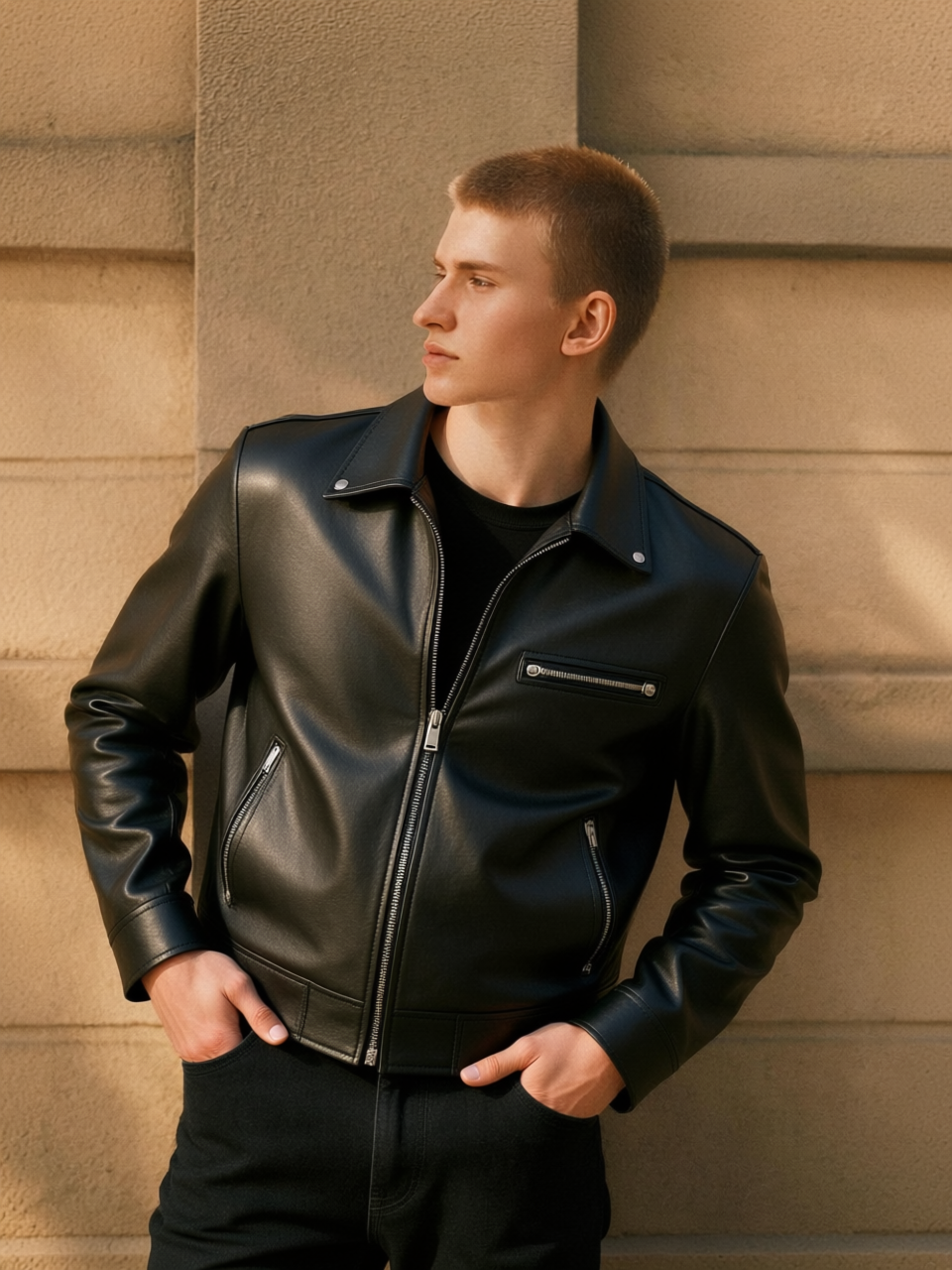
The output changes the shirt into a black leather jacket while retaining the person, pose, and surrounding frame. This is a clean appearance-edit test because the request is tightly scoped and the material is named. The visible jacket reads as a garment rather than a flat black overlay, which is the important bar here. It is a good fit for a product mockup or wardrobe concept, but a final ecommerce image still deserves a close check for seams, sleeve edges, and brand-sensitive details.
Edit 2 — Animal replacement
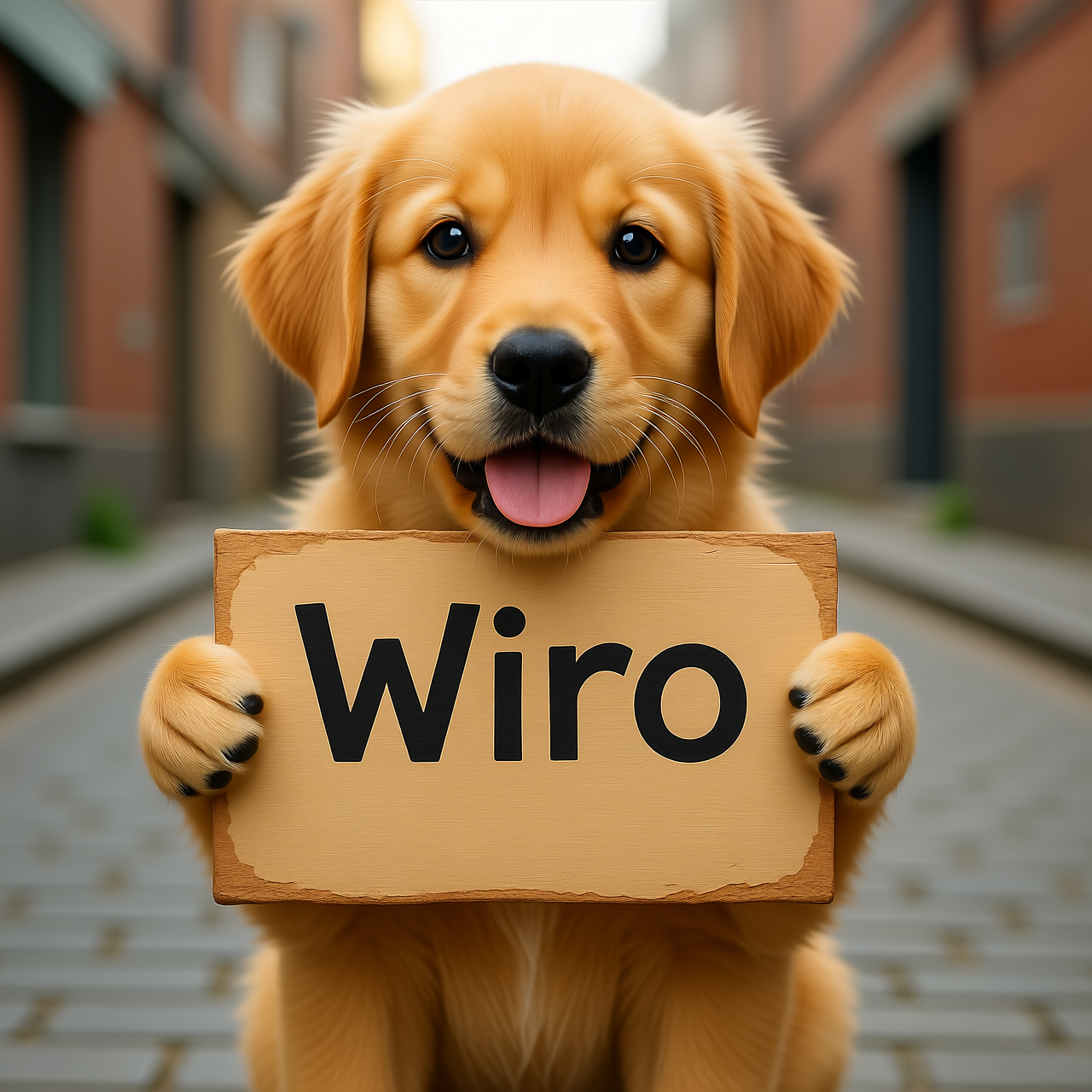
This result replaces the cat with a golden retriever puppy. Unlike a recolor, it has to generate a different body shape and fur while fitting the original scene. The output demonstrates the model’s willingness to make the semantic jump rather than merely repainting the cat. That makes it useful for ideation and playful creative revisions. For a controlled campaign asset, add anchors such as “match the original pose,” “same camera angle,” and “keep the background unchanged” to reduce drift.
Edit 3 — Color change
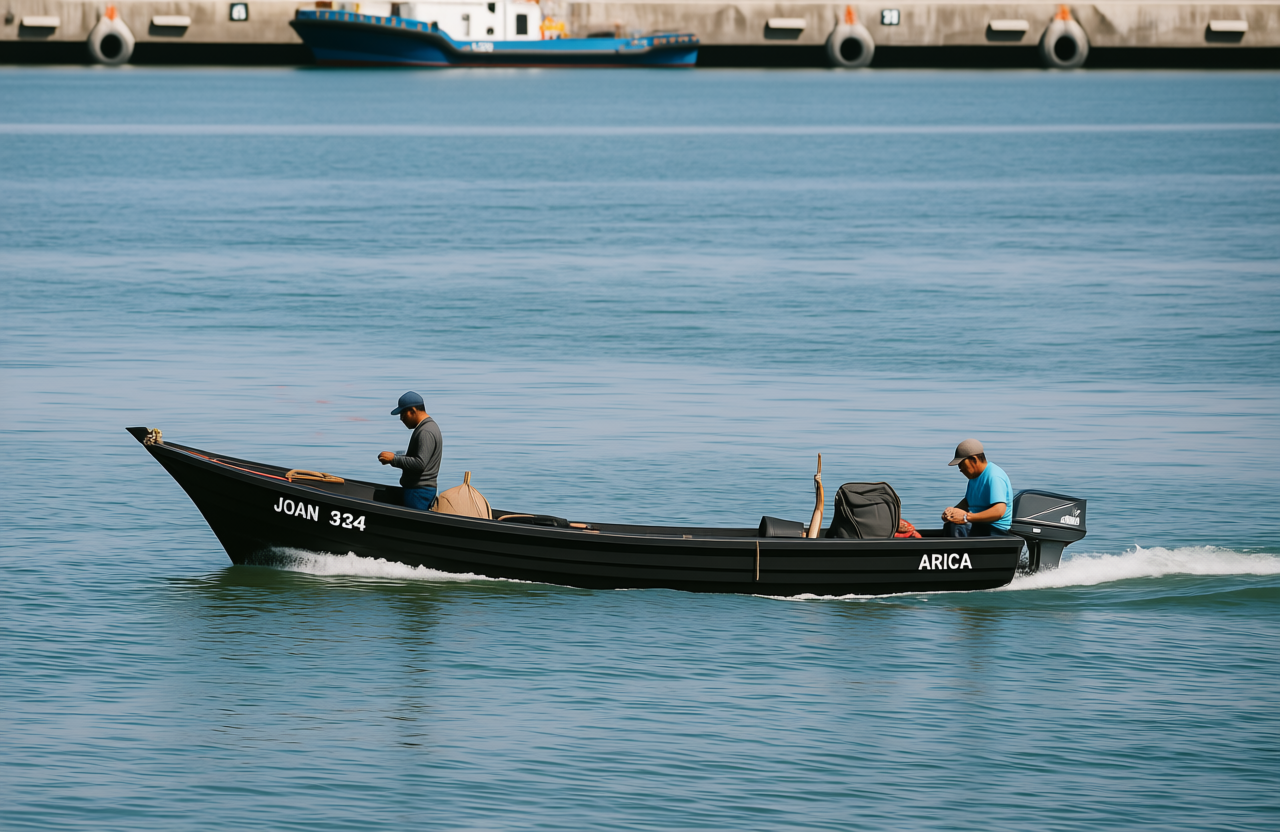
The yellow boat becomes black while the rest of the scene remains recognizably the same. This is the least ambiguous request in the batch and a sensible first choice when evaluating an edit model. It shows why explicit color names and an obvious target object help: the editor does not have to infer whether the user means the hull, trim, or entire scene. For colorway exploration, name the finish too: matte black, gloss black, brushed steel, or cream enamel.
Edit 4 — Text on a product surface
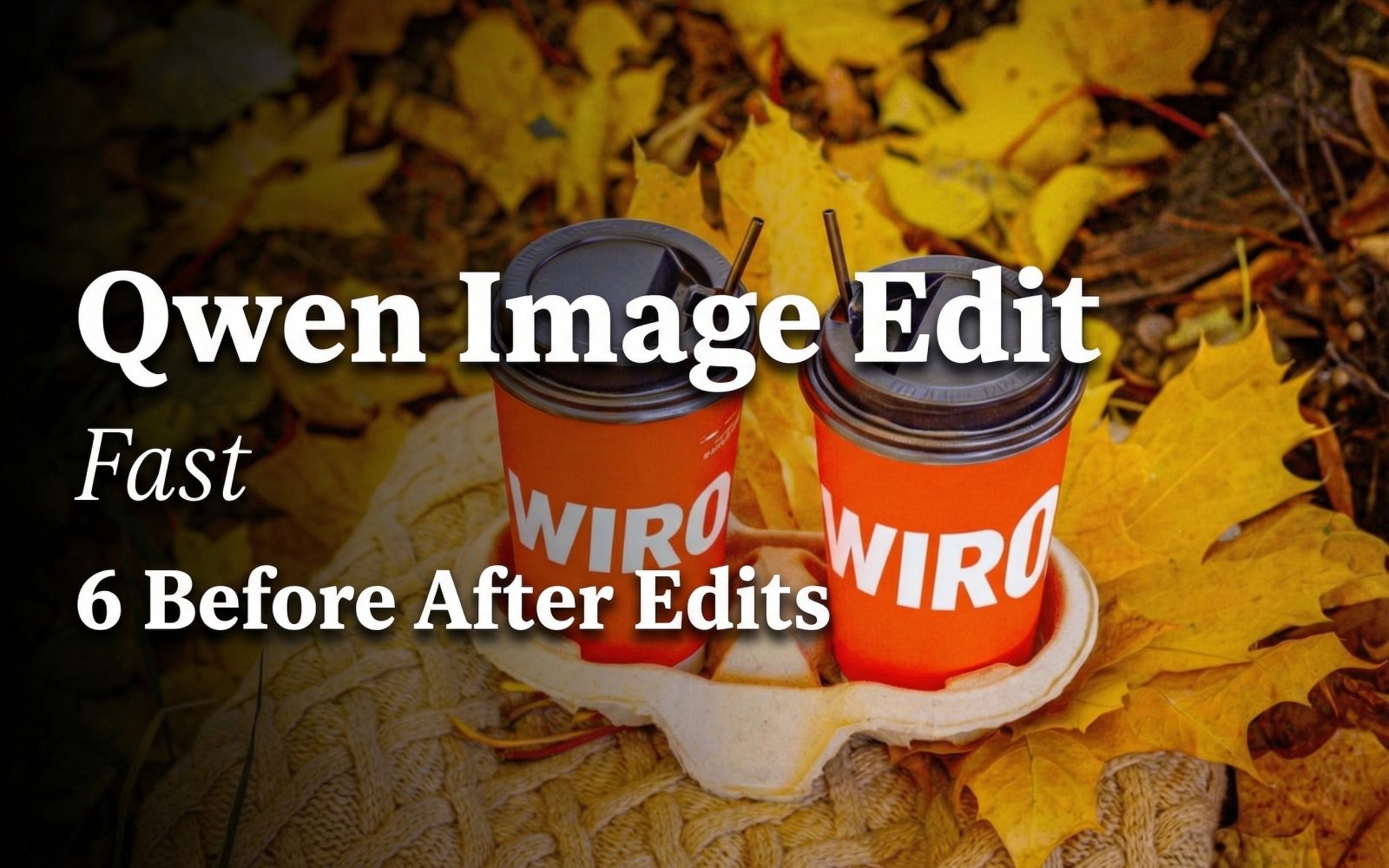
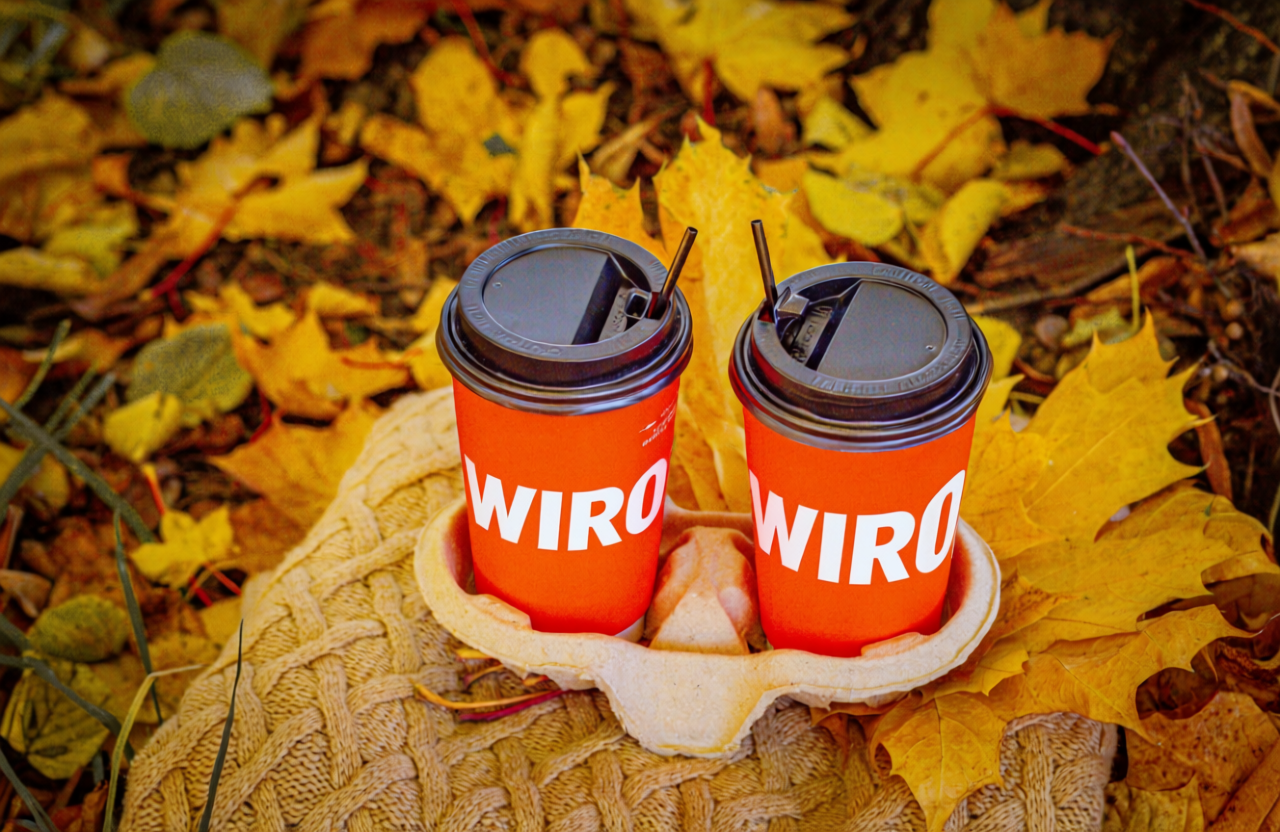
The cups receive the word “WIRO” on their sides, testing text placement against a curved physical object rather than a blank poster. The result is useful evidence that the model can attempt an integrated graphic treatment instead of placing detached text over the scene. Still, this is a concepting result, not a substitute for a brand-production workflow: inspect spelling, letter spacing, edge distortion, and logo clear space at full size before approval.
Edit 5 — Background replacement
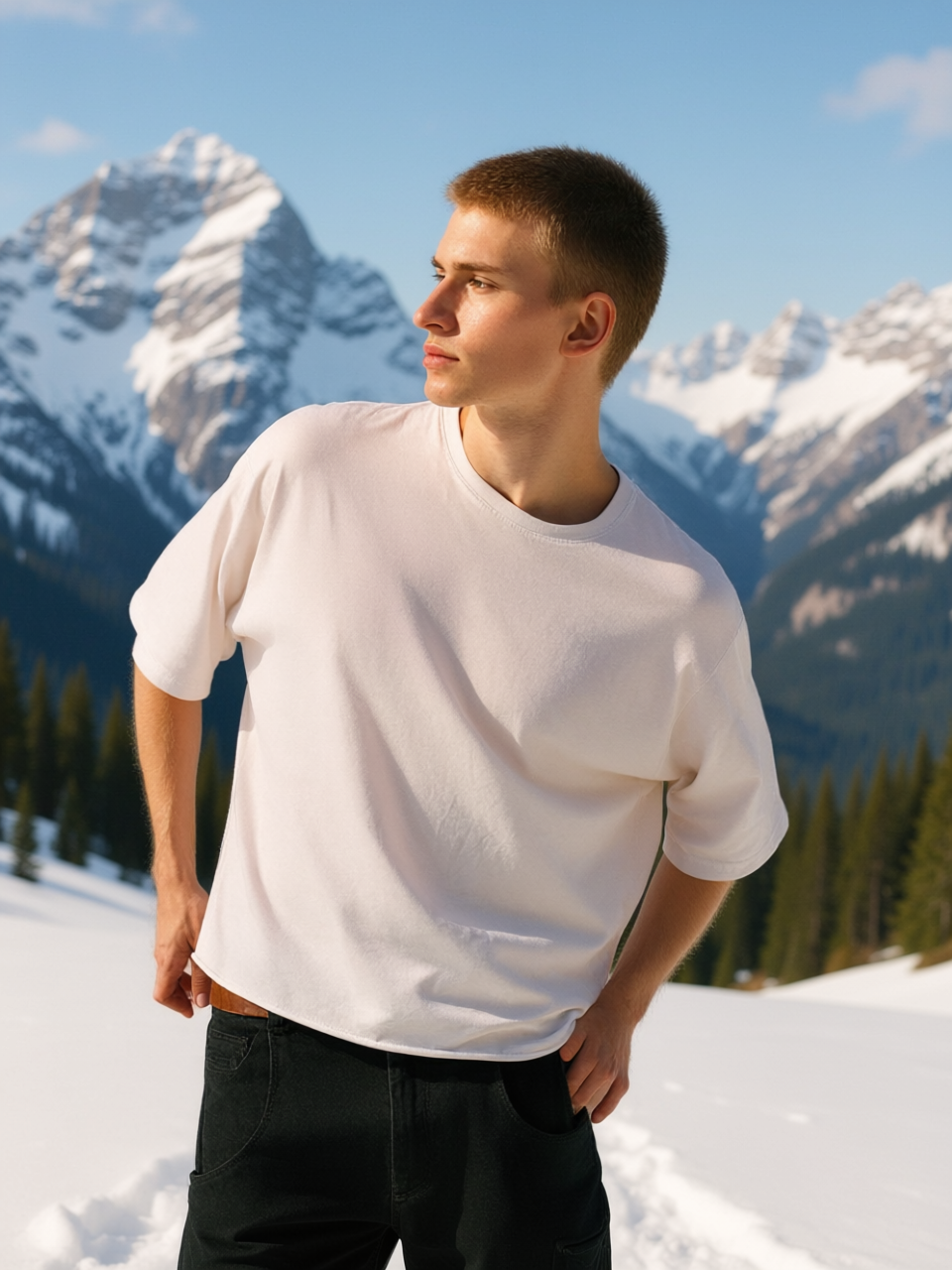
The subject stays foregrounded while the setting becomes snowy mountains. The critical phrase is “keep the person and clothing unchanged”: it gives the model a preservation rule as well as a new scene. This is the kind of edit where edges around hair, hands, and clothing reveal weaknesses fastest. Use it for mood boards, seasonal variants, and quick social concepts; for a hero image, review cutout boundaries and lighting consistency before exporting.
Edit 6 — Subject swap plus accessory
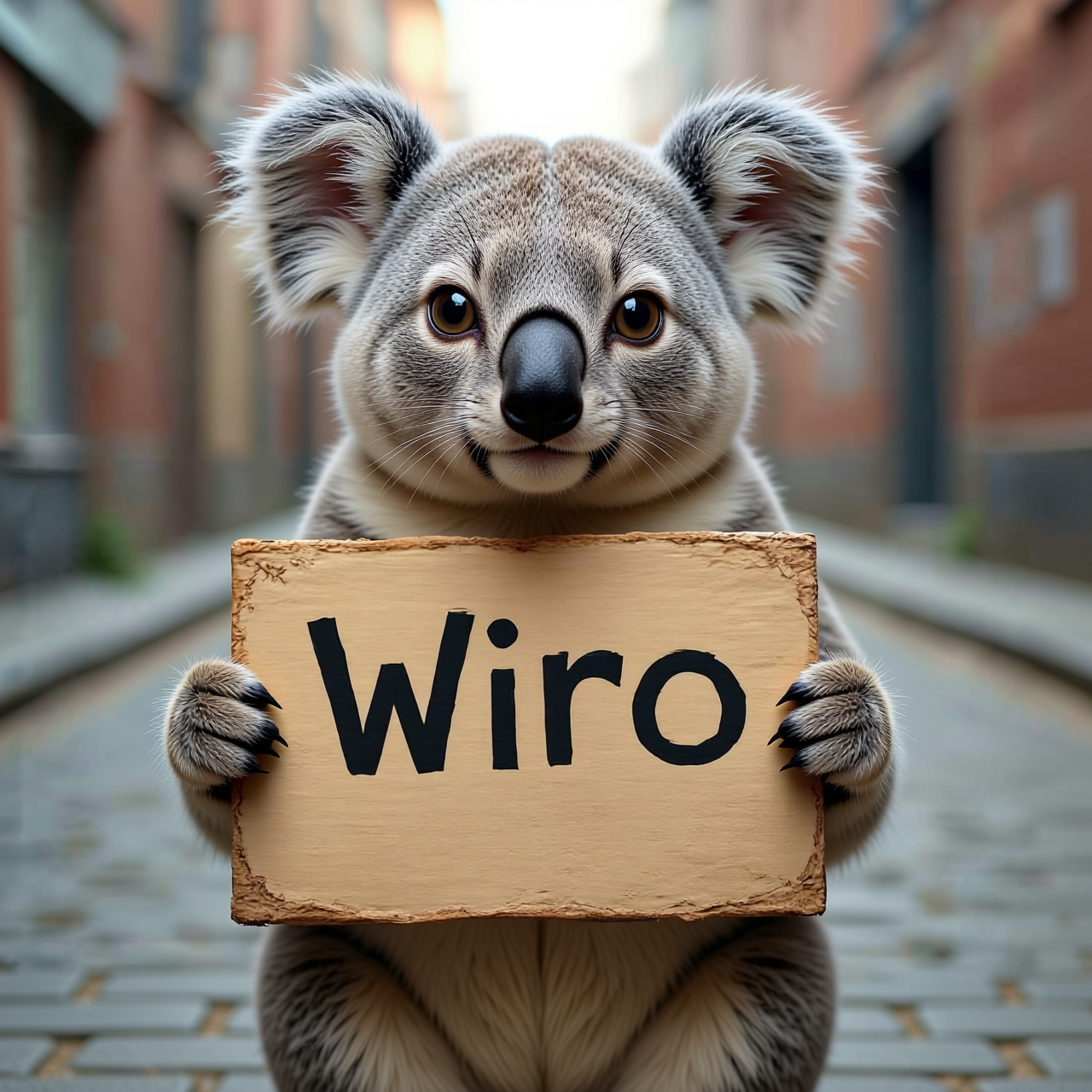
This is the hardest instruction because it combines two dependent edits: replace the cat with a koala, then place a red bandana at a specific location. The output shows a koala with the requested neck accessory, so the broad instruction is followed. It is also the best reminder that compound prompts should be decomposed when precision matters. If the bandana placement or scale is mission-critical, run the subject swap first, then make a second pass focused only on the accessory.
What to use it for
| Job | What this test suggests | Prompt approach |
|---|---|---|
| Color or material variants | Best match for a narrow, bounded change | Name the object, color, and finish |
| Wardrobe changes | Useful for concepts when lighting and pose need to survive | Name garment material and state what stays unchanged |
| Background swaps | Good for fast scene exploration; inspect edges | Explicitly protect subject, clothing, pose, and hair |
| Object or animal replacement | Capable of a larger semantic rewrite, with more room for drift | Specify pose, scale, camera angle, and untouched regions |
| Text and logo concepts | Worth testing early, but verify every character before shipping | Specify exact text, surface, size, contrast, and placement |
When to pick Qwen Image Edit Fast
Pick Qwen Image Edit Fast when the goal is to test a concrete visual change quickly from an existing image: a colorway, clothing variation, background concept, object swap, or rough text-on-product treatment. It is especially sensible when a short direct instruction can describe the edit and the output will be reviewed by a person before publication. Use a more controlled, iterative workflow when the asset needs exact typography, legal logo fidelity, or pixel-level retention. In those cases, narrow the instruction, preserve the best intermediate output, and make one change per pass.
For adjacent editing approaches, read FireRed Image Edit vs Seedream V5 Lite: 5 Before and After Tests, Best Seedream V5 Lite Image Editing Tests in 2026, and Top 5 Image Edit APIs for Product Photos (2026). They offer useful comparison context, while this page stays focused on what these six Qwen Image Edit Fast outputs actually demonstrate.
Bottom line
The six outputs make the case for Qwen Image Edit Fast as a practical first-pass editor, not a magical one-click finisher. The narrow color and clothing changes are the clearest wins. The animal, background, and accessory cases show that it can handle bigger transformations, but they also make the case for explicit preservation constraints and human review. Start with a single target, describe the desired result plainly, and split complex edits into separate passes when exact placement matters.