Flux Kontext Max Multi was tested here as a two-reference image editor, not as a general image generator. The question was simple: can one image supply the scene while a second supplies a visual detail, then can a short instruction place that detail without rebuilding everything else? The six outputs below test logo placement, appearance transfer, material transfer, illustration matching, local patches, and a two-part object edit.
Model and test setup
The model page is Flux Kontext Max Multi on Wiro. Each test passed two image URLs: the first was the base scene and the second was the reference. Prompt upsampling was set to false, safety tolerance to 2, seed to 42, and output format to JPEG. Keeping prompt upsampling off matters here: the results reflect the direct instructions shown in each caption rather than an expanded prompt.
Wiro’s model documentation shows a completed example with 6.0 seconds elapsed time. It does not publish a fixed per-output price. A separate cancelled-task example lists a total cost of 0.003510, but that is not evidence of a delivered-output price, so it should not be used to budget a production run. Queue time, inputs, and platform settings can also change the elapsed time.
For background on the FLUX family and its API concepts, see the Black Forest Labs documentation. For adjacent editing workflows, compare this test with Qwen Image Edit Fast, Seedream V5 Lite image-editing tests, and GPT Image 1.5 text-edit tests.
What the six outputs actually show
1. Logo on a shirt: reference fidelity with a photographic base



The output places a large illustrated koala-and-bottle mark on the right side of the white shirt. The man, pose, shirt buttons, and shop-like background remain recognizable. The edit is visually clean, though the result is larger than the prompt’s “small size” request. This is a useful reminder that placement and scale need separate, explicit constraints when brand artwork matters.
2. Hair-look transfer: the edit changes more than hair
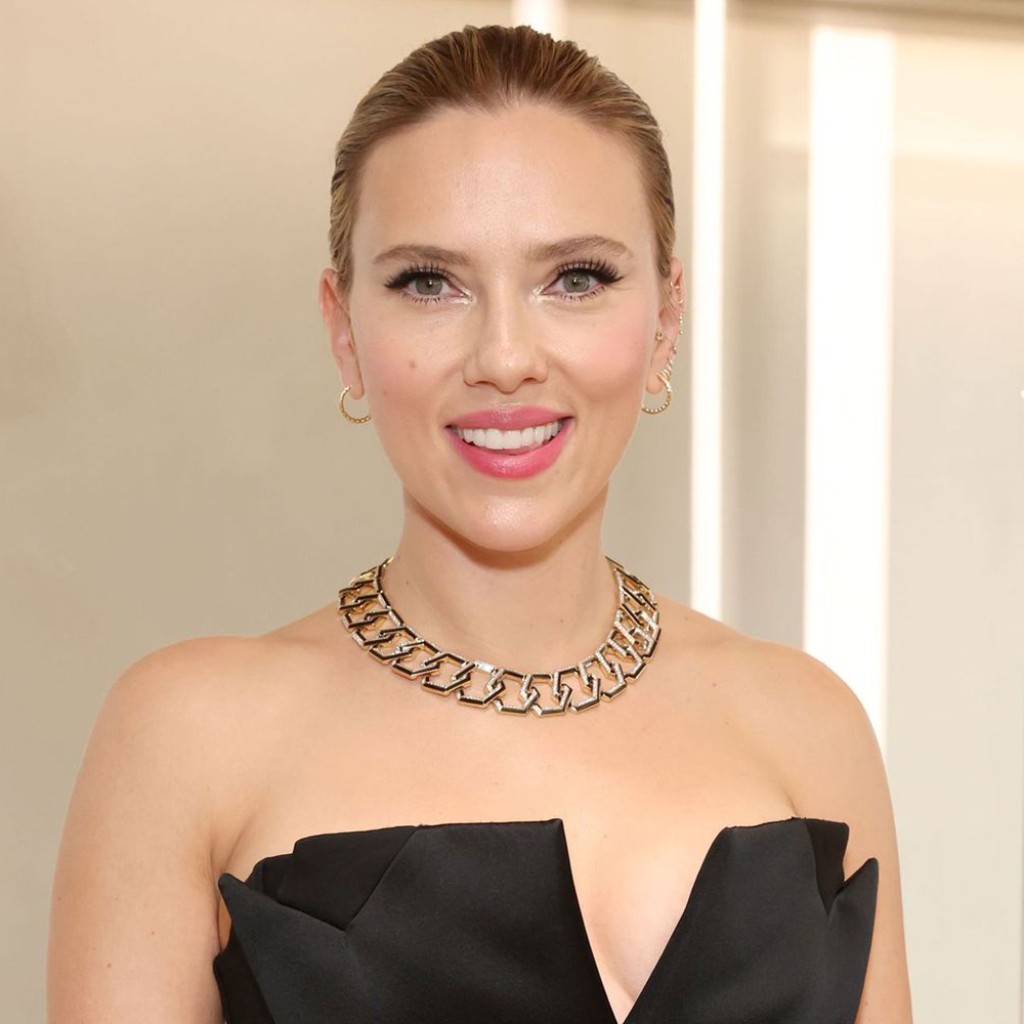
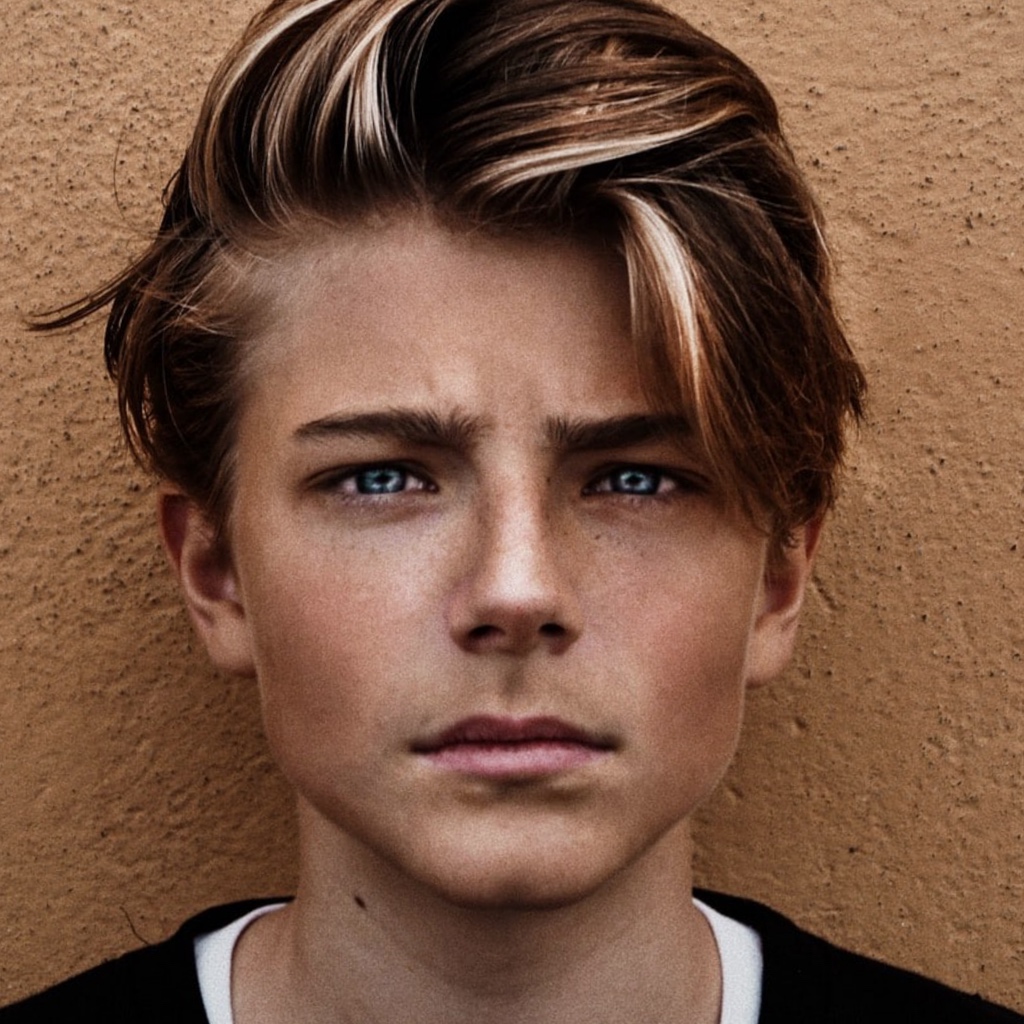
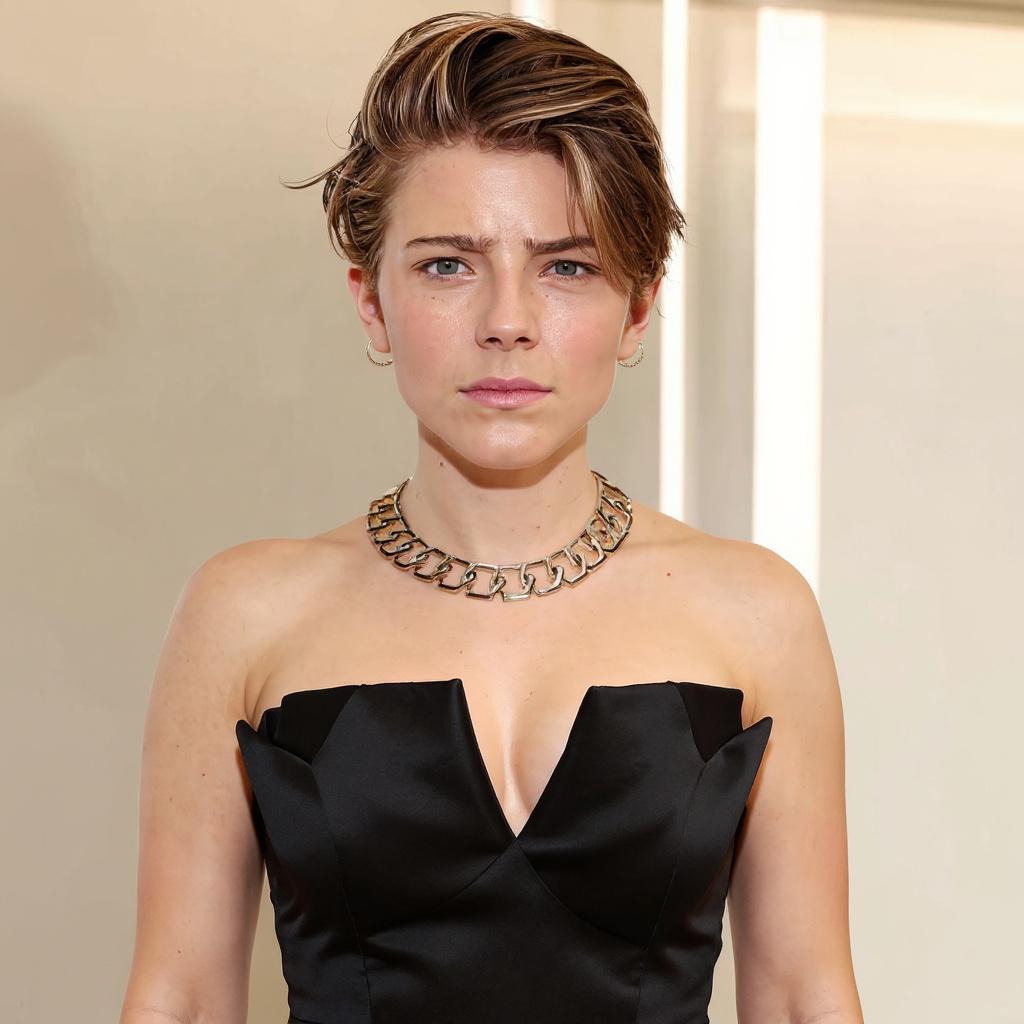
This output has short, swept brown hair, but it also changes the subject’s face, outfit, and framing. It succeeds as a loose visual transfer, not as a strict retouch. Pick this approach for mood boards or concept exploration. For a client headshot, state the protected areas directly: keep face, identity, clothes, pose, and background unchanged; change only hair color and style.
3. Wall pattern transfer: geometry holds, reference texture does not

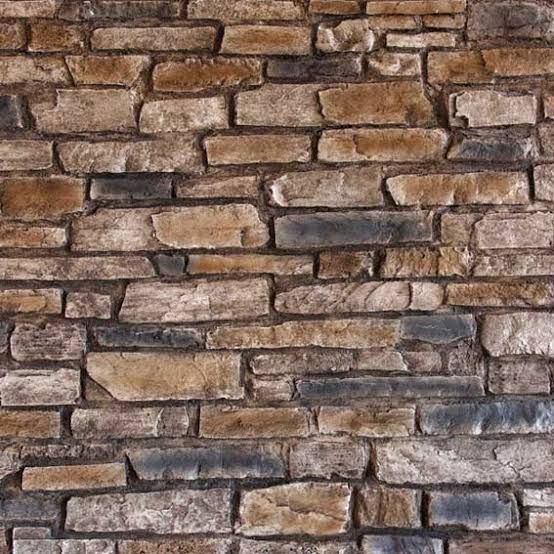
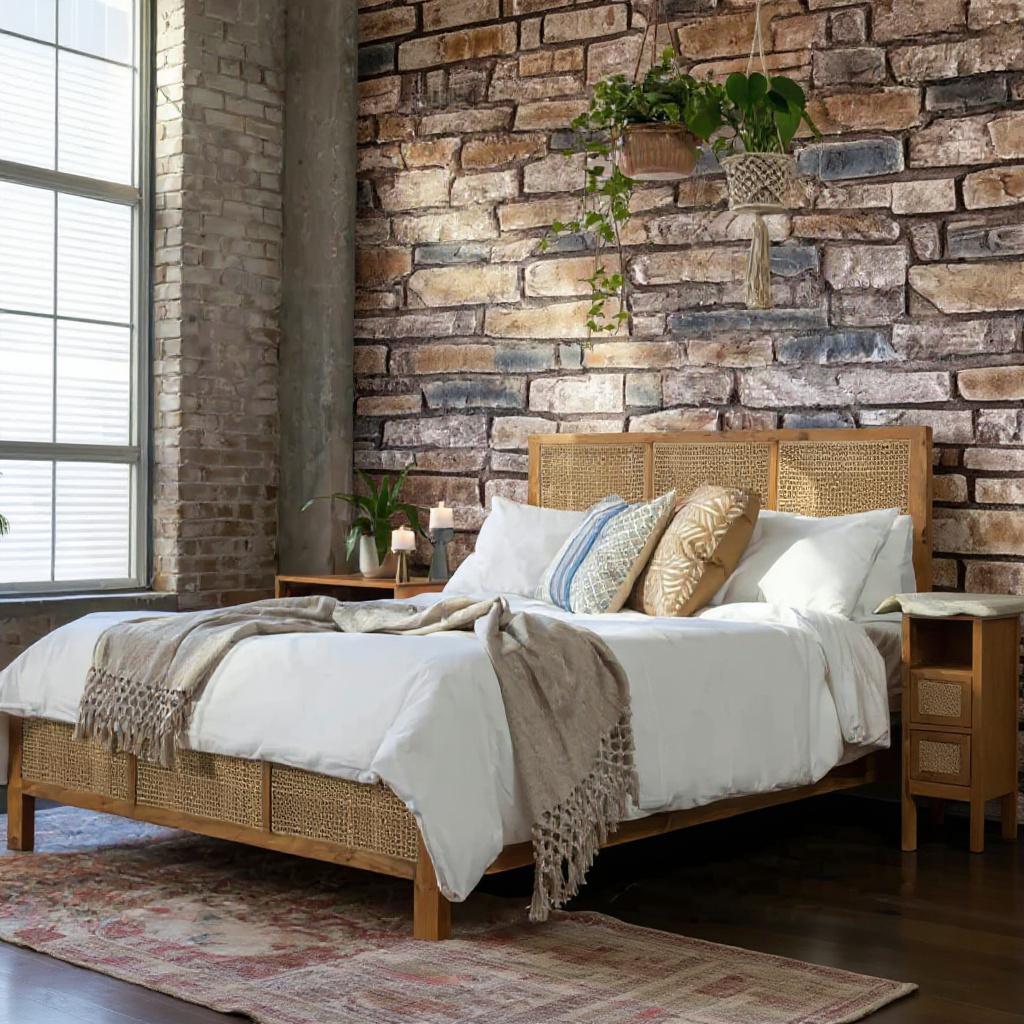
The bed, windows, floor, and wall position survive the edit. The rear wall becomes a dark, aged brick surface rather than a close reproduction of the supplied pattern. That makes the result convincing as an interior redesign concept, but weak for a product-accurate wallpaper preview. Use it to explore surface direction; use a compositing workflow when a specific repeat pattern must remain exact.
4. Logo on an illustrated shirt: strong text and local placement
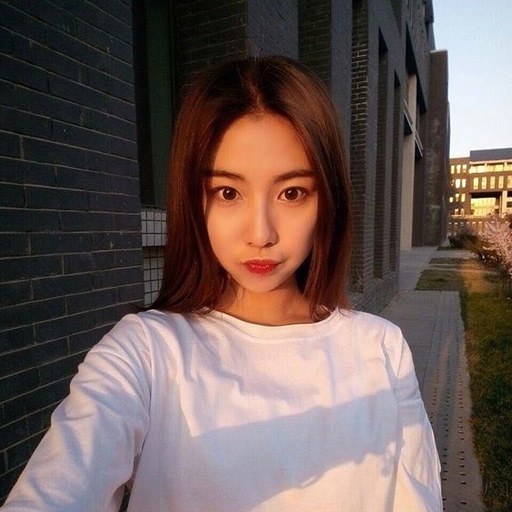

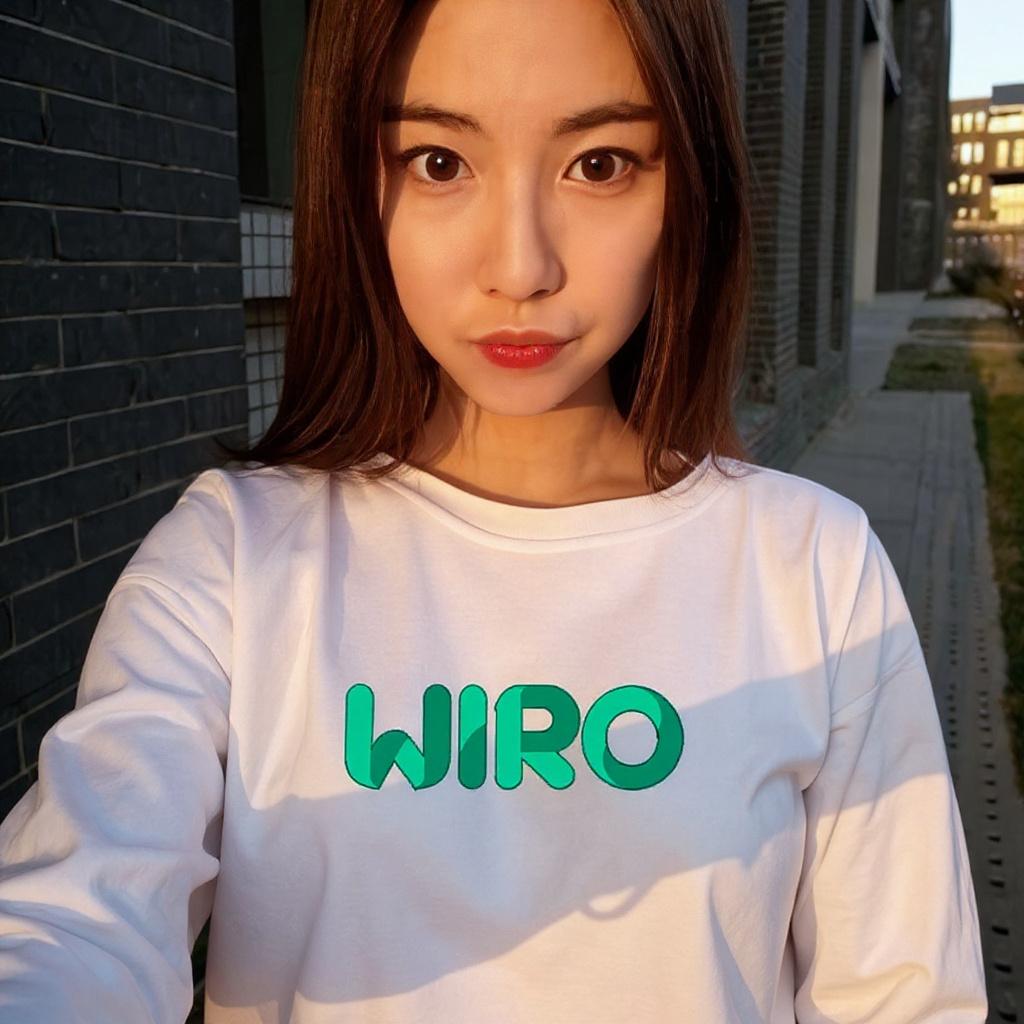
The output keeps the selfie-like illustration and puts a readable green “WIRO” wordmark across the shirt. It is centered and local, although again not especially small. Among these outputs, this is the clearest evidence that the model can carry a simple brand mark into a stylized scene without turning it into gibberish.
5. Sleeve patch: localized edit with a changed subject
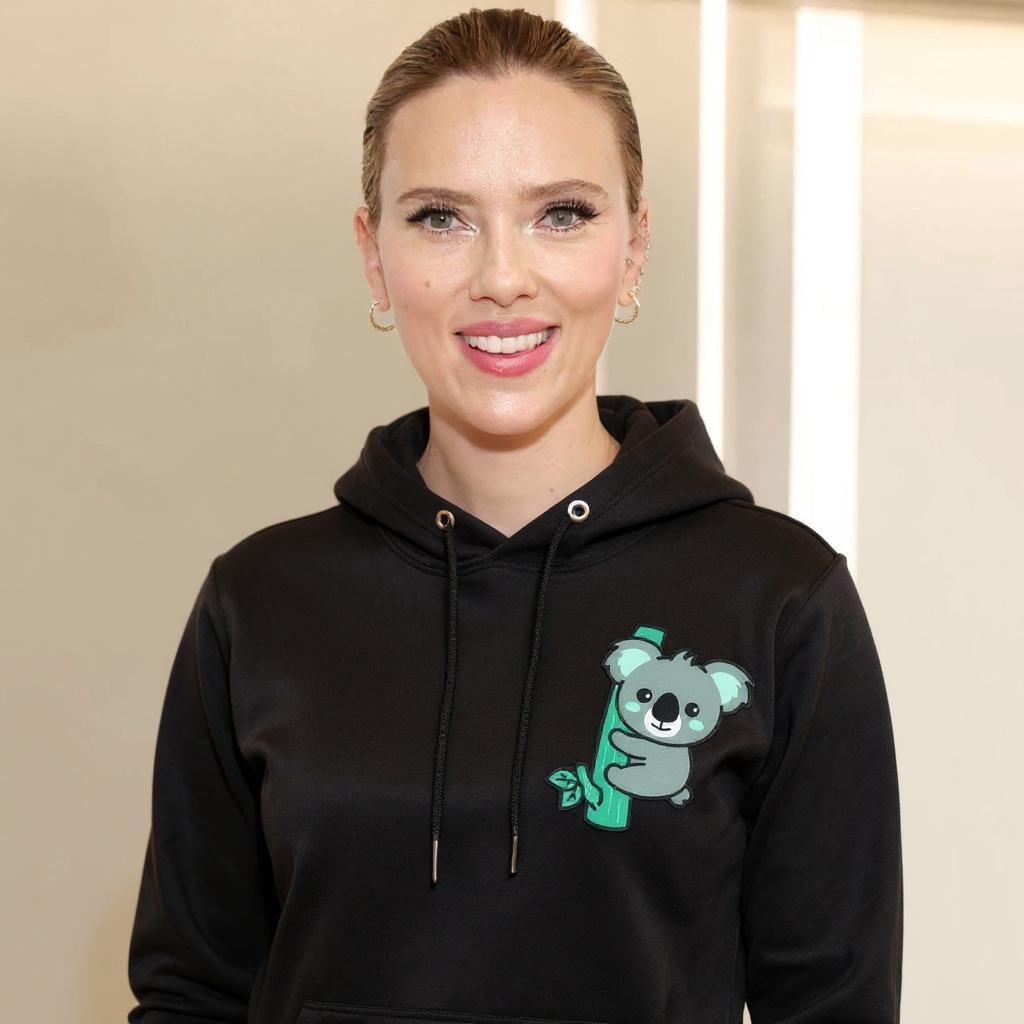
The model produces a black hoodie with a tidy koala patch near the left chest/shoulder area. The patch itself looks integrated, but the person and clothing change from the starting portrait. This is a good direction test for merch mockups, not proof that the model will preserve a supplied talent photo. In production, run one change at a time and reject any result that alters the protected subject.
6. Remove and move: two instructions complete with a visible compromise
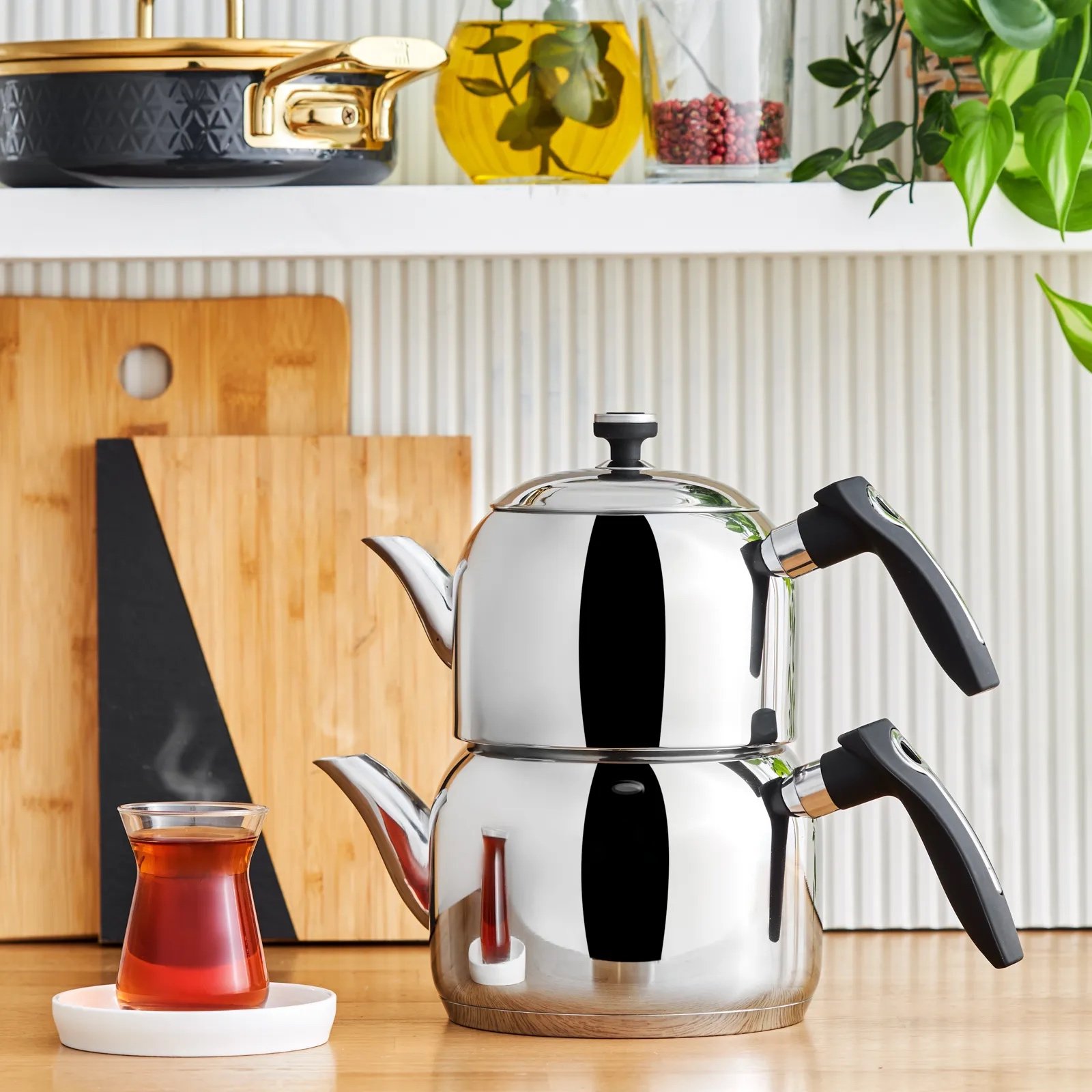
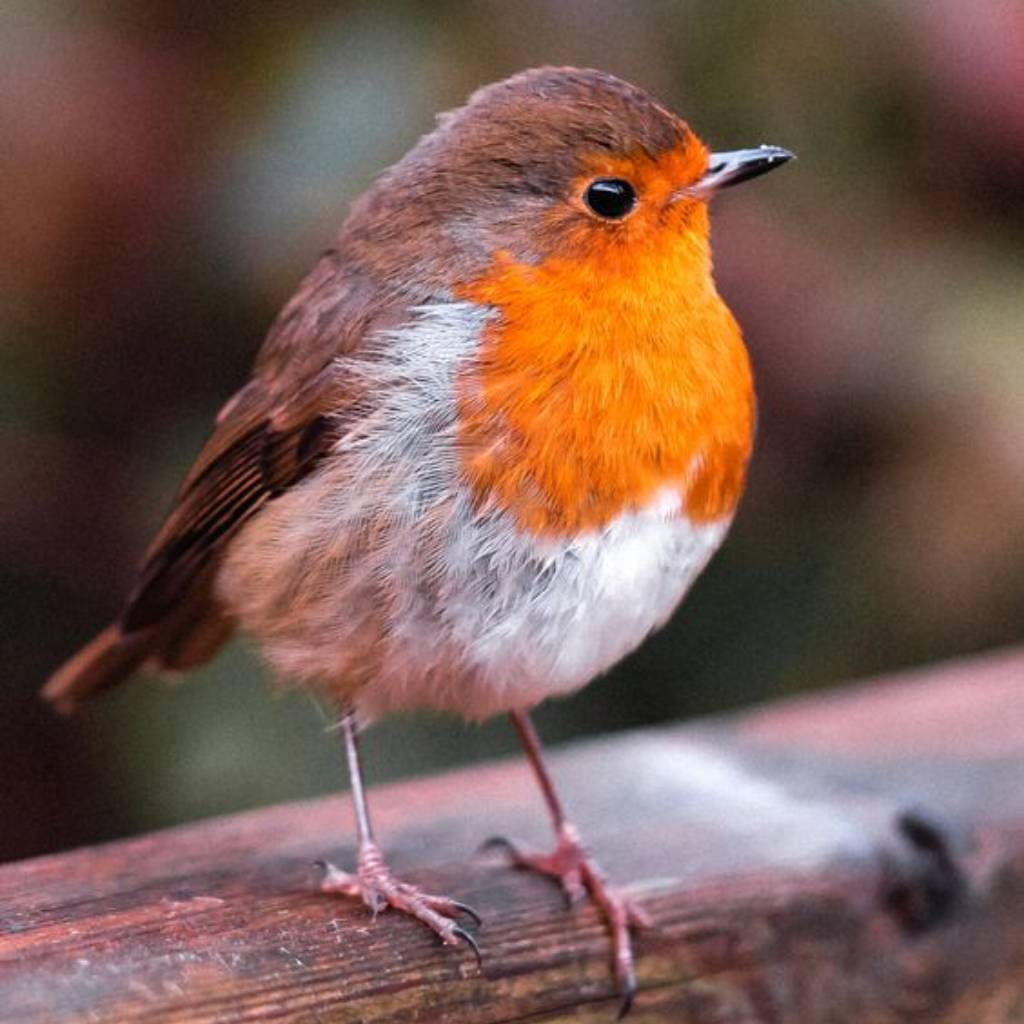
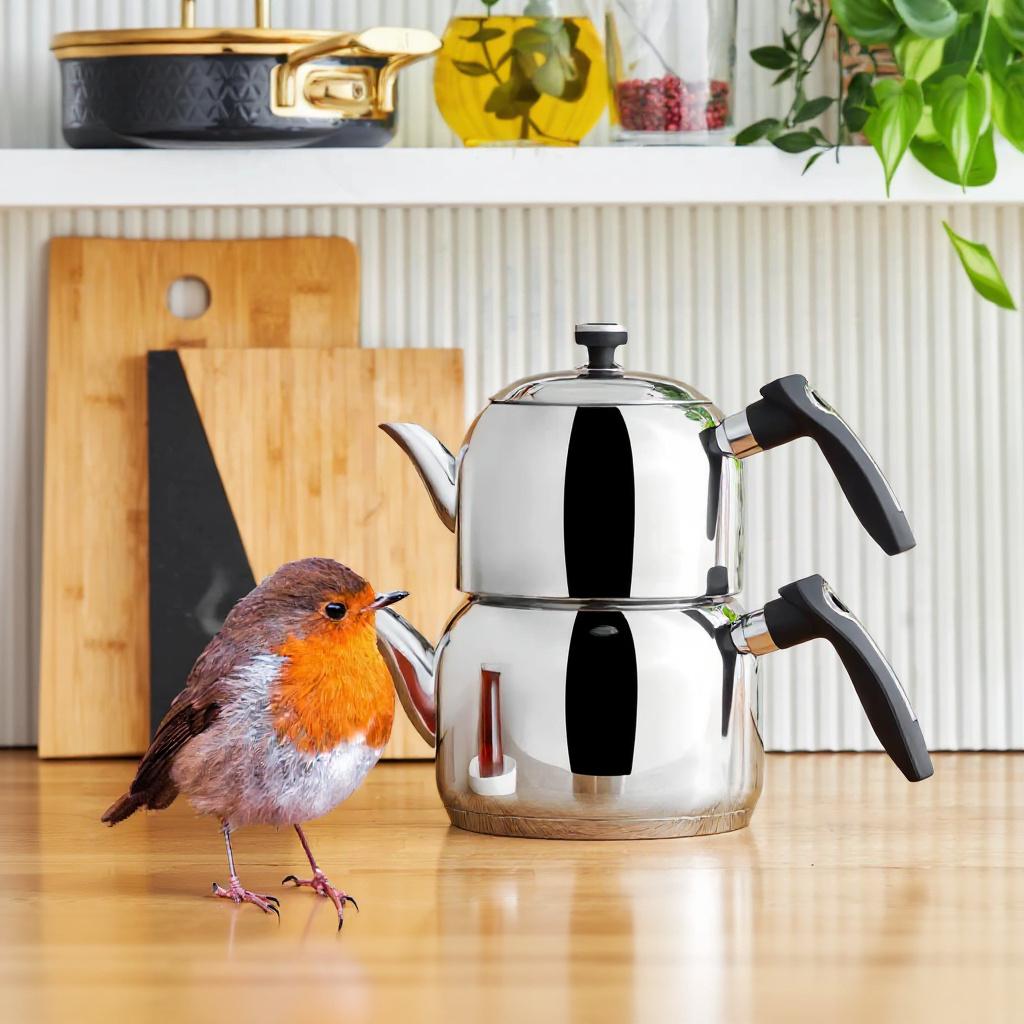
The tea glass is gone and the bird sits left of the stacked teapot, so both requested actions land. The image also shows an artifact: a conspicuous dark vertical area remains on the teapot body. This is the hardest test because it asks for deletion and spatial repositioning together. For cleaner results, split the workflow into two runs: remove the glass first, then move the bird in the accepted image.
When to pick Flux Kontext Max Multi
| Need | What these outputs support | Best prompt move |
|---|---|---|
| Quick merch or logo concepts | Good local logo integration, especially on stylized clothing | Name location and approximate scale; inspect the spelling |
| Interior mood exploration | Strong scene preservation, looser material fidelity | Describe the surface and accept variation |
| Strict portrait retouching | Risky when identity must remain fixed | Protect face, pose, wardrobe, and background explicitly |
| Multi-step object changes | Possible, but artifacts can appear | Split removal and relocation into separate runs |
Choose Flux Kontext Max Multi when the second image is a visual reference and the output can tolerate interpretation. It is especially useful for rapid apparel, brand-placement, and scene-direction concepts. Do not treat it as pixel-accurate compositing: the hair test and wallpaper test show that the model can reinterpret more than the requested region. Start with a short instruction, lock down anything that must not change, and use separate passes for complex edits.
Try the model
Run Flux Kontext Max Multi on Wiro with two JPEG or PNG references and a specific edit instruction.