What is MCP? The Model Context Protocol is an open protocol for connecting an AI application to outside tools, data, and workflows. In plain terms, it gives an assistant a common way to move beyond chat and work with useful systems.
That matters when an assistant needs more than the words already in a conversation. It may need to search, read a data source, call a calculator, start a workflow, or use a service you have connected. MCP gives the application and that service a shared language for the connection.
The problem MCP solves
Before MCP, each AI app and each external system could need its own custom connection. A tool provider might build one integration for a chat app, another for an editor, and another for an agent. The app had to learn each connection in turn.
MCP is an open standard intended to reduce that one-off work. It lets an AI application connect to a server that offers context and capabilities through a common protocol. The official MCP introduction compares the role to USB-C: one standard connection can work across many compatible devices.
That does not turn every assistant into an all-access worker by default. It gives the app a structured way to discover what a connected server offers. The server can expose resources, prompts, and tools. Resources provide context or data. Prompts offer templated messages and workflows. Tools are functions the AI model can call.
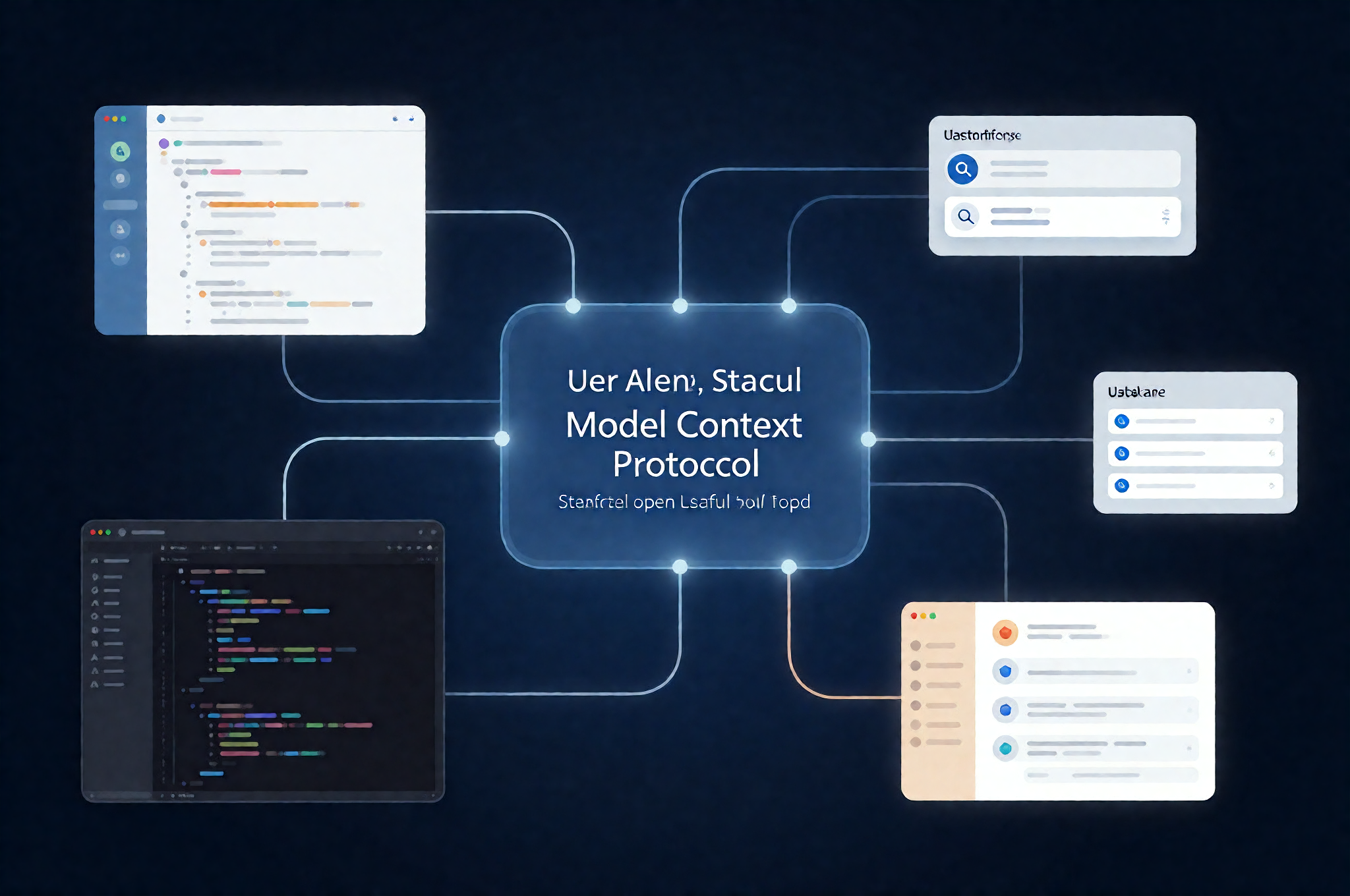
How MCP works at a high level
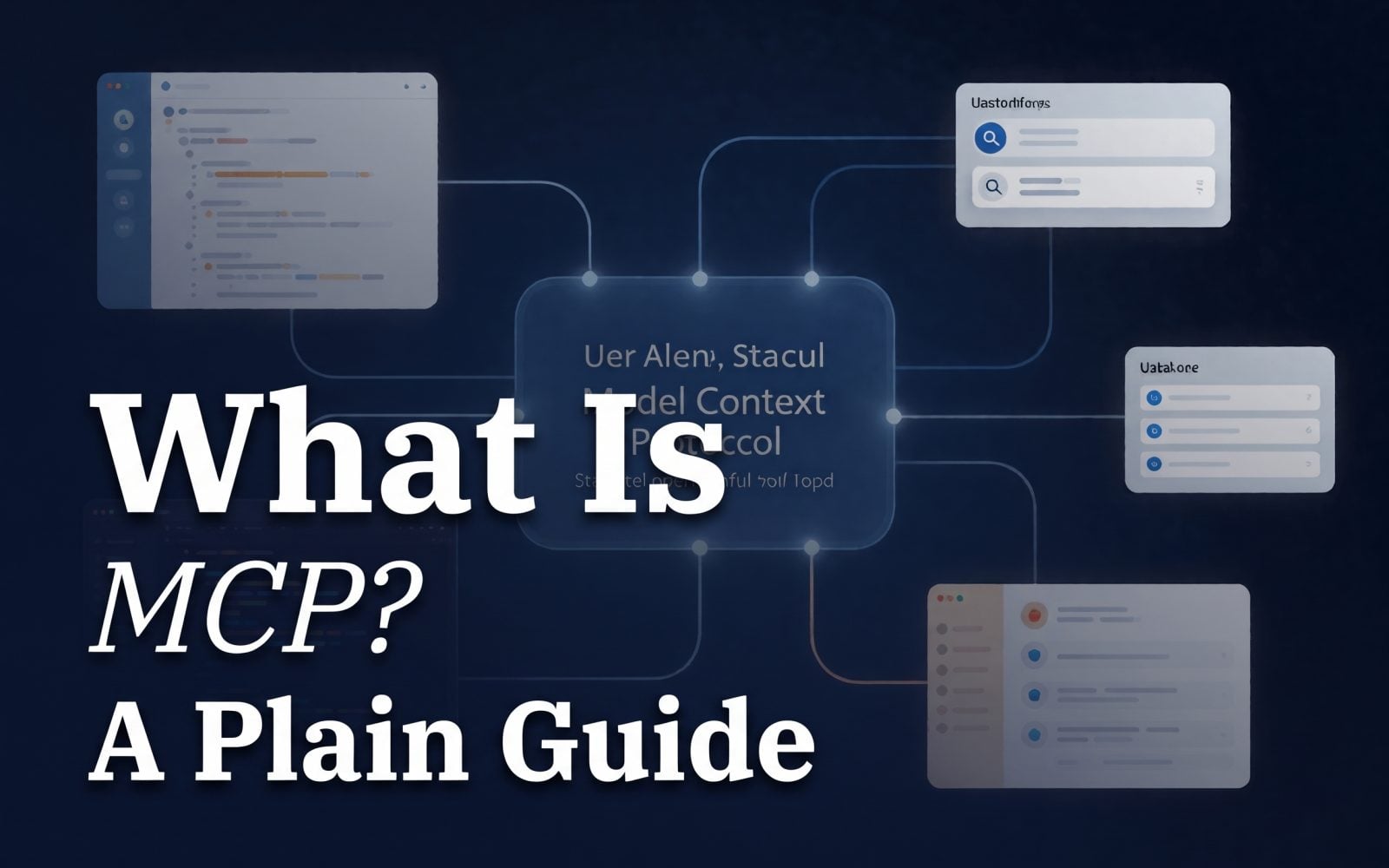
The MCP specification describes three roles. The host is the AI application a person uses. That might be a chat interface or an AI-powered editor. Inside that host, a client manages the connection. A server provides the context or capability.
Picture an assistant in ChatGPT, Claude, Cursor, or VS Code. The app acts as the host. It connects its MCP client to a server. That server lists the tools or resources it makes available, and the app can use the agreed protocol to communicate with it.
The protocol uses JSON-RPC messages and starts with capability negotiation. In practical terms, the app and server establish what each side supports before the assistant starts using the connection.
Remote servers and local servers
An MCP server can run remotely over HTTP. In that setup, the app connects to a URL operated by the service provider. A remote server can use a browser-based sign-in flow when the client supports it.
Other servers run on your own computer. The self-hosted Wiro MCP guide, for example, describes a local stdio setup. The assistant starts the local server, which then provides MCP tools to that assistant. The important distinction is simple: a remote server lives behind a network address, while a local server runs in your environment.
Neither option removes the need to understand the connection. The transport changes where the server runs, not the fact that it can offer powerful actions.
What people use MCP for
MCP can connect AI applications to data sources, tools, and workflows. The official introduction gives examples such as calendars and knowledge tools, design-to-code work, database access for enterprise chatbots, and creative software connected to an AI model.
For an everyday user, the benefit is less about protocol details and more about continuity. Instead of switching between an assistant and several separate tools, a compatible assistant can work through a connected server. The assistant still needs the server to offer the right capability, and the host needs to support the connection.
For teams building integrations, the appeal is reuse. A server built around MCP can be used by compatible AI applications rather than being designed for one assistant alone.
What to check before connecting an MCP server
Connecting a server can give an assistant access to information and actions. Treat the choice like connecting any other account or extension.
- Who runs it? Start with the organization behind the server. Use official documentation and make sure the URL is the one you expect.
- What can its tools do? Read the tool descriptions. A server might only provide read-only context, or it might offer actions that change data, run jobs, or send requests.
- How does sign-in work? Check whether it uses a browser approval flow, a local configuration, or another authorization method. Know which account or project you are authorizing.
- What costs money? A server connection and the actions through it are different things. Check whether model runs, workflow steps, agent work, or other tools carry a charge.
The MCP specification places consent and control at the center of its security guidance. Hosts should obtain explicit consent before exposing user data or invoking tools. It also warns that tool behavior and descriptions should be treated carefully unless they come from a trusted server.
That is a useful rule of thumb even when the setup looks quick. Connect servers you recognize, review the capabilities, and pause when a tool is about to take an action you did not expect.
Connect Wiro with MCP
Wiro MCP is available at https://mcp.wiro.ai/v1. Add that remote server URL in a compatible app, then sign in with your Wiro account in the browser when the app asks. There is no API key to copy for this browser sign-in route.
Wiro documents browser sign-in support for ChatGPT, Claude, Cursor, VS Code, Gemini CLI, Codex, Devin, Kiro, goose, Grok, and other clients that follow the MCP authorization flow. Once connected, an assistant can find and run models, build and run workflows, create media with Studio, and deploy and talk to your own agents.
Before it runs a model or a workflow, the assistant tells you the expected cost in one line. Agent plans, credit packs and skill changes show their price first and are charged only after you agree. The connected project determines which workspace wallet pays for work. For setup details and the full tool reference, see the Wiro MCP server documentation.
A small protocol with a practical effect
MCP is not an AI assistant by itself. It is the common connection layer between an AI app and the systems that can give it context or let it take action. Once that idea clicks, the right next step is straightforward: choose a server you trust, review what it offers, and connect it only when the tools match the work you want done.
For the protocol itself, read the official MCP introduction and the MCP specification.