E-commerce creative automation was tested here as a practical three-step handoff: take one existing product photo, turn it into stronger stills, place it in ecommerce-ready compositions, then create a short motion asset. The goal was not to find one model that replaces every creative job. It was to check whether the outputs make sense as a small production chain, and to record what each model actually changes.
The same base product image was supplied at every stage. That keeps the comparison focused on framing, setting, layout, and motion rather than on a different product or a different art direction. The outputs below are the original Wiro-hosted results from the test.
What this e-commerce creative automation test checked
- Can a plain product photo become a cleaner catalog or campaign still without writing a long prompt?
- Can the same product be placed in a wide landing-page composition and a vertical social composition?
- Can one approved product image become a motion-first ad concept without a separate shoot?
The test does not measure conversion rate, text accuracy, brand compliance, or legal clearance. Those need review in a real store workflow. It also does not prove that an output should go straight to production. Product details, labels, pack copy, and claims still need a human check before publishing.
Models and test settings
Three Wiro tools were used: Product Photoshoot, Shopify Template Generator, and Product Ads. Each accepts a product image, but the controls reflect a different job.
| Model | Test parameters | Observed runtime | Cost per output |
|---|---|---|---|
| Product Photoshoot | style=studio, plan=hero-shot, outputType=image; then style=lifestyle, plan=action-shot, outputType=image | About 10 seconds per still in the original test | Not recorded for these runs; no comparable price was stated in the model documentation |
| Shopify Template Generator | ratio=16:9, effectType=shopify-template-cool-minimal-spotlight; then ratio=9:16, effectType=shopify-template-soft-studio-glow | About 30-35 seconds per layout in the original test | Not recorded for these runs; no price was stated in the model documentation |
| Product Ads | videoMode=std, ratio=9:16, effectType=animate-products-soft-studio-balance | About 118 seconds for the MP4 in the original test | Not recorded for this run; no price was stated in the model documentation |
Those runtimes are observations from this test, not service guarantees. Queue time, output mode, and input handling can change the total. The documentation exposes the selectable parameters, but it does not provide a comparable published price for the three test outputs. Reporting that gap is more useful than turning an old run into a made-up cost estimate.
Input: one product photo
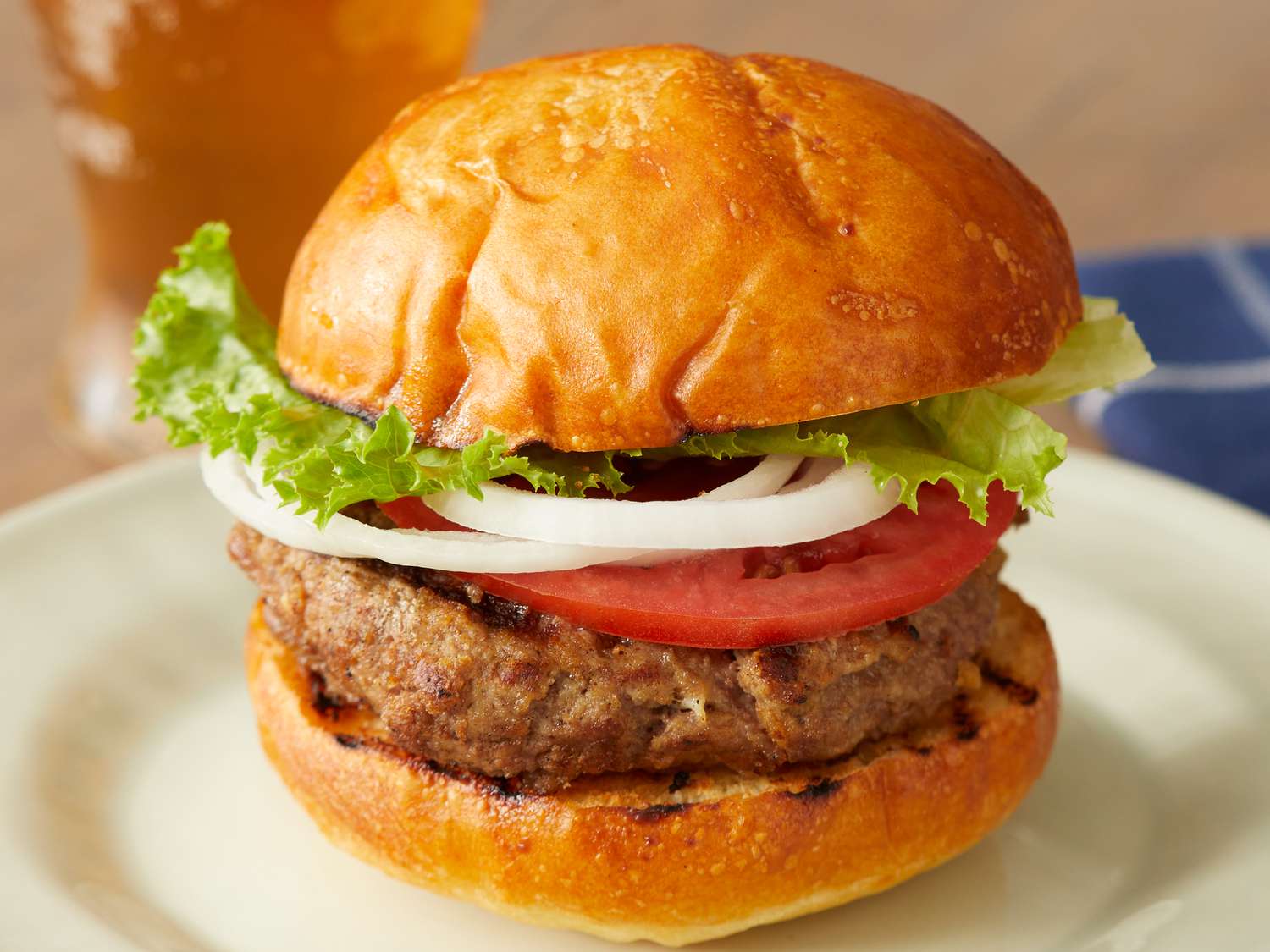
A clean source photo matters. The product should occupy enough of the frame, have visible edges, and avoid unreadable packaging text. None of these tools should be treated as a source of truth for small printed copy. If the label is a required sales claim, retain the original artwork or add final text in a controlled design tool.
Step 1: Product Photoshoot for the still asset
Product Photoshoot uses an input image plus a photography style, shot plan, ratio, and output type. The first run used style=studio, plan=hero-shot, and outputType=image. The result acts like a campaign hero: the product gets clearer visual priority, with lighting and composition doing most of the work.
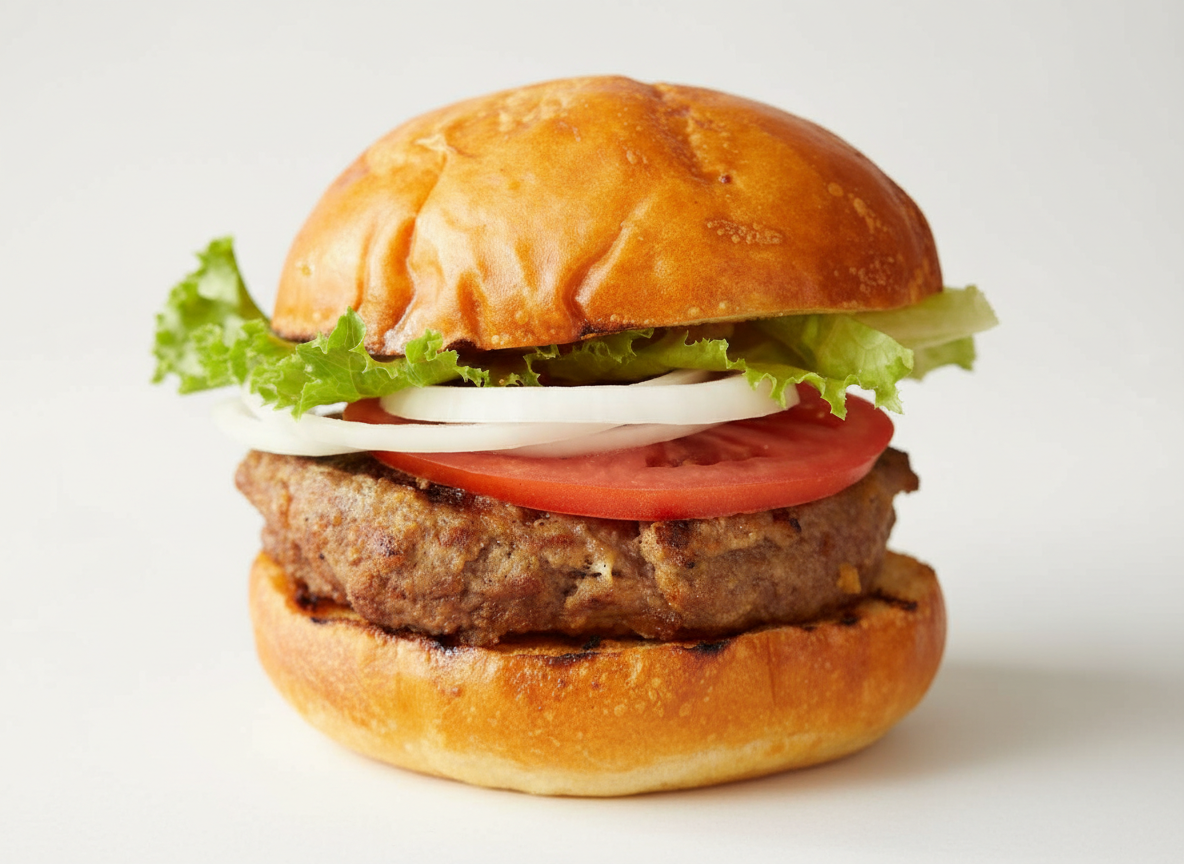
The second run switched to style=lifestyle and plan=action-shot. It moves the product from a neutral selling image toward an in-use story. That is useful for a social asset or a secondary PDP image, but it also introduces more generated context. Review the product shape and any brand-critical detail more closely here.
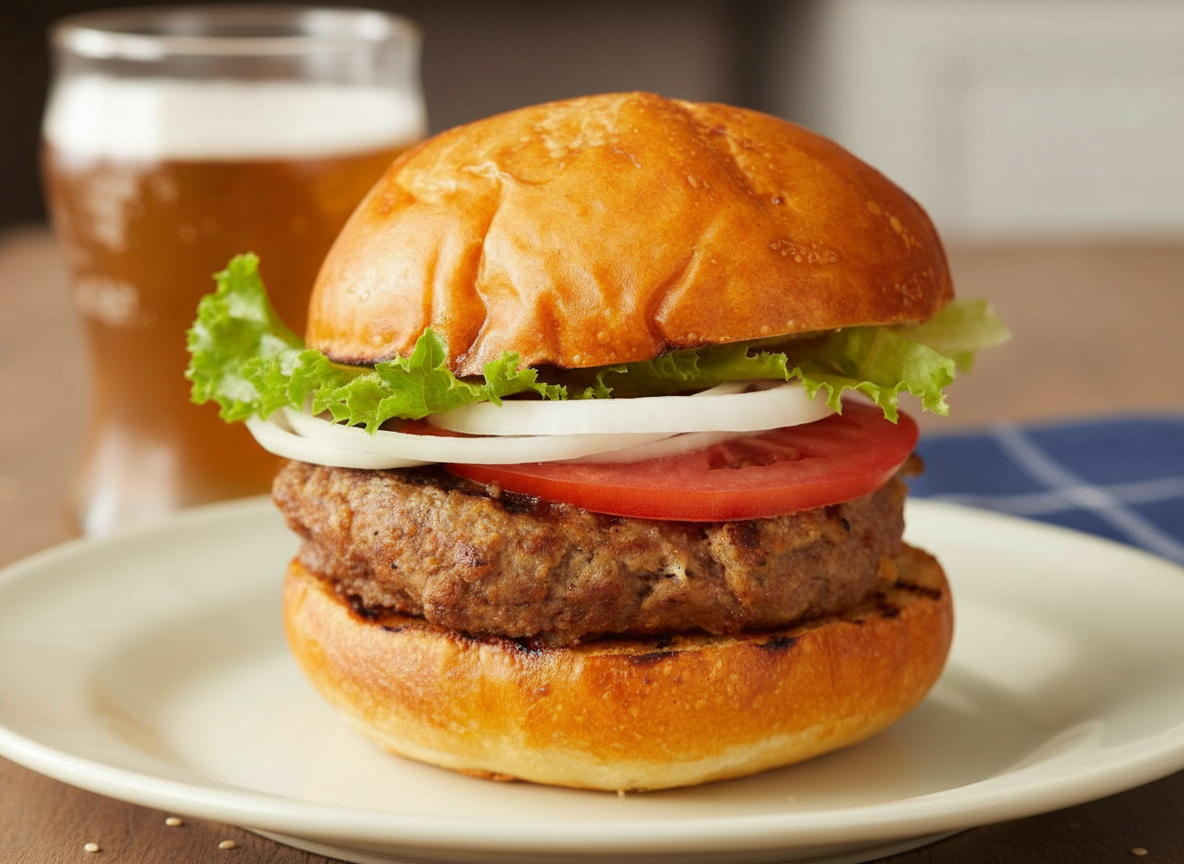
Pick Product Photoshoot when the missing piece is the photo itself. It is the better first move for a catalog refresh, a PDP gallery, or a paid-social still where the product must stay central. Use the studio and hero-shot combination for tighter control. Use lifestyle and action-shot when setting and use matter more than a plain background.
Step 2: Shopify Template Generator for landing-page compositions
Shopify Template Generator takes the product photo and produces a template-like composition. Its required controls are the aspect ratio and an effect preset. It does not build an editable Shopify theme or publish a page. What it produces is a visual direction and a finished image that can inform a hero, collection banner, or social layout.
The wide run used ratio=16:9 with effectType=shopify-template-cool-minimal-spotlight. It shows how the same product can gain breathing room and a desktop-friendly hero framing. The vertical run used ratio=9:16 with effectType=shopify-template-soft-studio-glow. It is better suited to a story, reel cover, or mobile-first placement.
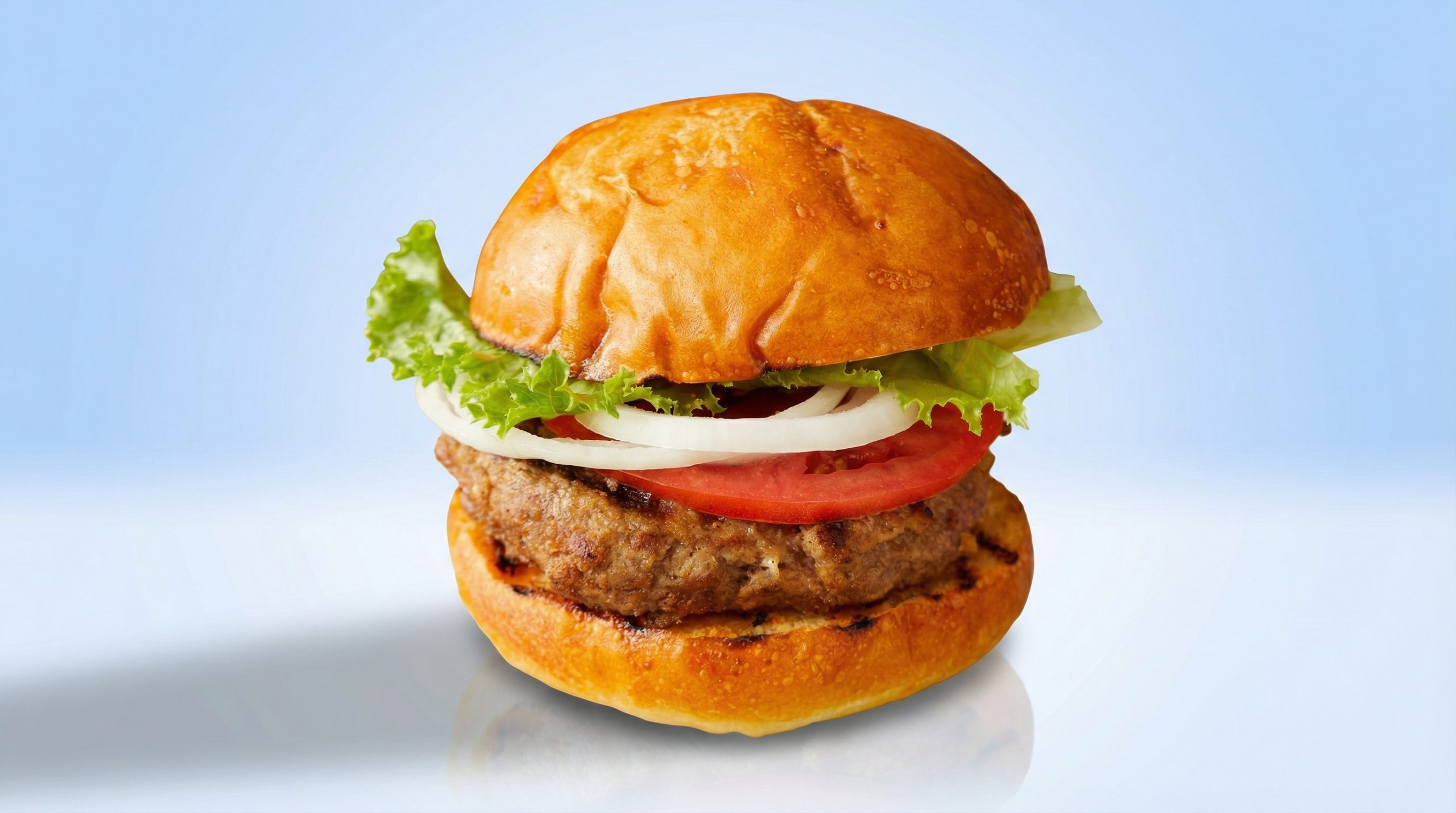
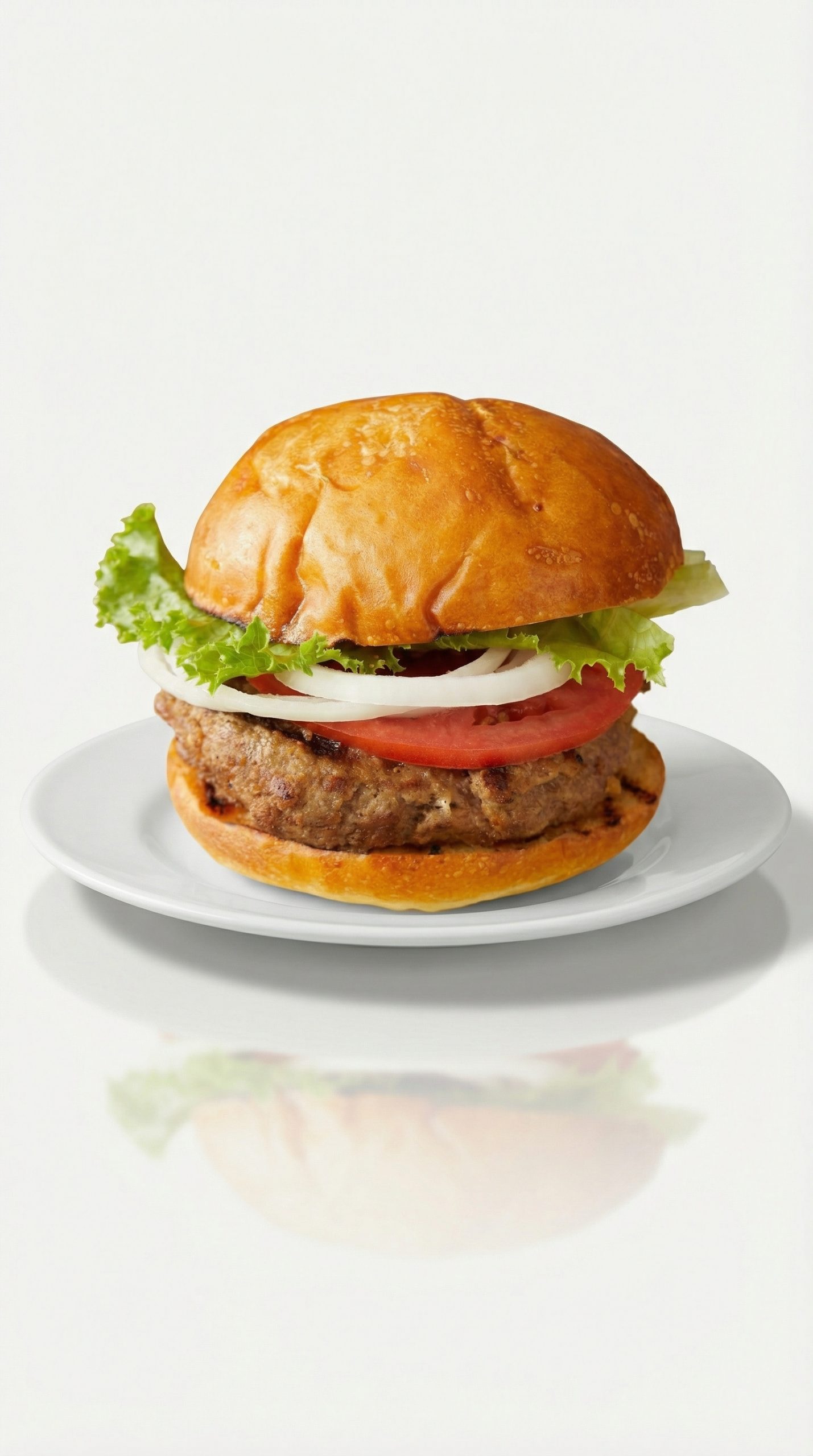
Pick this model after the product image has passed review and the question becomes placement. It is a fast way to explore crops and art direction before a designer implements a real section. For context on how themes shape an online storefront, see Shopify’s official theme documentation.
Step 3: Product Ads for a vertical motion concept
Product Ads turns a product image into an MP4 with a selected effect. The test used videoMode=std, ratio=9:16, and effectType=animate-products-soft-studio-balance. The finished clip shows the core value of the tool: a still can become a movement-led creative without filming a new take.
Pick Product Ads when the approved still needs attention in a vertical feed. It is not the right choice when a campaign needs exact product handling, dialogue, complex edits, or frame-perfect branding. Test several presets, then keep the one whose motion supports the item instead of competing with it. Google’s official video ad guidance is a useful reminder to match asset format to placement.
Where each model fits
- Start with Product Photoshoot when the source image needs a better scene, lighting direction, or shot type.
- Use Shopify Template Generator when the still is approved and the team needs wide or vertical layout ideas for a storefront or campaign.
- Use Product Ads when a proven still needs a short motion variation for vertical advertising.
The practical sequence is still image first, layout second, motion third. That sequence makes review easier because each model changes one layer of the creative problem. For adjacent tests, see product photography prompt tests, image editing tests, and text-to-video comparison tests.
Try the three tools with the same approved product photo: Product Photoshoot, Shopify Template Generator, and Product Ads.