GPT Image 2.6 Flare by OpenAI
OpenAI GPT Image 2.6 Flare generates or edits images from text and references. Tune quality, resolution, and complexity for fast creative iteration.


Overview
GPT Image 2.6 Flare is OpenAI’s image generation and editing model. It turns a written description into new images, or edits an existing image you provide. You can guide changes with a mask or a markup overlay, so the model knows what to modify. It’s built for fast iteration, so you can try ideas quickly and refine them in steps.
What you can build
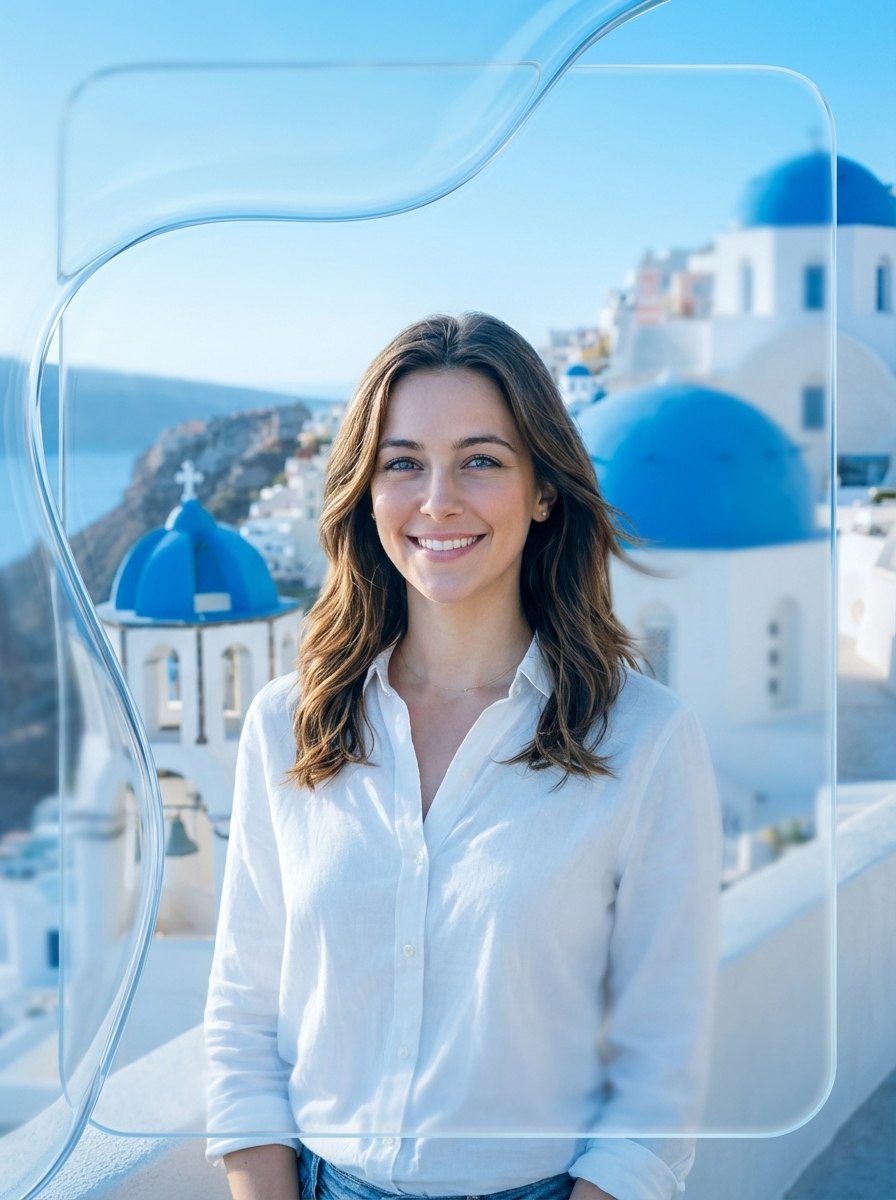
- Product photo edits like background swaps while keeping the product unchanged
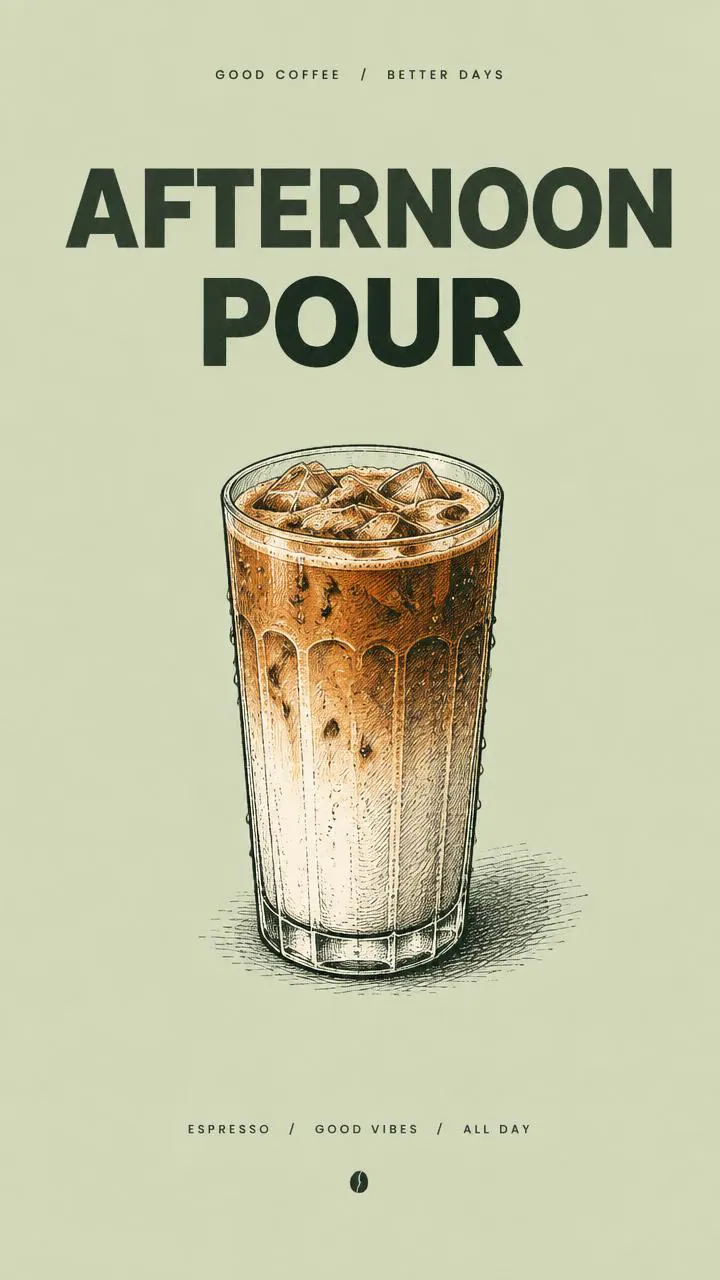
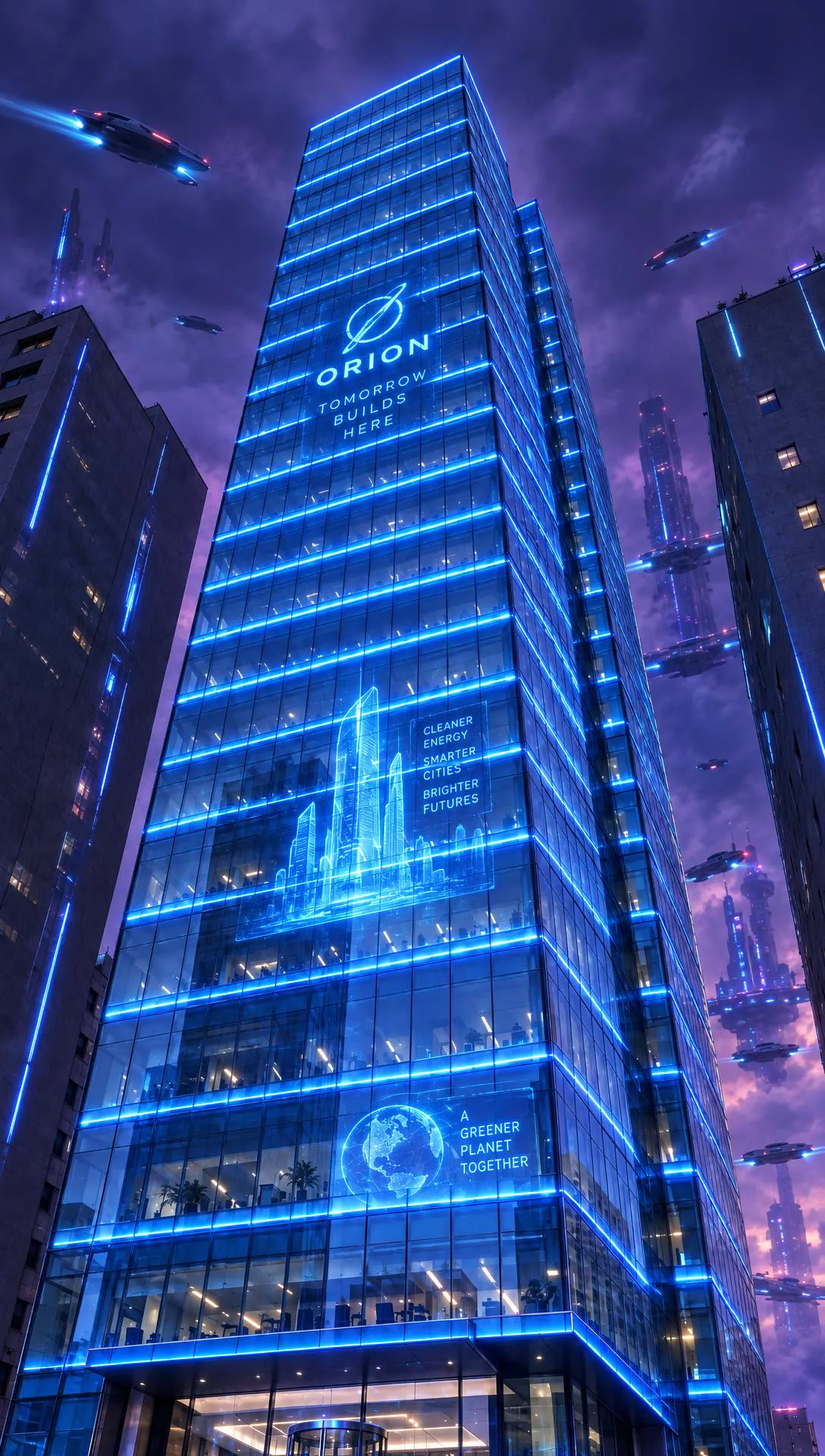
- Marketing creatives like posters, social banners, and ad concepts with consistent layout
- Concept art variations from one reference image and a detailed prompt
- Style transfer experiments using multiple reference images
- Precise retouching and object replacement using a mask
- Targeted changes guided by a simple drawn overlay, like arrows or circles
Inputs
- A required text description of what you want to generate or change. You can write long, detailed instructions up to 32,000 characters.
- Optional reference images to edit or to use as visual guidance. You can upload up to 16 images in a single request.
- An optional mask image for editing. Use a same-size image that marks areas you want changed. The mask should include transparency (an alpha channel).
- An optional markup overlay image for guided edits. Use a transparent PNG with simple marks like circles or arrows that point to the target area.
- An output resolution tier. Choose from 1K, 2K (experimental), or 4K (experimental).
- An aspect ratio preset that sets the exact pixel dimensions. Supported presets include: - 1:1 (square): 1024×1024 (1K), 2048×2048 (2K), 2880×2880 (4K)
- 3:2 (landscape): 1536×1024 (1K), 2400×1600 (2K), 3456×2304 (4K)
- 2:3 (portrait): 1024×1536 (1K), 1600×2400 (2K), 2304×3456 (4K)
- 4:3 (landscape): 1280×960 (1K), 2048×1536 (2K), 3200×2400 (4K)
- 3:4 (portrait): 960×1280 (1K), 1536×2048 (2K), 2400×3200 (4K)
- 16:9 (landscape): 1280×720 (1K), 2048×1152 (2K), 3840×2160 (4K)
- 9:16 (portrait): 720×1280 (1K), 1152×2048 (2K), 2160×3840 (4K)
- A quality level that controls detail. Options range from Low to Max.
- The number of images to generate, from 1 to 10.
- A complexity setting that controls how much the model plans the scene before rendering. Lower settings suit focused edits. Higher settings suit dense layouts and text.
- A background option for the output image. Use Auto for natural behavior, or force Opaque.
- An output file format. Choose PNG, JPEG, or WebP.
- A compression level from 0 to 100 for JPEG or WebP outputs.
- A moderation setting that controls how strictly content is filtered.
Outputs
The model returns one or more generated images.
- File types: PNG, JPEG, or WebP (based on your selection)
- Count: 1 to 10 images per run
- Dimensions: fixed by your chosen resolution tier and aspect ratio preset
- Content: either a brand-new image from your prompt, or an edited version of your provided image
Recommended settings
- Fast drafts and brainstorming: - Use 1K resolution, Low quality, and Low complexity.
- Photo edits that must preserve the original: - Use an input image plus a mask or markup overlay.
- Use Medium or High quality.
- Use Low complexity first. Raise complexity only if layout breaks.
- Posters, labels, and designs with lots of text: - Use High complexity and High to Max quality.
- Keep the text in quotes in your prompt.
- Final exports for print or detailed crops: - Use 4K resolution (experimental) and Extra High or Max quality.
Limitations
- Image edits require at least one input image.
- Mask-based edits work best when the mask matches the input image’s size and format, and includes transparency.
- Markup overlays work best as transparent PNGs with simple, bold marks.
- Higher complexity can change parts of the image you didn’t target. Compare outputs across complexity levels.
- 2K and 4K tiers are marked experimental. You may see more variability than 1K.
- Low-quality inputs can reduce edit accuracy. Blurry photos, heavy compression, or screenshots with artifacts can cause unwanted changes.
- Access to OpenAI image models may require organization verification, depending on your OpenAI account setup.
Safety & compliance
OpenAI applies safety checks to prompts and outputs. The model may refuse requests that include disallowed content.
- Don’t use the model to generate sexual content involving minors, or exploitative sexual content.
- Don’t request instructions or imagery that meaningfully enables wrongdoing.
- Don’t try to create deceptive or harmful impersonations of real people.
- Use stricter moderation when you publish outputs or run user-generated prompts.
- Review your use case against OpenAI’s usage policies before deploying to end users.
Example prompts
Great starting points for gpt image 2.6 flare.
API quick start
Run gpt image 2.6 flare with a single API call.
{
  "prompt": "Turn this fruit bowl into a tiny-people m…",
  "resolution": "1k",
  "ratio": "16:9",
  "quality": "low"
}
curl -X POST "https://api.wiro.ai/v1/Run/openai/gpt-image-2-6-flare" \
-H "Content-Type: application/json" \
-H "x-api-key: YOUR_WIRO_API_KEY" \
--data-binary @- <<'JSON'
{
"prompt": "Turn this fruit bowl into a tiny-people m…",
"resolution": "1k",
"ratio": "16:9",
"quality": "low"
}
JSONOther models you might like
Explore similar image generation models.